This article describes how to configure remote access to a SQL Server (EXPRESS).
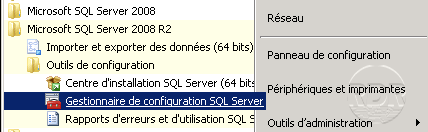
1. Open the SQL Server Configuration Manager.
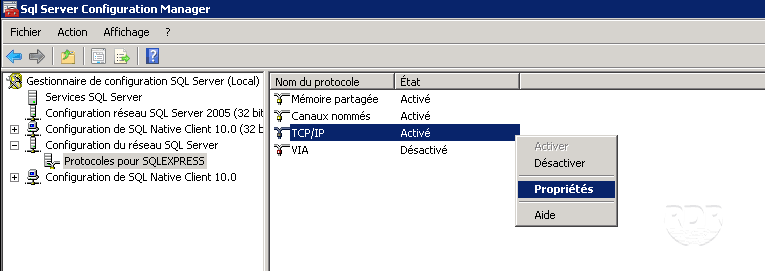
2. Go to SQL Server Network Configuration / Protocols for SERVER NAME, then right-click TCP / IP and click Properties.
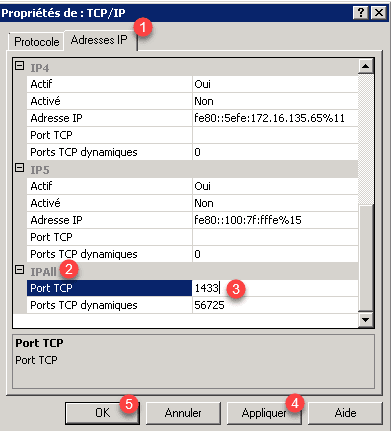
3. Go to the IP Addresses 1 tab and then search for the IPAll 2 section. Enter the port number 3 (default 1433) and click on Apply 4 then OK 5 .
If a firewall is active, think about opening the port.
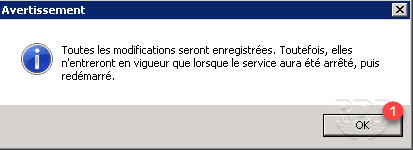
4. Close the warning message by clicking OK 1 .
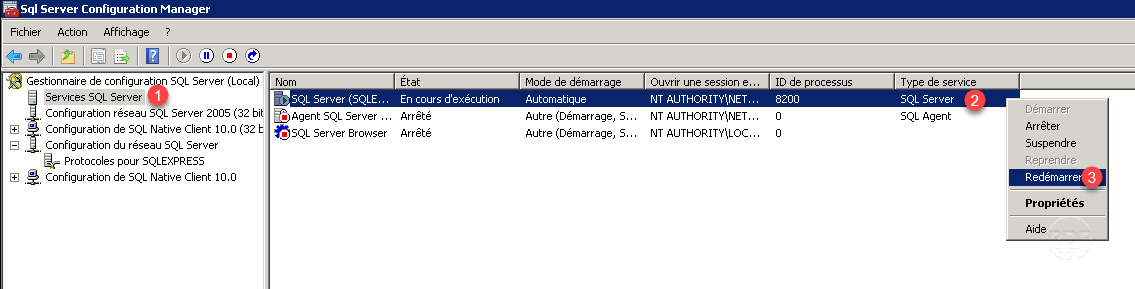
5. Go to SQL Server Services 1 , right-click the SQL Server 2 service, and click Restart 3 .
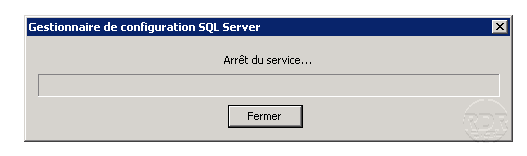
6. Wait while restarting …
7. For example, you can use SSMS from a remote server.

