Enable remote desktop from command line
In this tutorial how, we will see how to activate the remote desktop from the command line. Activating the remote desktop can be done from the command line by modifying a key, so we will use the command line utility reg.exe to modify the registry and thereby activate the remote desktop.
Open a command prompt as an administrator.
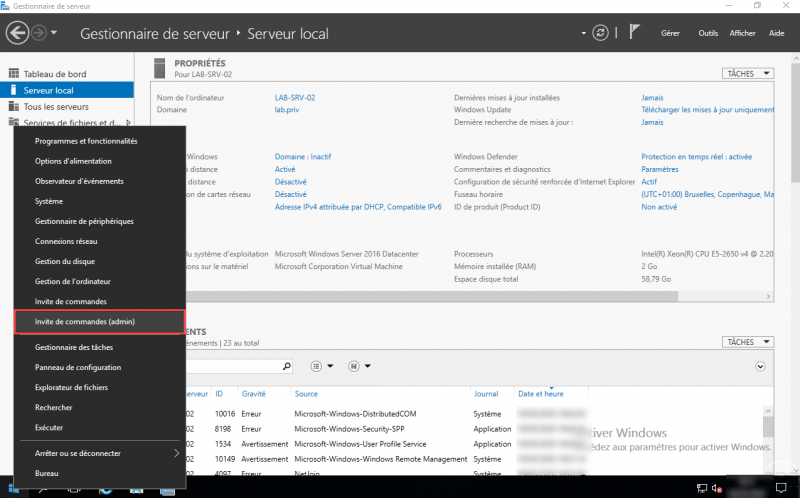
Open a command prompt as an administrator.
Enter the command line below to modify for the fDenyTSConnections key to activate the remote desktop
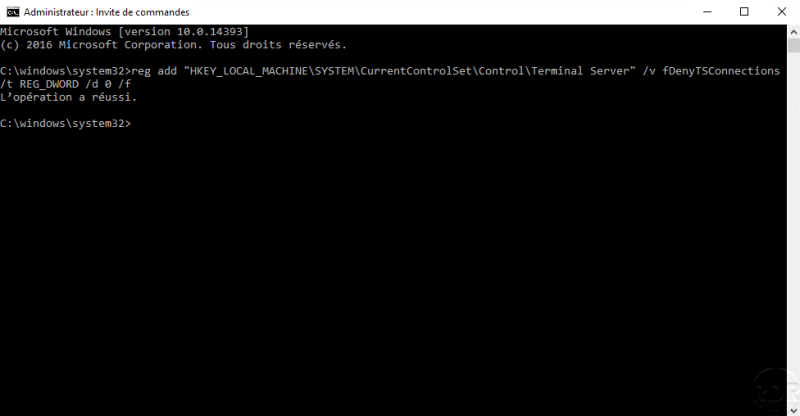
Enter the following command to activate the remote desktop :reg add "HKEY_LOCAL_MACHINE\SYSTEM\CurrentControlSet\Control\Terminal Server" /v fDenyTSConnections /t REG_DWORD /d 0 /f
Remote desktop is enabled
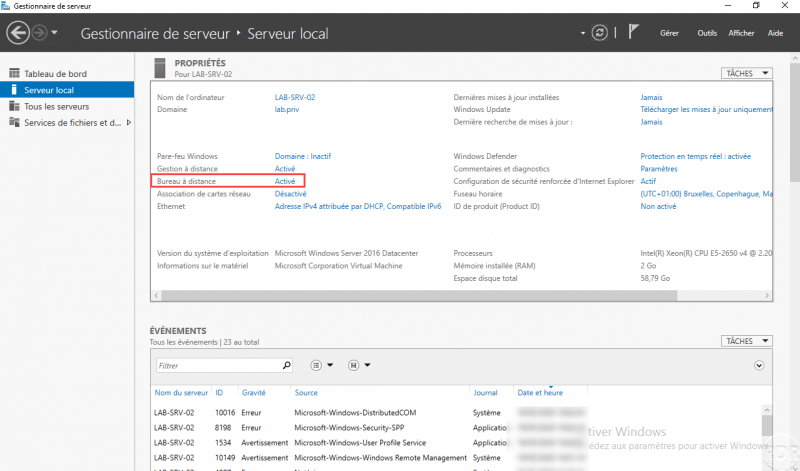
It is now possible to connect in remote office on the computer.
