Activate remote desktop on Windows 10
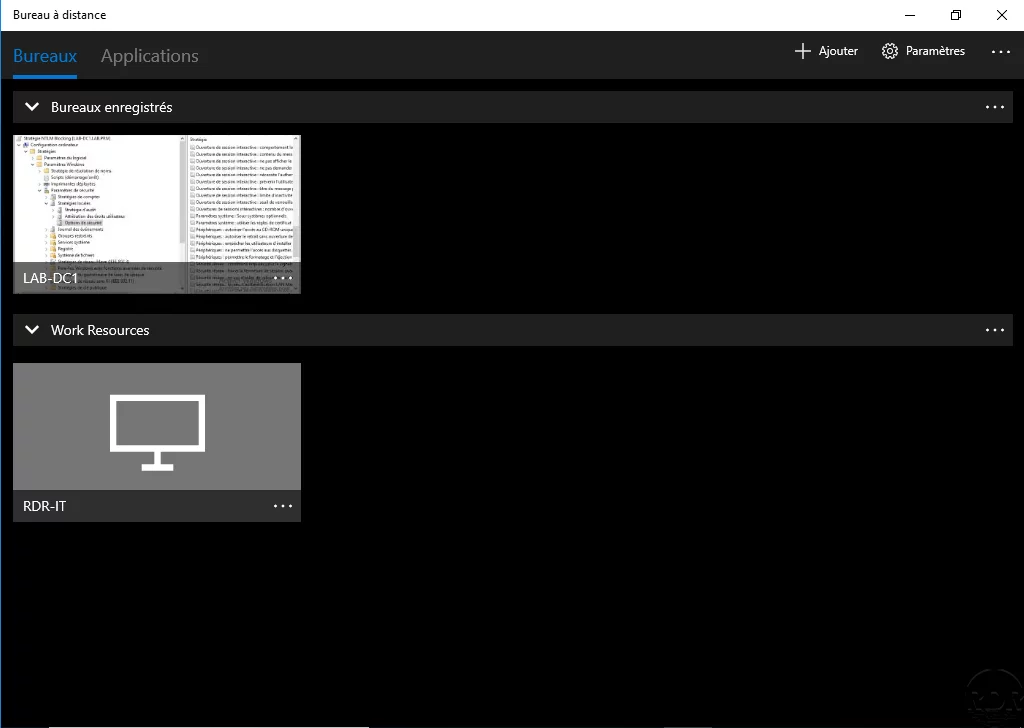
In this tutorial “how to”, we will see how to activate the remote desktop on Windows in order to connect to it using the RDP protocol.
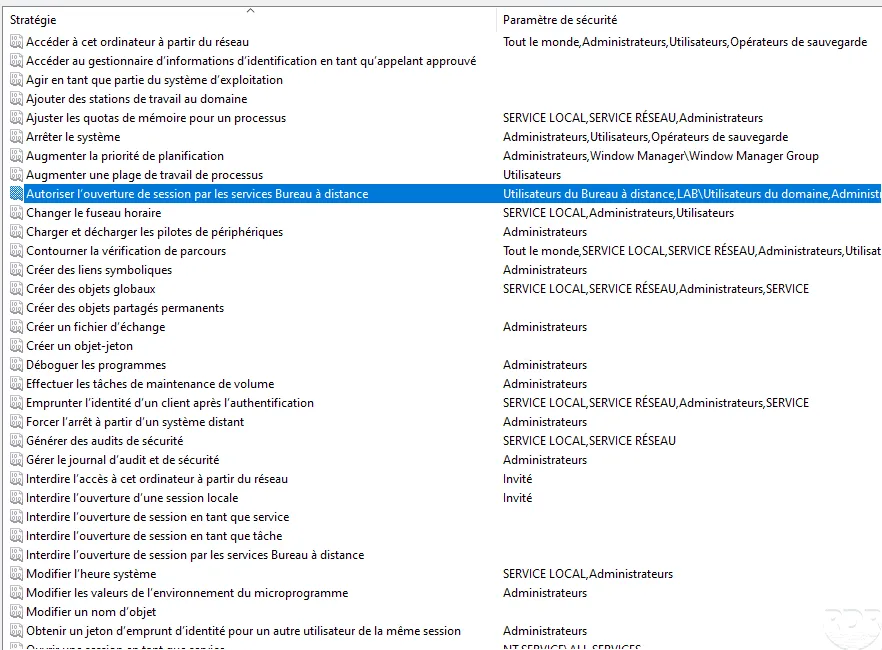
To log in, the user account must be a member of the Administrators or Remote Desktop Users group and must have a password.
Open the file explorer
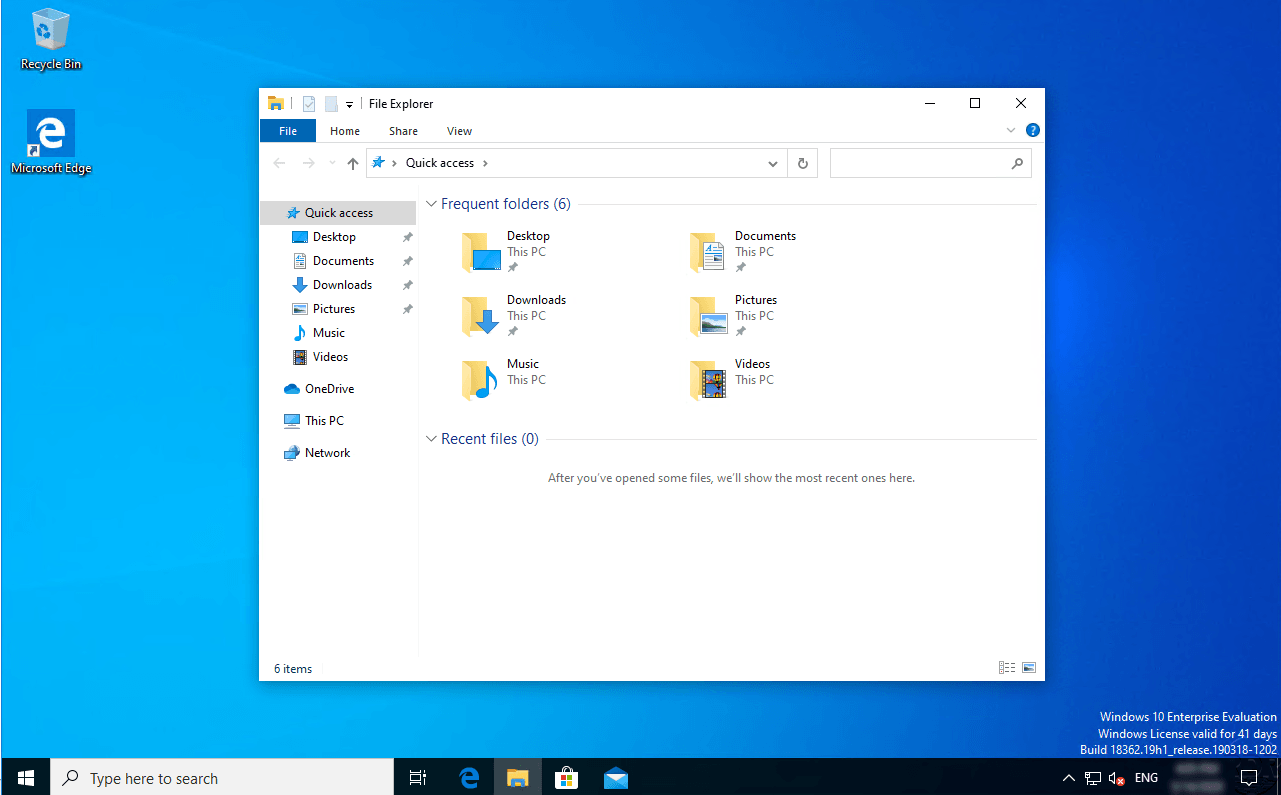
Open Windows file explorer (Windows + E).
Access computer properties
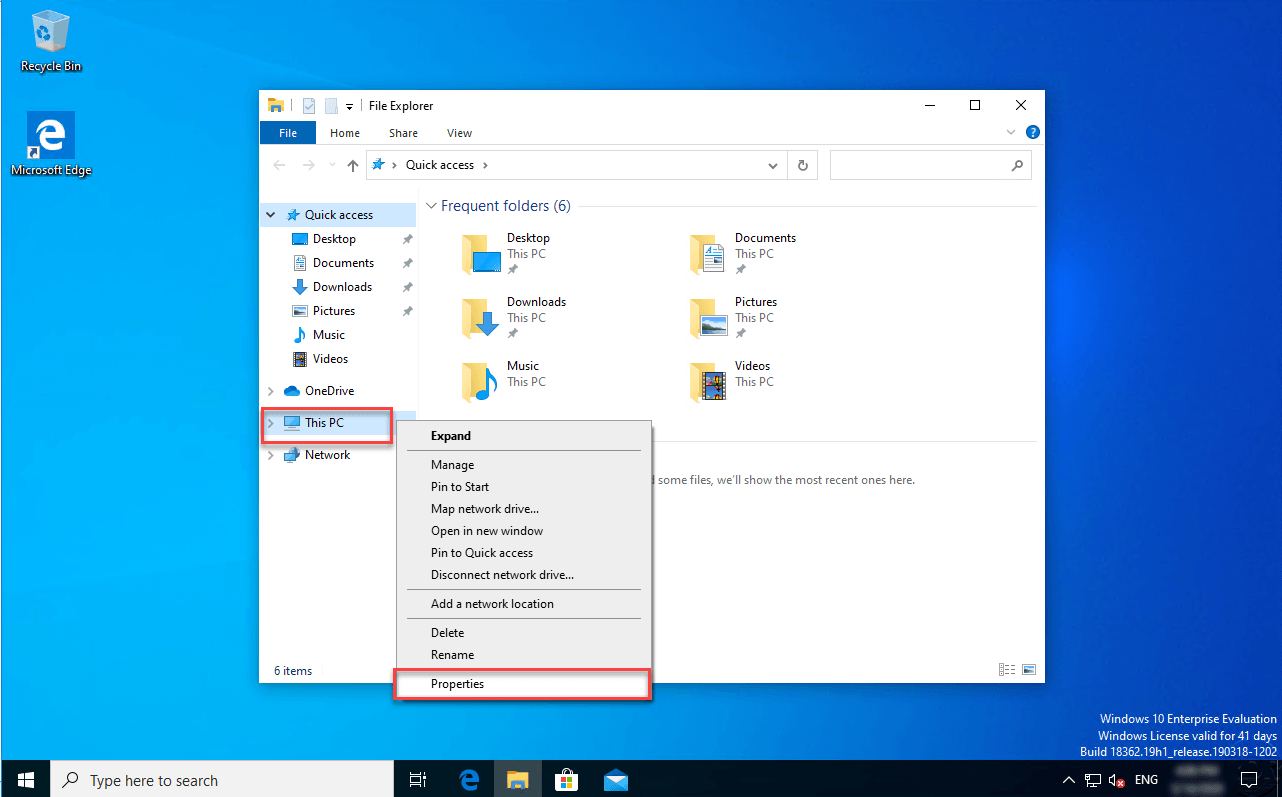
Right click on This PC and click on Properties.
Open Remote Use Settings from the system window
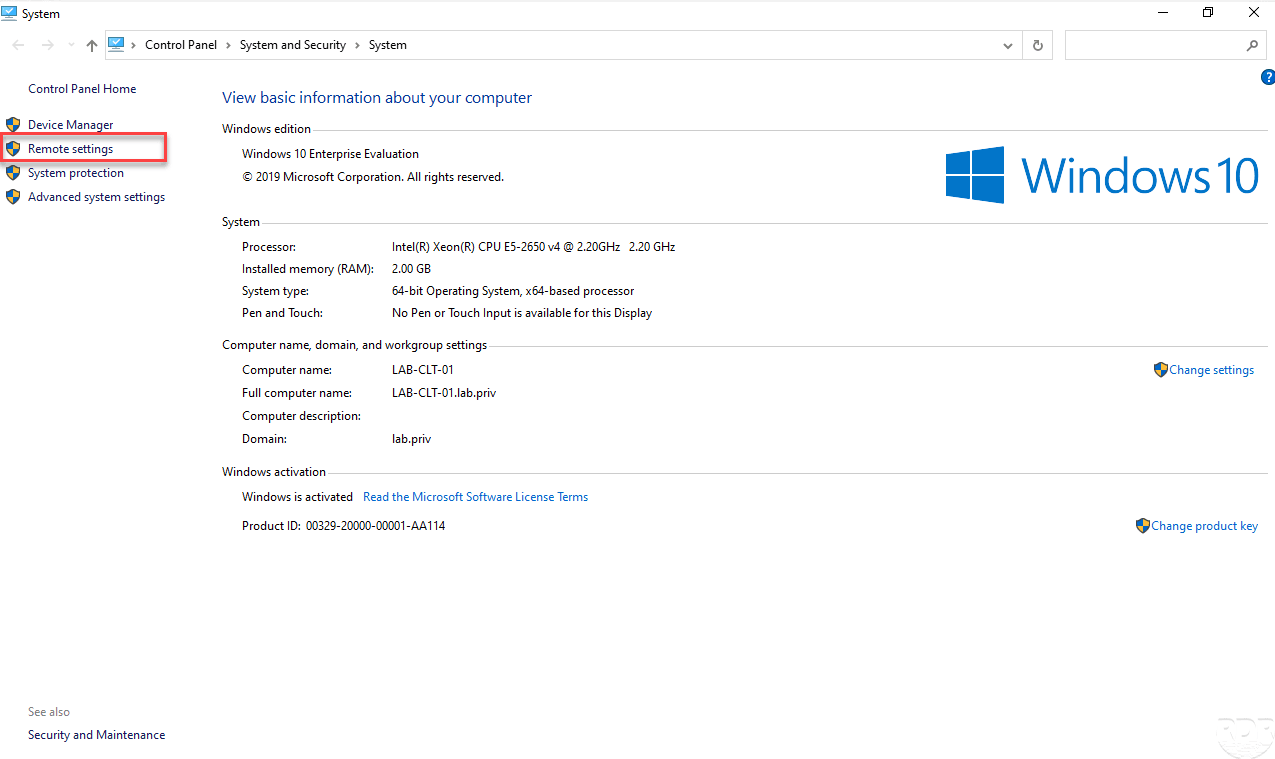
On the system window, click on Remote settings.
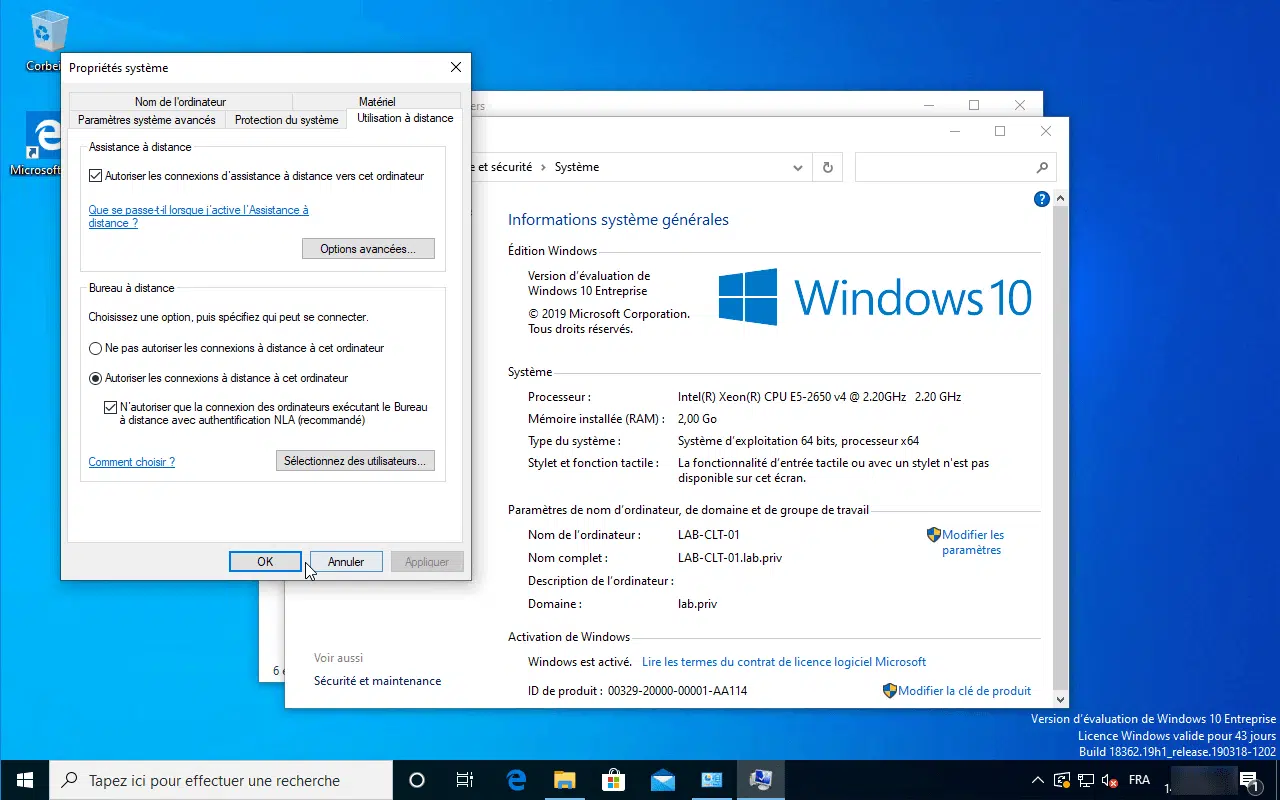
Enable remote desktop by selecting Allow remote connections to this computer
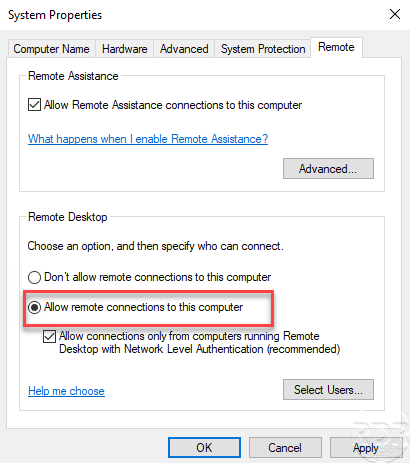
In the system properties on the Remote use tab, choose the Allow remote connections to this computer option and validate the settings by clicking on Apply and OK.