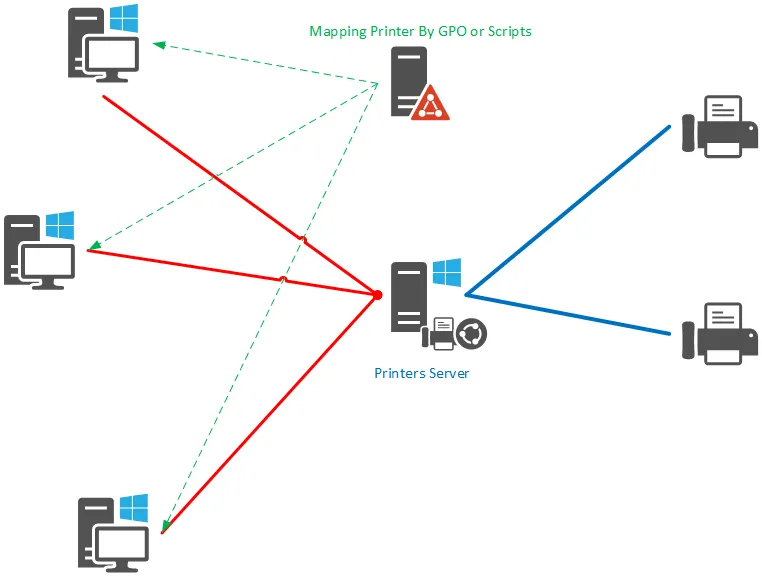
When setting up a Active Directory environment, one of the most common needs is to facilitate user access to shared resources. Rather than manually configuring each workstation, it is possible to automate the mapping of network drives upon login.
This automation makes it possible to standardize workstations, reduce configuration errors and simplify file access management.
In this tutorial, we will look at two methods for mapping a network drive:
- using group strategy (GPO), which is the recommended method
- using a script executed at login
We will also see how to limit access to a network drive based on user groups in order to dynamically adapt the available resources.
Prerequisites:
- Being in a Active Directory environment.
- Have a shared folder accessible to the users to whom it will be mapped.
Why automate network drive mapping?
In a professional environment, automating network drive mapping ensures consistency across user workstations and significantly simplifies administration. Users automatically find their drives without manual configuration, reducing support requests.
This approach also allows network drives to be adapted according to services or security groups, which is particularly useful in structured environments (HR, accounting, IT, etc.).
Network drive mapping via GPO - Group Policy
Using Group Policy Objects (GPOs) is currently the most recommended method for mapping network drives in a Active Directory environment. It allows for centralized management, automatic application of settings, and great flexibility thanks to targeting options.
Unlike scripts, this method does not depend on the execution of code and integrates directly into native Windows mechanisms.
1. Open the Group Policy Editor on a domain controller.

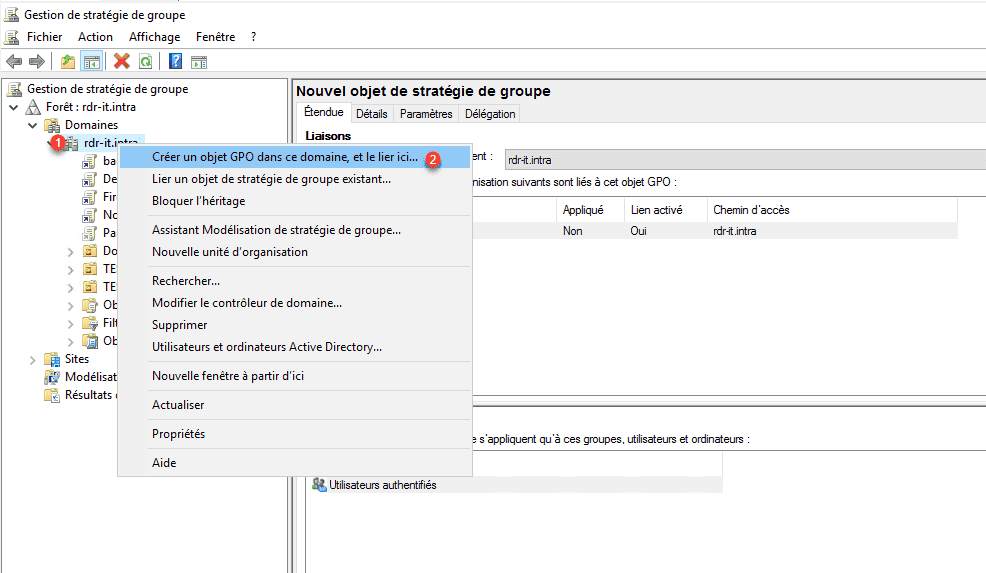
2. Create a new strategy, right-click on the domain name 1 or on an organizational unit and click on Create a GPO object in this domain, and link here 2 .
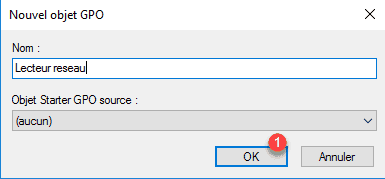
3. Give it a name with strategy and click OK 1 .
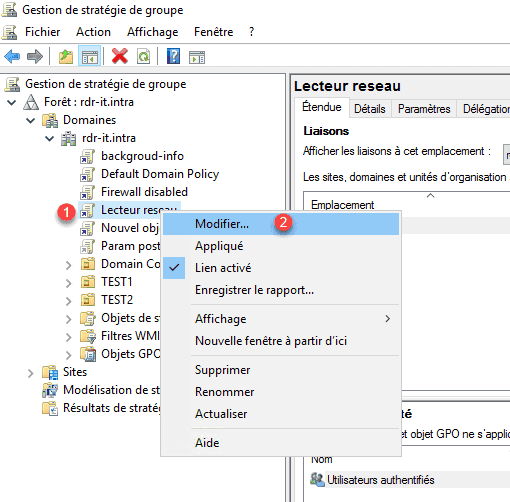
4. Right-click on strategy 1 and click on Edit 2 to open the editor.
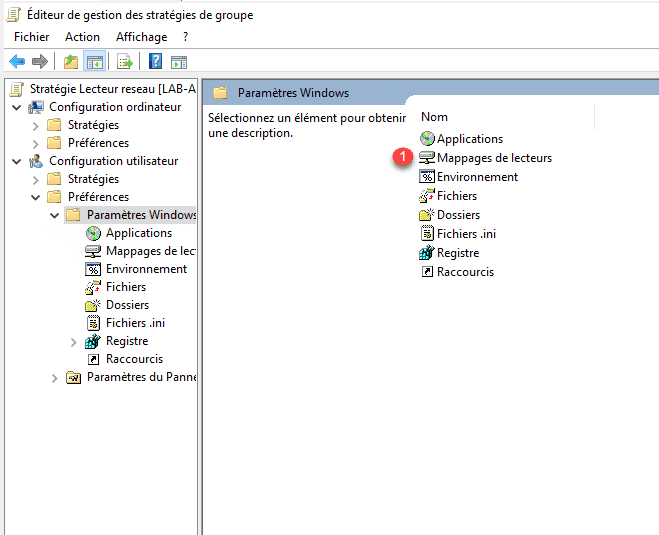
5. Go to User Configuration / Preferences / Windows Settings and double-click on Drive Mappings 1 .
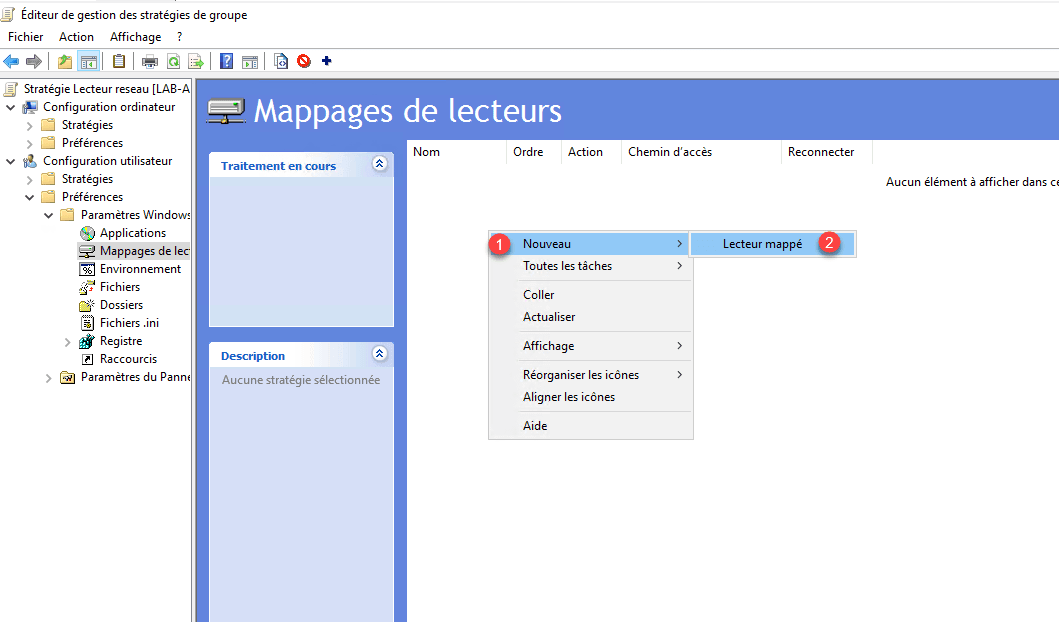
6. Right-click New 1 / Mapped Drive 2 .
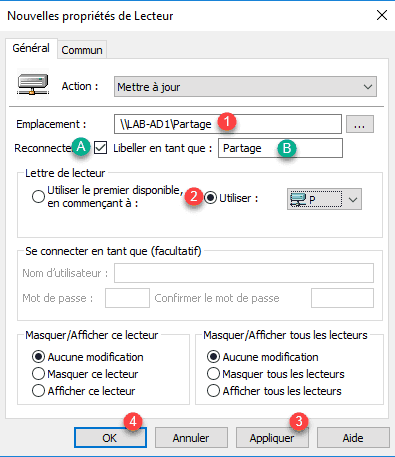
7. Fill out the form:
- 1 Enter the UNC path of the network share (for example: \\server\share). This path must be accessible by users and the permissions must be correctly configured on the server side.
- 2 Indicate the letter used
- 3 Apply
- 4 OK
- <<<A>> and <<<B>> to label the network drive
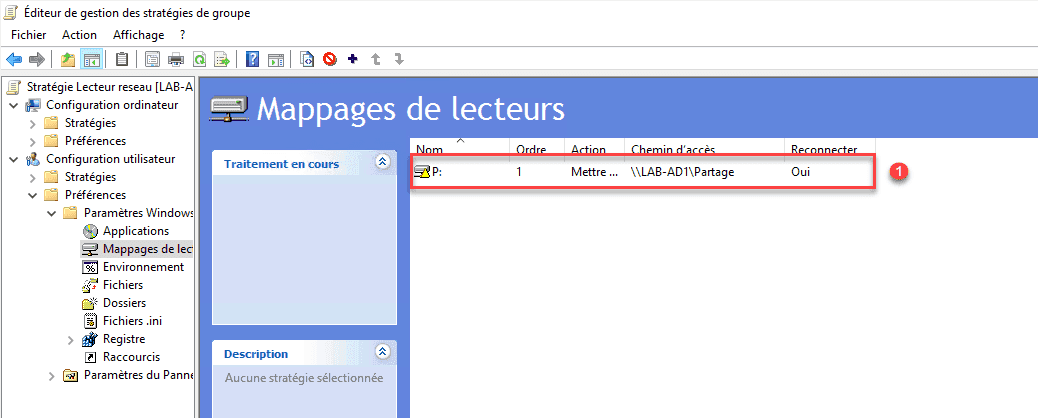
8. The drive 1 must be visible in Drive Mappings.
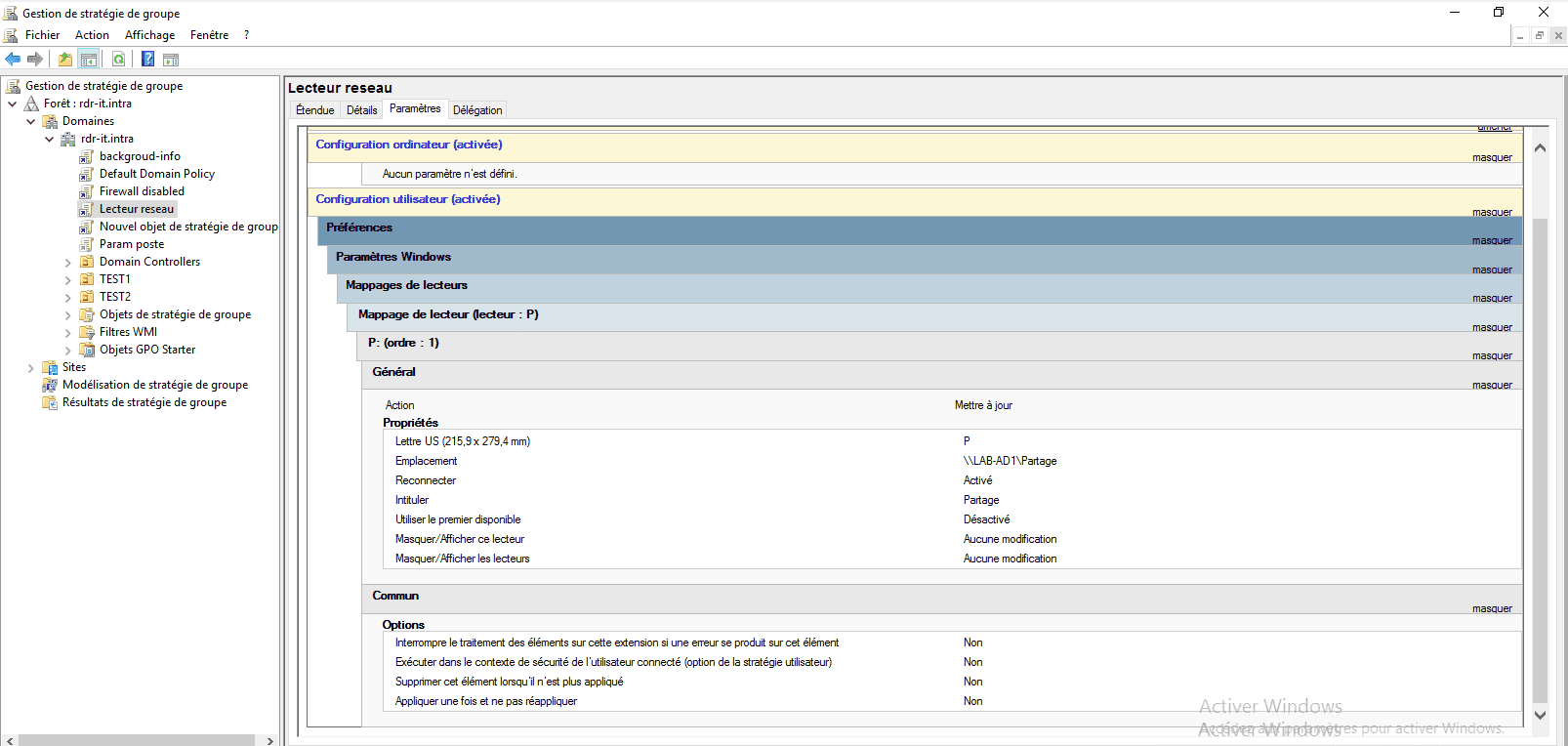
9. GPO summary, by default the drive is mapped to all users.
Limit network drive mapping to a group using element-level targeting
Element-level targeting allows control over which users will see the network drive, but it does not replace permission management.
It is essential to correctly configure NTFS permissions and share permissions on the folder in question. Group Policy targeting only affects the display and mapping of the drive, not the actual security of the data.
For clean, scalable management, it is recommended to use security groups rather than directly assigning users.
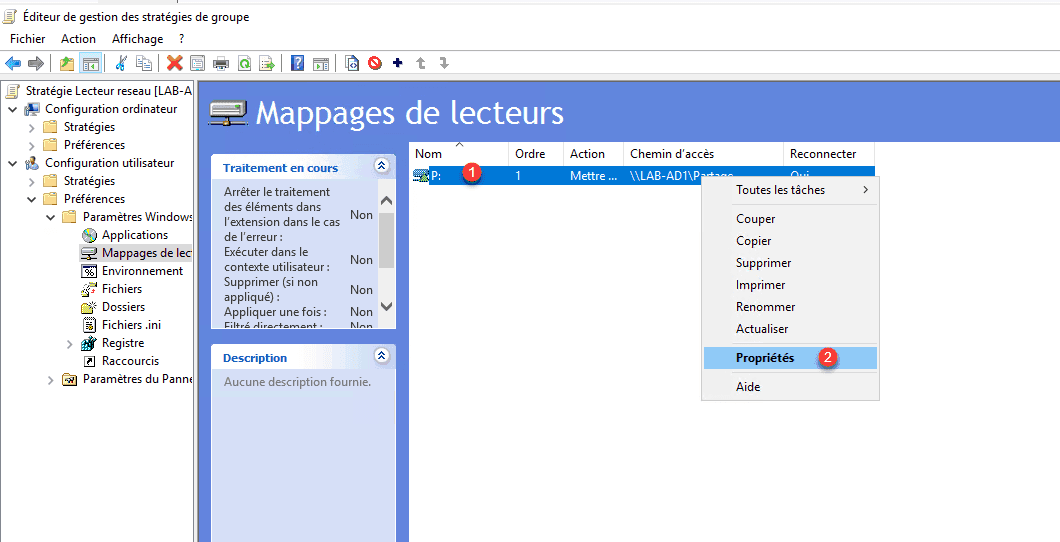
1. Edit your player by right-clicking on it 1 and selecting Properties.
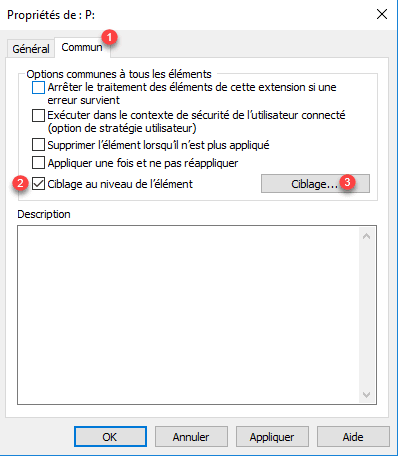
2. Go to the Common tab 1 , check “Element-level targeting” 2 and click on Targeting 3 .
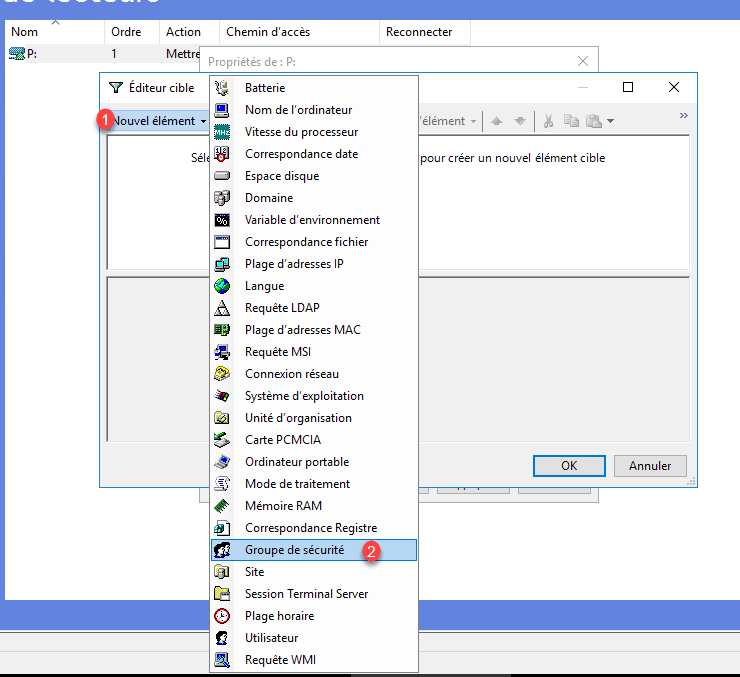
3. Click on New item 1 and select Security group 2 .
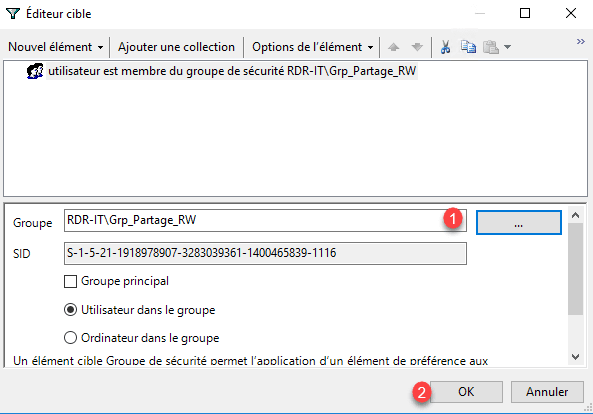
4. Add your group 1 and click OK 2 .
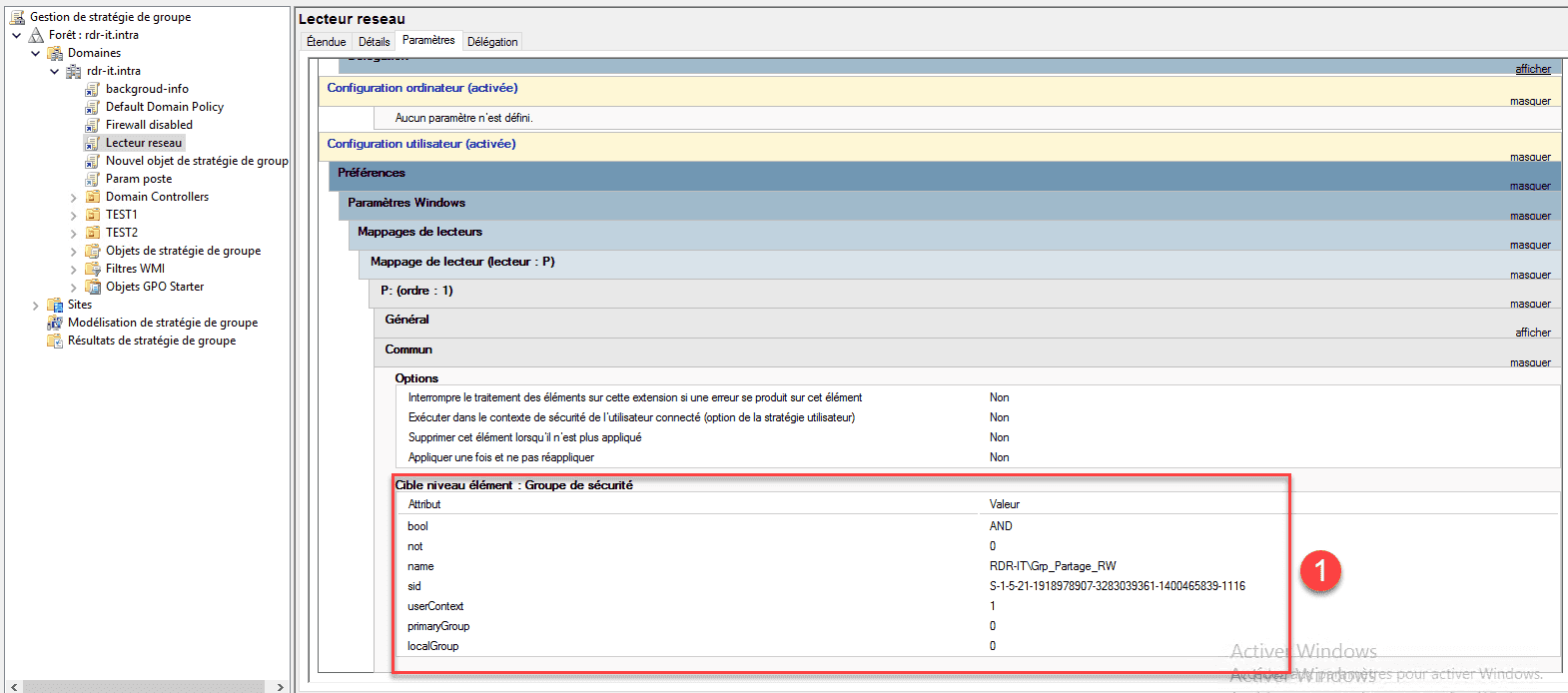
5. That’s it, drive P will now only be mapped to users in the Grp_Partage_RW group. If you return to the policy settings overview, you can see the targeting elements 1 .
PowerShell script to map a network drive
The script presented in this tutorial is written in VBS.
In future versions of Windows 11, the VBS language will become an optional feature because the VBS language is now deprecated.
You will find the following in the following article:PowerShell Logon Script , an example of a script written in PowerShell.
Source : Resources for deprecated features
1. Create a new PowerShell .ps1 file
2. Edit the file and add the codes below:
$Drive = "P:"
$Path  = "\\LAB-AD1\partage"

# Vérifie si le lecteur P: est déjà utilisé
if (!(Get-PSDrive -Name $Drive.Replace(":", "") -ErrorAction SilentlyContinue)) {
    New-PSDrive -Name $Drive.Replace(":", "") -PSProvider FileSystem -Root $Path -Persist
} else {
    Write-Host "Le lecteur $Drive est déjà connecté."
}
3. Add the script to thelogin via group policy to perform the network drive mapping.
Limit reader mapping to one group per script
As with the GPO, we will now modify the script to limit the network drive mapping to the Grp_partage_RW group.
1. Edit the file:
# 1. Gestion des erreurs (On Error Resume Next)
$ErrorActionPreference = "SilentlyContinue"

# 2. Définition des variables
$Drive     = "P"
$Path      = "\\LAB-AD1\partage"
$GroupName = "Grp_Partage_RW"

# 3. Récupération des jetons de groupe de l'utilisateur (Méthode rapide sans module AD)
$Identity  = [Security.Principal.WindowsIdentity]::GetCurrent()
$Principal = New-Object Security.Principal.WindowsPrincipal($Identity)

# 4. Vérification du groupe et mappage
if ($Principal.IsInRole($GroupName)) {

    # On vérifie si le lecteur P: existe déjà pour éviter l'erreur de collision
    if (!(Get-PSDrive -Name $Drive)) {

        # New-PSDrive avec -Persist pour l'affichage dans l'Explorateur Windows
        New-PSDrive -Name $Drive -PSProvider FileSystem -Root $Path -Persist

    }
}
As you can see, we’ve added two functions to the end of the code that allow us to check the logged-in user’s group membership. The reader mapping is now conditionally (if).
Troubleshooting: Common network drive mapping problems
Although network drive mapping is relatively simple to set up, it frequently doesn’t work as expected. Here are the main points to check if you encounter a problem.
If the network drive is not displayed, the first thing to check is the application of the Group Policy. It’s possible that the GPO is not correctly linked to the organizational unit or that the user is not affected by it. To verify this, you can use the command gpresult /r or rsop.msc to see which policies are actually applied to the computer.
Another crucial point concerns access rights. Even if the drive is correctly mapped, it may be inaccessible if the NTFS or share permissions are not properly configured. It is therefore important to verify that the user or their group has the necessary permissions on the shared folder.
The network path is also a frequent source of error. A mistake in the UNC path (for example, \\server\share) will prevent the drive from being mapped. It is recommended to test this path directly from Windows Explorer to verify its accessibility.
In the case of group targeting, it is essential to ensure that the user is a member of the security group used in the GPO. Replication delays in Active Directory must also be considered, as these can delay the implementation of changes.
Windows Event Viewer is a very useful tool for diagnosing mapping issues. By consulting the newspapers in Application and Services Logs > Microsoft > Windows > Group Policy > OperationalIt is possible to precisely identify errors related to the application of GPOs. These events help to understand why a network drive has not been mapped, particularly in the case of targeting, permissions, or configuration problems.
If you are using a login script, keep in mind that it will only be executed when the user logs in. Unlike Group Policy Objects (GPOs), the gpupdate command cannot rerun a script that has already been executed. Therefore, the user must log out and then log back in to apply the changes.
Finally, on recent versions of Windows, some problems may be related to security restrictions or the evolution of the technologies used. As the VBS language is being phased out, it is recommended to favor solutions based on Group Policy Objects (GPOs) or PowerShell to ensure better long-term compatibility.
For more in-depth analysis, you can enable advanced logging in Group Policy or use tools like gpresult /h to generate a detailed HTML report. This provides a complete view of the applied settings and facilitates diagnosis in complex environments.
Conclusion
Network drive mapping is an essential configuration in a Active Directory environment. Although several methods exist, using Group Policy remains the simplest, most reliable, and easiest-to-maintain solution today.
Login scripts can still be used in certain specific contexts, but they tend to be replaced by more modern solutions, particularly those based on PowerShell or Group Policy preferences.
For a clean and scalable infrastructure, it is recommended to favor GPOs with targeting based on security groups.
FAQs
Why isn't my network drive mapping?
Can the mapping be applied without restarting the computer?
gpupdate /force, but this does not restart the logon scripts. In this case, a user logon is required.