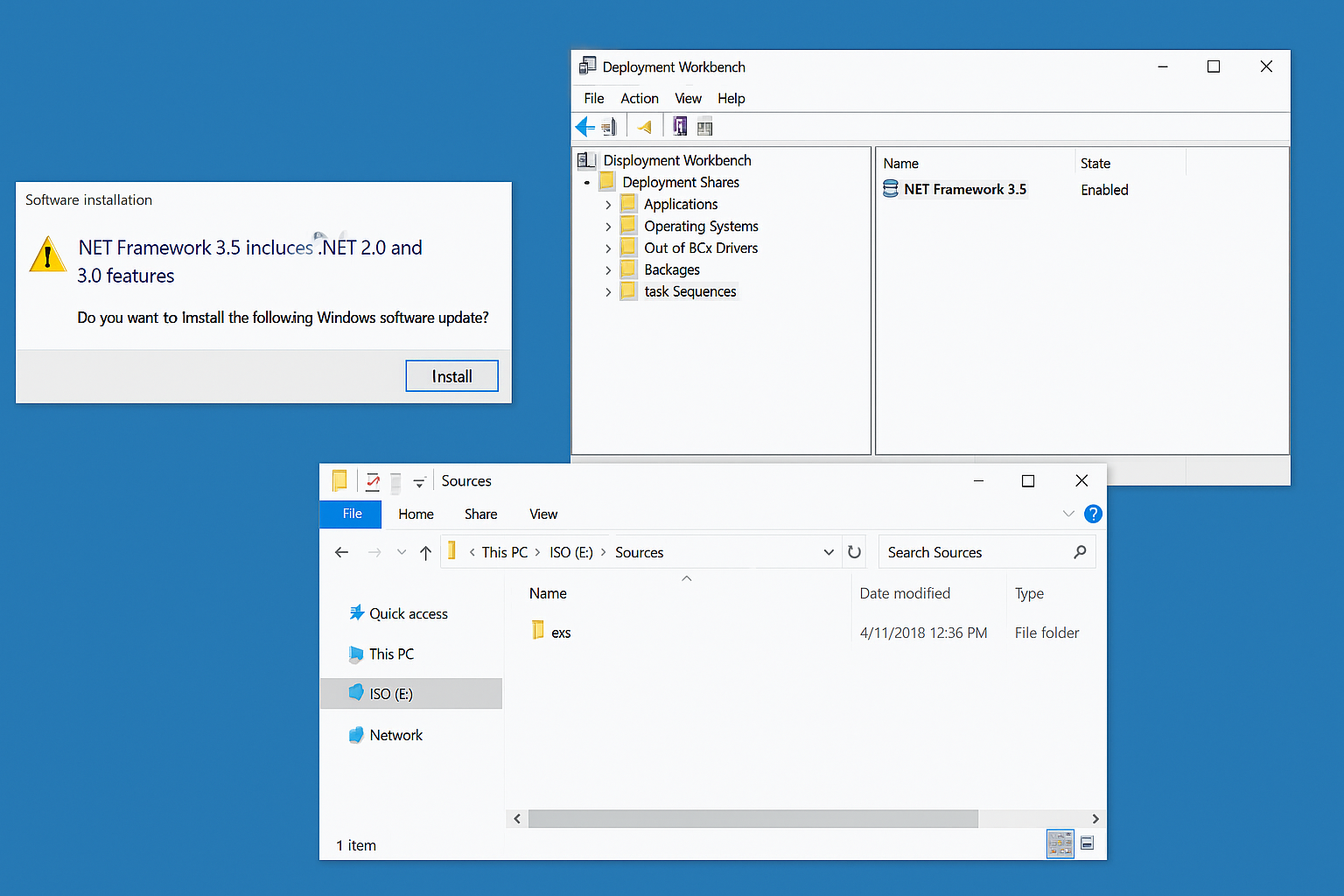
During the deployment of Windows with MDT (Microsoft Deployment Toolkit), it is common to need the .NET Framework 3.5 to run certain business applications or legacy scripts. However, this feature is not activated by default in recent editions of Windows, which can lead to errors from the first start of the OS or during the installation of dependent software.
In this tutorial, we’ll see how to integrate the automatic installation of the .NET Framework 3.5 directly into the MDT task sequence. Whether you’re using a custom image or an official ISO, the method presented will allow you to deploy ready-to-use machines without any manual post-installation action.
In this tutorial, I used the Windows 11 24H2 ISO sources and the installation is run from a PowerShell script.
Preparing the application with DotNet35 for MDT
To begin, create a folder that will contain all the “sources”, that is, the DotNet35 .cab file and the scripts that will be executed.
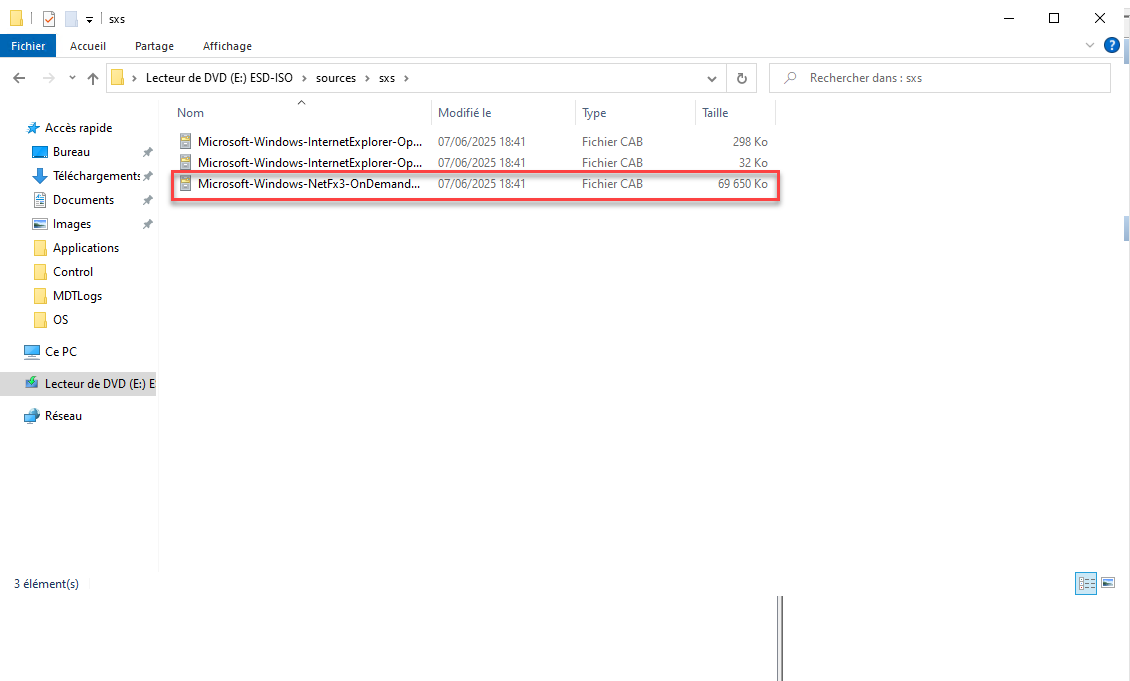
From the Windows ISO, go to the sources\sxs folder where the cab file for installing Framework 3.5 is located.
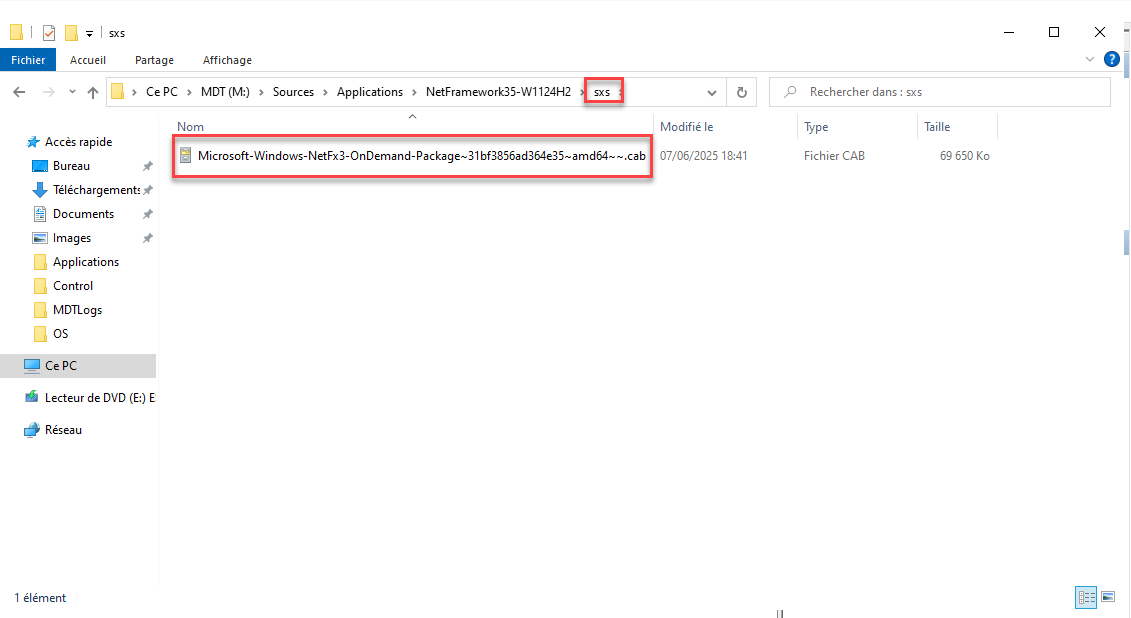
In the folder created as the source for the application in MDT, create an sxs folder and paste the .cab file.
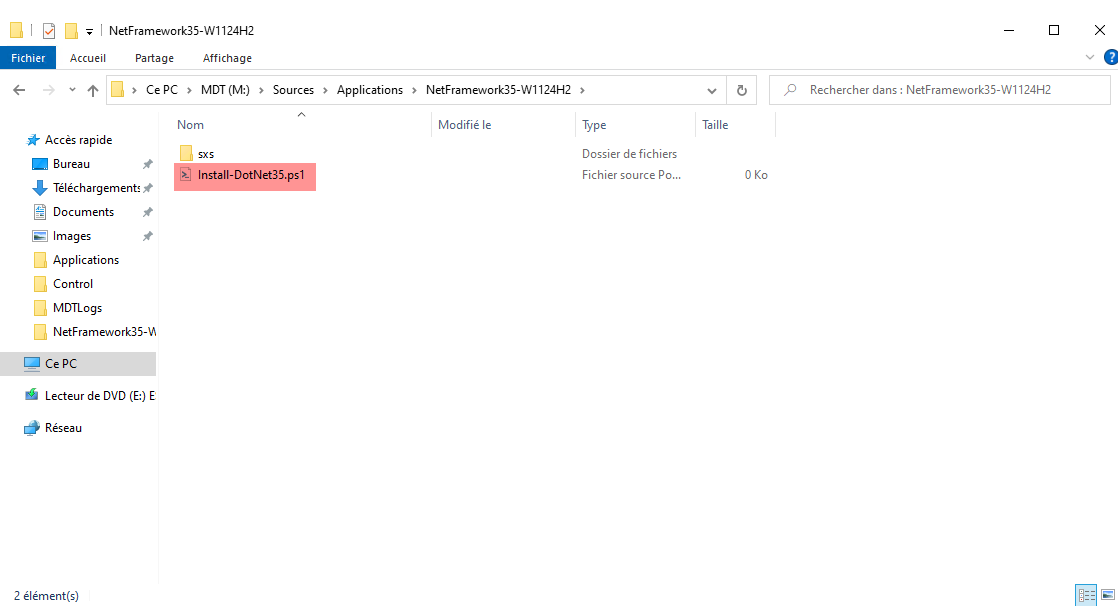
Return to the application folder and create the following file; Install-DotNet35.ps1 which will contain the installation script.
Here is the content to paste into the file:
$source = "$PSScriptRoot\sxs"
$local = "C:\Temp\sxs"

# Creer le dossier local
if (-Not (Test-Path -Path $local)) {
    New-Item -Path $local -ItemType Directory | Out-Null
}

# Copier les fichiers en local
Copy-Item -Path "$source\*" -Destination $local -Recurse -Force

# Activer la fonctionnalite .NET 3.5
DISM /Online /Enable-Feature /FeatureName:NetFx3 /All /LimitAccess /Source:$local

# Supprimer les fichiers sxs locaux si besoin
Remove-Item -Path $local -Recurse -Force
Create a new file named setup.bat which we will use in MDT to launch the PowerShell file.
Contents of setup.bat:
powershell.exe -ExecutionPolicy Bypass -File "Install-DotNet35.ps1"
The application’s source code is ready.
Add the DotNet35 installer application to MDT
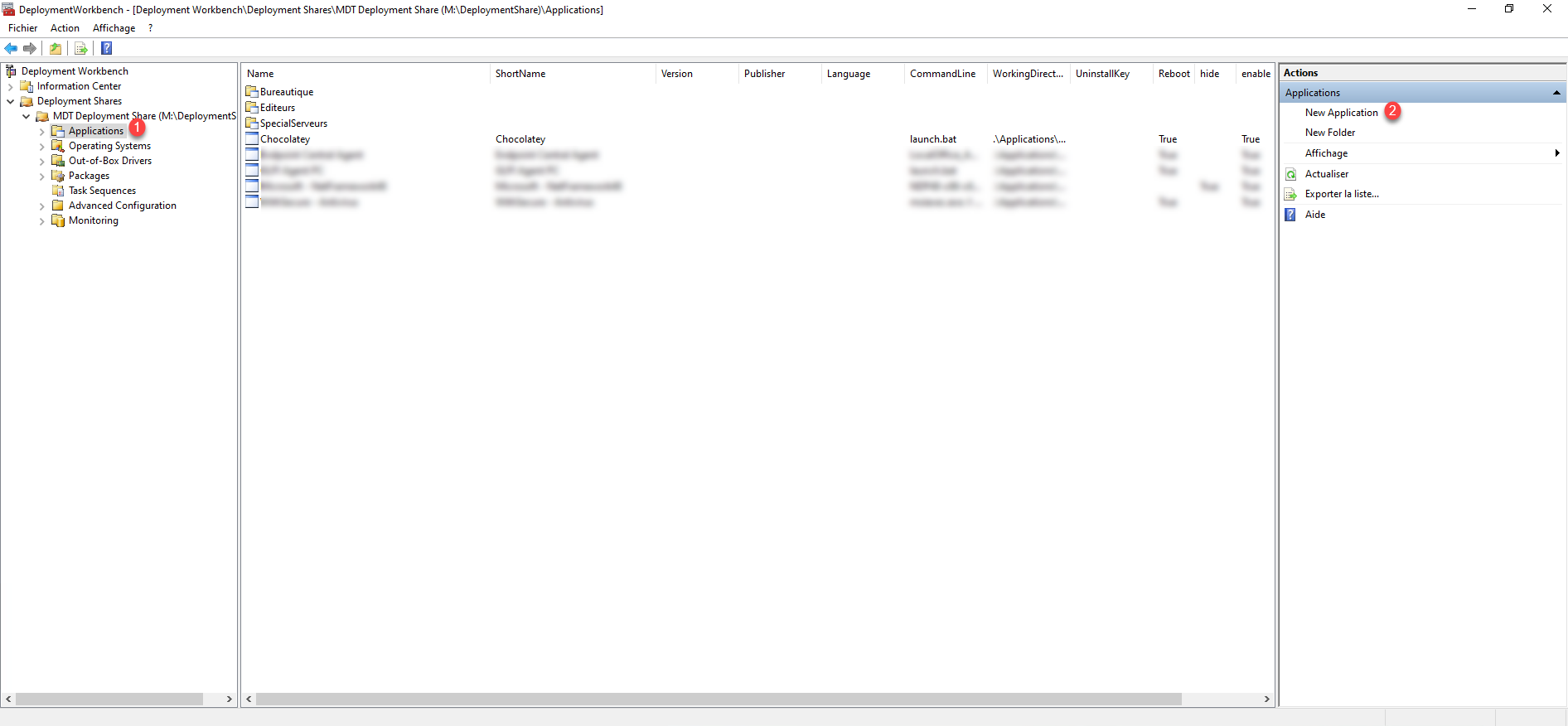
From the MDT console, go to the Applications folder 1 and click on New Application 2 .
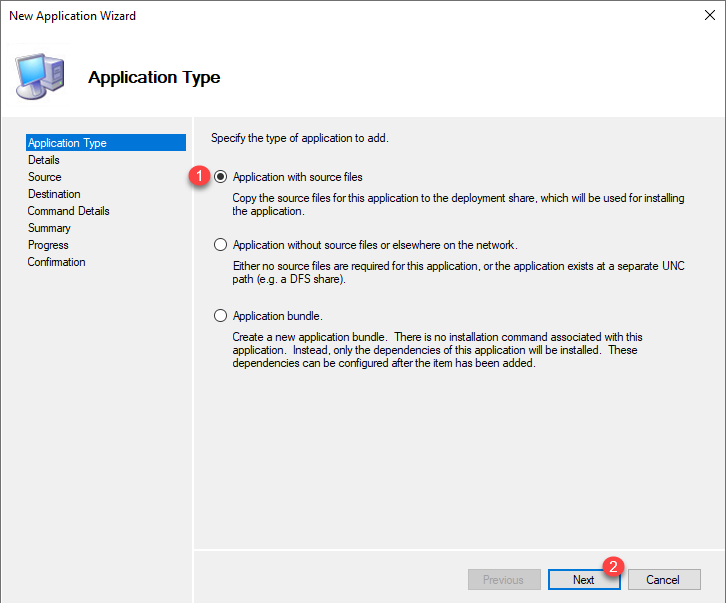
When launching the assistant, choose Application with source files 1 then click on Next 2 .
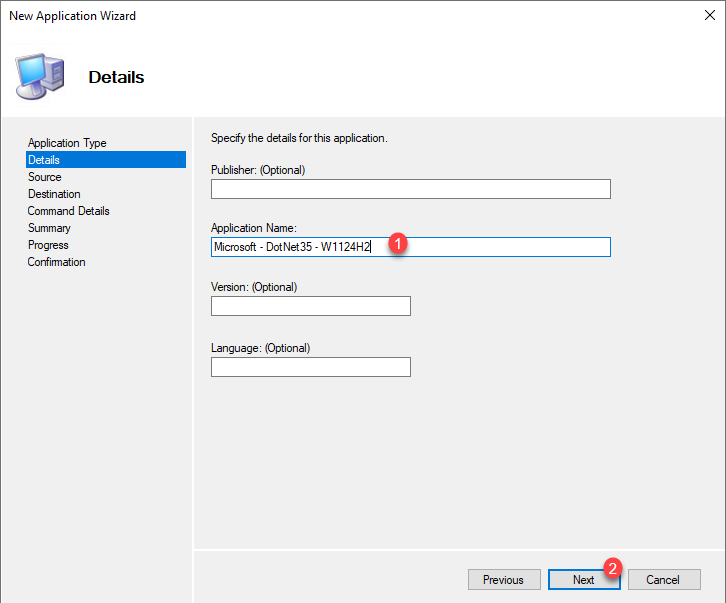
Name the application 1 and click on Next 2 .
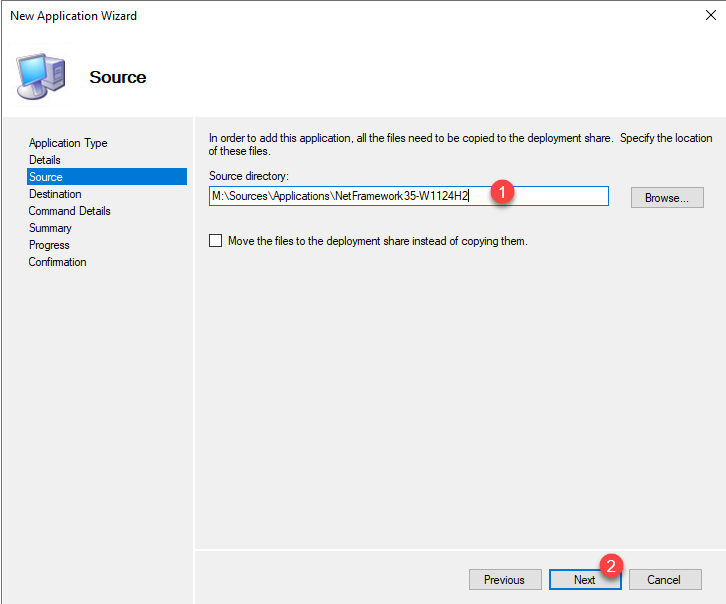
Specify the location of the .NET Framework 3.5 installation sources 1 and click the Next button 2 .
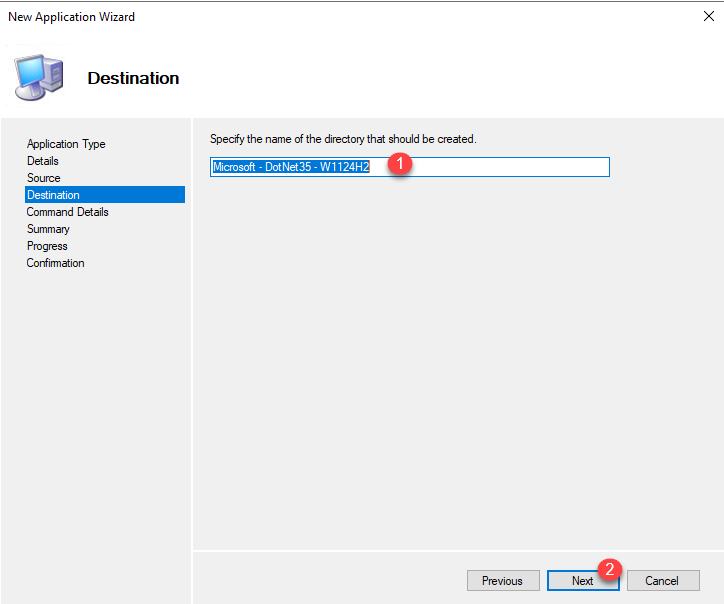
Leave the destination folder name, click Next 1 .
In the Command line field, enter setup.bat 1 and then click the Next 2 button.
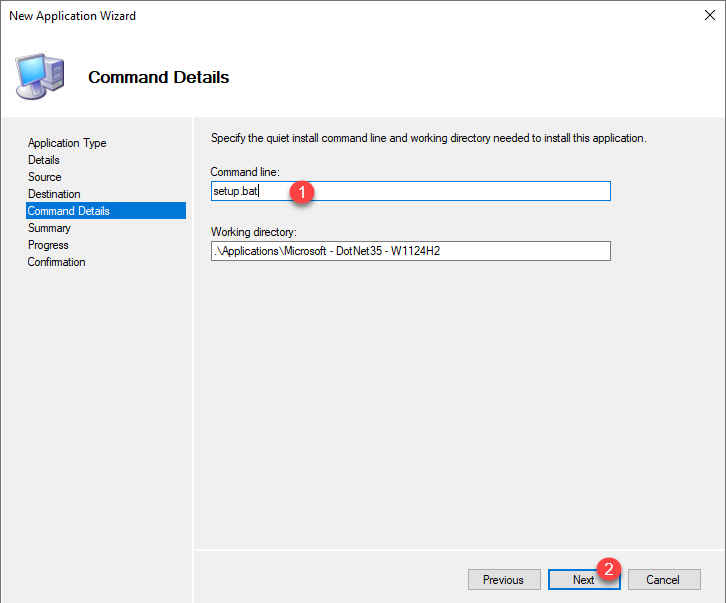
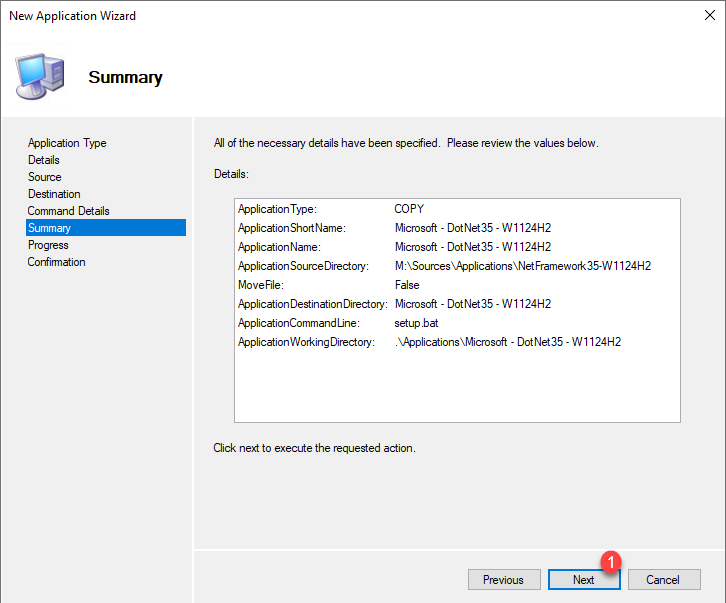
A summary of the application that we are going to add to MDT is displayed, click on Next 1 .
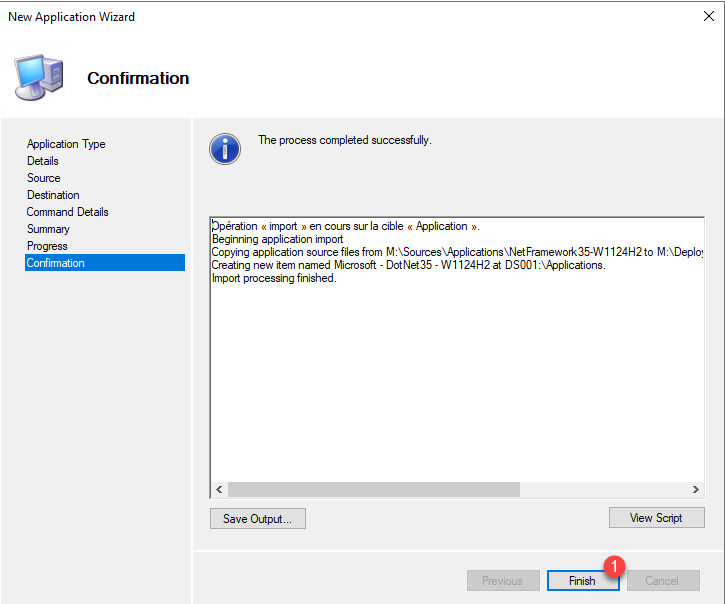
Once the application has been added, close the assistant by clicking the Finish button 1 .
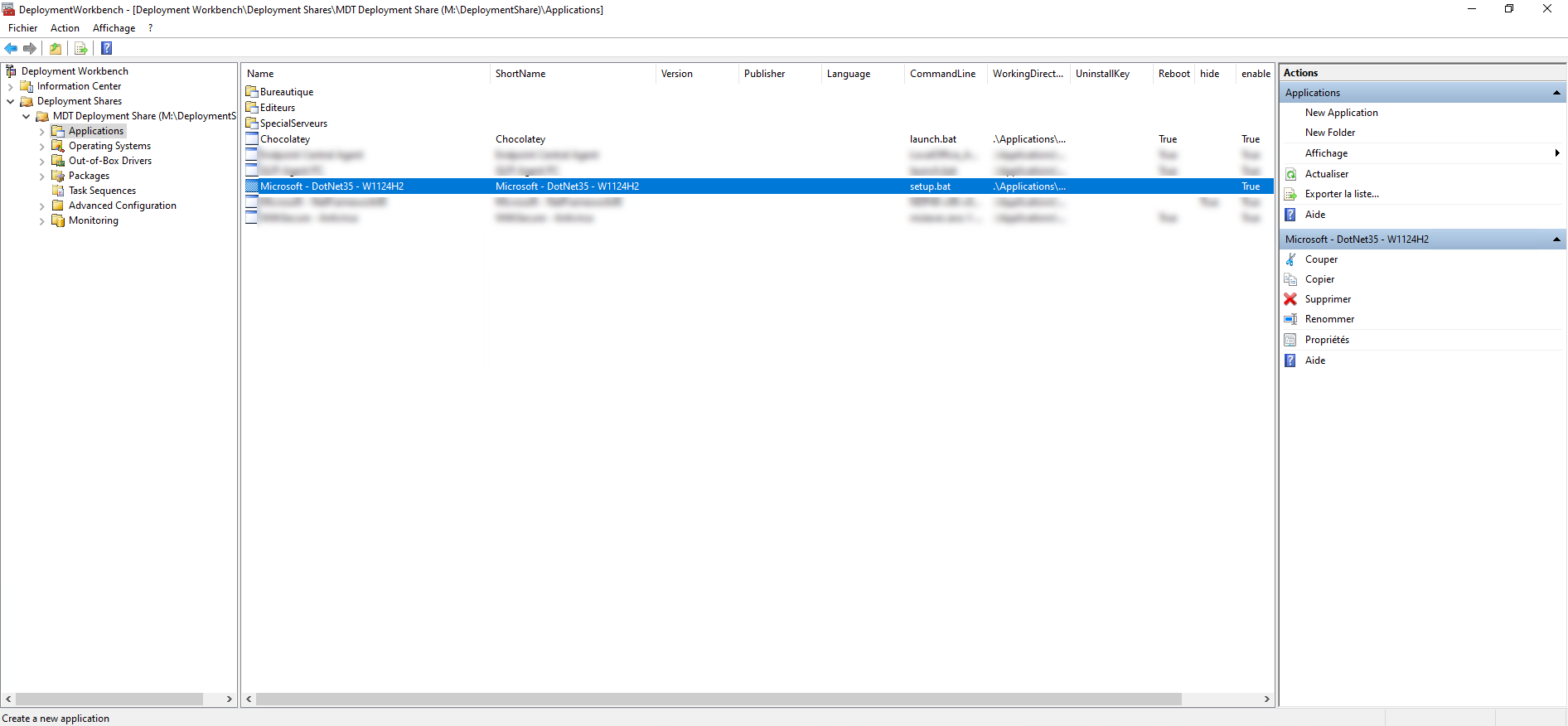
The application that allows the deployment of DotNet35 is added to MDT.
Installing .NET Framework 3.5 during Windows deployment with MDT
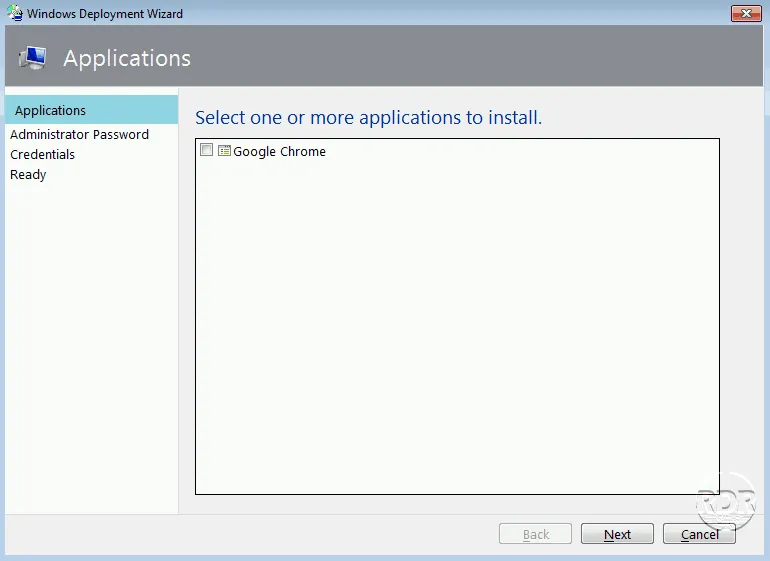
For this part, there are multiple solutions; you can leave it as is and select the application during deployment if necessary.
Depending on your MDT configuration, you can also check the default box by adding this line to the correct location in the CustomSettings.ini file.
ApplicationsXXX={GUID}
To make the application mandatory:
MandatoryApplicationsXXX ={GUID}
Or in the database settings if you are using it.
In this tutorial, I will show you how to add it to the Windows 11 24H2 deployment task sequence so that DotNet3.5 is installed automatically without any interaction with the application.
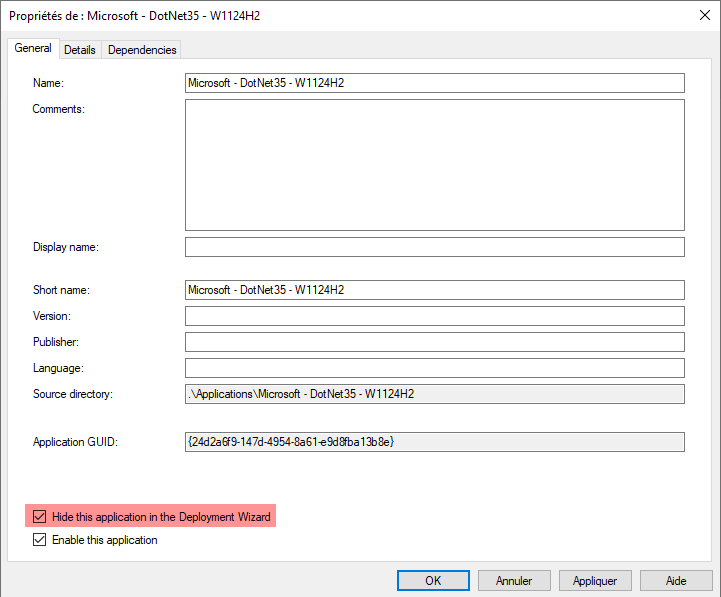
To begin, I’m going to hide the application in the deployment wizard because it will be configured from the task sequence. In the application properties, check the box: Hide this application in the Deployment Wizard.
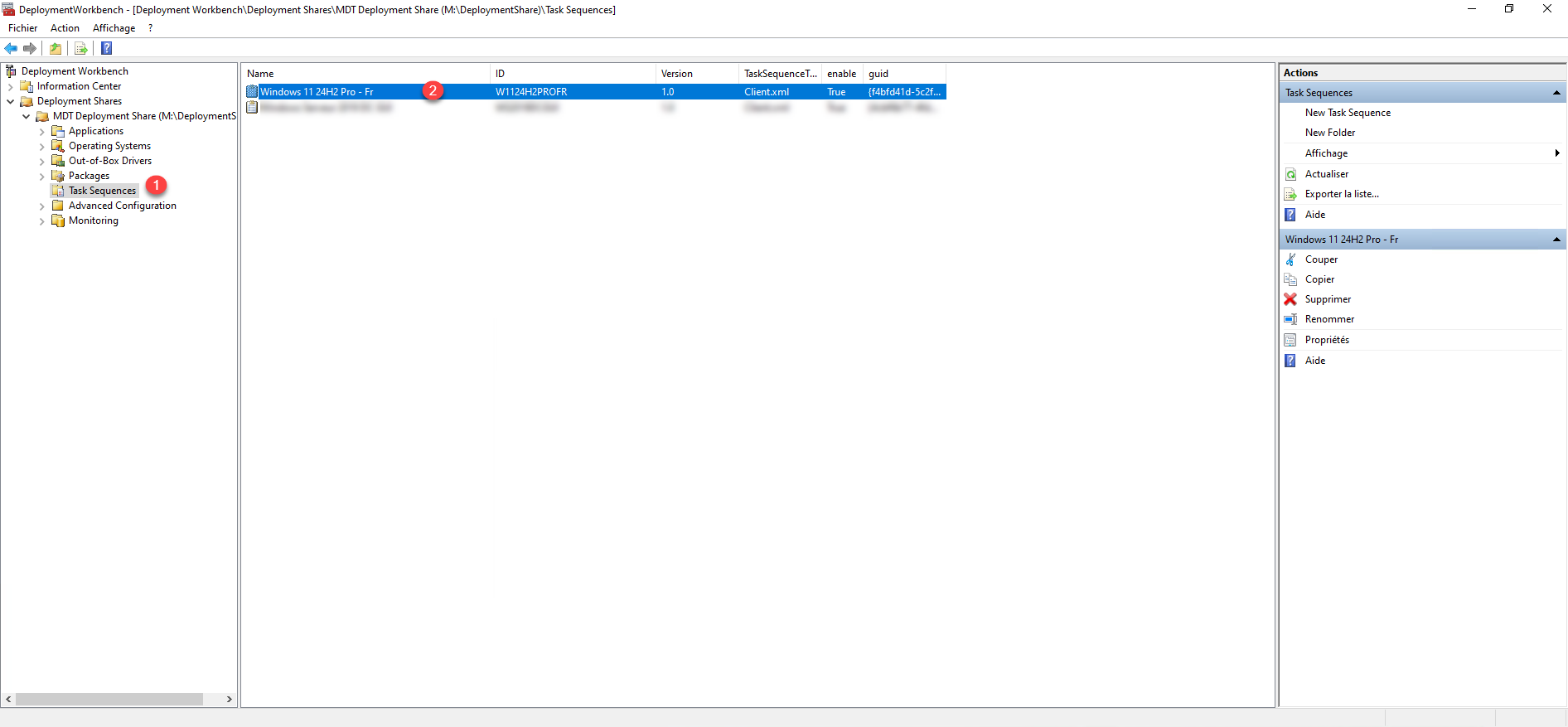
In the Task Sequences folder 1 and open the properties of the Windows 11 deployment task 2 .
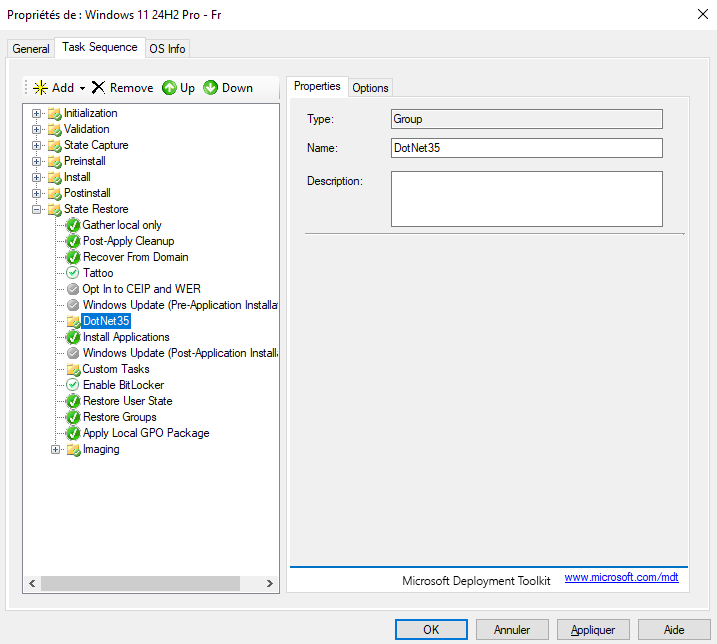
In the State Restore, add the folder (Add -> Group) and place it above Install Applications.
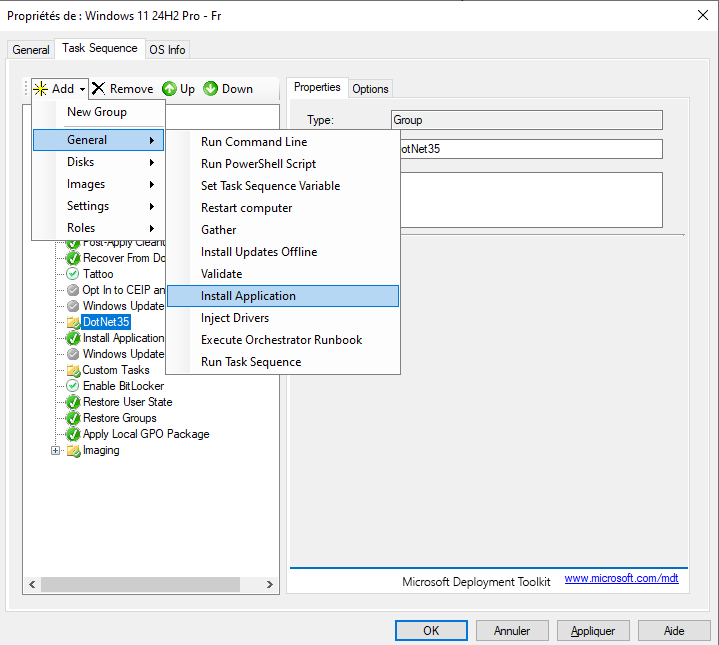
We will add the step that will allow the installation of the .Net Framework 3.5, select the Group created previously, then click Add / General / Install Application.
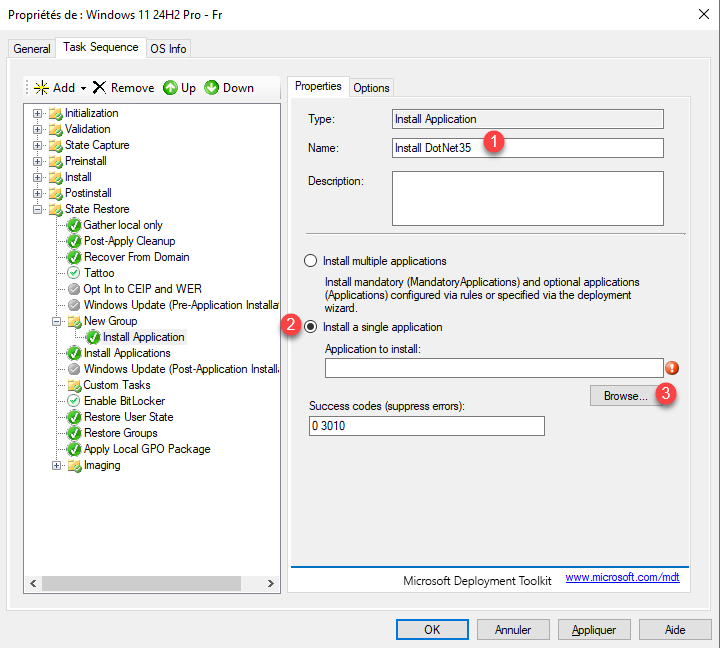
Name the task 1 , select Install a single application 2 then click Browse 3 .
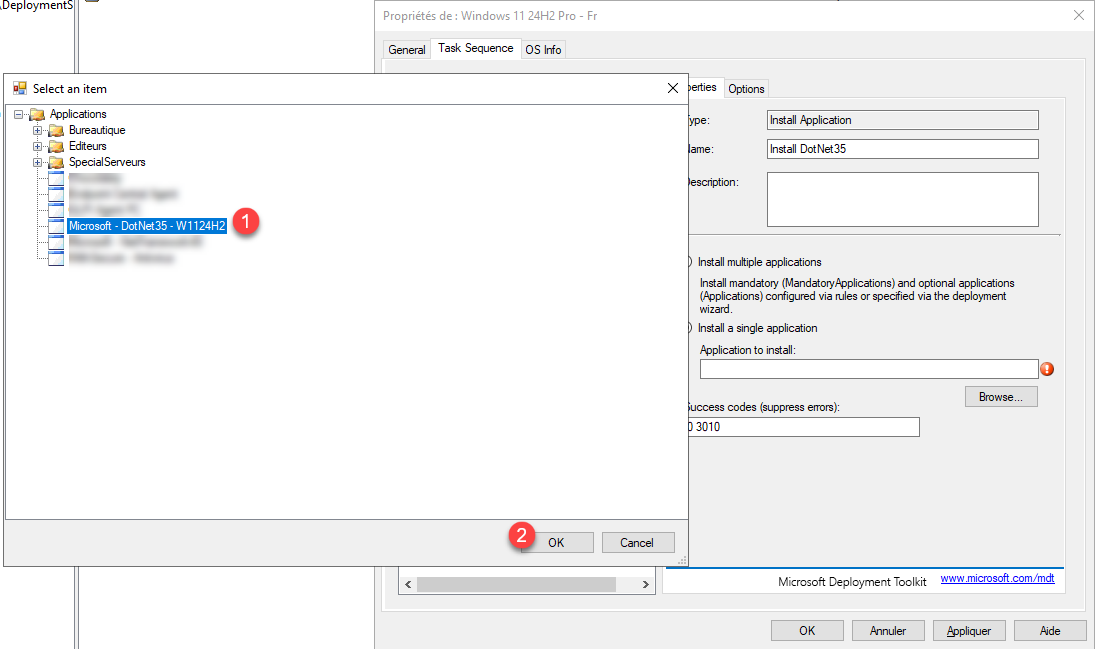
Select application 1 which enables the application of DotNet35 and then click OK 2 .
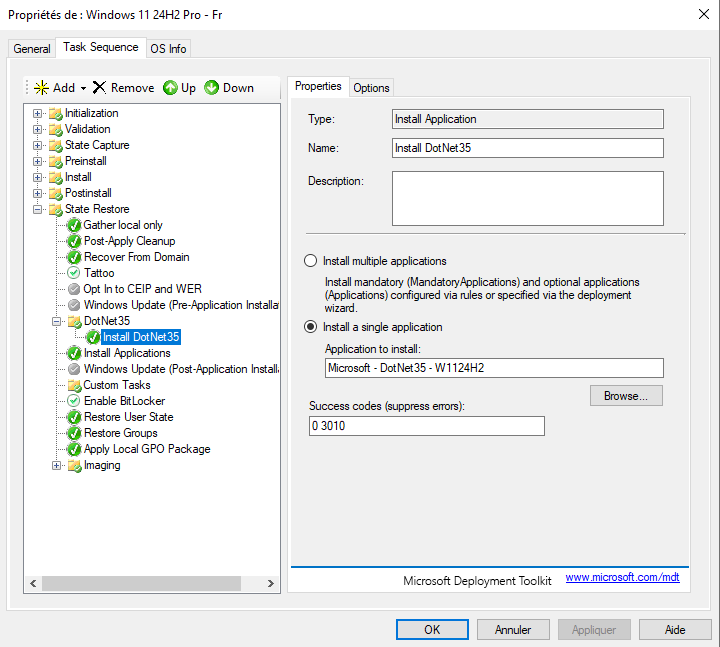
The task is configured.
Next, add a restart task 1 (Add / General / Restart computer) then click Apply 2 and OK 3 to save the changes.
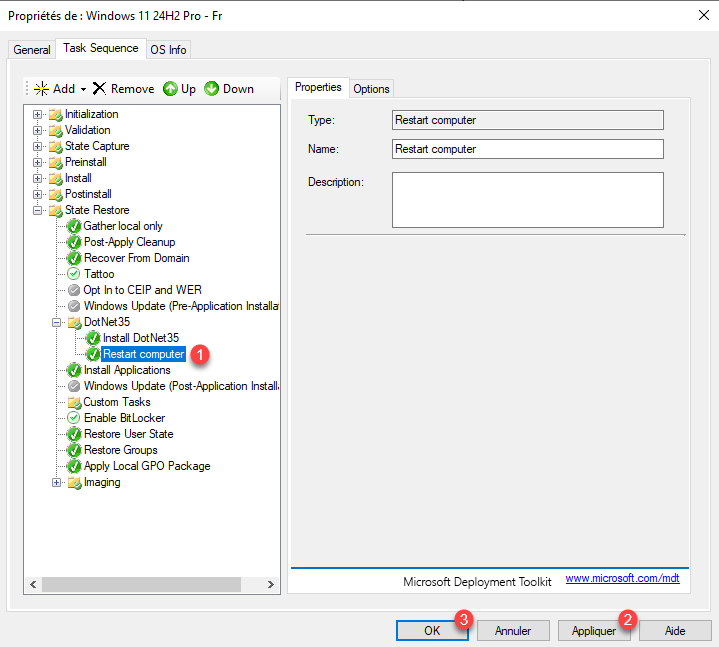
The task sequence is configured; the next time it is used, the .Net Framework 3.5 will be installed.
This tutorial has shown us how to add an application to MDT that executes a PowerShell script using a ‘bat file’.