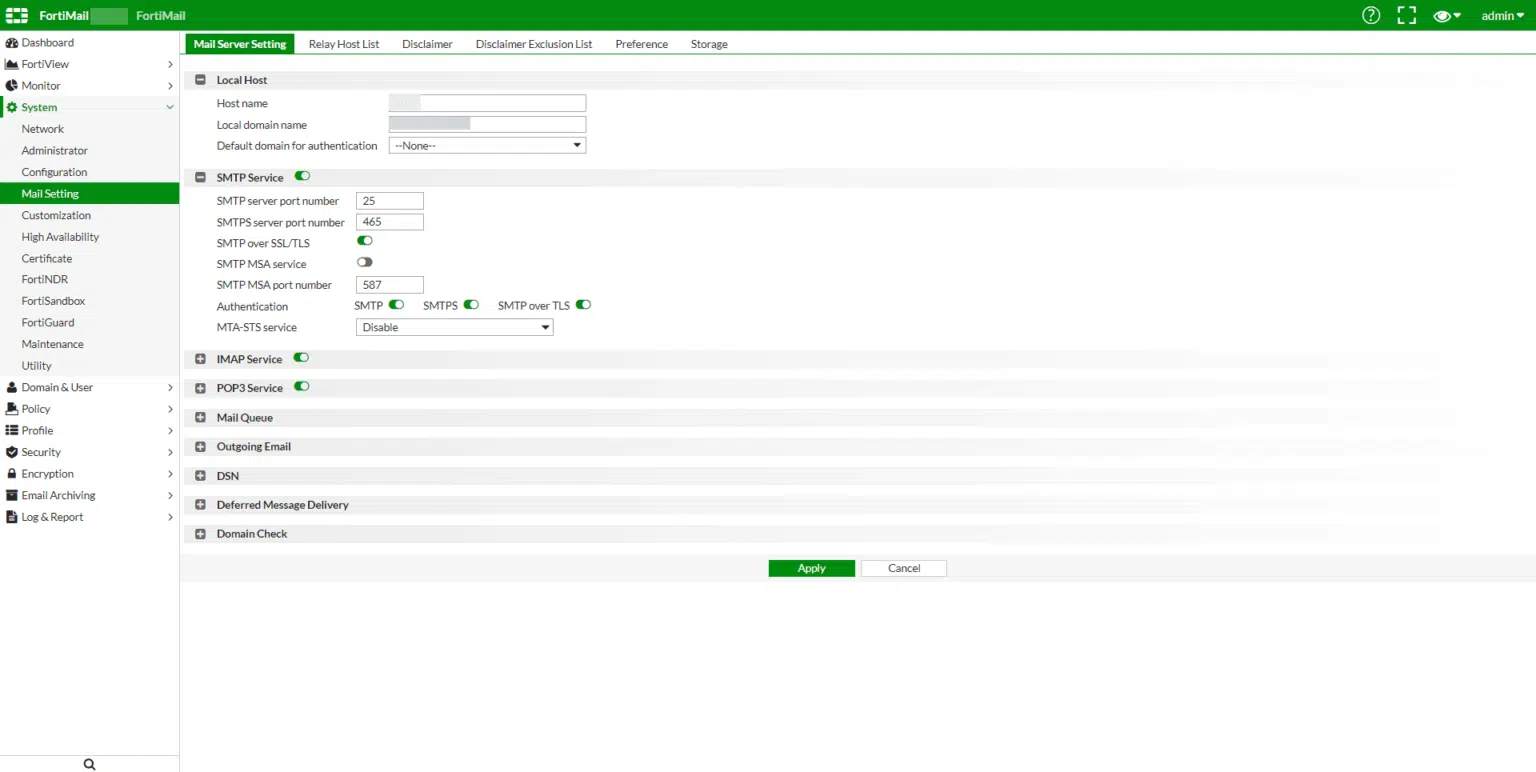
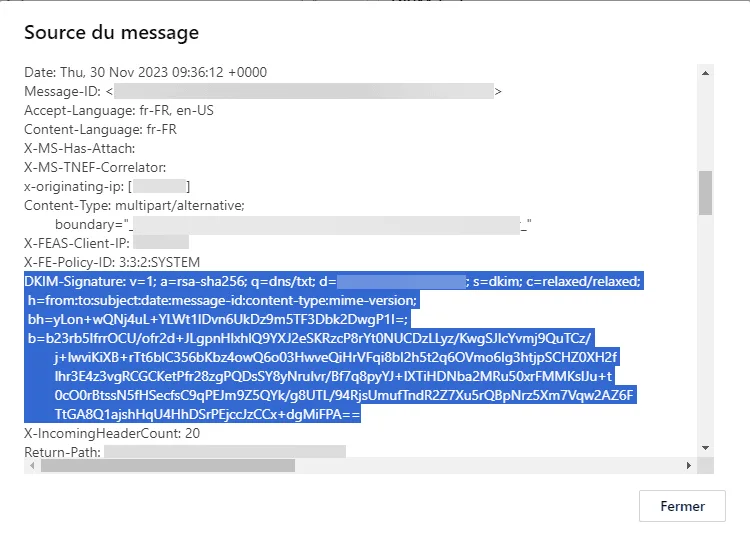
In this tutorial, I will explain how to remove internal mail server headers from message sources.
To understand what we are going to do, here are the sources of a message coming from an Exchange server:
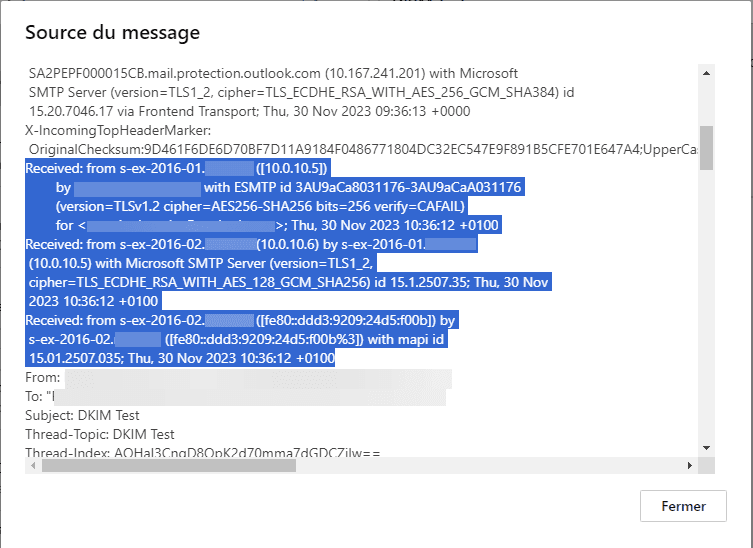
If we look more closely at the screenshot, we can see the internal Exchange servers with their FQDN names as well as their internal IP addresses.
The goal will be to remove all this information, in order to reduce the information that can be given to potential attackers.
Fortimail offers an option to easily remove these headers.
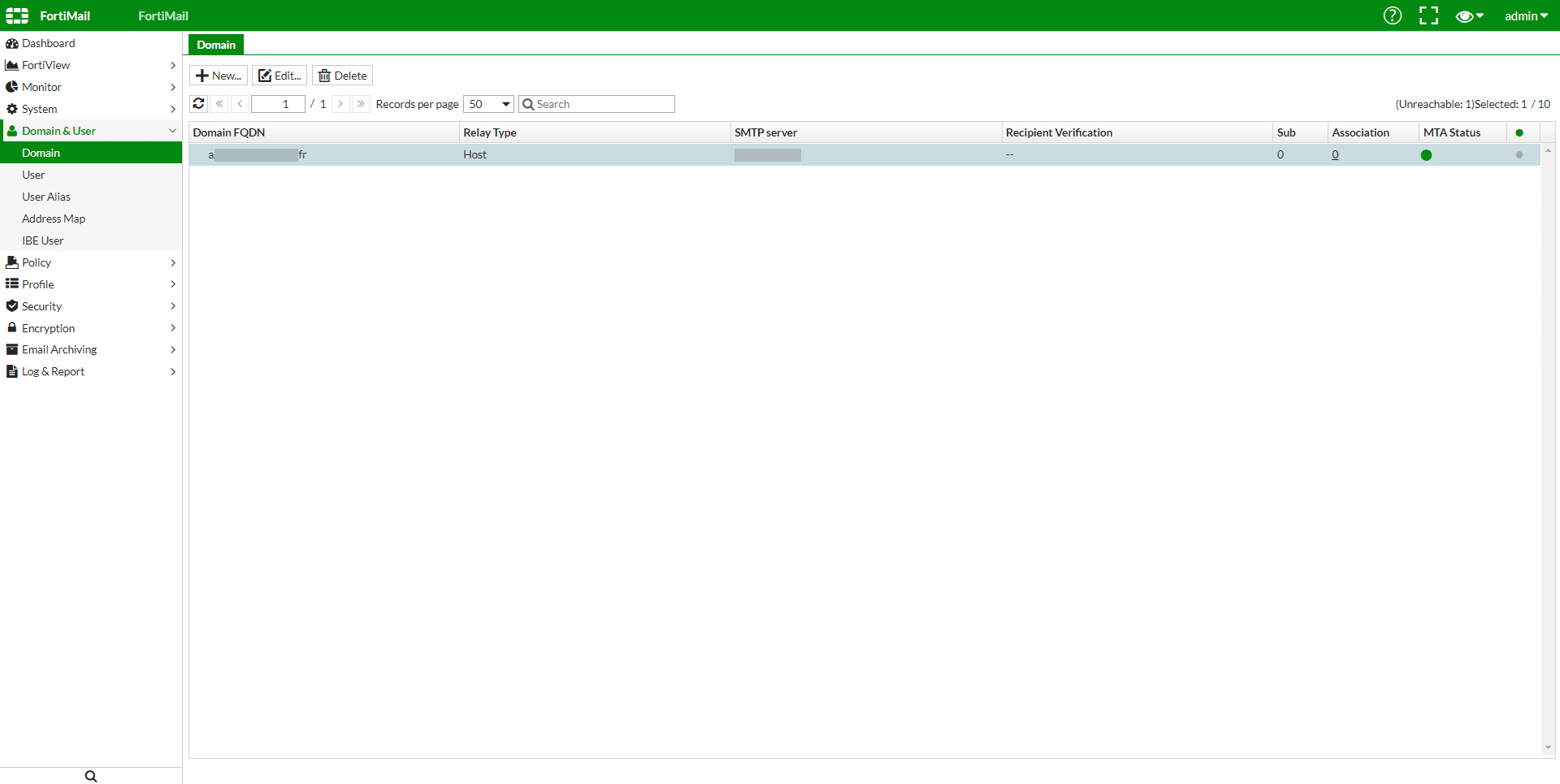
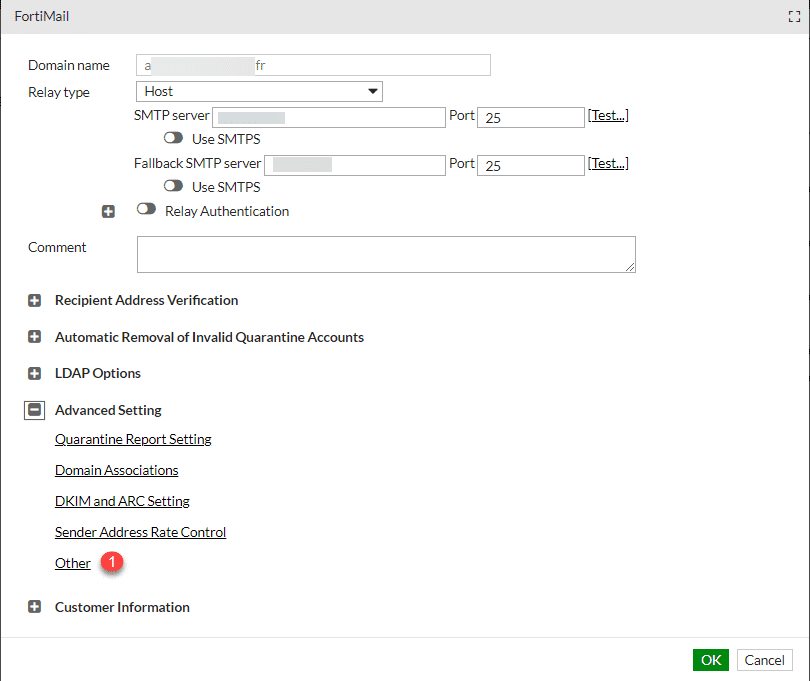
From the web interface, in the menu go to Domain and User / Domain and then to the Domain tab. Double-click on a domain configured on FortiMail to access its configuration.
Expand Advanced Setting and click on Other 1 .
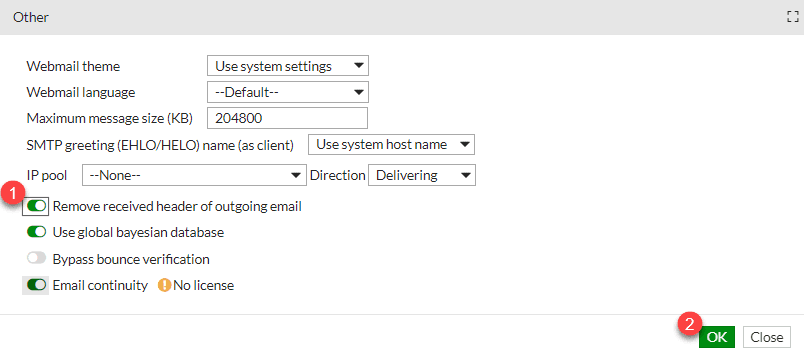
Activate 1 Remove received hearer of outgoing email and click OK 2 to validate.
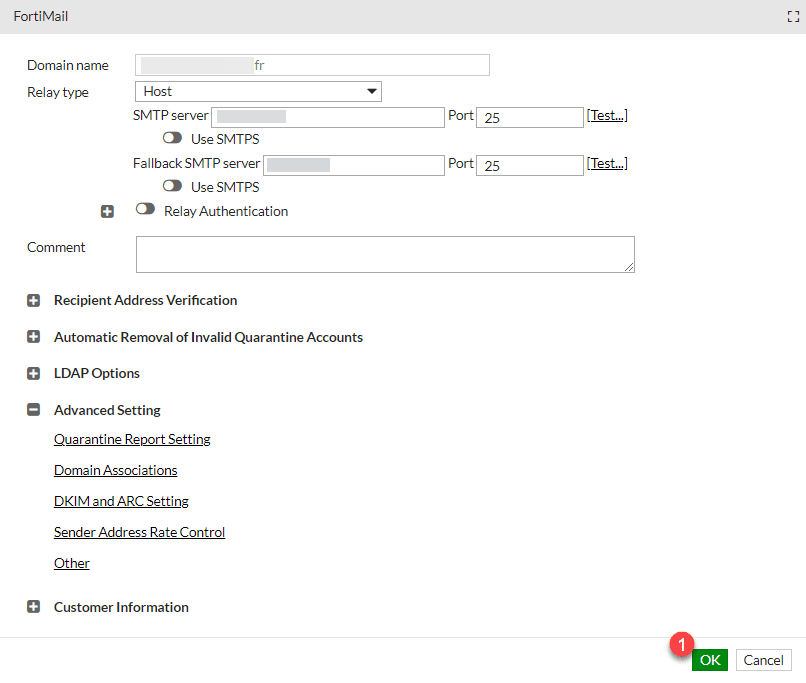
Click OK again 1 to close the domain settings.
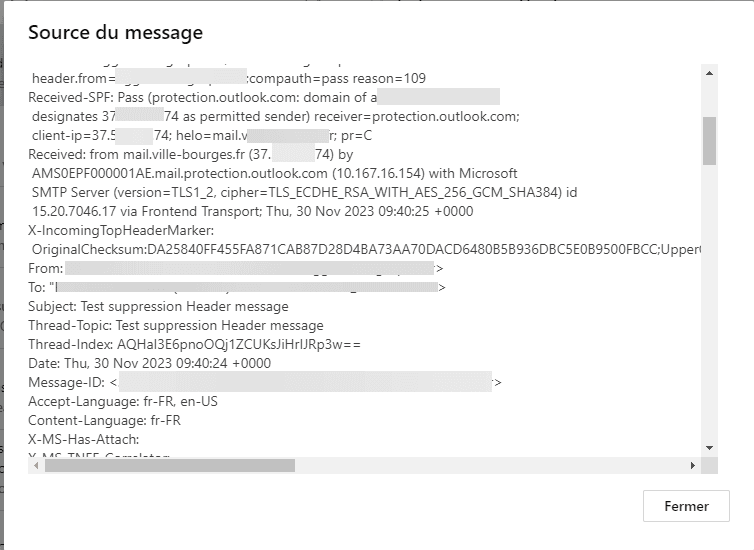
To test if the message has been received, send a message to an external address.
If we look again at the source of the new message, the information related to the internal servers is no longer in the message.
You now know how to delete internal server headers with Fortimail.
Most MTA solutions offer this option, which I recommend you activate to hide information about your internal infrastructure.
If you don’t have an MTA, I strongly advise you to install one; you have Proxmox Mail Gateway which is free.
If you are using Exchange, it is possible to remove the headers using PowerShell: Remove Internal Exchange Server Names and IP Addresses from Message Headers .