In this tutorial, I’ll explain how to disable SMTP authentication on the Fortimail MTA, which is enabled by default.
SMTP authentication allows you to use the Fortimail SMTP server to send messages using an account (username/password).
In most cases, particularly when using Exchange, it is not necessary to enable authentication for sending messages:
- Exchange servers are configured in Fortimail with IP-based authorization (IP Policy)
- Email clients route messages through the Exchange server for sending
If Fortimail is used to relay messages from third-party applications and/or devices (copiers, etc.), you can configure permissions using an IP Policy.
The “problem” is that when authentication is enabled and therefore visible from the Internet, brute-force attacks will be launched against the SMTP server in an attempt to use it as a relay for sending spam.
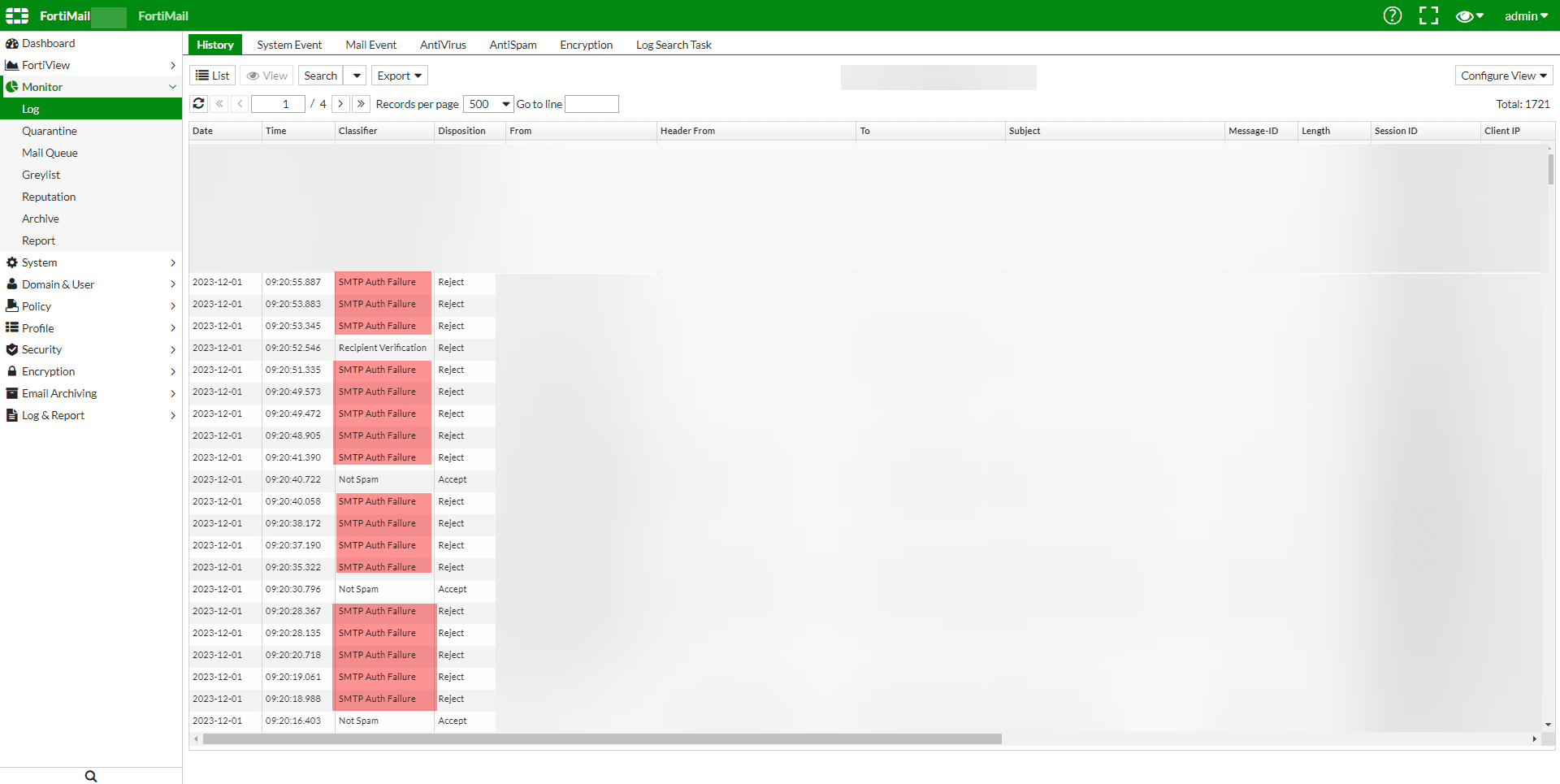
As shown in the screenshot below from the log page, you can see multiple “SMTP Auth Failure” entries originating from the Internet.
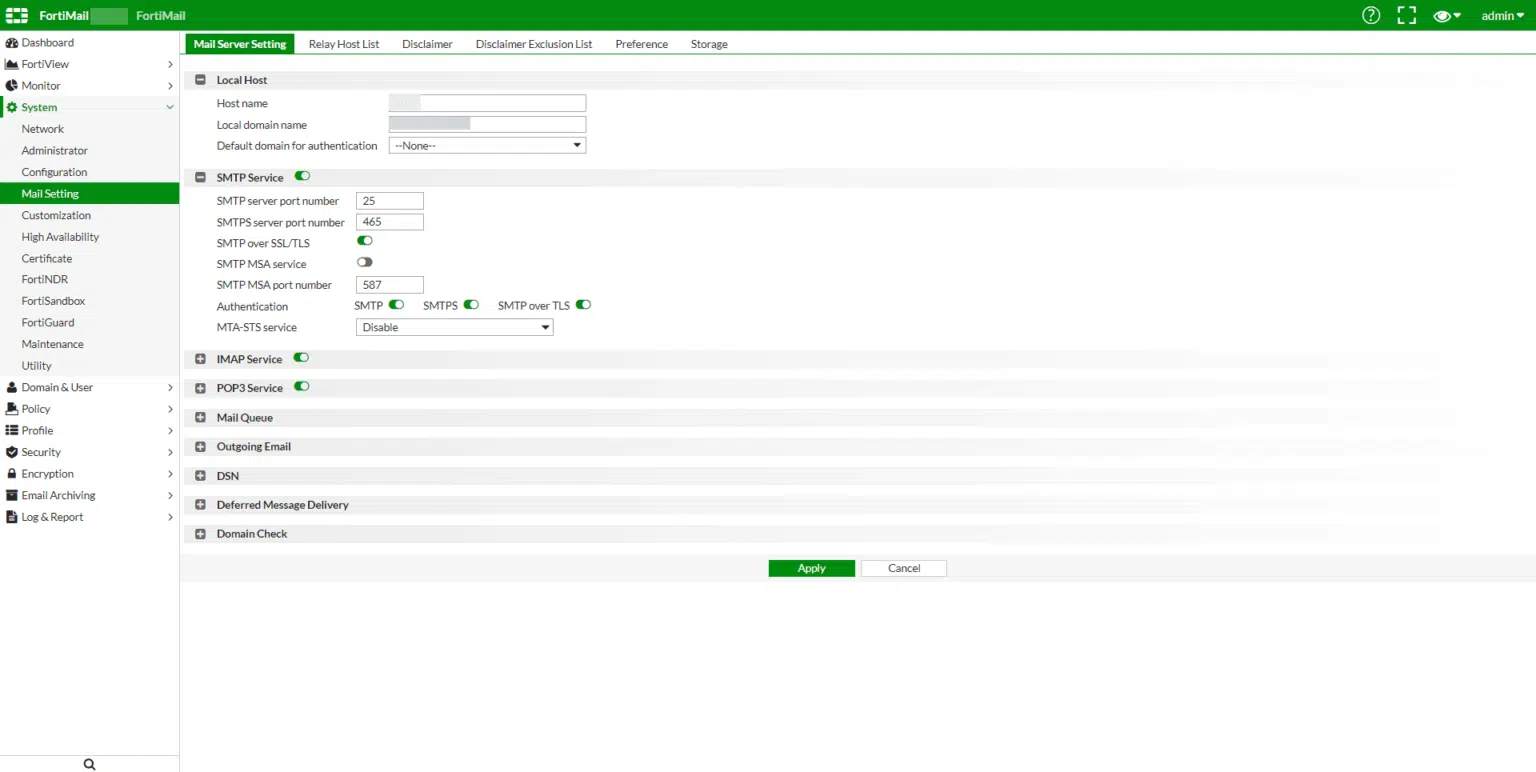
To access the SMTP service settings, expand “System” 1 , go to “Mail Settings” 2 , and expand “SMTP Service” 3 .
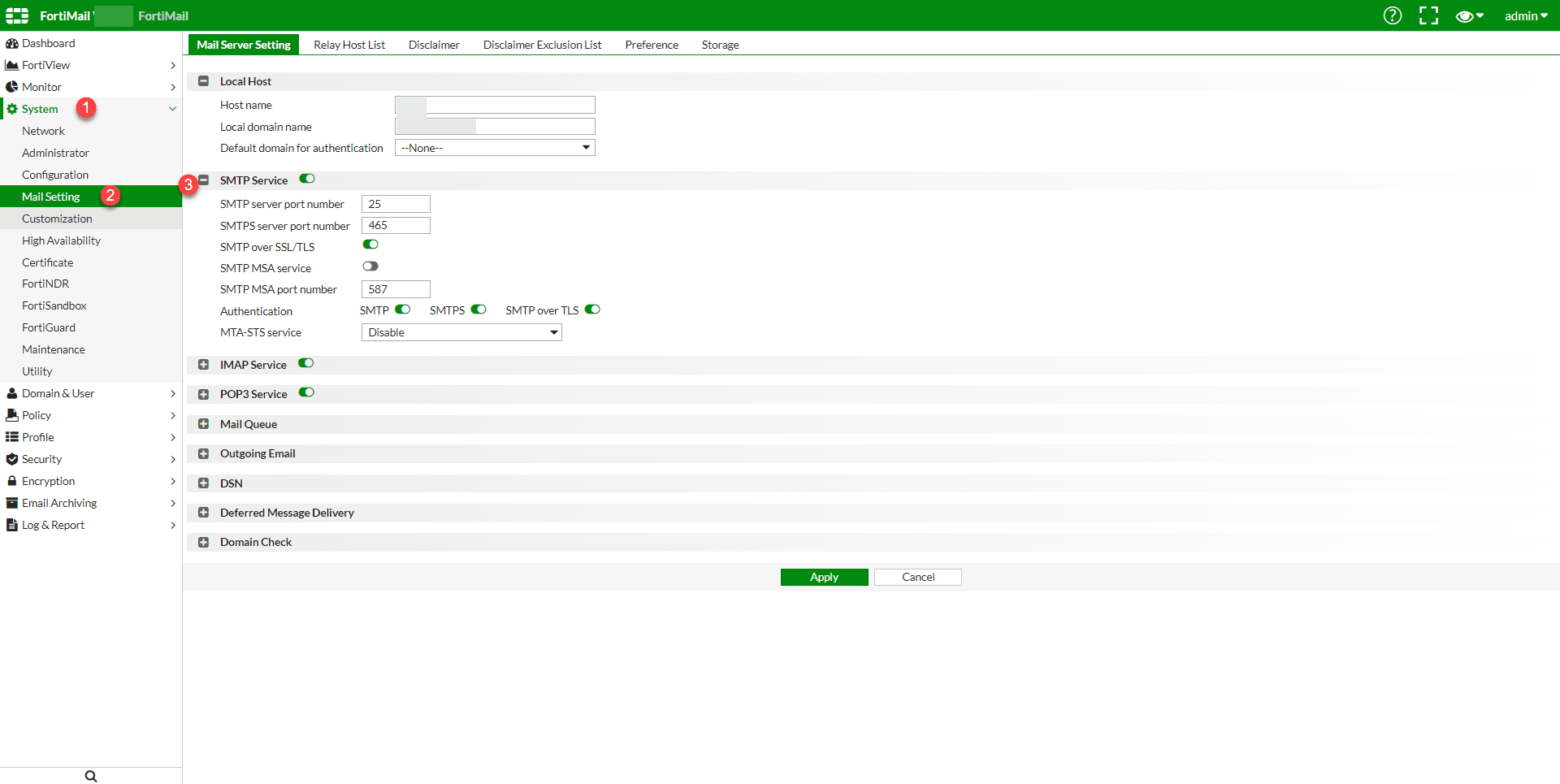
As shown in the screenshot, authentication is enabled for SMTP / SMTPS / SMTP over TLS
For each service where authentication is enabled, toggle the switch to off 1 , then click Apply 2 .
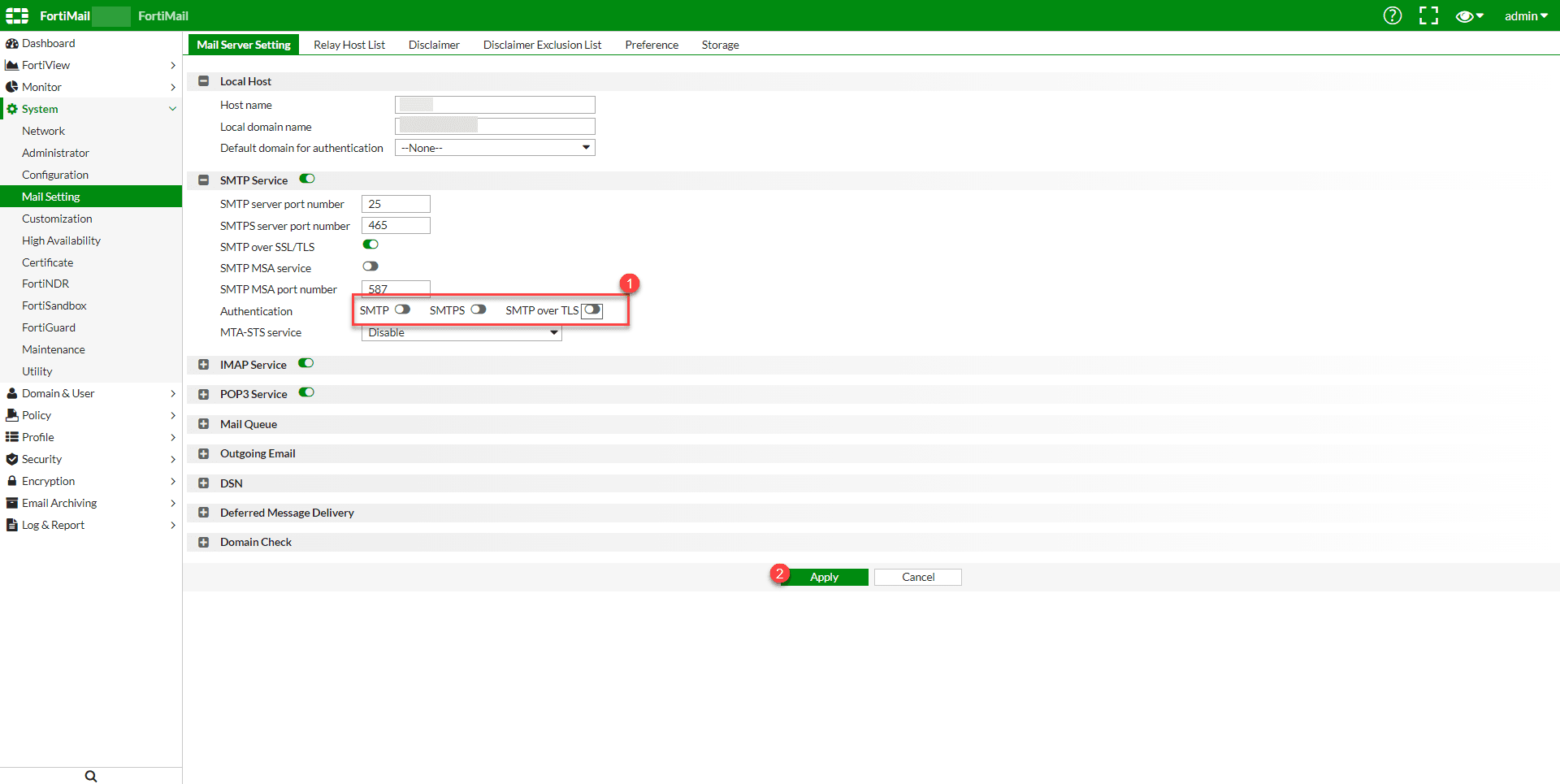
Authentication for SMTP services is now disabled.