In this tutorial, I will explain how to install the AD CS (Active DirectoryCertificate Services) role, which allows you to set up a certificate authority that will enable you to issue certificates for your IT environment, such as:
- Web server certificates
- Certificates for domain controllers
- Certificates for users and computers
- Smart card certificates
- …
On Windows Server, there are two types of certificate authorities:
- Standalone, which is not domain-joined Active Directory
- Enterprise, which is domain-joinedActive Directory and offers more capabilities.
In this article, we will cover the installation of an Enterprise Certificate Authority, which will be linked to an Active Directory domain.
Before you begin, you must have a Windows Server 2025 server that will be dedicated exclusively to this role; in other words, it must not be installed on a domain controller.
If you have opted for a tiering model, the certificate authority (CA) is considered critical in terms of security and must therefore be placed in Tier 0.
Install the AD CS role
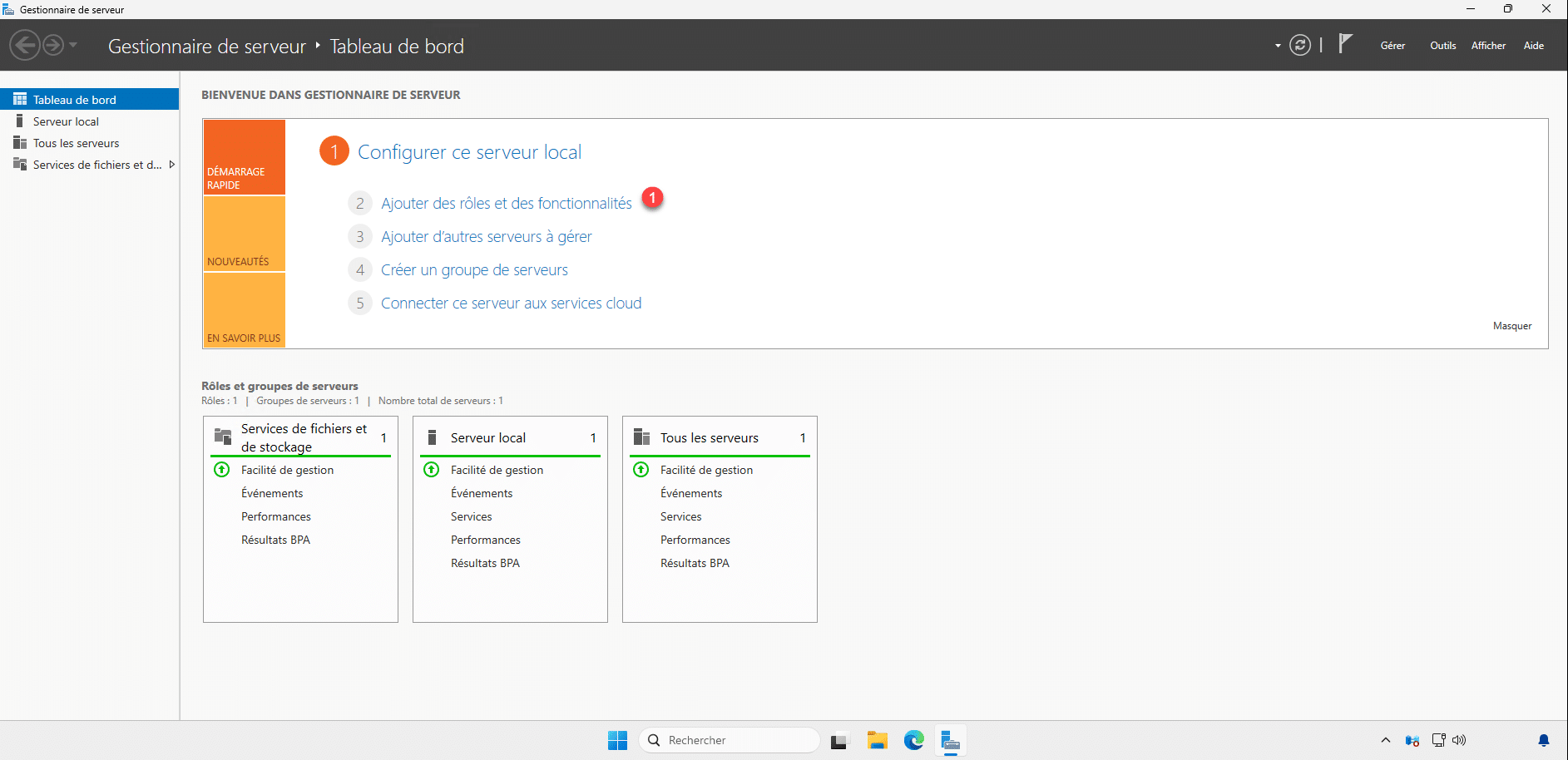
From Server Manager, click Add Roles and Features 1 to launch the wizard.
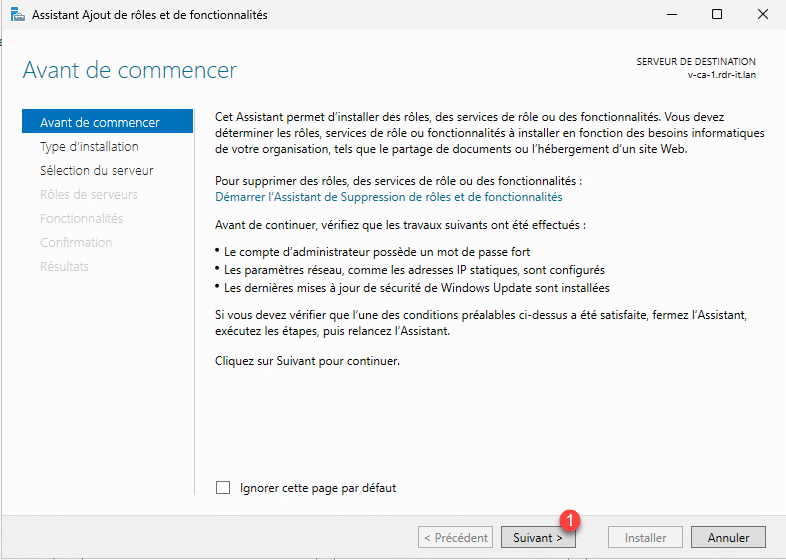
When the wizard launches, click the Next button 1 .
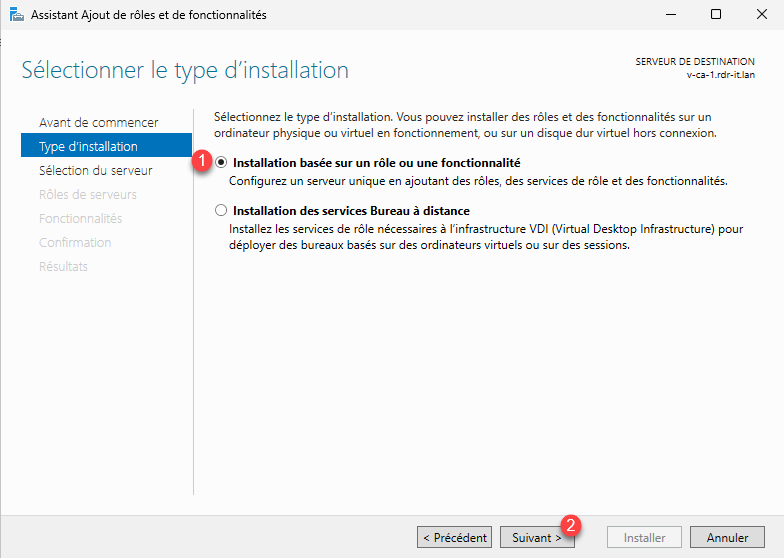
Select the installation type: Role-based or feature-based installation 1 and click the Next button 2 .
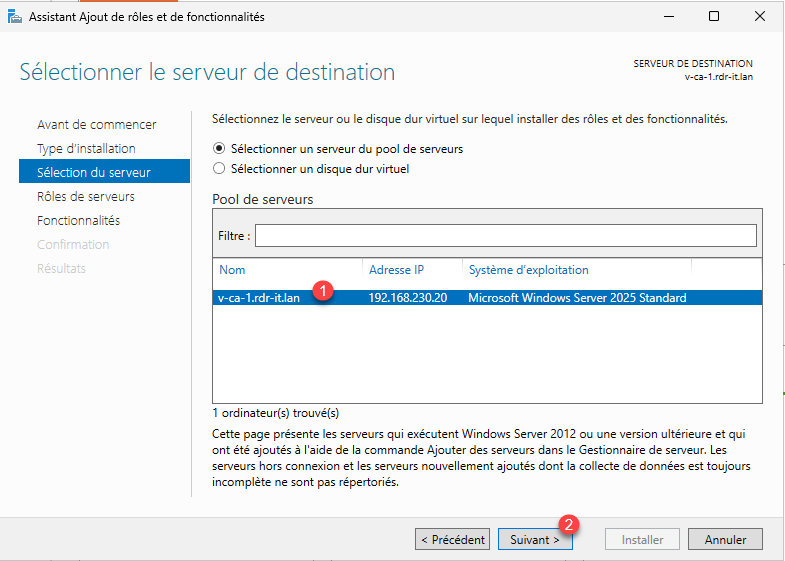
Select the server 1 where the role will be installed, then click the Next button 2 .
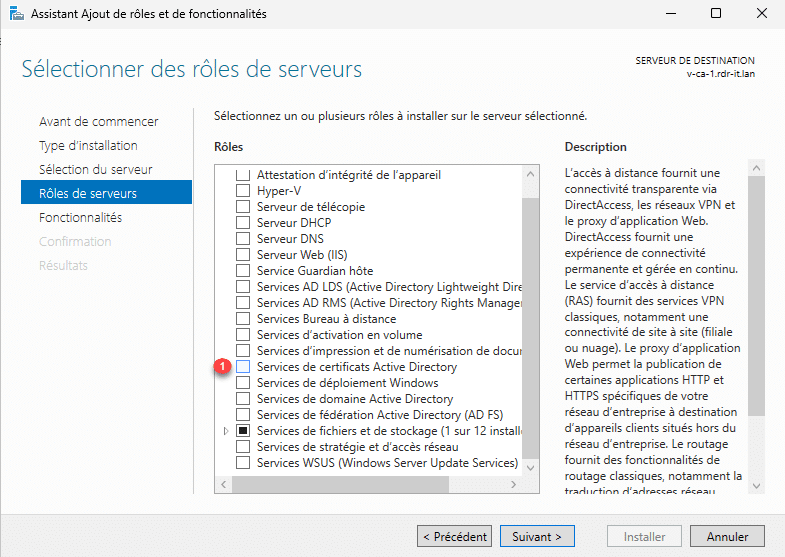
In the list of roles, check the box: CertificateActive Directory Services 1 .
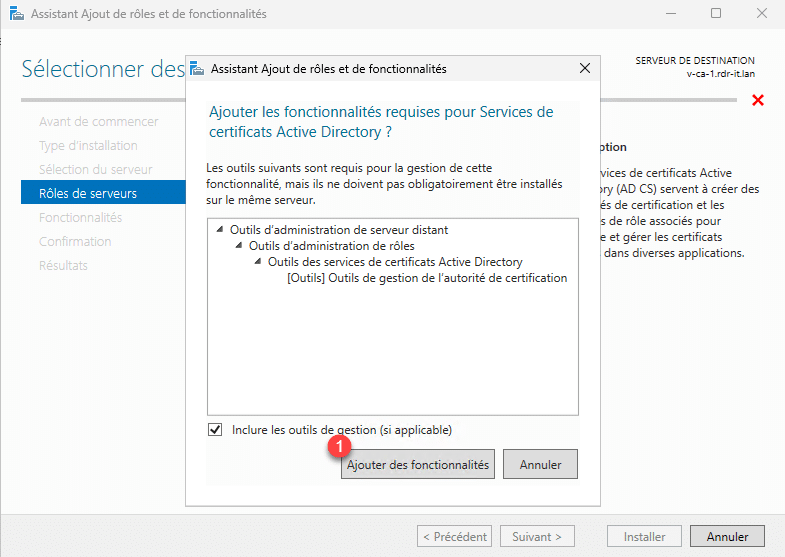
Click the Add Features button 1 , which will allow you to install the management tools.
The AD CS role is selected; click the Next button 1 .
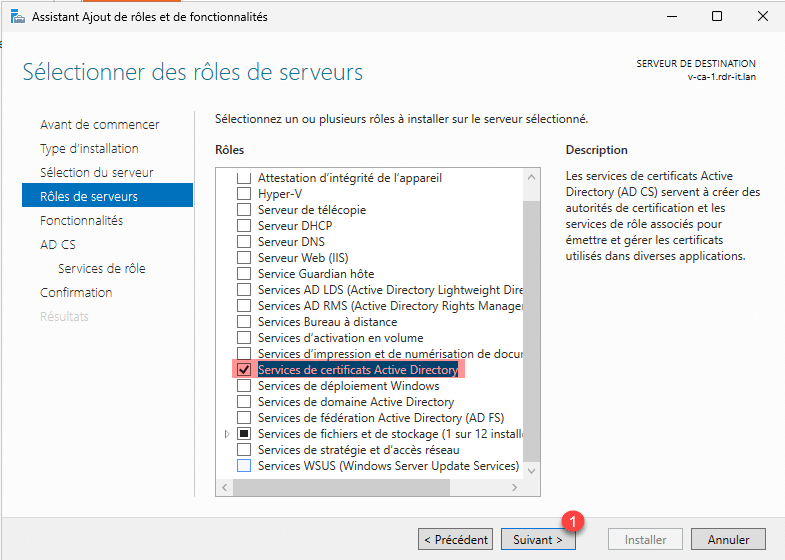
Skip the features by clicking Next 1 .
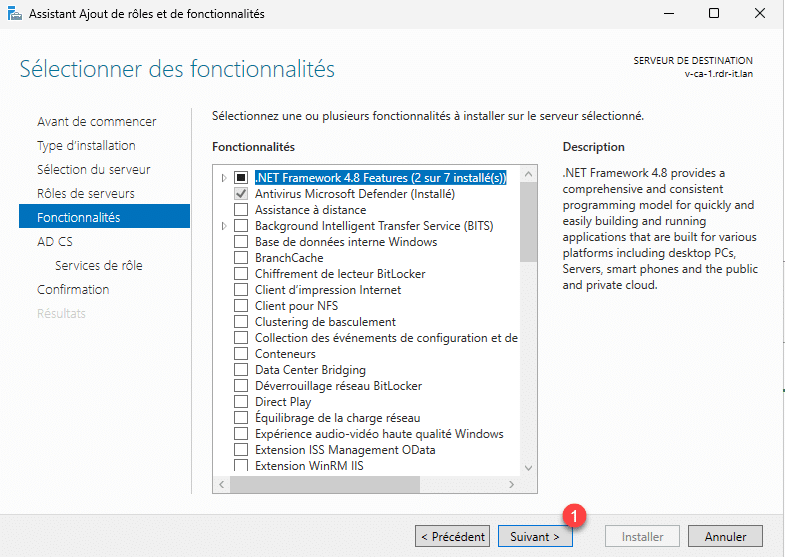
Skip the description of the Active Directory Certificate Services role and click Next 1 .
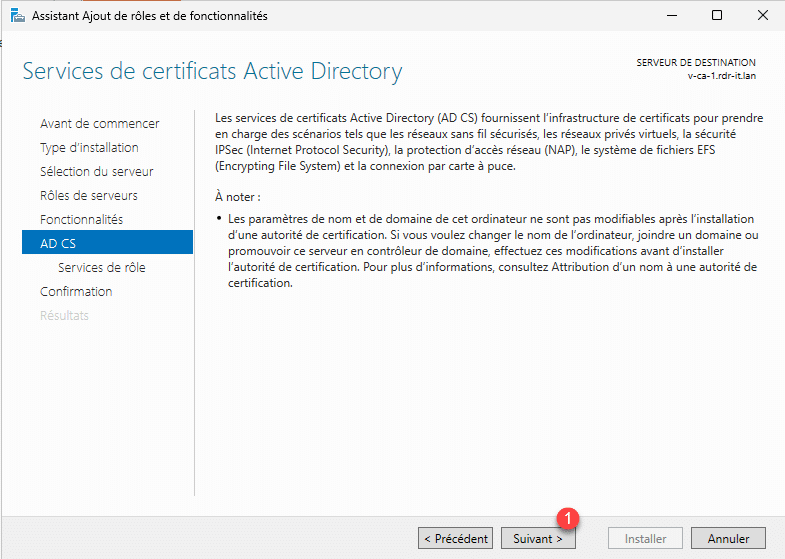
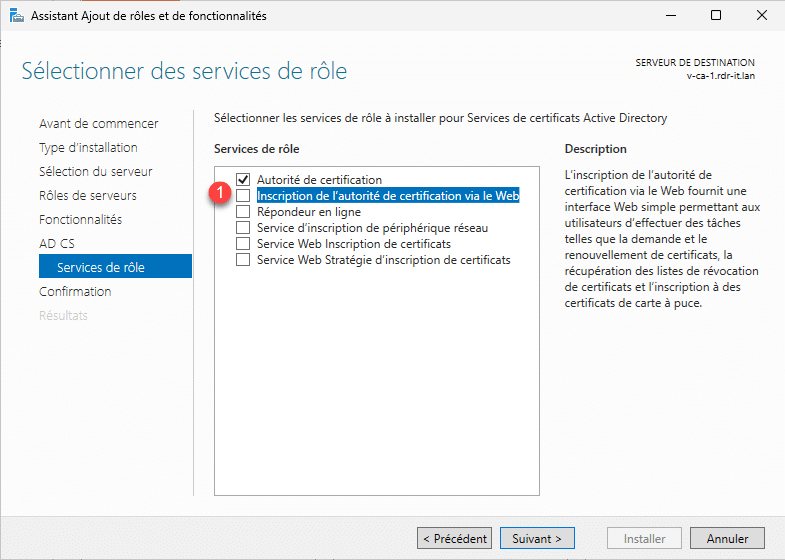
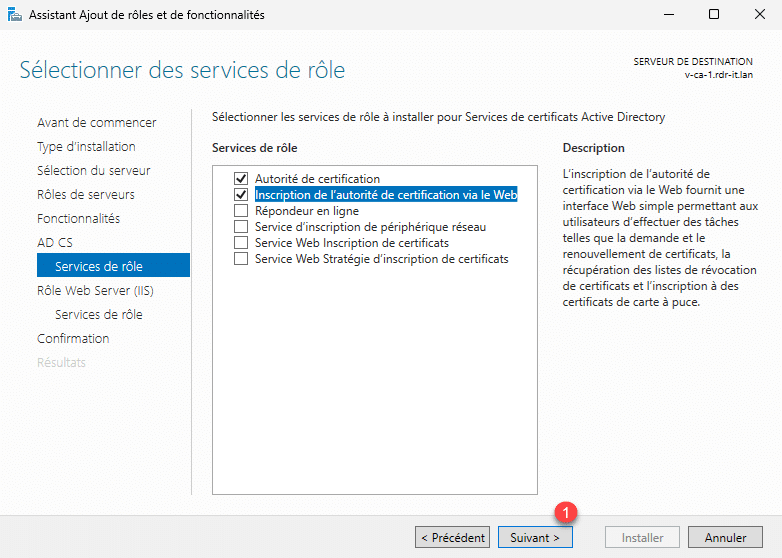
The AD CS role offers various services; by default, the Certificate Authority service is checked. Here, we will also select the Certificate Authority Web Enrollment service; check the box 1 .
For the AD CS Web-Based Certificate Authority Enrollment service to function, you must install the IIS role; click the Add Features button 1 .
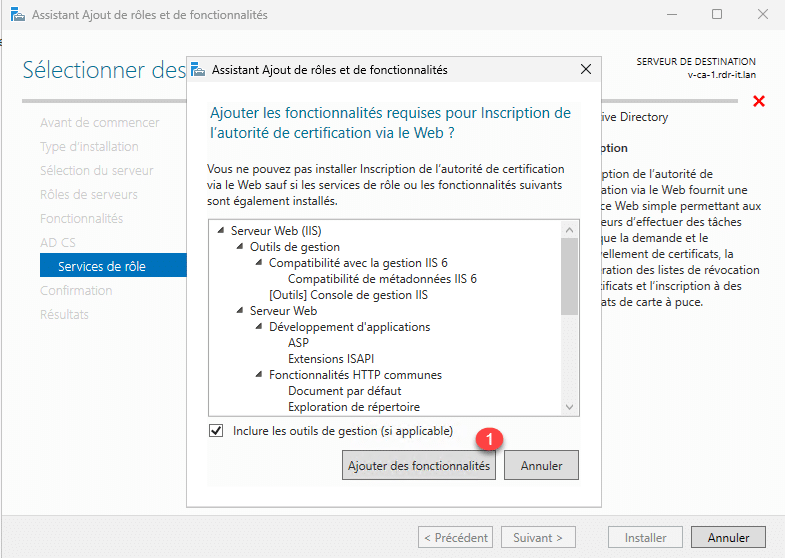
The AD CS: Web-Based Certificate Authority Enrollment service is selected; click the Next button 1 .
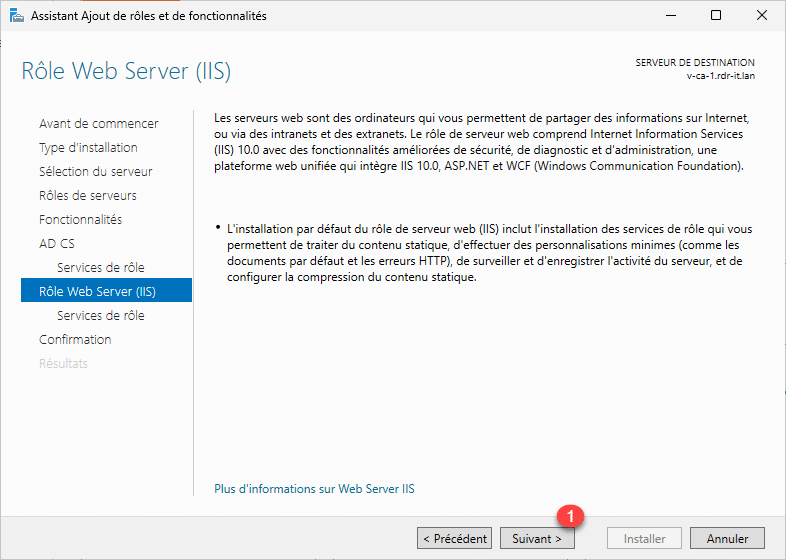
Once the IIS role has been added to the server, its summary is displayed; click Next 1 .
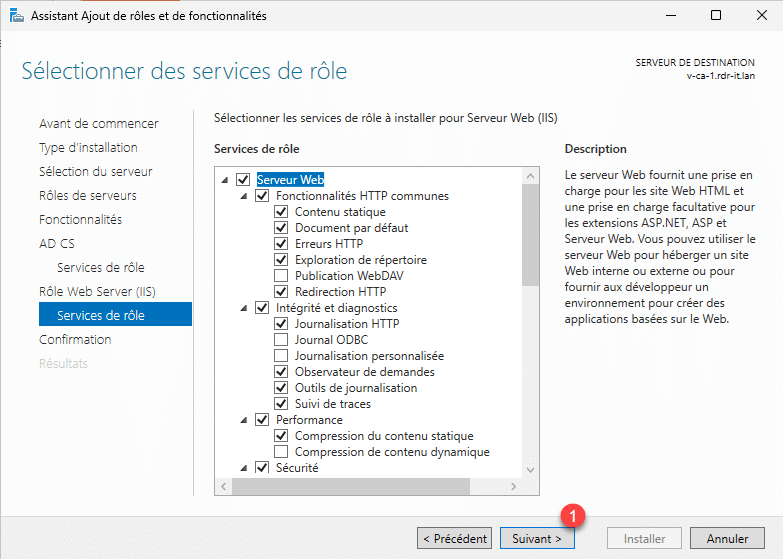
The IIS role servers are selected to work with the AD CS role; click Next 1 .
A summary of all components (AD CS and IIS) to be installed appears; click the Install button 1 .
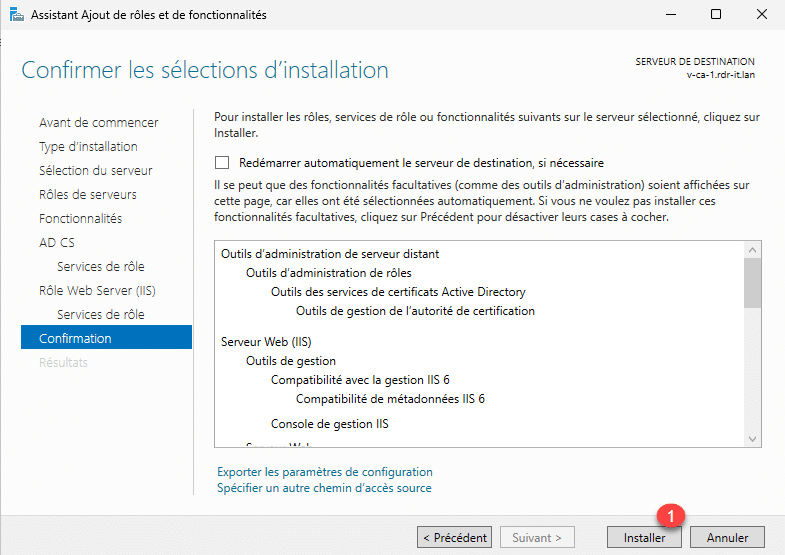
Please wait while the components are being installed…
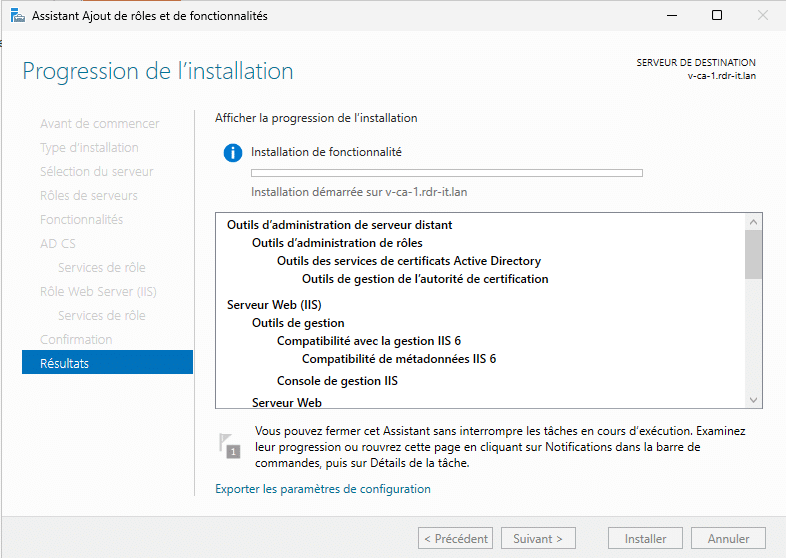
The installation is complete; exit the wizard by clicking the Close button 1 .
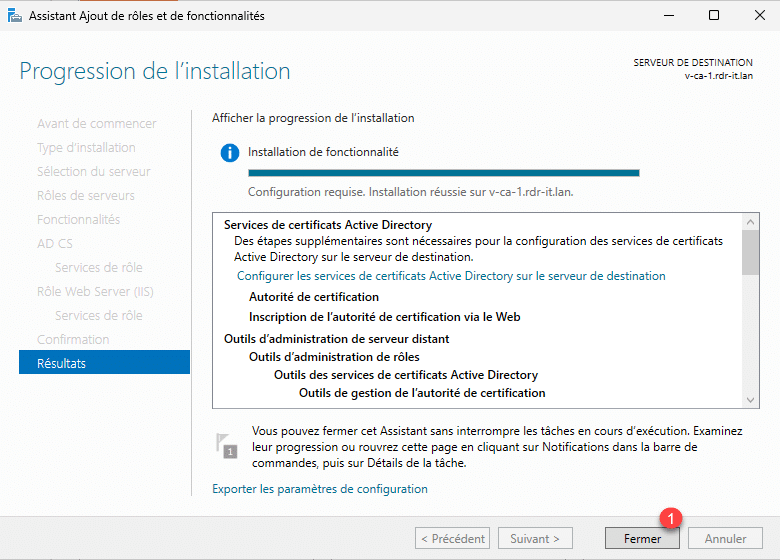
We can now proceed to create the certification authority.
Create the enterprise certificate authority with the AD CS role on Windows Server 2025
Active DirectoryNow that we have installed the necessary roles and services, we will proceed to create the enterprise certificate authority. To do this, you must be logged in with an account that is a member of the domain’s Admins group, as the certificate authority must be joined to the domain.
From Server Manager, click the notification icon 1 .
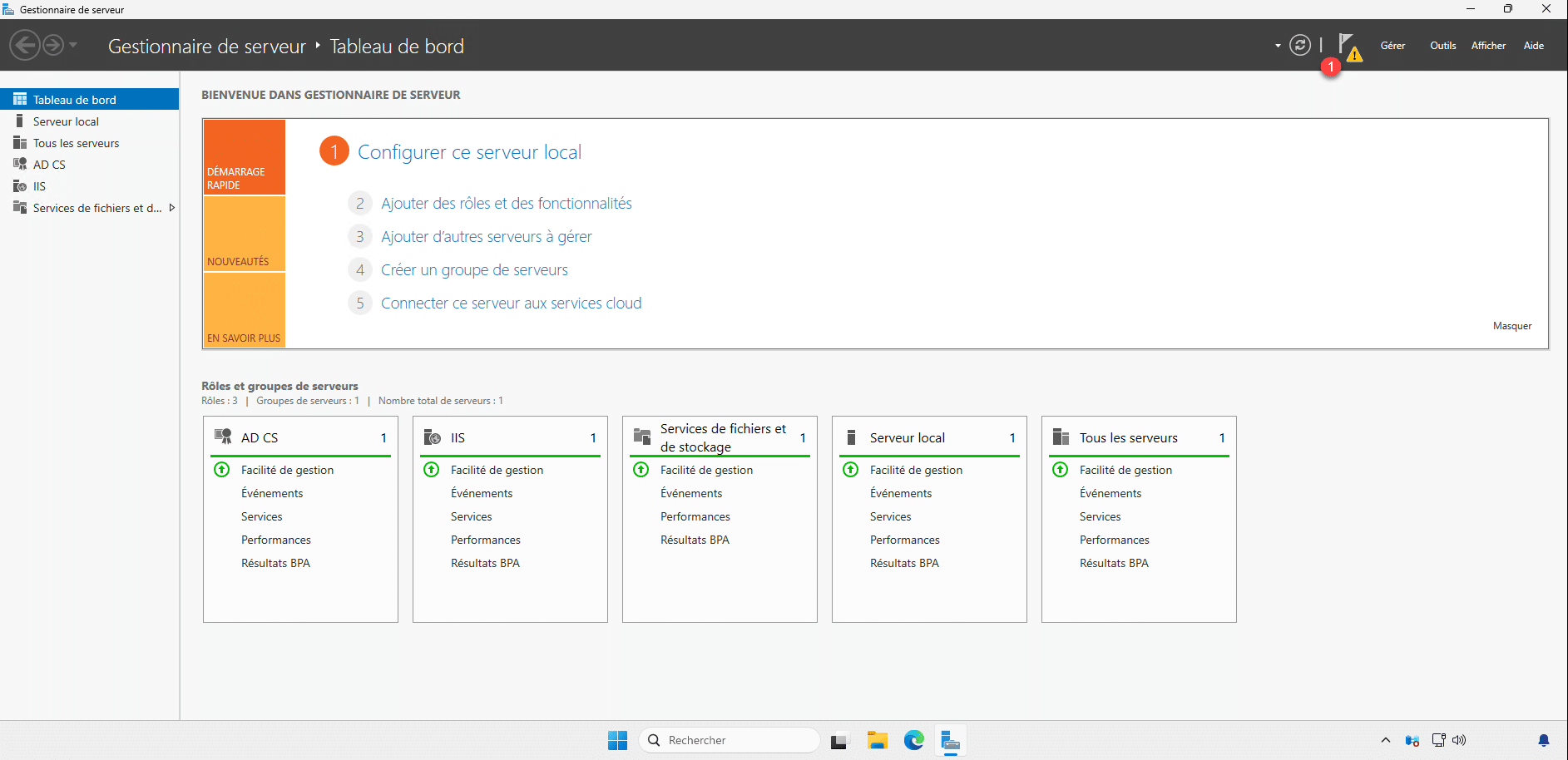
Then click Configure CertificateActive Directory Services 1 to launch the wizard.
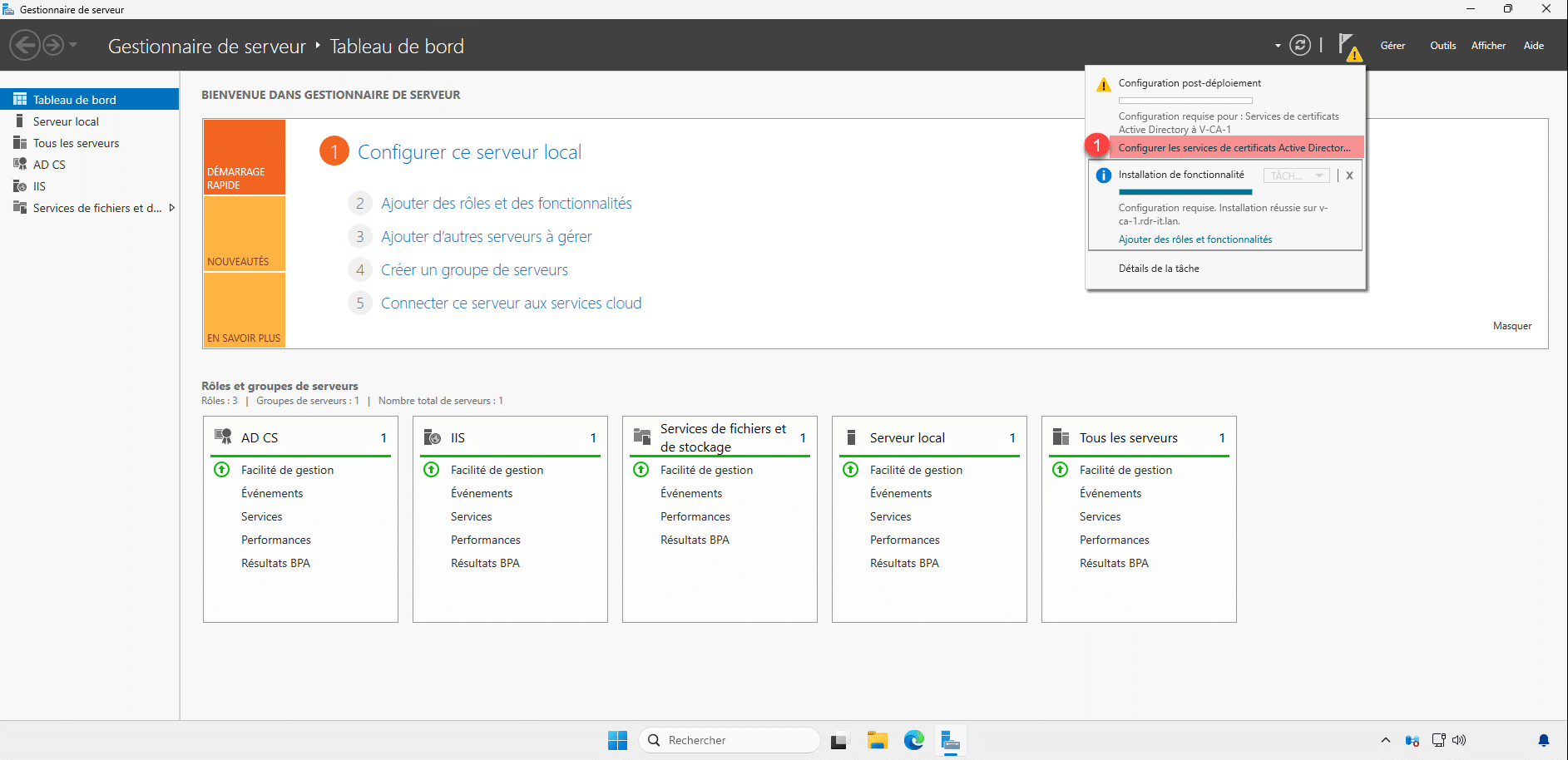
When the wizard launches, click the Next button 1 .
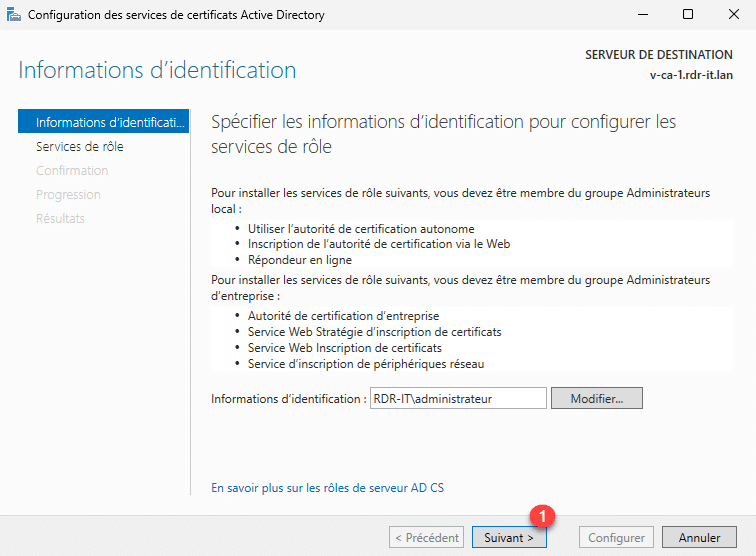
Select the services to configure, check the boxes for Certificate Authority 1 and Web-based Certificate Authority Enrollment 2 , then click Next 3 .
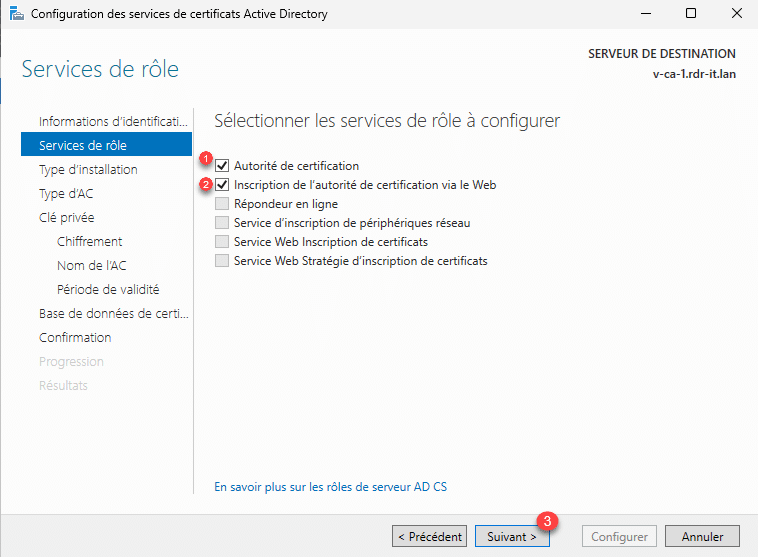
Select the CA type: Enterprise Certificate Authority 1 and click the Next button 2 .
Here, I do not have a parent authority, so I will select Root Certificate Authority 1 and then click Next 2 .
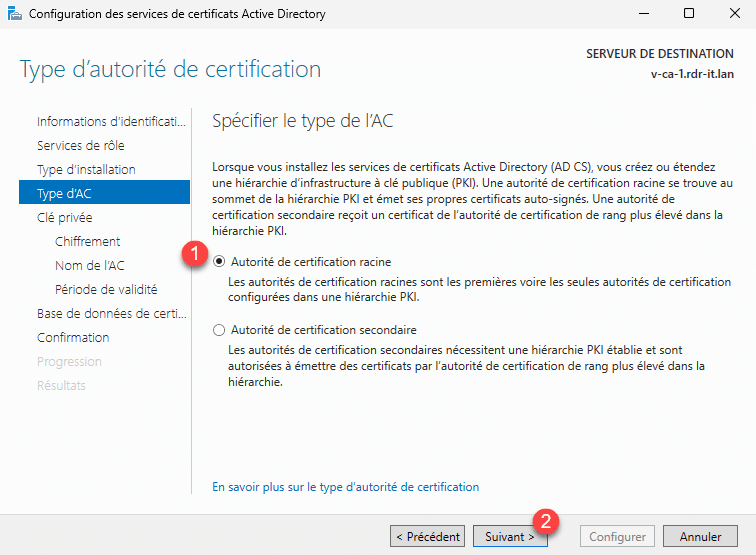
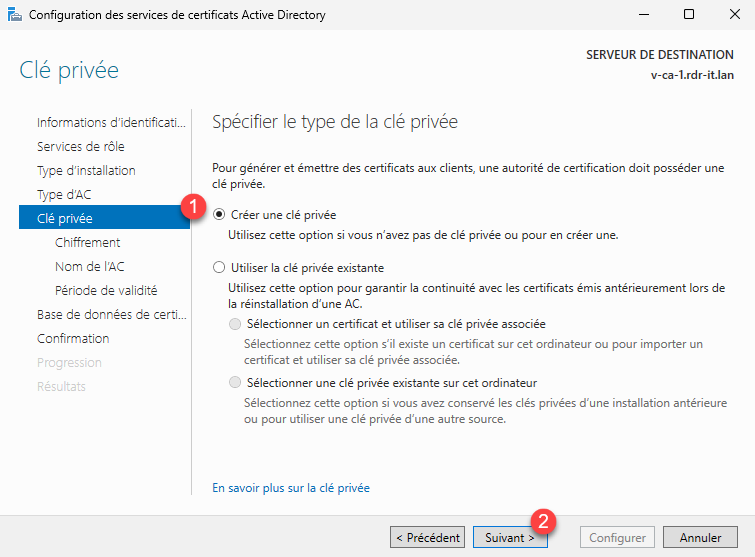
Select: Create a private key 1 , then click Next 2 .
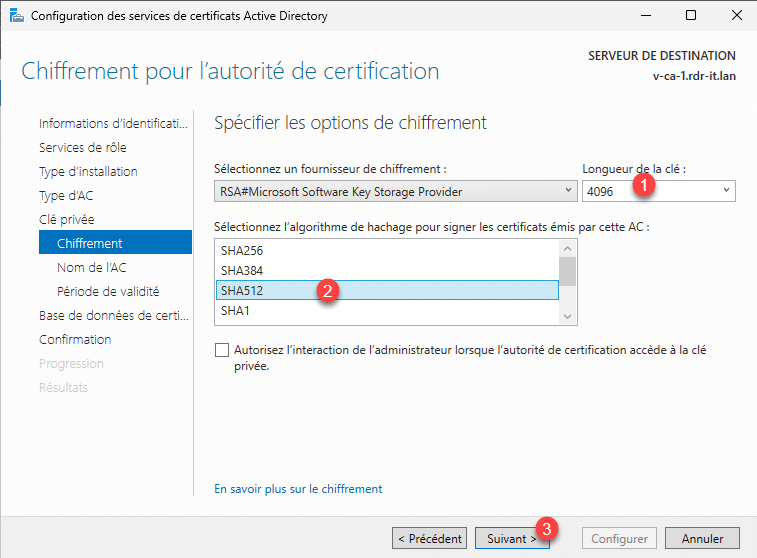
Configure the encryption with the following options:
- 1 Key length: 4096
- 2 Hash algorithm: SHA512
Then click the Next button 3 .
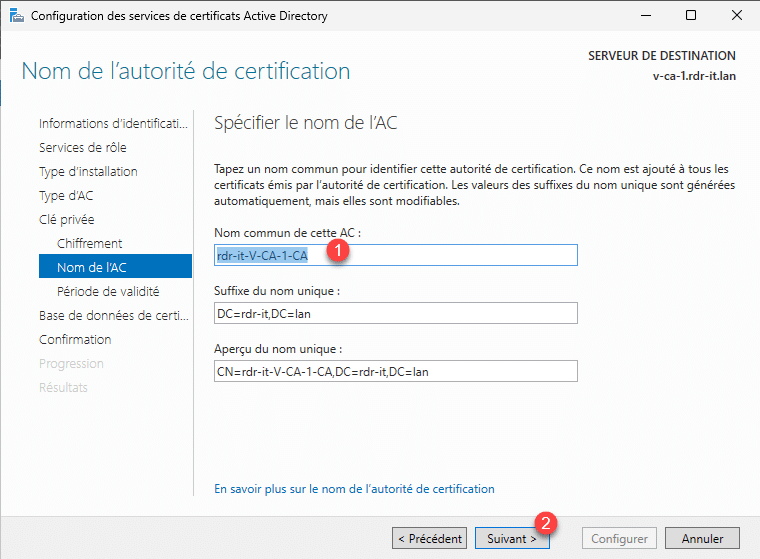
If desired, change the CA Common Name 1 , then click Next 2 .
Configure the certificate authority’s validity period 1 , then click the Next button 2 .
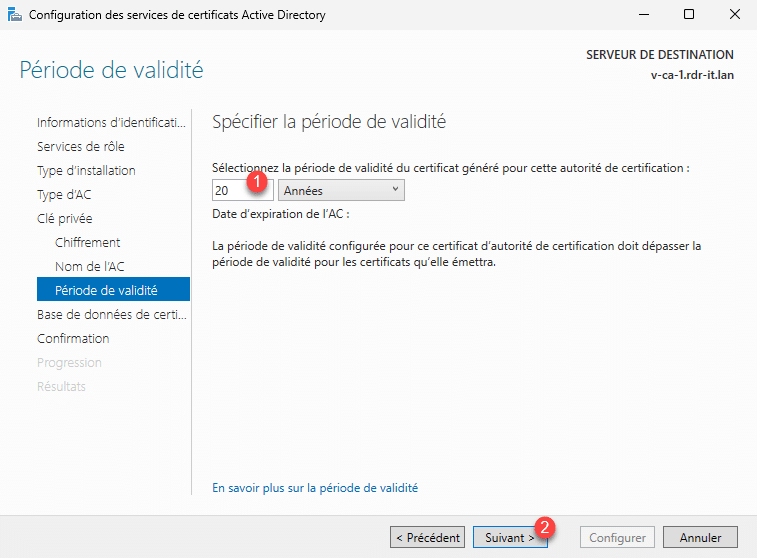
By default, it is 5 years.
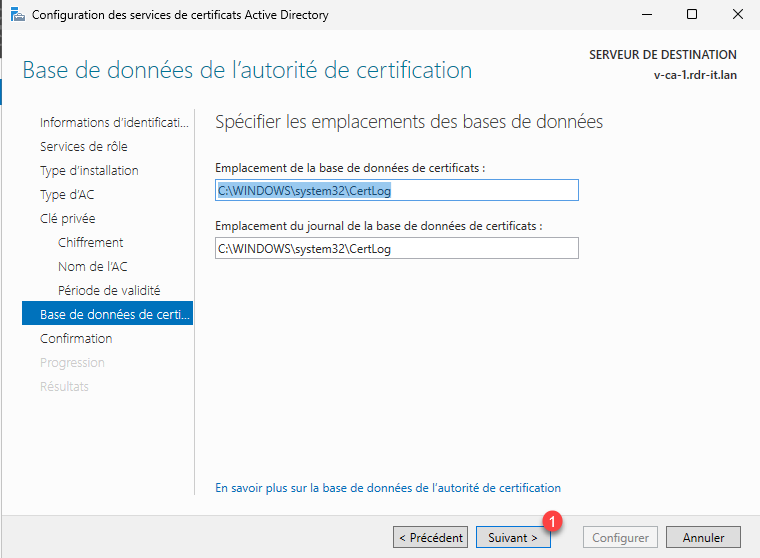
If necessary, change the location of the database and logs, then click Next 1 .
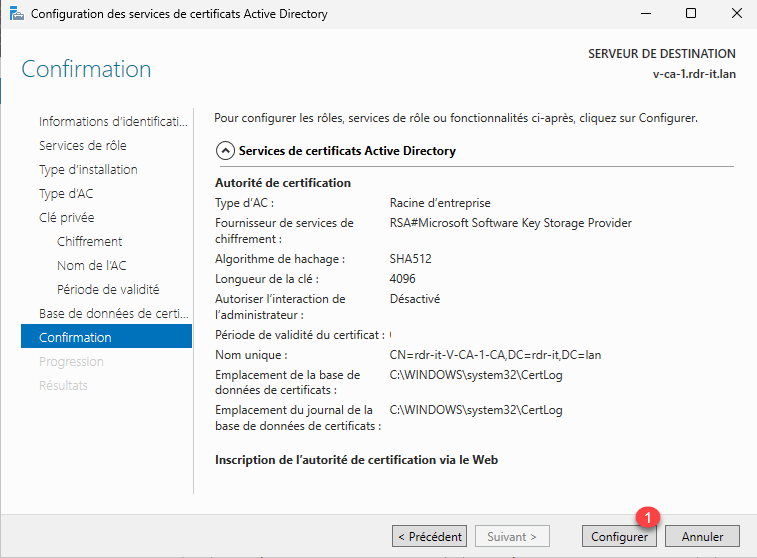
A summary of the certificate authority configuration is displayed; verify the data, then click the Configure button 1 .
Once the configuration is complete, exit the wizard by clicking Close 1 .
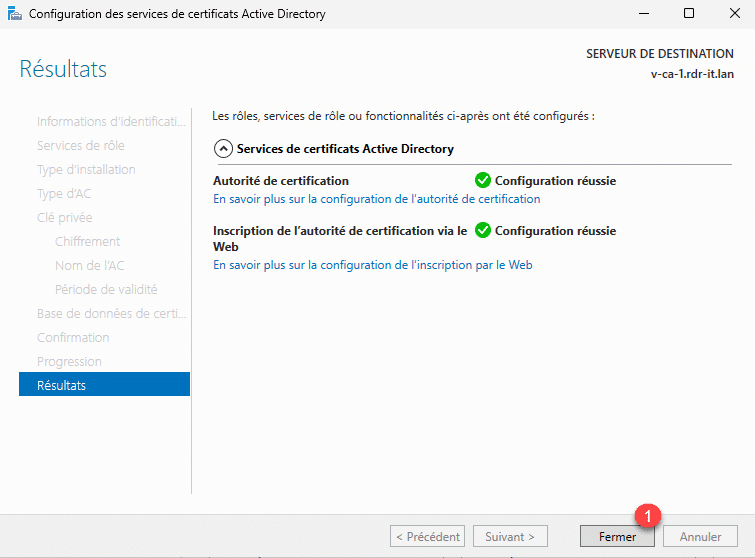
The AD CS Certificate Authority configuration is complete.
Management Console: Certificate Authority
From the server, open the Certificate Authority console to access the configuration and administration.
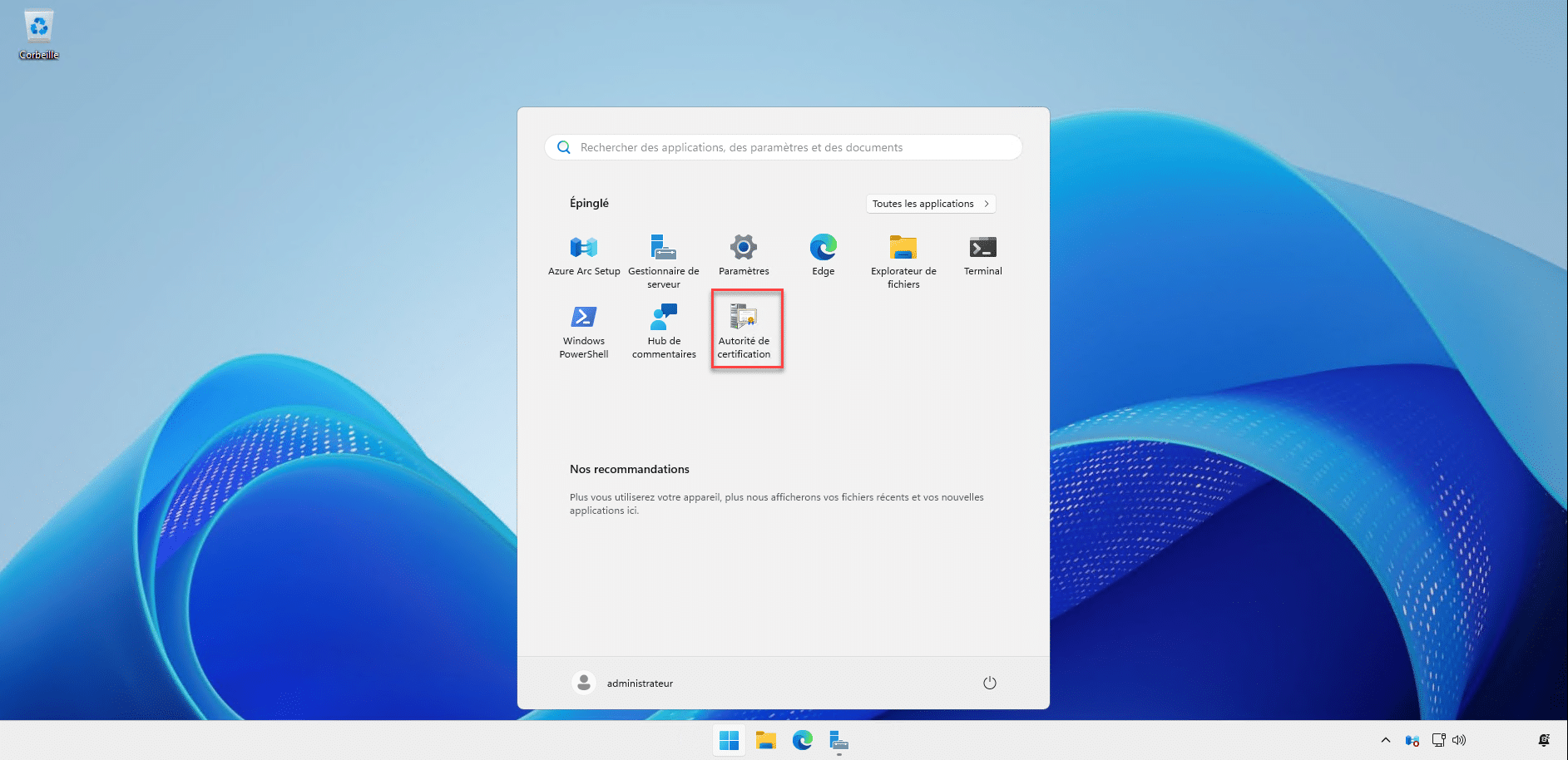
From this console, you can manage the certificate authority’s properties and also manage the various certificates.

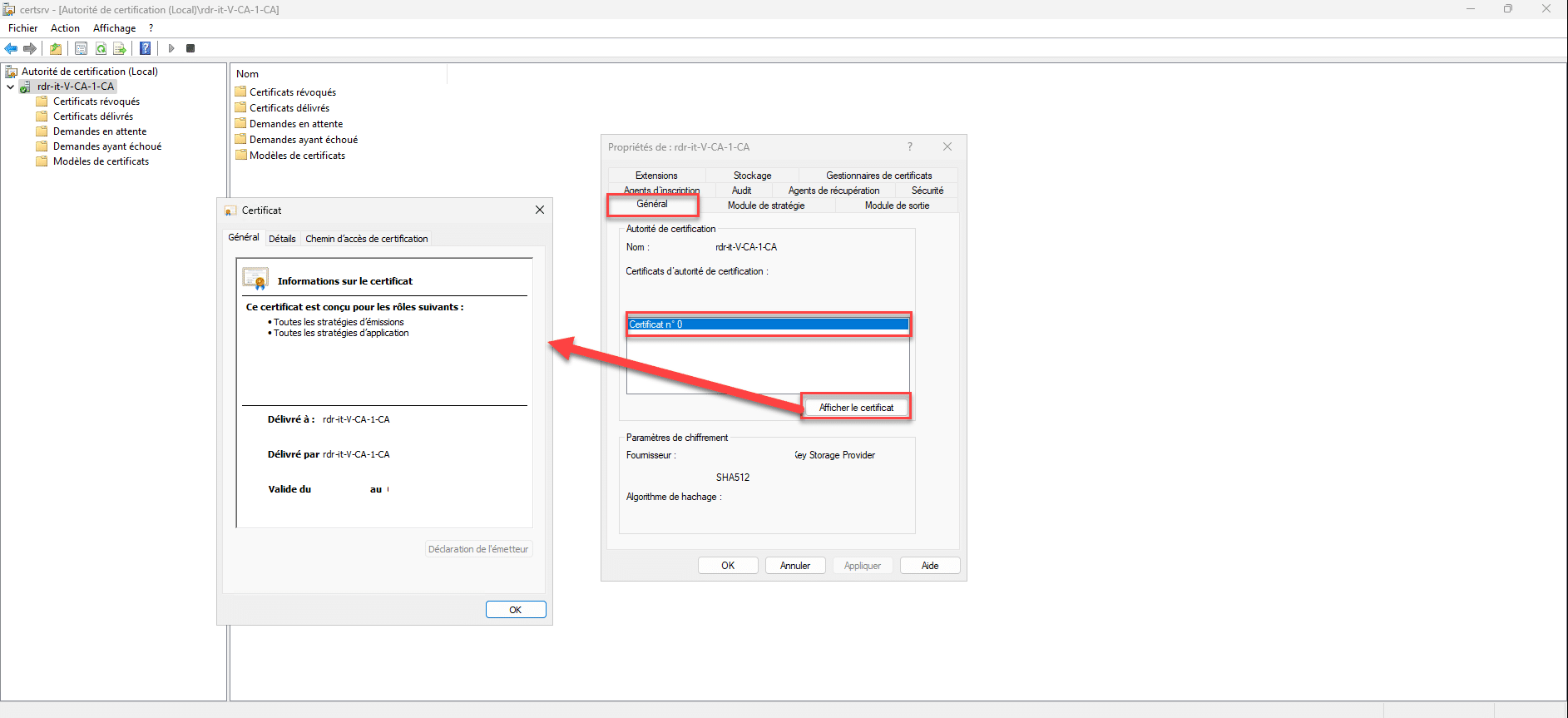
To access the configuration, click on the CA’s common name and click Properties 1 .

From the General tab, select Certificate No. X and click the View Certificate button to access the Root Certificate.
The Extensions tab is often used to configure the location of revoked certificates.
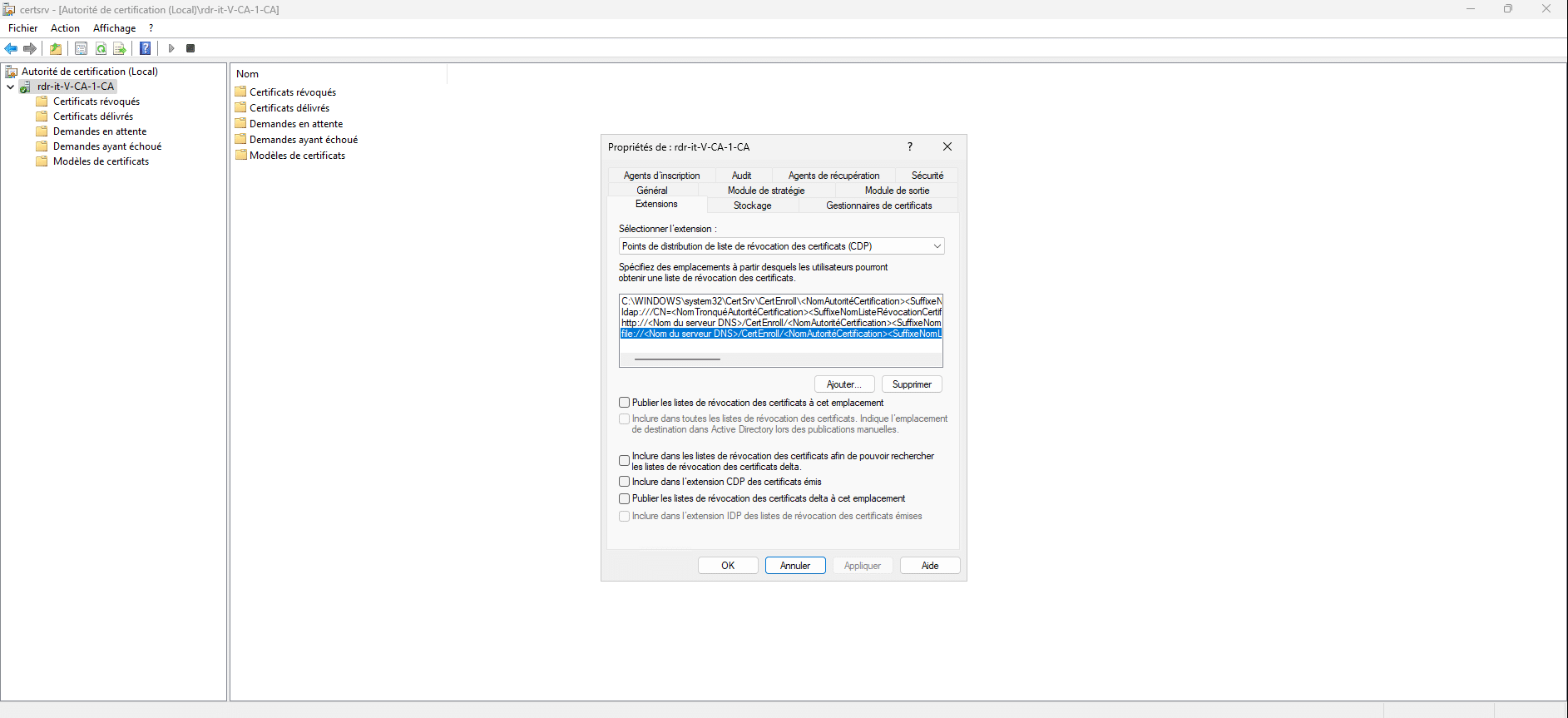
A dedicated tutorial on publishing revoked certificates is coming soon…
Deploying the root certificate
Active DirectoryIn the case of an enterprise certificate authority—that is, one integrated into your environment—computers and servers joined to the domain will have the certificate deployed automatically without needing to set up a GPO to deploy the certificate .
However, for standalone certificate authorities, you must deploy the certificate via Group Policy.
You now know how to install and configure the AD CS role on Windows Server 2025 to deploy an enterprise certificate authority.
Regarding its use for certificate generation, I invite you to read the following tutorial: