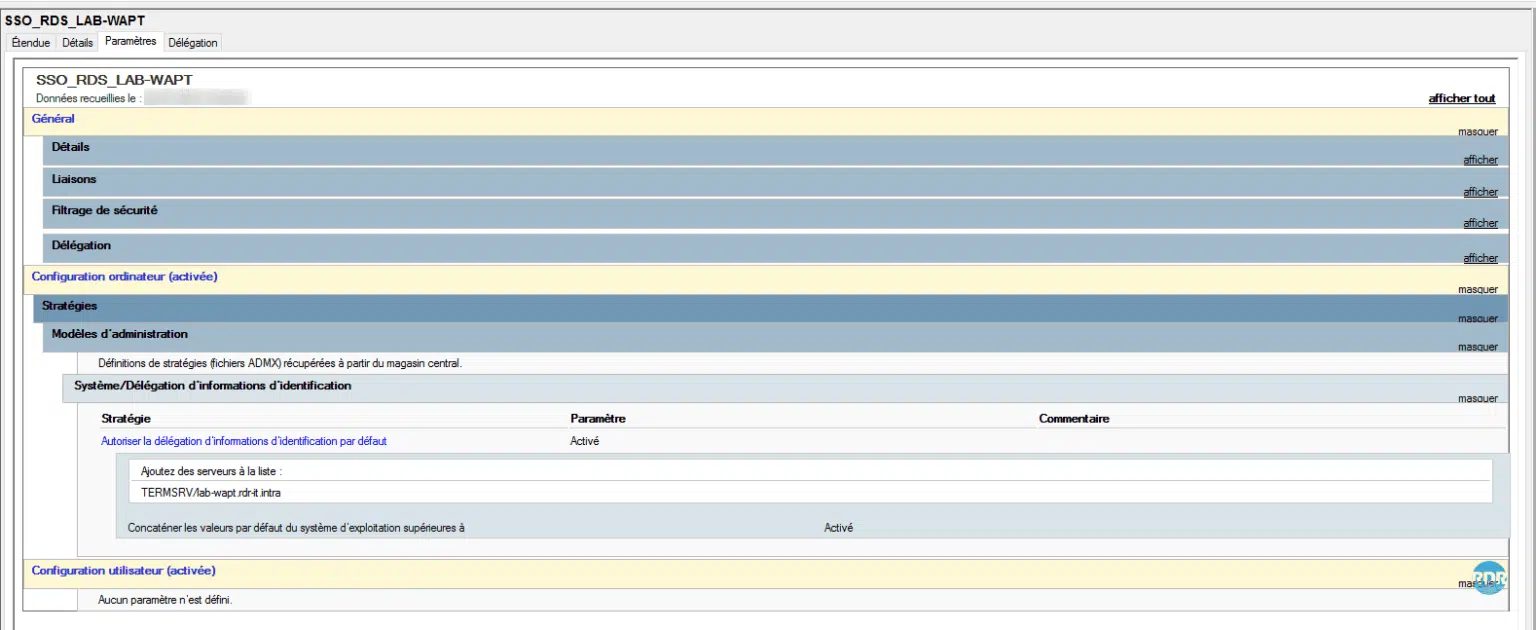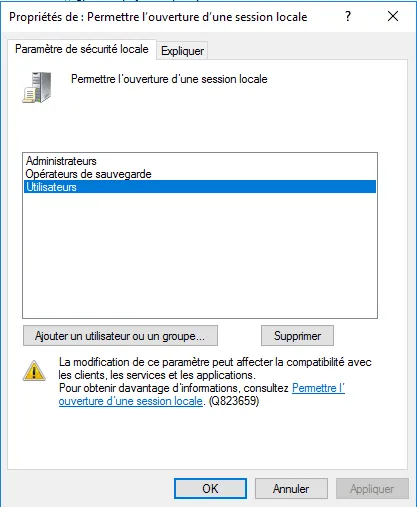
Since the security updates published in April 2026 (including the Patch Tuesday), Microsoft has profoundly changed the remote client’s behaviour in order to enhance security around RDP connections. Now, opening a file .rdp systematically triggers new warnings, with a focus on the connection parameters used and stricter restrictions, especially on local redirections.
This change is not insignificant: RDP files have become a frequent target in phishing campaigns, as they may contain parameters that allow access to local resources (paperpress, disks, identifiers, etc.) without the user being fully aware of it. So Microsoft decided to make their use more transparent… but also more binding for administrators and users.
In concrete terms, a file .rdp is a simple configuration file used by Remote Desktop client (mstsc). It contains all the information necessary to establish a connection to a server or RDS farm: server address, display options, device redirections, authentication, etc. When double clicked on it, the connection is automatically prepared with these parameters.
With the changes introduced in April 2026, several impacts appear immediately:
- appearance of additional security messages when opening RDP files
- detailed display of parameters before connection
- default deactivation of certain sensitive settings
- need for sign RDP files to avoid warnings and ensure their integrity
In this tutorial, we will see how to adapt to these changes by putting in place a file signature .rdp, but also by properly configuring your RDS environment in order to remove warnings while maintaining a security level that meets the new requirements of Windows.
Signature in the case of an RDS farm
This is the case, if you have correctly configured the certificates of the farm RDS on the Broker, the environment is configured to sign RDP files, just configure the group strategy with the certificate footprint (SHA) that is configured.
From the Broker server, in the deployment overview, click on TACHES and then Edit Deployment Properties.
On the deployment property window, go to Certificates to identify which one is configured for: Service Broker for Remote Desktop Connections - Publication, once selected, you can see below the list the certificate used.
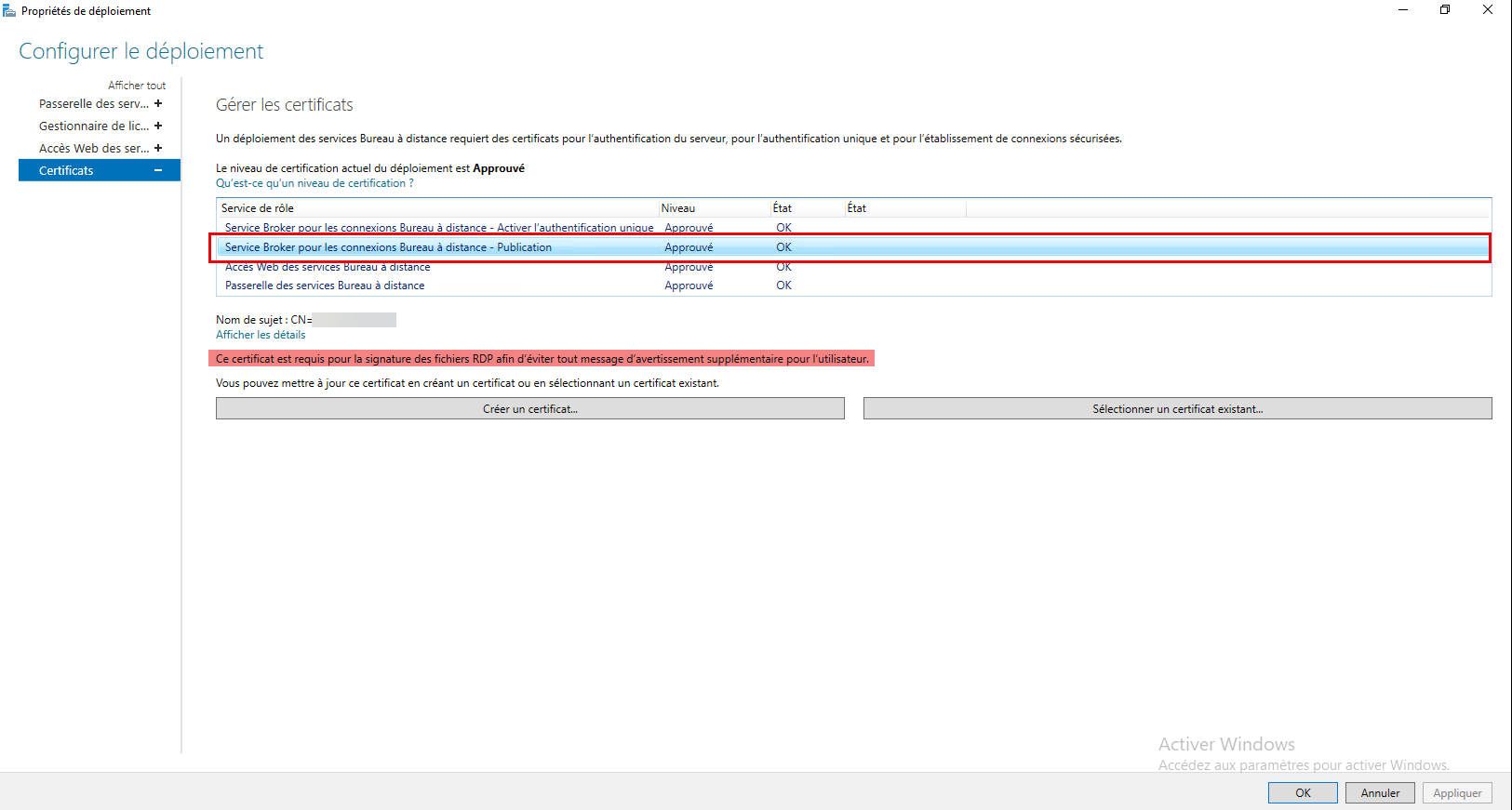
By clicking Show Details, you will be able to copy the Certificate Digital Print.
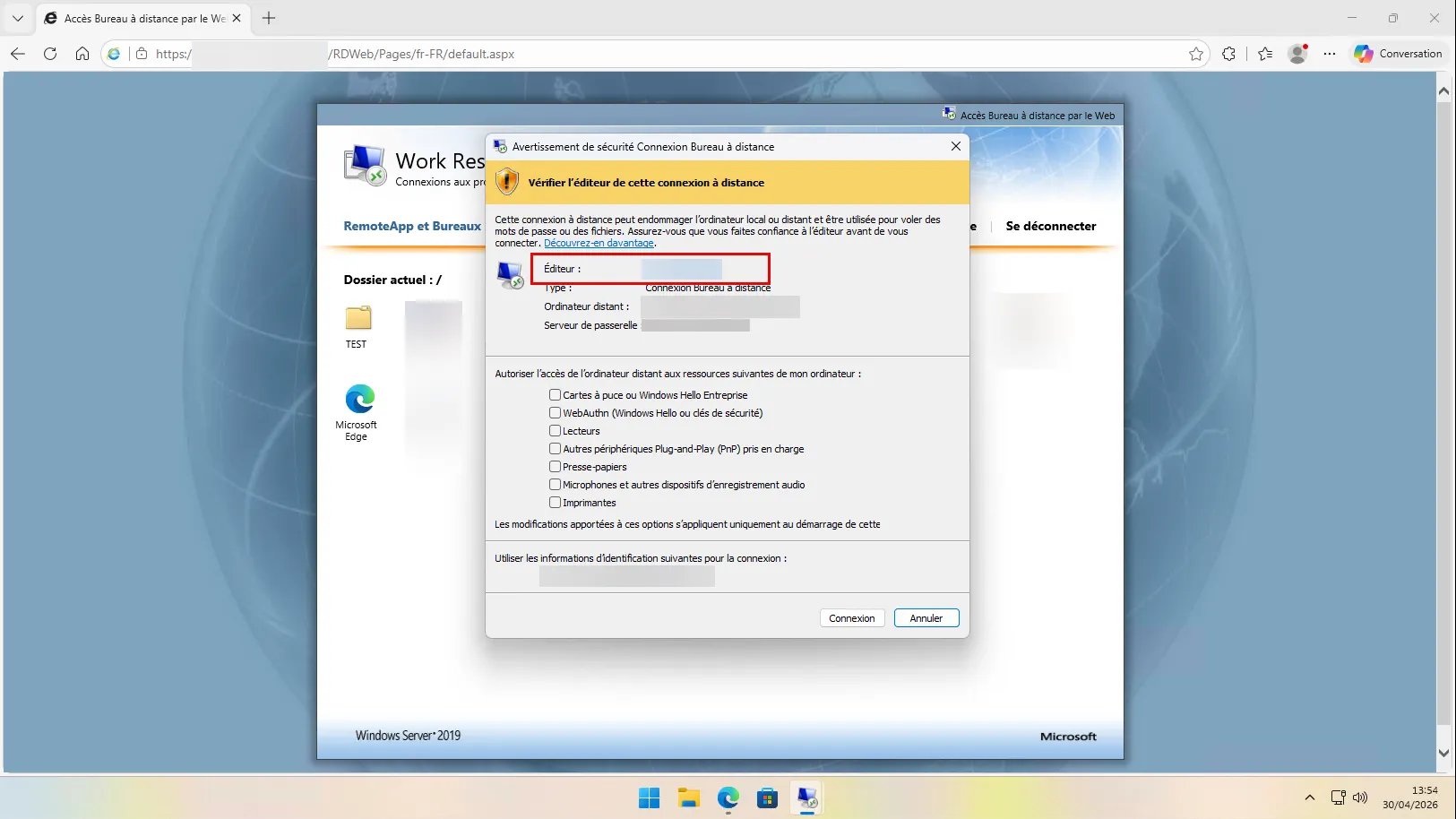
For the moment if I connect from the web interface, I have the warning message, we can see the editor that corresponds to the certificate that signed the file.
Sign a .rdp file
The second case we are going to deal with concerns files .rdp you can provide your users, whether for internal access to your infrastructure or for connections to external services. With the new requirements introduced by the April 2026 updates, the opening of these files now triggers a stricter security warning, which can disrupt the user experience and generate misunderstandings.
To avoid the appearance of this message, it is necessary to sign RDP files to ensure their integrity and provenance. If you have already implemented the signature of PowerShell scripts, the principle is quite similar: a certificate is used to certify that the file has not been modified and that it comes from a source of trust.
In the case of RDP files, Microsoft provides a dedicated tool named rdpsign.exe, specially designed to apply this signature. This is this tool that we will use in the continuation of this tutorial to secure your files and remove user-side warnings.
To sign a .rdp file, you need to have a code signature certificate .
Now we open a PowerShell window and start by picking up your certificate’s (Thumbprint) fingerprint.
Get-ChildItem -Path Cert:\CurrentUser\My | Format-List
In the certificate list that appears, copy the value of the Thumbprint field of the corresponding certificate.
Sign RDP file with rdpsign.exe:
rdpsign.exe /sha256 <Thumbprint> C:\Path\rdp-file.rdp
The command returns simply: All rdp files have been signed.
If you are curious, open the file .rdp with the note block, at the end of it, you can see the signature.
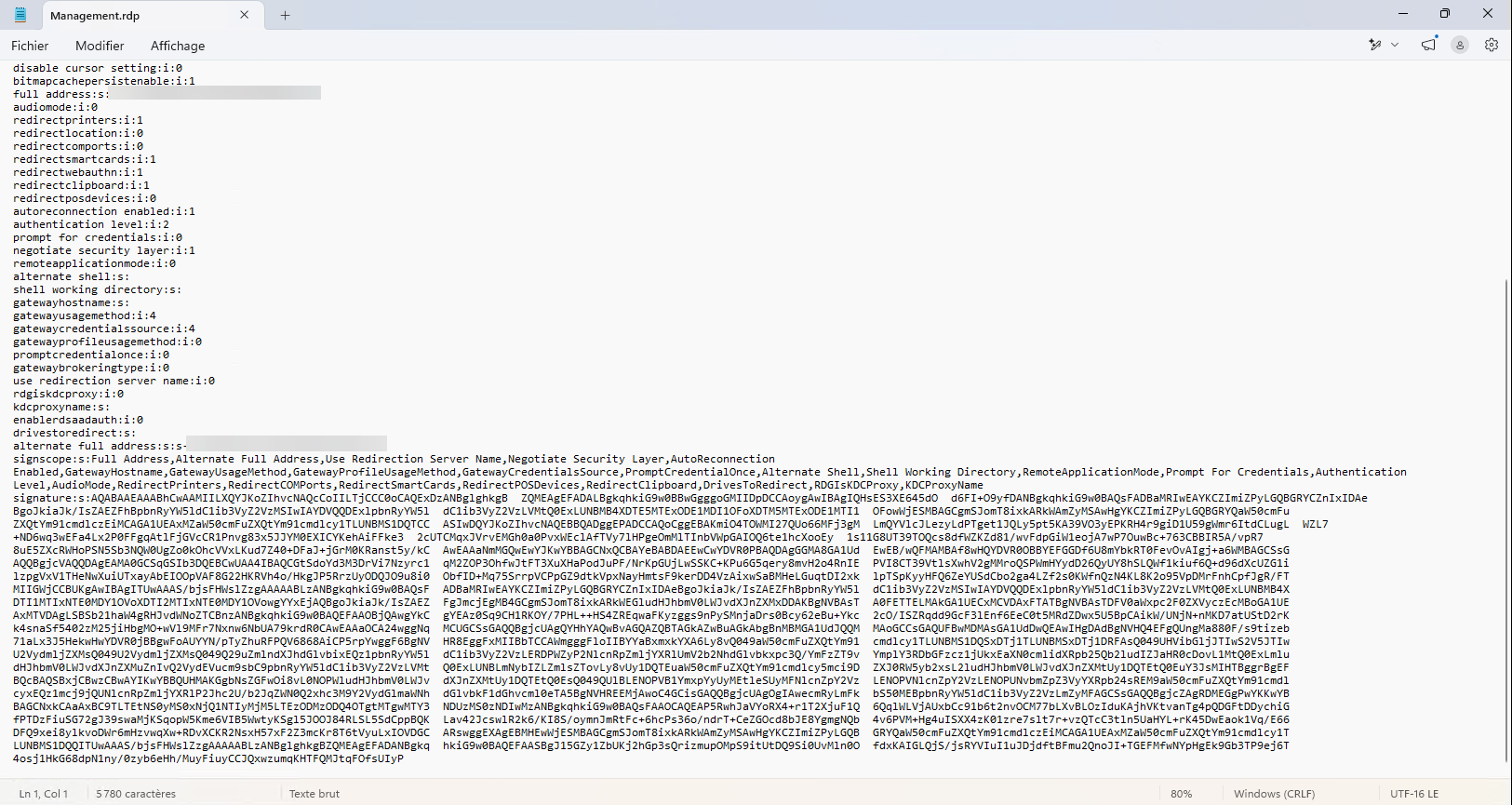
Once file .rdp signed, it must no longer be amended. Indeed, the signature is based on the integrity of the content: the slightest modification (even minimal, such as a parameter change or an added line) invalidates the signature. The file will then again be considered unreliable by the Remote Desktop client, and security warnings will reappear.
It is therefore important to fully finalize the configuration of the file .rdp before to sign it and then distribute it as it is to users without making any changes thereafter.
As with a RDS farm, when running a file .rdp signed, the Remote Desktop client displays the information about the file editor. This allows the user to quickly verify the origin of the connection and ensure that it comes from a source of trust.
In the case of internal certification authority , it is generally the name of the user account associated with the certificate which is displayed. While the use of generic accounts is not always recommended from a security point of view, it may be relevant here to create an account dedicated to signing, with an explicit and reassuring name for users, for example DSI Company Name.
The objective is twofold:
- to provide coherence in user-side display
- strengthening the trust by clearly identifying the origin of distributed RDP files
This avoids exposing technical or personal accounts while maintaining a good readability in security messages.
Configure RDP trust prints via a group strategy
The last step to no longer have a warning message is to configure the confidence marks using a GPO. This configuration allows clients to explicitly indicate which certificates are considered reliable for Remote Desktop connections, thus avoiding the display of security alerts when opening files .rdp or connection to an RDS farm.
By defining these prints in a group strategy, you centralize trust management and ensure a smooth user experience, without compromising the level of security imposed by new Windows updates.
I’m not going back here. the whole process of creating a group strategy . Depending on your environment, you can either create a new GPO or configure this parameter in an existing strategy if it is consistent with your organization.
The configuration is done at the level computer, which makes it possible to apply this parameter in an overall way on the positions concerned.
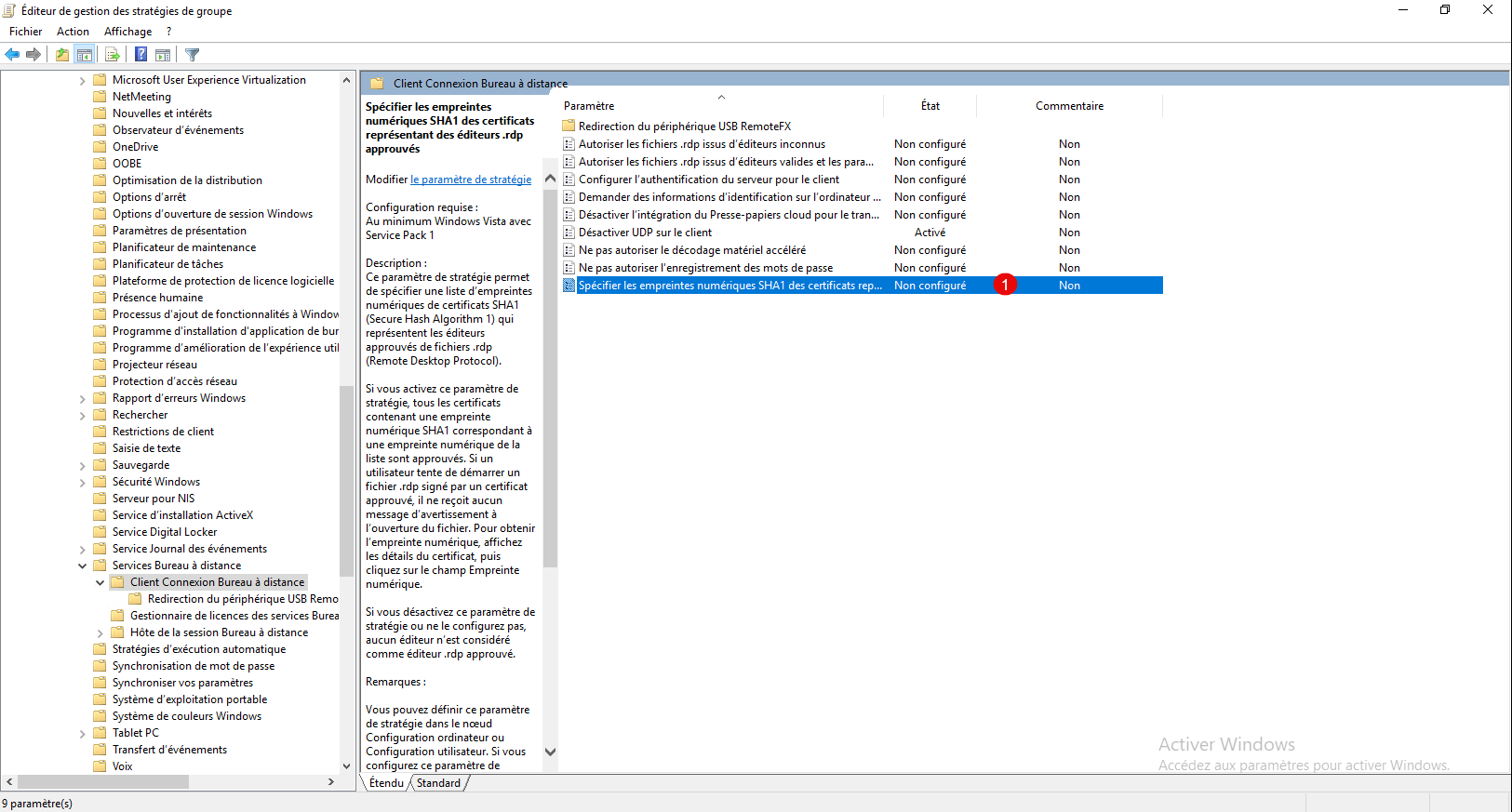
From the group strategy management editor, go to the following location: Computer Configuration / Strategies / Administration Models / Windows Components / Remote Desktop Services / Client Remote Desktop Connection and open the parameter: Specify SHA1 digital fingerprints of certificates representing approved .rdp publishers 1 .
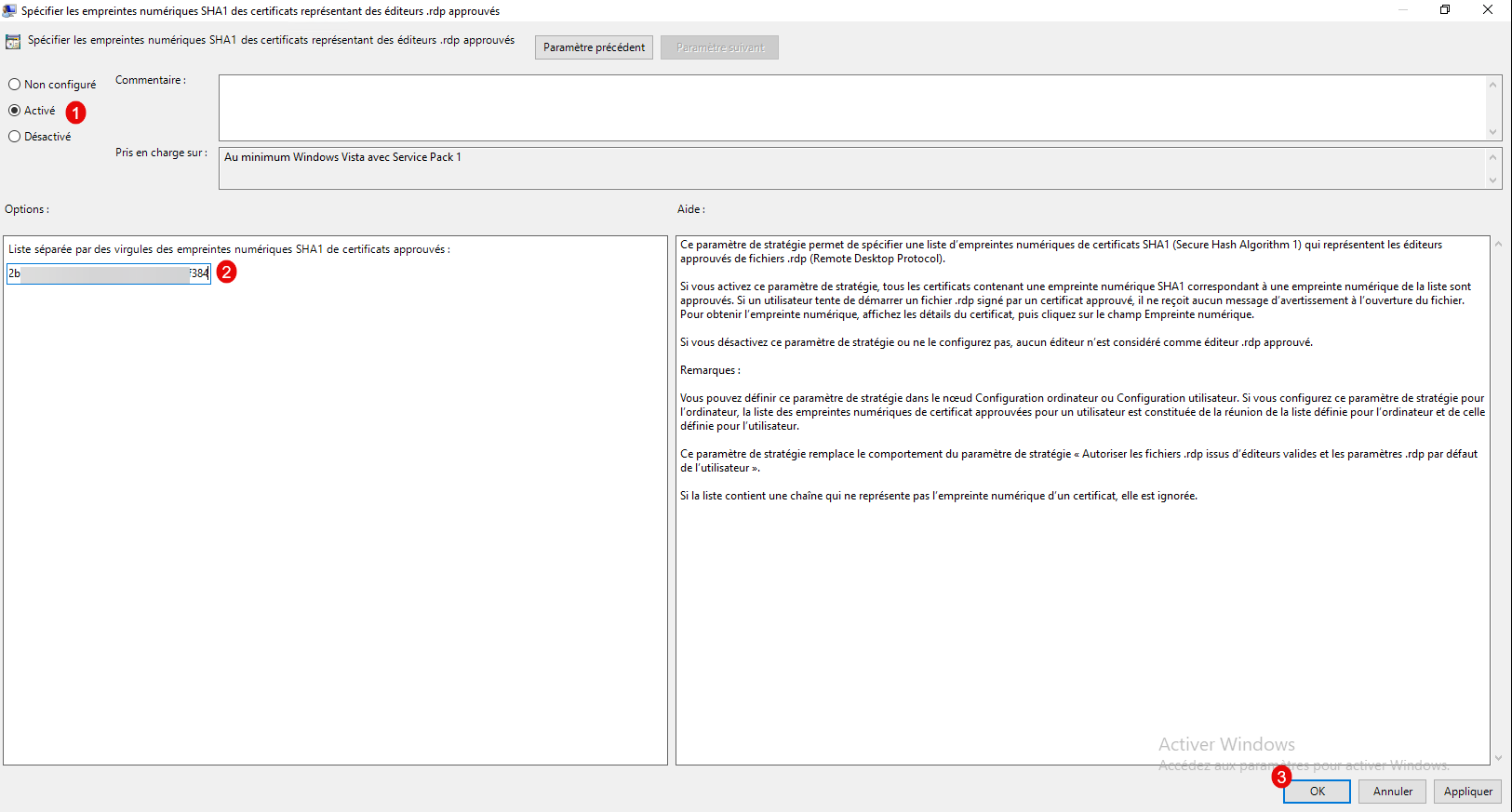
Enable parameter 1 and indicate the SHA1 digital fingerprint(s) of the certificates 2 , if you specify several, you must separate them by a comma, then click OK 3 to save the configuration.
Once the strategy is implemented on computers, users should no longer have a warning message.
Go further in securing .rdp files
It is possible to further harden the behavior of files.rdp on Windows by changing the following settings:
- Allow .rdp files from unknown editor This strategy parameter specifies whether users can run unsigned or unsigned .rdp (Remote Desktop Protocol) files from unknown editors on the client computer.
- Allow .rdp files from valid editors and user default .rdp settings This strategy parameter specifies whether users can run a .rdp (Remote Desktop Protocol) file from a publisher who signed it with a valid certificate. A valid certificate is a certificate issued by an authority recognized by the customer, such as one of the issuers belonging to the certificate store of the third-party root certification authorities of the customer. This strategy parameter also determines whether the user can start a RDP session using the default .rdp settings (e.g. when a user opens the Remote Desktop Connection client directly without specifying a .rdp file).
If your environment allows, I recommend that you activate these two parameters. This allows you to better control user behavior in remote desktop connections, while reducing the risk of using files .rdp unapproved or modified and connections from the client mstsc.exe.
Conclusion
The developments introduced by Windows in April 2026 mark a clear strengthening of security around the Remote Office and RDS infrastructures. Between the mandatory signature of files .rdp, the new customer-side warnings and the need to declare trusted fingerprints via GPO, the objective is obvious: to better frame remote connections and limit the risks of usurpation or modified files to the unknown of users.
By setting up the signature with rdpsign.exe and by properly configuring your group strategies, you find a clean, controlled environment, especially without unexpected alerts for end users. This keeps a smooth experience while respecting the new security requirements of Windows.
There are actually circumvention methods to remove or hide warning messages related to files .rdp or RDS connections. However, voluntarily, I will not discuss them in this tutorial.
Today, with the evolution of cyber threats and the proliferation of phishing or login techniques, these warnings play an important role in protecting users. By bypassing them often reduces the overall level of environmental safety, which is no longer a good practice in modern infrastructure.
The objective here is therefore to remain in an approach secure and compliant with Microsoft recommendations, accepting these new constraints and correctly integrating them through file signature and group strategy configuration.