In this tutorial, I will explain how to use Microsoft’s LGPO tool on Windows to manage local policies without anActive Directory domain.
To begin, we will prepare a workgroup computer that we will configure, then use LGPO to export the configuration, and then see how to import the configuration again using LGPO.
Introducing LGPO (Local Group Policy Object Tool)
LGPO.exe is a command-line tool developed by Microsoft for managing local group policies (local GPOs) on Windows computers. It is particularly useful in non-domain environments, such as standalone computers or those integrated into workgroups, where it is not possible to use centralized GPOs via Active Directory.
The LGPO tool allows you to export, import, and apply locally stored Group Policy settings. It supports GPO backup files (.pol) as well as .inf configuration templates and .csv security files. It is a valuable tool for automating policy configuration across multiple machines or for quickly applying a consistent security configuration.
LGPO is often used in industrial deployments, isolated enterprise environments, or for system administrators who want to standardize the configuration of their machines without a domain server. It is also very useful for integration with image deployment tools (MDT , SCCM, etc.).
The tool is part of the Microsoft Security Compliance Toolkit and can be integrated into scripts or automated processes for fine-grained and repeatable management of security and system configuration settings.
“Template” computer configuration
The first thing to do will be to configure the computer that we will use as a model for the local policy. I advise you to take a computer “freshly” installed in a workgroup to avoid any conflict with group policies of an Active Directory domain that could be applied.
On your computer, open a Run window and type gpedit.msc and click OK.
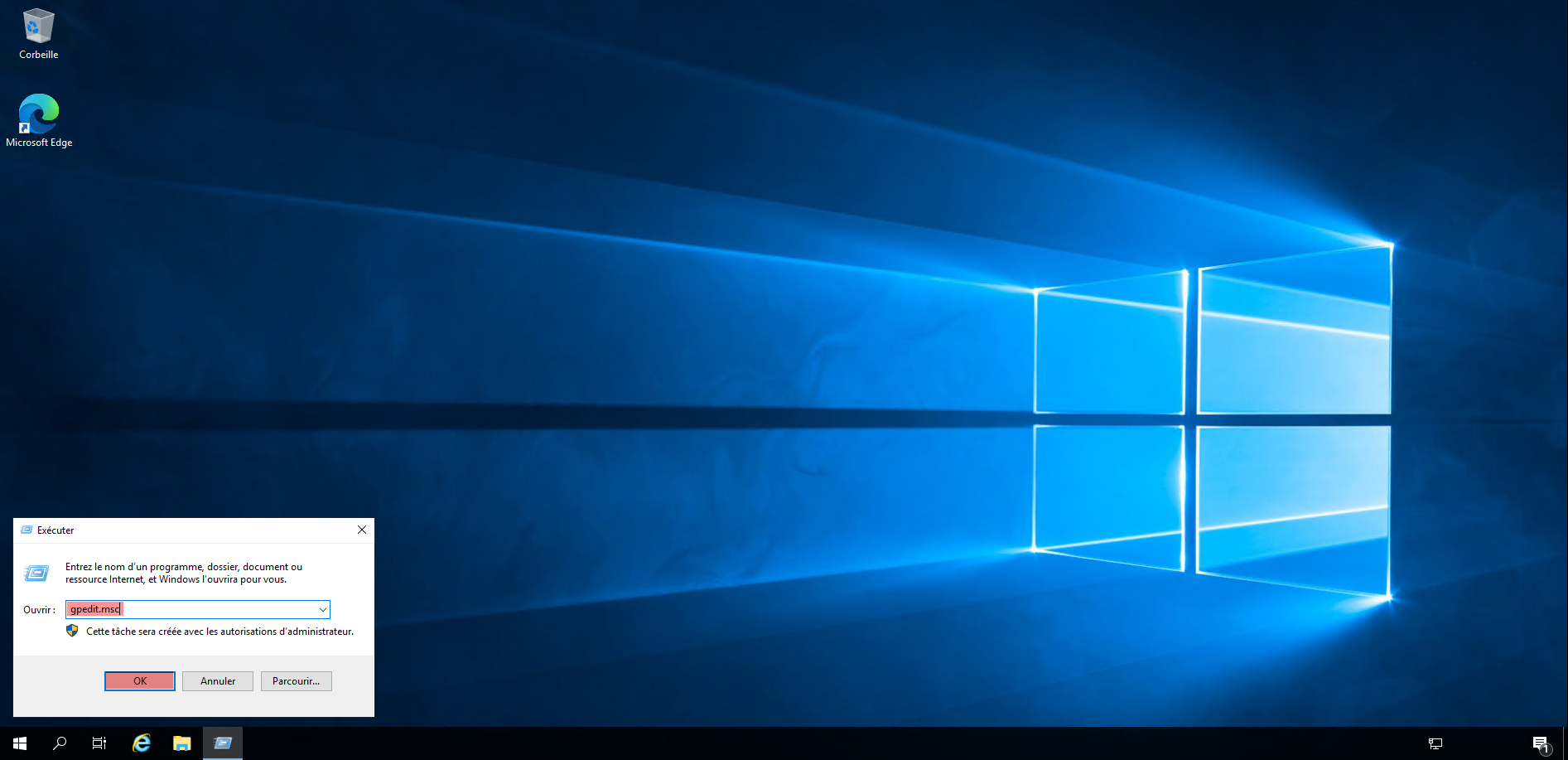
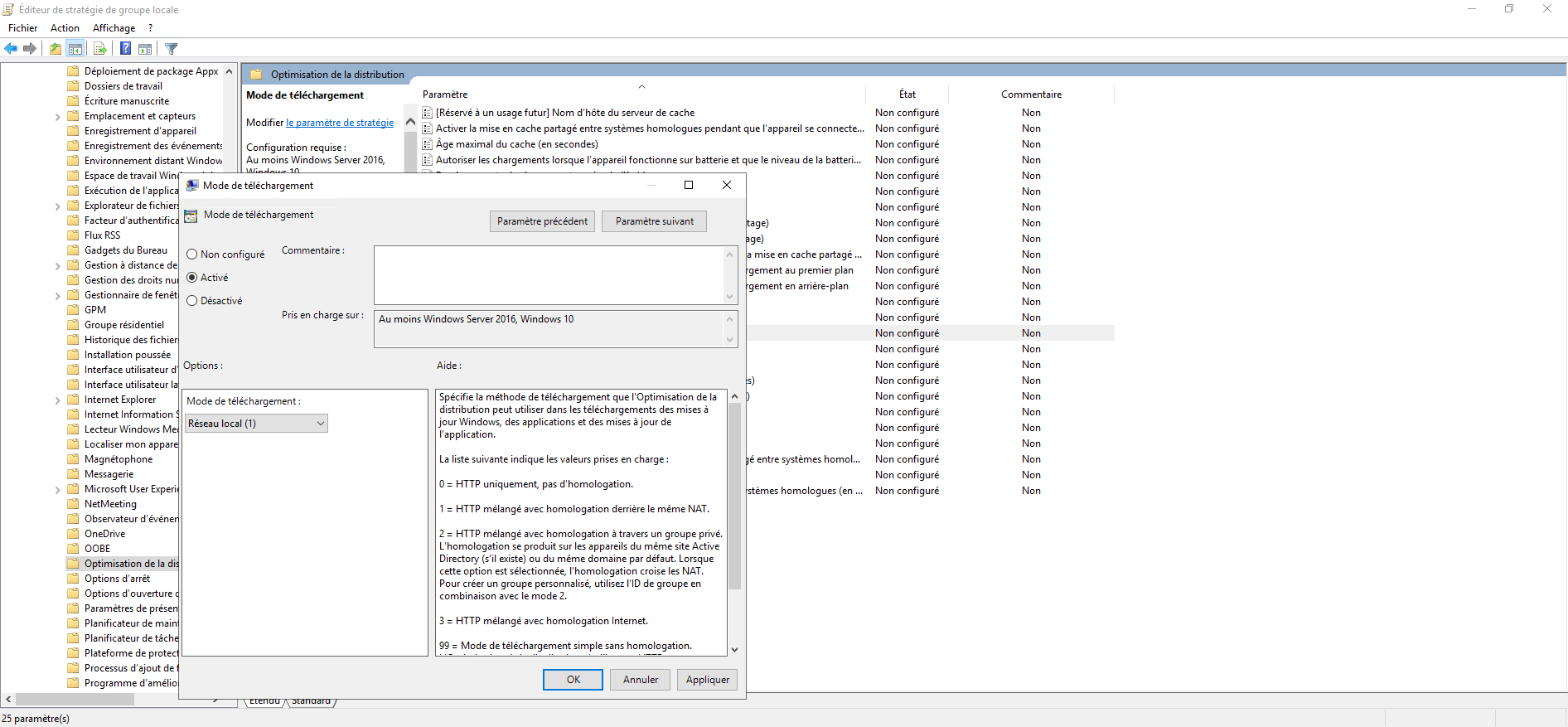
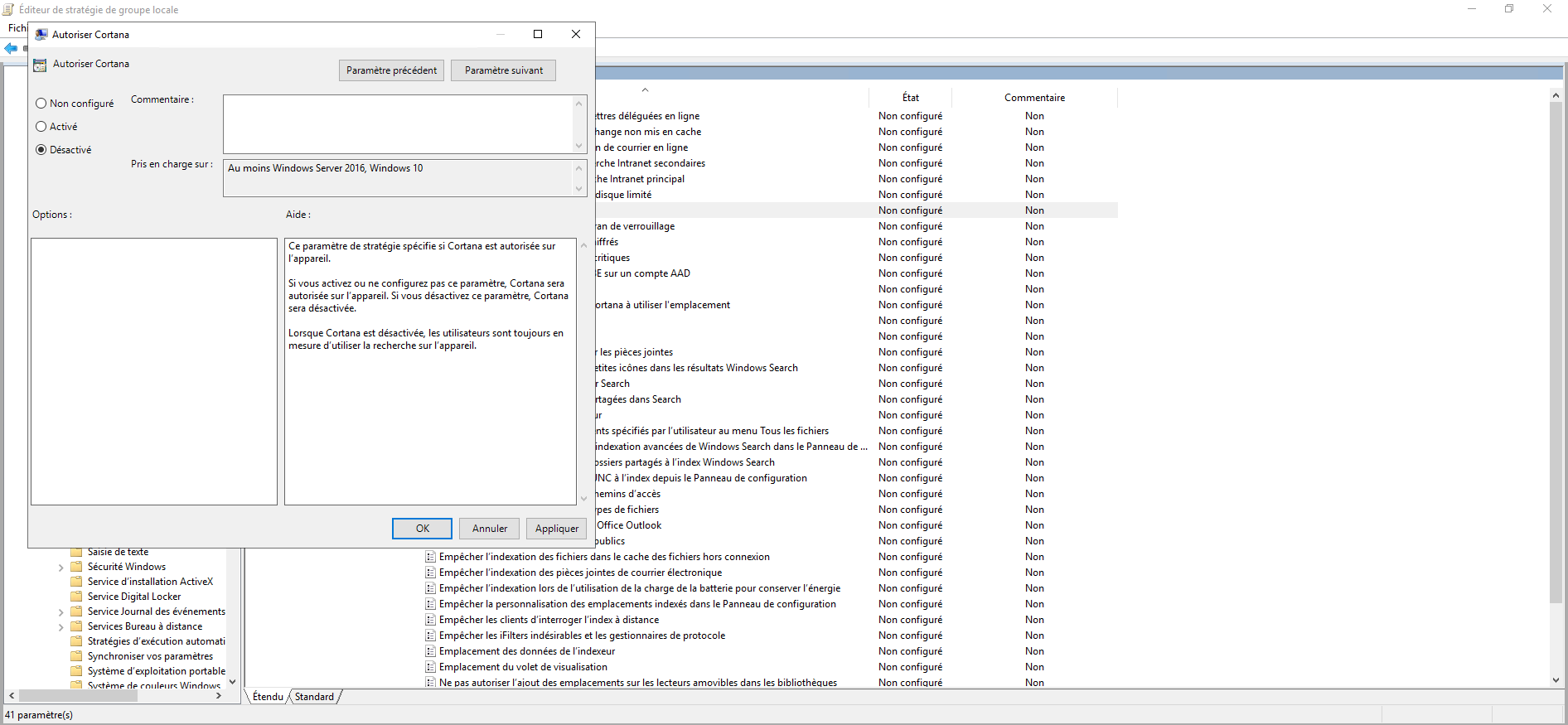
Using the console: Local Group Policy Editor, configure the various settings you want to apply.
Download LGPO from the Microsoft website
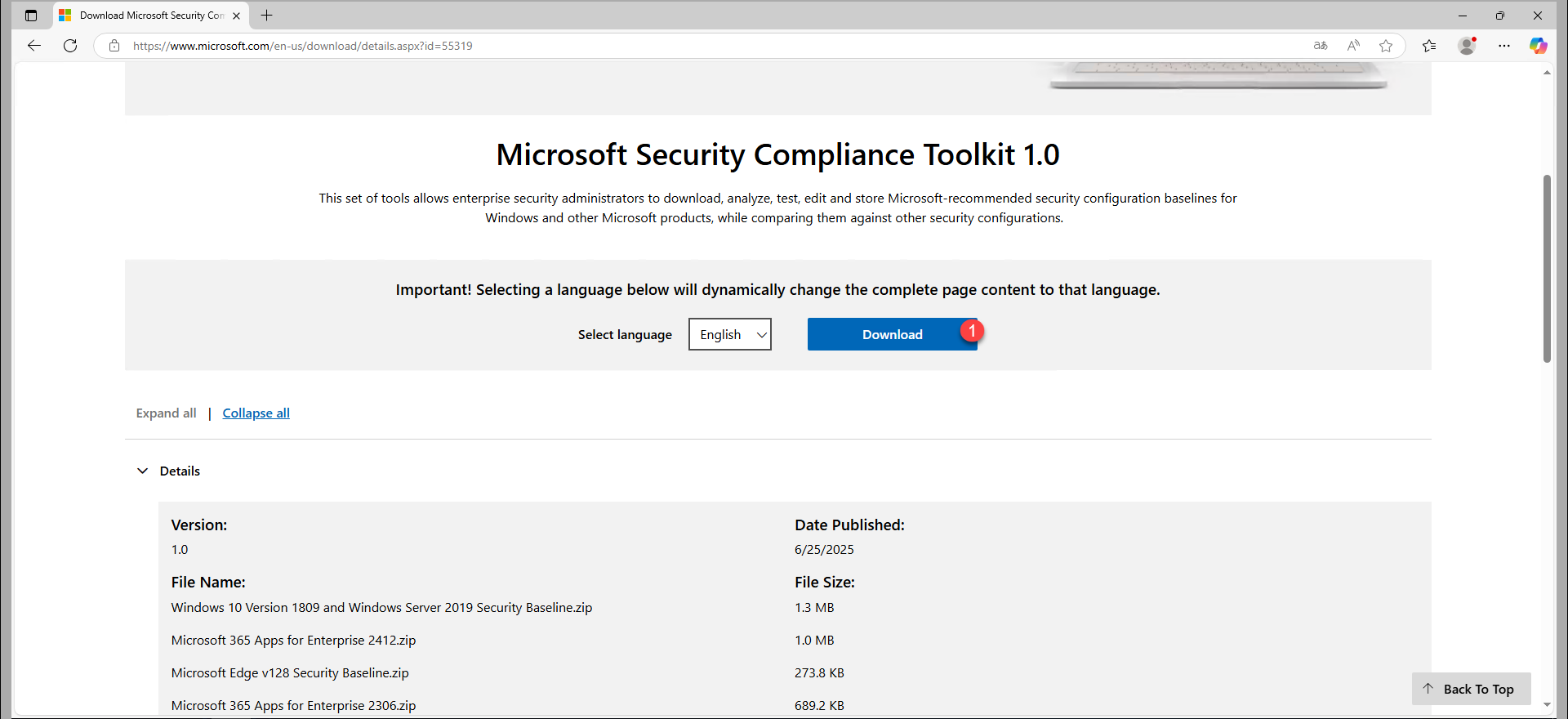
Now that the computer is ready, we will download LGPO from the Microsoft website : Microsoft Security Compliance Toolkit 1.0
Click on the Download button 1 .
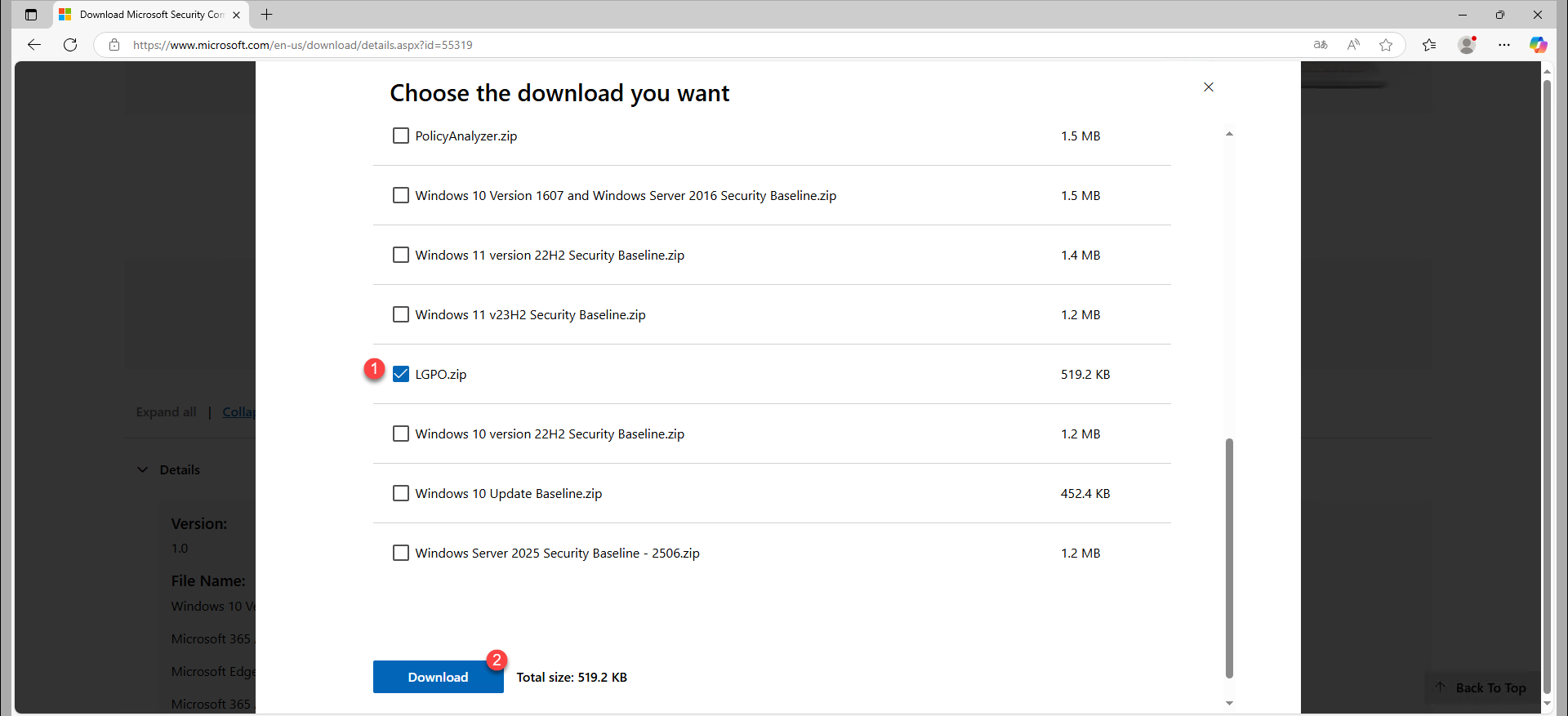
Select the LGPO.zip file 1 then click on the Download button 2 .
Once the download is complete, unzip the archive. For ease of use of LGPO, I copied the LGPO.exe file to a tmp folder at the root of the C: drive.
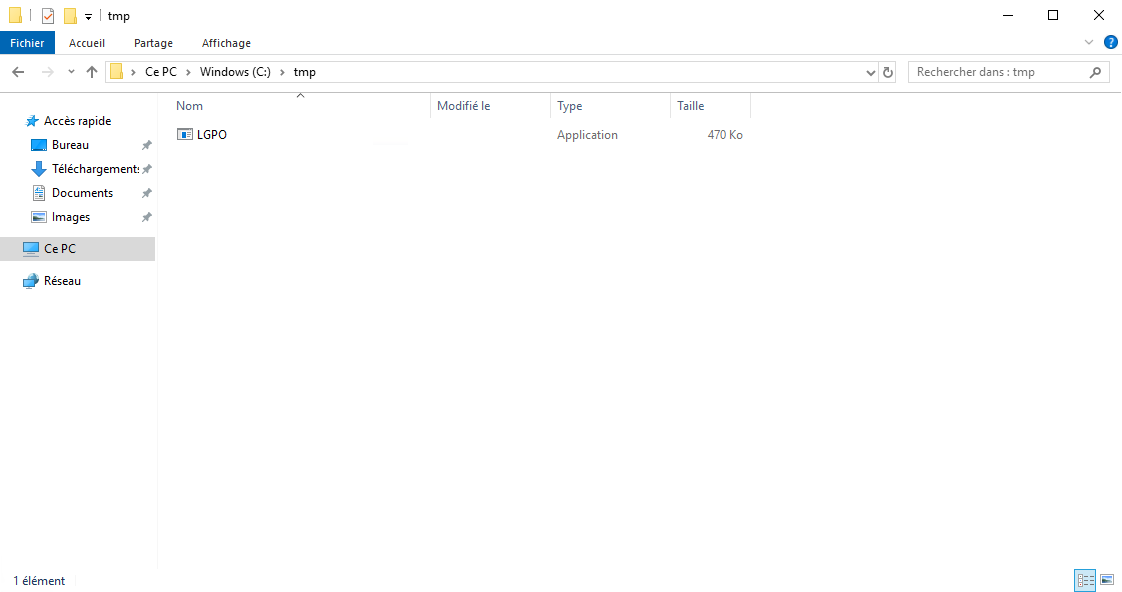
Export local policies with LGPO
We will start by seeing how to export local strategies with LGPO, I forgot to specify at the beginning of this article, LGPO is used on the command line.
In the tmp folder, I first created a W2019T folder that I will use for export.
Start by opening a CMD or PowerShell window as administrator and going to the folder where the LGPO.exe file is located.
To export, enter the following command:
LGPO.exe /b C:\Path\Of\Export
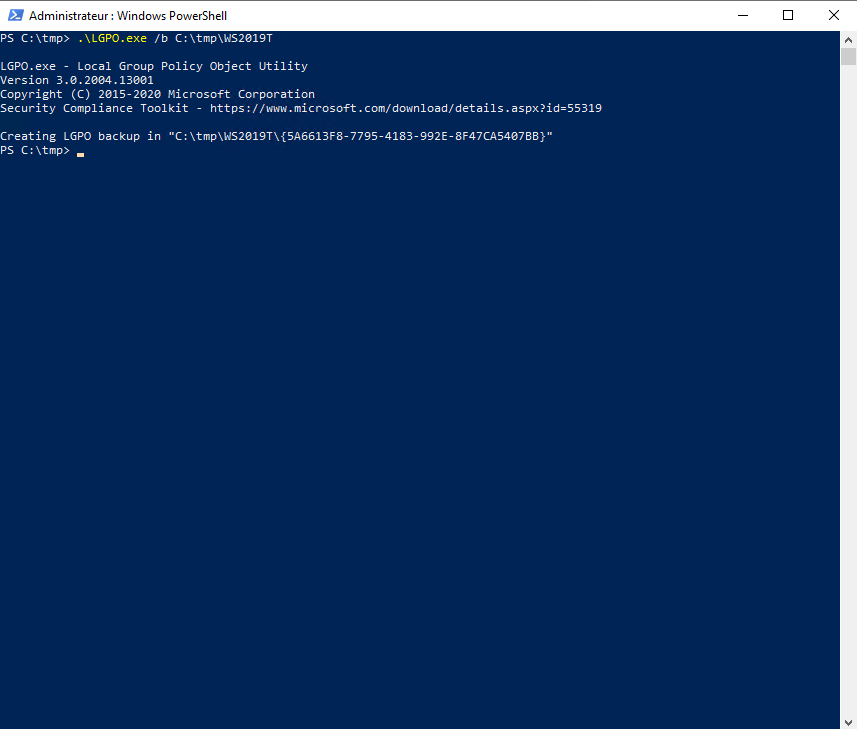
Once the export is done, a folder with GUID is created, then in this folder, we will find the different local strategy folders.
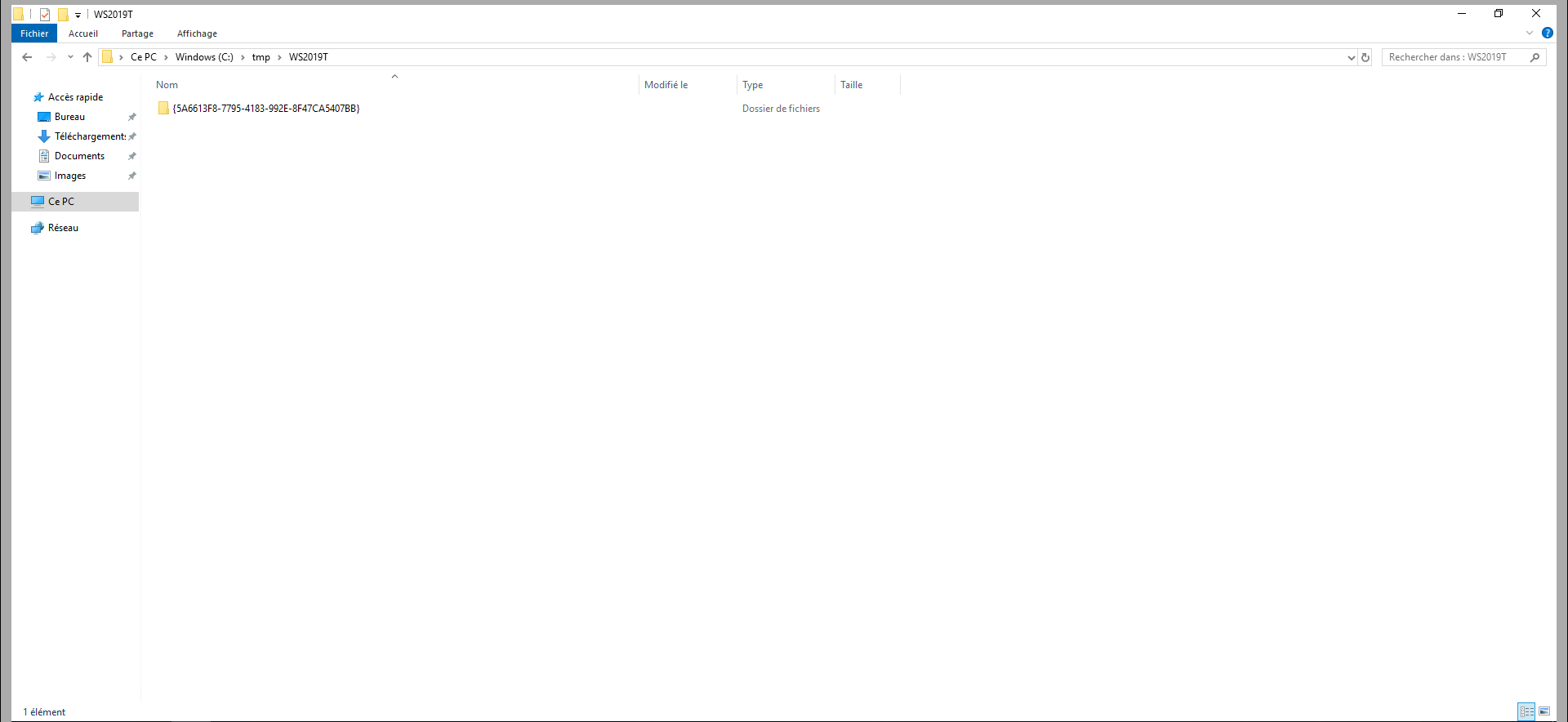
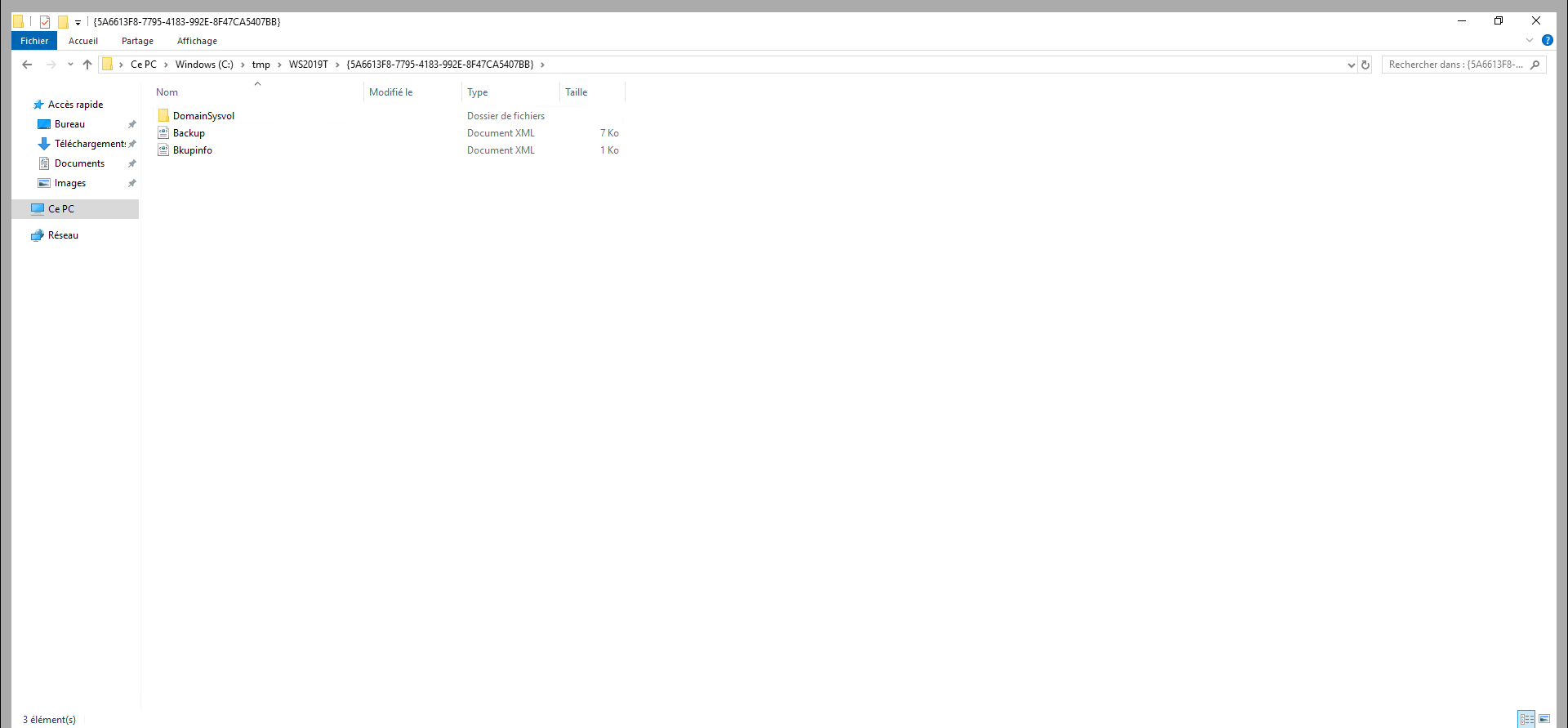
If you are used to GPO in an Active Directory domain, you will find the same tree structure.
Import local policy settings with LGPO
To import the settings, copy the LGPO.exe file and the export folder to another computer, open a command prompt as administrator, go to the folder where the LGPO.exe file and the export folder are located, and enter the following command:
LGPO.exe /g C:\Path\Of\Import
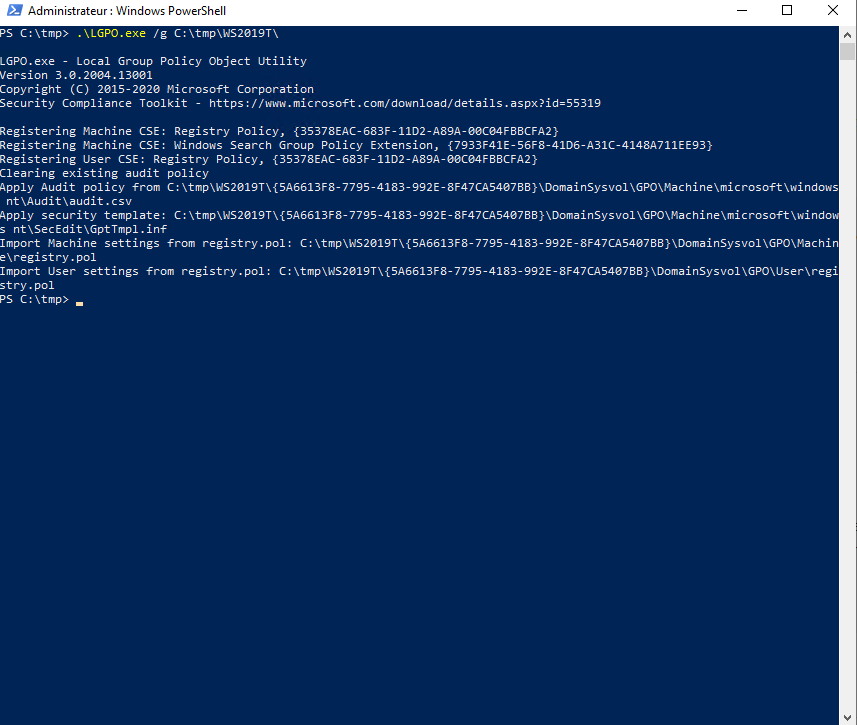
Restart your computer for the settings to fully apply.
Import local policies into MDT with LGPO
To finish this tutorial, I will explain how to use LGPO with MDT by creating an application that you can run in MDT during your Windows deployments.
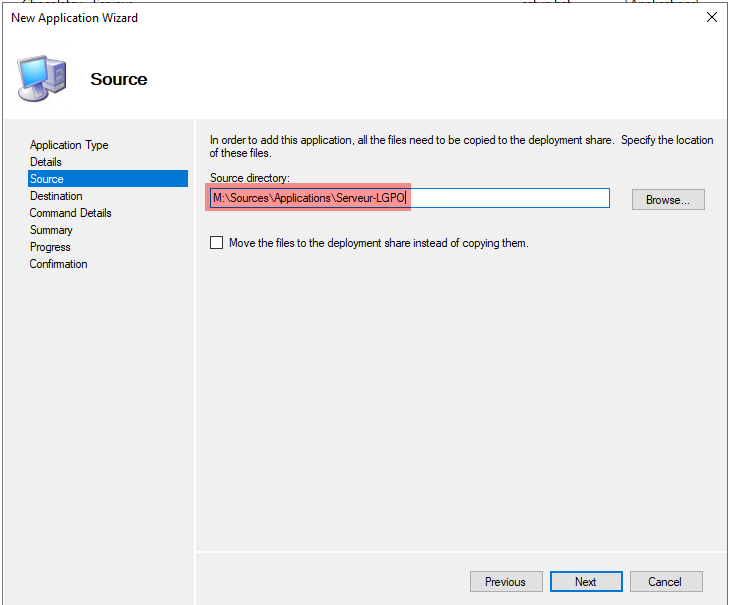
On your MDT server, create a folder that will serve as sources for the application and paste the contents of the folder with the LGPO.exe file and the export folder.
In an MDT create an application by selecting: Application with source files.
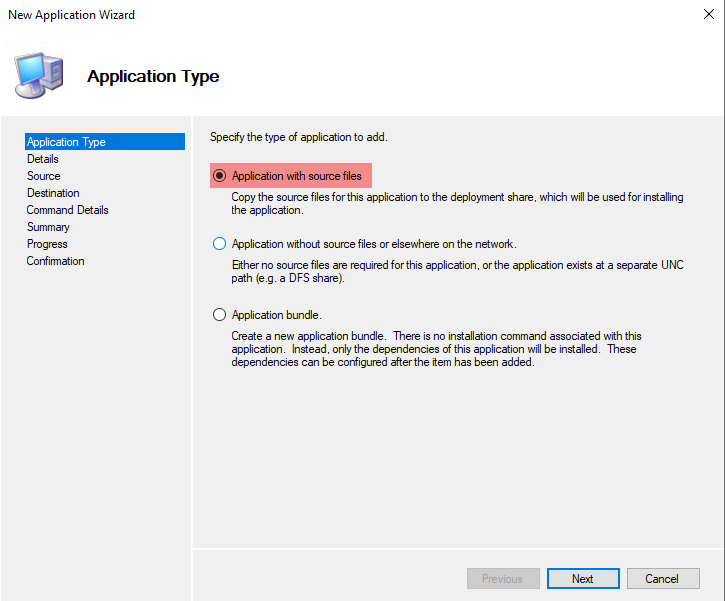
Indicate the folder that contains LGPO.exe and export it.
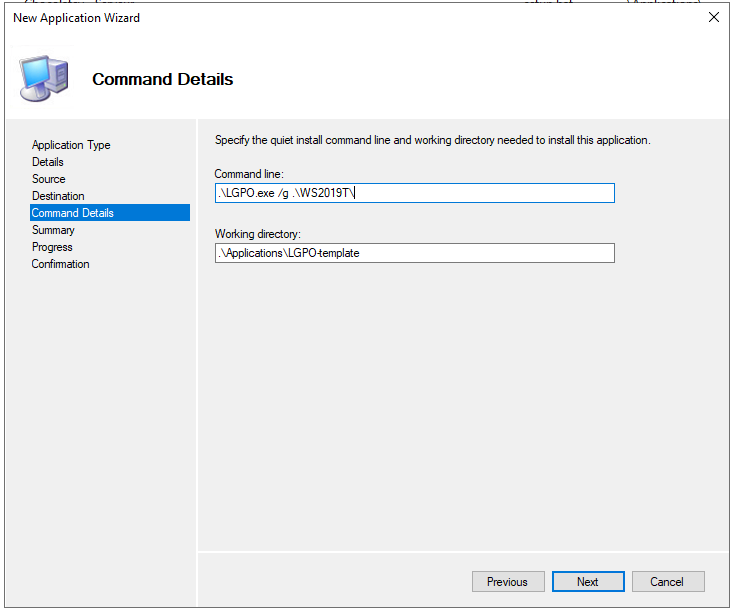
On the command line indicate: .\LGPO.exe /g .\FolderNameExport\
Then add the application to the task sequence and configure a restart for the application.
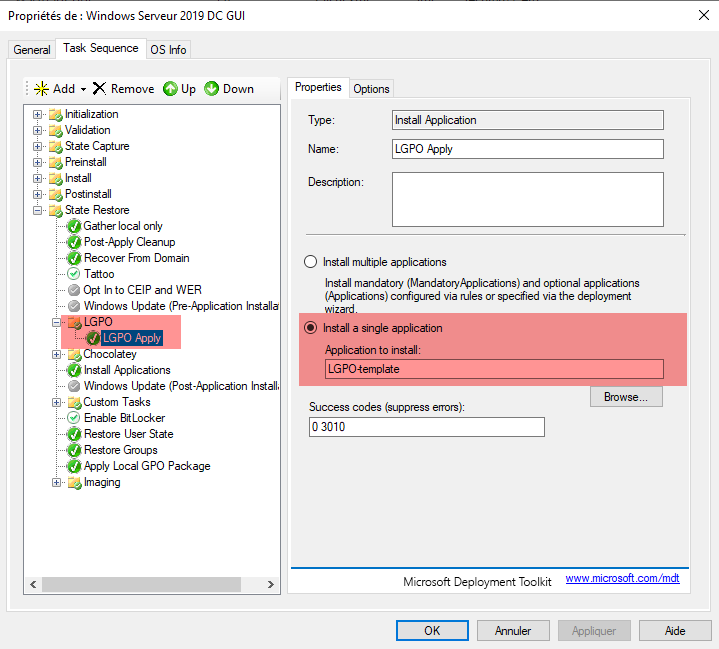
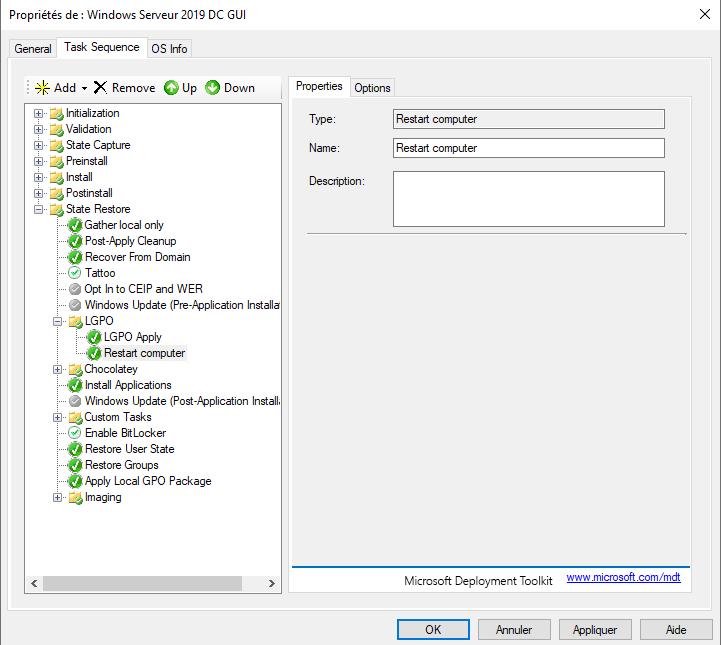
It is also possible to do otherwise, if you have customized MDT to use the customization by Task Sequence , you can force the application by the CustomSetting.ini file, in this case, in the properties of the application indicate that it requires a restart.
You now know how to use LGPO to standardize Windows settings whether or not they are members of an Active Directory domain.