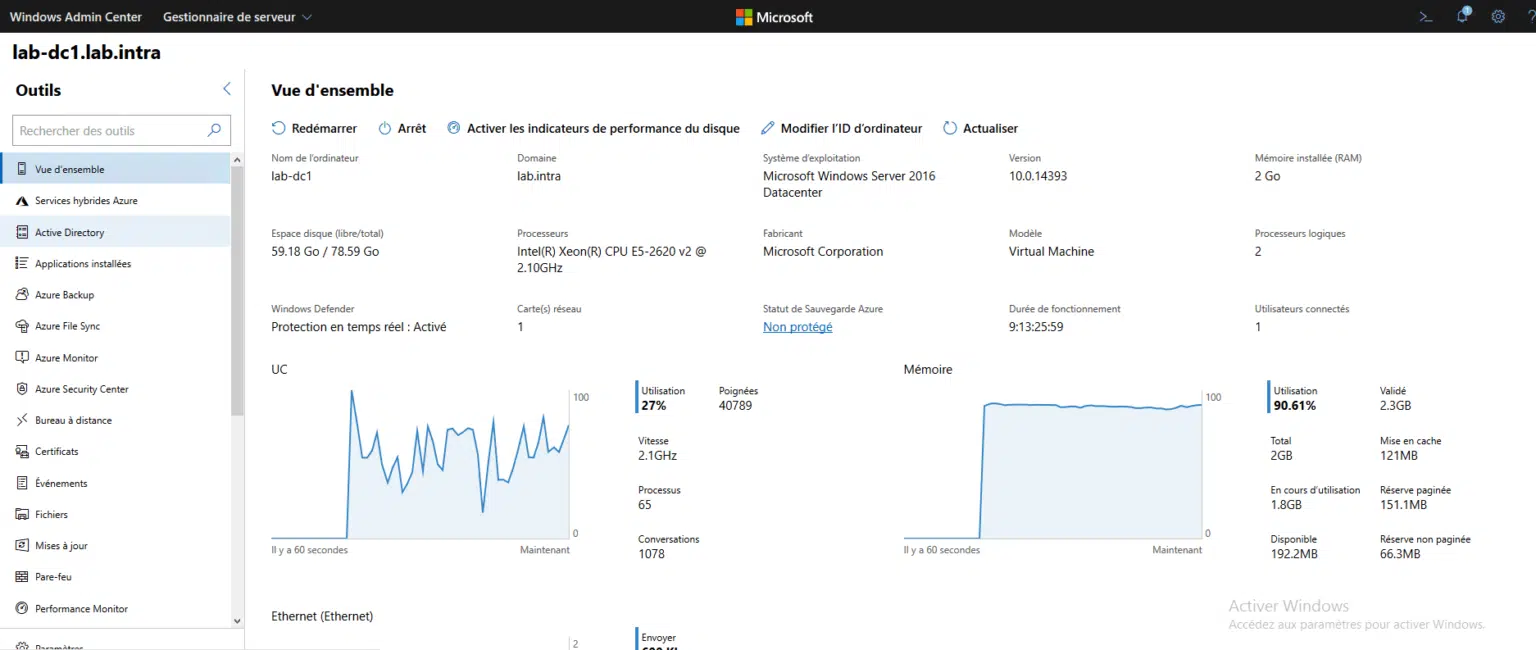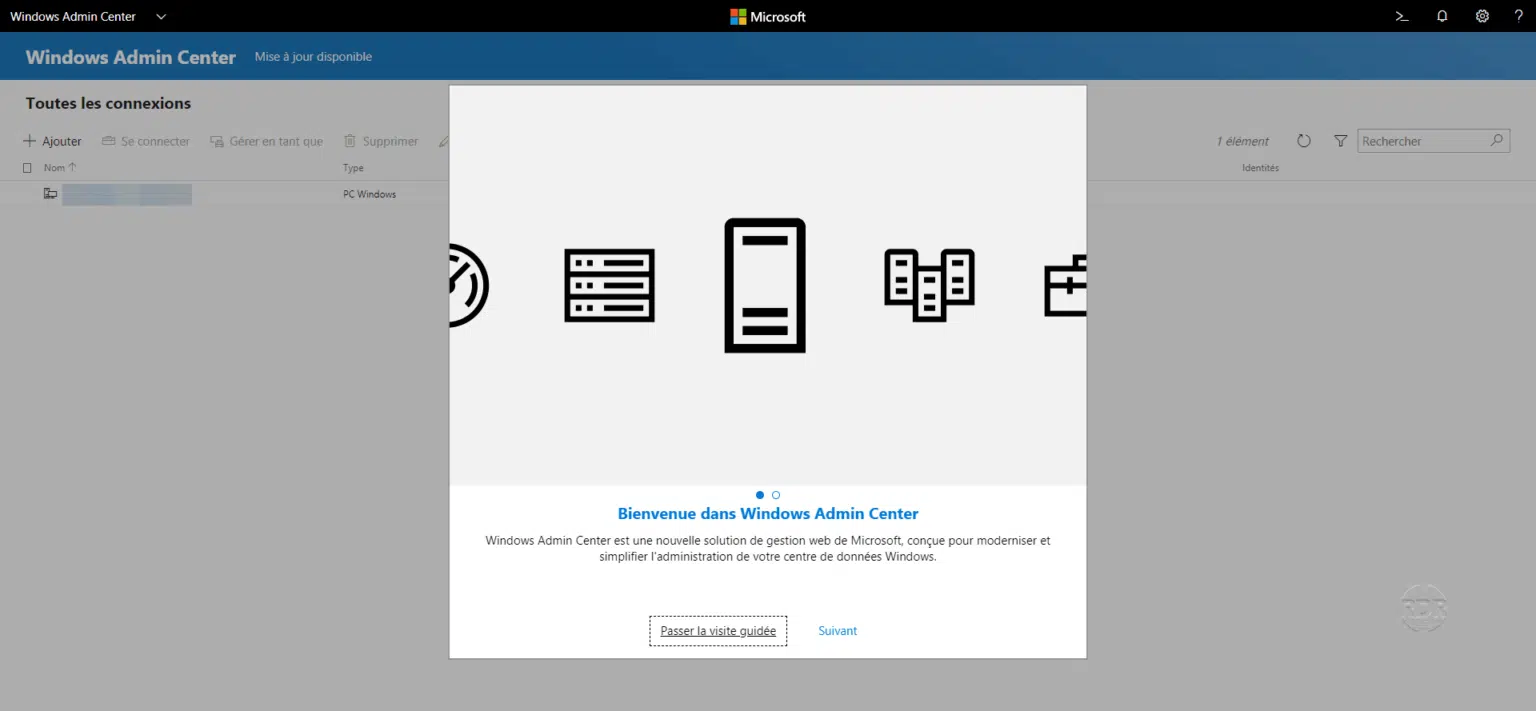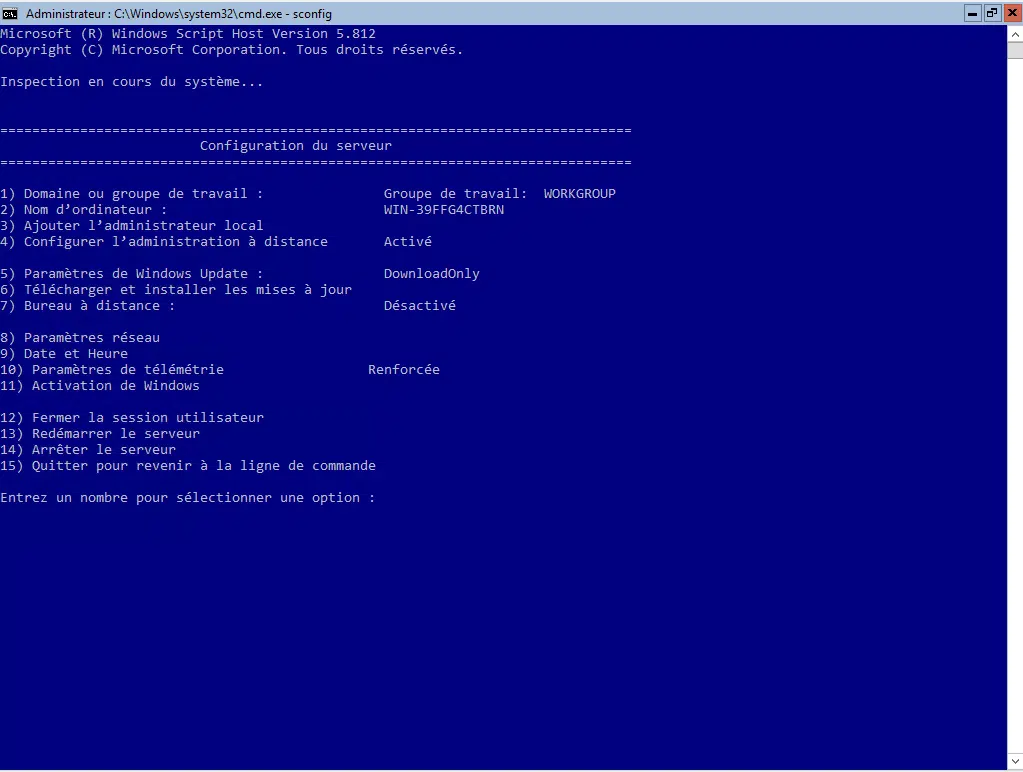
In this tutorial, we’ll look at how to install and use Windows Admin Center v2 on Windows Server 2025.
Windows Admin Center is Microsoft’s modern administration tool, designed to gradually replace legacy MMC consoles and reduce the use of RDP for day-to-day administration.
To be completely transparent, Windows Admin Center v1 didn’t impress me at all. The tool was often slow, and above all, authentication between Admin Center and Windows servers was sometimes unreliable, making it frustrating to use in production. As a result, I regularly found myself reverting to traditional tools or RDP due to its lack of reliability.
With Windows Admin Center v2, the surprise was very positive. This new version is significantly faster, much more stable, and authentication with the servers finally works smoothly. The interface is more responsive, actions flow seamlessly without excessive latency, and the overall experience finally meets the standards expected of a centralized administration tool.
In this guide, we’ll cover how to install Windows Admin Center v2 on Windows Server 2025, then how to configure and use it effectively for the day-to-day administration of your servers, whether for managing roles, services, storage, or updates.
Key features of Windows Admin Center v2
Windows Admin Center v2 brings together all the tools needed for the day-to-day administration of Windows Server 2025 within a modern, centralized web interface. This version not only offers comprehensive features but, above all, a much smoother and more responsive experience than v1.
Key features include centralized server management, allowing you to administer both physical servers and virtual machines without needing an RDP connection. Access to Windows services, roles, and features is intuitive, with immediate actions and improved visibility into system status.
Windows Admin Center v2 also simplifies storage management, providing a clear view of disks, volumes, and storage spaces, as well as the configuration of Storage Spaces. Windows update management is natively integrated, offering precise control over the status of patches and their deployment.
On the monitoring side, the tool provides access to event logs, system performance (CPU, memory, network, storage), and running processes—all in real time. Native PowerShell integration allows commands to be executed directly from the interface, making it an excellent balance between a graphical interface and advanced administration.
Finally, Windows Admin Center v2 strengthens security and authentication features, with more reliable identity and access management—an area that was lacking in the previous version. This improvement goes a long way toward making v2 a tool that is finally usable in a production environment.
Installing Admin Center V2 on Windows Server 2025
We will now look at how to install Admin Center on Windows Server 2025 in gateway mode.
Gateway mode is the most common deployment mode for Windows Admin Center. In this mode, Admin Center is installed on a dedicated server (or an administration machine) that acts as a centralized access point. Administrators connect to the web interface via a browser, and the gateway handles communication with the Windows servers to be managed.
This approach allows for centralized administration, eliminates the need to install tools on each server, and reduces RDP connections. Gateway mode is particularly well-suited for multi-server environments and production infrastructures, as it offers enhanced security, simplified access management, and greater scalability.
Before you begin, I recommend dedicating a server to this purpose. For a “full” installation, you’ll need to set up a DNS record for accessing the web interface and obtain an SSL certificate .
Download Admin Center: https://aka.ms/downloadWAC
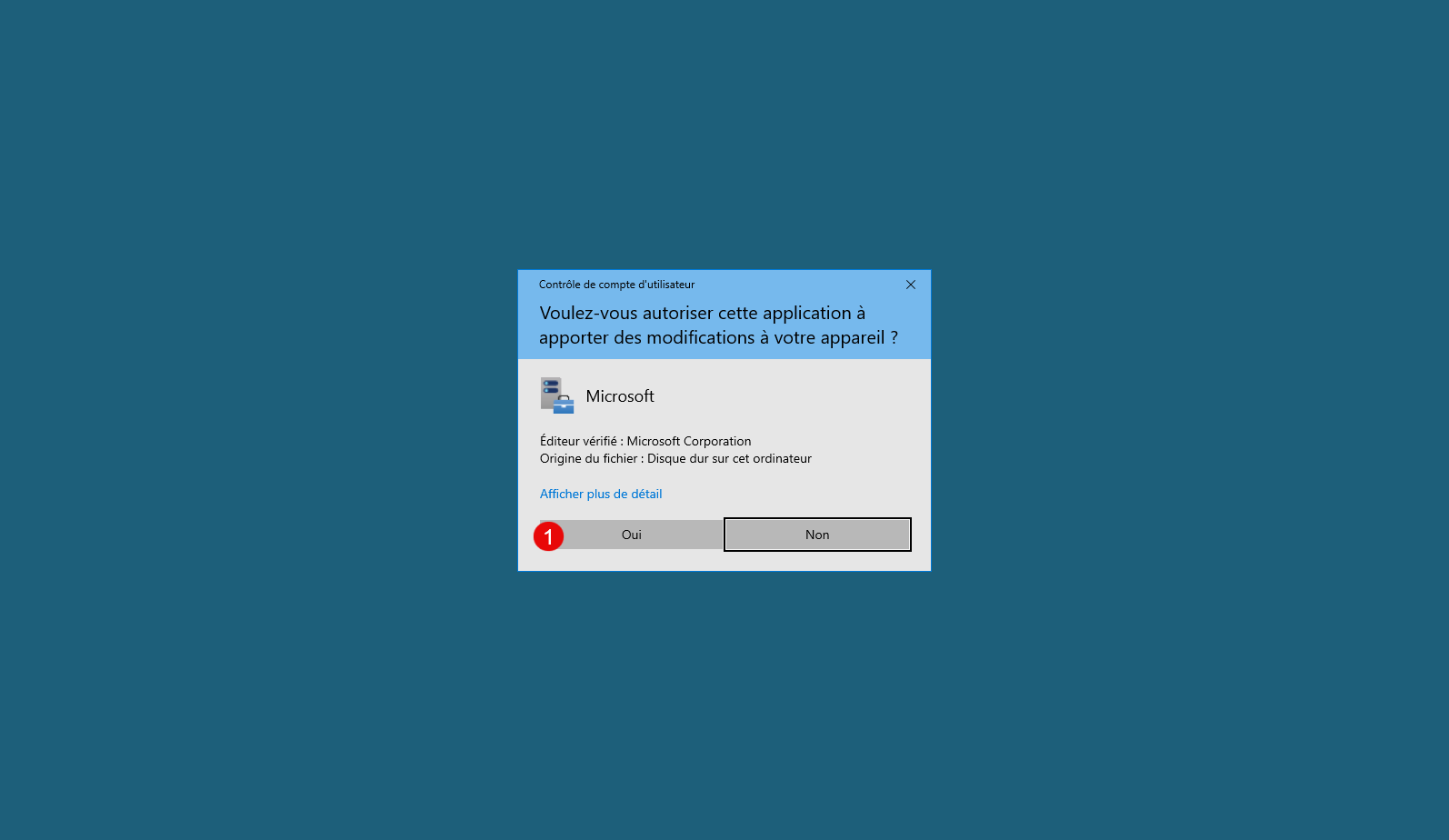
Run the downloaded file and confirm execution via UCA by clicking Yes 1 .
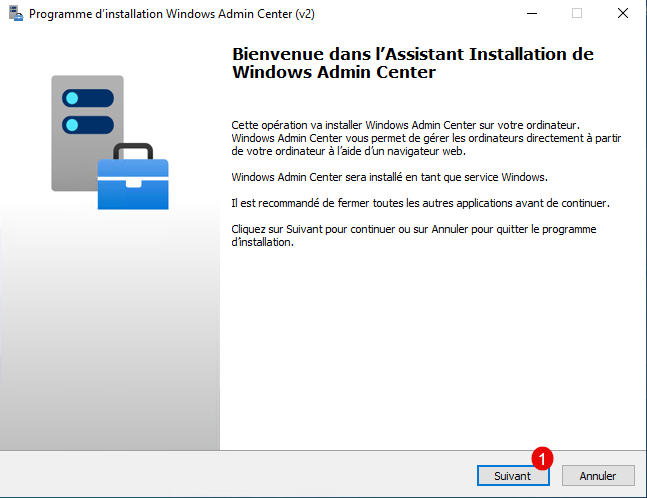
When the wizard launches, click Next 1 .
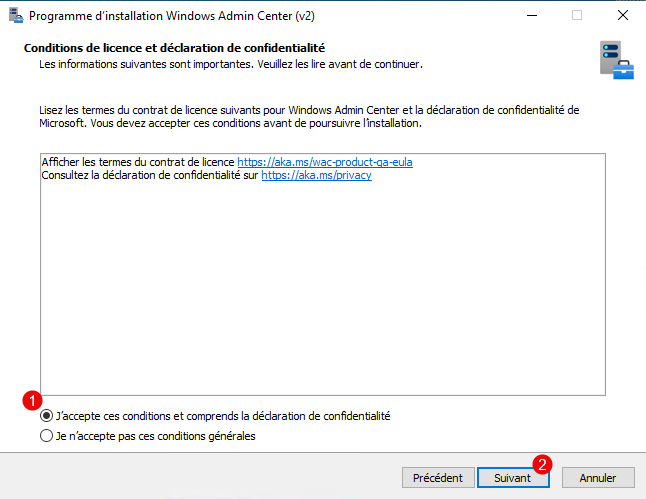
Accept the terms 1 , then click Next 2 .
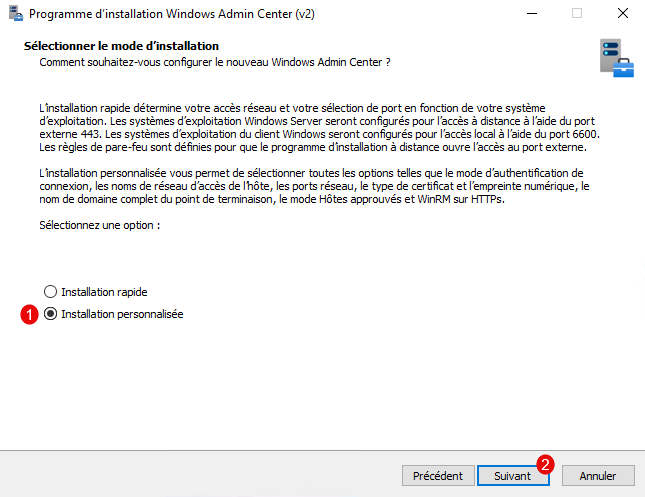
Select the option: Custom Installation 1 , then click the Next button 2 .
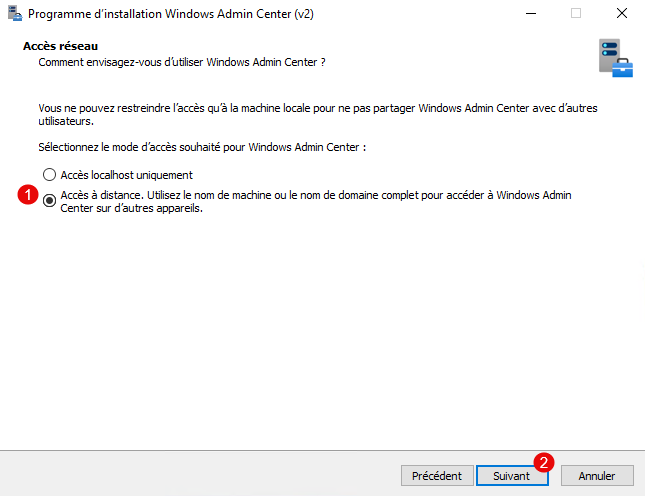
Select the mode: Remote Access 1 and click Next 2 .
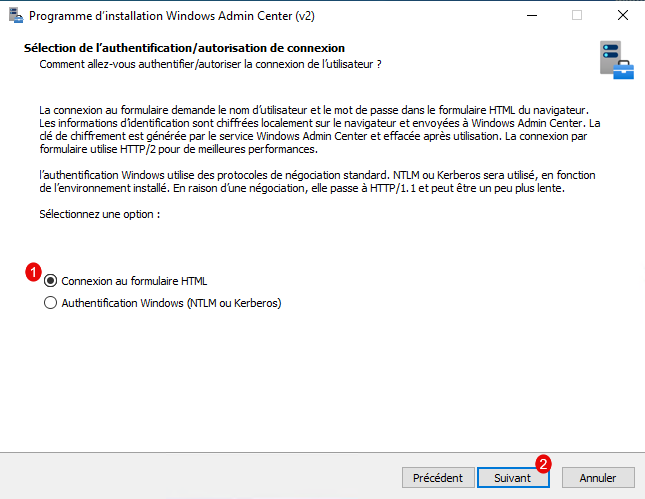
Select the connection option: Connect to HTML form 1 and click the Next button 2 .
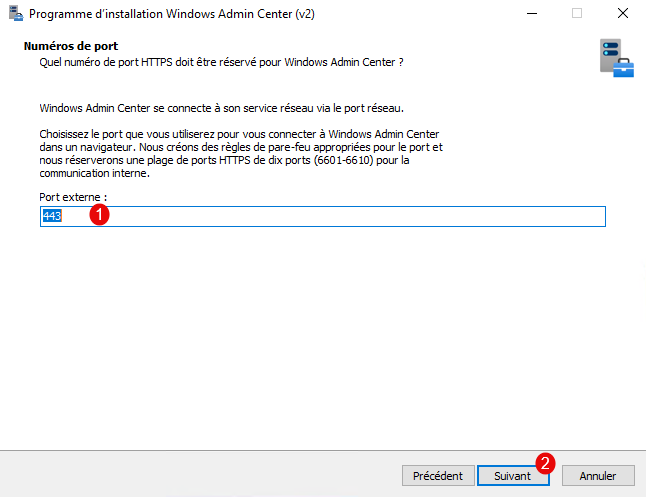
Configure the port 1 (443 by default) and click Next 2 .
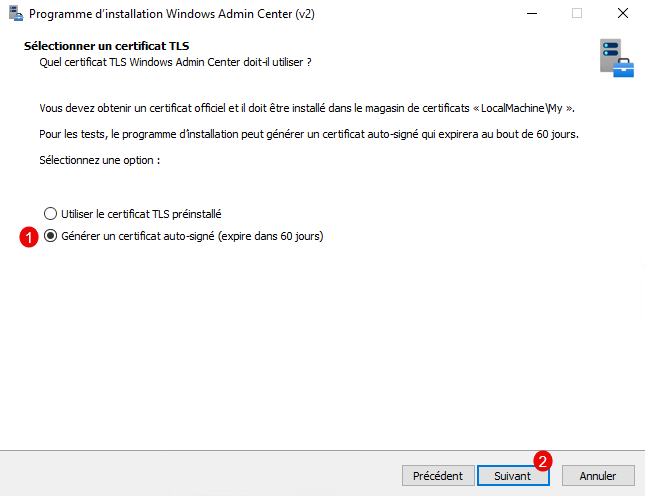
In this tutorial, I will generate a self-signed certificate 1 ; if you have installed a certificate, select the option Use pre-installed TLS certificate, then click Next 2 .
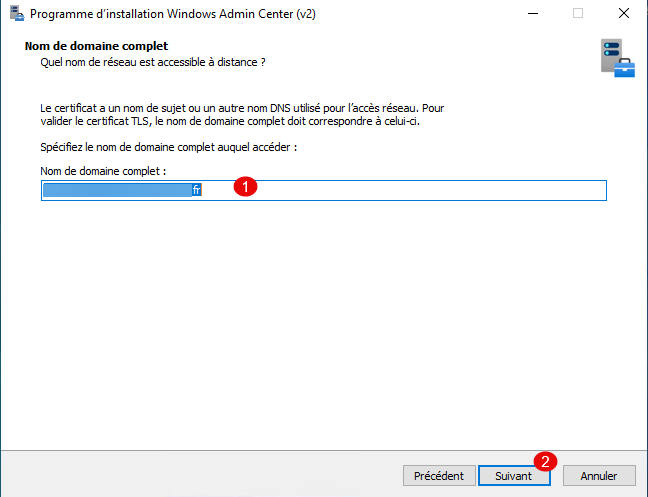
Enter the DNS name 1 that will allow access to the Admin Center and click Next 2 .
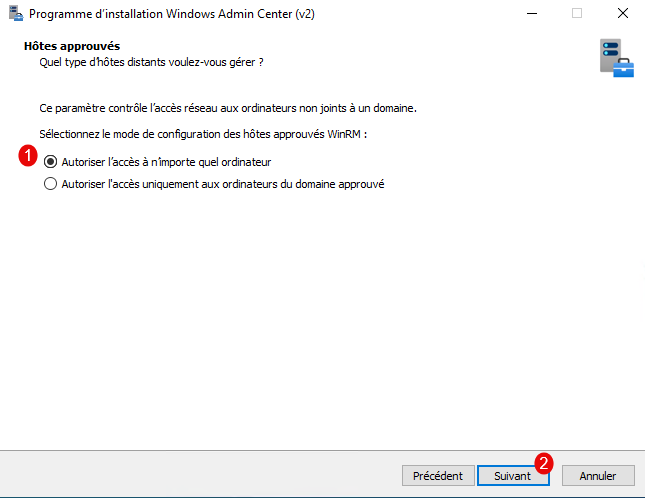
If you have computers outside the domain, leave the option “Allow access from any computer” 1 selected and click Next 2 .
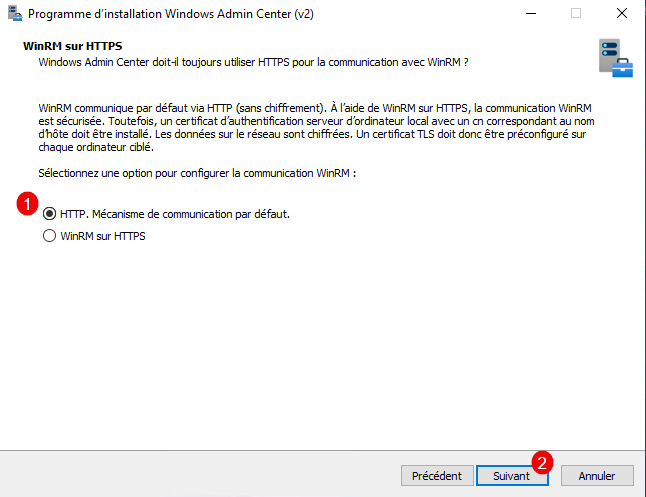
For ease of configuration, I will leave the communication set to HTTP 1 , then click Next 2 .
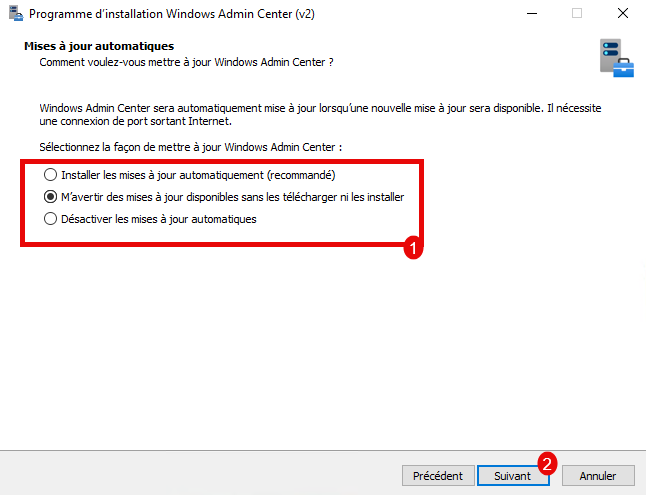
Configure the behavior for Windows Admin Center updates 1 and click the Next button 2 .
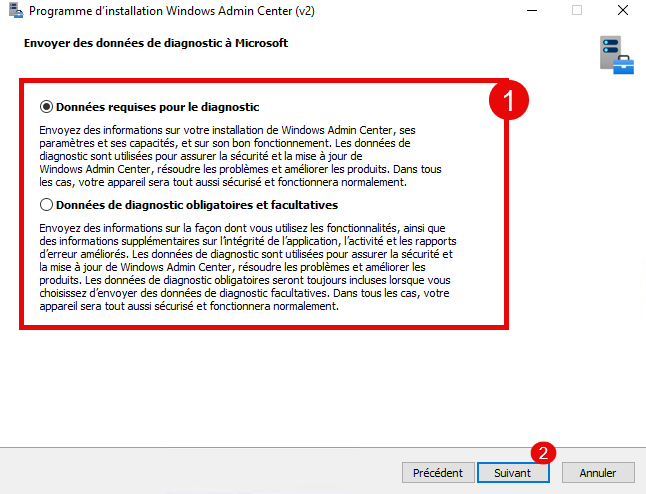
Select an option for data sent to Microsoft 1 and click Next 2 .
A summary of the configuration is displayed; confirm it, then click Install 1 .
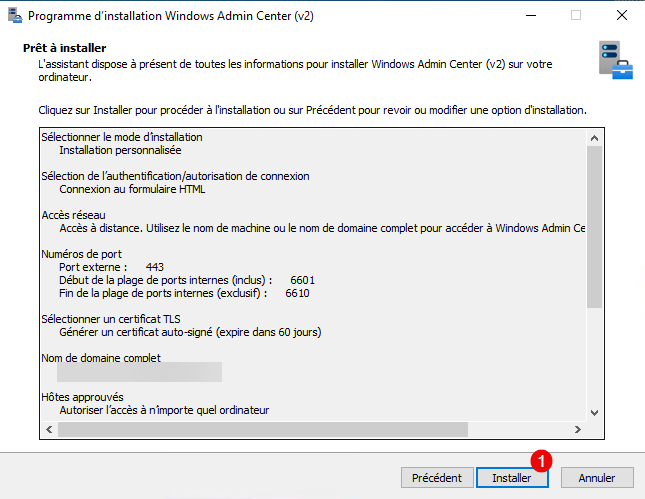
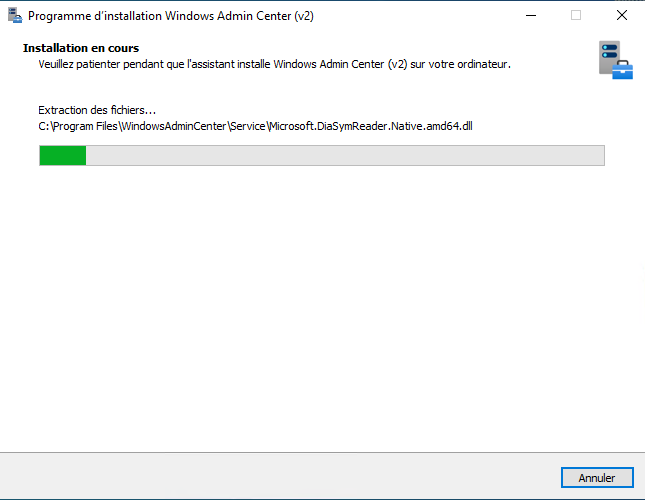
Wait while Windows Admin Center installs…
Once the installation is complete, click Finish 1 to close the wizard.
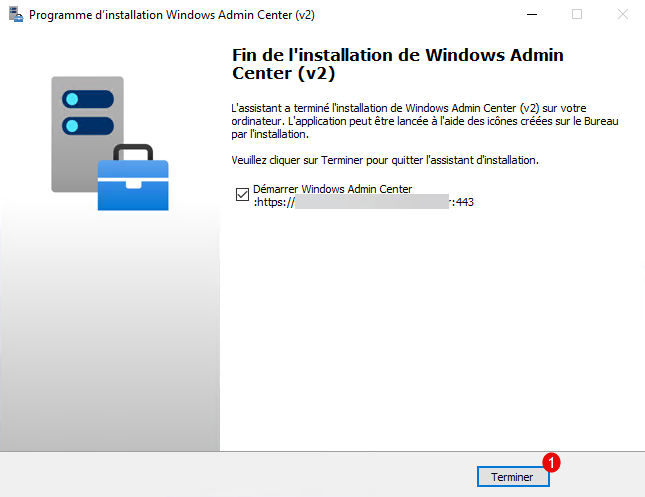
Windows Admin Center V2 is now installed on your Windows server.
Getting Started with Windows Admin Center V2
If you left the checkbox selected, your web browser will open to the Windows Admin Center login page. Enter your username in the format DOMAIN\user 1 , your password 2 , then click Sign In 3 .
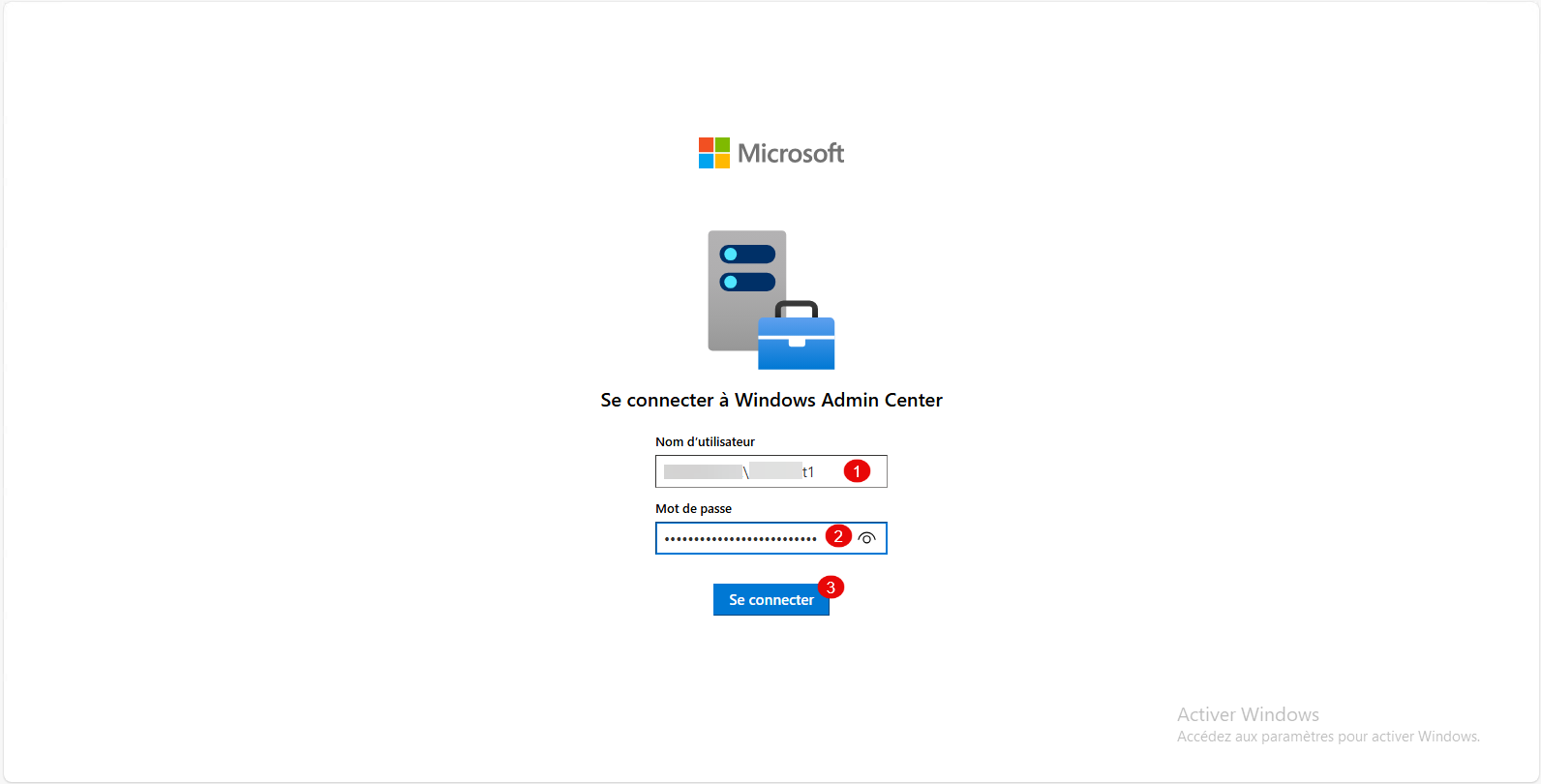
Once logged in, you’ll see the list of servers available in Windows Admin Center. By default, only the gateway server where we installed Windows Admin Center will appear.
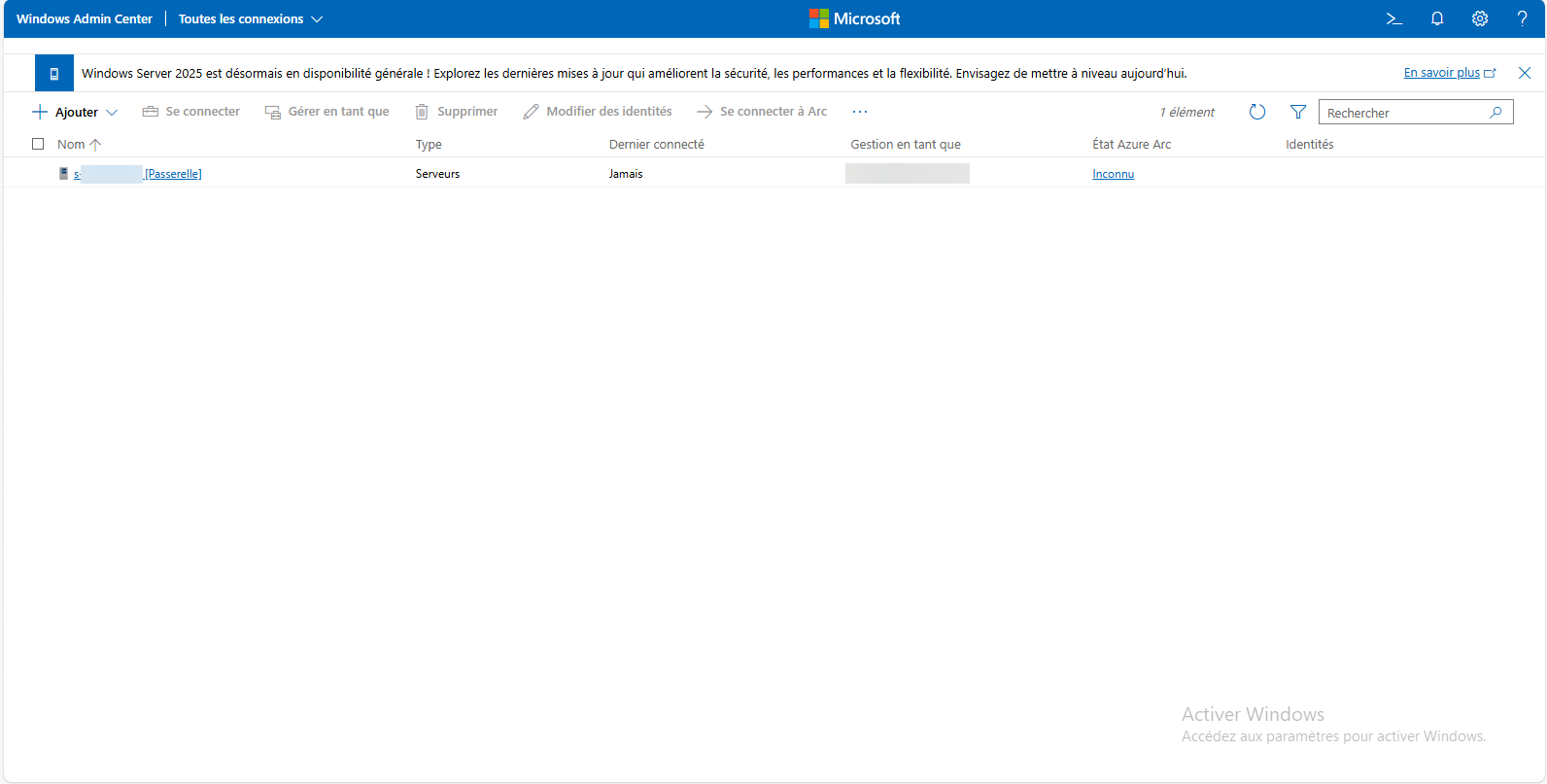
To manage the server, click on its name to access the various components that allow you to manage the machine.
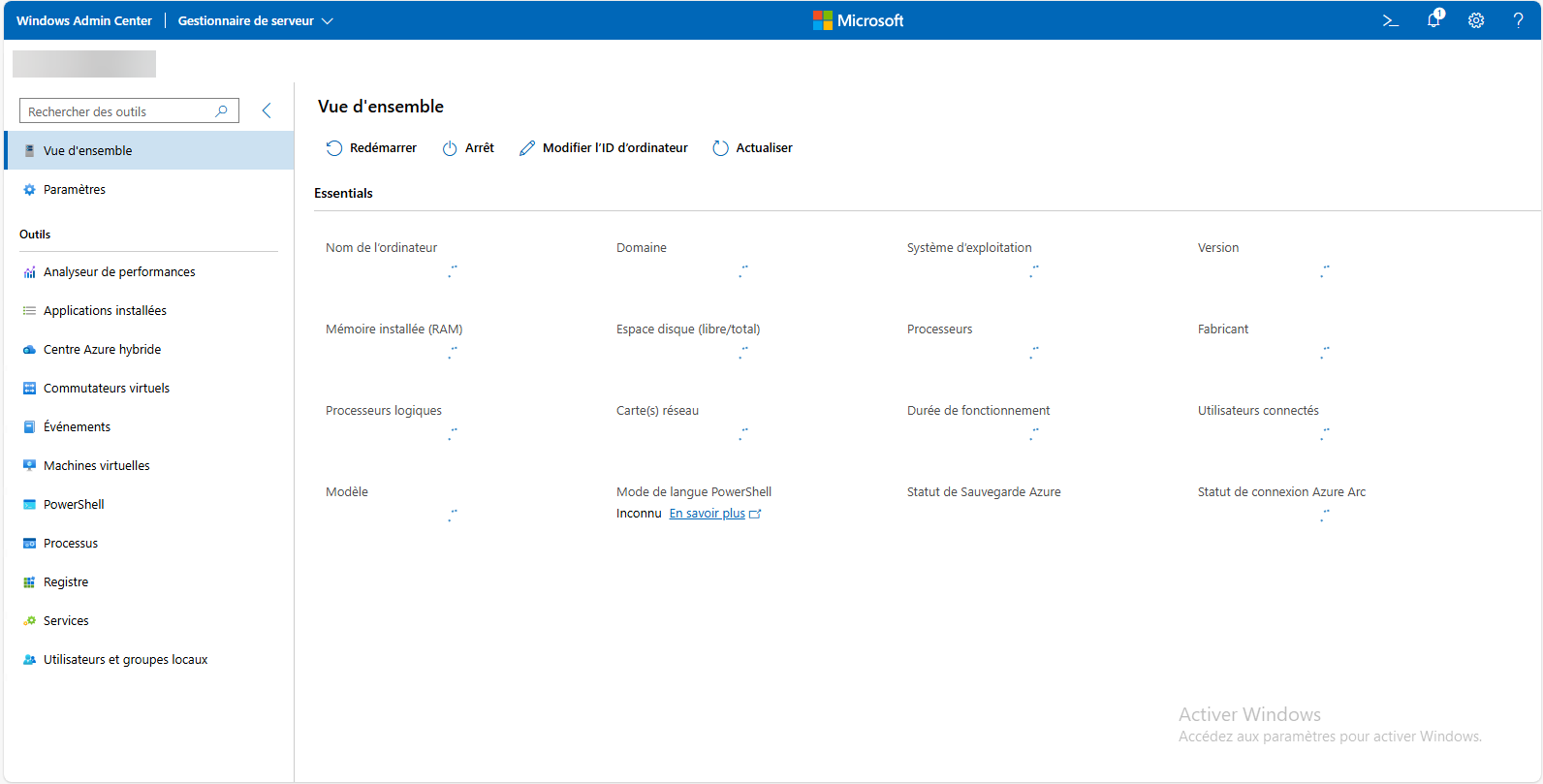
Add servers in Windows Admin Center
To add servers or computers to manage in Windows Admin Center, you have two options:
- Add at the current user level, meaning the server or computer will only be visible to the user who added it
- Add in Shared Connections mode, in which case the server or computer will be added for all users.
Add a computer at the user level
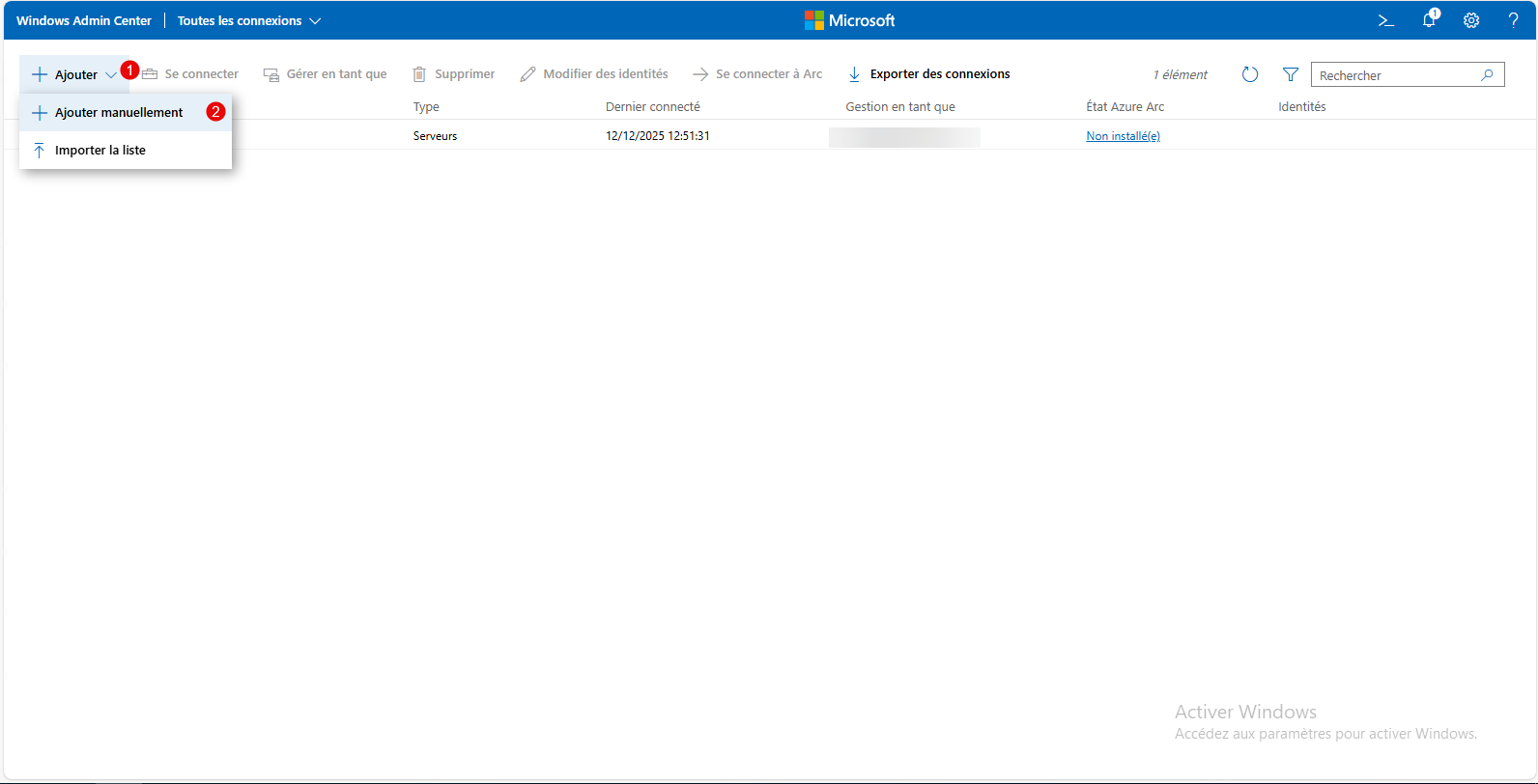
From the list of computers, click Add 1 , then click Add manually 2 .
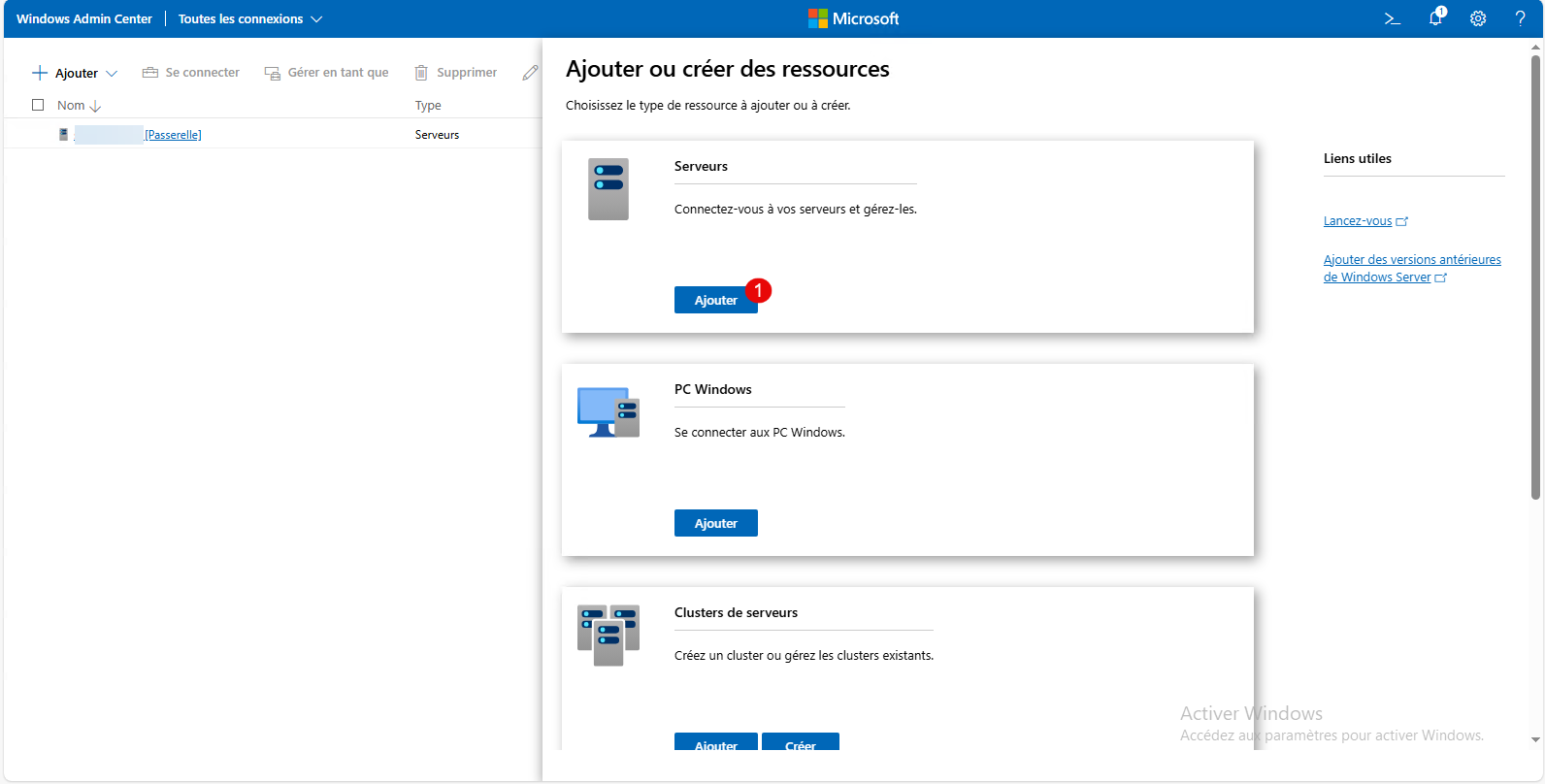
Select the resource type; here, I’m adding a server. Click the Add 1 button corresponding to the resource you want to add.
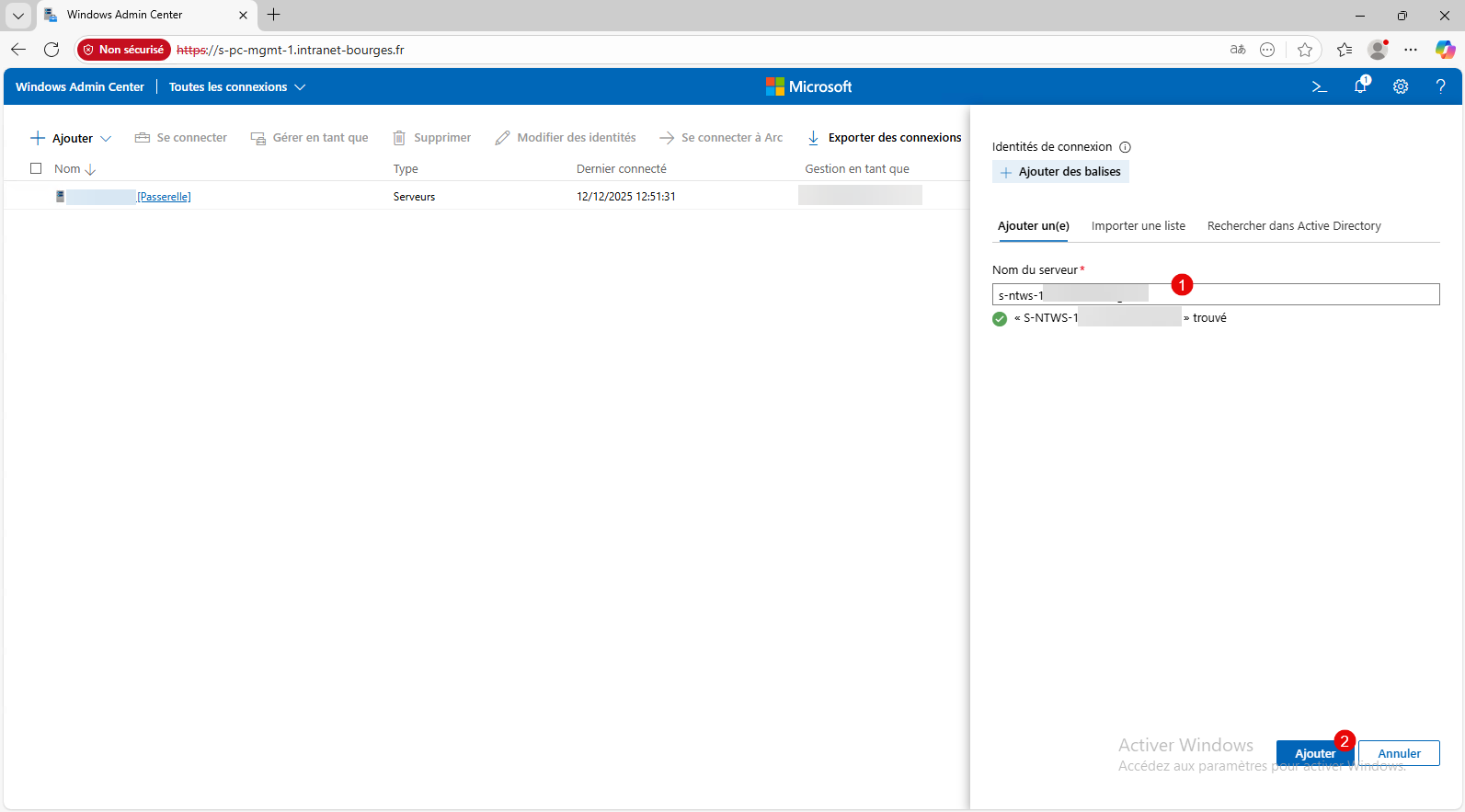
Enter the server’s FQDN 1 and click Add 2 .
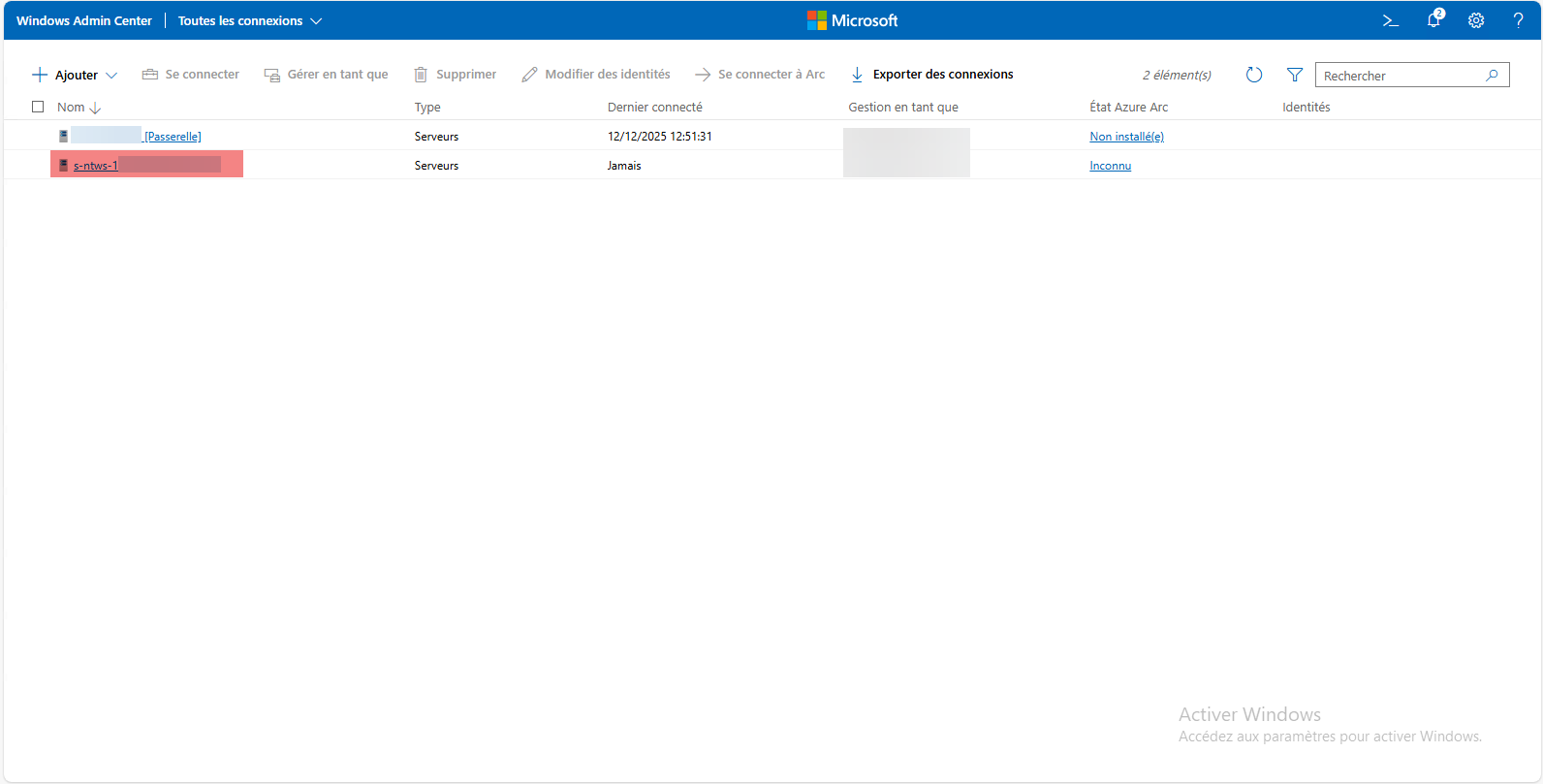
The server has been added to the list of connections.
Add a shared connection
The shared connection will be accessible to all Windows Admin Center users; to manage the server or computer via WAC, the user must have permissions for the resource.
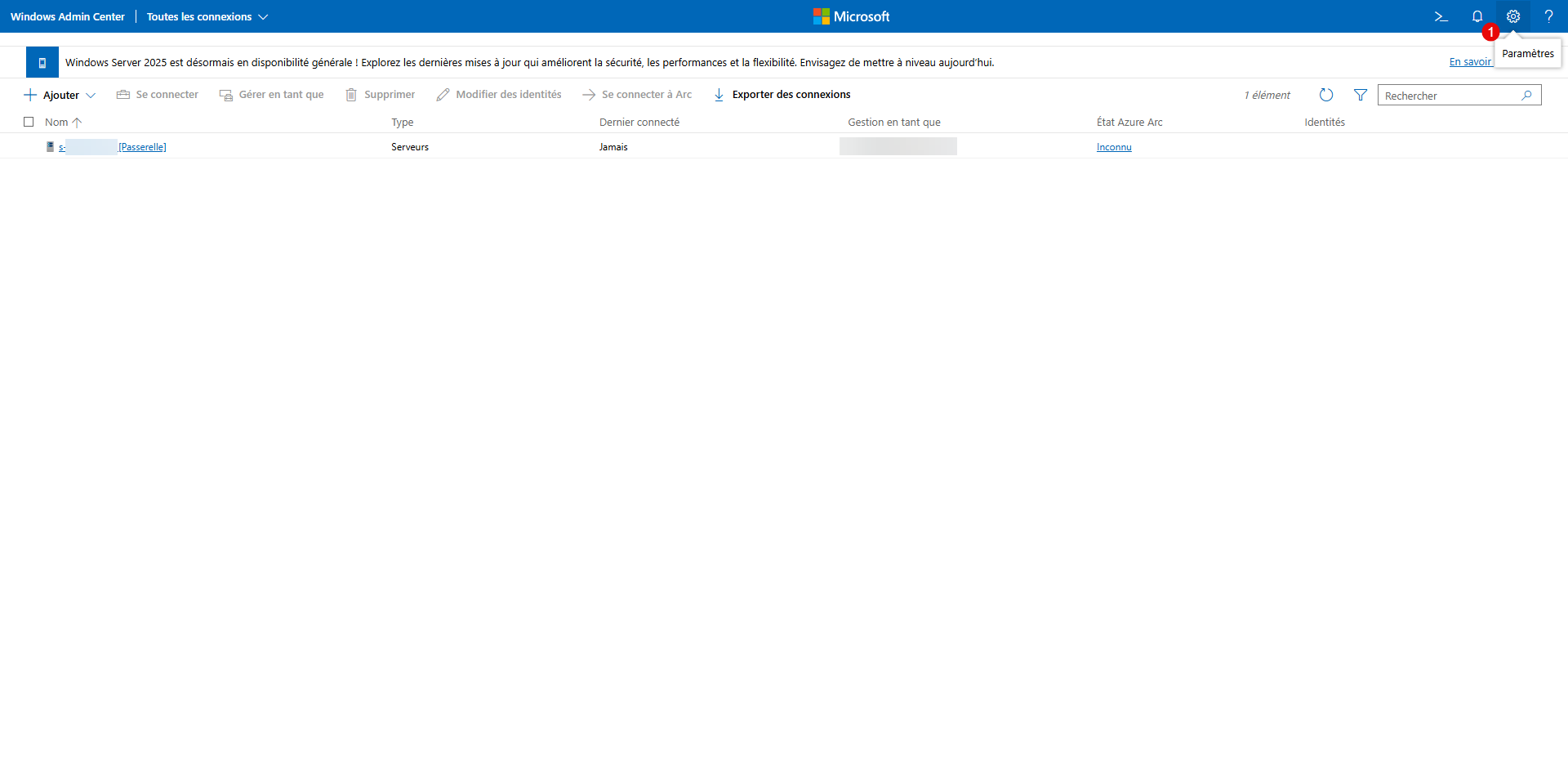
Access the settings by clicking the gear icon in the top-right corner 1 .
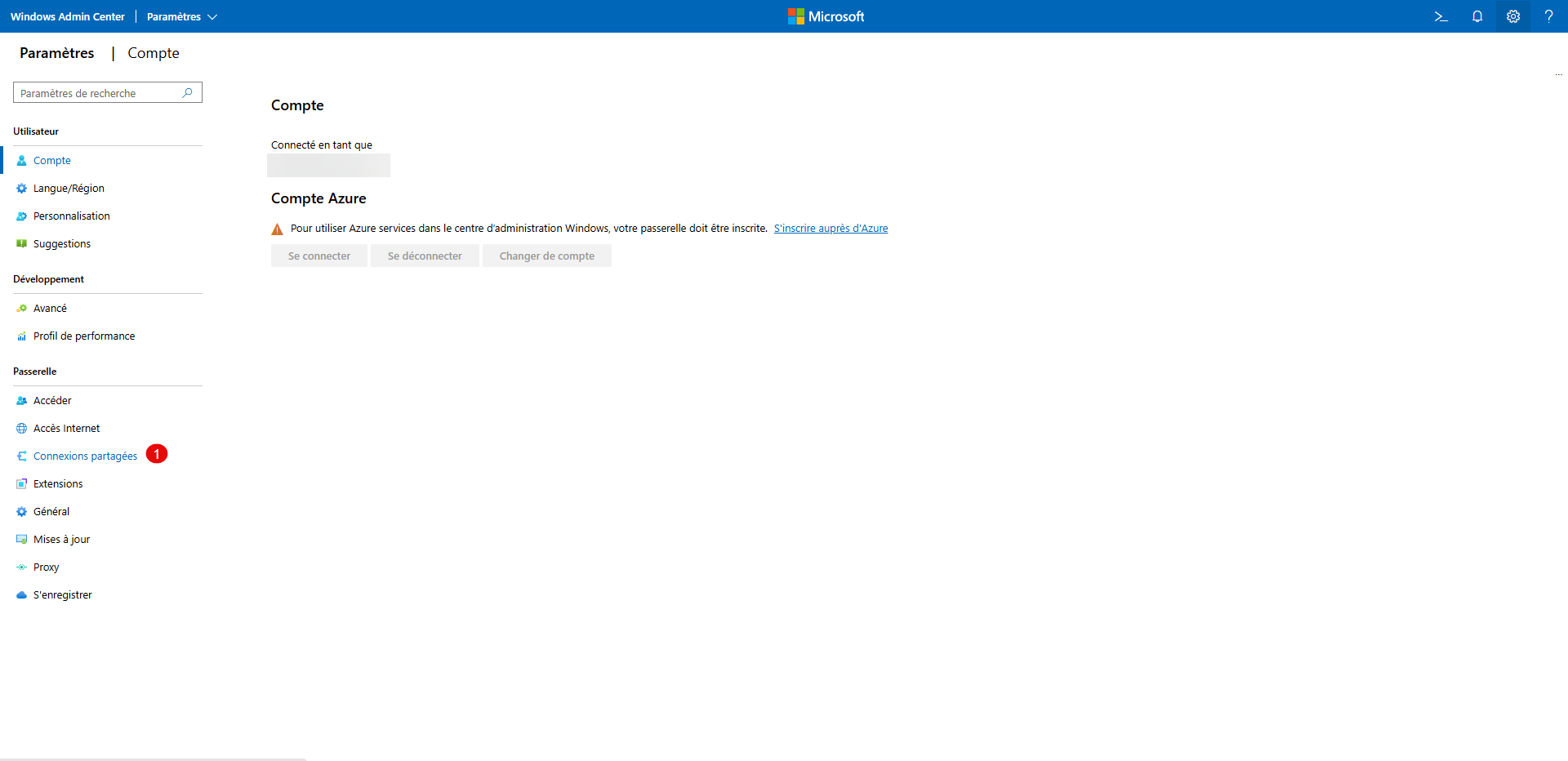
Then click Shared Connections 1 .
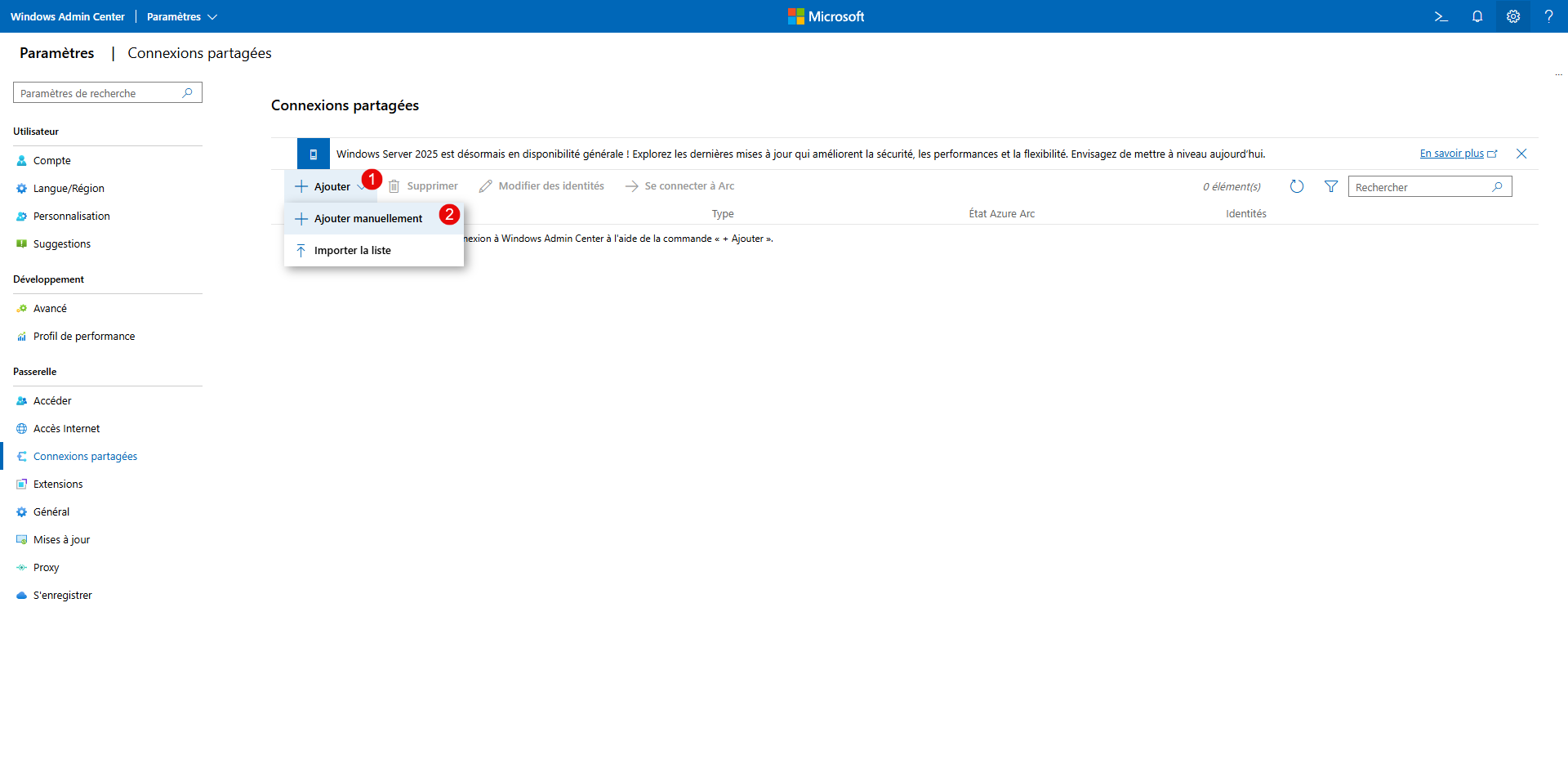
The list of shared connections appears; it is currently empty. Click Add 1 , then Add Manually 2 .
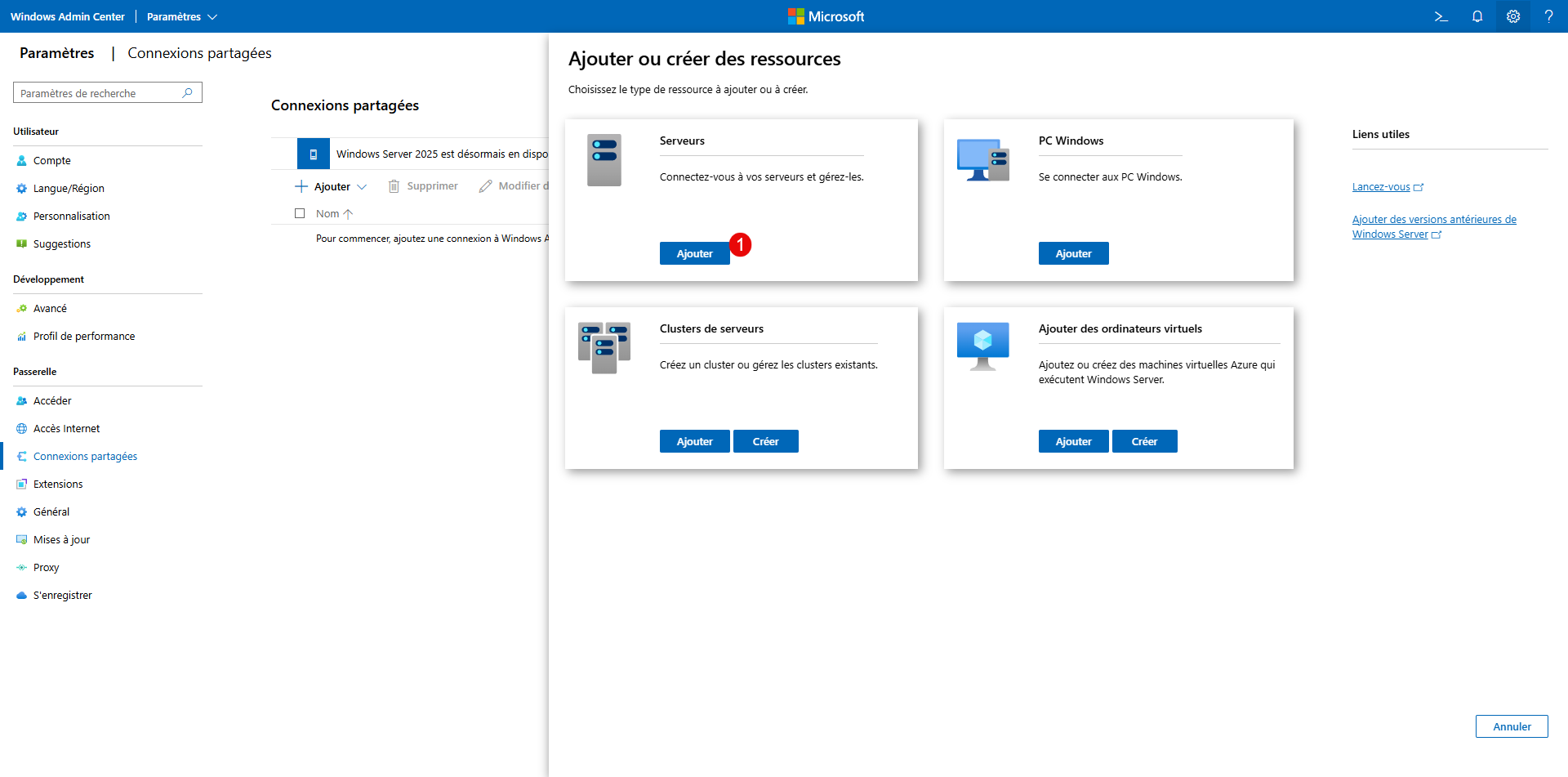
Click the Add 1 button for the resource type.
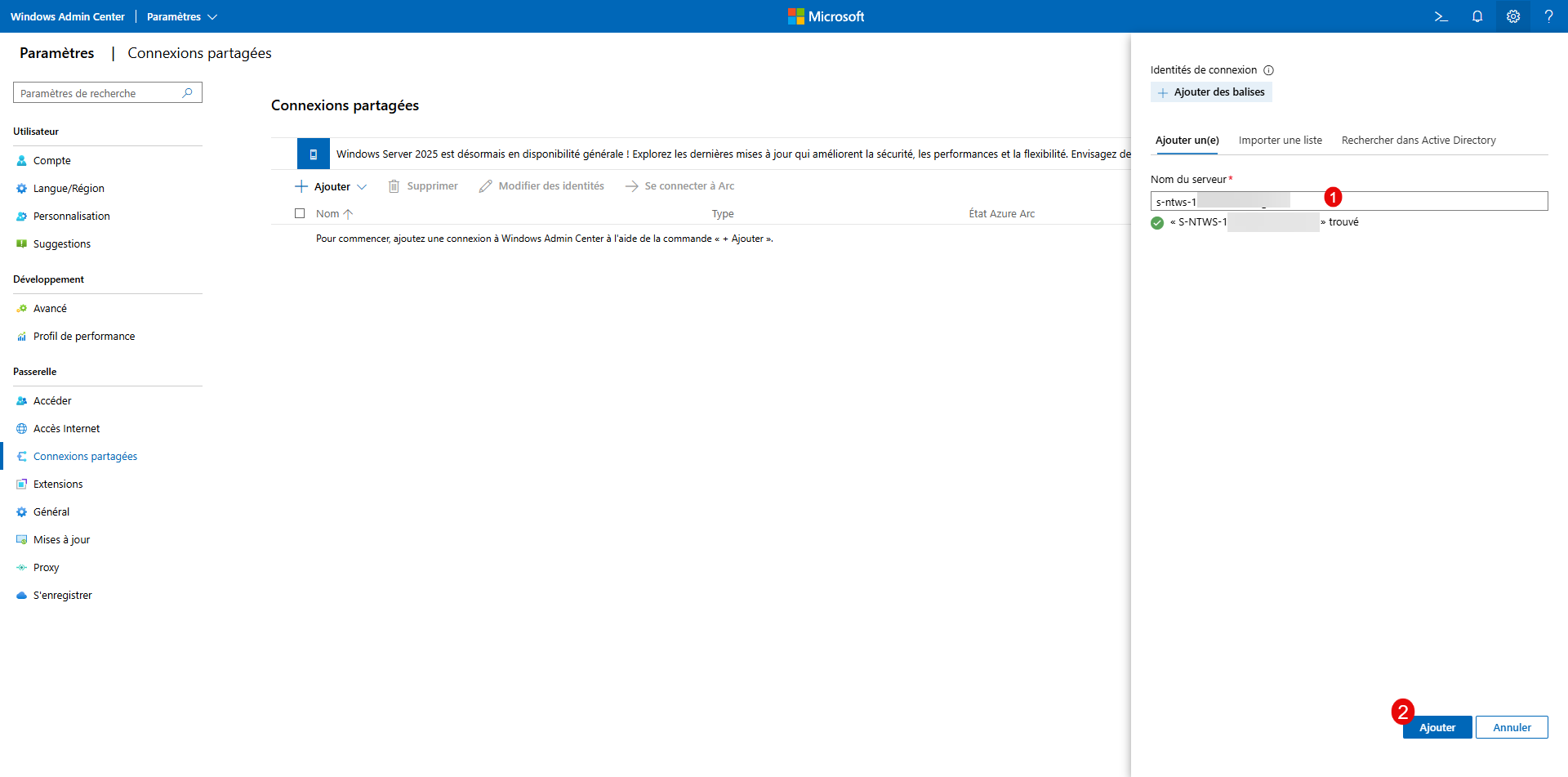
Enter the resource’s FQDN 1 and click the Add button 2 .
The connection is added.
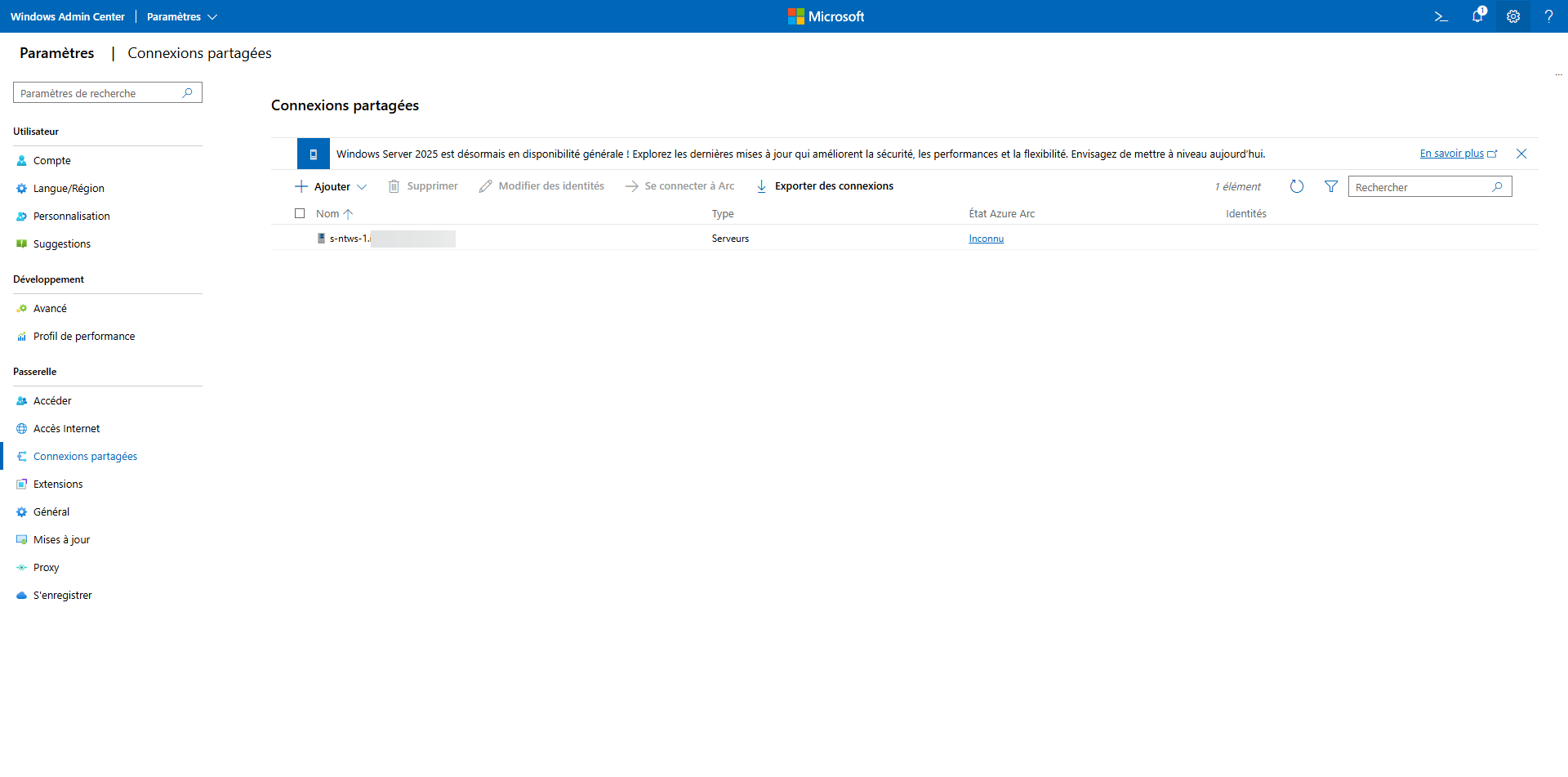
Back in the list of connections, you’ll see all the shared connections.
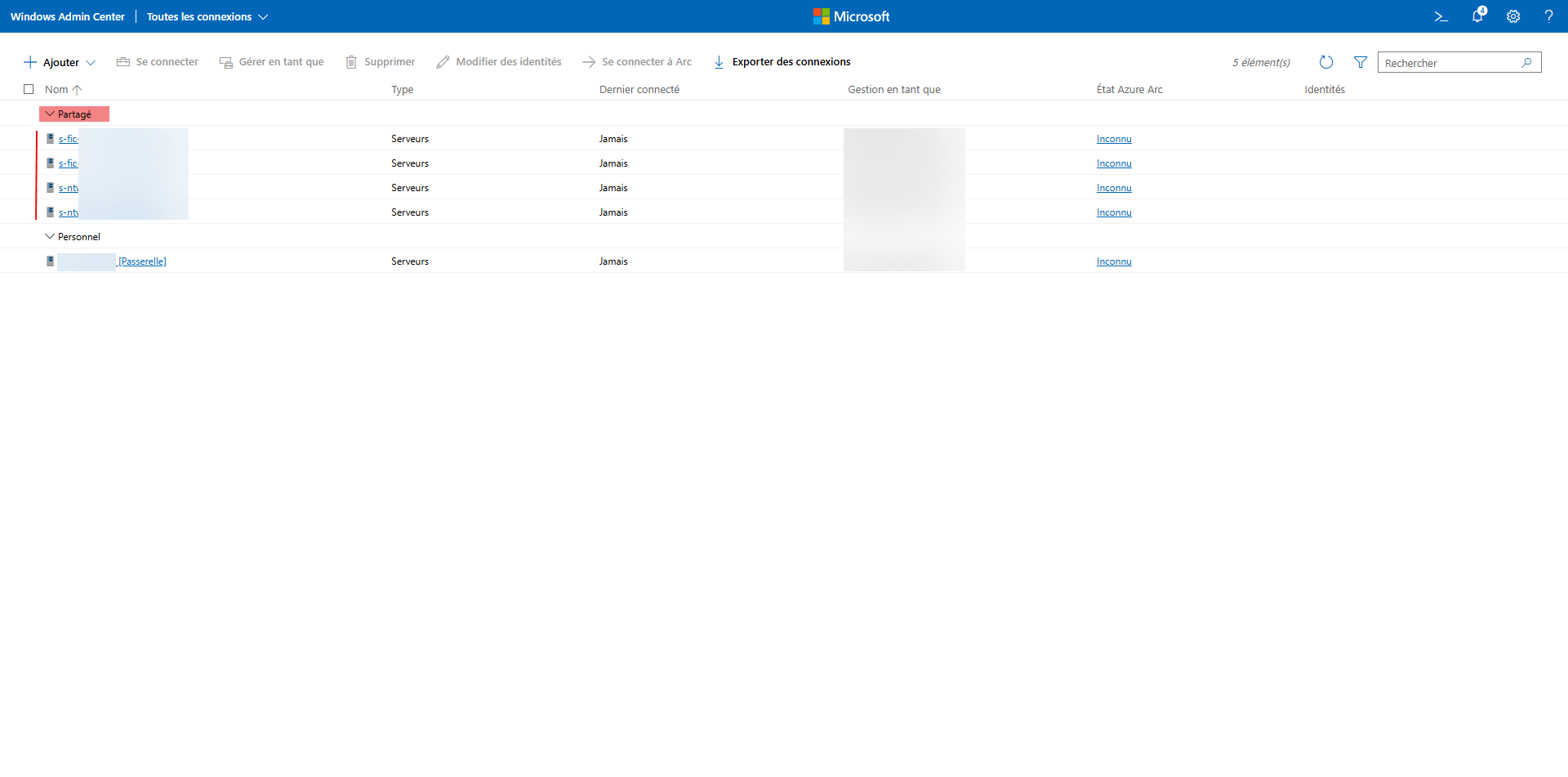
You now know how to add servers in WAC to manage them from the web interface.
In this tutorial, I won’t be covering administration; I’ll let you discover all the possibilities of Windows Admin Center V2 on your own.
Conclusion
Windows Admin Center v2 stands out as a truly modern and efficient administration tool for Windows Server 2025. Unlike the previous version, this v2 is fast, stable, and reliable, finally making it a viable solution for production environments.
One of the major strengths of Windows Admin Center is the ease of managing servers installed in Core mode. Thanks to its comprehensive web interface, it’s now possible to manage a server without a local GUI while maintaining a high level of control: roles, services, updates, storage, logs, and PowerShell are all easily accessible from a browser. This allows you to fully benefit from the advantages of Core mode (enhanced security, reduced attack surface, better performance) without complicating administration.
By centralizing all administrative operations and reducing reliance on RDP, Windows Admin Center v2 perfectly meets the current requirements of modern infrastructures, whether on-premises or hybrid. This version addresses the shortcomings of v1 and is now an essential tool for Windows system administrators.