In this tutorial, I’ll explain how to deploy Wazuh using Docker.
Introduction to Wazuh
To begin, I’ll introduce Wazuh .
Wazuh is an open-source security platform that includes two “solutions”:
- SIEM (Security Information and Event Management), which collects logs from the various servers in the information system using an agent and analyzes them to present the results in a dashboard for easy use.
- EDR (Endpoint Detection and Response), which analyzes logs in real time; if abnormal behavior is detected, the agent can apply remediation actions, such as blocking the IP address of a device attempting brute-force attacks on a computer.
Wazuh also enables vulnerability detection on computers by analyzing installed and missing patches.
Wazuh can analyze logs from a wide range of software and hardware to help you understand what’s happening in your environment. Information is collected either by installing an agent on computers or by sending data to a syslog server integrated with Wazuh.
Prerequisites for deploying Wazuh
Although it is available as a container, I recommend dedicating a server to Wazuh, because depending on the number of devices that will connect to Wazuh, resource consumption can be quite high and impact the performance of other services.
To get started, you’ll need a serverLinux(Ubuntu) withDocker [the necessary software] installed.
Minimum hardware requirements:
- 2 CPUs
- 8 GB of RAM
- 200 GB of disk space.
In terms of system configuration, you’ll need to adjust the memory mapping.
Edit the file /etc/sysctl.conf
sudo nano /etc/sysctl.conf
At the end of the file, add the following line:
vm.max_map_count=262144
Restart the server for the changes to take effect.
This is optional, but you can create a record of the type wazuh.domain.tld to access the web interface.
Deploying Wazuh
To deploy Wazuh on the server, we’ll use the official repository,
which provides a ready-to-use filedocker-compose.yml.
To start, I created a folder/containers/wazuh/that will serve as the location where I’ll store the container on the server.
In my user’s home directory, I’ll start by cloning the repository using the latest stable branch:
git clone https://github.com/wazuh/wazuh-docker.git -b v4.7.3
We’ll perform a simple deployment of Wazuh with a single node.
/containers/wazuh/We’ll copy the files into the directory.
sudo mv wazuh-docker/single-node/* /containers/wazuh/
/containers/wazuh/Go to the folder; you should see the following files:

Edit the filedocker-compose.ymland change the environmentINDEX_PASSWORD variables (wazuh.manager and wazuh.dashboard) to match the default admin account password.
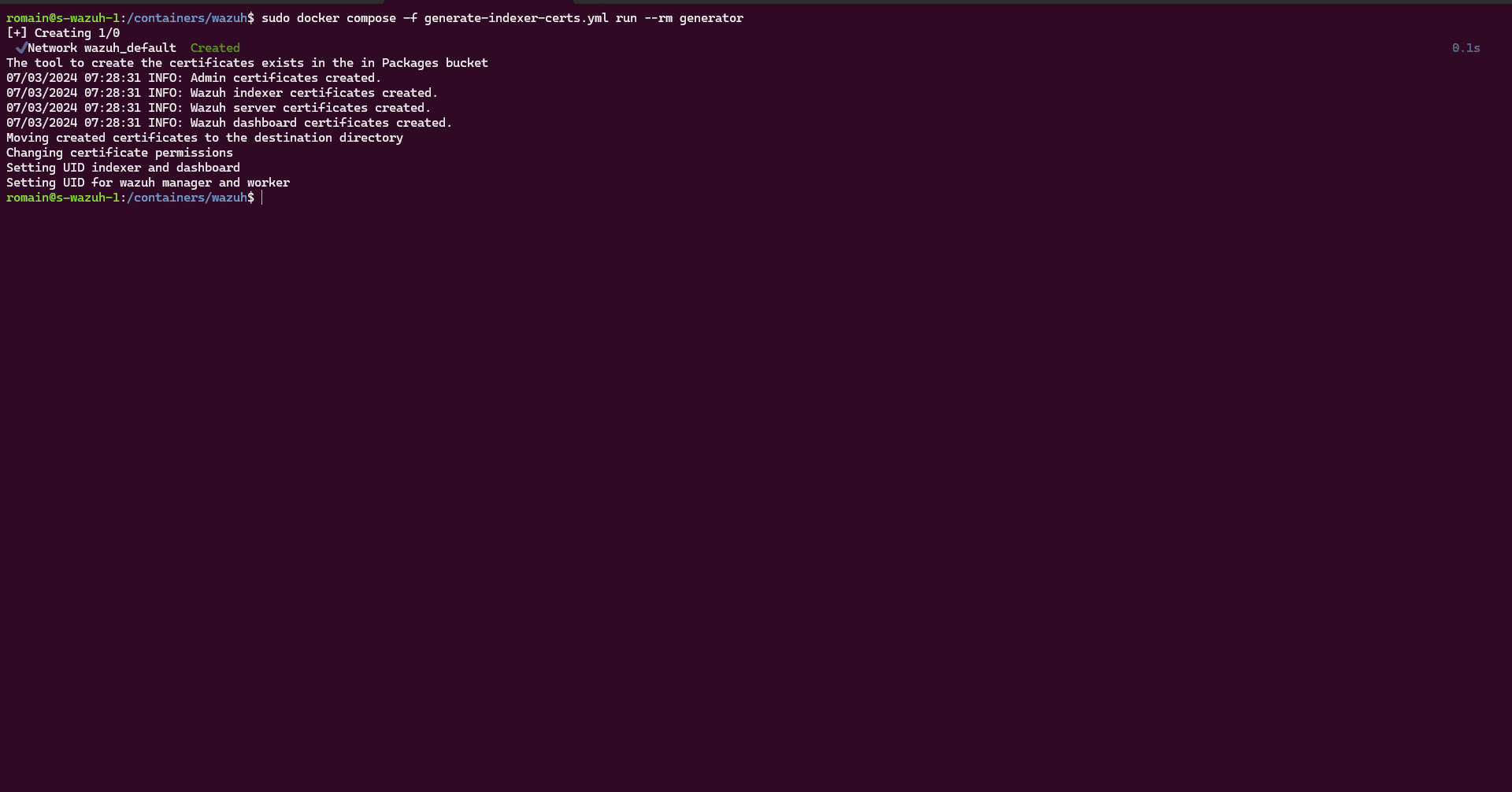
Start by generating the certificates; enter the following command:
sudo docker compose -f generate-indexer-certs.yml run --rm generator
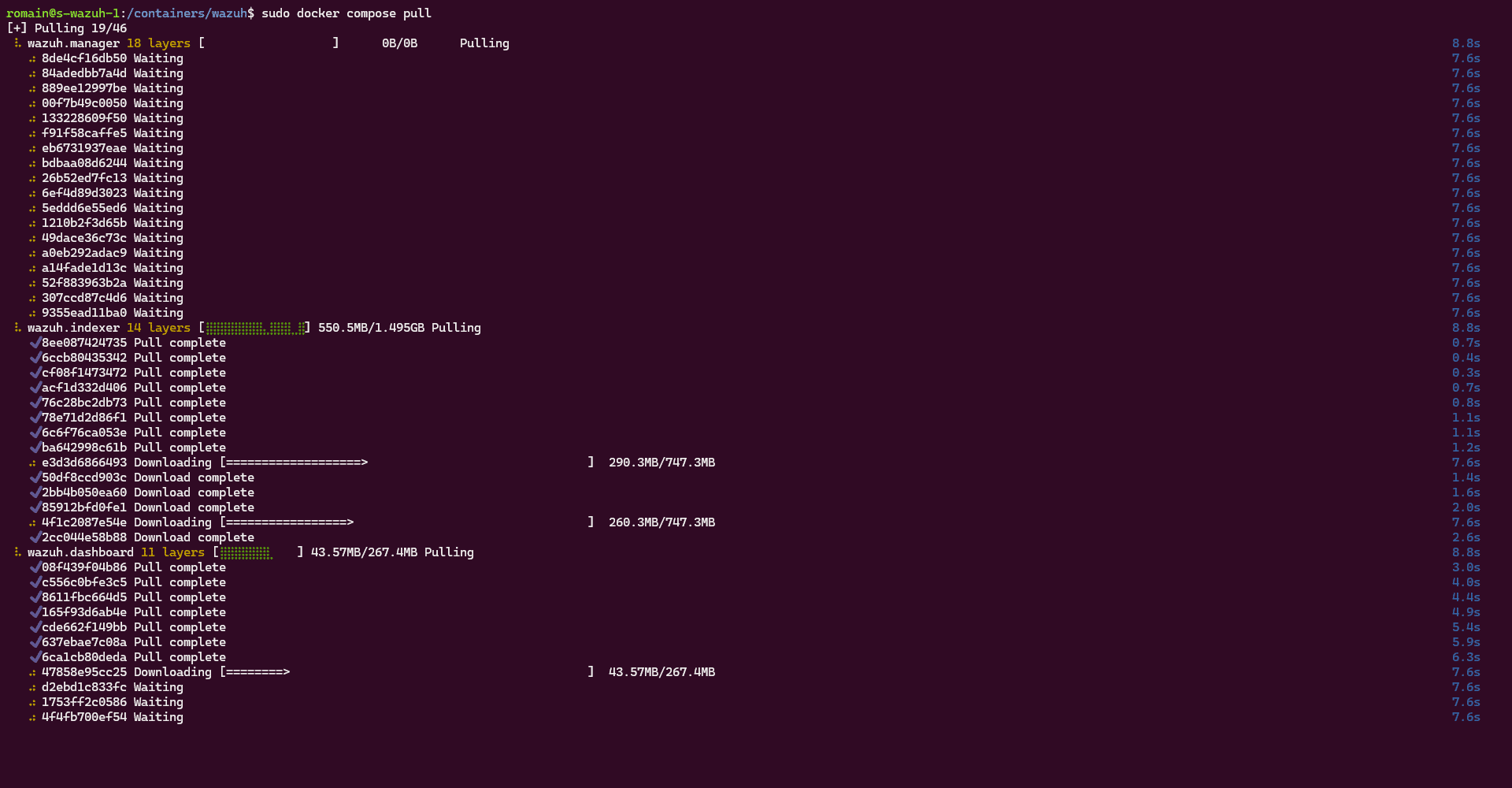
Download the container images:
sudo docker compose pull
Start the containers:
sudo docker compose up -d
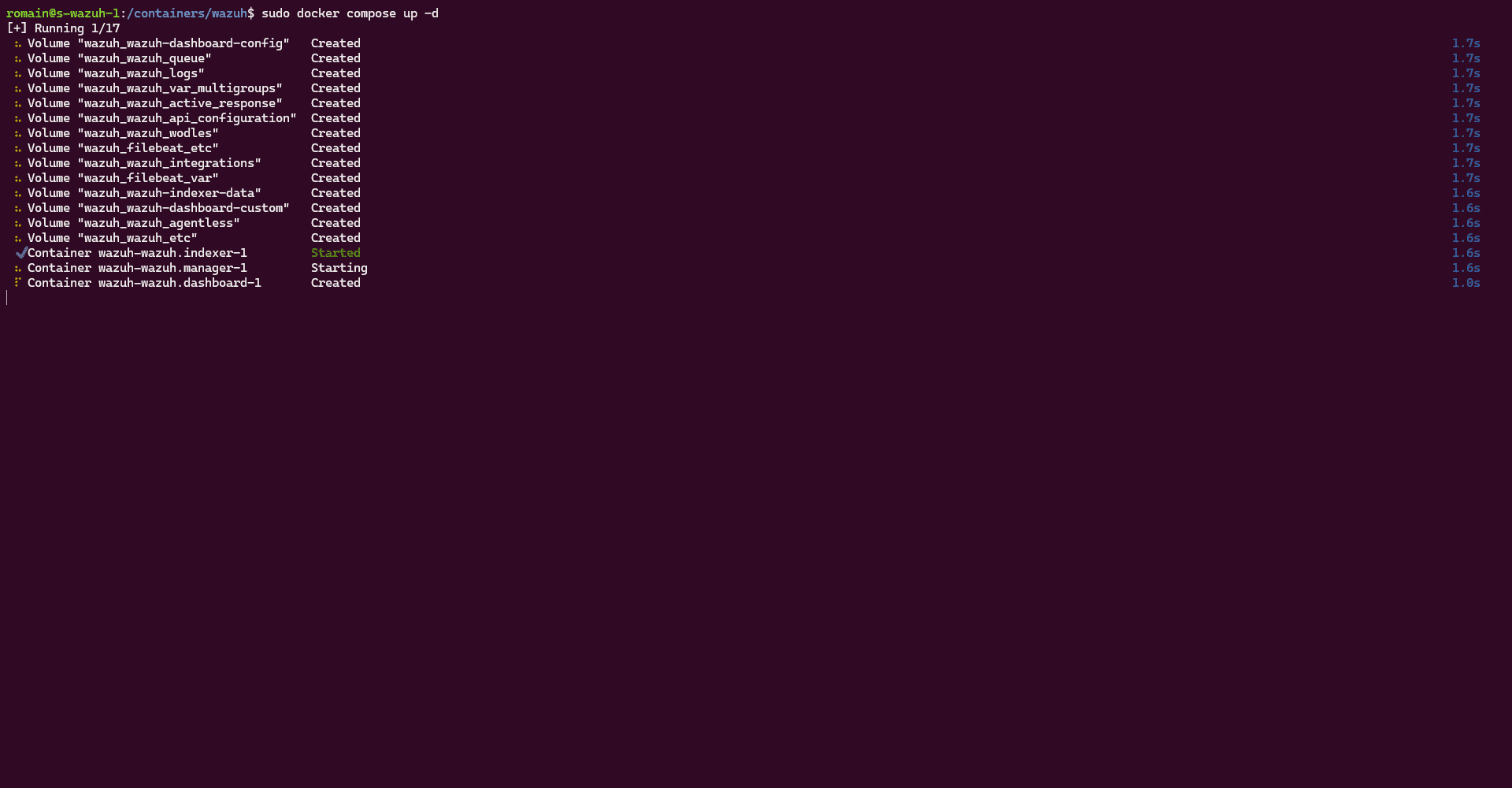
Check the logs to verify that everything is starting up correctly.
sudo docker compose logs -f
Start using Wazuh
In this section, we’ll explore Wazuh.
From a browser, go to the web interface at https://ip-of-wazuh-server or https://wazuh.domain.tlk
If you are directed to this page, please wait while Wazuh fully starts up:

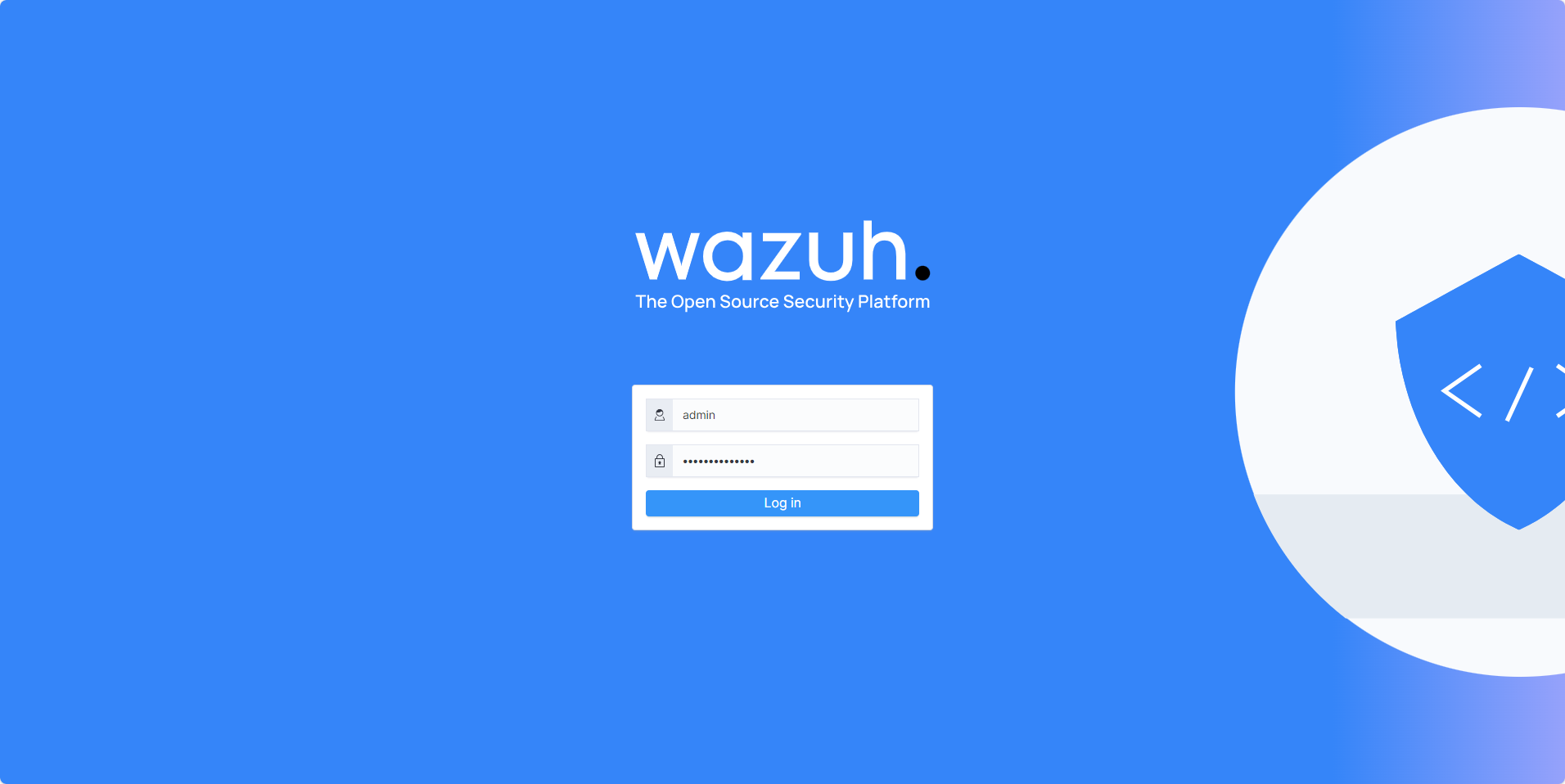
On the authentication form, enter “admin” as the username and the password configured in the docker-compose.yml file
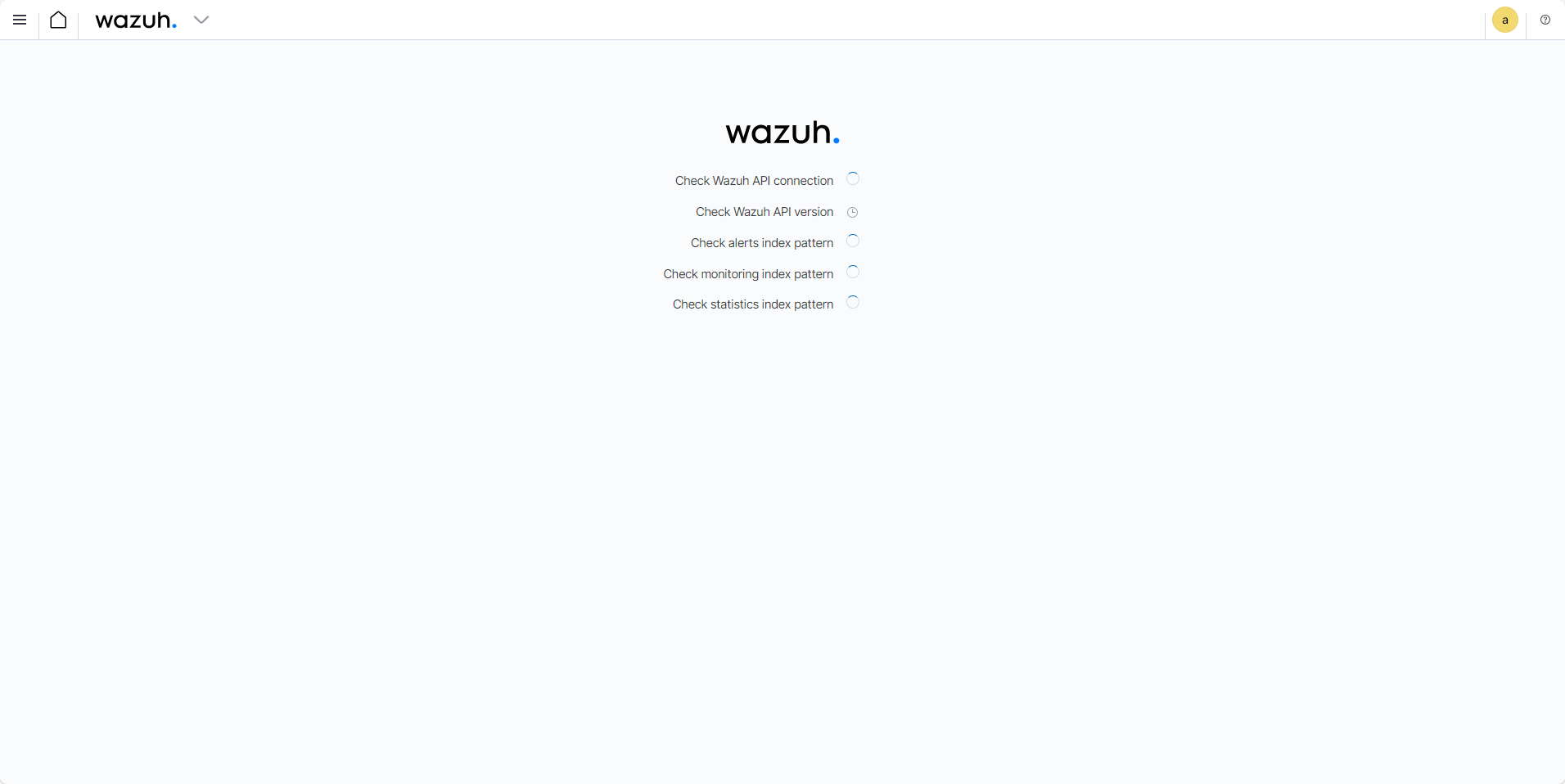
Please wait while the page loads…
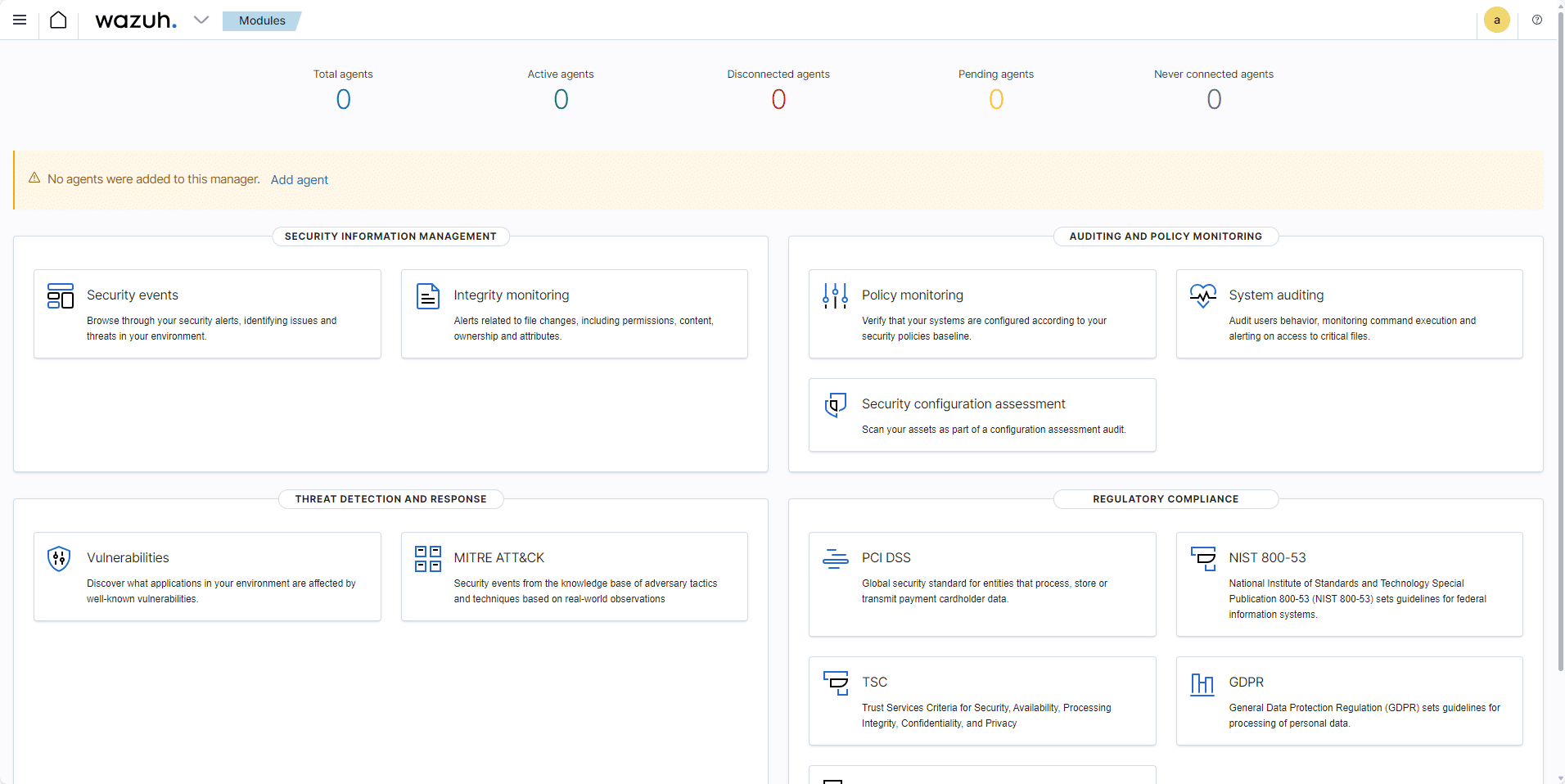
You’ll arrive at the main page, which lets you navigate to the various Wazuh modules.
Install the Wazuh agent on Windows
To send data to Wazuh, you must install an agent on Windows computers.
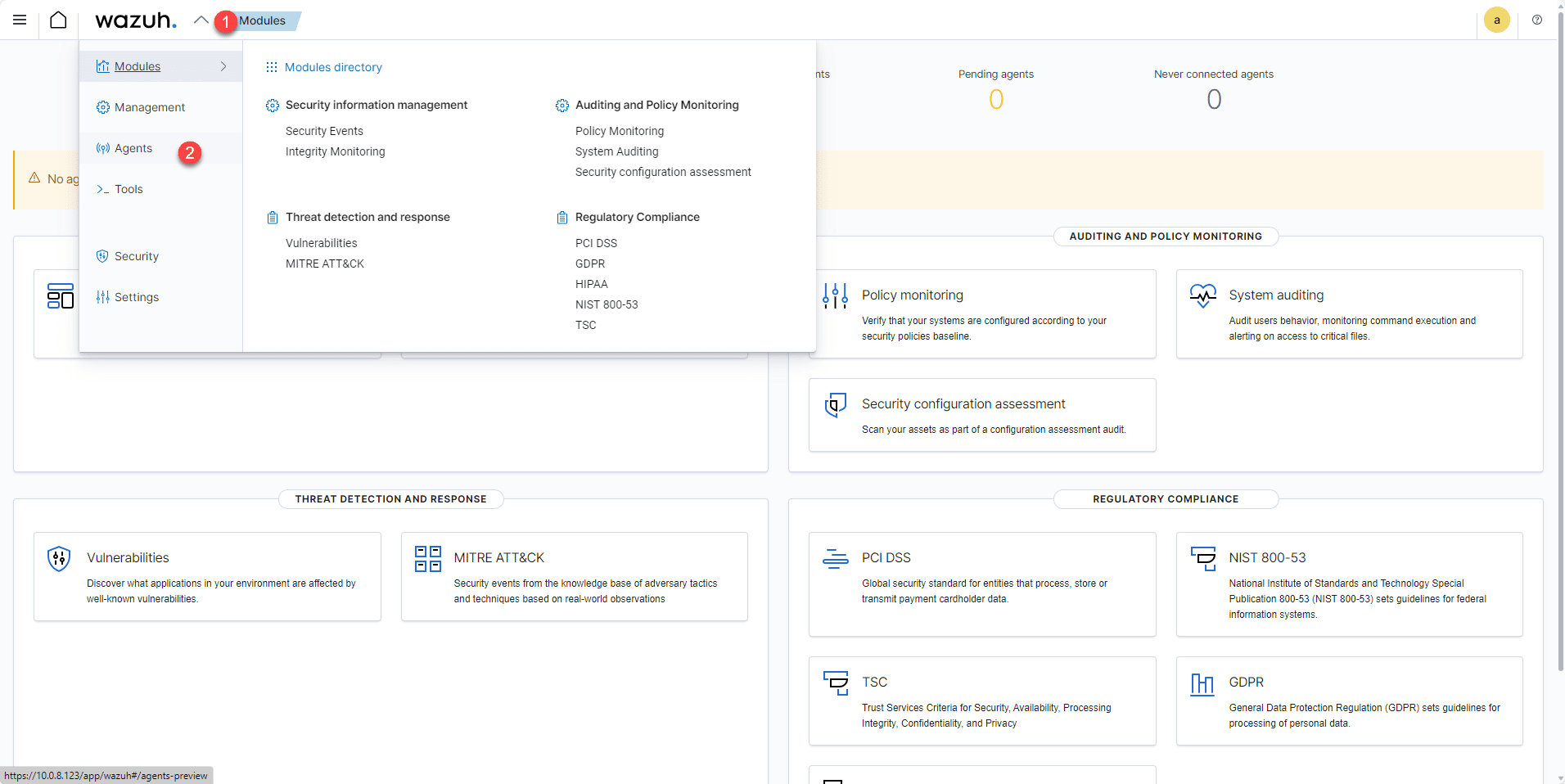
To deploy the first agent, you can access the agent management page by clicking “Add agent.”
Alternatively, click the arrow at the top 1 , then click “Agents” 2 .
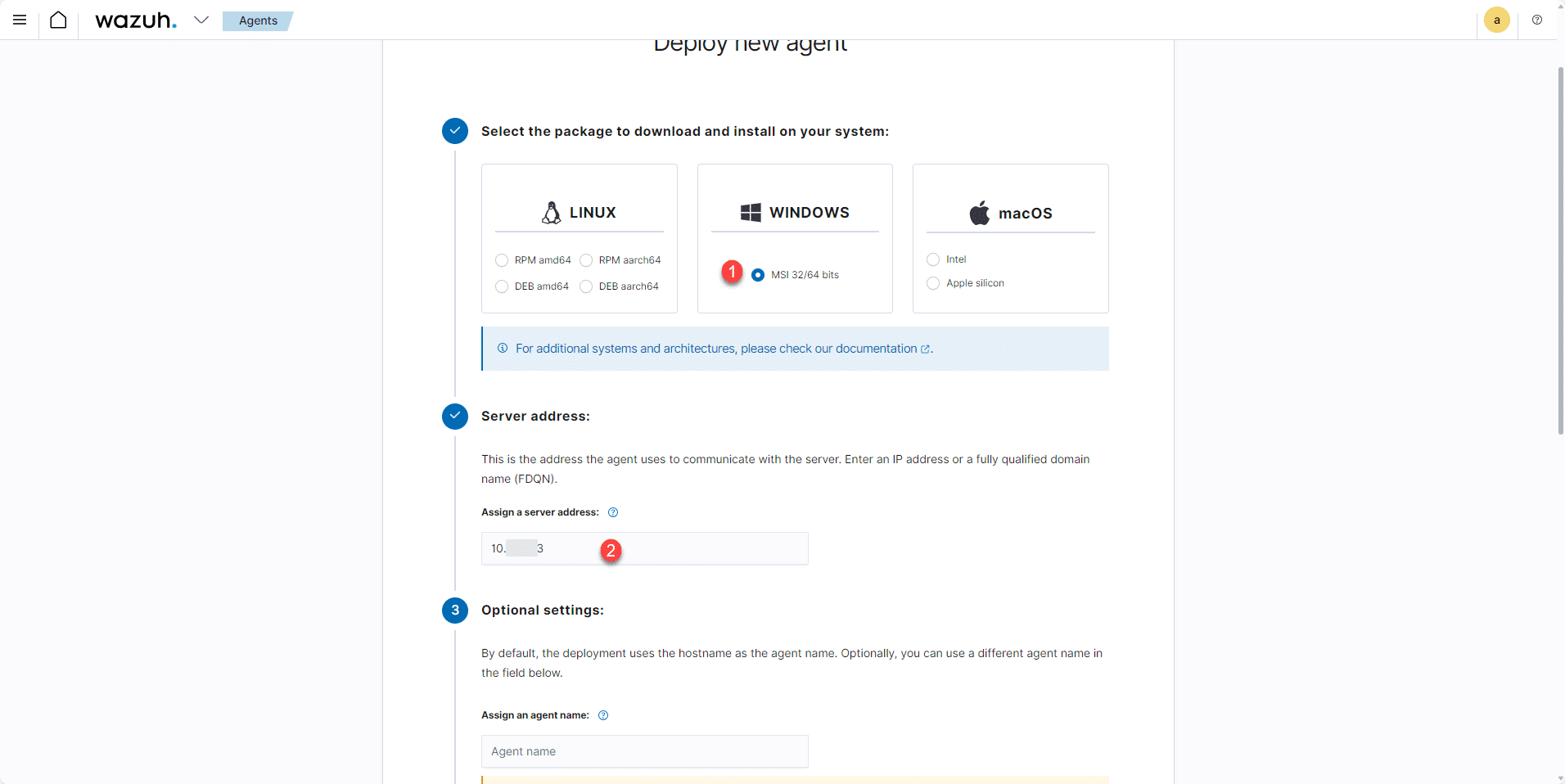
Select the operating system—in this case, choose Windows and select MSI 32/64-bit 1 —then enter the Wazuh server address 2 .
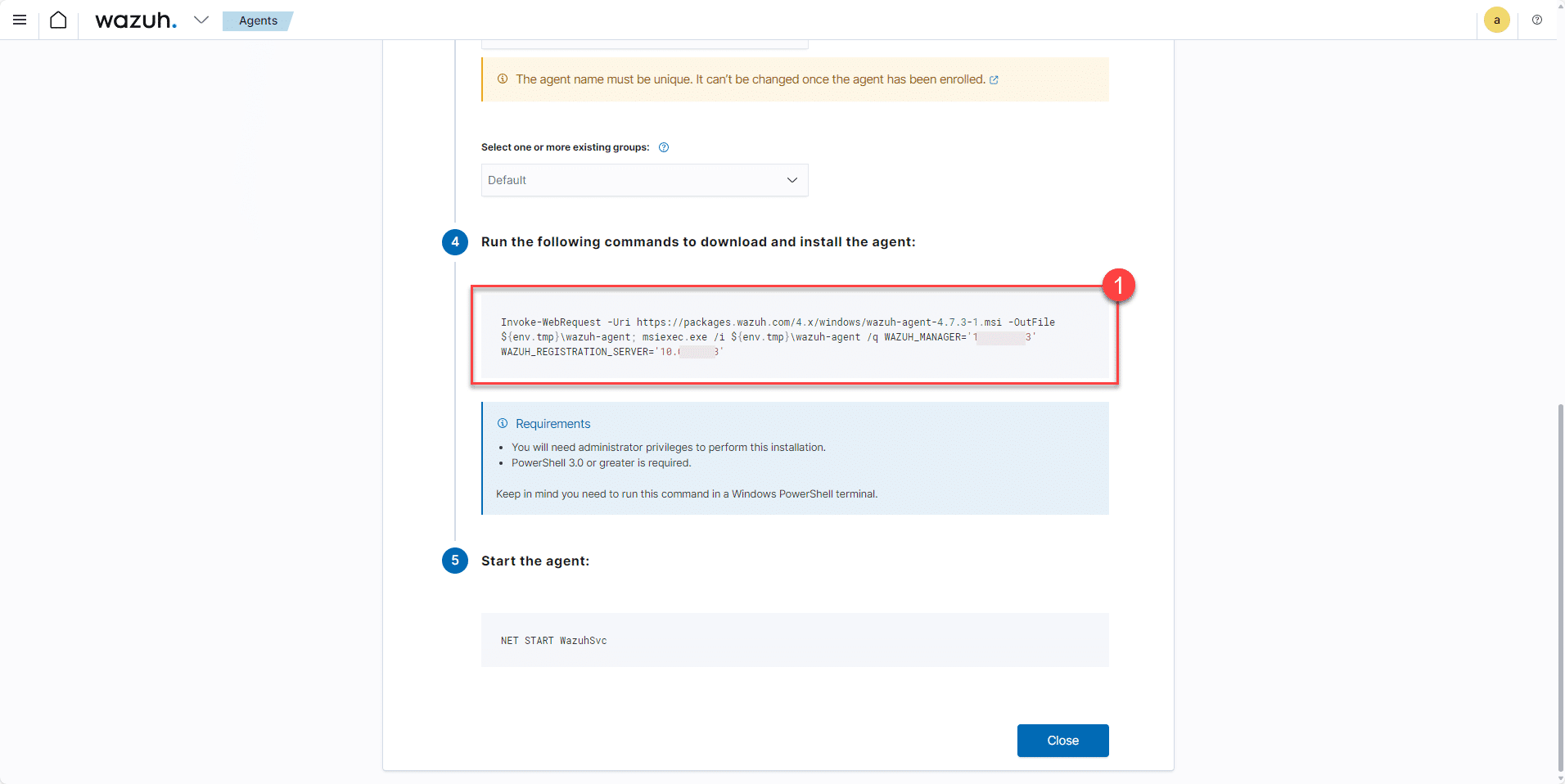
At the bottom of the page, you’ll find the command line to run to install the agent; 1 copy it.
On a Windows server, open a PowerShell command prompt as an administrator, paste the installation command, and press Enter.
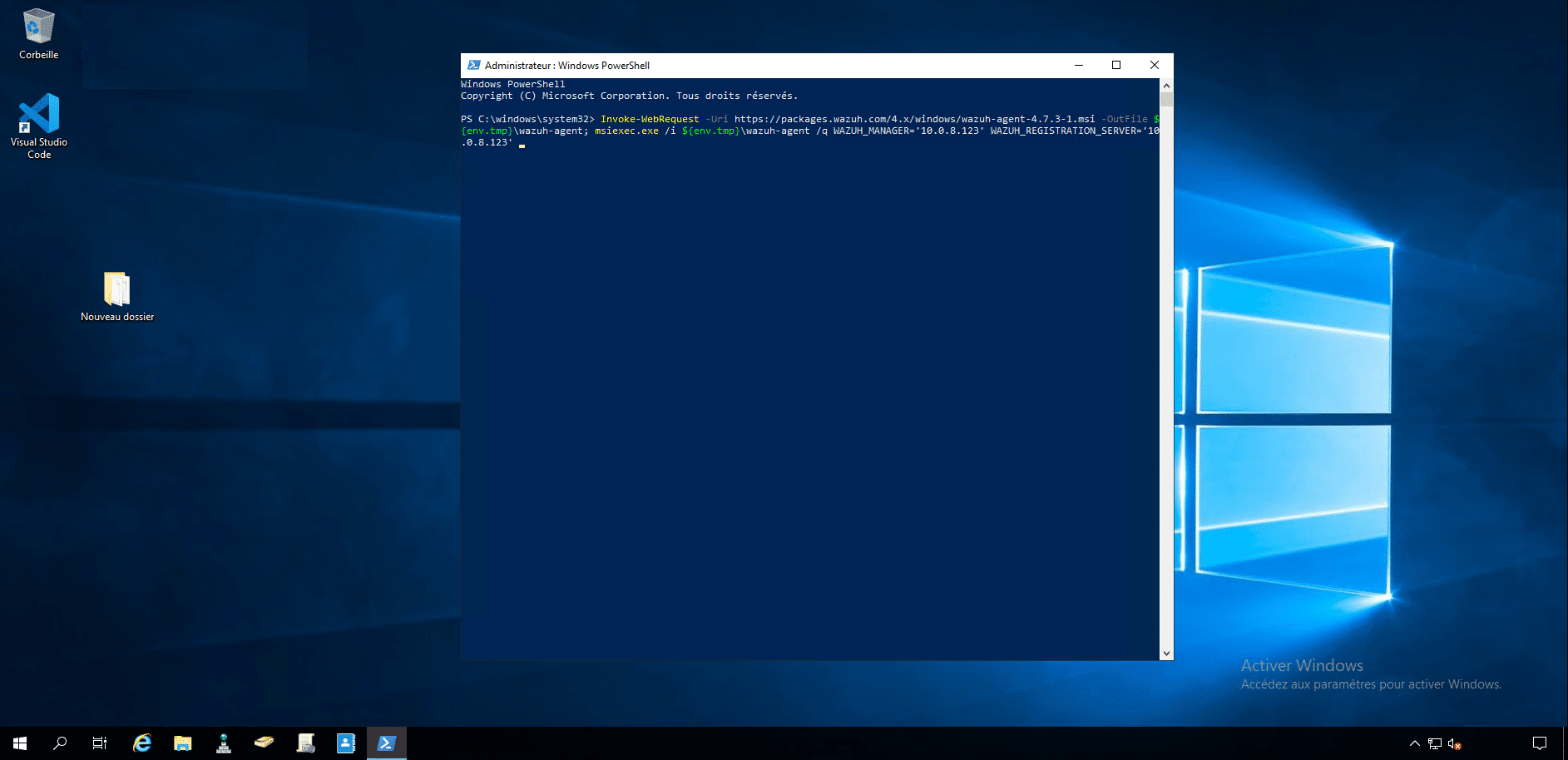
Wait while the agent downloads and installs.
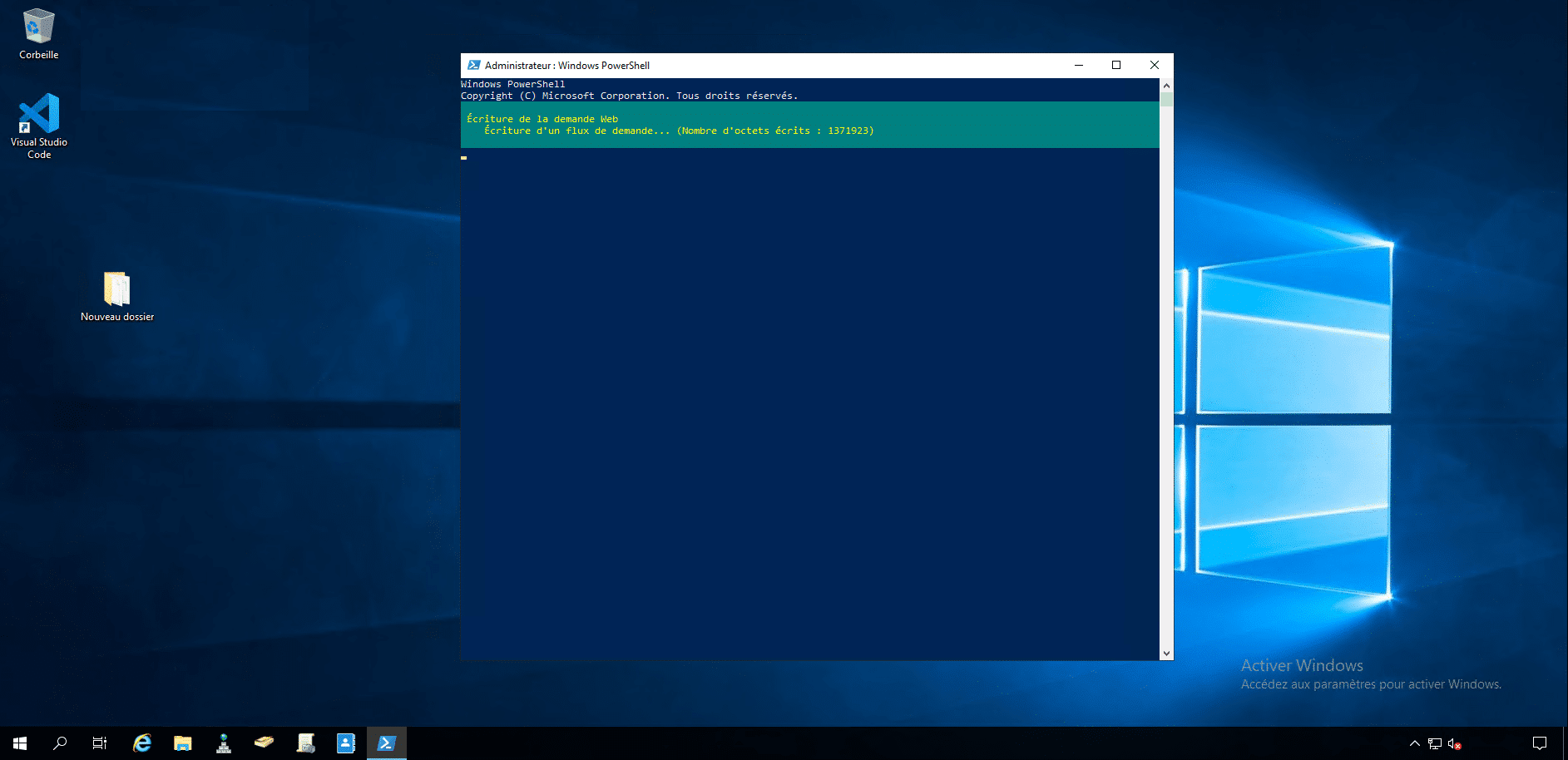
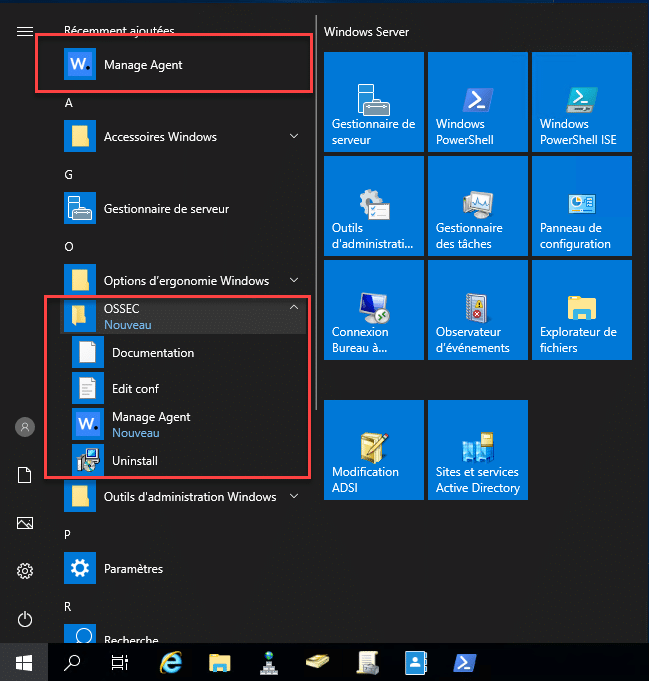
Once the agent is installed, you’ll find the shortcuts in the Start menu.
Start the service:
Start-Service WazuhSvg
Wait a few minutes while the agent collects the information and sends it to the Wazuh server.
The agent should be visible in Wazuh:
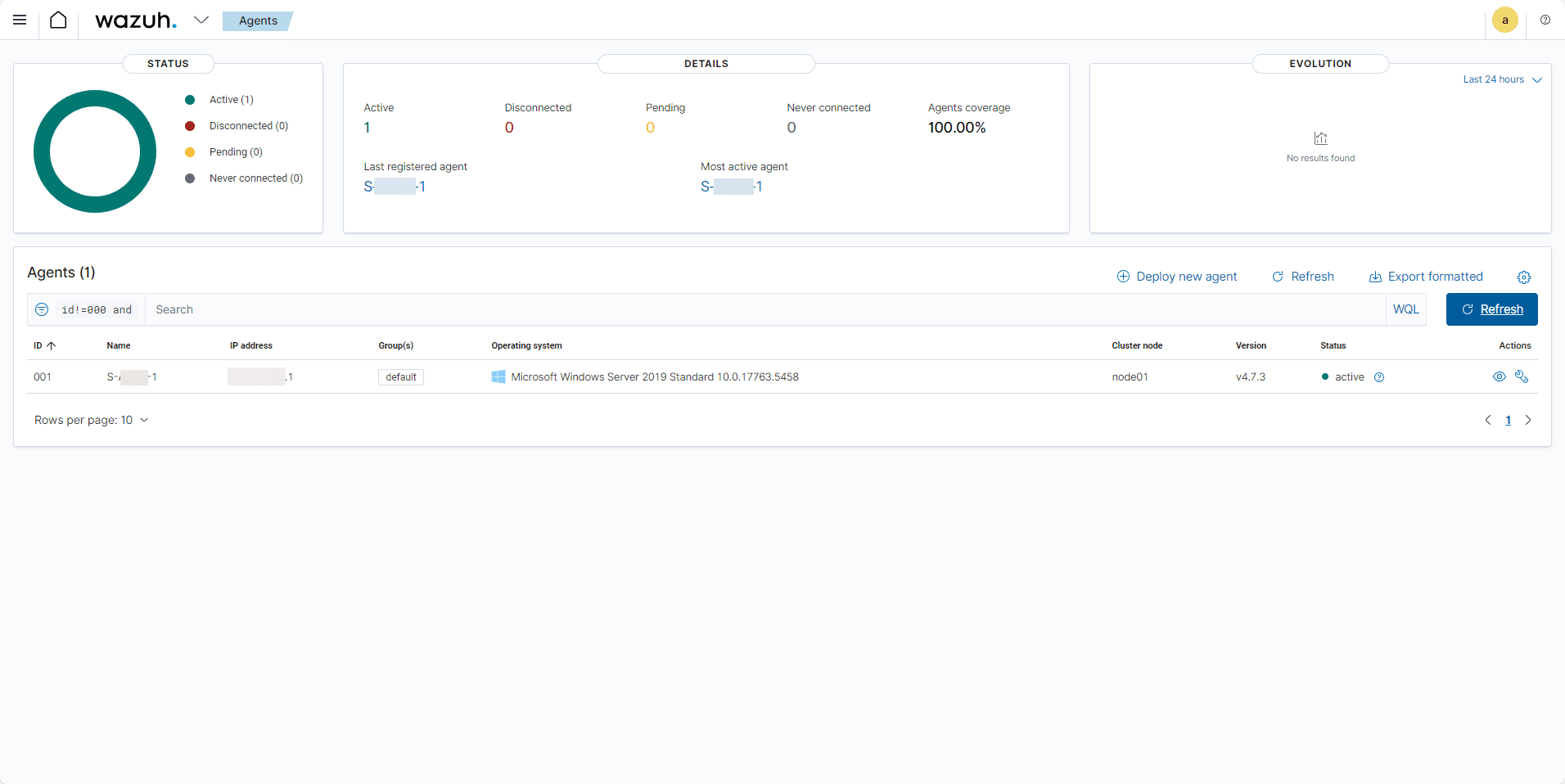
To access the agent configuration page again, click “Deploy new agent” from the list of agents.
Analyze the reported information
Clicking on the agent takes you to its dedicated dashboard, where you can navigate through the various modules.
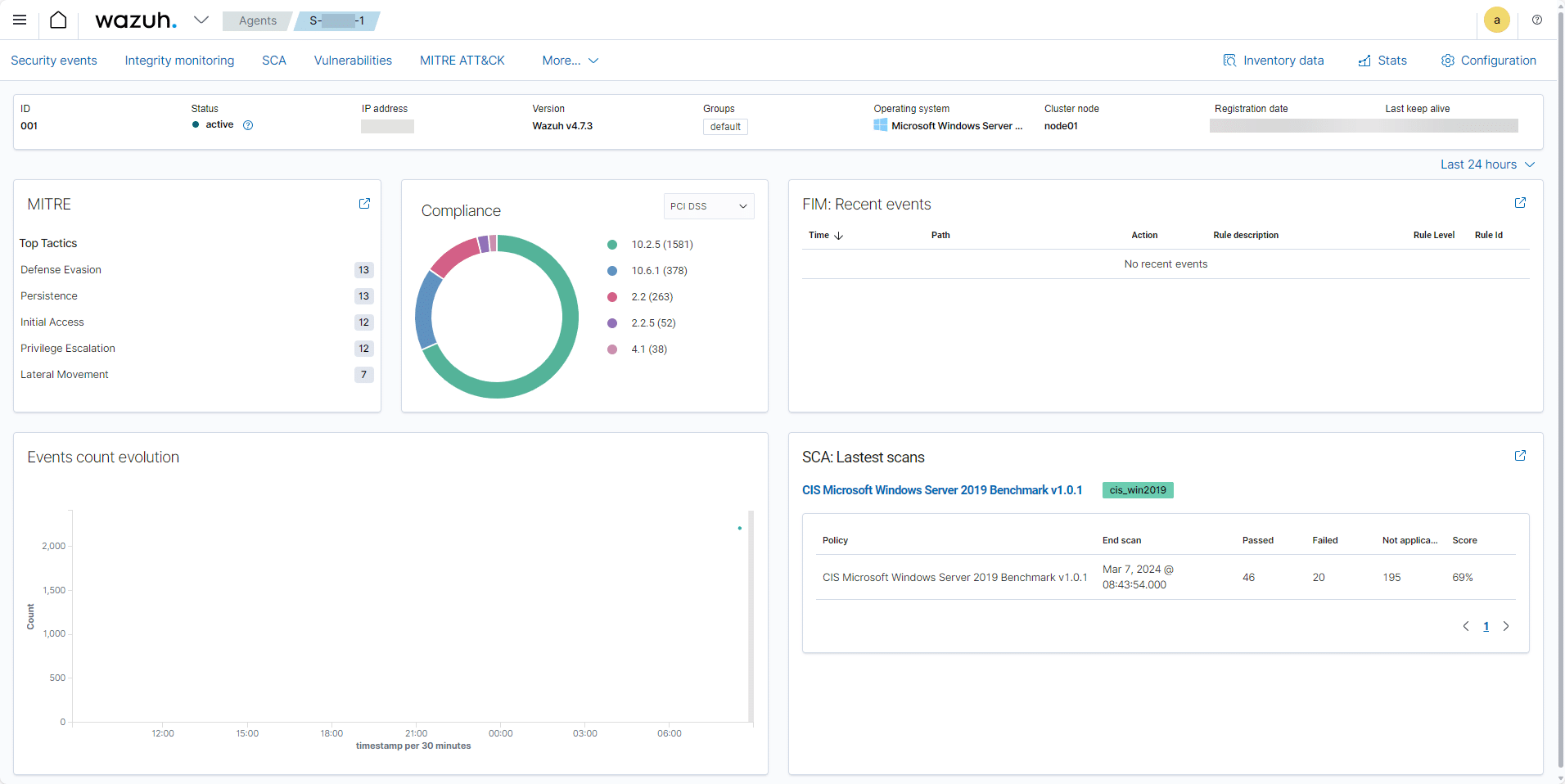
If you install Wazuh, I encourage you to explore the various features.
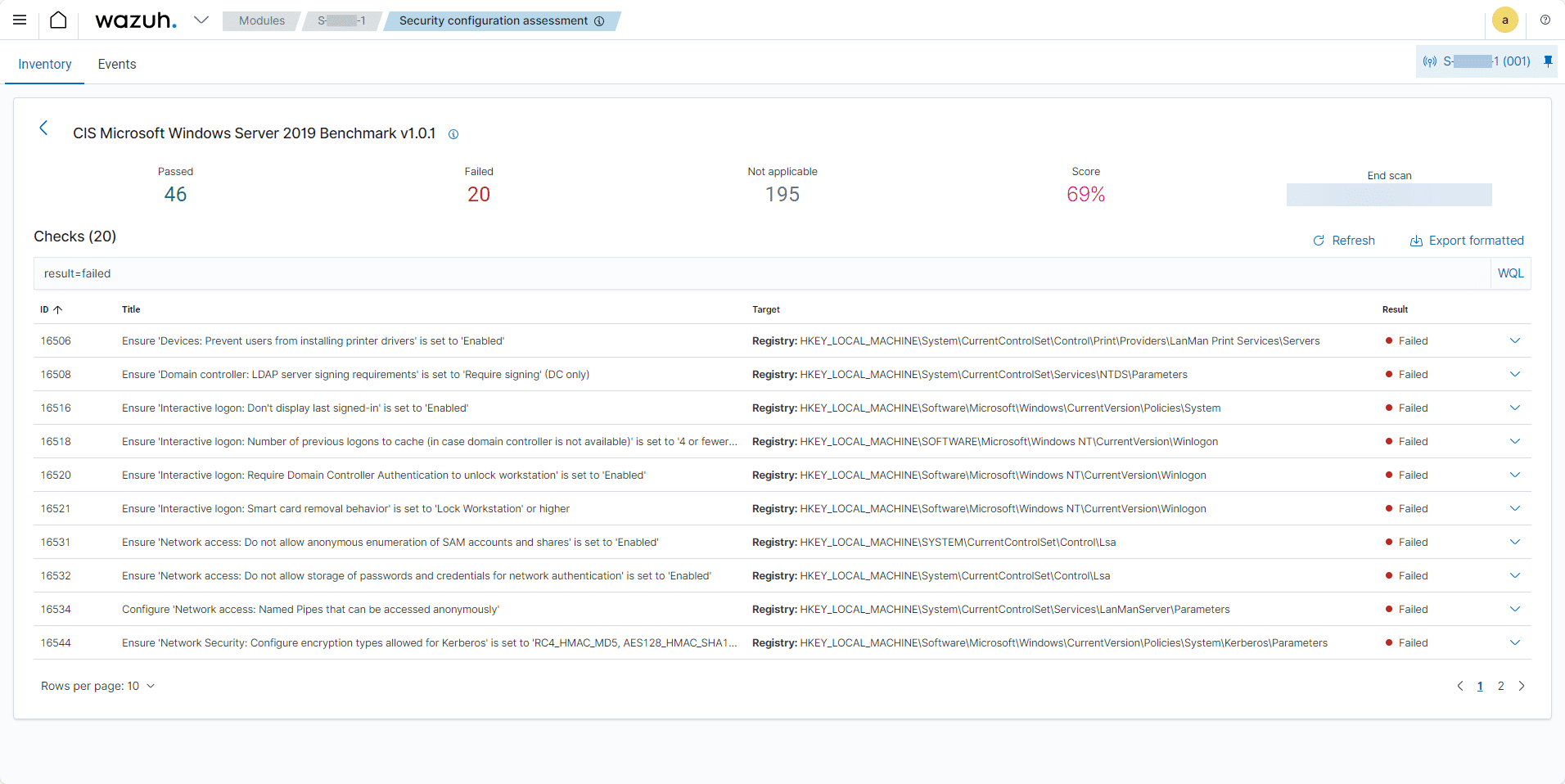
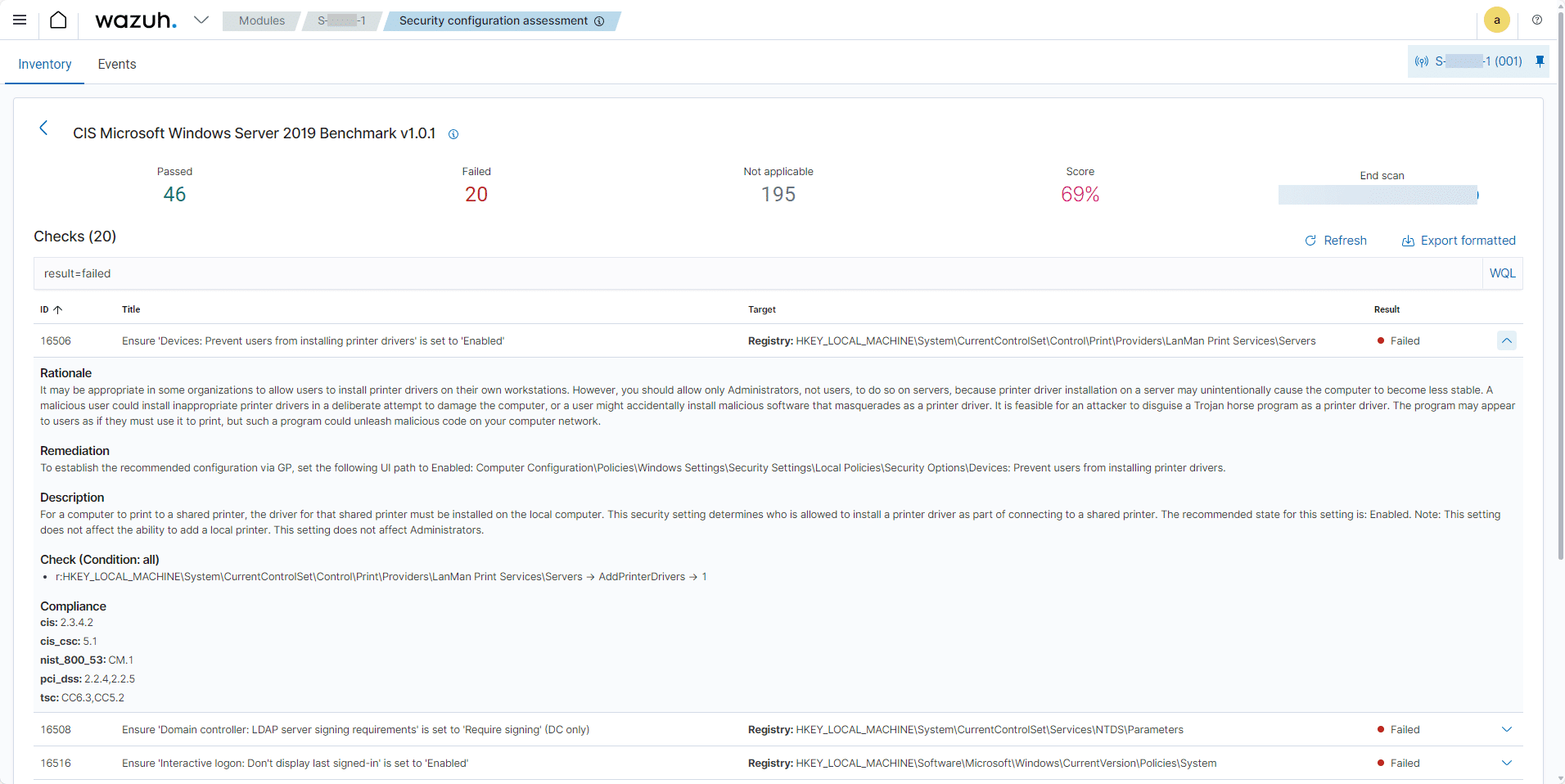
One module I find interesting is “Security Configuration Assessment,” which analyzes configuration best practices to verify whether they’re being followed; for any that aren’t, you’ll see the necessary corrections along with explanations.
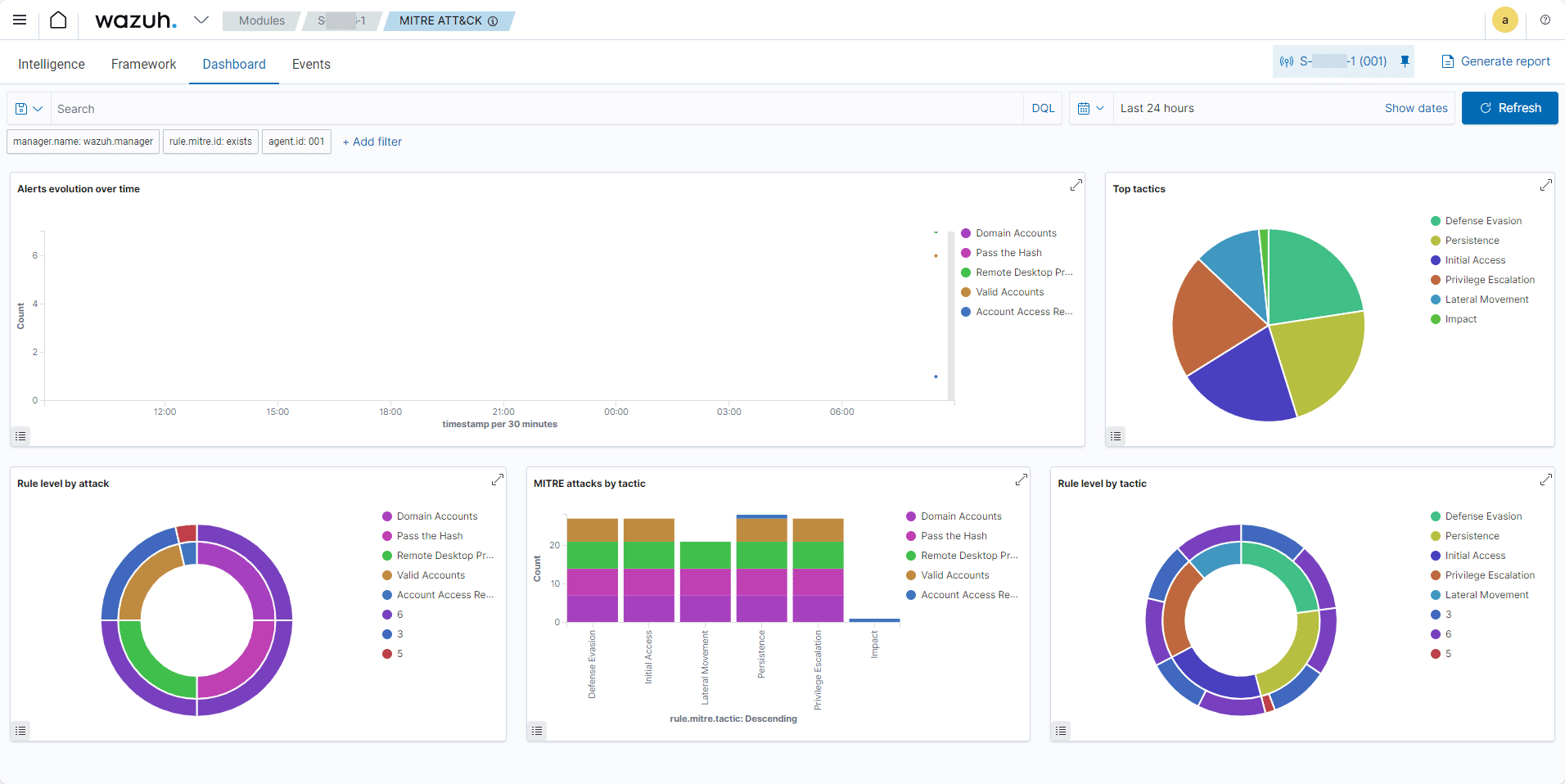
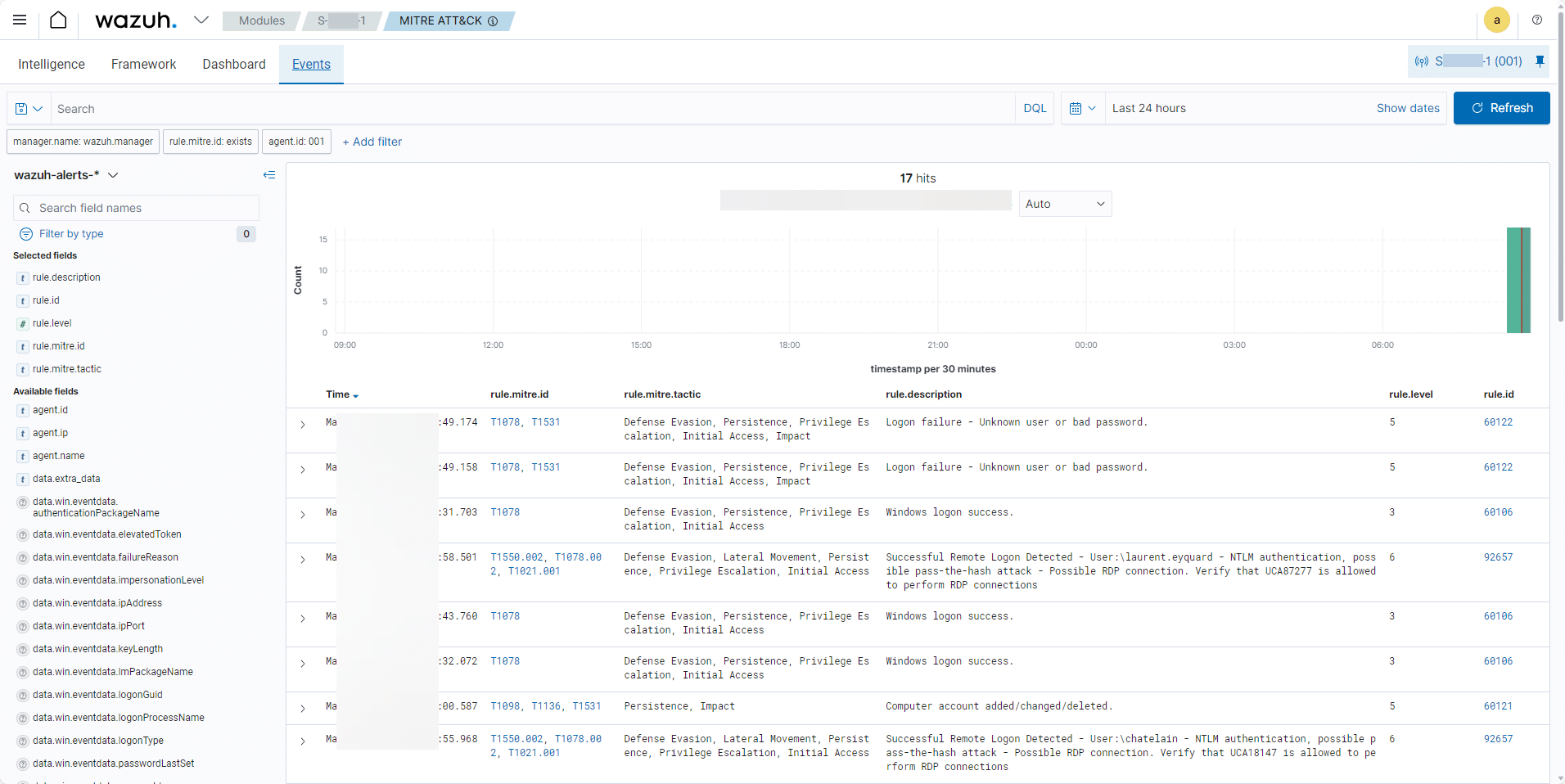
Information on the MITRE ATT&CK module.
Enable vulnerability management
Another module worth exploring from a security perspective is vulnerability detection, which is not enabled by default.
This module primarily analyzes updates to check whether any CVEs are exploitable.
config/wazuh_cluster/wazuh_manager.confTo enable the module, from the server, edit the file.
sudo nano config/wazuh_cluster/wazuh_manager.conf
Search for<wodle name="syscollector"> and add the following to the section <hotfixes>yes</hotfixes>
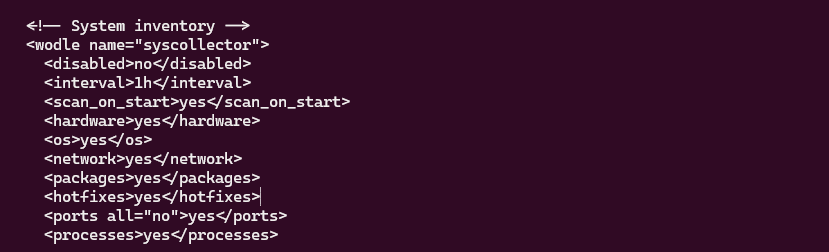
<enabled>...</enables>Search for<vulnerability-detector> and change “no” to “yes”.

<enabled>...</enabled>Then, for each operating system (OS), enable detection by changing it to “yes.”

Save the changes and then restart the containers for the changes to take effect:
sudo docker compose down -v && sudo docker compose up -d
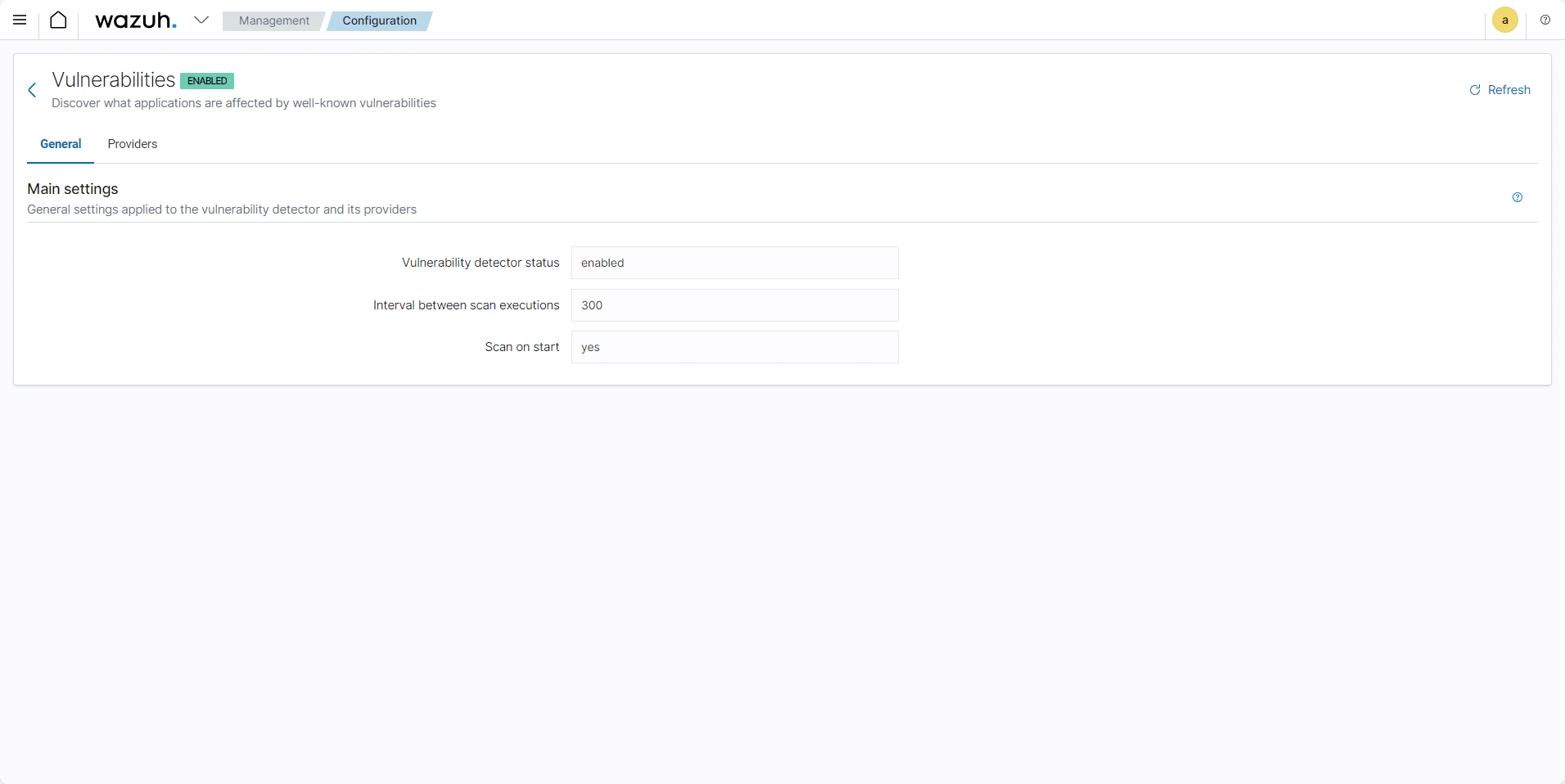
To verify that the changes have taken effect in Wazuh, go to Management / Configuration and click on Vulnerabilities.
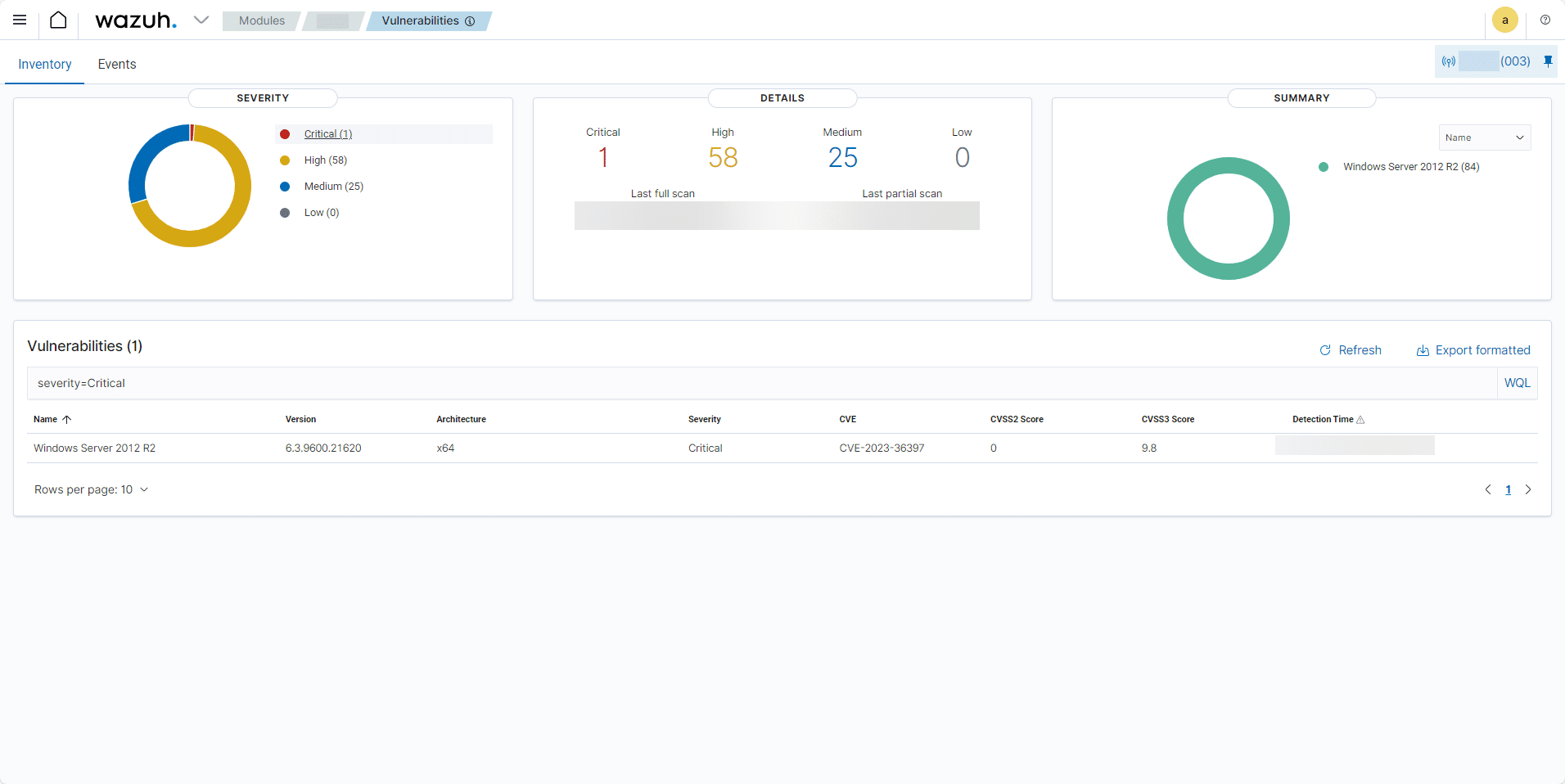
Checking a Server for Vulnerabilities
In the screenshot below, you can see that the server has a vulnerability classified as critical.
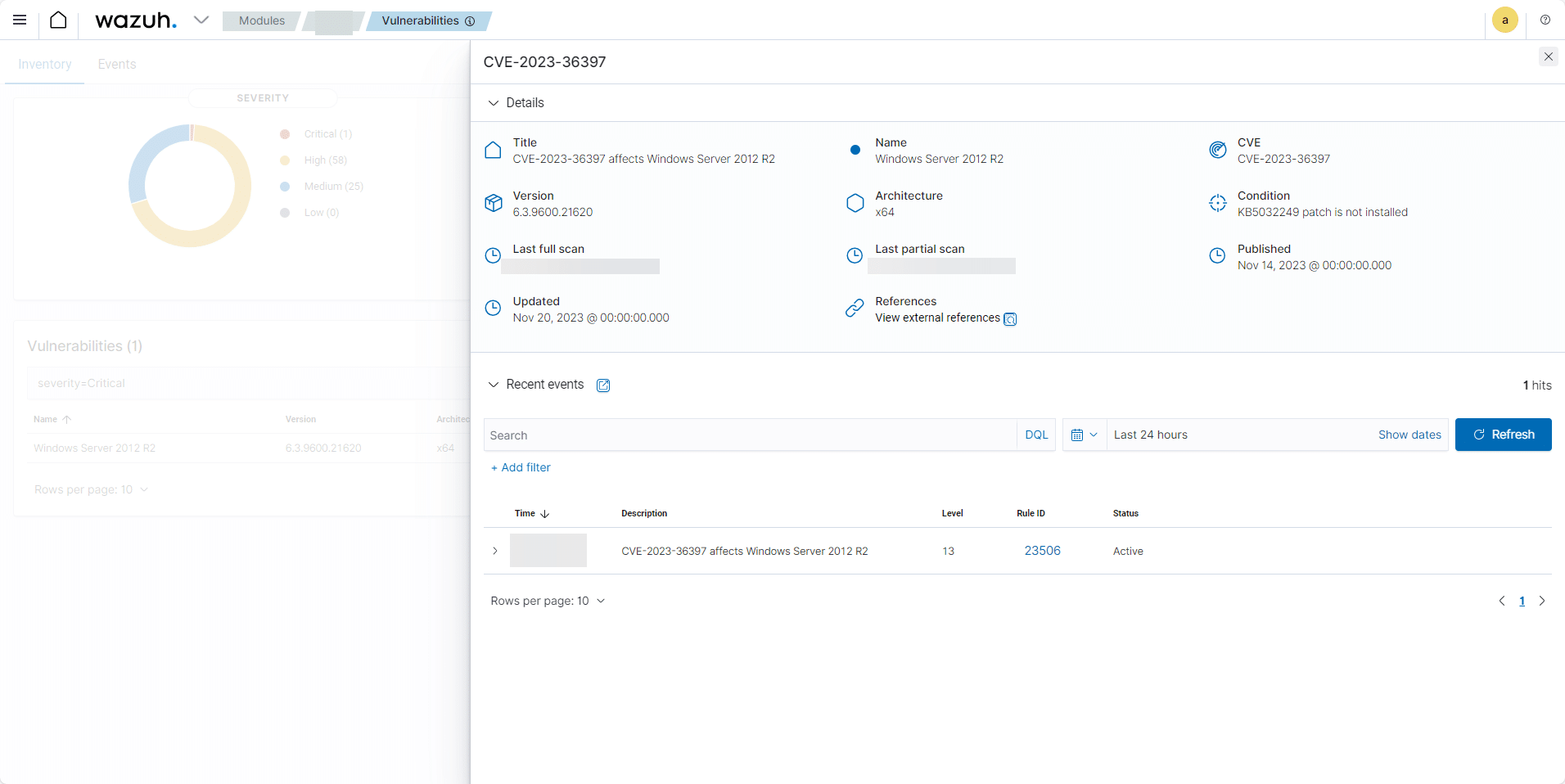
Clicking on the row displays the vulnerability details and which patch has been installed to fix it.
Conclusion
You now know how to deploy Wazuh and install agents on Windows to collect and analyze security information.
If you don’t have a SIEM or EDR, I recommend deploying Wazuh, which is completely free and will allow you to perform an initial security analysis of your information system.
More tutorials on Wazuh will follow to help you use this tool.