
Introduction to rsync
LinuxIn this tutorial, I’ll explain how to usersync rsync (Remote Synchronization) to make copies or backups.
rsynIt is a folder synchronization tool available on most distributionsLinux, and it is often used to back up files and websites…
By running the same command repeatedly—that is, with the same source and destination—ryncrsync will only copy new items and those that have been modified.
The advantage of using rsync is its native support for SSH, which allows you to copy to or from a remote server.
Using rsync
Now, let’s see how rsync works.
Like most file-copying software, you need to specify a source and a destination:
rsync -parameters source/ destination/
The most commonly used options are:
- -a / –archive: performs a recursive copy while preserving nearly all properties of the copied items.
- -v / –verbose: displays the progress
To illustrate this tutorial, we’ll first back up the folder/etc/ansible/ to a specific/backup/ansible/ folder on the same server, and then to a remote server.
Here is the source folder:
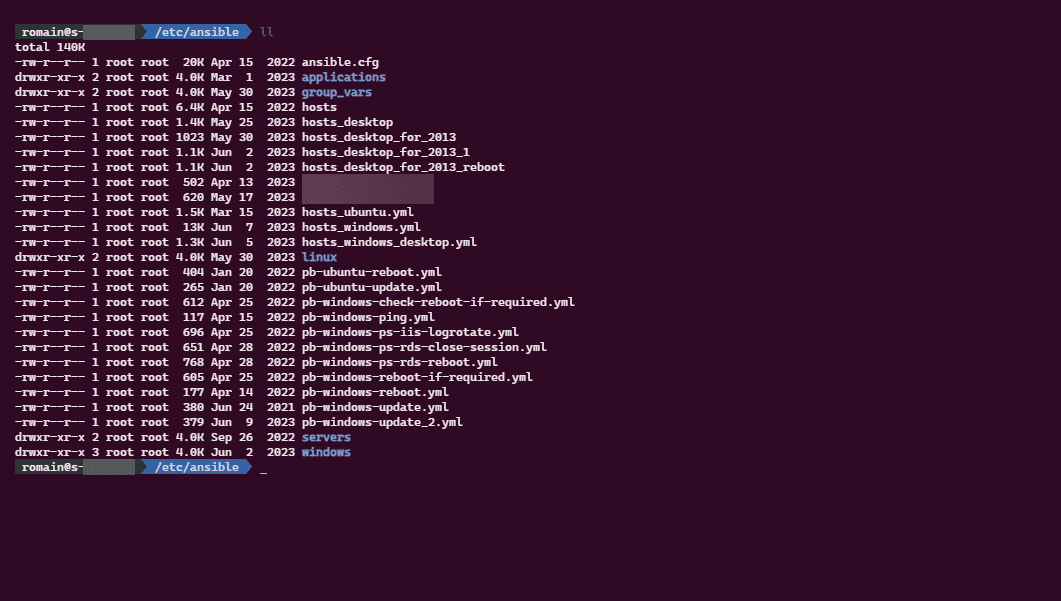
To back up the file, use the following command:
sudo rsync -a /etc/ansible/ /backup/ansible/

-vAs you can see, the command does not return any output; if you want information about the transfer, you must add the parameter.
If I look in the /backup/ansible/ folder, the folders and files have been successfully copied.

As you may have noticed in the command used to perform the copy, there is a /. at the end of the source path.
The following two commands do not produce the same result:
rsync -a /etc/ansible /backup/ansible/rsync -a /etc/ansible/ /backup/ansible/
The first command will create the source folder in the destination, which means the backup would be found in the following folder:/backup/ansible/ansible/ whereas the second command copies the contents of the source folder to the destination folder.
To display the progress and result of the commandrsync, you must add the parameter -v
sudo rsync -av /etc/ansible/ /backup/ansible/

If I run the same command again, you can see that nothing was copied because no changes were made.

Earlier, I mentioned thatrsync natively supports SSH for backing up to a remote server, and that’s what we’ll be doing now.
The remote server can be either the source or the destination (it might even be both at the same time, but I haven’t tried that!).
Here’s the syntax for specifying the remote server: <user>@<server>:/path/use/by/rsync/.
To back up the /etc/ansible/ directory to a remote server:
sudo rsync -avz /etc/ansible/ [email protected]:/backup/ansible/
When executing the command, you’ll need to enter the password for the account on the remote server.


As you can see, I’ve added the -z option, which enables compression during the transfer.
The account used to connect to the remote server must have write permissions in the destination directory.
On the destination server, I can confirm that my files and folders that were transferred via rsyncAnsible are present.
You’ll also find this command syntax online:
sudo rsync -e ssh -avz /etc/ansible/ [email protected]:/backup/ansible/
The parameter-eis added to specify the remote shell
If you want to create a backup script to a remote server, you’ll need to set up SSH key-based authentication .
Additional options for rsync
To wrap up this first tutorial on rsyncrsync, here are a few useful options:
--delete-after: this option deletes files in the destination folder that are no longer present in the source--remove-source-files: Deletes files from the source after the transfer; this is equivalent to a cut-and-paste operation—folders are not deleted.--exclude: Allows you to exclude files or folders--exclude="*.log" --exclude="temp"; by adding this to the rsync command, you’ll exclude all files with the .log extension and folders named “temp.”
You now have all the information you need to set up backup scripts using rsync.
Additionally, here is the man
page forrsync rsync
with all available options.
In a tutorial project, I’ll explain how to perform differential and incremental backups with rsync.