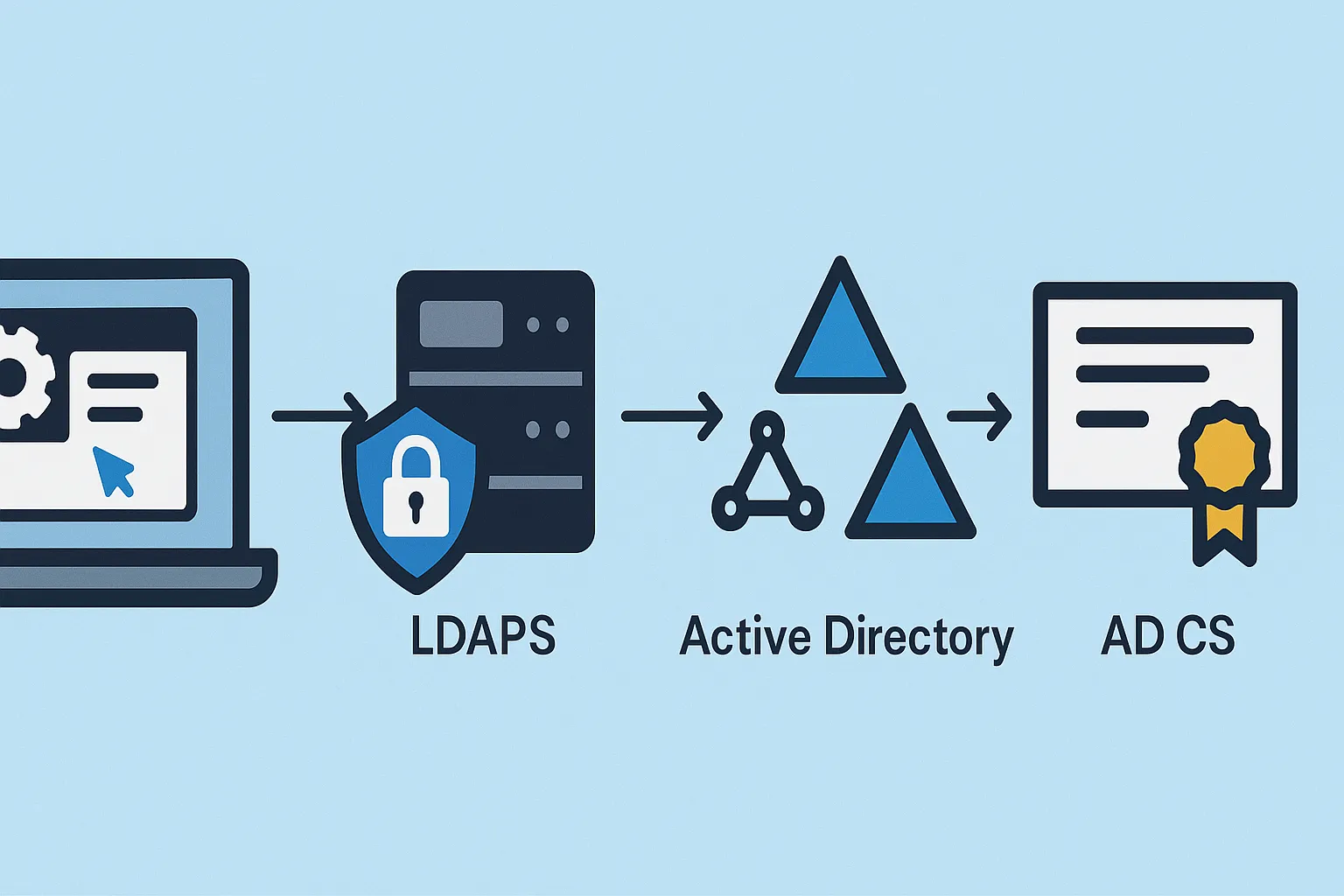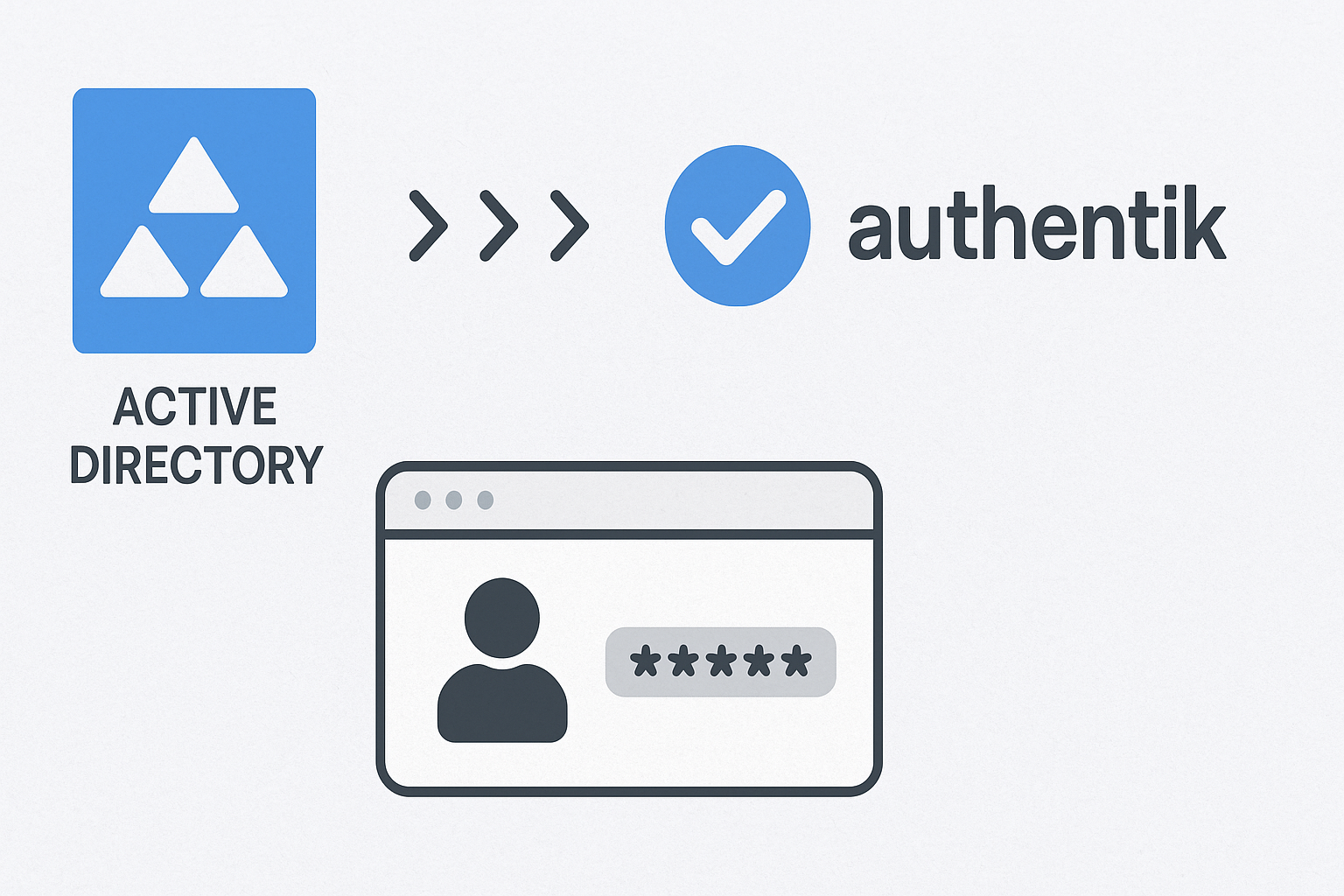
In this tutorial, we’ll see how to link a directory Active Directory In Authentik in order to synchronize users and groups in the domain.
Users will then be able to use their domain username and password to connect to applications that will be configured in Authentik with OpenID, SAML or LDAP providers.
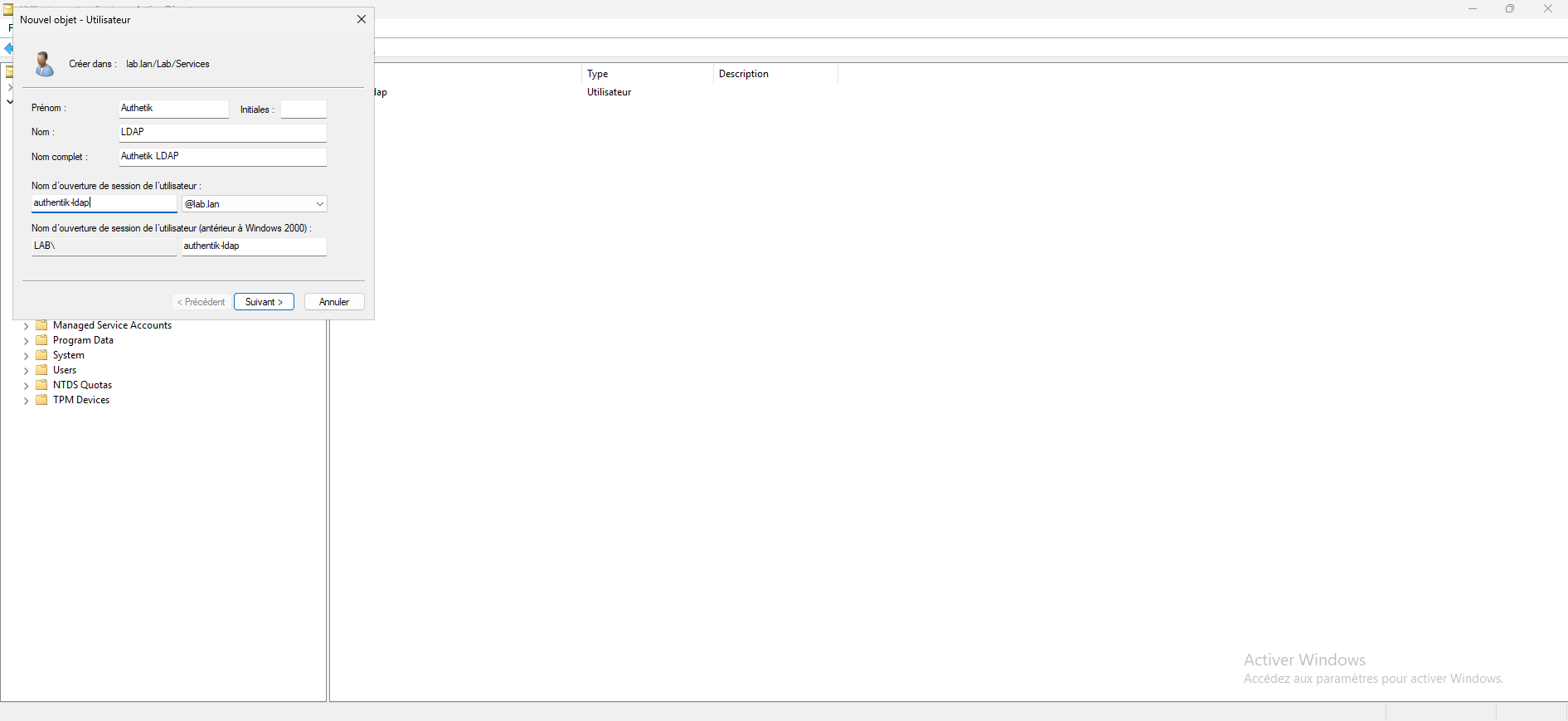
Creating a user account for LDAP connection
Pour commencer, créer un compte qui sera dédié à liaison entre l’annuaire Active Directory et Authentik.
Creating a parent group for the Active Directory groups
In order to easily find the Active Directory groups imported into Authentik, we will create a parent group.
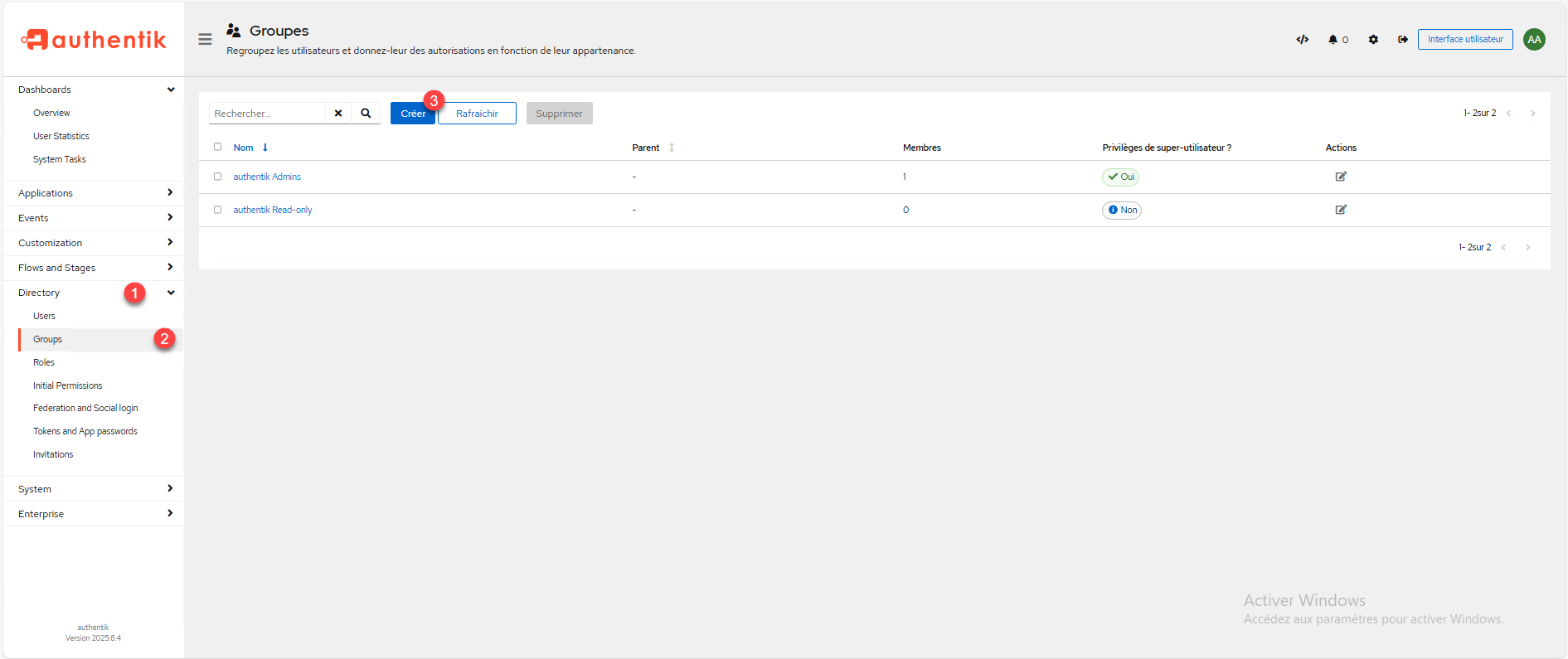
From the navigation menu expand Directory 1 then go to Groups 2 , on the groups page click on the Create button 3 .
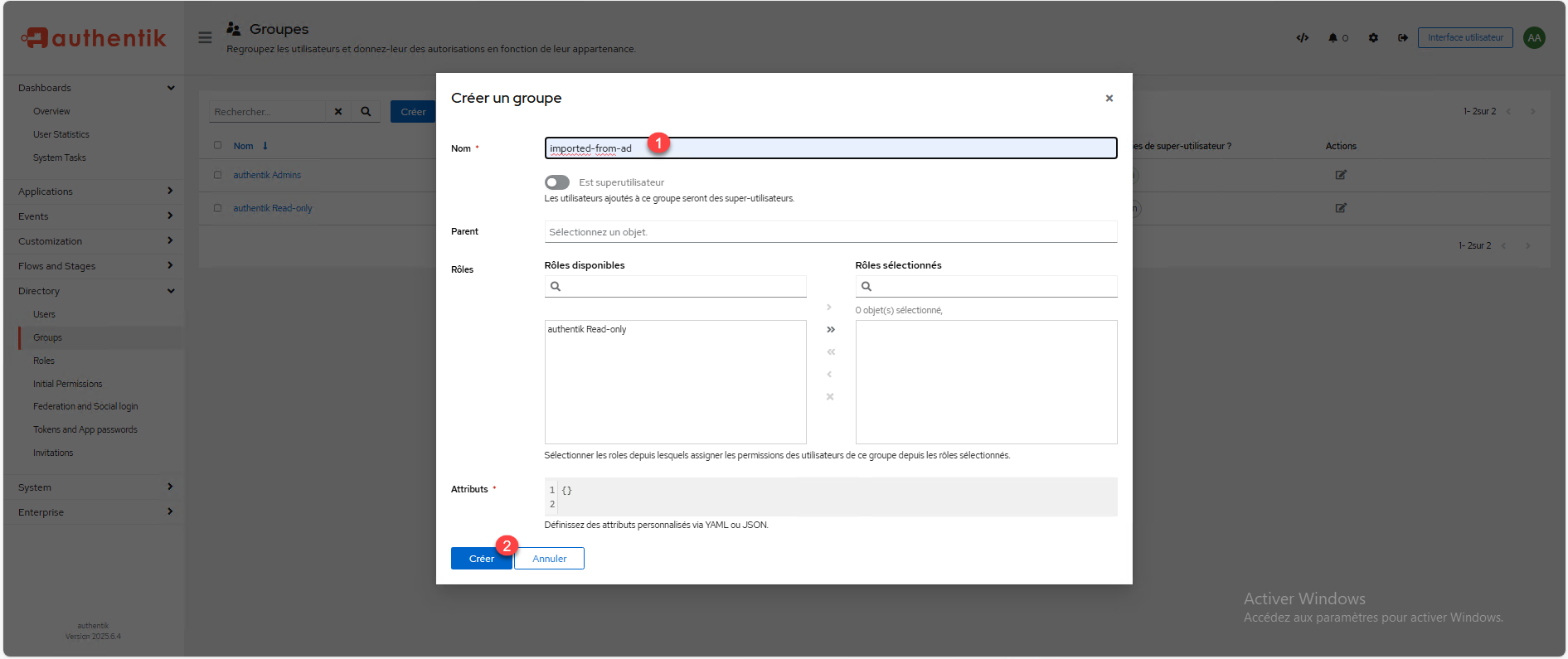
Name the group 1 then click on the Create 2 button.
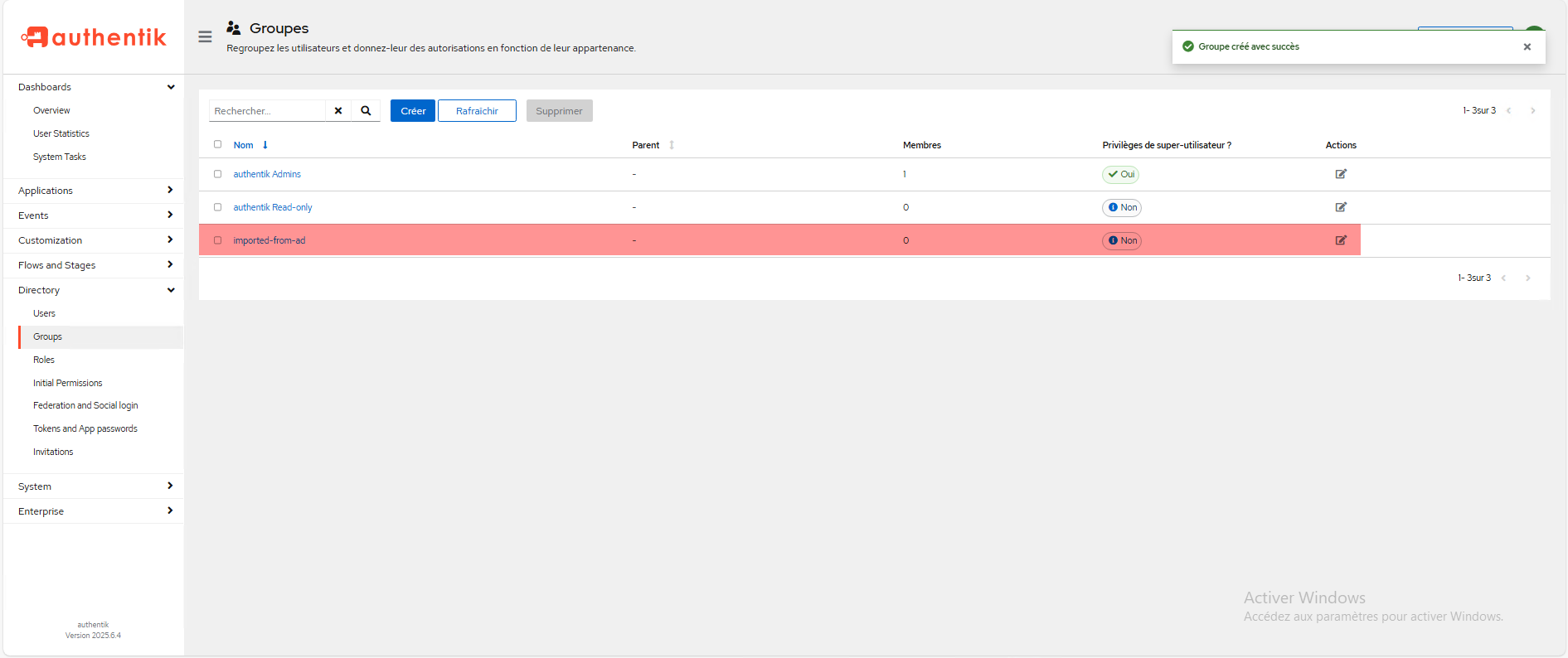
The parent group is created.
Configure the Active Directory binding in Authentik
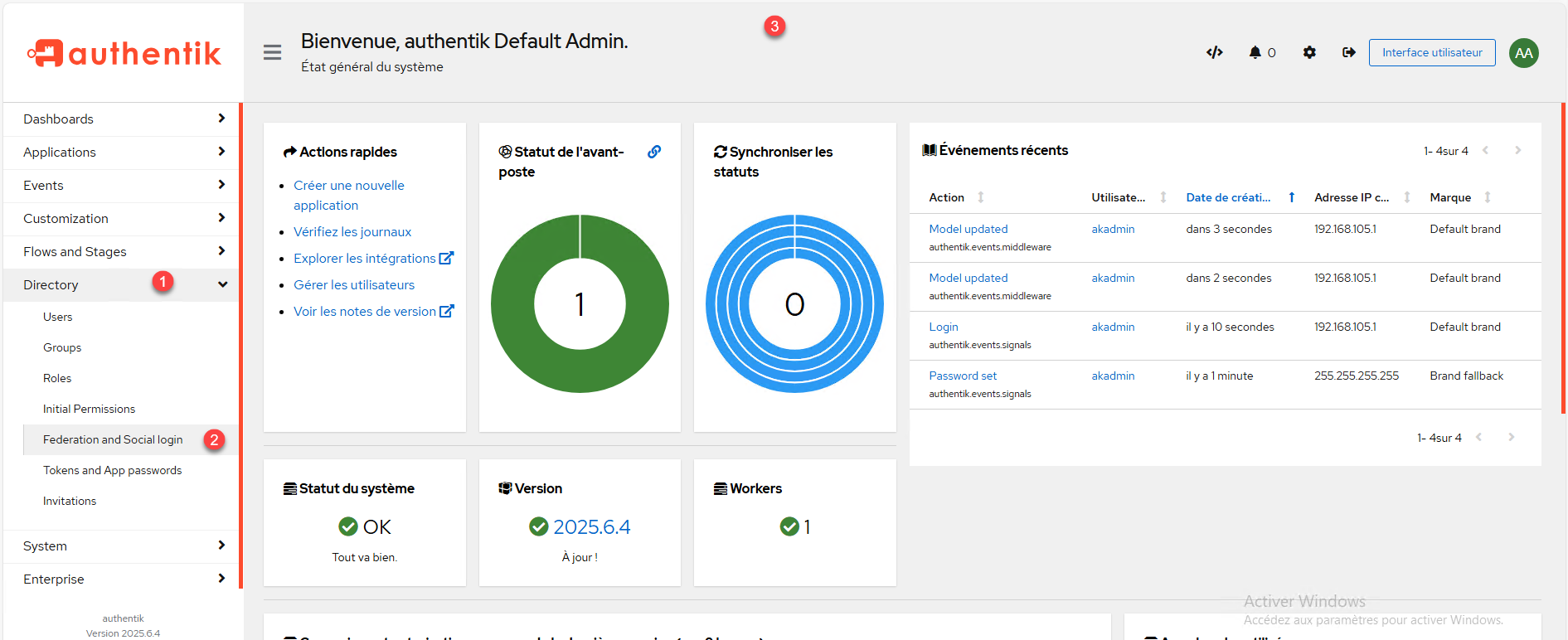
From the Authentik web interface, expand Directory 1 then click on Federation and Social login 2 .
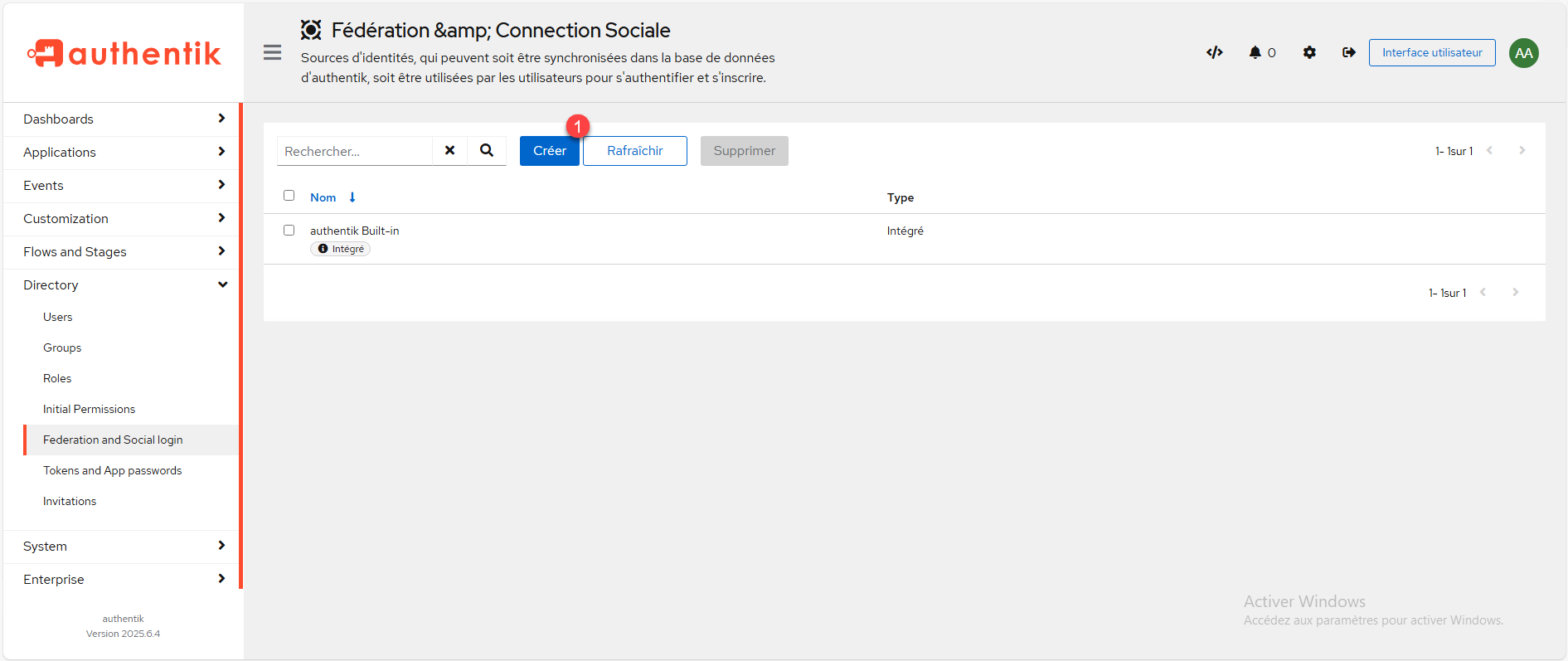
On the list of identity sources, click the Create 1 button.
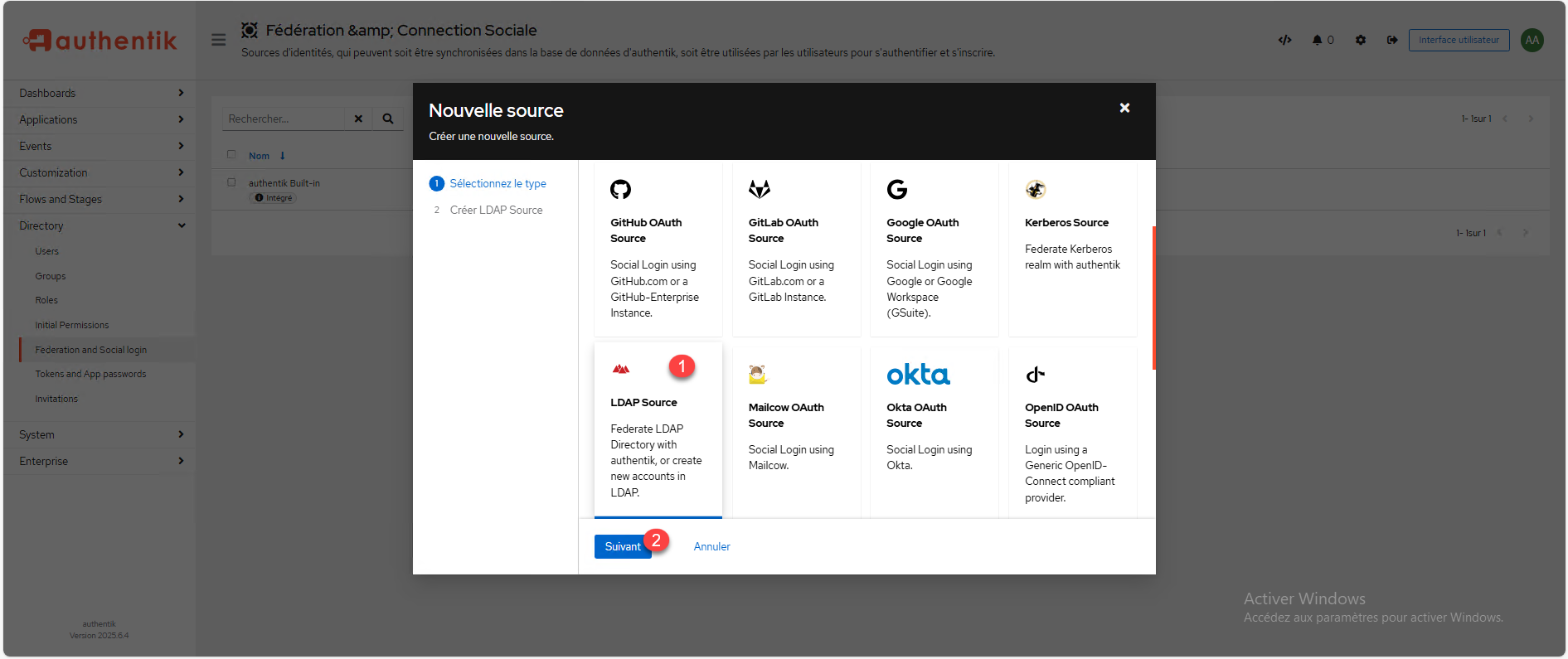
In the list of available sources, select LDAP Source 1 and then click the Next 2 button.
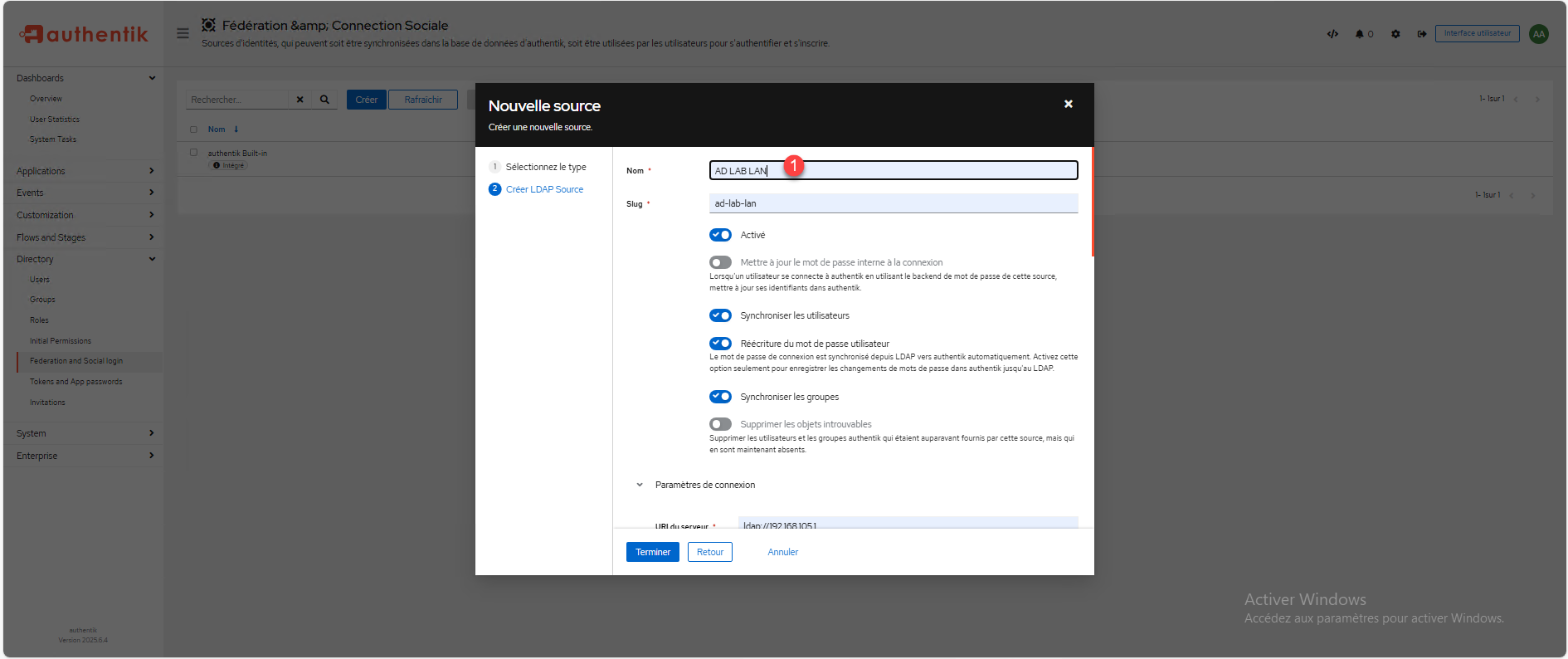
Start by naming the source “1”, the slug should be created automatically based on the name.
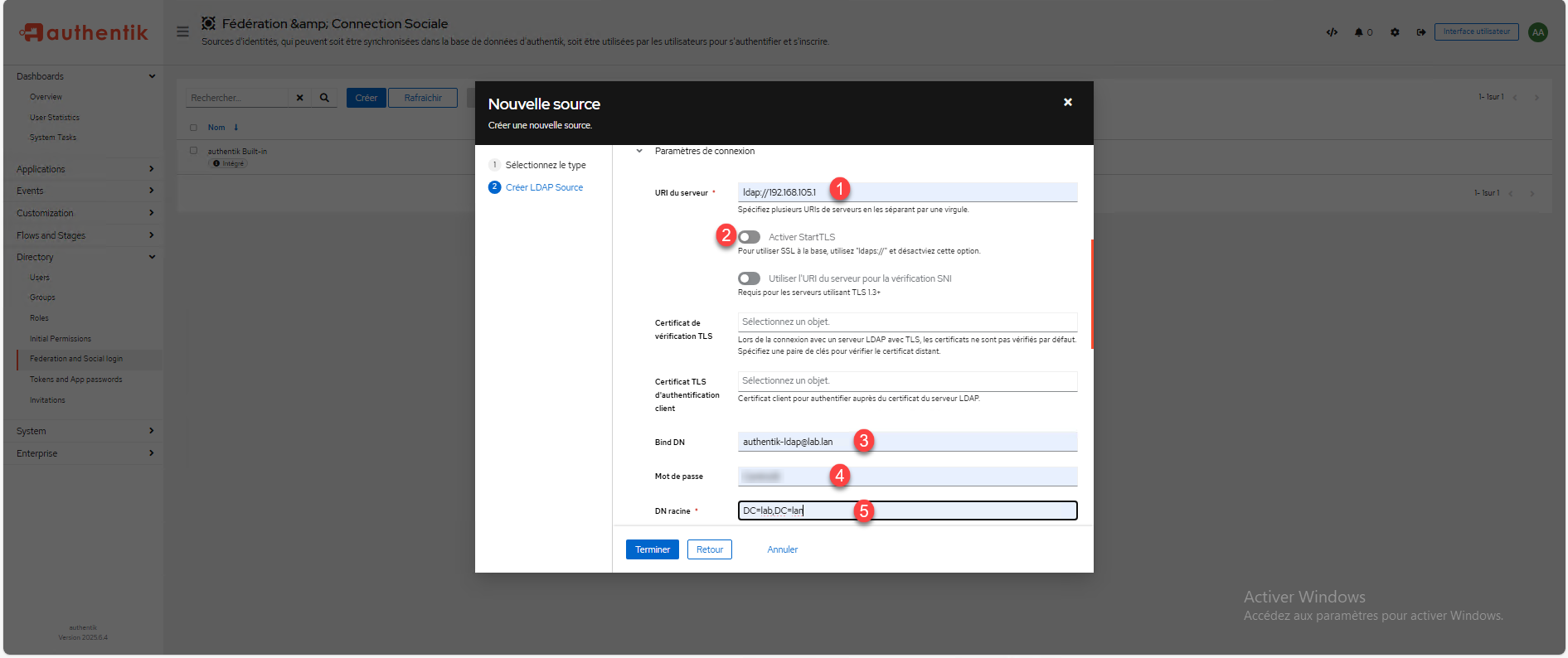
Enter the URI of the server Active Directory in the form dap://A.B.C.D or ldap://fqdn 1
(it is possible to enter multiple domain controllers by separating them with a comma), disable StartTLS 2
, enter the username of the previously created account 3
and the password 4
, then the domain name database 5
.
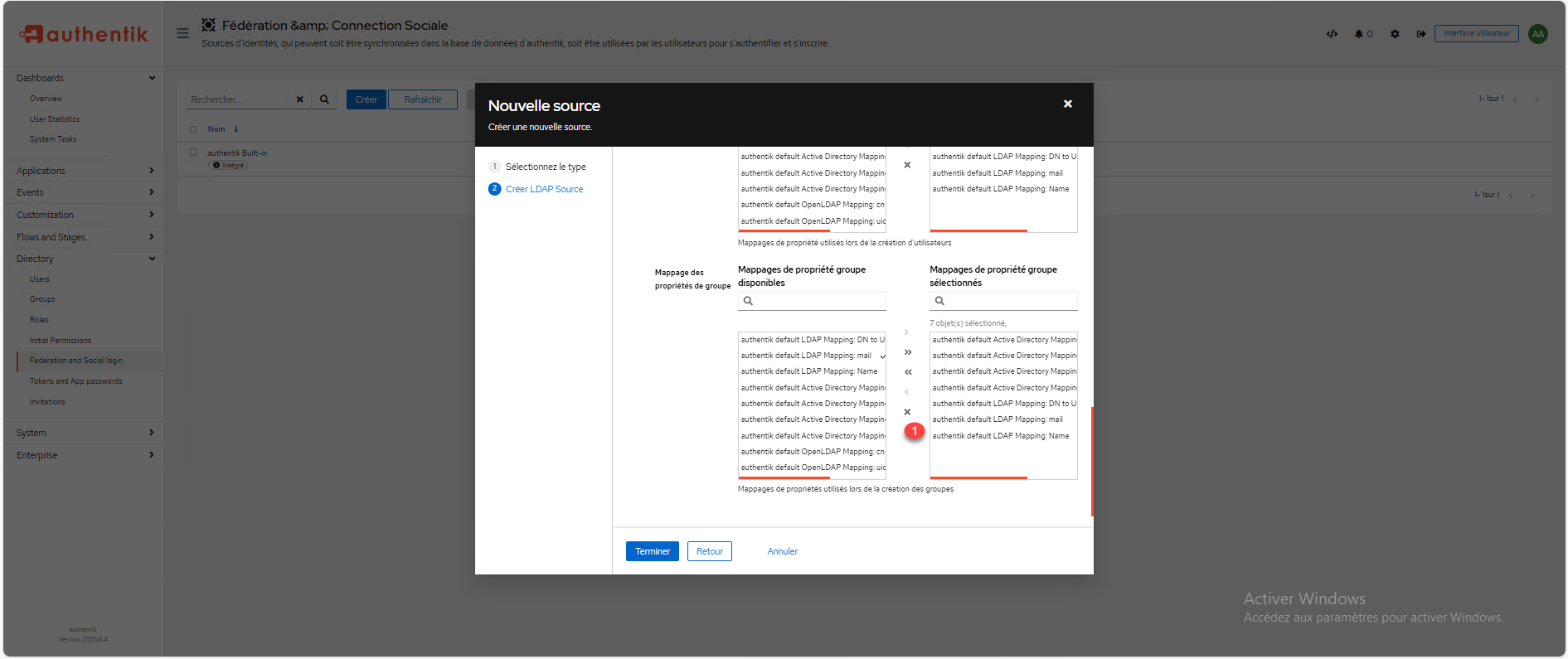
Go down into the configuration to the group property mapping level, start by deleting the 1 configuration.
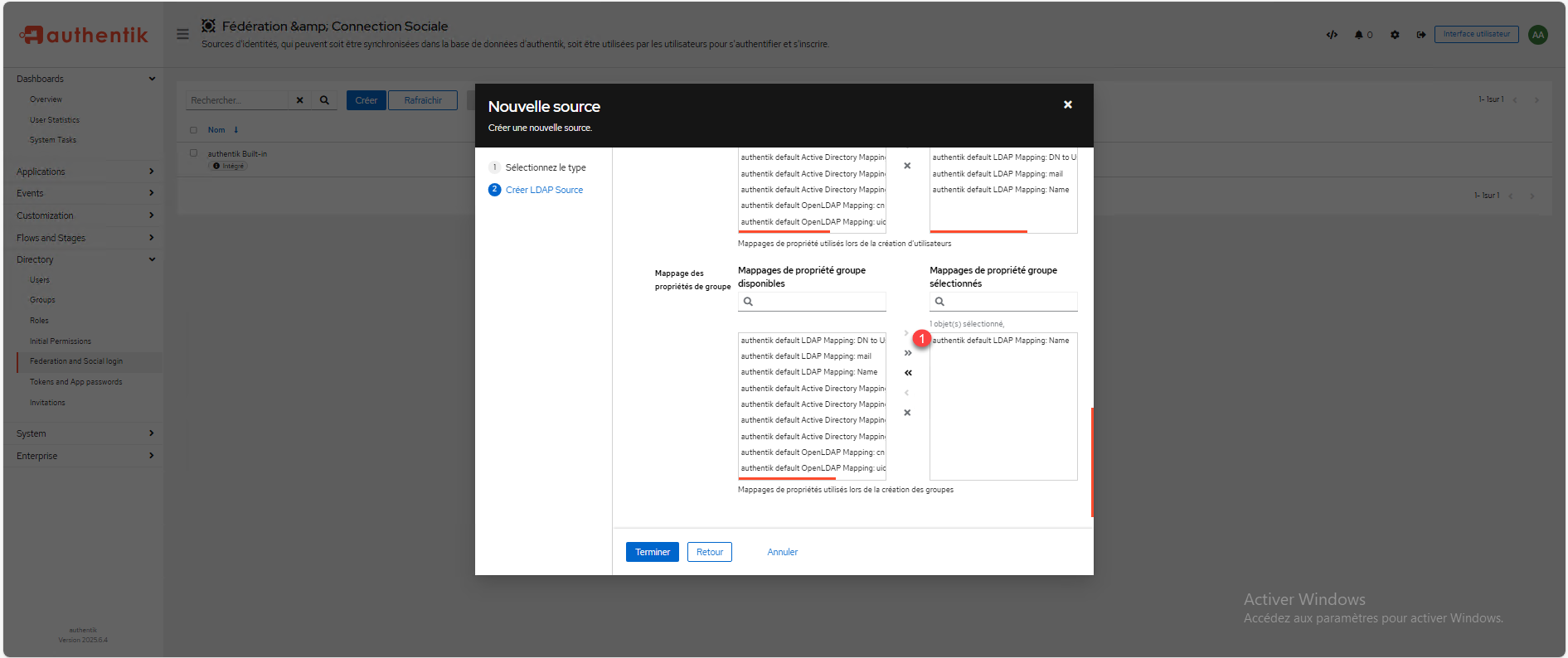
Add only authentik default LDAP Mapping: name 1 .
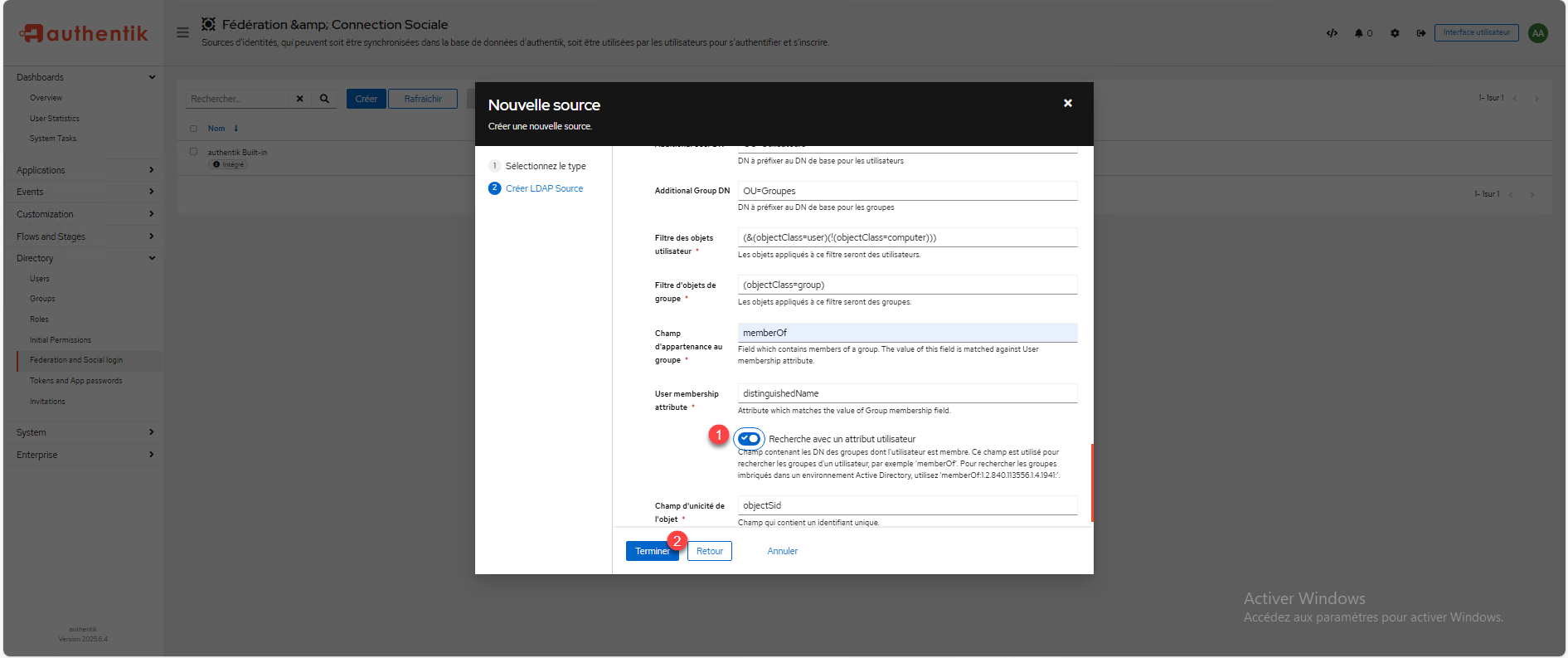
In the additional settings, select the parent group that was created 1
, if your directory is structured with OUs that contain users and groups, enter the DN of the OUs without the base of the domain in the Additional User DN 2
and Additional Group DN 3
fields, in the user object filter indicate: (&(objectClass=user)(!(objectClass=computer))) 4
to exclude computer objects if present, do the same for groups by indicating the filter: (objectClass=group) 5
, then modify the group membership field by memberOf 6
.
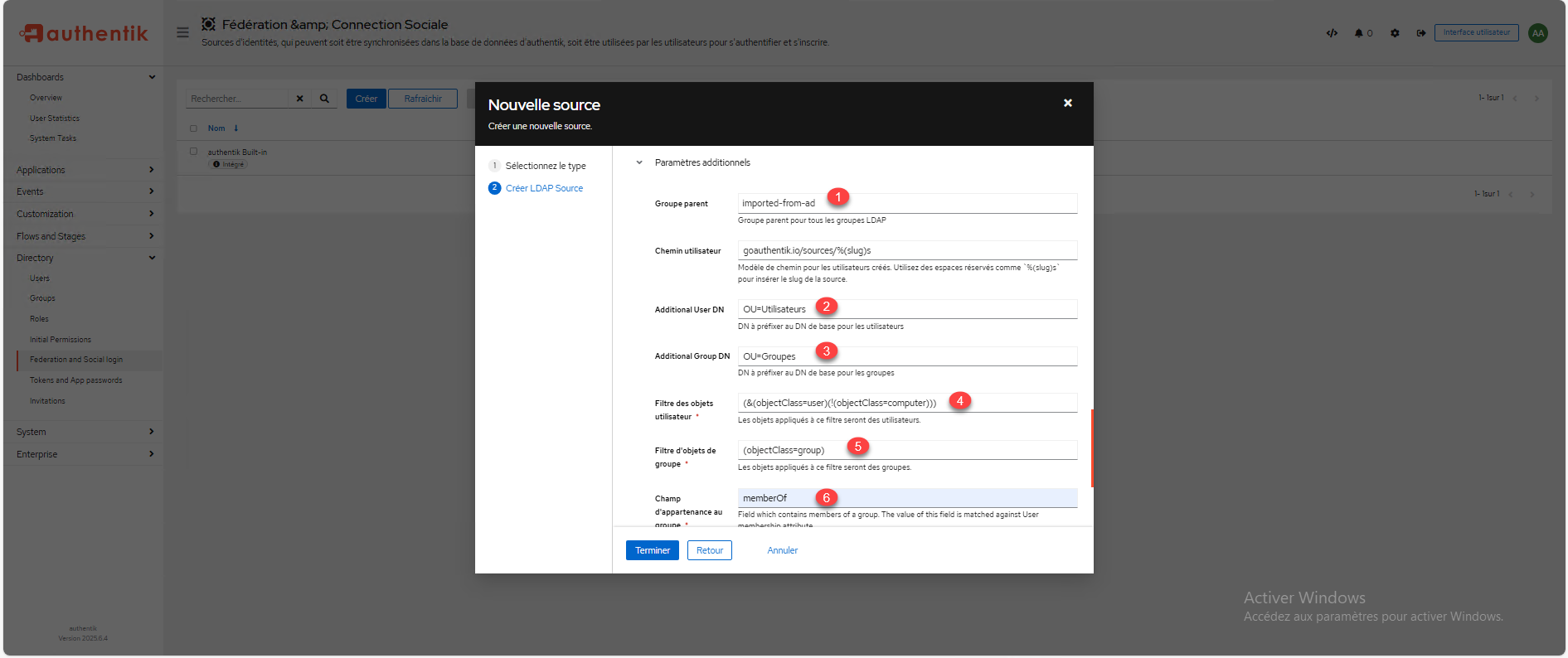
Adding the DN of the OUs for users and groups avoids taking all the elements of the domain and therefore bringing up the default users and groups.
To complete the configuration, activate the setting: Search with a user attribute 1 and click on Finish 2 to add the directory Active Directory.
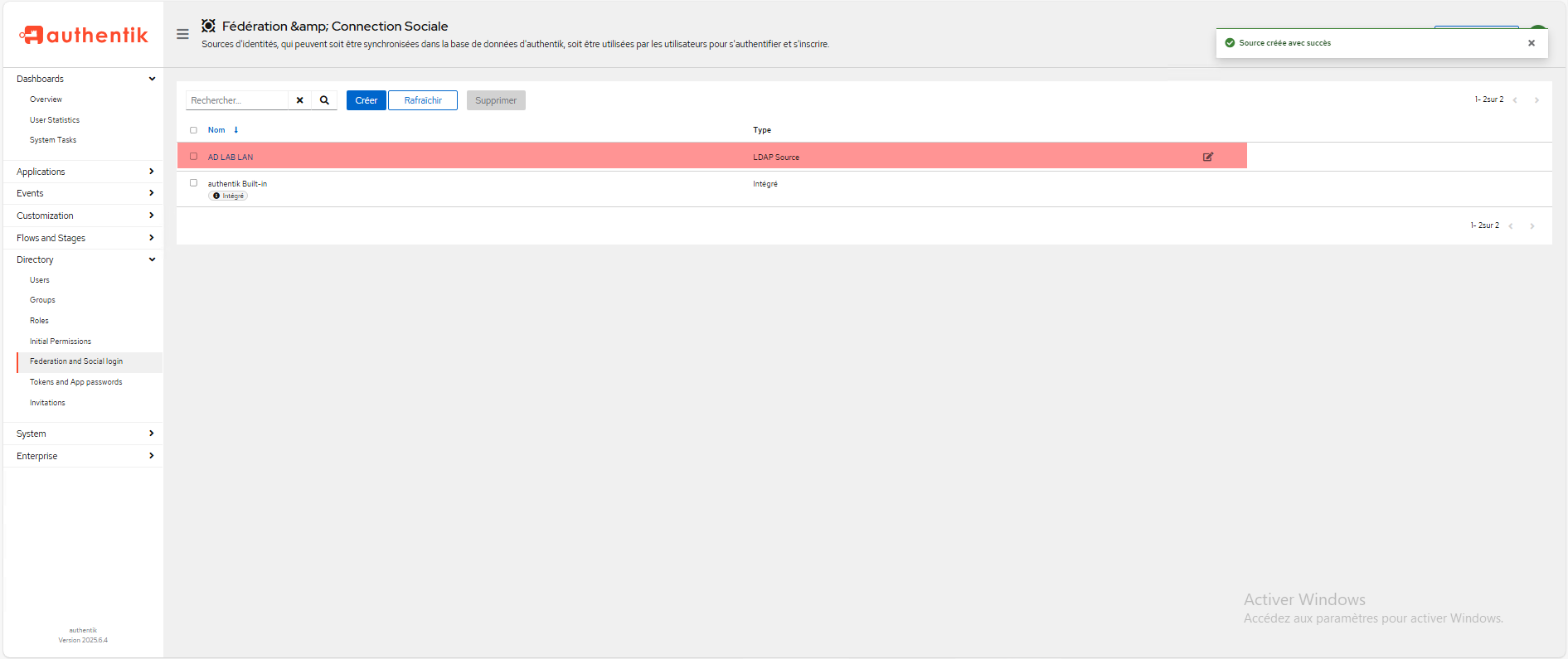
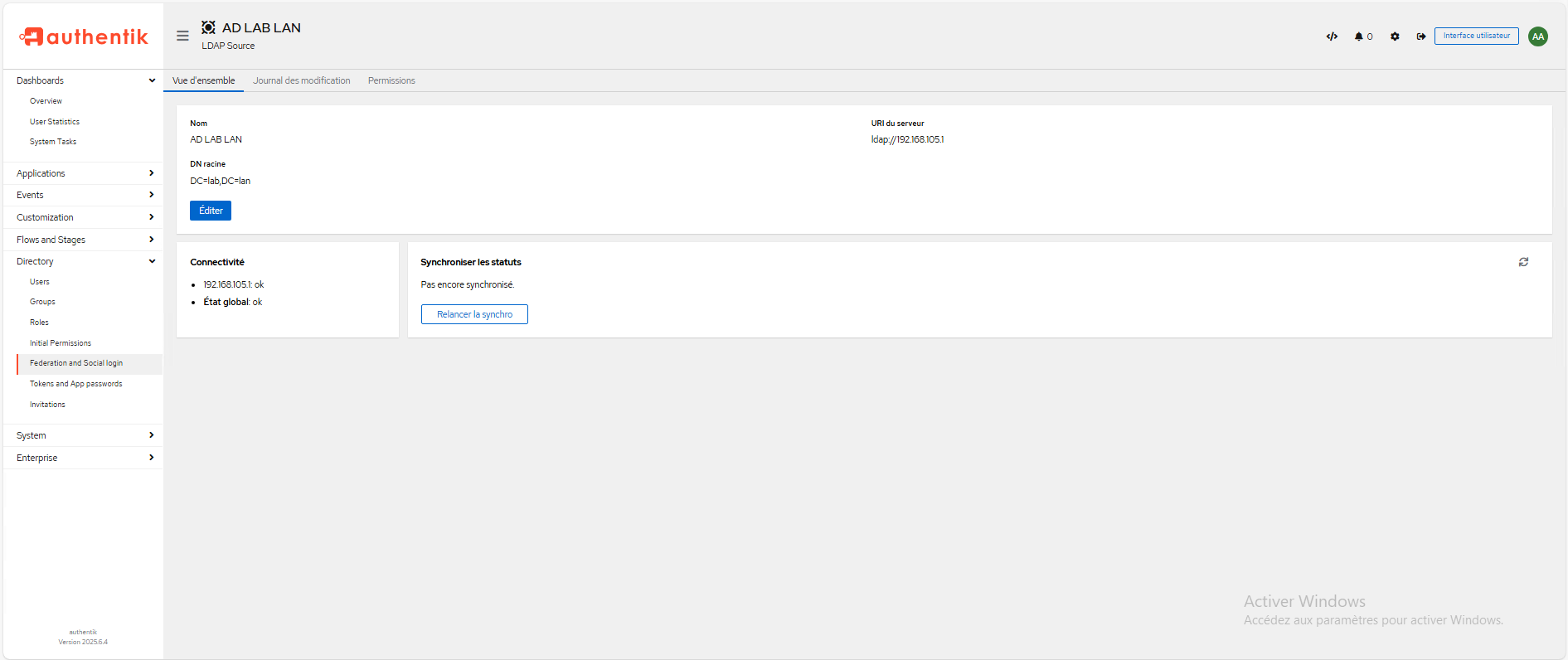
The directory Active Directory has been added, click on it to access the information.
The initial synchronization has not yet been performed. To force it, click the “Restart synchronization” button or wait a few minutes…
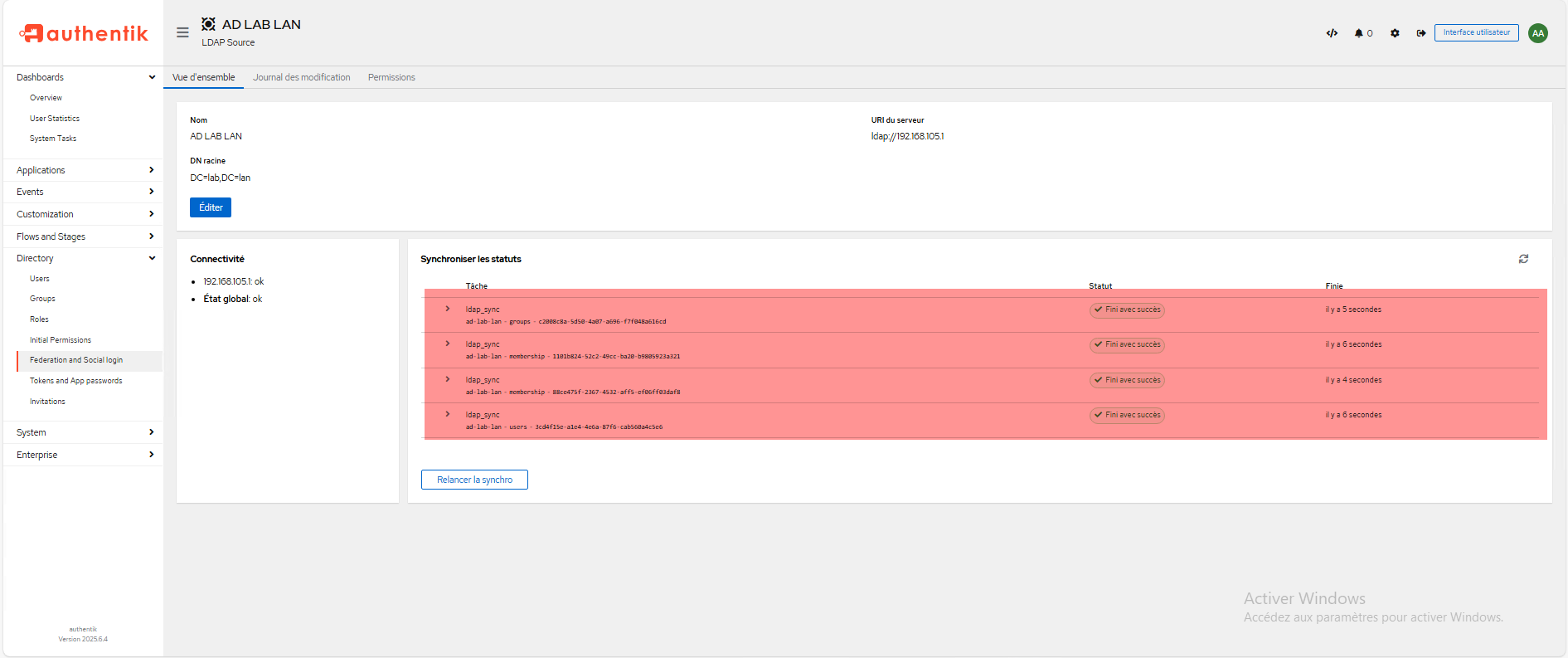
Once the synchronization is complete, you can see the result in Synchronize statuses.
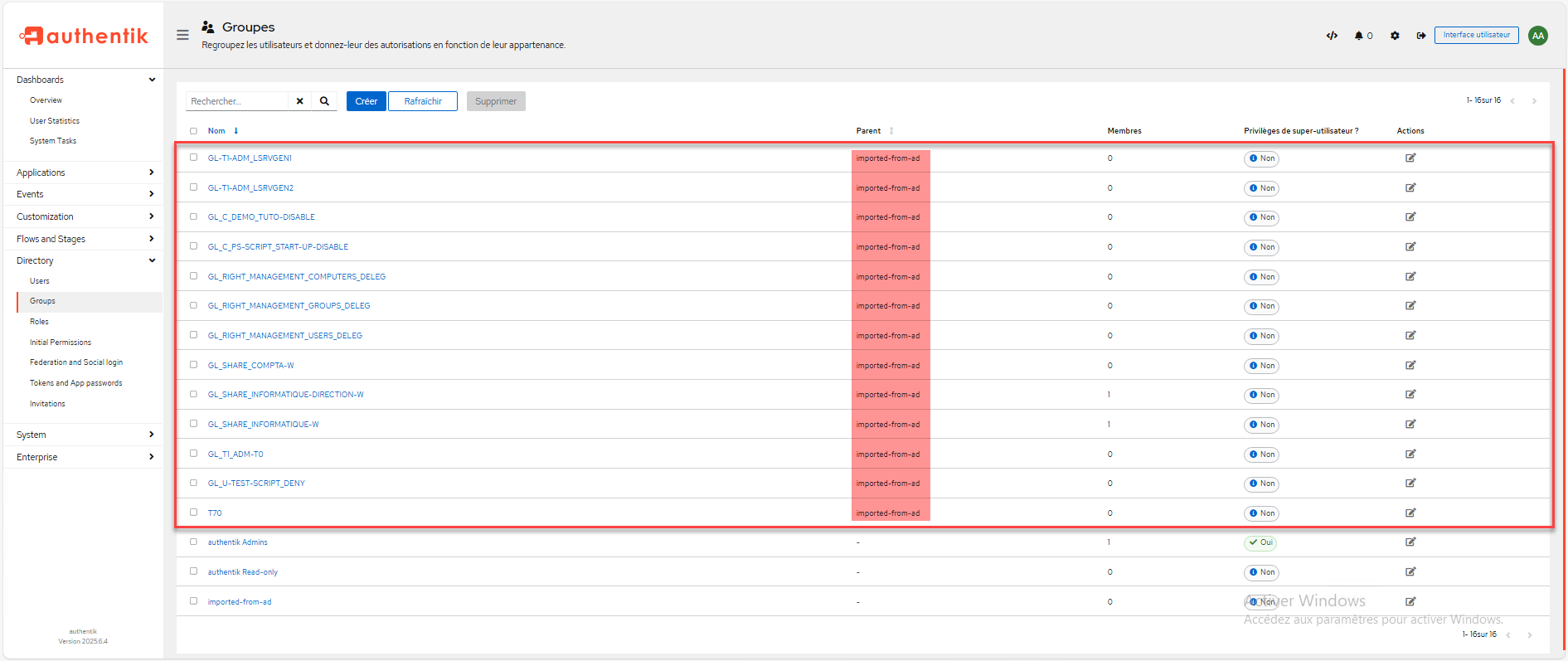
To verify, on the groups page, we can see that I have the AD groups which are indeed present in Authentik and they have been imported into the parent group.
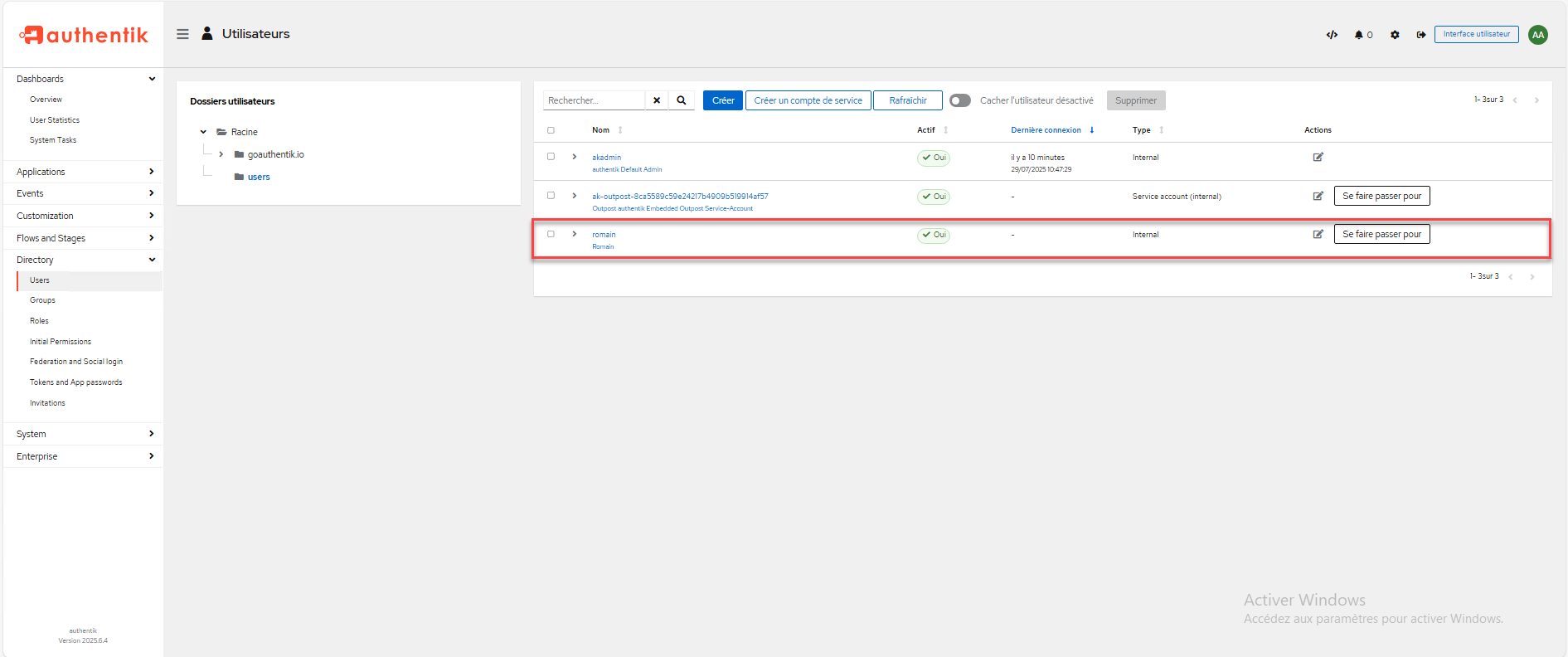
In user management, we also find my user Romain who is in the directory.
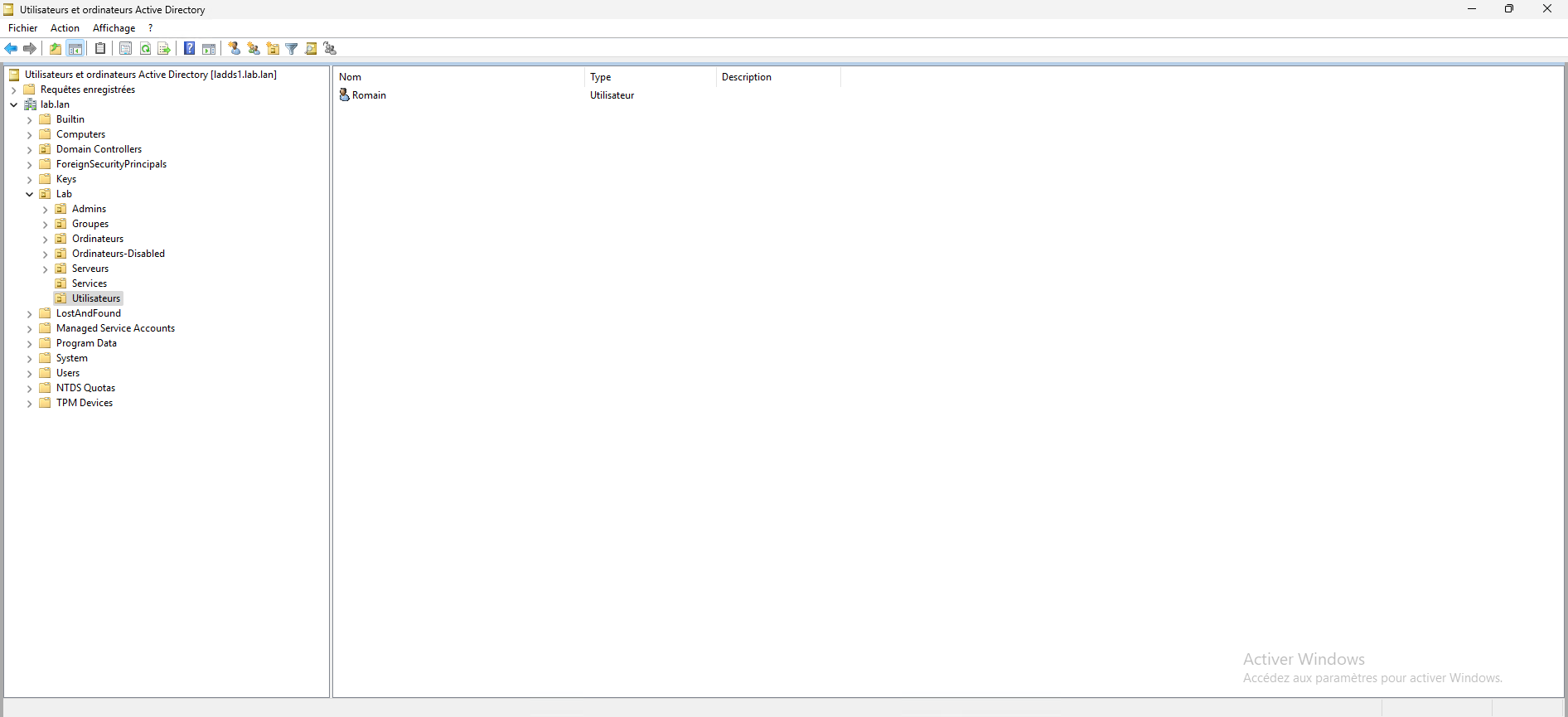
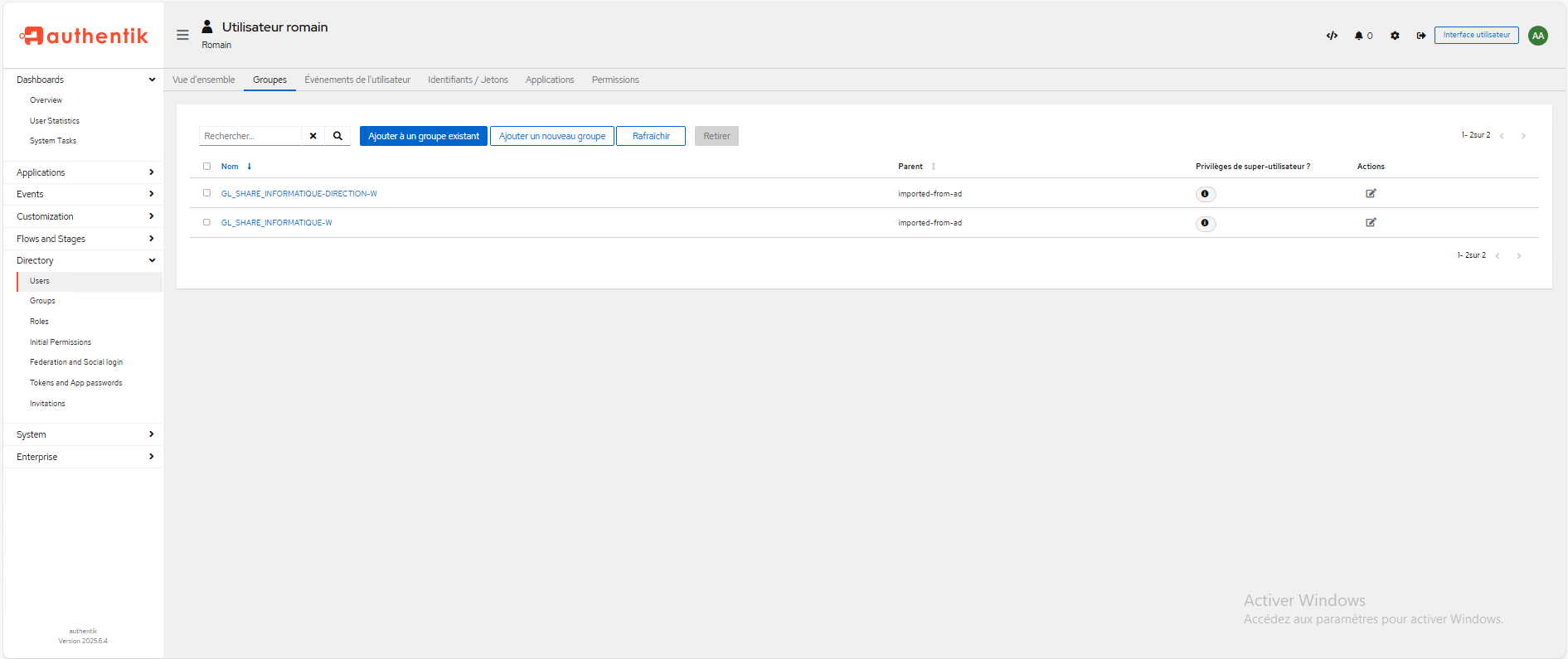
In my user details, I can see that I am a member of the same groups Active Directory which have been synchronized.
Log in to Authentik with a user from the Active Directory domain
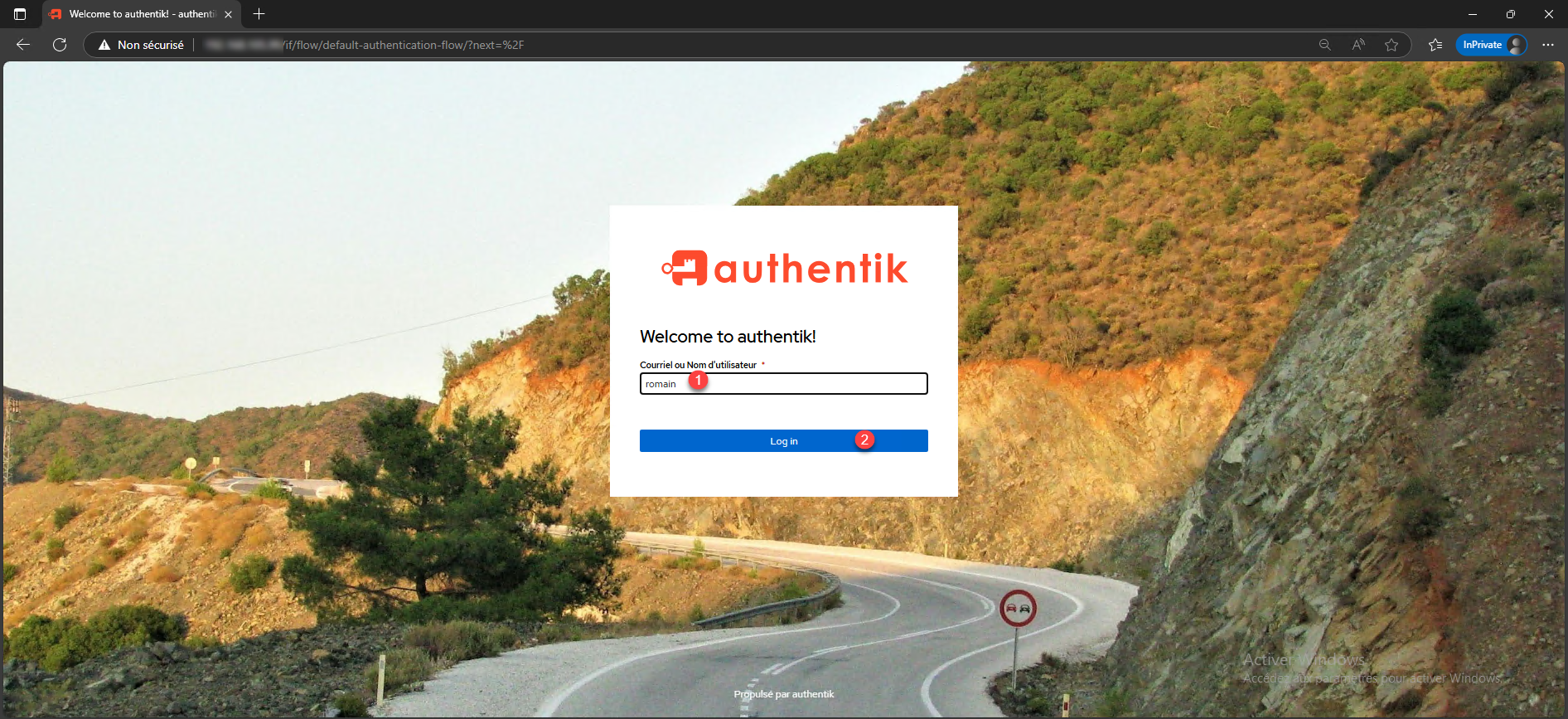
To test proper operation, go to the Authentik authentication page, enter the sAMAccountName or the user account email address of the AD domain 1 and click on Log in 2 .
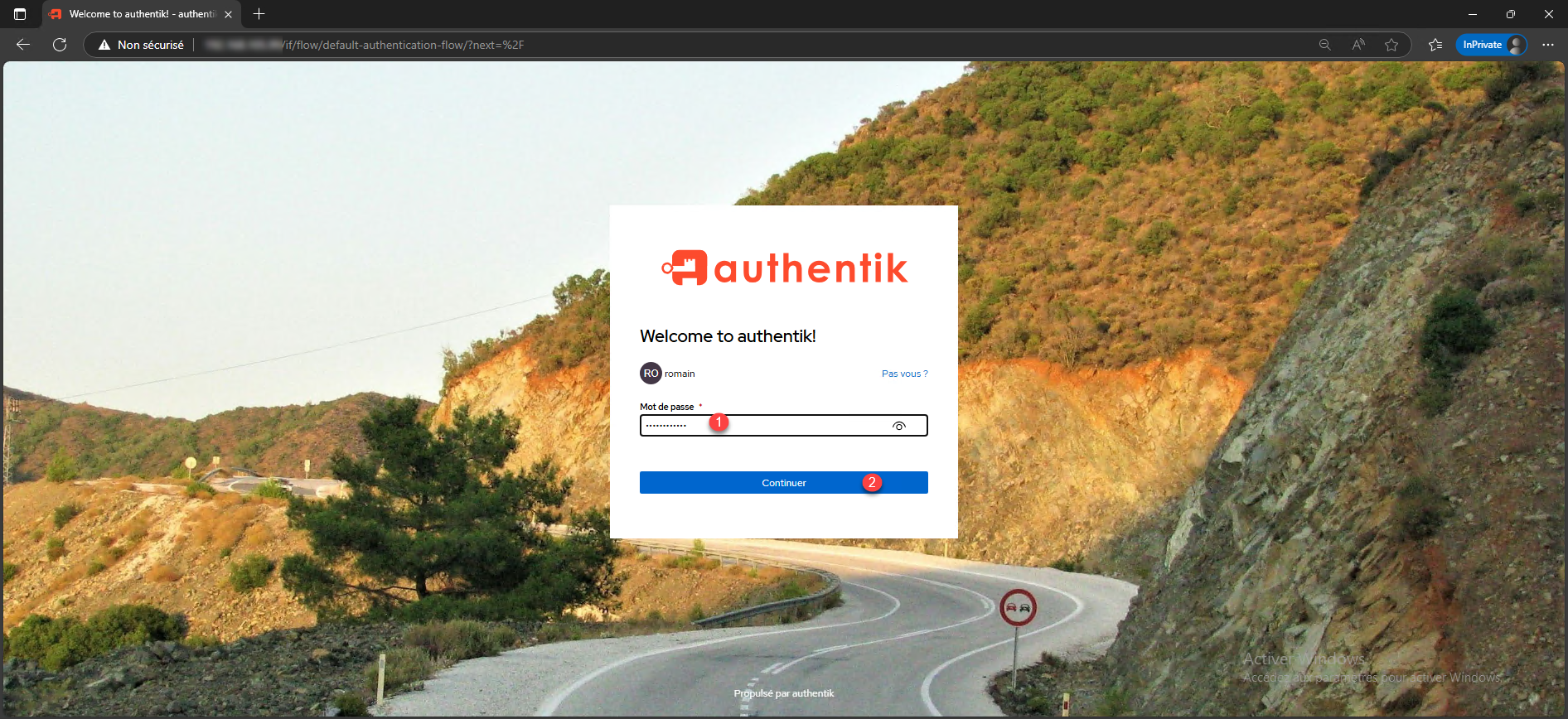
Enter the password 1 for the AD account and click Continue 2 .
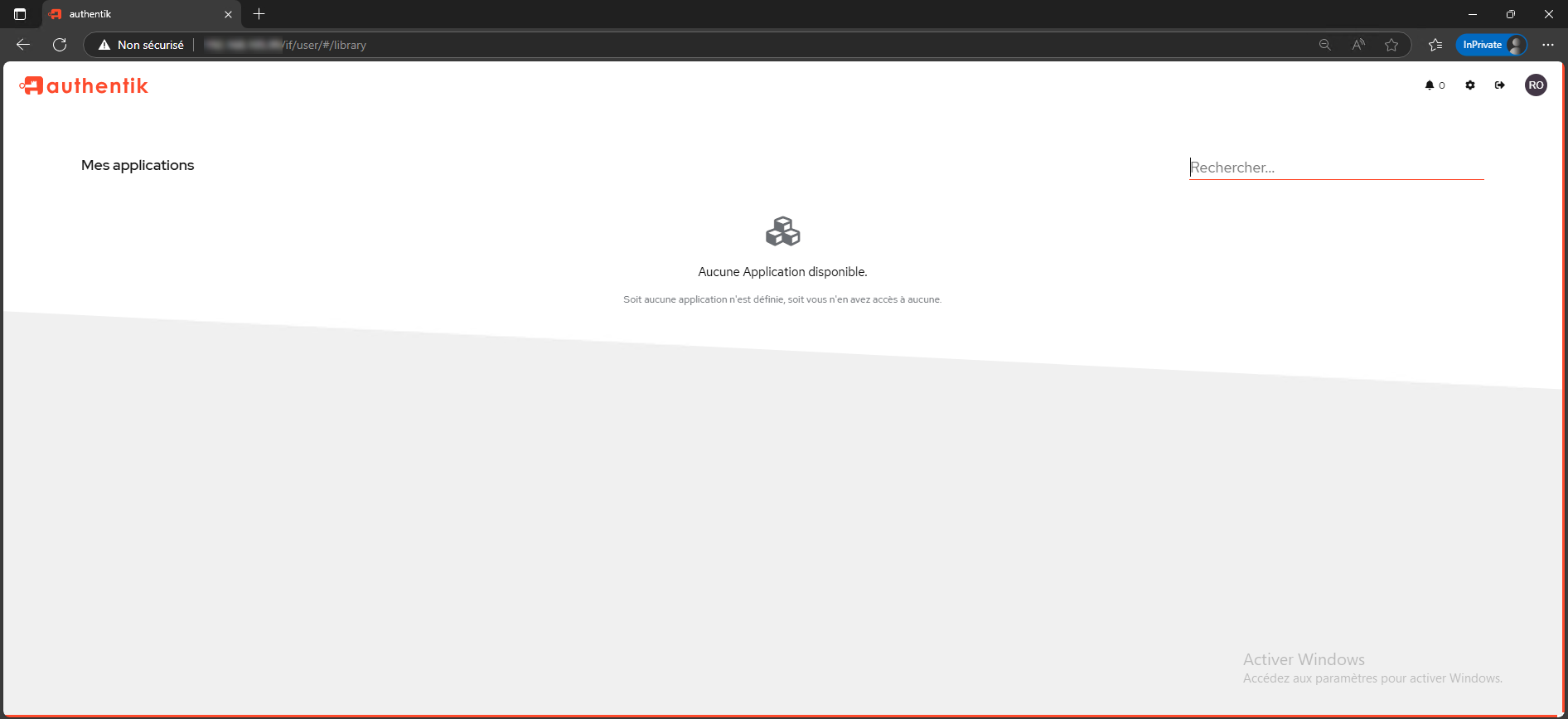
We are connected to Authentik using our AD information.
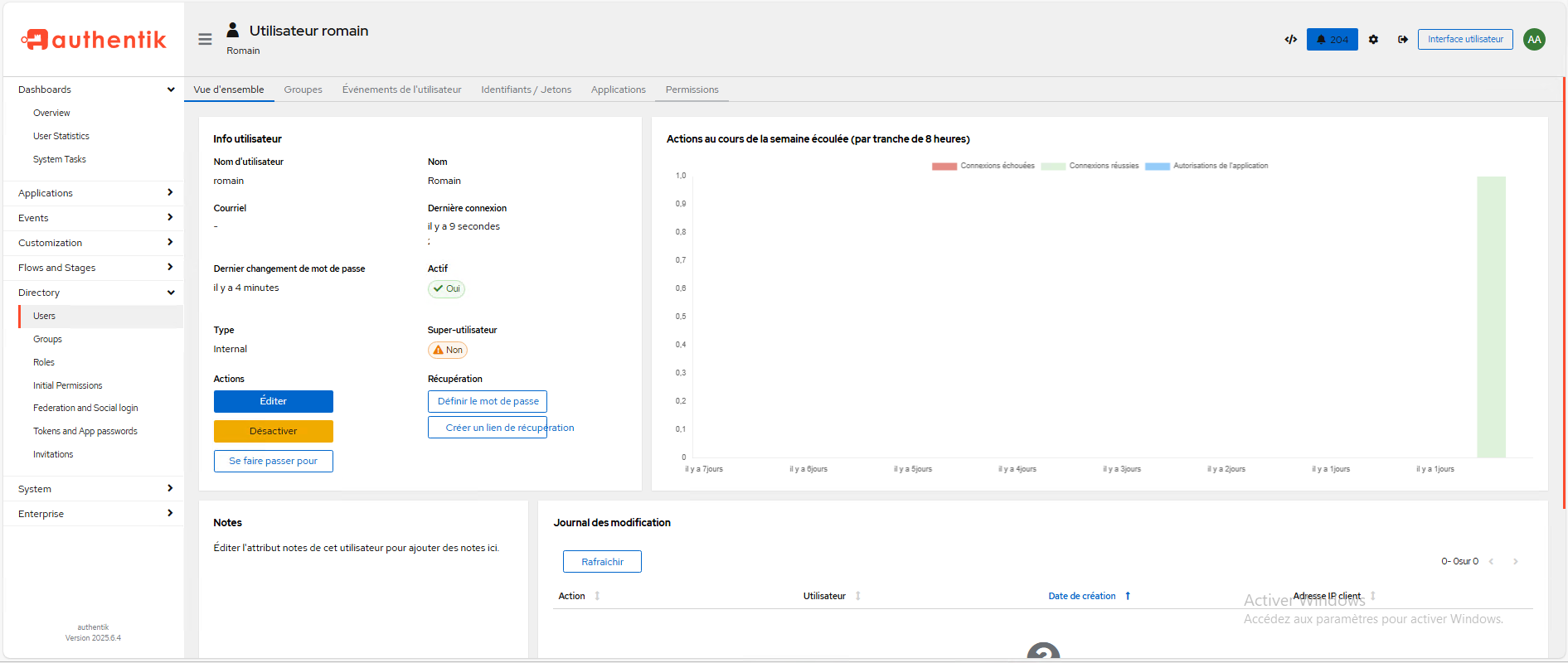
From the administration panel, in the user account details, you can also see the connection.
Initiate synchronization via command line
It is possible to force synchronization via the command line and therefore to create a Cron task.
sudo docker compose exec worker ak ldap_sync <slug>
Frequently Asked Questions
Is it possible to set a password for an Active Directory account in Authentik?
Is it possible to change a user's Active Directory password from within Authentik?
https://docs.goauthentik.io/docs/users-sources/sources/directory-sync/active-directory/#active-directory-configuration
Can Authentik use Active Directory (LDAP) proxy services?
https://docs.goauthentik.io/docs/add-secure-apps/providers/ldap/
Can a user change their Active Directory password?
If your email service is decoupled from your Active Directory, it is even possible to set up a password change portal.
You now know how to link Authentik to a Active Directory directory.