In this tutorial, we will see how to run a PowerShell script when starting a computer running Windows 11 in an Active Directory domain with a Windows Server 2025 domain controller.
As a reminder, the scripts executed at computer startup are launched before the user logs on. They are executed with “machine” rights, which allows you to act on the system or install software.
Here is the script that will be executed, it is quite simple, it will just create a file with the computer name and the timestamp.
$FolderParent = "C:\ScriptPowershell"

if((Test-Path $FolderParent) -eq $false){
    New-Item -ItemType Directory -Path $FolderParent -Force
}

$computerName = $env:COMPUTERNAME
$timestamp = [int][double]::Parse((Get-Date -UFormat %s))
$fileName = "${computerName}_$timestamp.txt"
$filePath = Join-Path $FolderParent $fileName
New-Item -ItemType File -Path $filePath
To begin, copy the file containing the script to your domain controller.
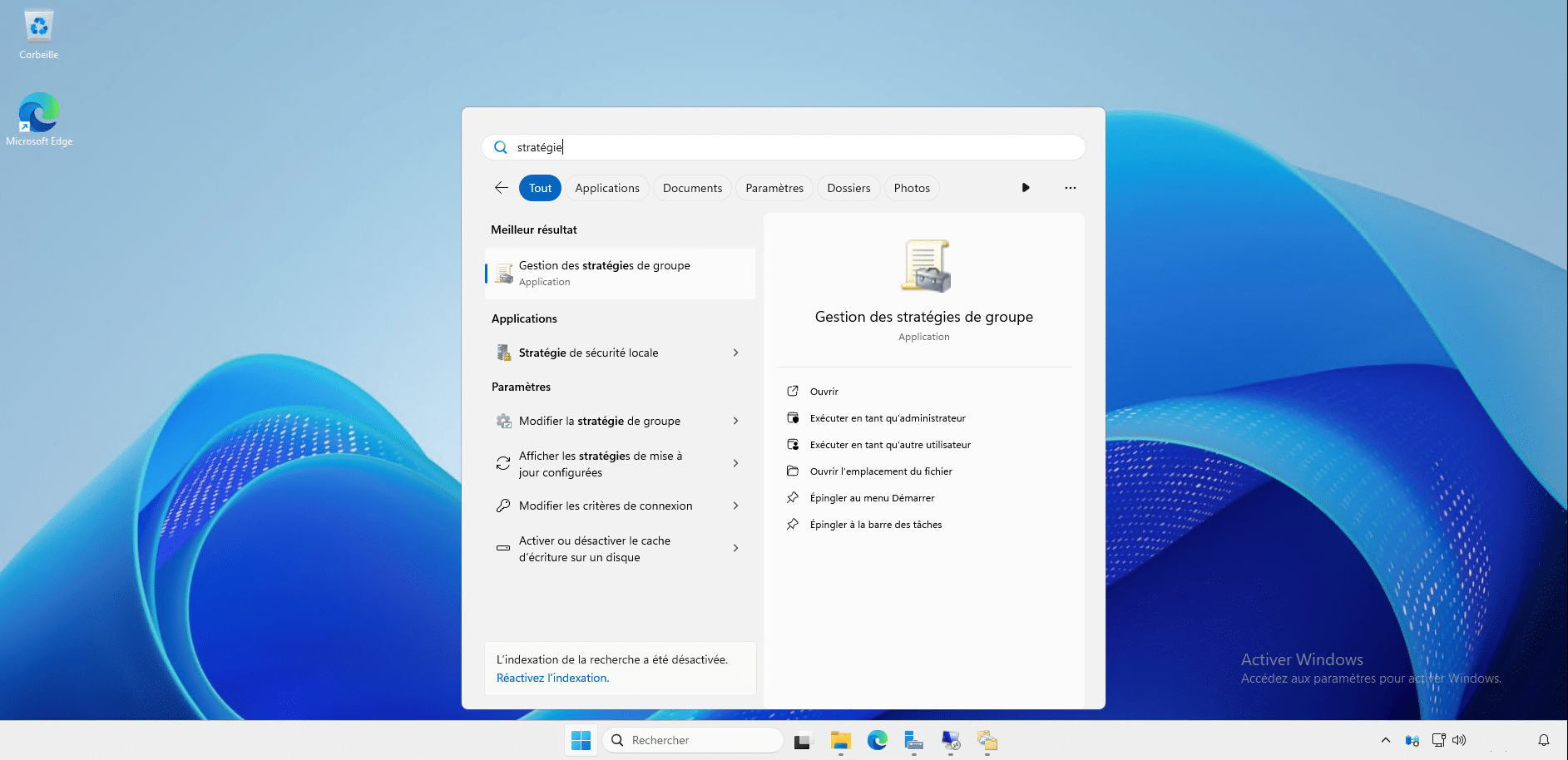
Open the Group Policy Management console.
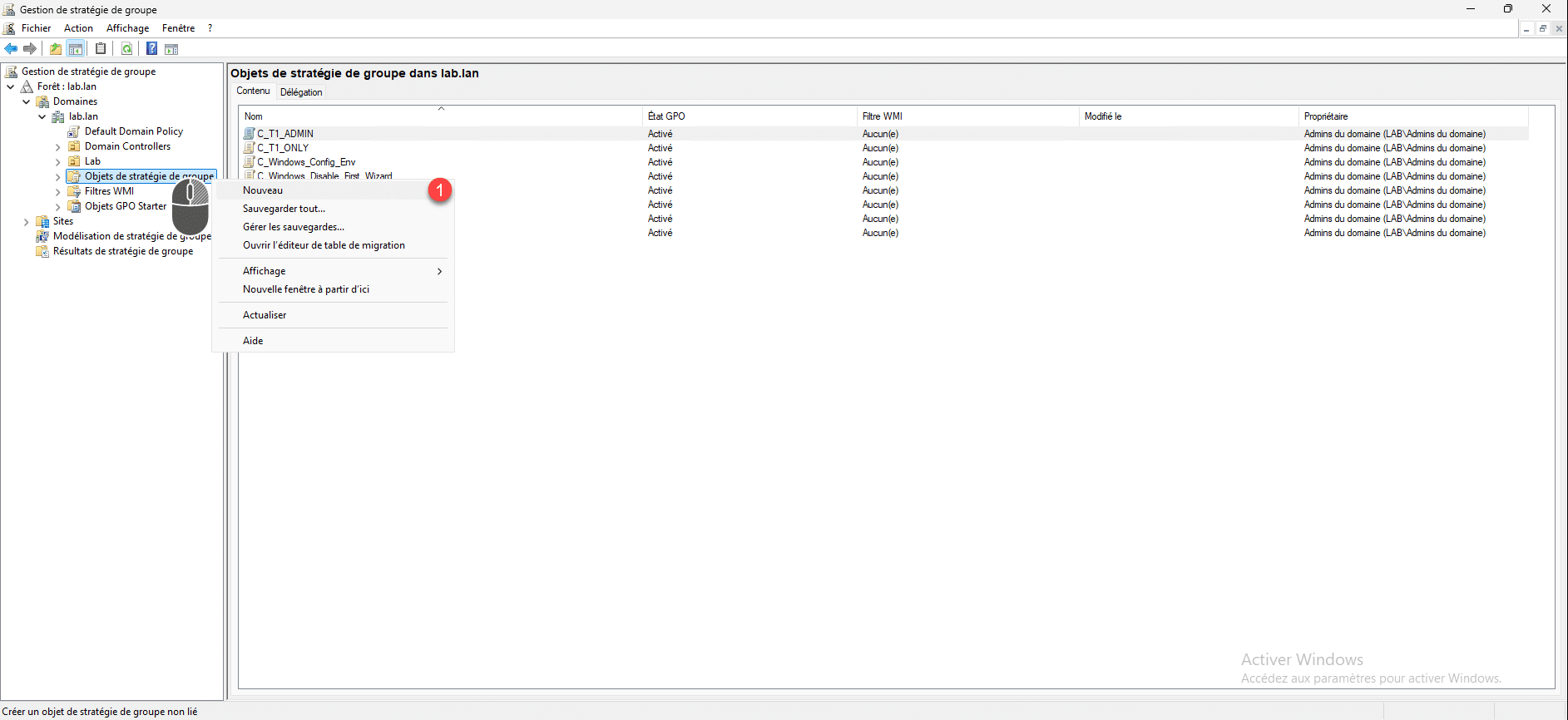
In the navigation pane, right-click Group Policy Objects and then click New 1 .
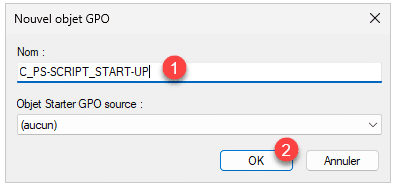
Name the GPO object 1 and then click OK 2 to create it.
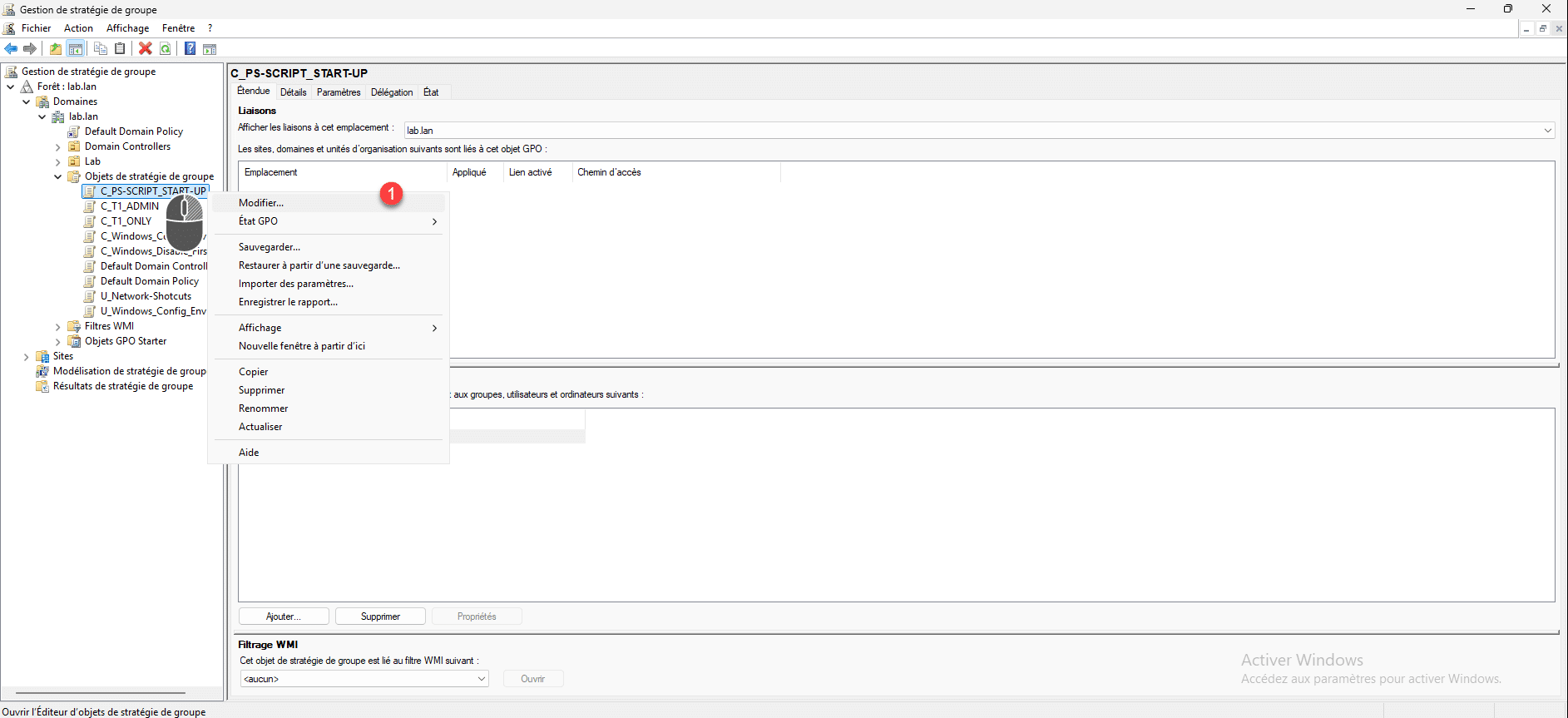
Right-click on the GPO object you just created and click on Edit 1 .
From the Group Policy Management Editor, go to the following location: Computer Configuration / Policies / Windows Settings / Scripts.
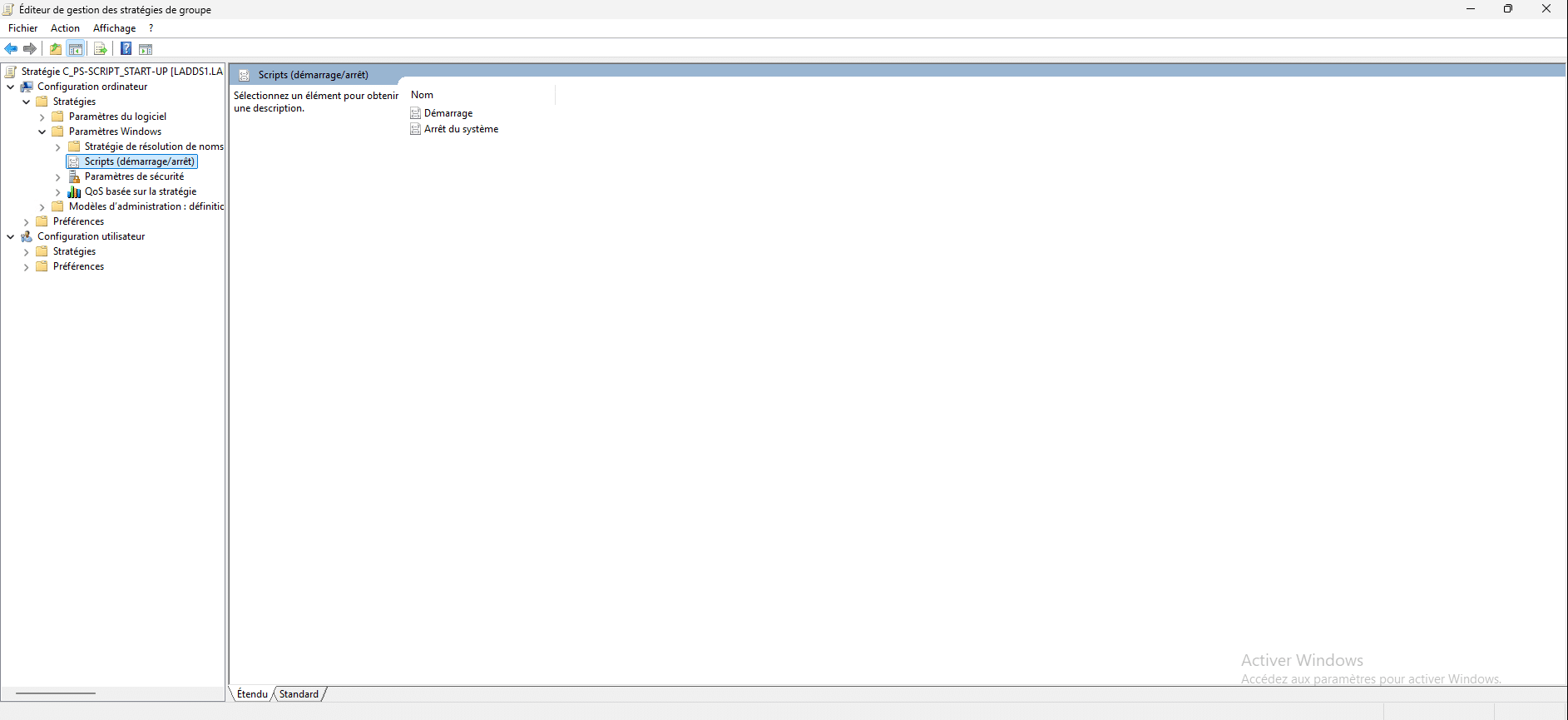
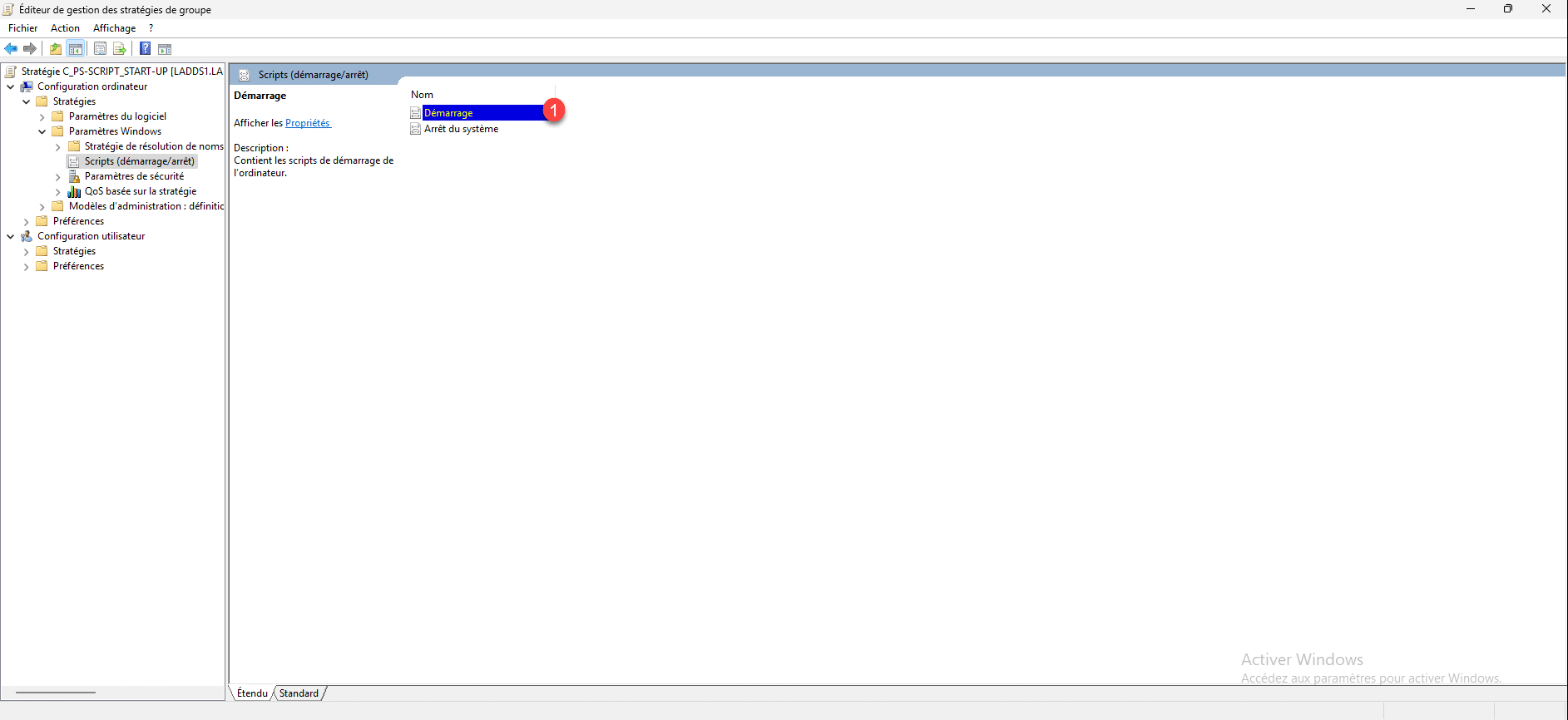
Double-click Startup 1 to open Properties.
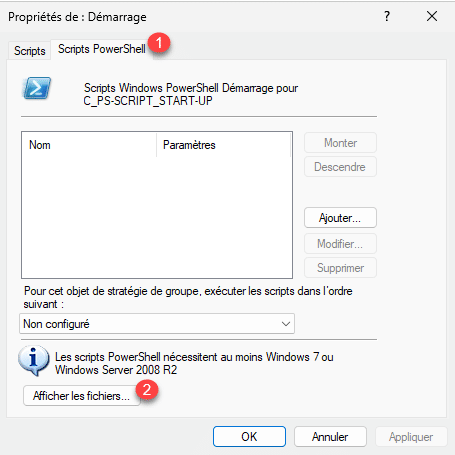
Go to the PowerShell Scripts tab 1 and then click the Show Files button 2 .
This opens Windows File Explorer to the location where the Group Policy related scripts are stored, paste the PowerShell file (ps1) which contains the PowerShell script.
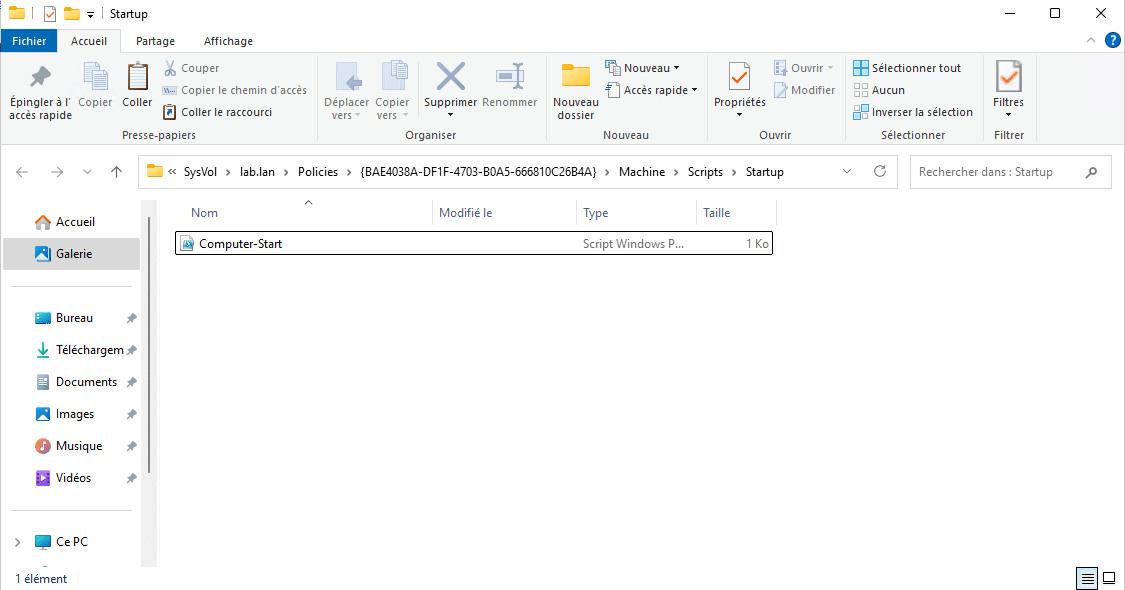
If you do not have the rights to copy the file(s) via the UNC path, you must use the local path: C:\Windows\SYSVOL.….
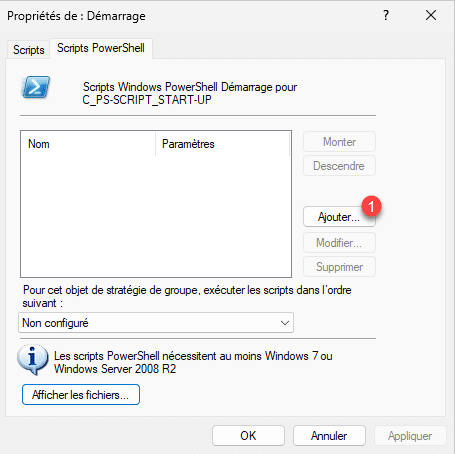
Back on the startup script properties, click on the Add 1 button.
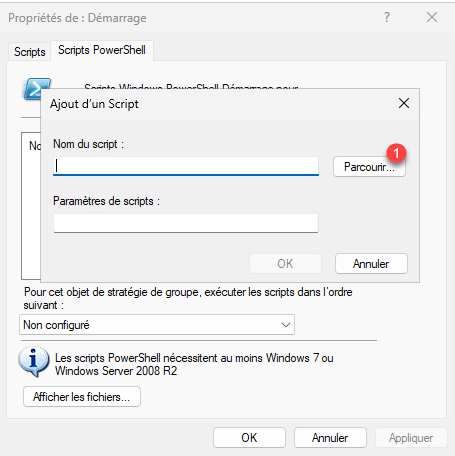
Click on the Browse button 1 .
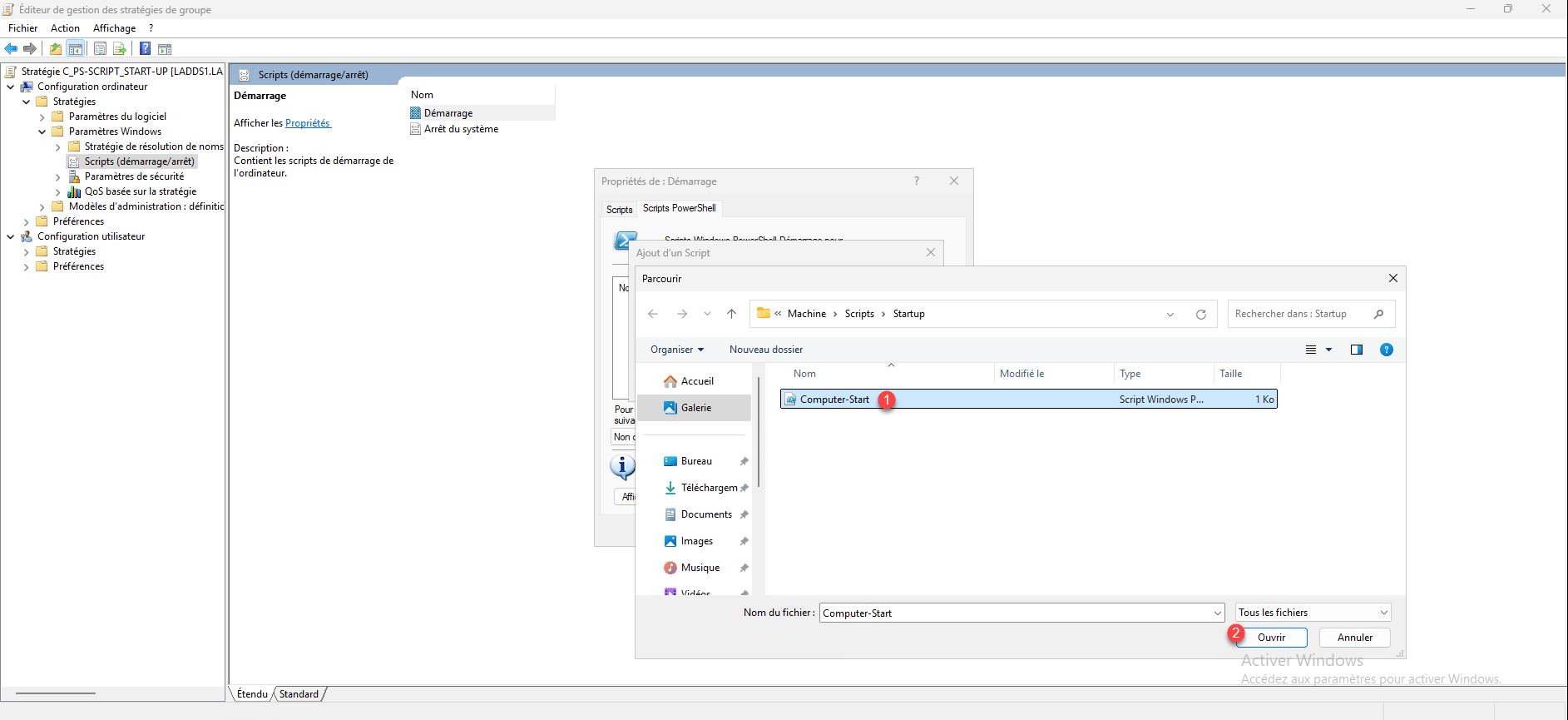
Select the previously copied file 1 then click on Open 2 .
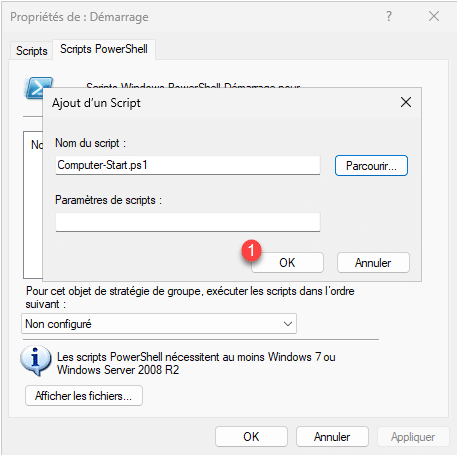
The PowerShell script file is selected, click OK 1 .
The PowerShell script is added, click on the Apply 1 and OK 2 buttons.
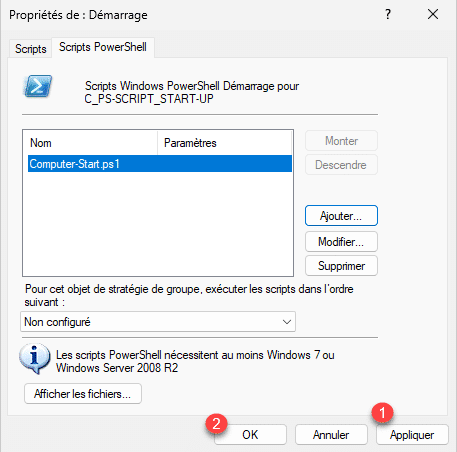
If you wish, you can run several PowerShell scripts within the same group policy. To do this, simply repeat the same file selection procedure, taking care to copy the file(s).
The GPO is configured, close the editor.
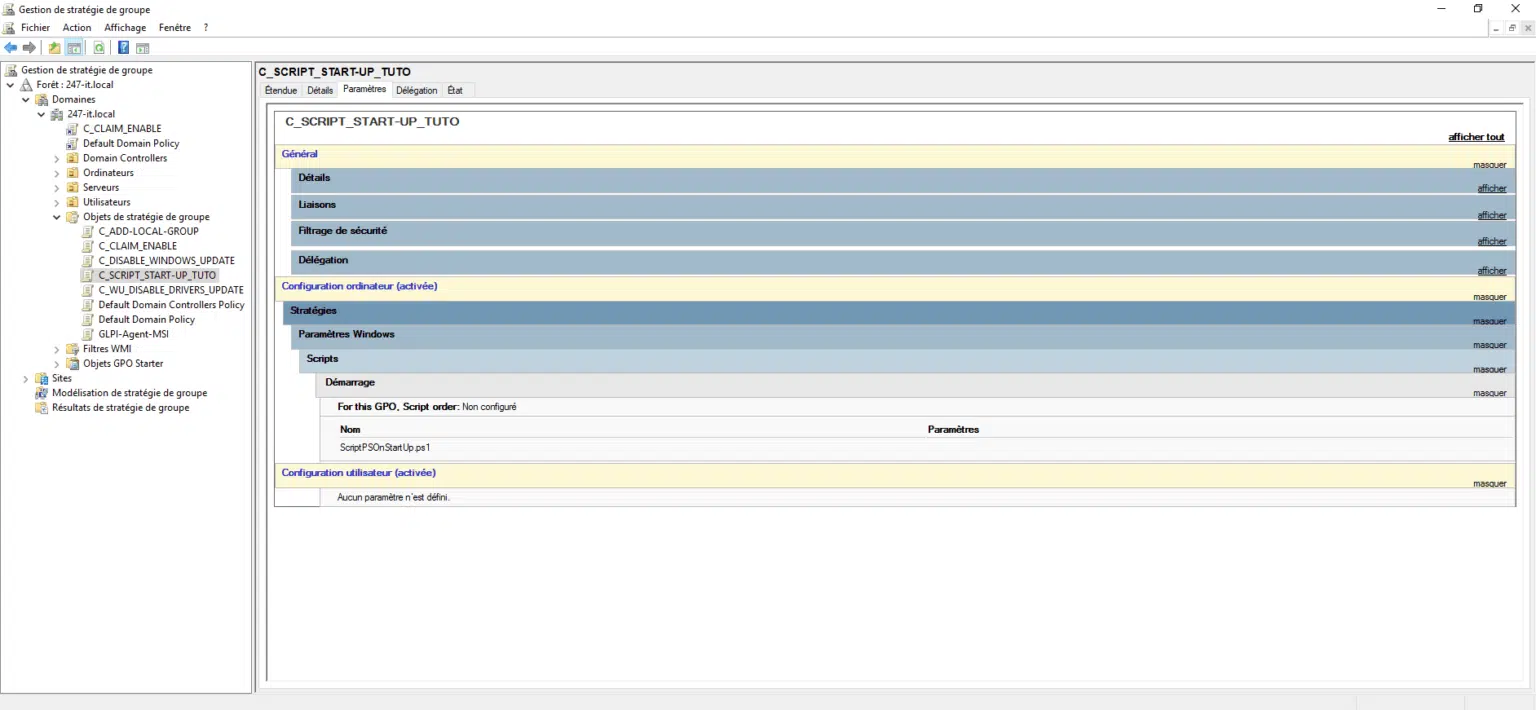
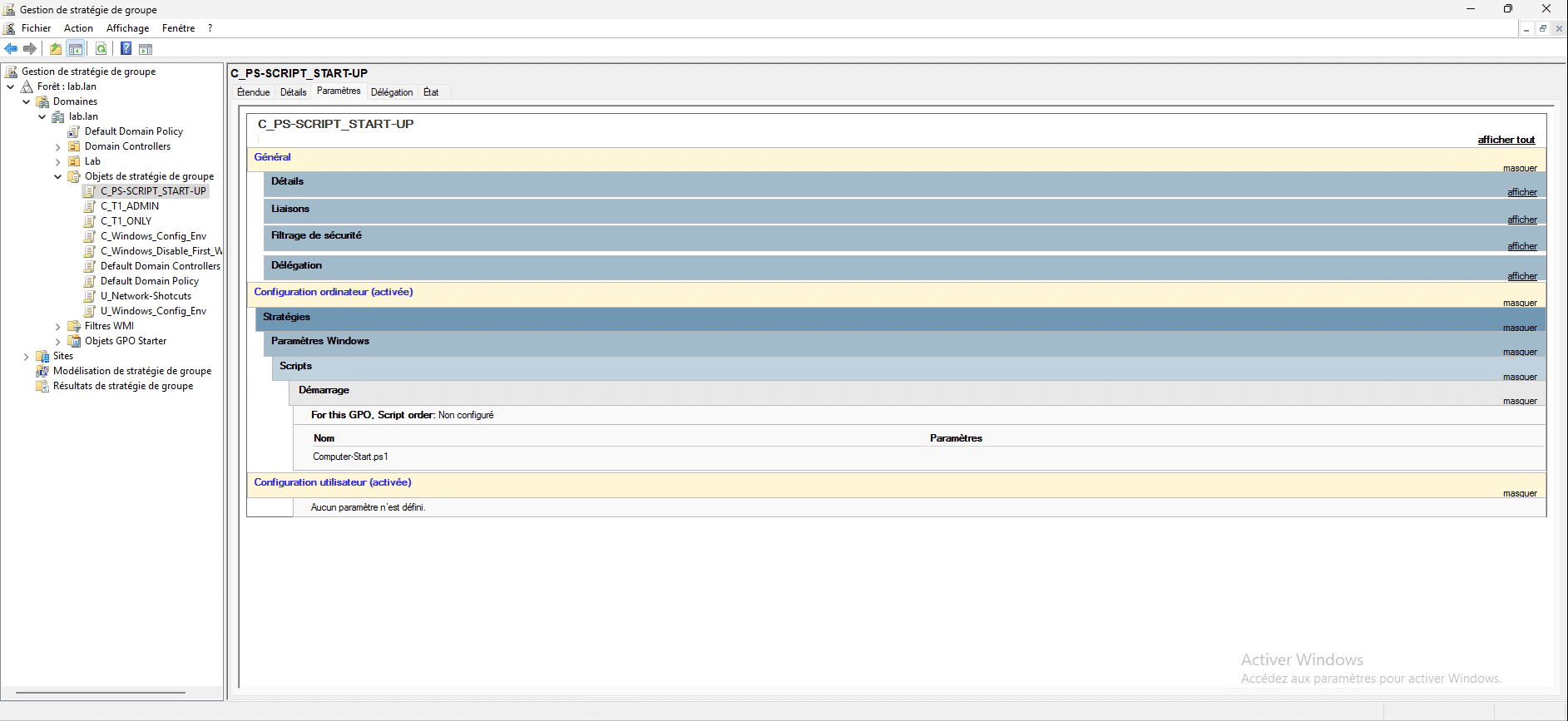
In summary, here are the group policy settings that will allow the script to be run when the computer starts.
Now we will link the GPO to the OU that contains the computers where the PowerShell script will run at startup.
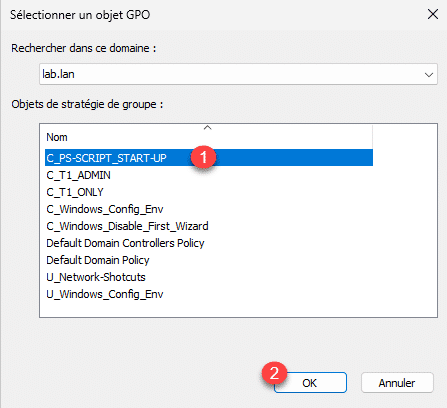
Right-click on the Organizational Unit and then click Link an existing Group Policy Object 1 .

Select the GPO object 1 then click OK 2 .
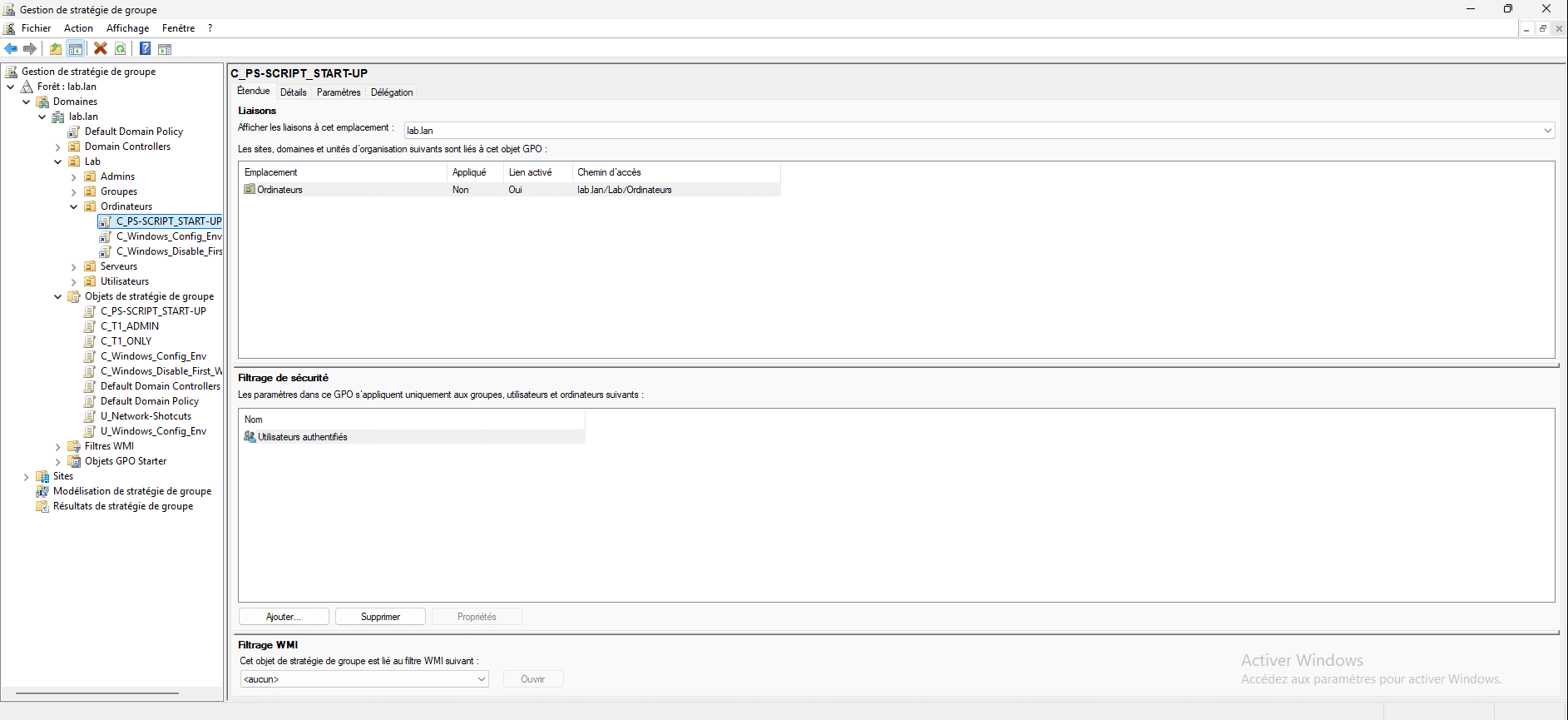
The GPO is linked.
Since the script runs when the computer starts, I will restart my client computer.

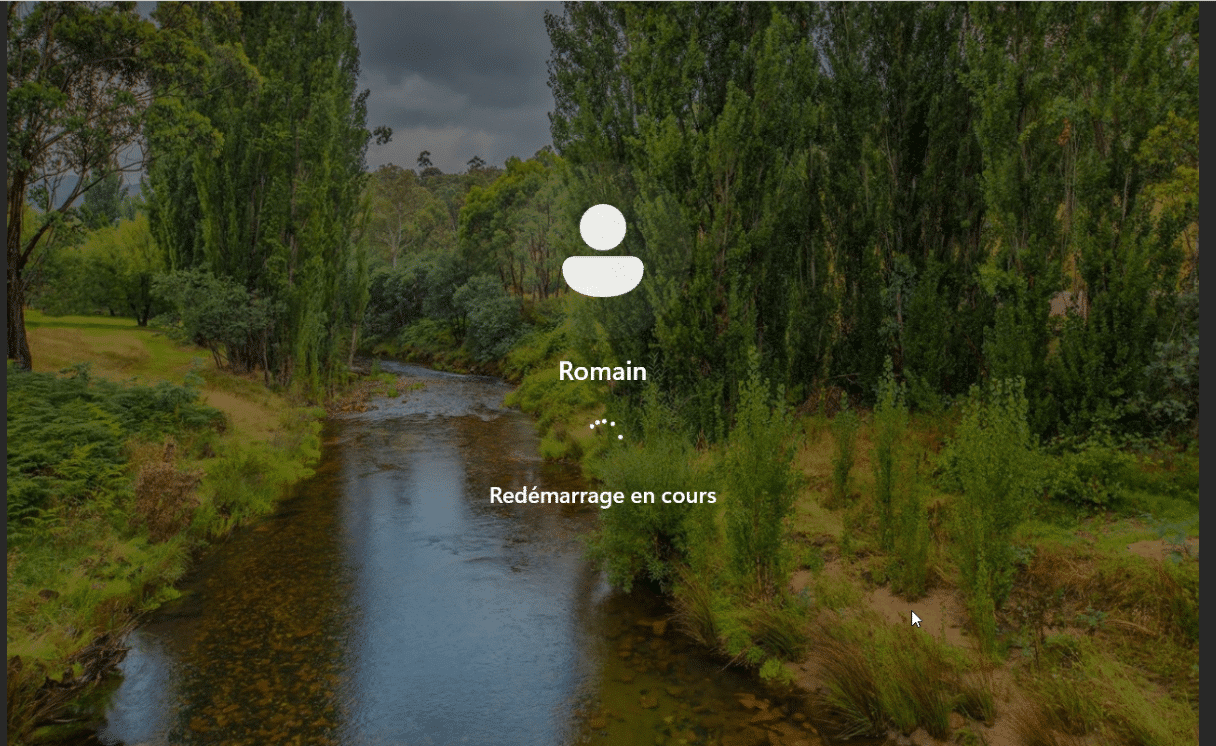
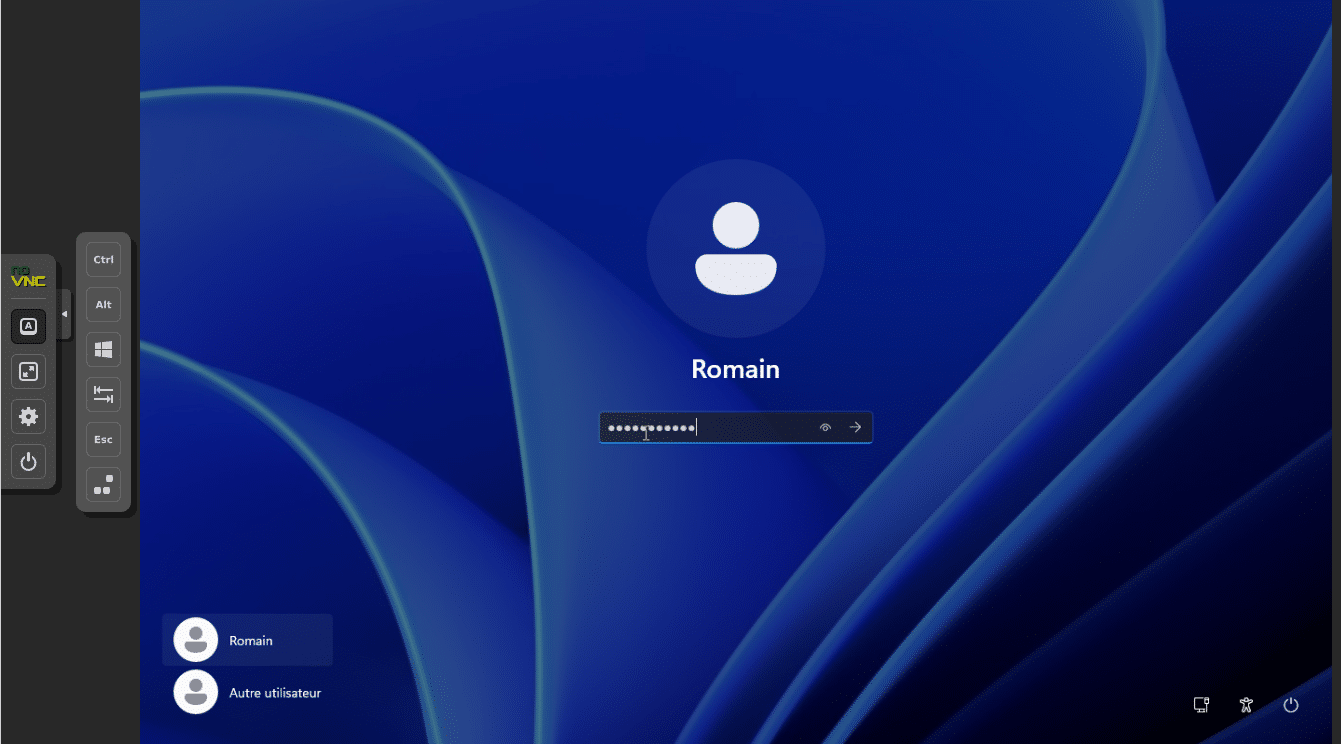
The computer has restarted and I can now log in, at this point the script should have already run.
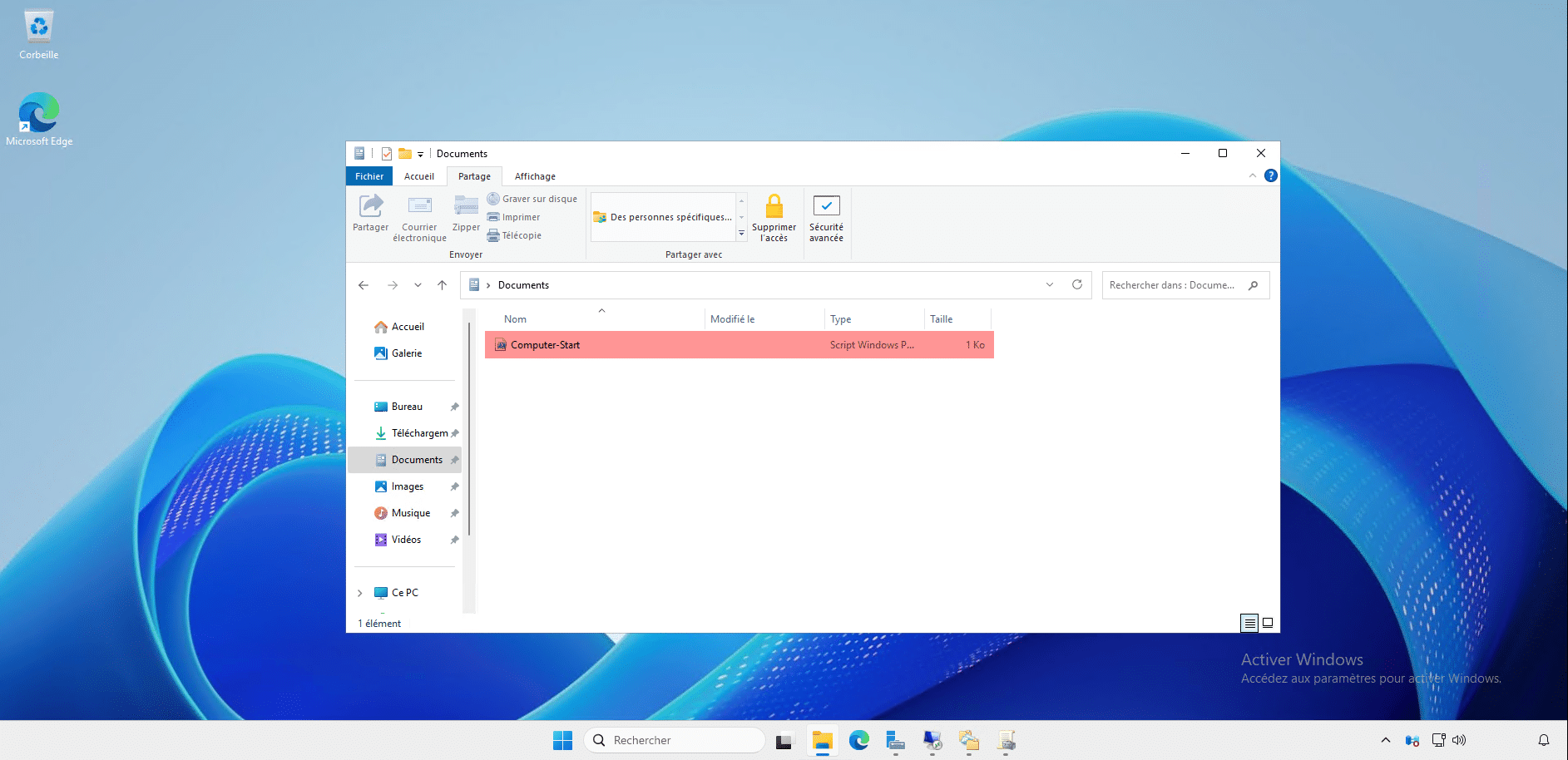
To verify that the PowerShell script has run, I will check in File Explorer that the folder is present and also the file.
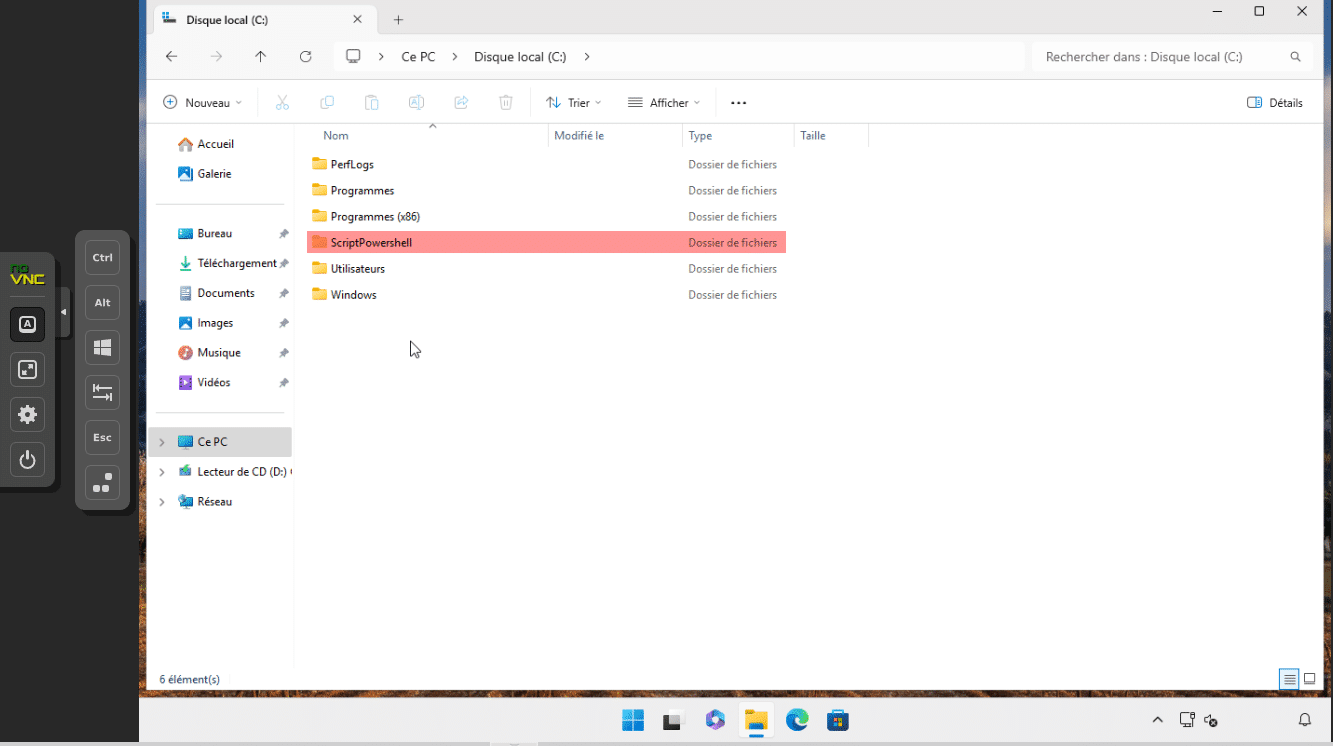
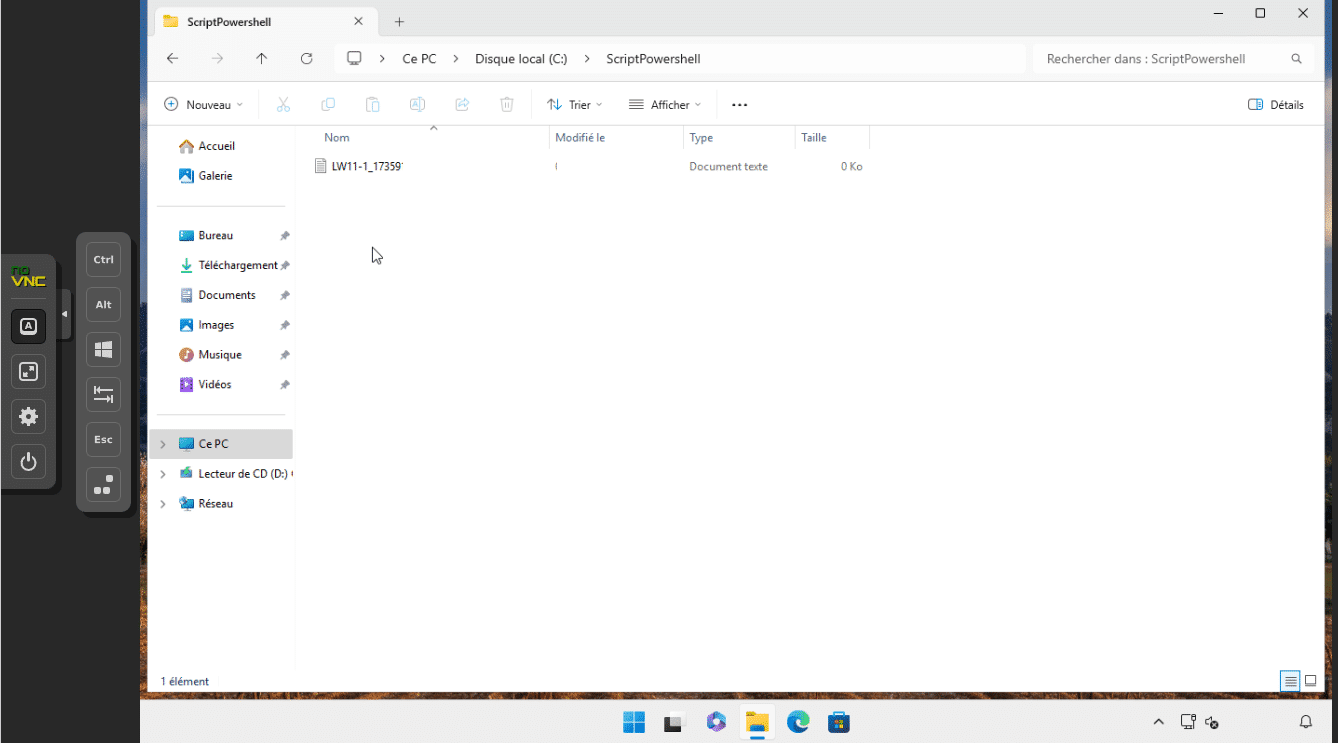
The PowerShell script was executed successfully.
Now you know how to create a Group Policy to run a PowerShell script when a computer starts.
For added security, I encourage you to sign your PowerShell scripts to avoid any malicious tampering.