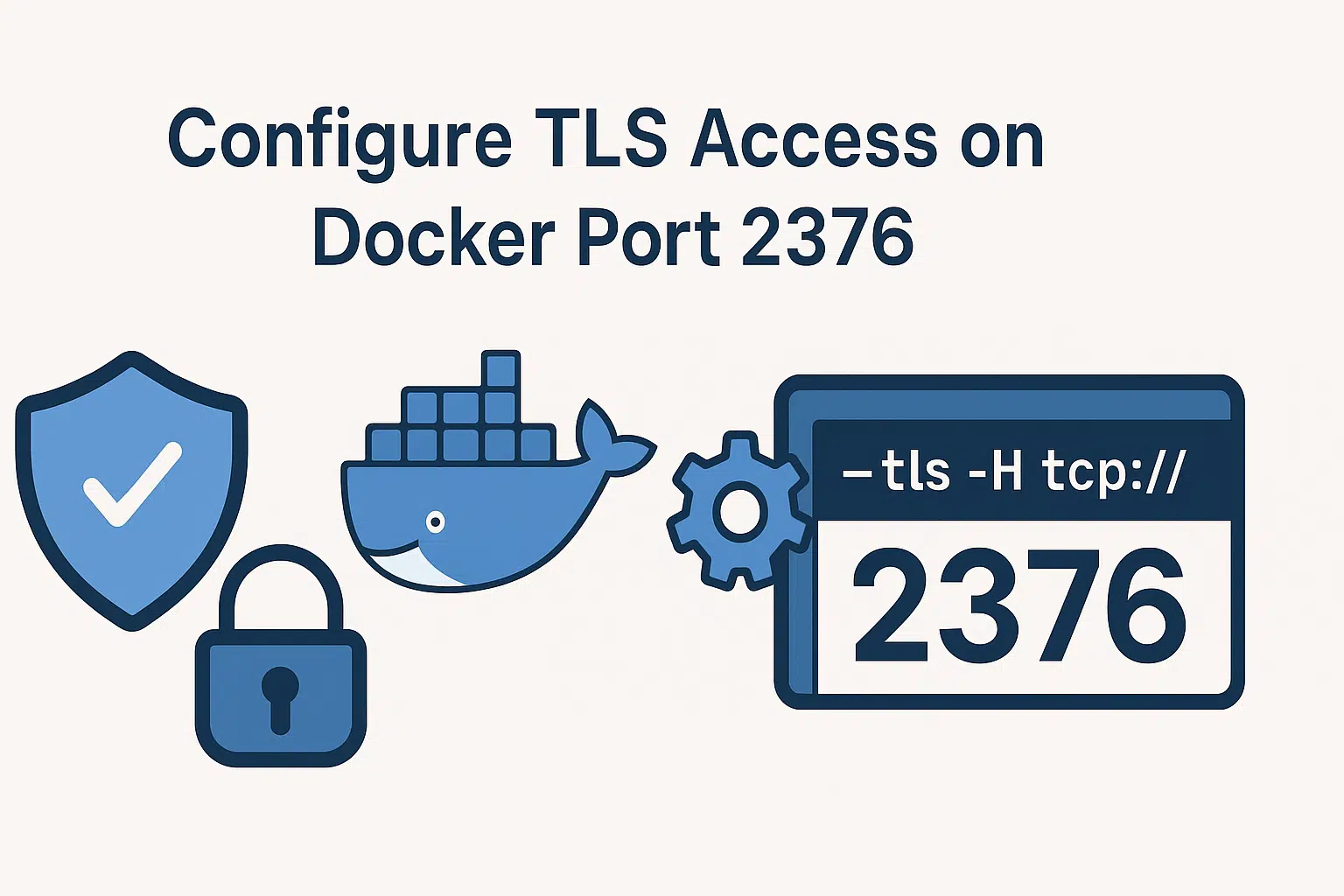
In this tutorial, we’ll see how to configure remote access to the daemonDockerusing port 2376, which will allow you to manage your containers remotely or monitor them.
There are two ports that allow remote access:
- 2375, which is not secure—neither in terms of data transmission nor access—
- 2376, which is secured using TLS and employs a certificate pair to secure access
In both cases, there is no authentication via a username and password; only port 2376 provides secure access using a certificate pair.
Since there’s quite a bit of setup involved, I’ve written two scripts that will make it easy to perform these tasks.
The first step is to generate the certificates for the TLS connection between the serverDockerand the client you want to connect to.
In a folder, create a fileopenssl.cnfwith the following content:
[ req ]
distinguished_name  = req_distinguished_name
req_extensions = v3_req

[ req_distinguished_name ]
# Information to be displayed for the user
commonName = Common Name (e.g. server FQDN or YOUR name)
commonName_default = docker-server

[ v3_req ]
# Extensions to add to a certificate request
subjectAltName = @alt_names

[ alt_names ]
IP.1 = 192.168.X.X # Adresse IP de l'hôte
DNS.1 = docker-server.local  # Nom d'hôte (par exemple, l'hôte Docker)
DockerEdit lines 15 and 16 to match your server.
generate-certificate.shNow, in the same folder where you created the fileopenssl.cnf, create the file.
#!/bin/bash

# Définir le répertoire des certificats
CERT_DIR="/etc/docker/certs"
CA_DIR="$CERT_DIR/ca"
SERVER_DIR="$CERT_DIR/server"
CLIENT_DIR="$CERT_DIR/client"

# Créer les répertoires s'ils n'existent pas
mkdir -p $CA_DIR $SERVER_DIR $CLIENT_DIR

# Vérifier si les certificats existent déjà
if [ ! -f "$CA_DIR/ca.pem" ]; then
    echo "Génération des certificats TLS..."

    # Générer la clé privée de l'autorité de certification (CA)
    openssl genrsa -aes256 -out $CA_DIR/ca-key.pem -passout pass:password 4096

    # Générer le certificat de l'autorité de certification (CA)
    openssl req -new -x509 -days 365 -key $CA_DIR/ca-key.pem -sha256 -passin pass:password \
        -subj "/CN=Docker-CA" -out $CA_DIR/ca.pem

    # Générer la clé privée du serveur
    openssl genrsa -out $SERVER_DIR/server-key.pem 4096

    # Créer une demande de signature de certificat (CSR) pour le serveur en utilisant le fichier de config avec SAN
    openssl req -new -key $SERVER_DIR/server-key.pem -out $SERVER_DIR/server.csr -config openssl.cnf

    # Signer le certificat du serveur avec l'autorité de certification
    openssl x509 -req -days 365 -sha256 -in $SERVER_DIR/server.csr -CA $CA_DIR/ca.pem \
        -CAkey $CA_DIR/ca-key.pem -passin pass:password -CAcreateserial -out $SERVER_DIR/cert.pem -extensions v3_req -extfile openssl.cnf

    # Générer la clé privée du client
    openssl genrsa -out $CLIENT_DIR/client-key.pem 4096

    # Créer une demande de signature de certificat (CSR) pour le client
    openssl req -new -key $CLIENT_DIR/client-key.pem -out $CLIENT_DIR/client.csr \
        -subj "/CN=docker-client"

    # Signer le certificat du client avec l'autorité de certification
    openssl x509 -req -days 365 -sha256 -in $CLIENT_DIR/client.csr -CA $CA_DIR/ca.pem \
        -CAkey $CA_DIR/ca-key.pem -passin pass:password -CAcreateserial -out $CLIENT_DIR/cert.pem

    # Pour uptime kuma
    cp $CLIENT_DIR/client-key.pem $CLIENT_DIR/key.pem
    cp $CA_DIR/ca.pem $CLIENT_DIR/ca.pem

    echo "Certificats générés avec succès."
else
    echo "Les certificats existent déjà. Aucune génération nécessaire."
fi
Run the script: sudo bash generate-certificate.sh
DockerThe certificates have now been generated; let’s move on to configuring the daemon.
/etc/docker/To do this, you’ll need to edit or create the filedaemon.json, which should be located in the folder.
sudo nano /etc/docker/daemon.json
In the file, add the following content:
{
    "hosts": [
      "tcp://0.0.0.0:2376",
      "unix:///var/run/docker.sock"
    ],
    "tls": true,
    "tlscacert": "/etc/docker/certs/ca/ca.pem",
    "tlscert": "/etc/docker/certs/server/cert.pem",
    "tlskey": "/etc/docker/certs/server/server-key.pem",
    "tlsverify": true
  }
Here, we configureDocker to listen on port 2376 and specify the location of the certificates.
DockerFinally, we need to modify the service’s startup parameters; to do this, we’ll use aoverride.conf to modify the configuration. Again, to simplify the configuration, here’s the script:
#!/bin/bash

# Variables
DOCKER_SERVICE_OVERRIDE_DIR="/etc/systemd/system/docker.service.d"
OVERRIDE_CONF_FILE="$DOCKER_SERVICE_OVERRIDE_DIR/override.conf"

# Création du répertoire d'override si nécessaire
if [ ! -d "$DOCKER_SERVICE_OVERRIDE_DIR" ]; then
  echo "Création du répertoire d'override systemd pour Docker..."
  sudo mkdir -p "$DOCKER_SERVICE_OVERRIDE_DIR"
fi

# Création du fichier override.conf
echo "Création du fichier d'override Docker pour exposer Docker sur le port 2376 avec TLS..."
sudo tee "$OVERRIDE_CONF_FILE" > /dev/null <<EOL
[Service]
ExecStart=
ExecStart=/usr/bin/dockerd
EOL

# Recharger la configuration systemd
echo "Rechargement de la configuration systemd..."
sudo systemctl daemon-reload

# Redémarrage du service Docker
echo "Redémarrage du service Docker..."
sudo systemctl restart docker

# Vérification du statut du service Docker
echo "Vérification du statut du service Docker..."
sudo systemctl status docker

# Fin
echo "La configuration de Docker pour utiliser TLS sur le port 2376 a été appliquée avec succès."
DockerRun the script, which will create the fileoverride.conffor the serviceDocker, reload the daemon, and restart the service.
sudo bash docker-tls-override.sh
The configurationDockeris complete.
Depending on the clients you’ll be using, you’ll need to retrieve the client certificates from /etc/docker/certs/client.
You can find the files here: https://forge.rdr-it.com/Scripts/Linux/src/branch/main/docker-tls-config