
In this tutorial, we will see how to automatically disable Wi-Fi when the computer is connected to a wired network using a group policy (GPO).
Today, more and more computer users in business are using laptops which are generally equipped with a Wifi card and an Ethernet connection, whether through an integrated network card or a base.
When first connecting to the company’s Wi-Fi network, users usually enable automatic network connection; therefore, the laptop is often connected twice to the company network when the user is at their desk, via the Ethernet cable and the Wi-Fi connection.
This dual connection can cause incompatibility when using the computer, but also a double DNS registration which can cause problems when taking control for troubleshooting.
To address this problem, several solutions exist:
- Configure in the BIOS/UEFI options by enabling LAN/WLAN Switching
- Driver-level configuration on Windows
- Scheduled task
- Proprietary service (HP)
- Group Strategy (GPO)
In this article, we will look at the last solution, which is the use of a group policy, which for me is the best because it does not depend on the hardware.
From a domain controller, open the Group Policy Management console and go to the Group Policy Objects 1 folder.
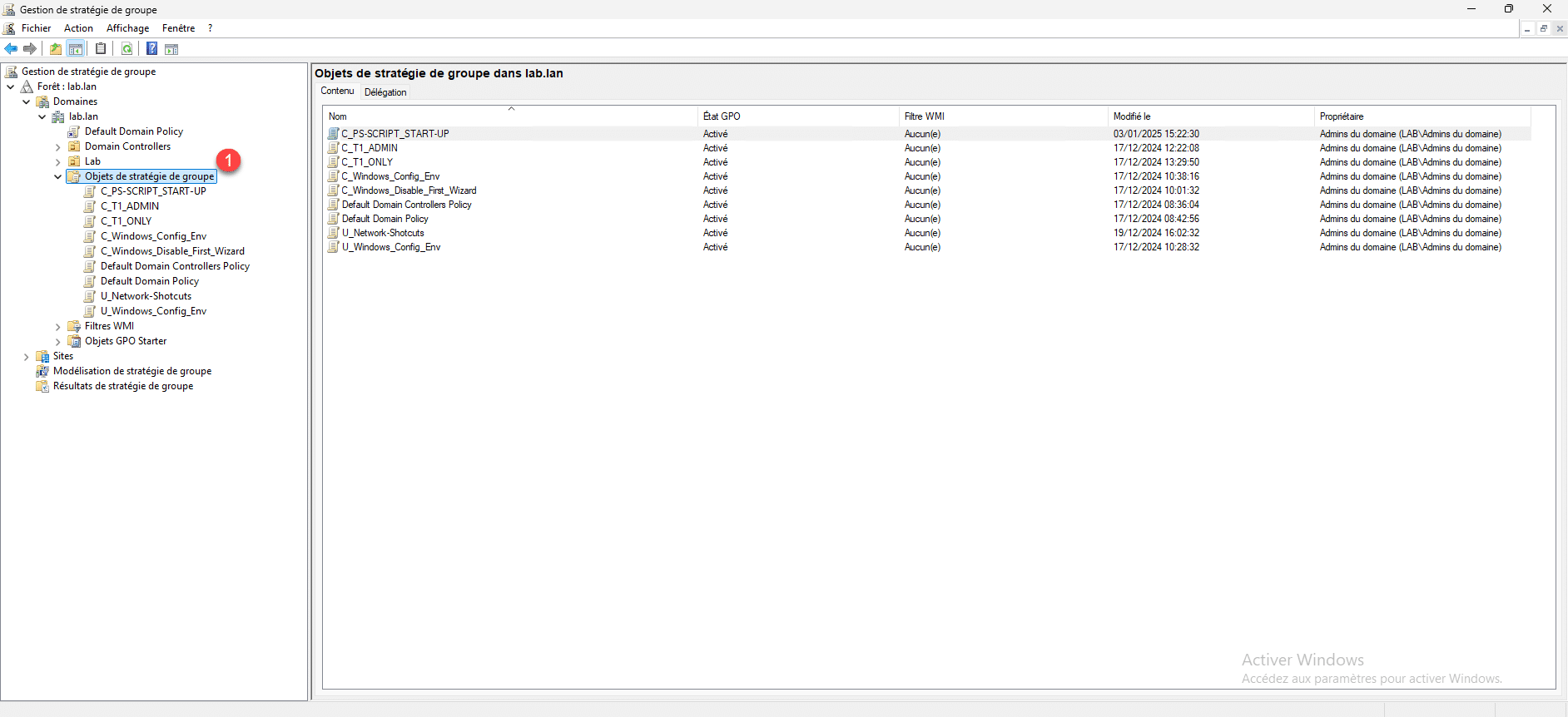
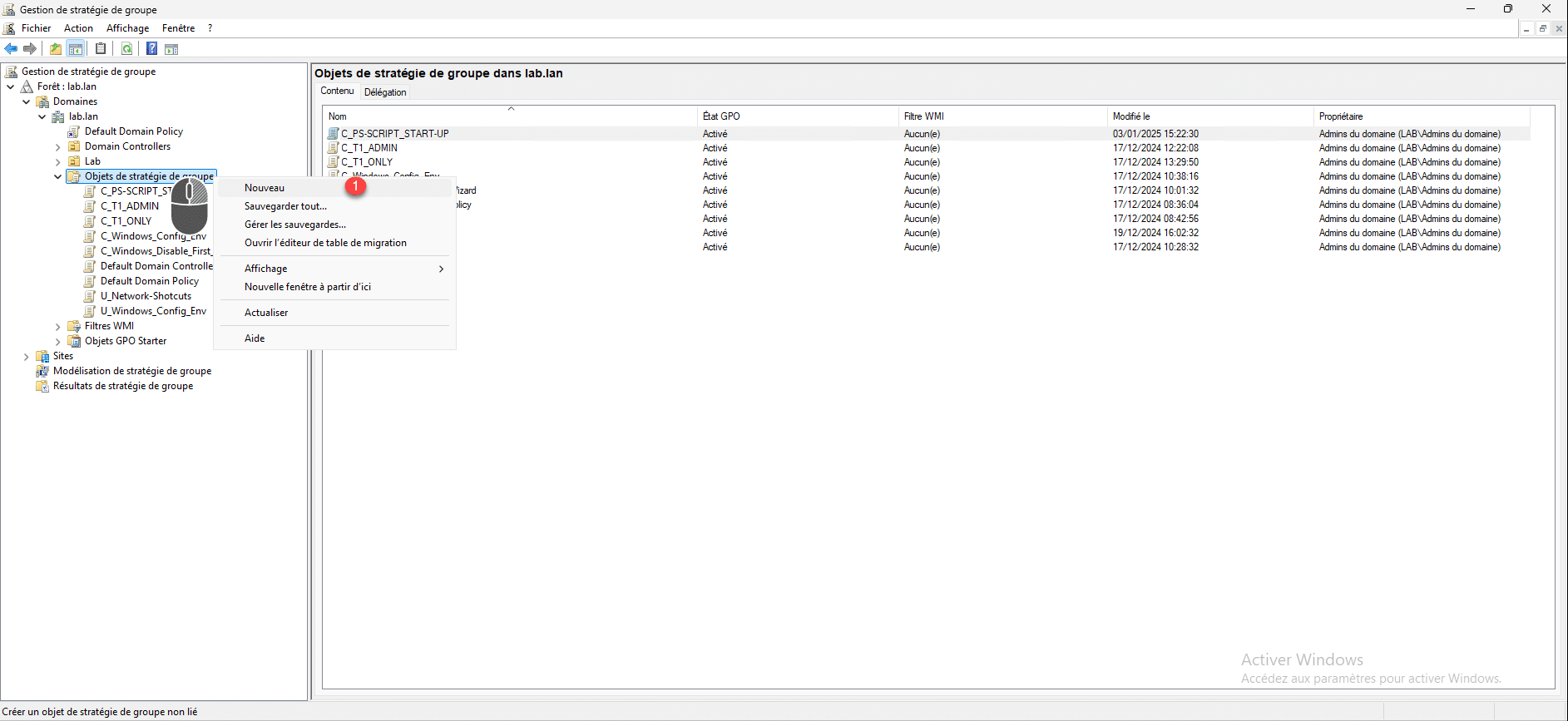
Right-click on Group Policy Objects and then click on New 1.
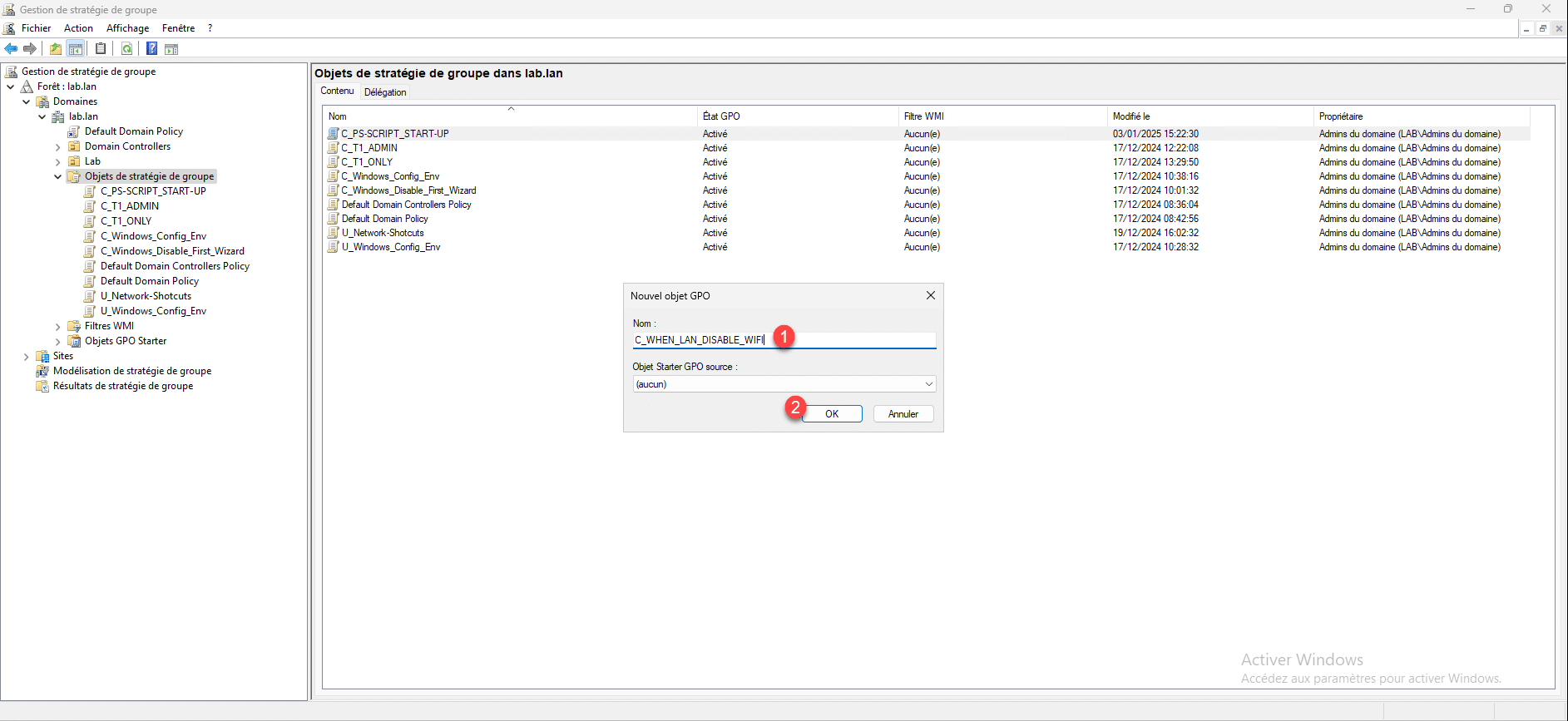
Name the group policy 1 and then click OK 2 to create the object.
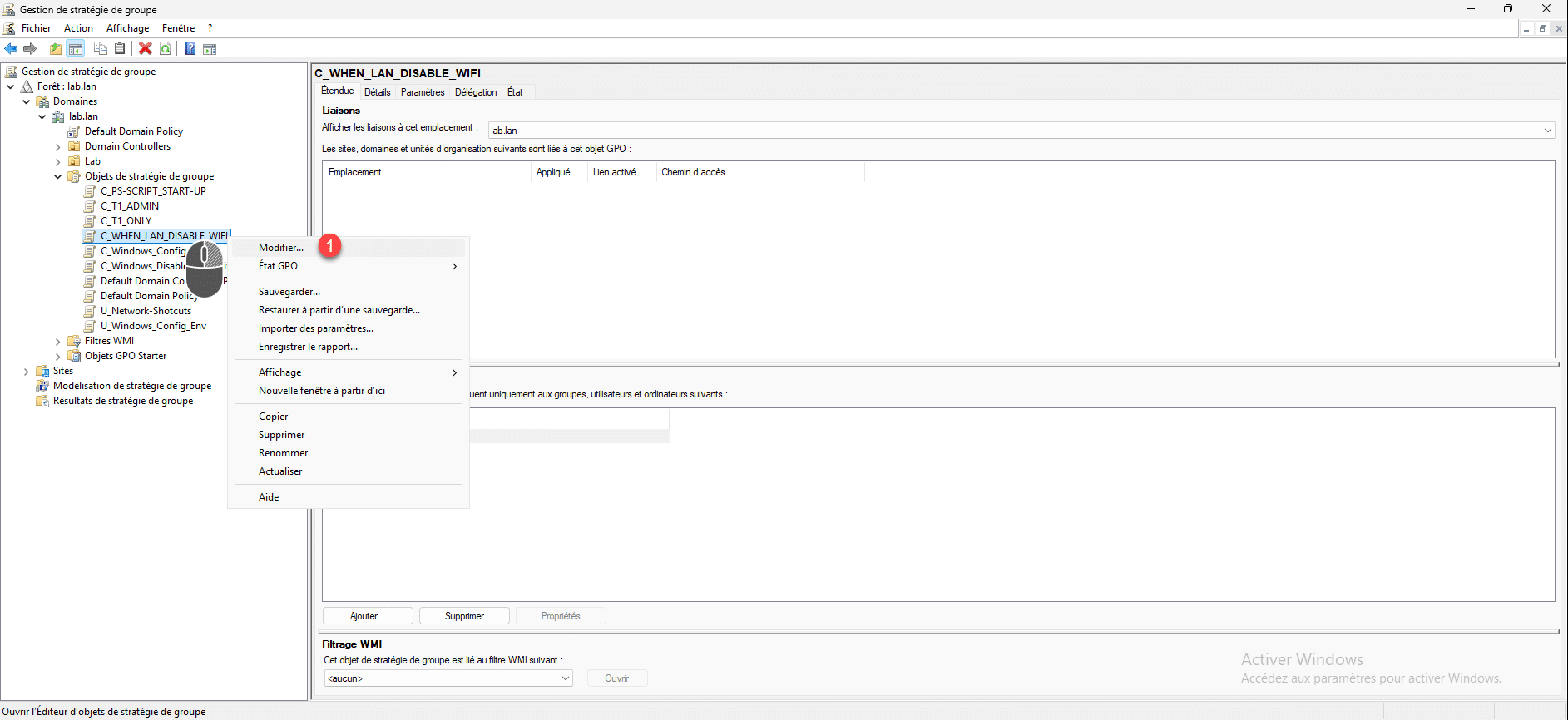
Right-click on the object you just created and then click on Edit 1.
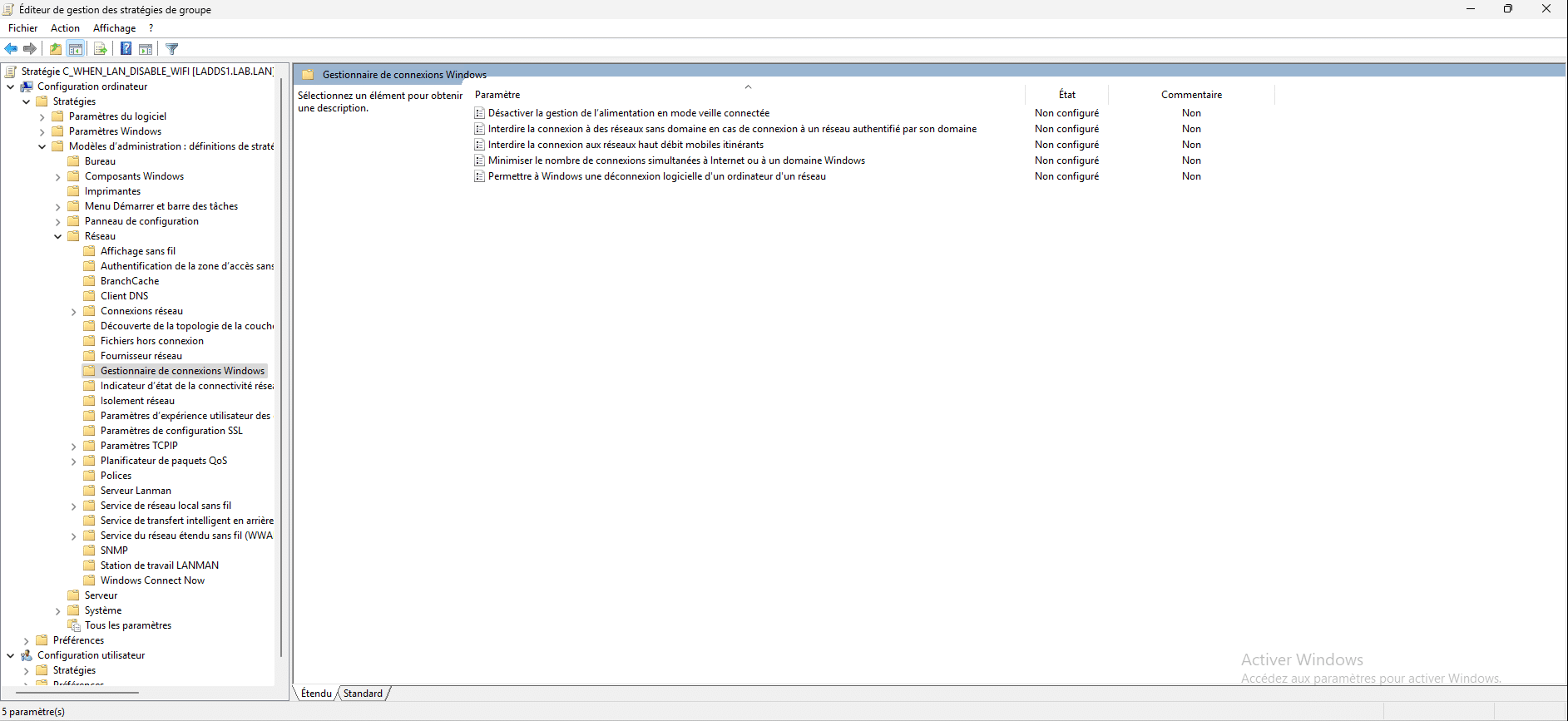
Go to the following location: Computer Configuration / Policies / Administrative Templates / Network / Windows Connection Manager.
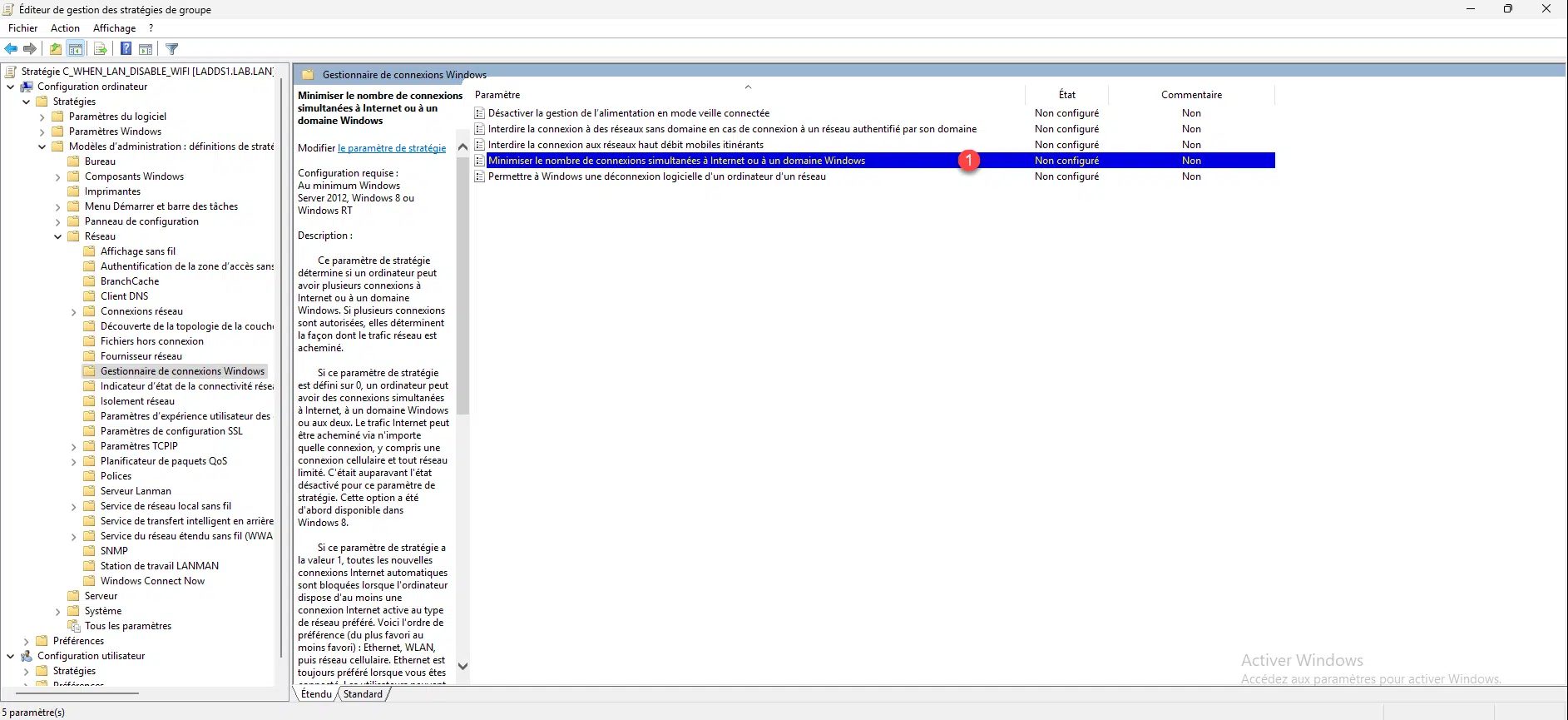
Open the setting: Minimize the number of simultaneous connections to the Internet or to a Windows domain 1.
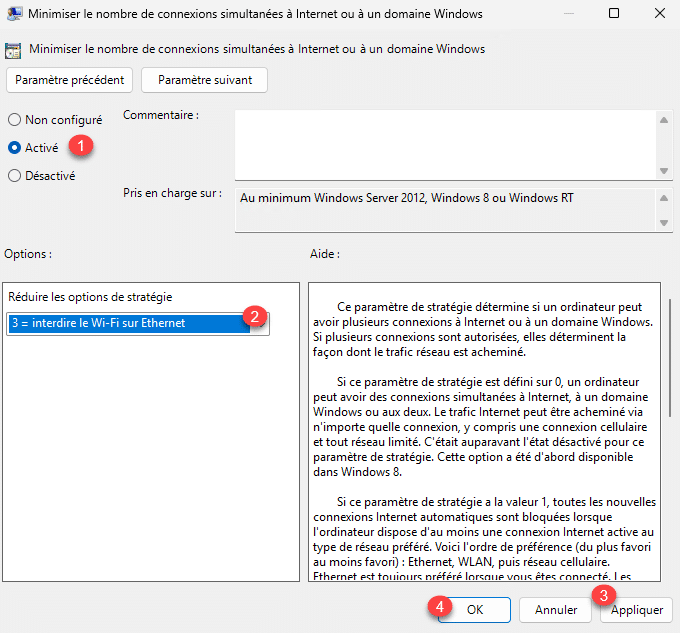
Activate the setting 1> and choose option 3 = block Wi-Fi over Ethernet 2. Then click the Apply 3 and OK 4 buttons.
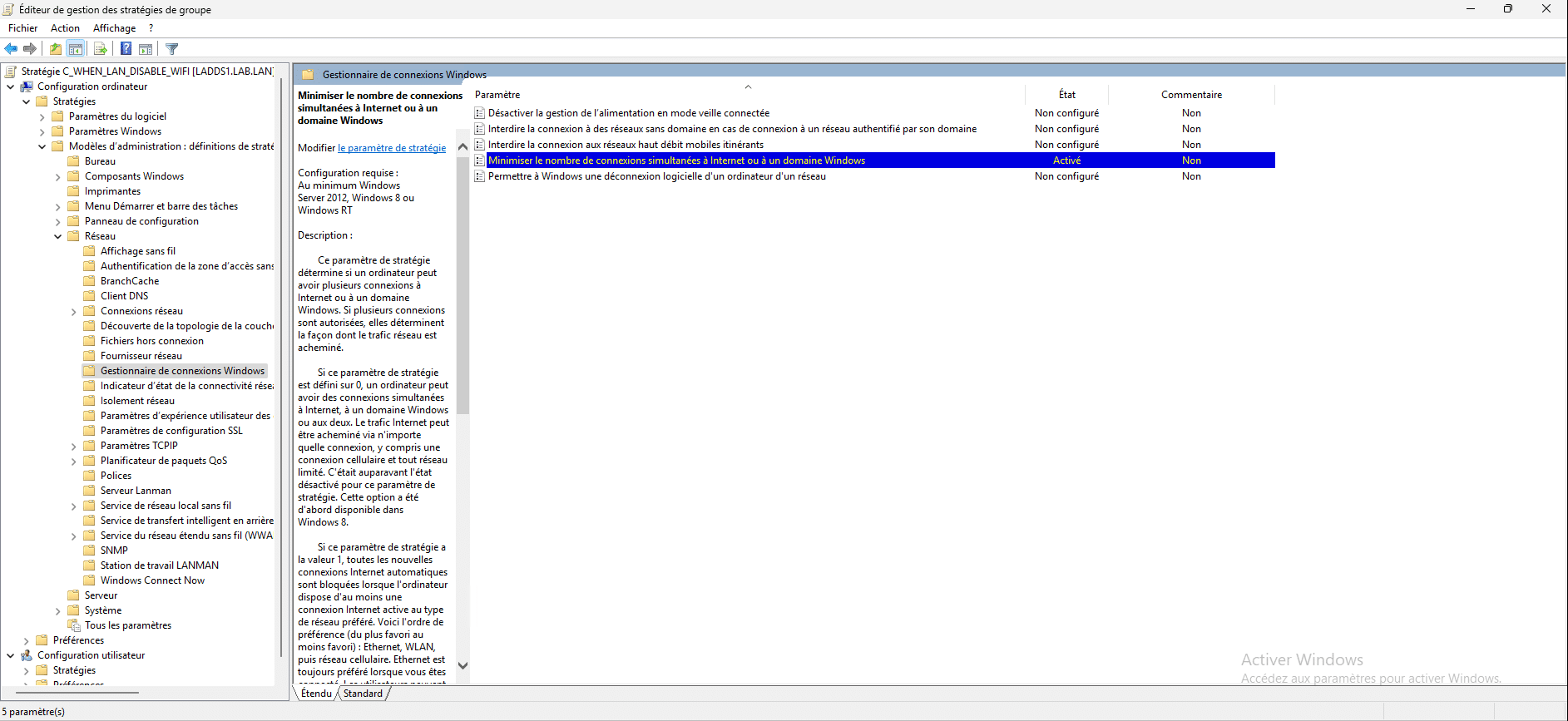
The Minimize the number of simultaneous Internet connections setting is now enabled and configured.
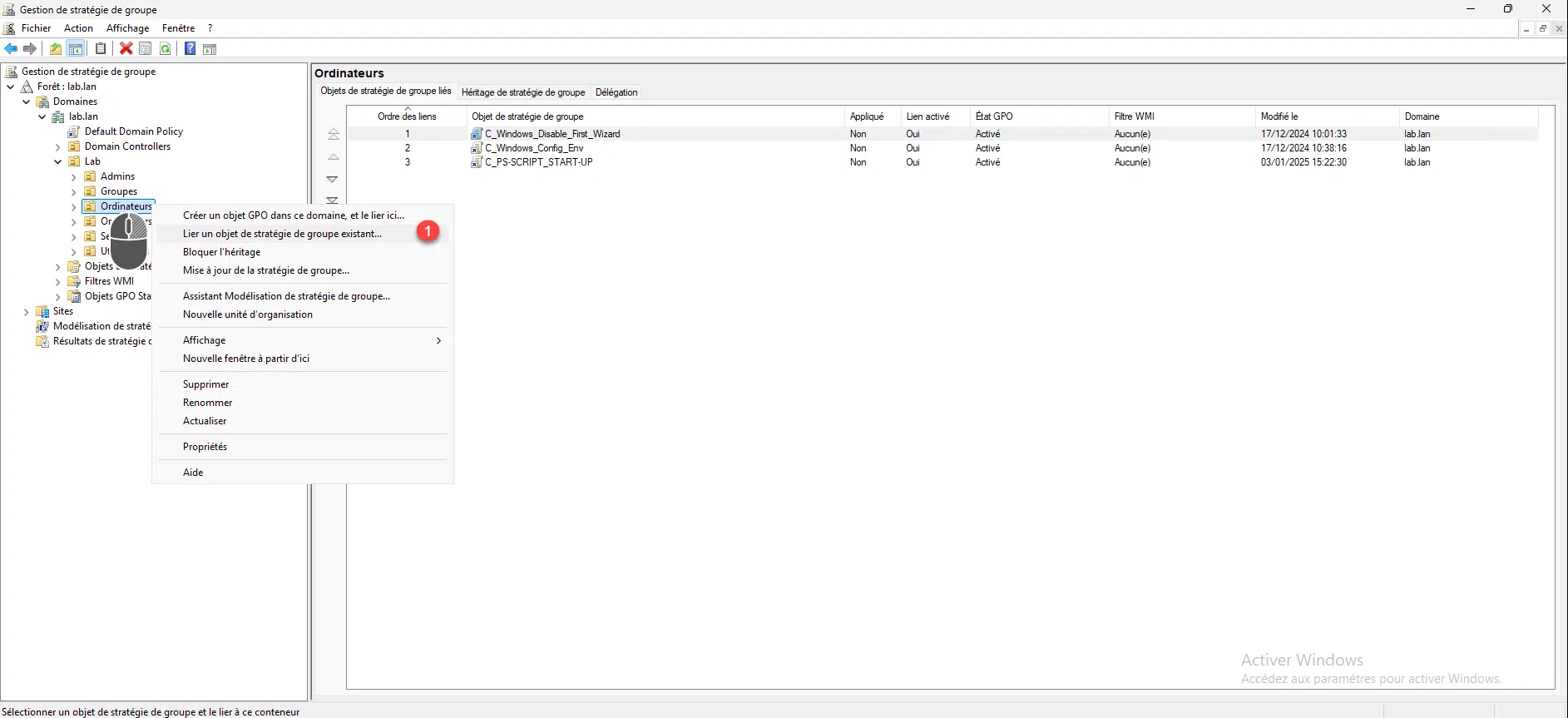
We will now link the group policy object so that it is applied, right-click on the OU which contains the computers and then click on Link an existing group policy object … 1.
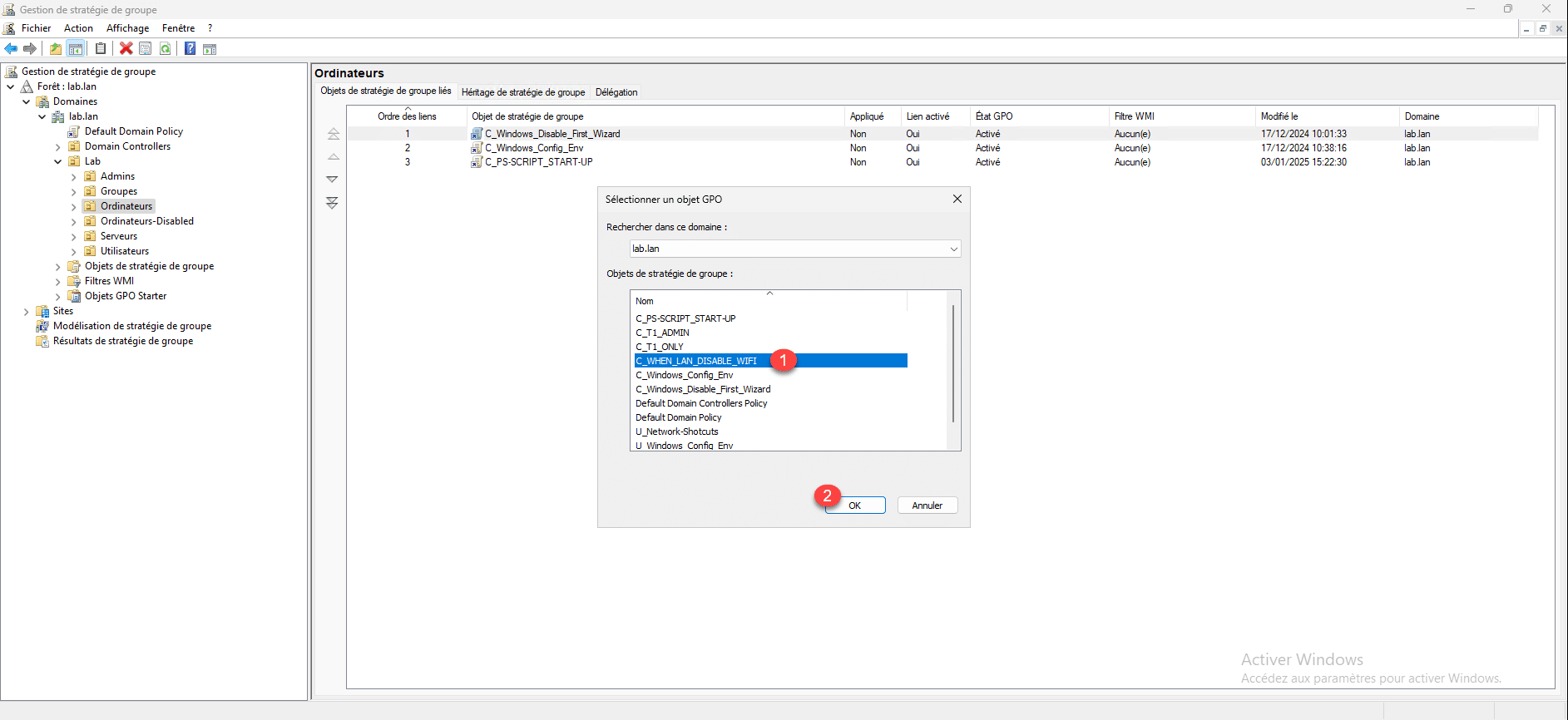
Select the GPO 1 which allows disabling WiFi when Ethernet is connected and click OK 2.
Group policy is linked; once the computers have updated their group policy settings, they will no longer be able to connect via wired (Ethernet) and Wi-Fi simultaneously.
