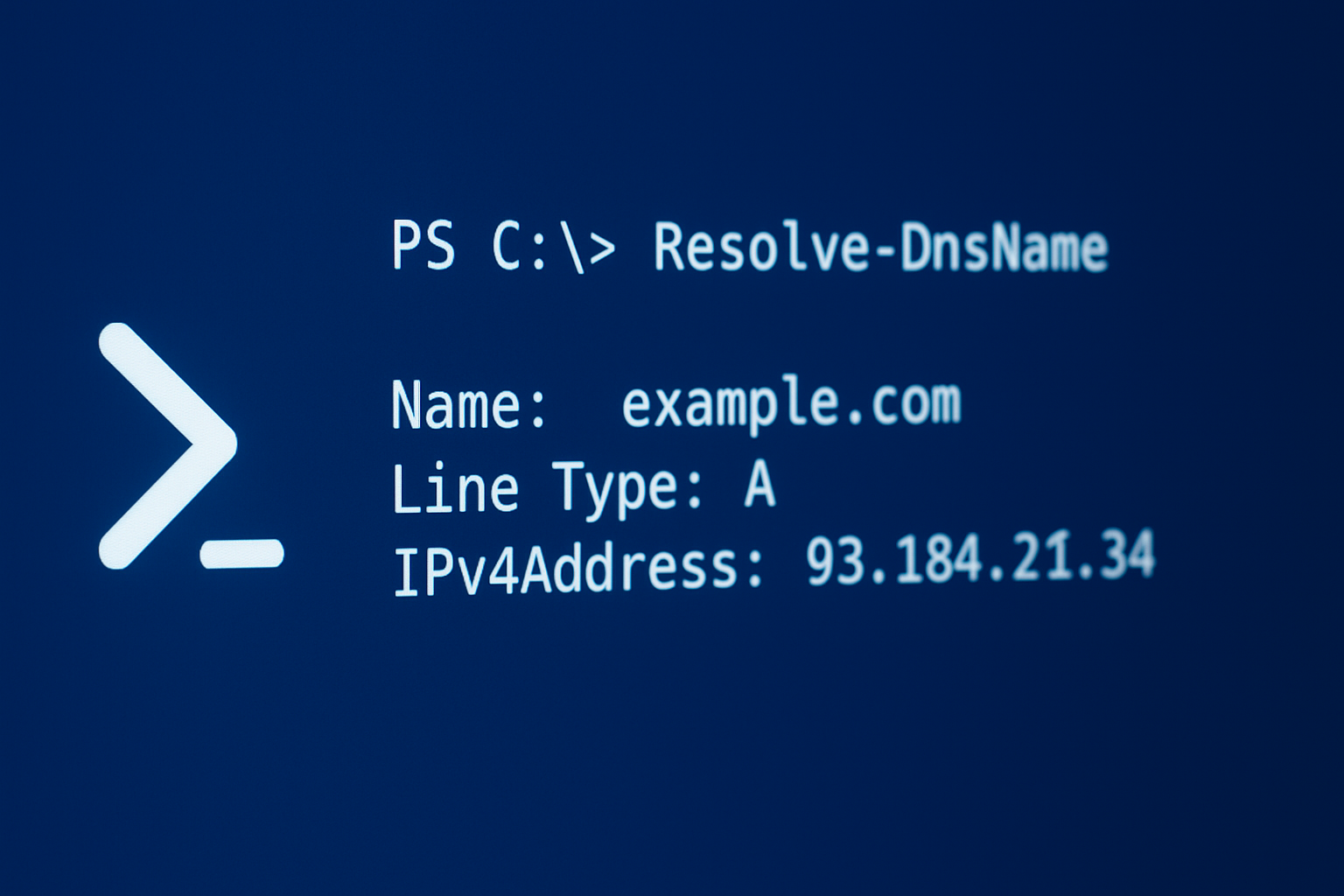
In this tutorial, I will explain how to use PowerShell to perform DNS name resolution using the Resolve-DnsName command.
This built-in Windows tool makes it easy to query DNS servers to obtain information about a domain or IP address. Whether you need to check your DNS configuration, diagnose a resolution problem, or simply understand how the service works, this command is an indispensable tool for system and network administrators.
We will see how to use it, interpret the results and take advantage of its different options.
To begin, to perform a “simple” resolution, enter the following command:
Resolve-DnsName rdr-it.com
As can be seen, by default the Cmdlet returns the DNS A and AAAA records of the domain name that was passed as a parameter using the DNS server(s) configured on the Windows network adapter.
If you wish to use a particular DNS server, it is possible to pass the -Server parameter with the IP address of the DNS server to use.
Resolve-DnsName rdr-it.com -Server 1.1.1.1This parameter is particularly useful when managing a domain’s DNS zone on an internal and external server (on the Internet) to verify a record.
It is also possible to choose the type of DNS record you want using the -type parameter.
Resolve-DnsName rdr-it.com -Type MX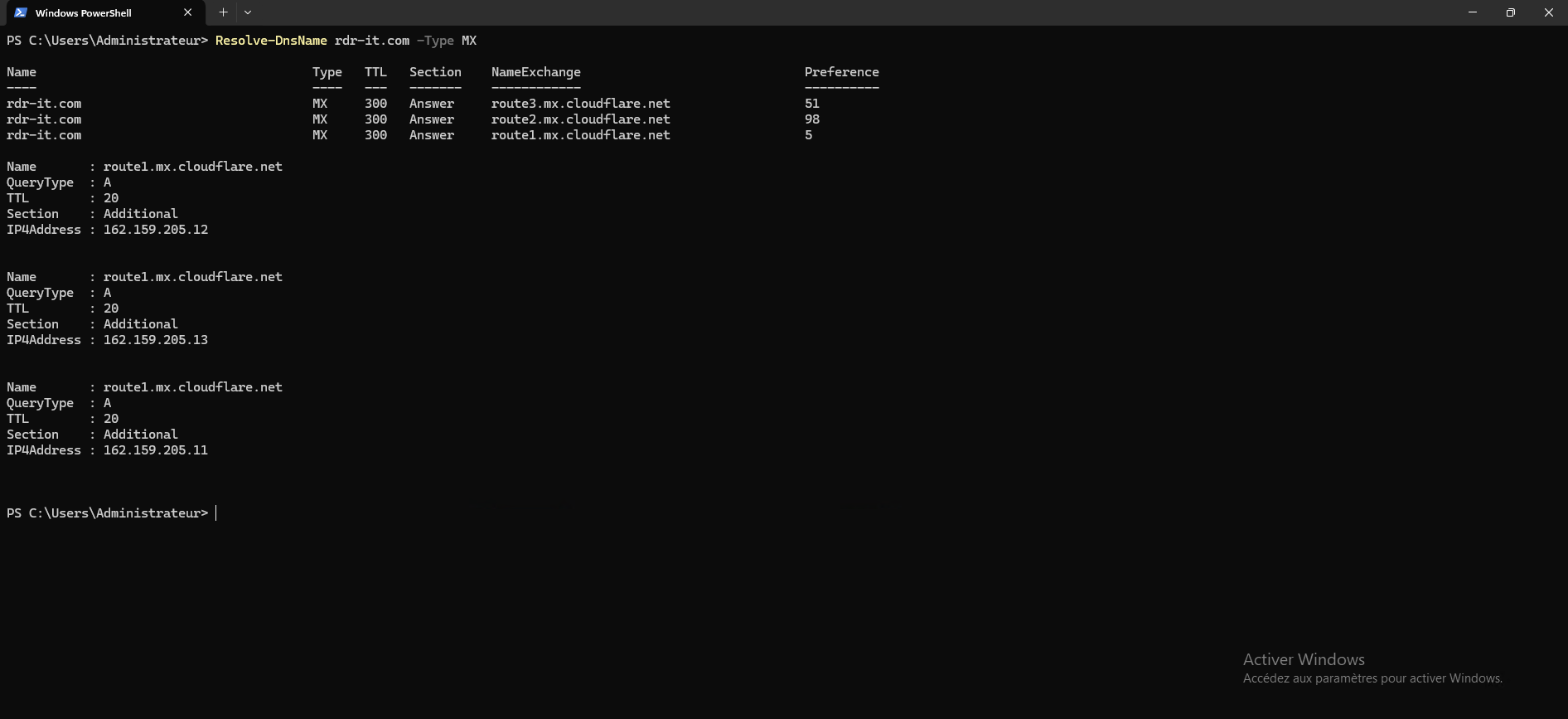
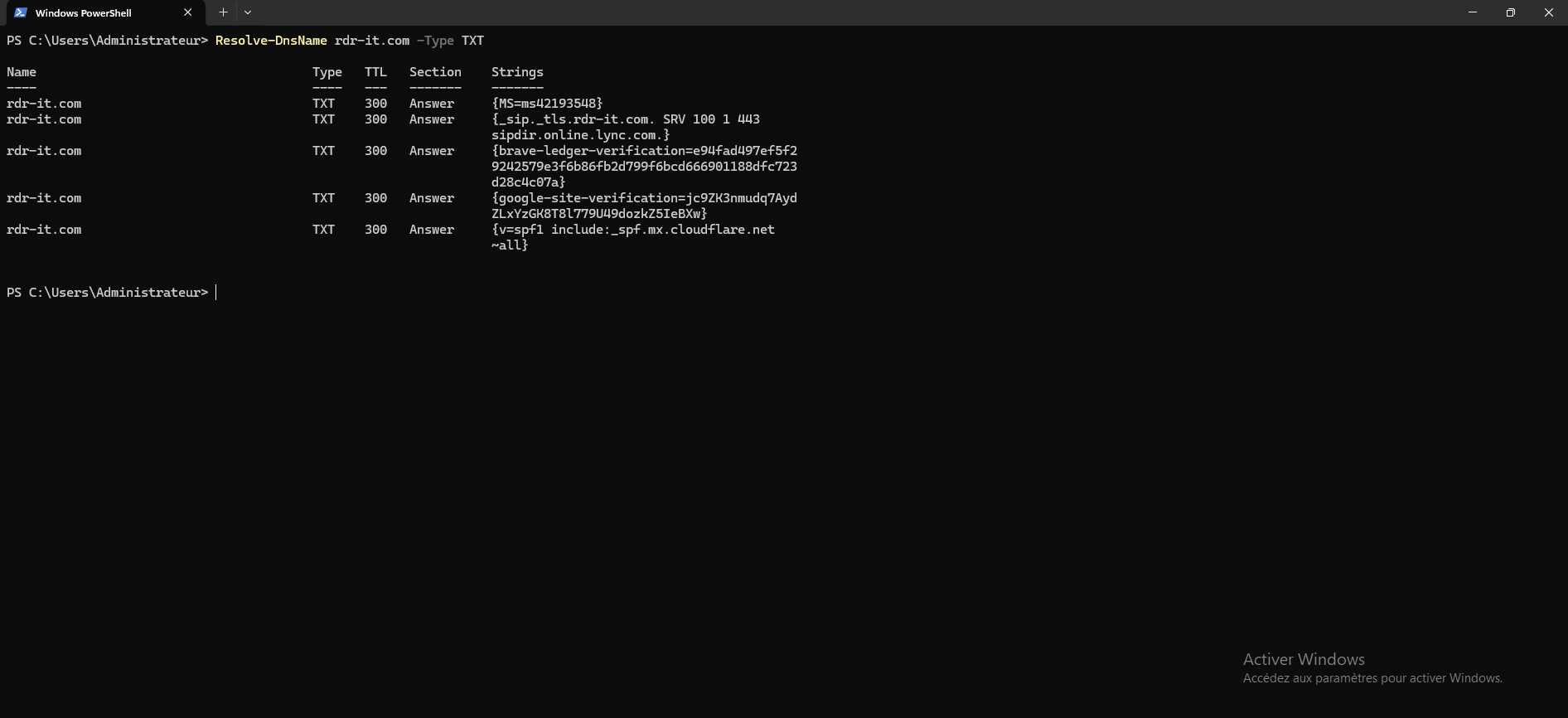
You can also resolve multiple DNS names with a single command:
"rdr-it.com","git.rdr-it.com" | Resolve-DnsName -Type A -Server 1.1.1.1
Table of common Resolve-DnsName options:
| Option | Description | Exemple |
|---|---|---|
-Type | Specifies the type of DNS record to query (A, AAAA, MX, TXT, CNAME, NS, etc.) | Resolve-DnsName microsoft.com -Type MX |
-Server | Defines the DNS server to use for the query | Resolve-DnsName microsoft.com -Server 8.8.8.8 |
-DnsOnly | Limits the request to a simple DNS resolution, without fallback to NetBIOS or LLMNR. | Resolve-DnsName microsoft.com -DnsOnly |
-Name | Allows you to specify the domain name (default setting, often implicit) | Resolve-DnsName -Name microsoft.com |
-NoHostsFile | Ignores the hosts file during resolution | Resolve-DnsName microsoft.com -NoHostsFile |
-QuickTimeout | Reduces response time (useful for rapid troubleshooting) | Resolve-DnsName microsoft.com -QuickTimeout |
Official documentation : https://learn.microsoft.com/en-us/powershell/module/dnsclient/resolve-dnsname?view=windowsserver2025-ps
In summary, the PowerShell Resolve-DnsName command is a simple yet powerful tool for querying and diagnosing DNS resolution. It’s a significant improvement over the older nslookup command, offering more comprehensive and structured results. Whether you’re testing a domain, identifying a configuration issue, or simply verifying the functionality of your DNS servers, this command is indispensable for everyday use. And because it’s PowerShell, it’s very easy to automate these checks in custom scripts, saving time and simplifying the management of your environments.
Finally, here is an example script:
