Table of Contents
Presentation
In this tutorial, I’m going to explain how to set up a place pfSense which is a distribution that allows you to set up a perimeter firewall.
pfSense is a fork based on m0n0wall, which is based on FreeBSD.
pfSense integrates the standard features of open-source firewalls:
- Incoming/outgoing stream filtering
- Squid-based proxy
- Routing
- VPN Server
- DHCP server
- DNS Server
- …
It is possible to add features to pfSense by adding plugins (Reverse proxy, Snort, etc.).
Prerequisites
To install pfSense, you need a computer (physical or virtual) with at least two network cards:
- LAN
- WAN
In this tutorial, my WAN interface will be using DHCP.
Regarding CPU/RAM and disk resources, this will depend mainly on the number of devices and features you activate.
For disk space, allow a minimum of 20GB.
Here, I will use a virtual machine under VMware.
Start by downloading the pfSense ISO: https://www.pfsense.org/download/
Installing pfSense
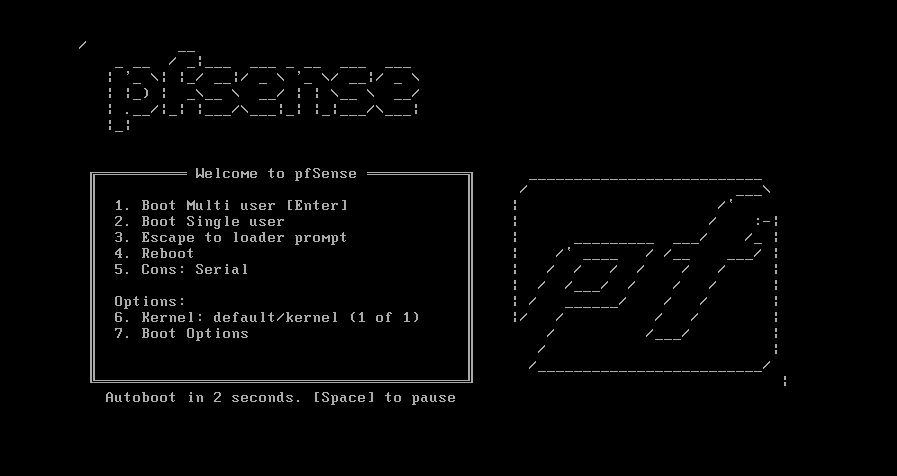
Boot from the ISO.
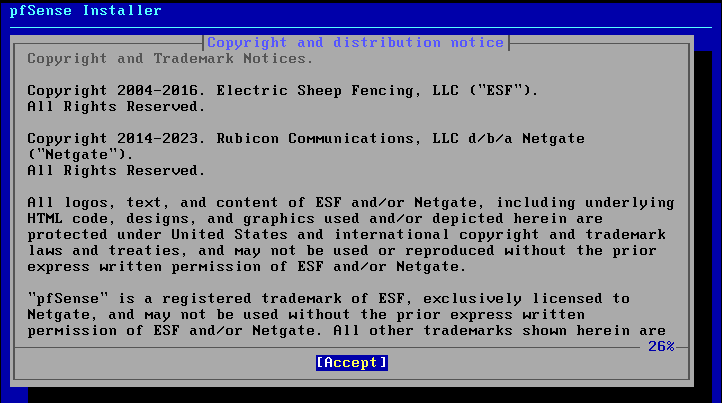
Accept the license agreement.
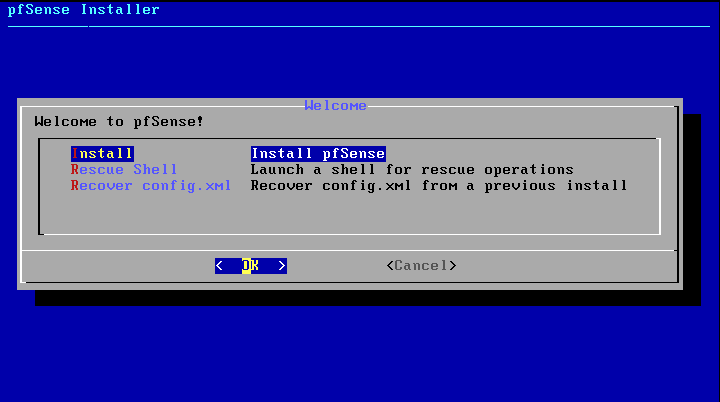
Select Install.
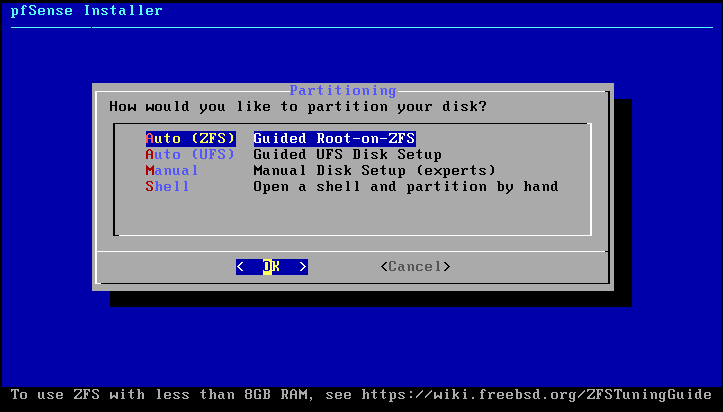
Select the partition type, here it will be Auto (ZFS).
Choose the Install option.
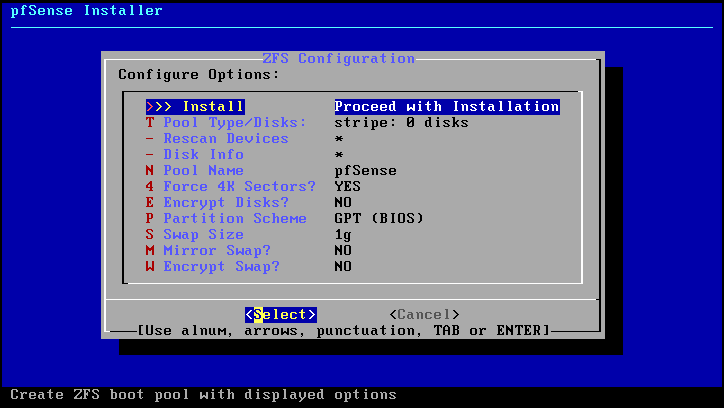
Having only one disk, I’m going to choose Stripe.
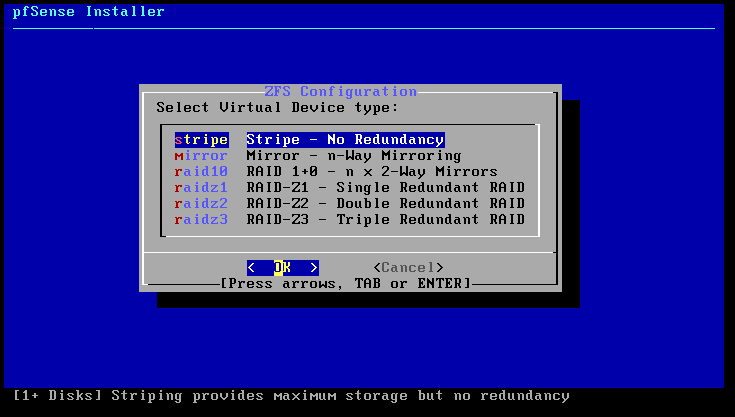
Select the disk (spacebar) and confirm.
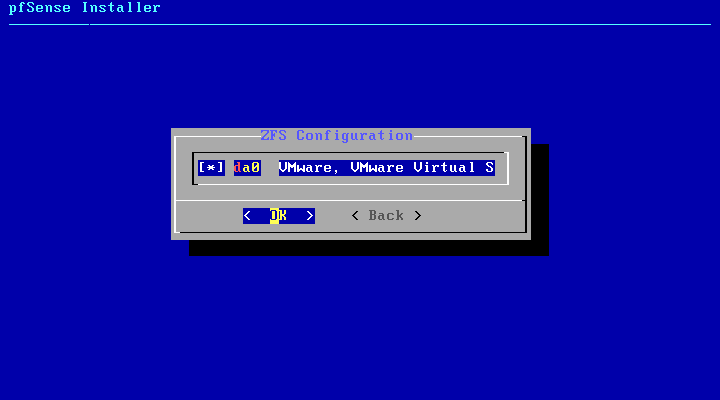
Confirm the writing of information to the disk.
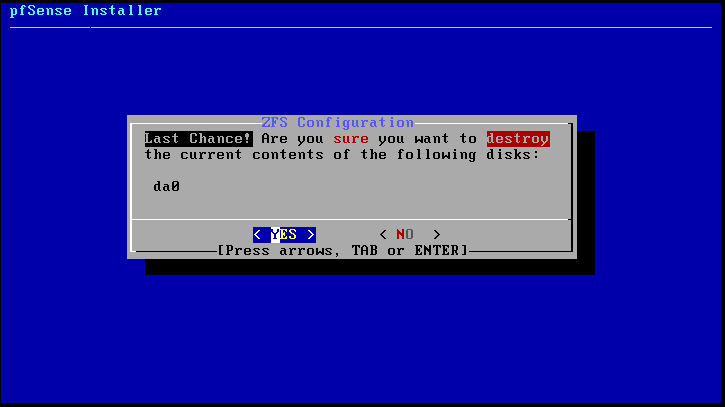
Please wait while the installation is in progress…
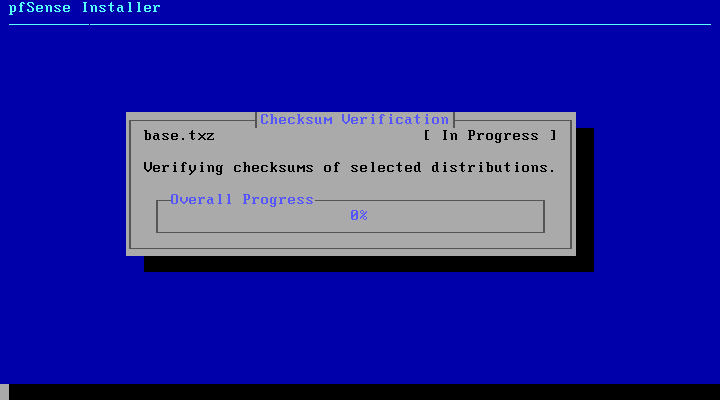
Once the installation is complete, you need to restart.
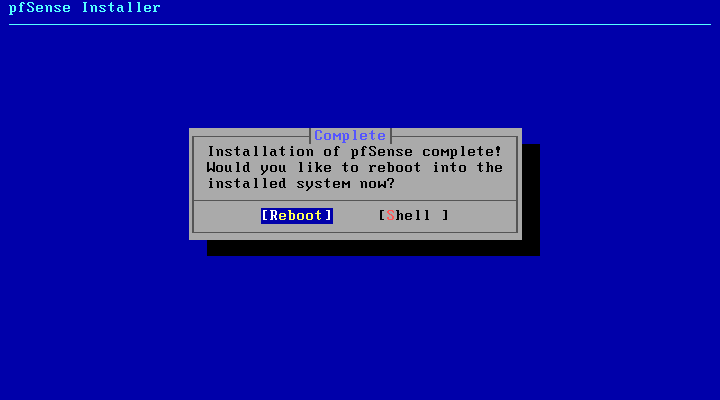
Remove the ISO file from the computer and wait for it to restart…
Once the restart is complete, we arrive at a menu that allows us to configure the pfSense firewall.
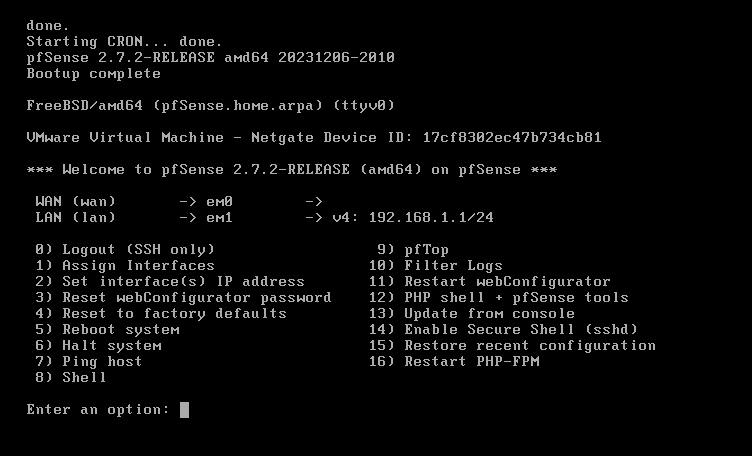
pfSense post-installation configuration
pfSense is installed, but the network interfaces are not configured correctly; I will show you how to do this configuration from the console.
Change the assignment of network interfaces
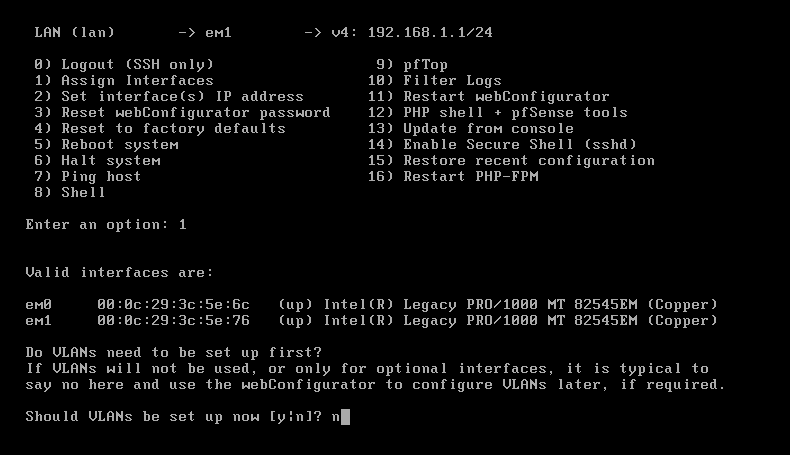
Enter option 1 which corresponds to Assign interfaces.
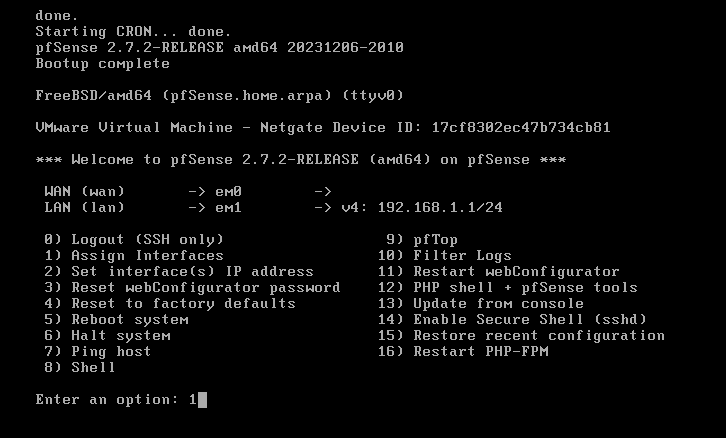
Indicate if you want to configure VLANs, for me here it’s no.
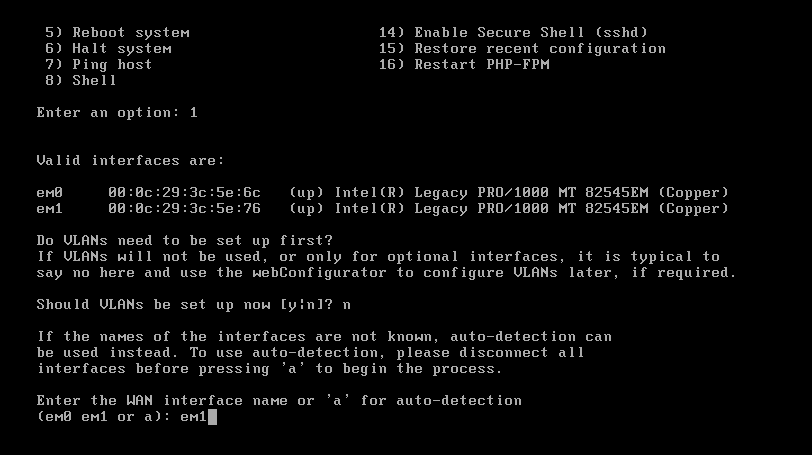
Please provide the name of the WAN interface for me. em1.
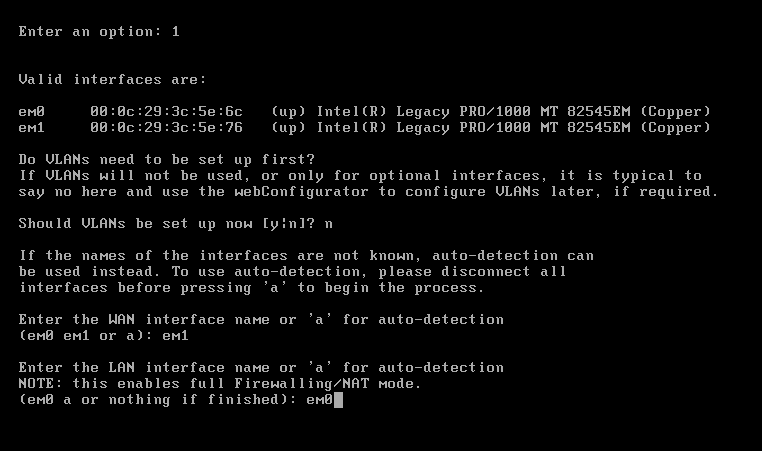
Specify the LAN interface (em0)
Confirm the application of the interface configuration.
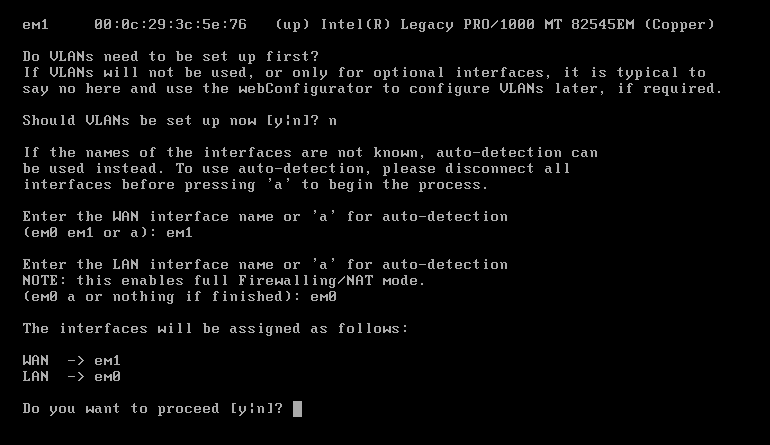
The interface assignment is effective.
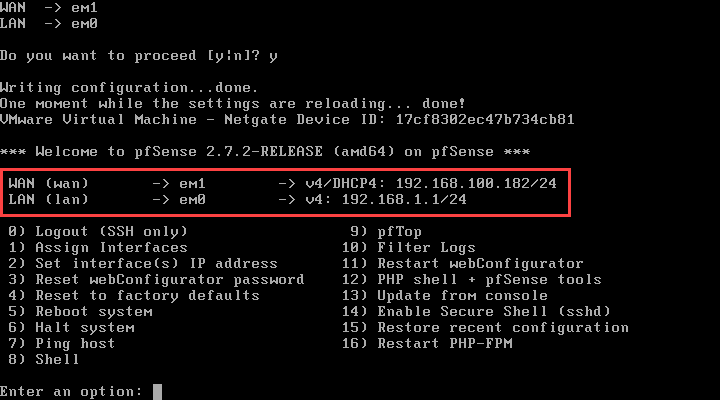
Configure the IP address of an interface
By default, pfSense assigns the address 192.168.1.1 to the WAN interface. In my case, I can’t access the firewall’s web interface because that’s my local network address. To resolve this, I’ll configure the IP address of pfSense’s LAN interface.
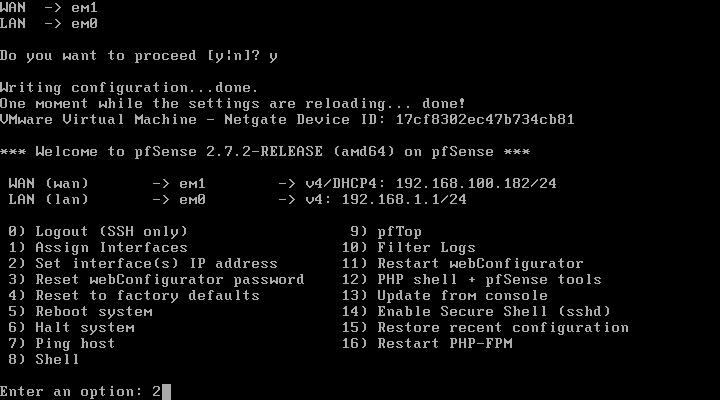
Enter menu option 2 (Set interface(s) IP address.
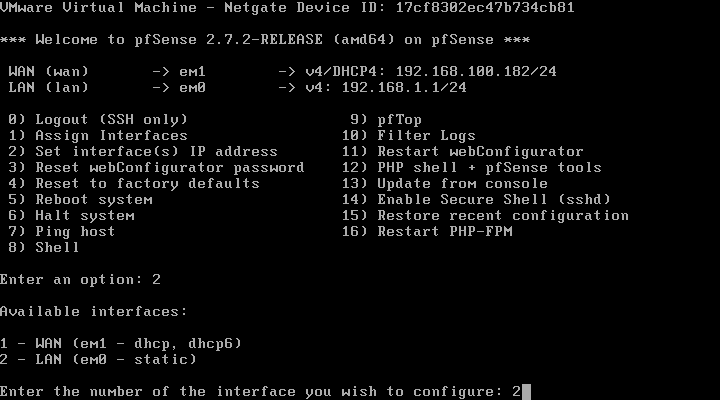
Enter the number of the interface you wish to configure.
The assistant asks if you want the address to be assigned by DHCP; for my part, no, we’re going to use a static address.
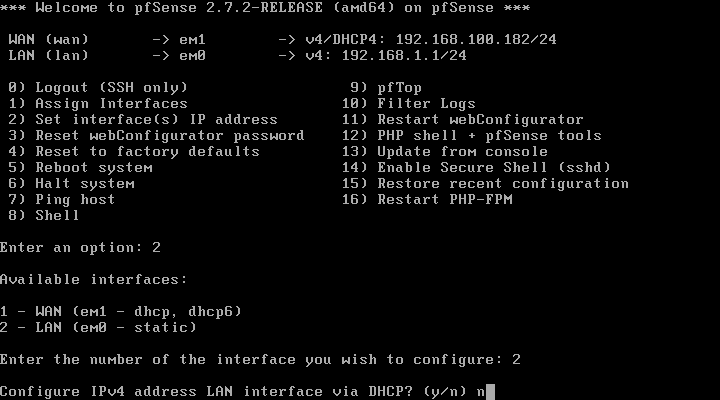
We could also have configured the interface in DHCP to have an IP address in the LAN if a DHCP server is present and then do the final configuration via the web interface.
Enter the IPv4 address, its mask in CIDR format and press Enter for the gateway.
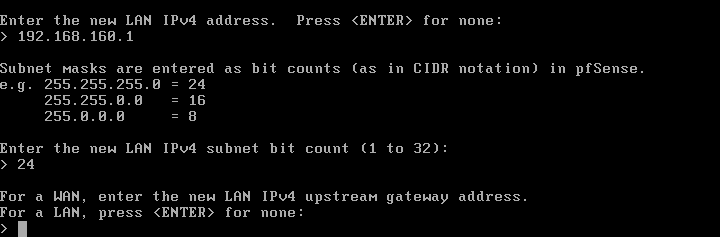
Ignore the IPv6 configuration of the interface.

Next, configure the DHCP server and answer yes (y) to the question Do you want to revert to HTTP as the webConfiguration protocol.

Once the configuration is applied, press Enter.
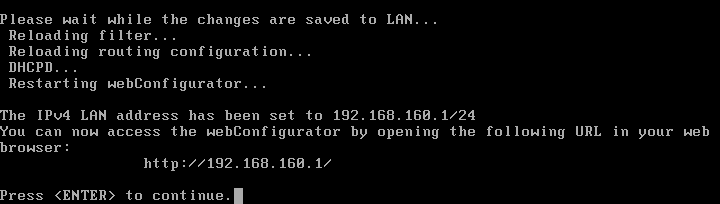
The setup is complete.
First connection to the pfSense web interface
Now that the interfaces are configured, we will be able to access the firewall’s web interface.
Like many firewalls, on the first connection, a wizard will launch to perform the basic configuration of pfSense.
From a web browser, enter the LAN IP address of the firewall (http://lan-ip).
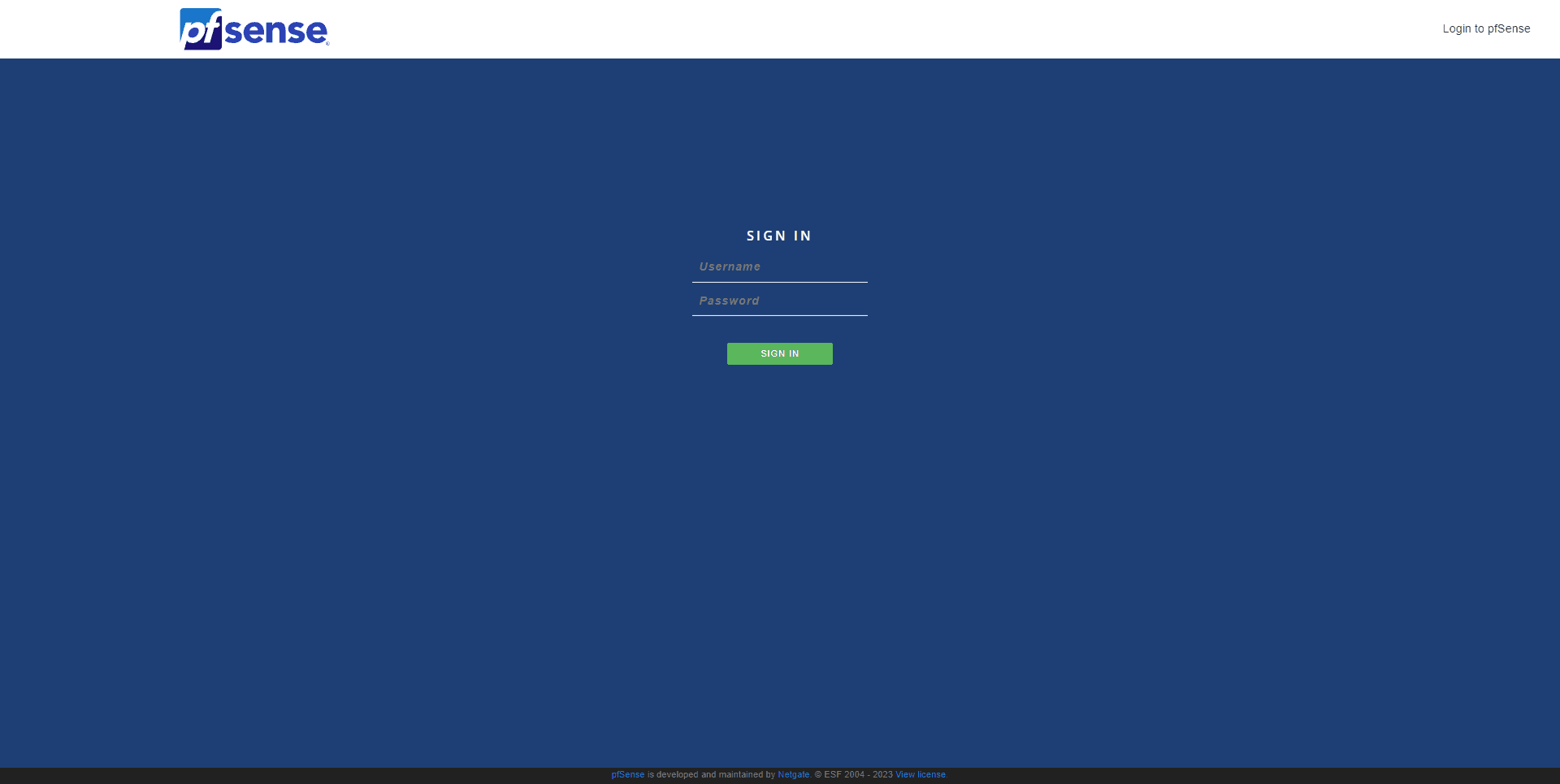
The default login information is:
- Username: admin
- Password: pfsense
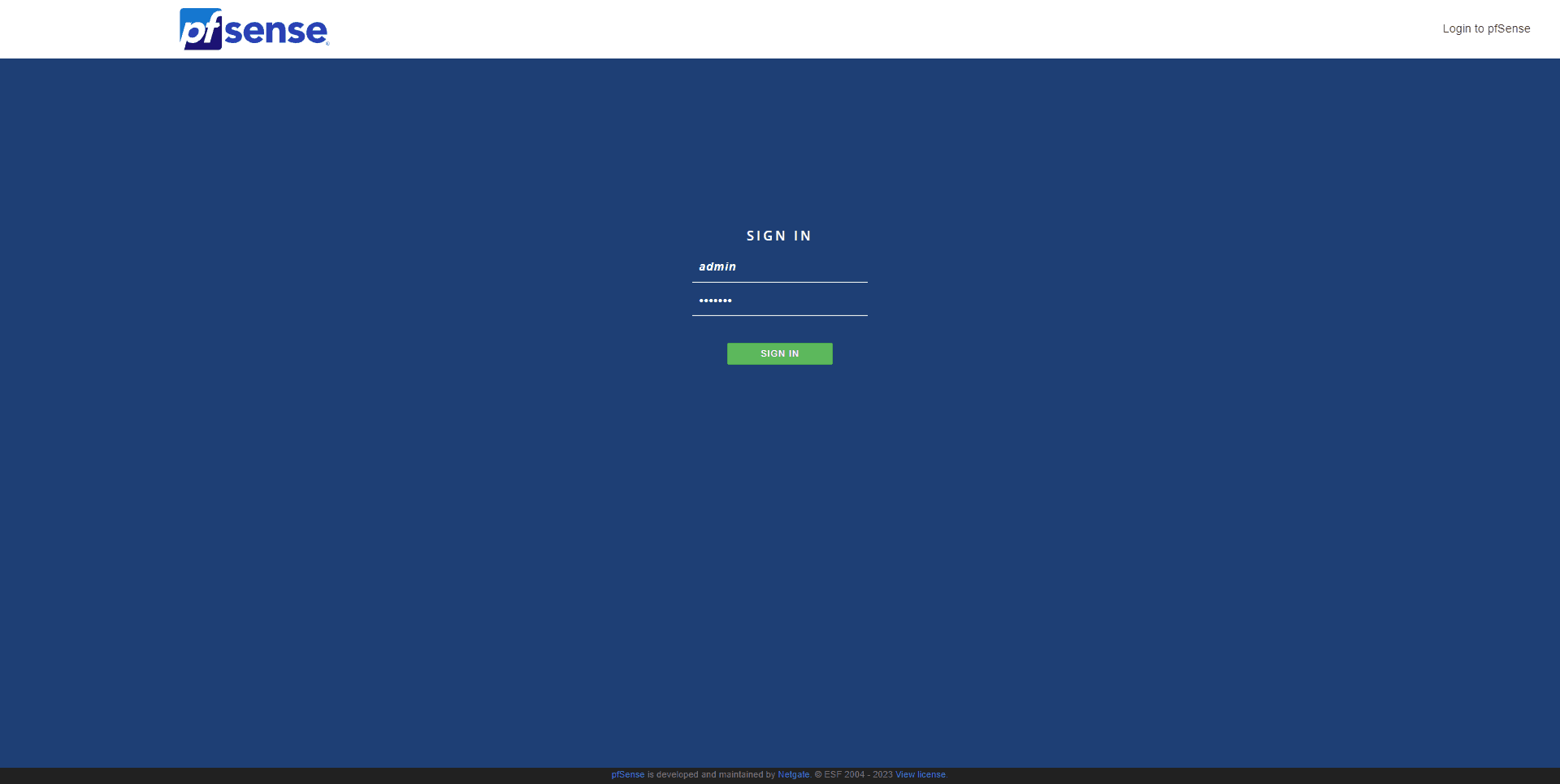
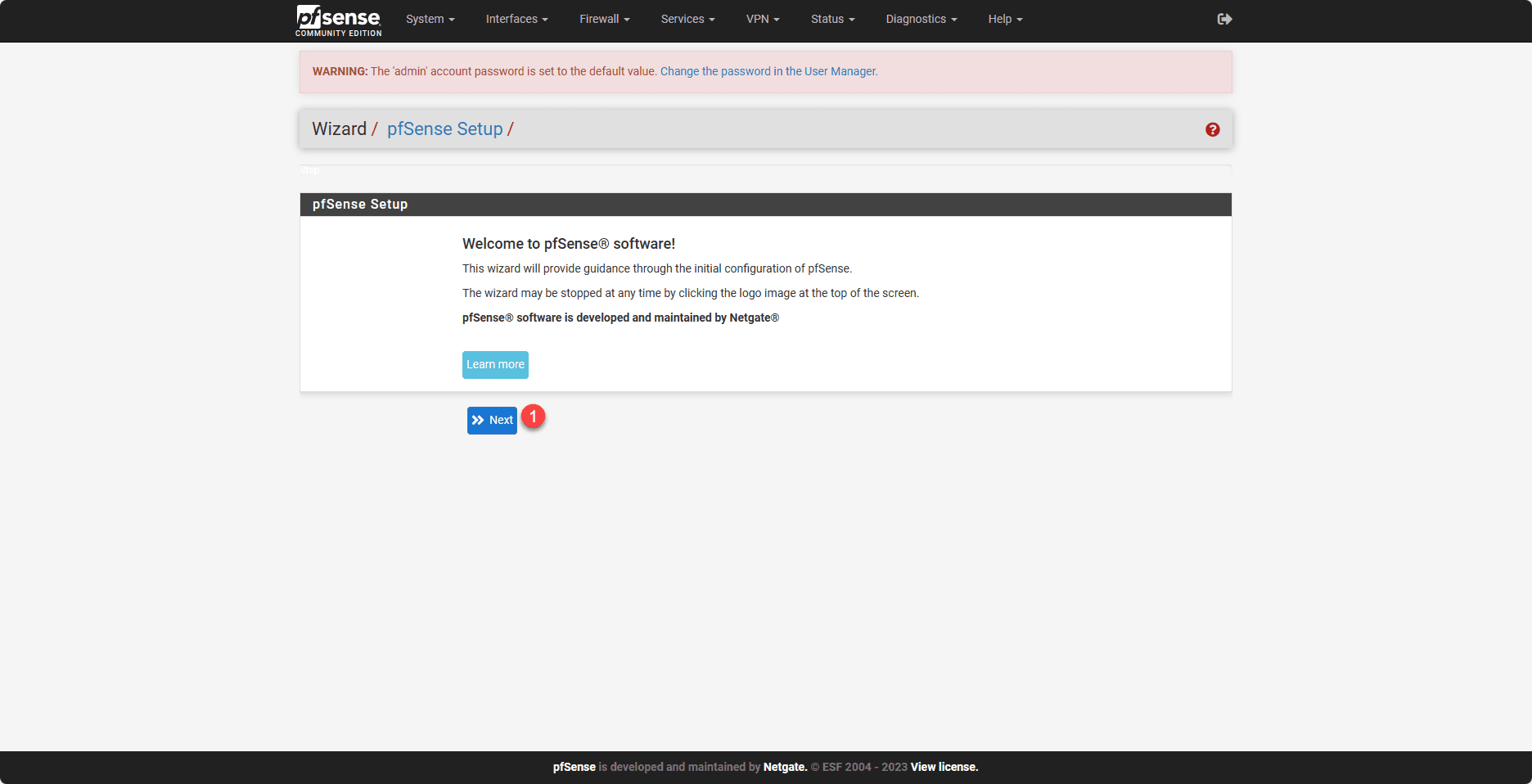
On the first connection, you arrive at a configuration wizard, at the first step, click on Next 1.
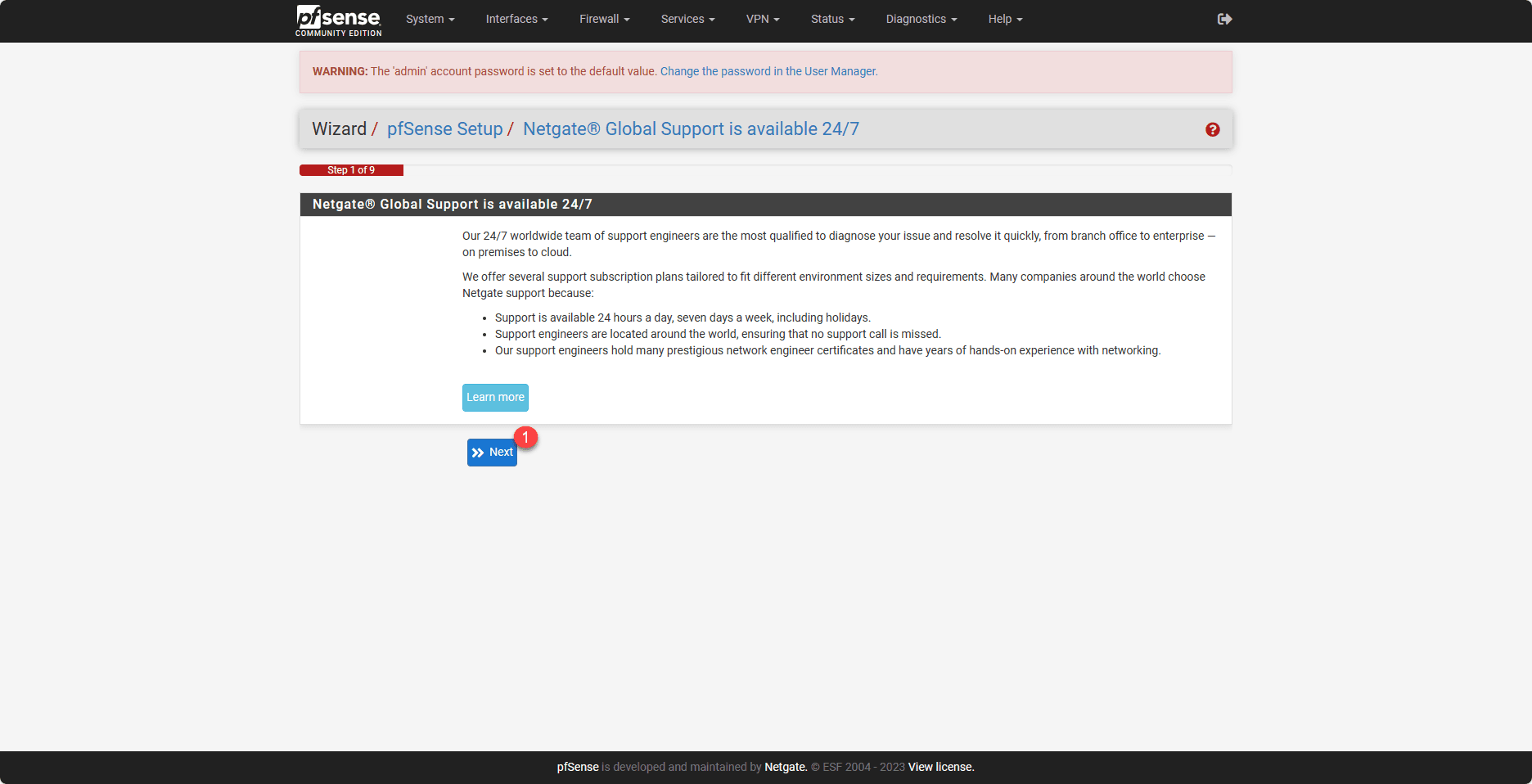
The second step is to present the Netgate support, click on Next 1.
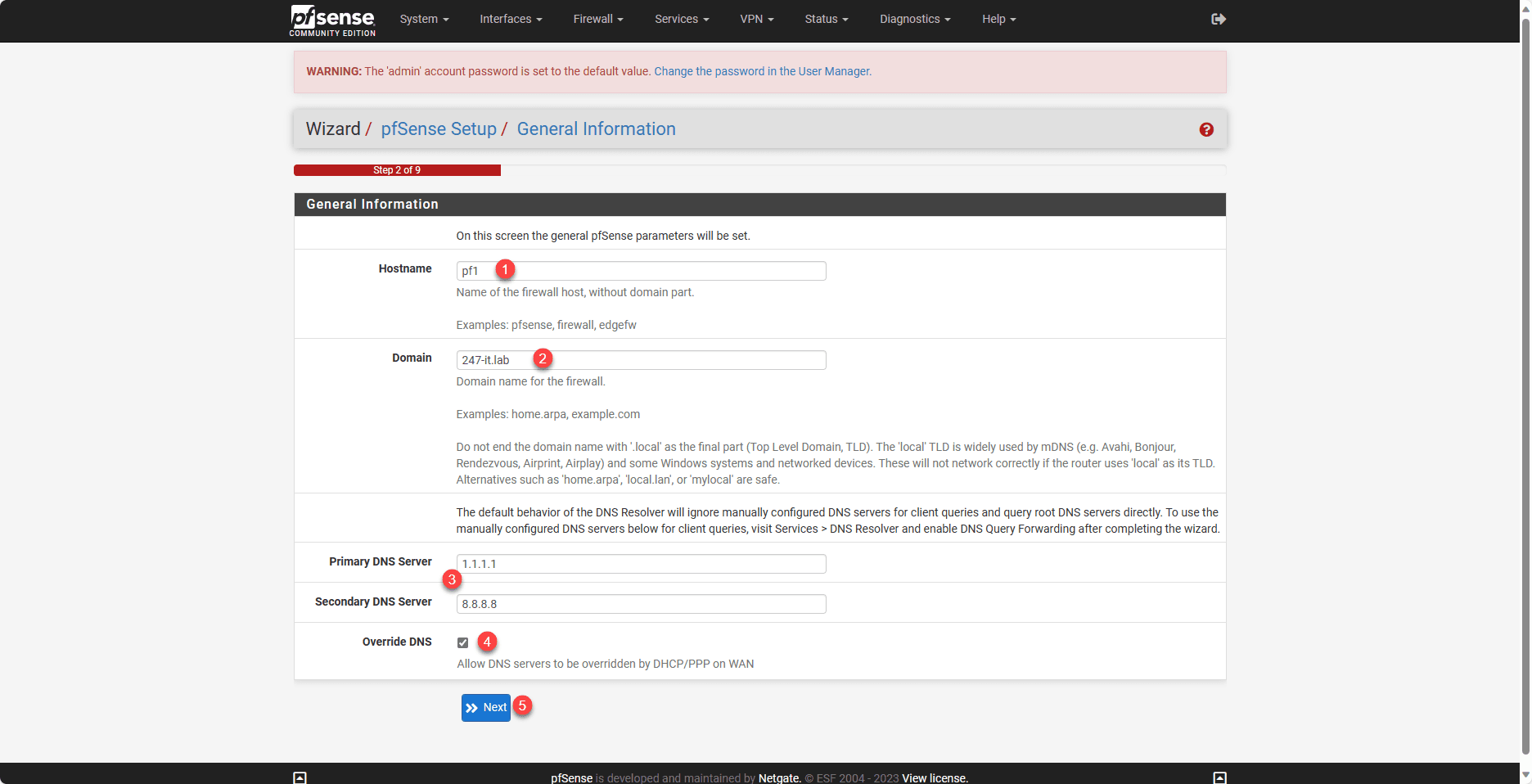
Configure the firewall name 1, the domain 2, specify the DNS servers 3 by checking the Override DNS box 4 and click on Next 5.
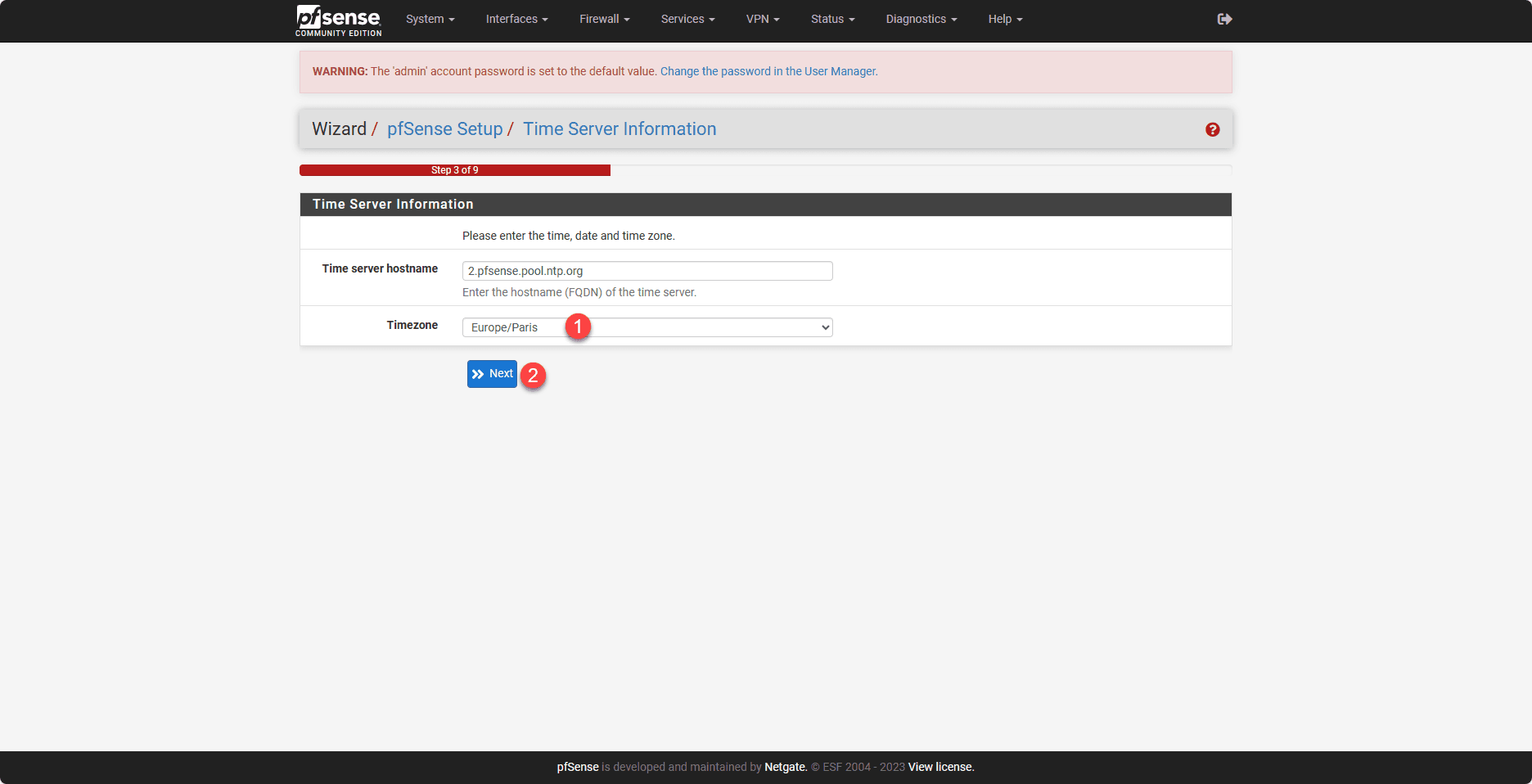
Configure the time zone 1 and click the Next button 2.
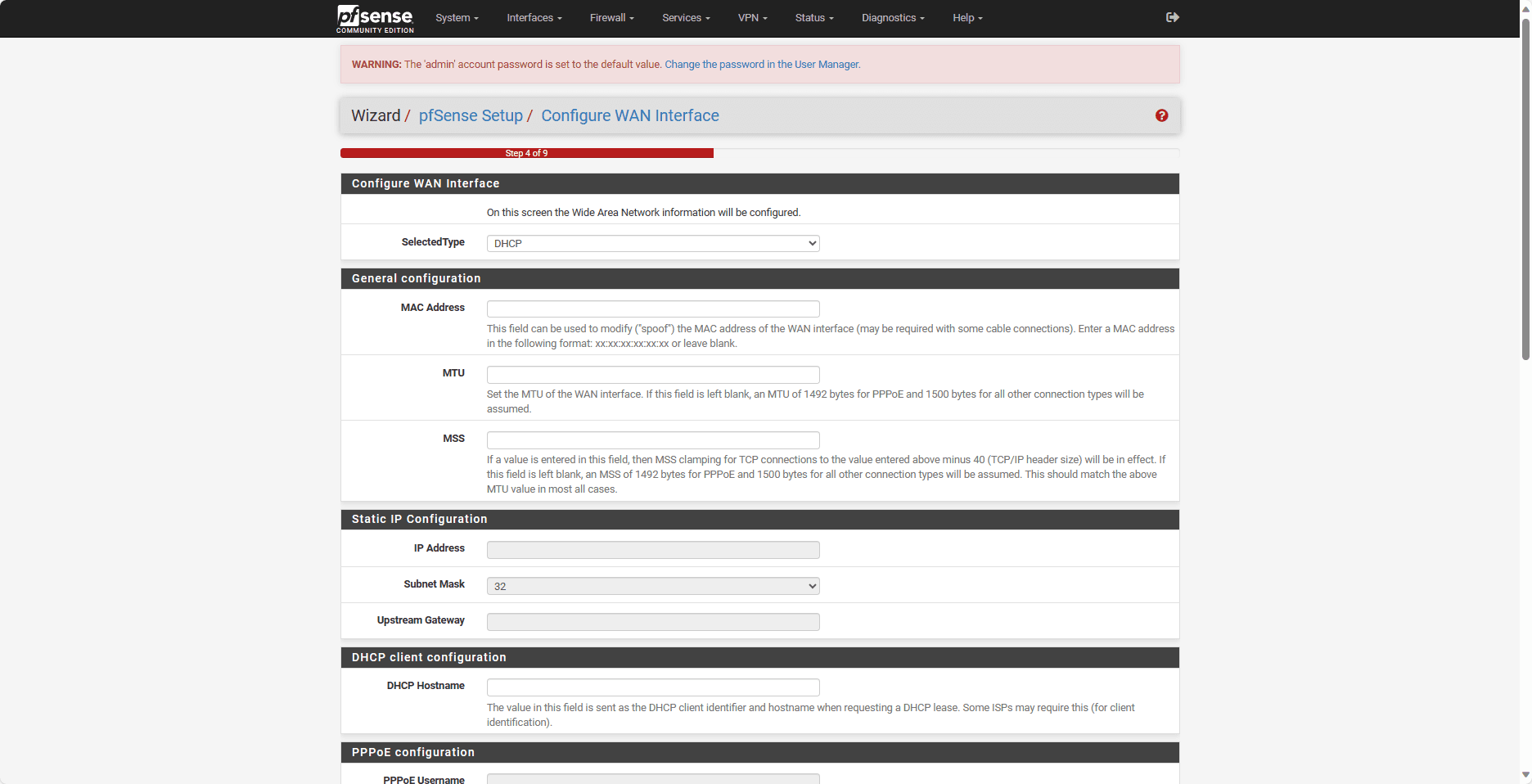
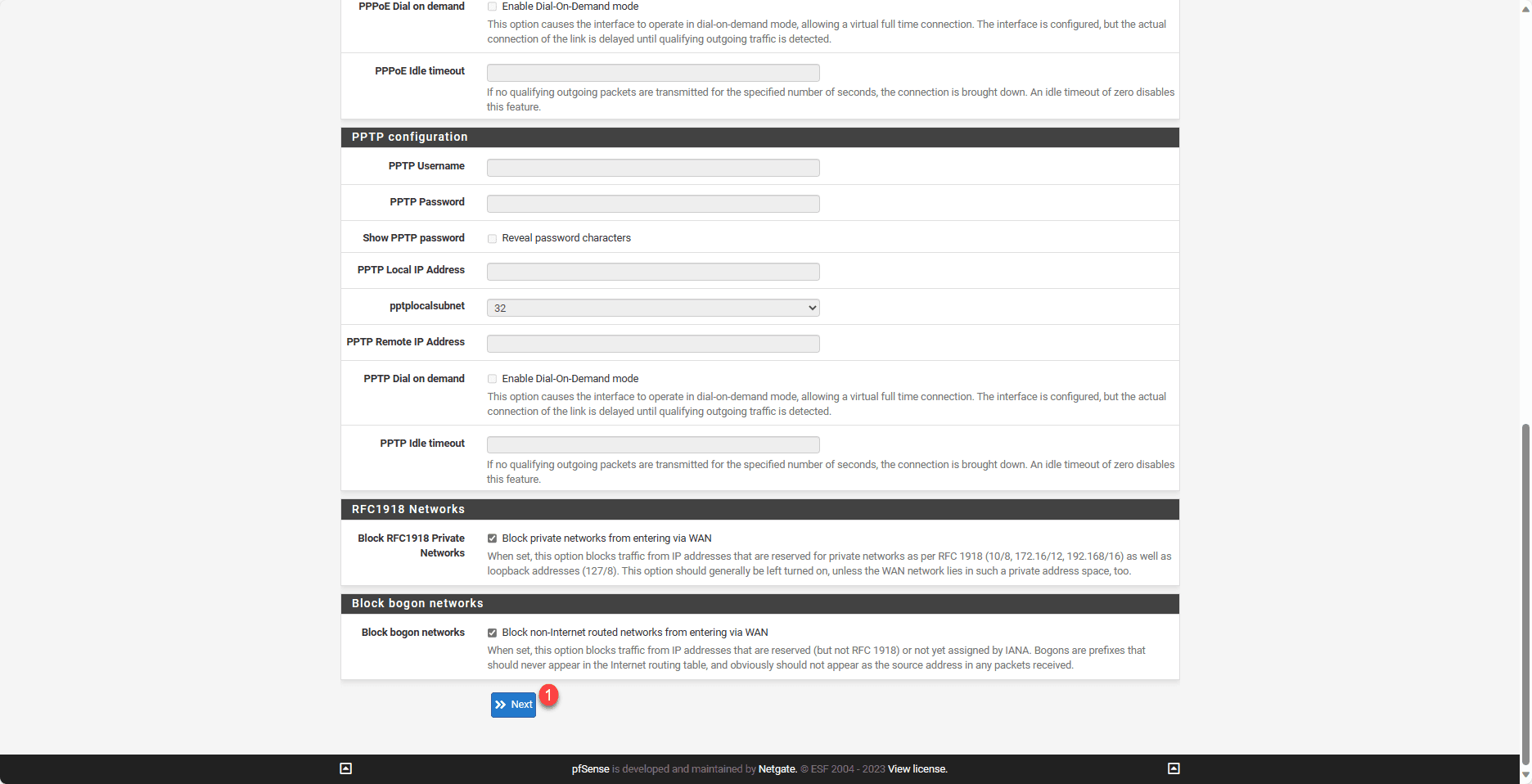
Check the WAN interface configuration and then click the Next 1 button at the bottom of the page.
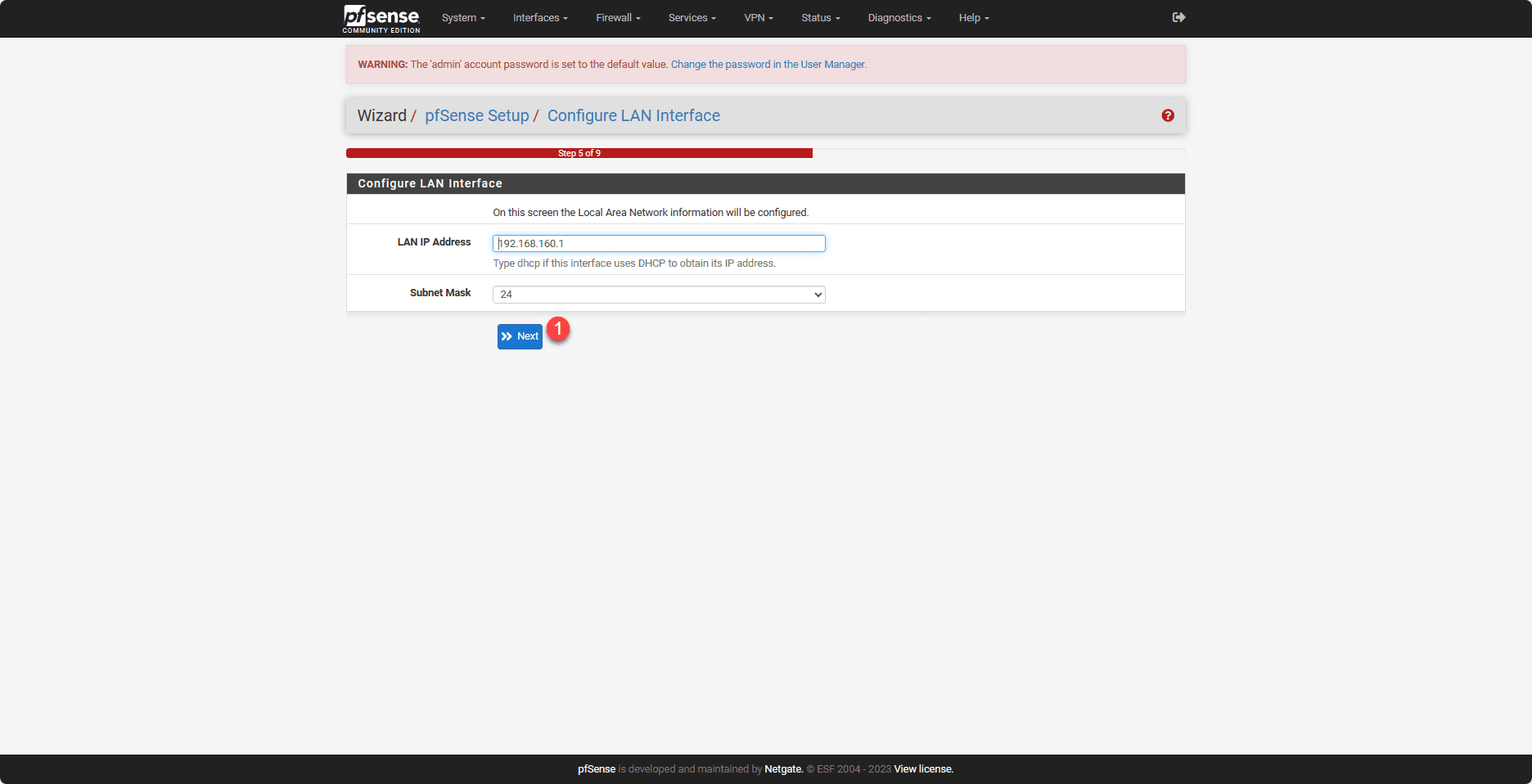
Check the LAN interface configuration and click Next 1.
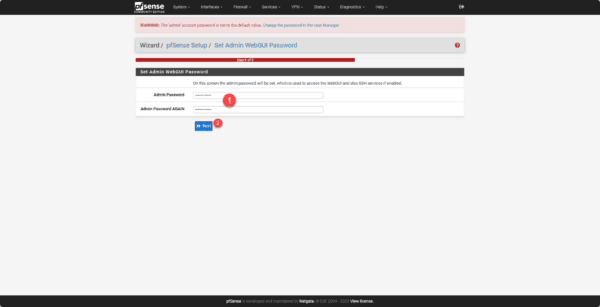
pfSense forces, the change of the default password, enter a new password 1 for the admin account and click on the Next button 2.
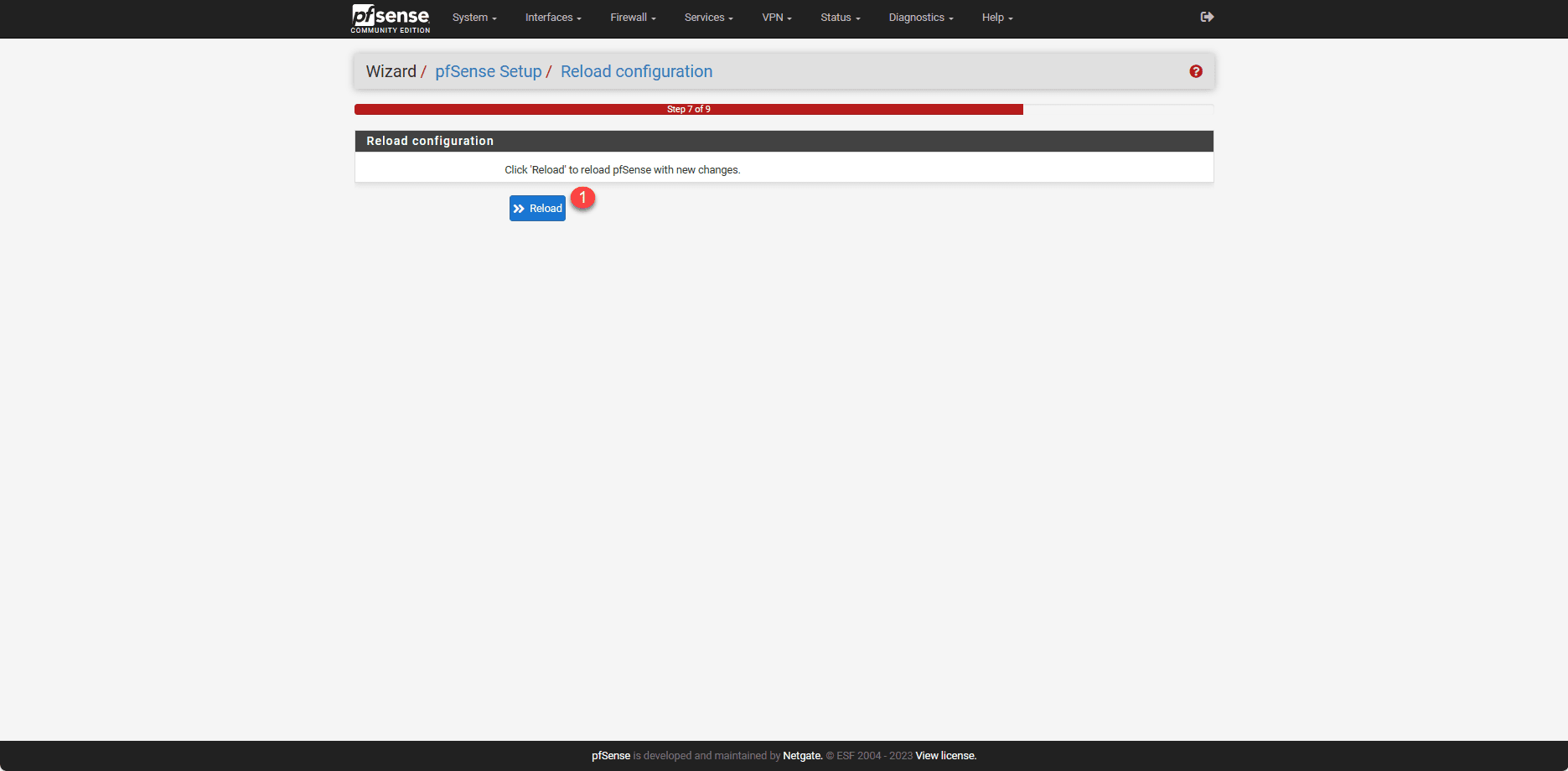
The configuration is complete, click on Reload 1 to apply the changes.
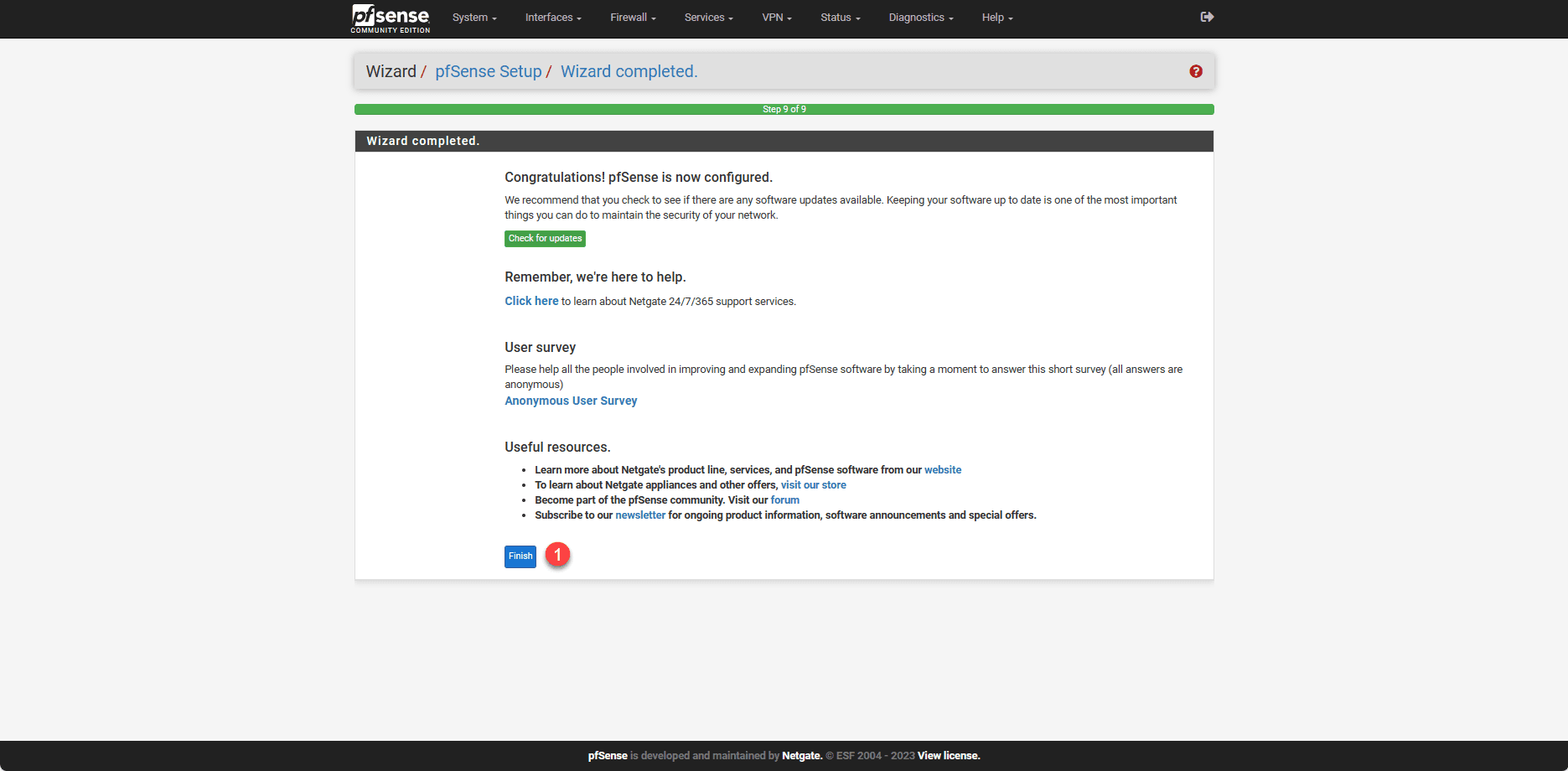
Click on Finish 1 to exit the setup wizard.
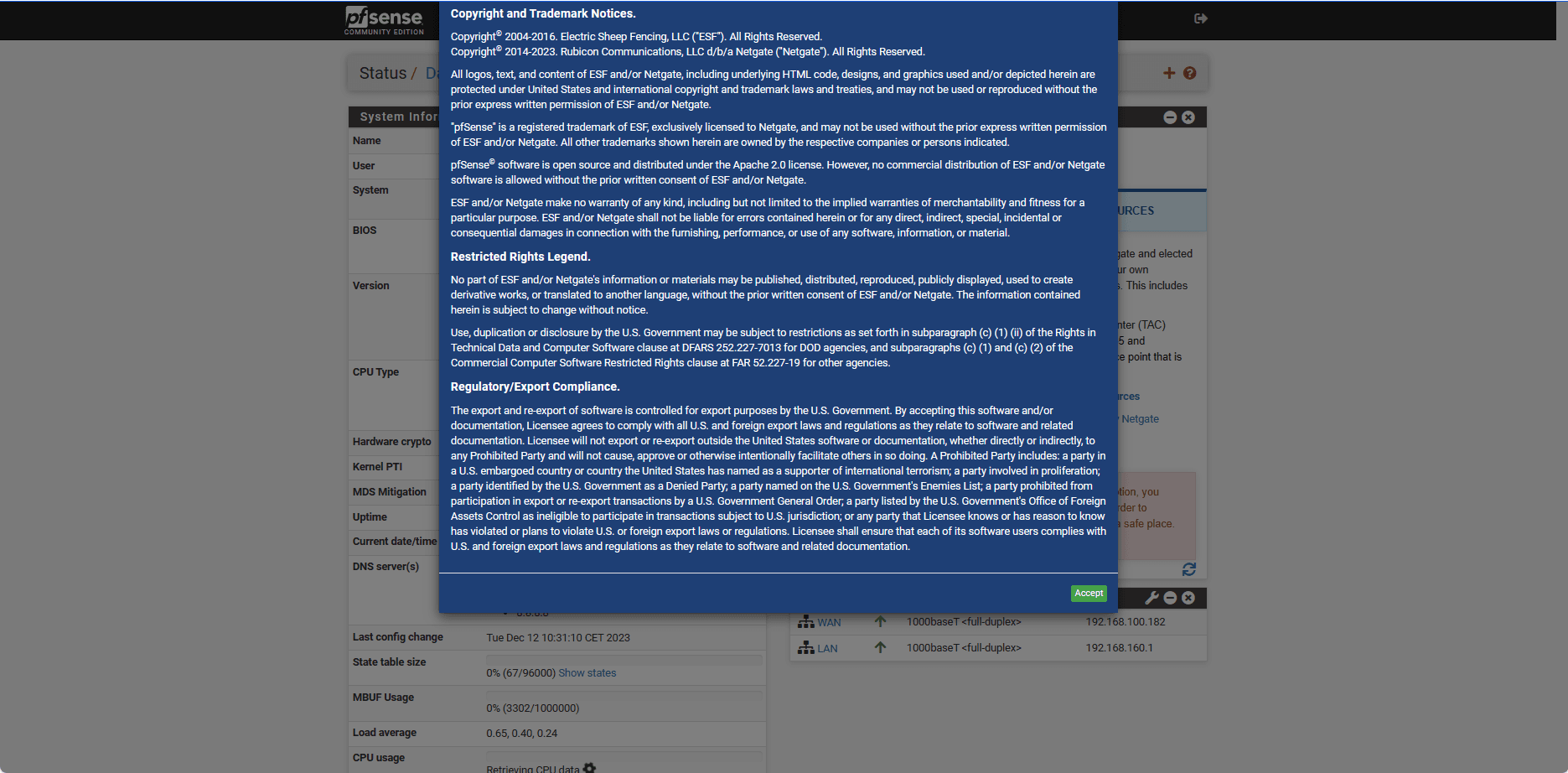
Finally, during the redirection, two windows will appear; on the first, click Accept to validate the license and then click Close.
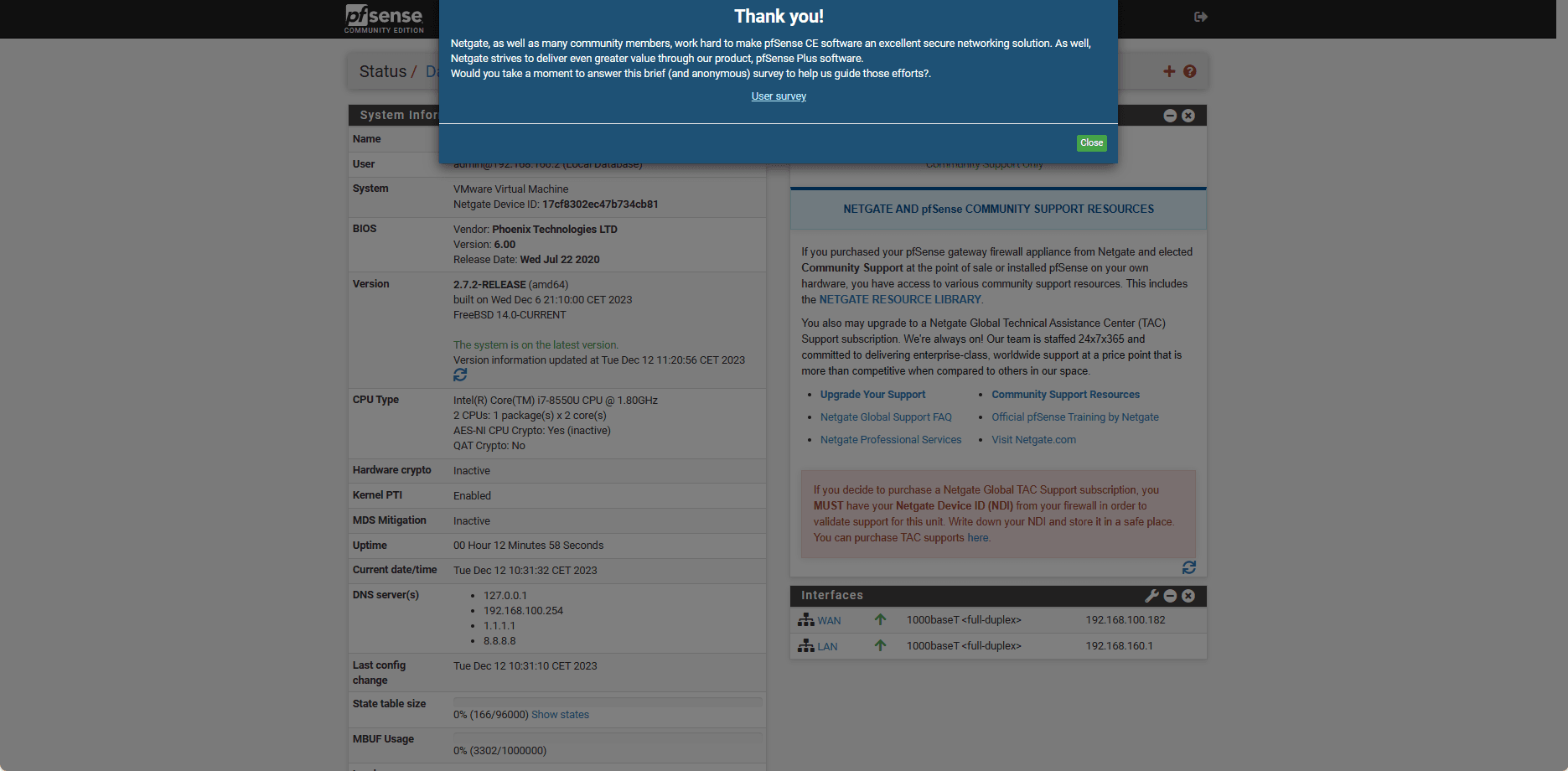
We arrive at the firewall dashboard.
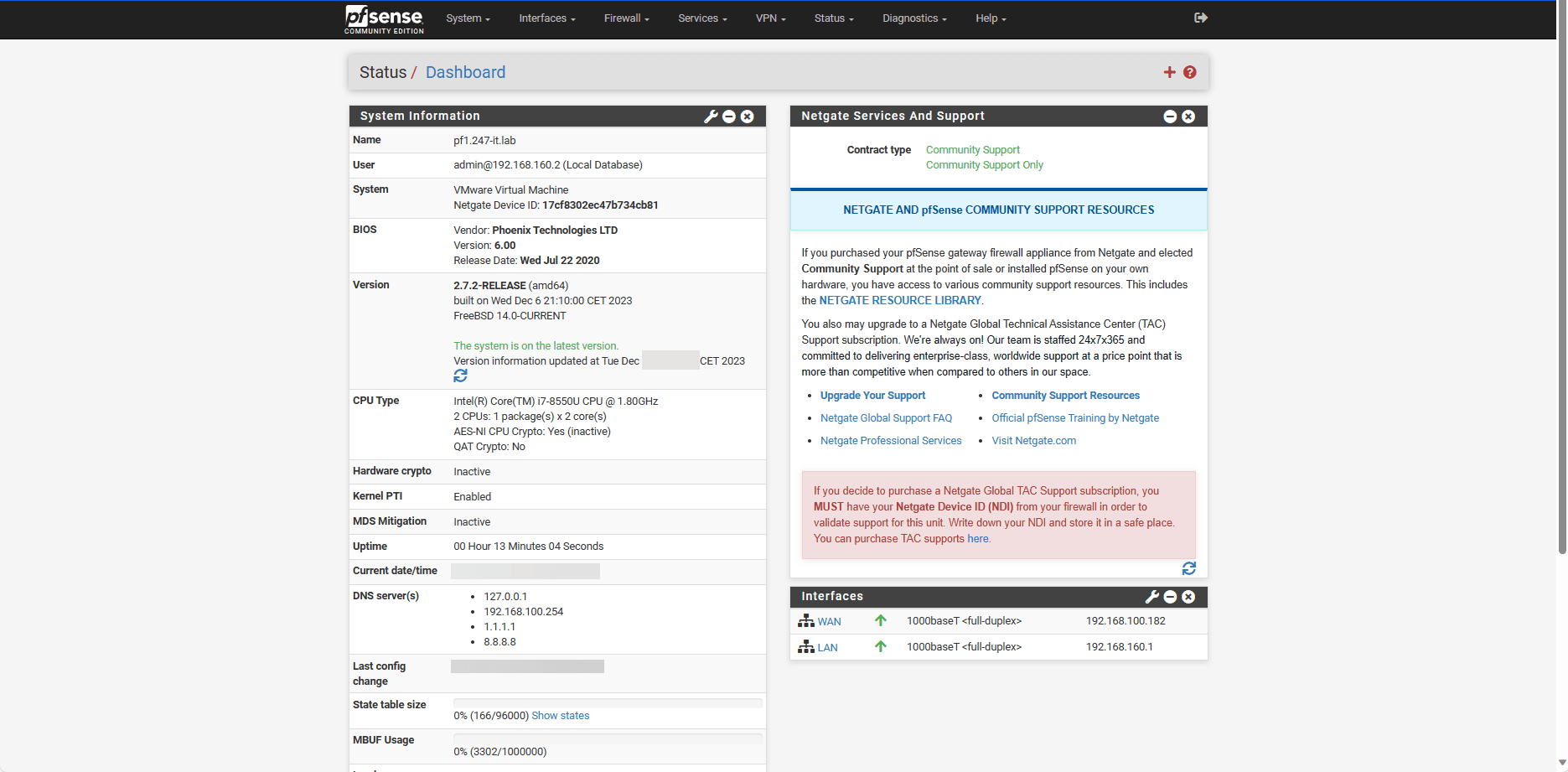
We will now proceed to configure the firewall.
pfSense configuration
In this section, we will go over different configurations for setting up the firewall.
Default rules
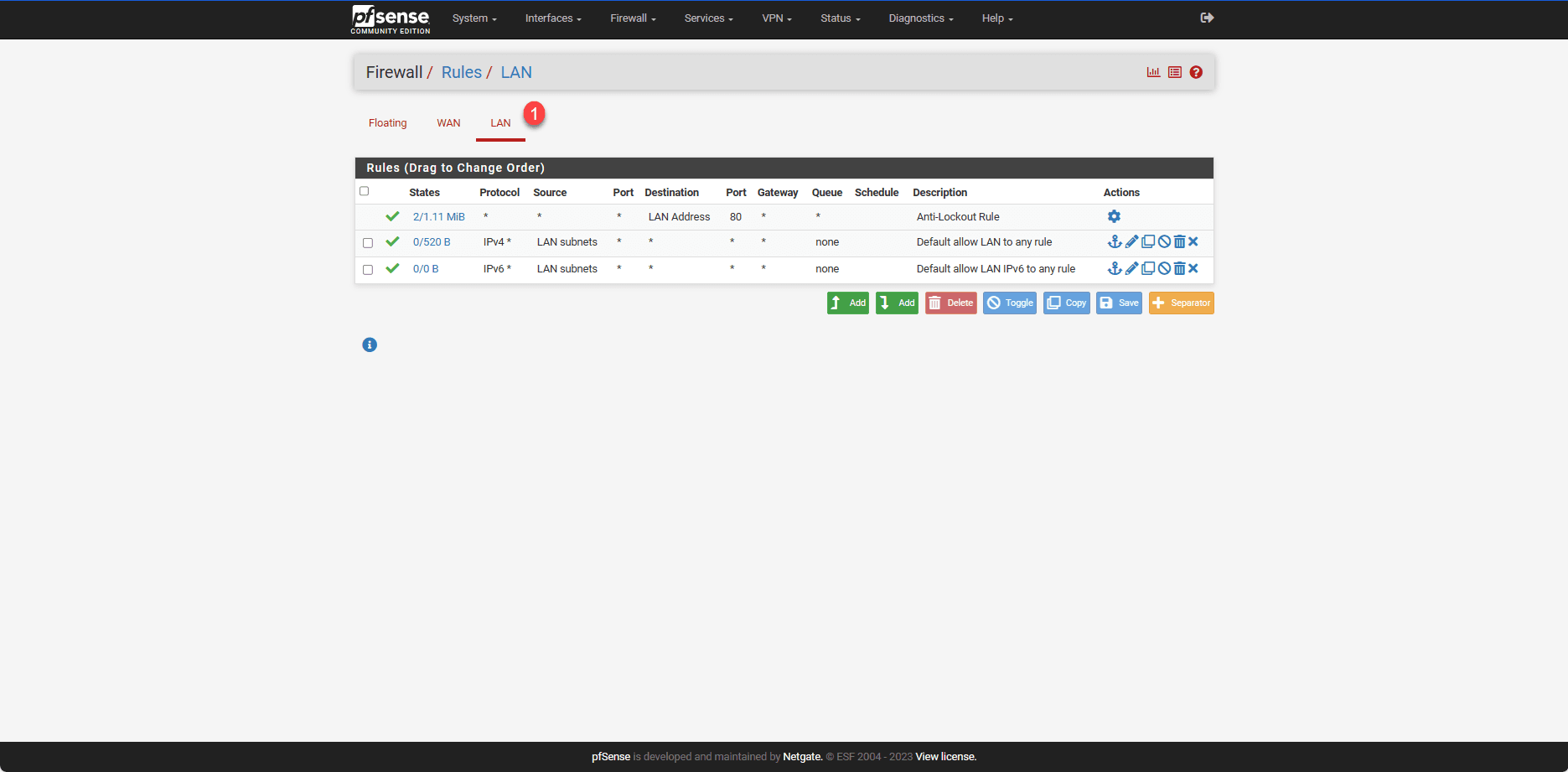
By default, rules have been created that block all traffic coming from the Internet (WAN) and allow all LAN traffic to the Internet (WAN).
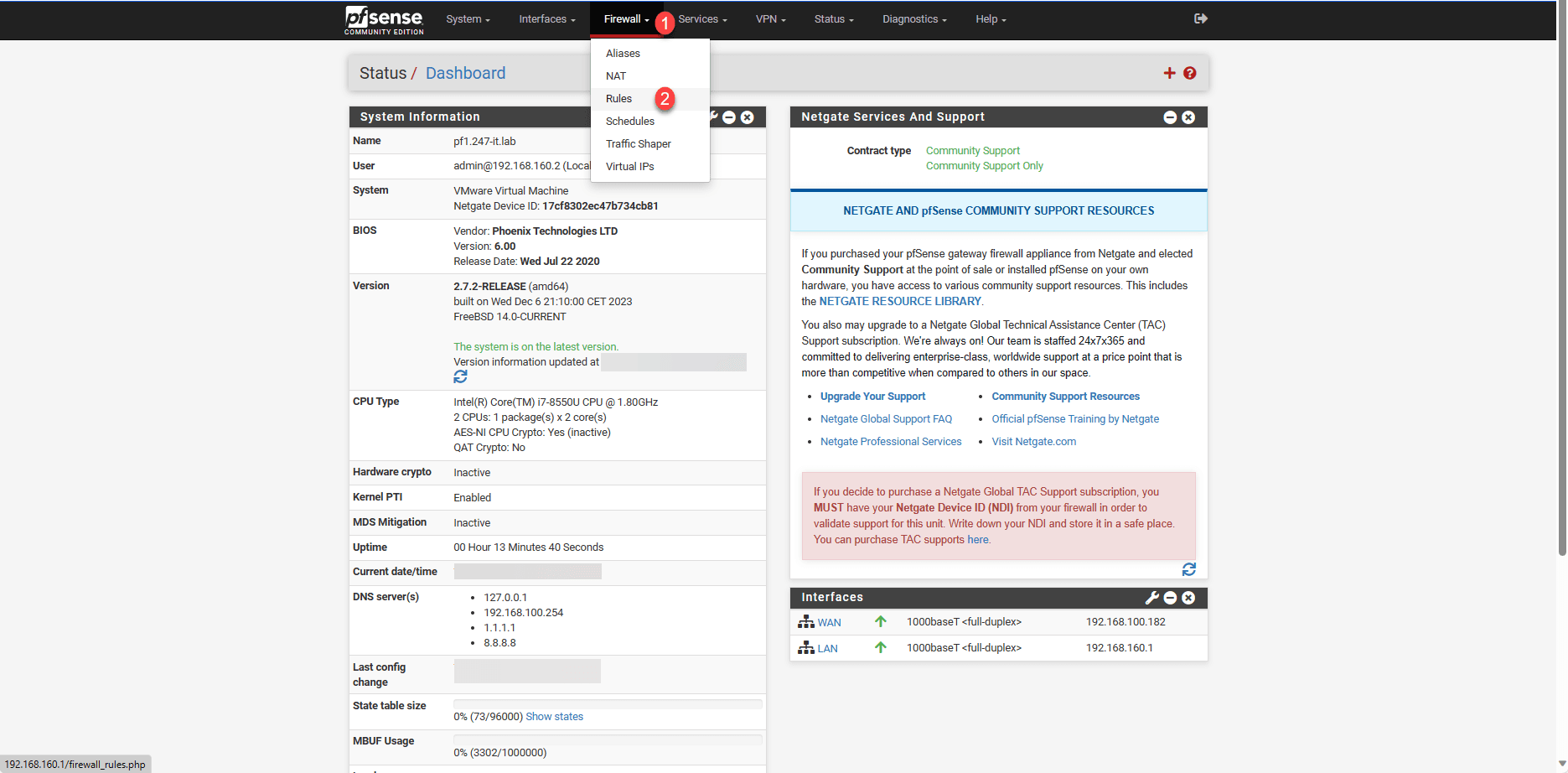
To access the rules, from the menu click on Firewall 1 then on Rules 2.
Clicking on WAN 1 displays the WAN interface rules:
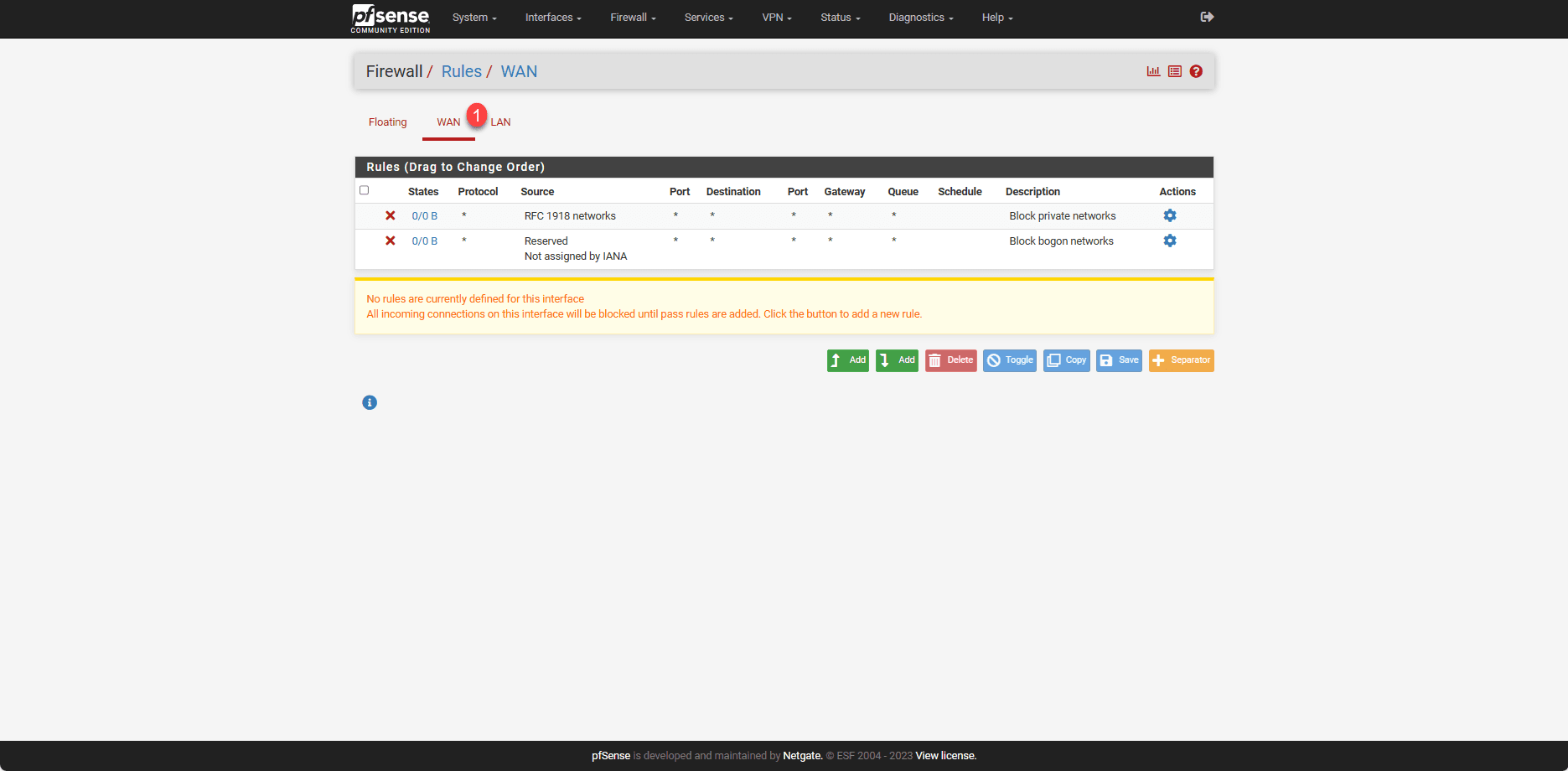
There is no explicit rule for blocking, because by default, what is not explicitly allowed is blocked.
By clicking on LAN 1, you access the interface rules.
Configuring a DHCP server on the LAN interface
This part is optional if you already have a DHCP server on your network. In that case, verify that the distributed gateway is the IP address of the firewall’s LAN interface.
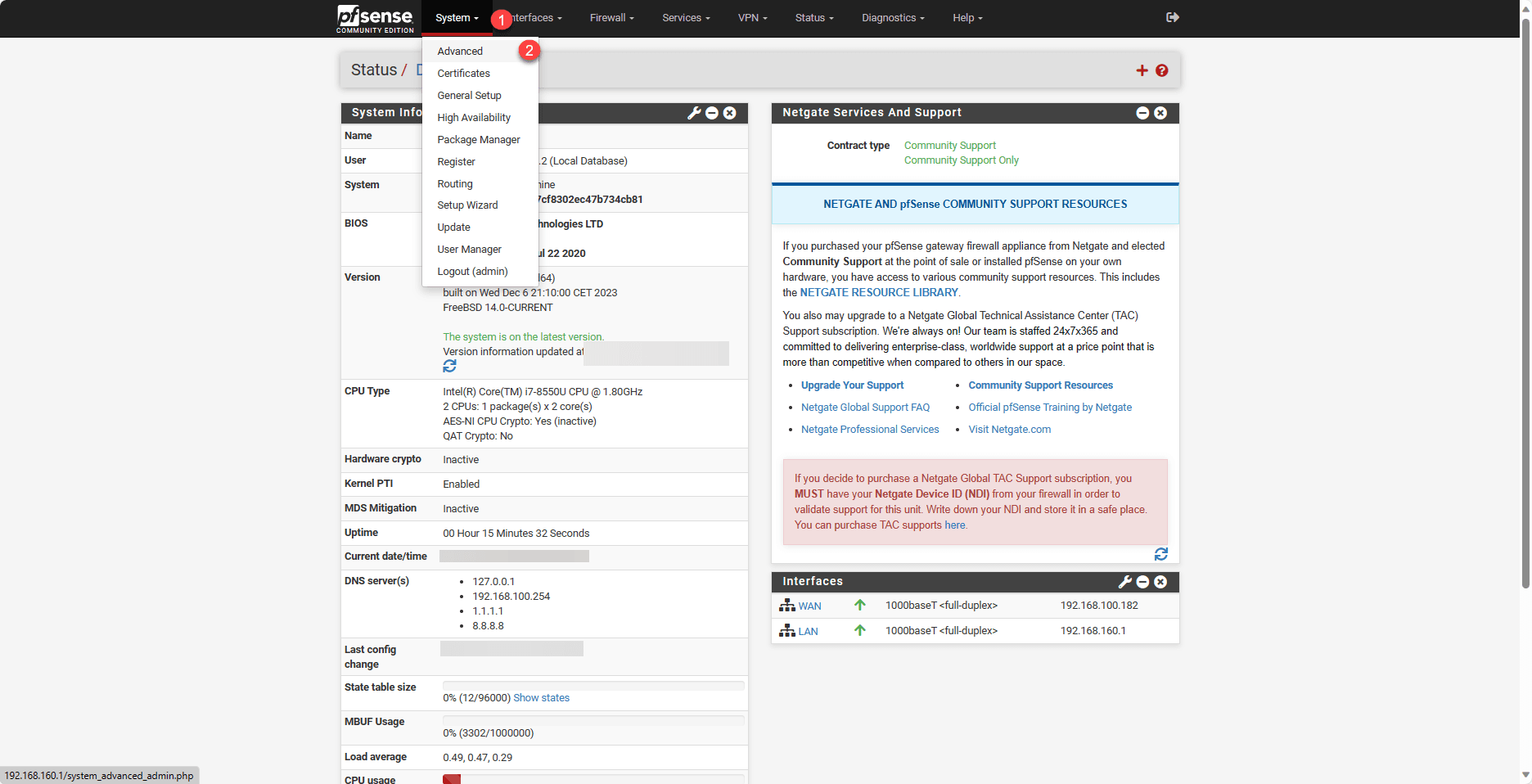
To configure the DHCP server, go to System 1 / Advanced 2.
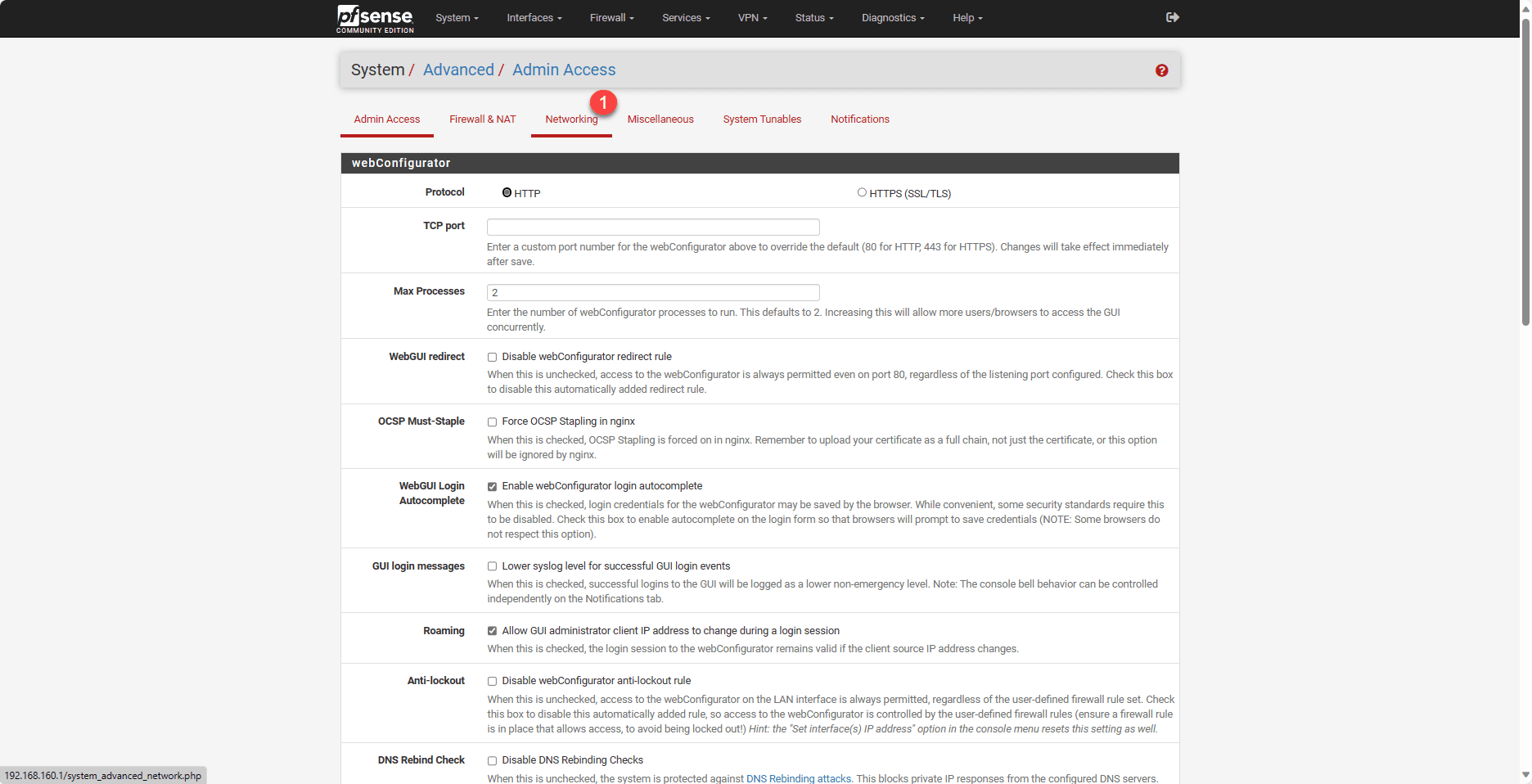
Then click on Networking 1.
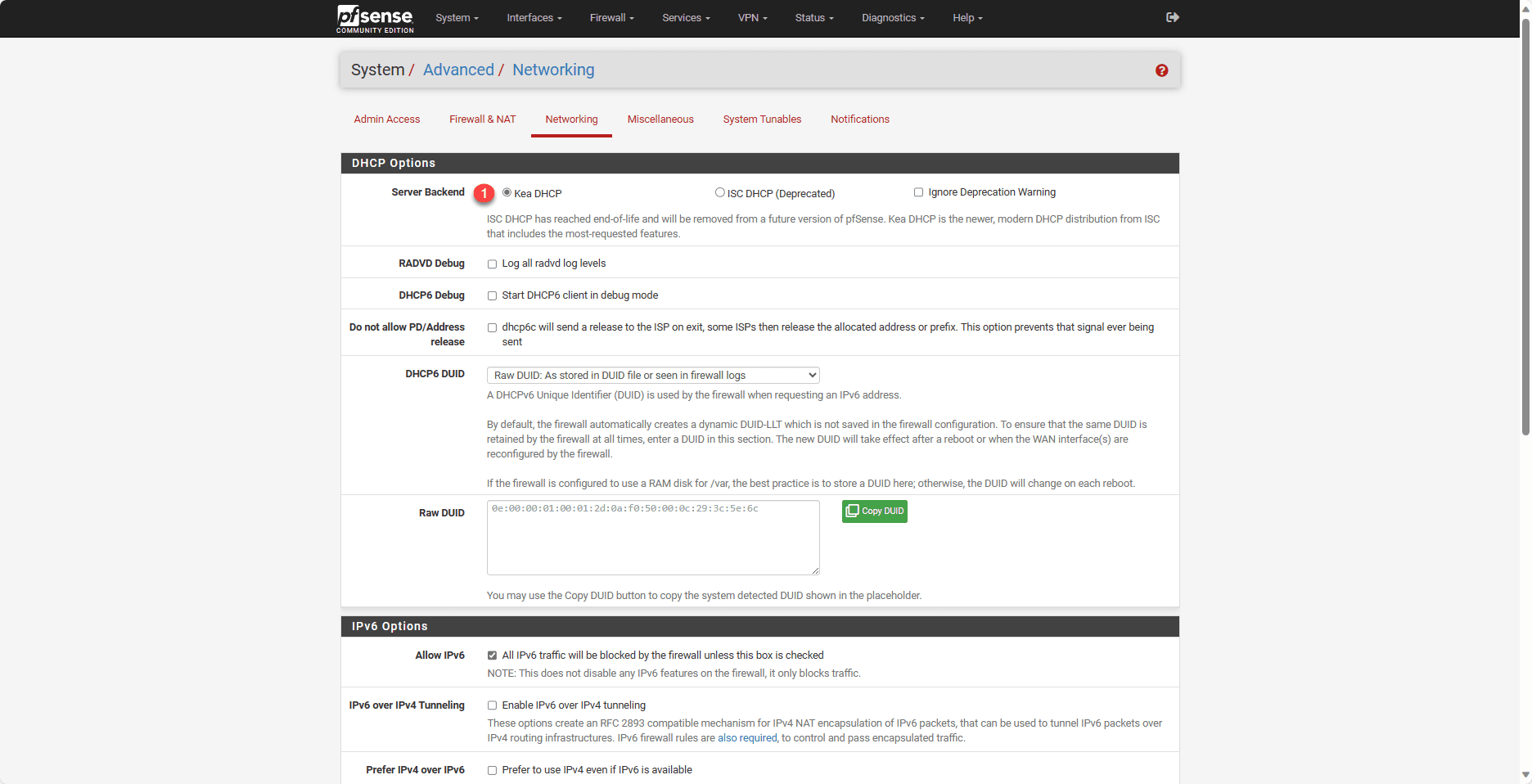
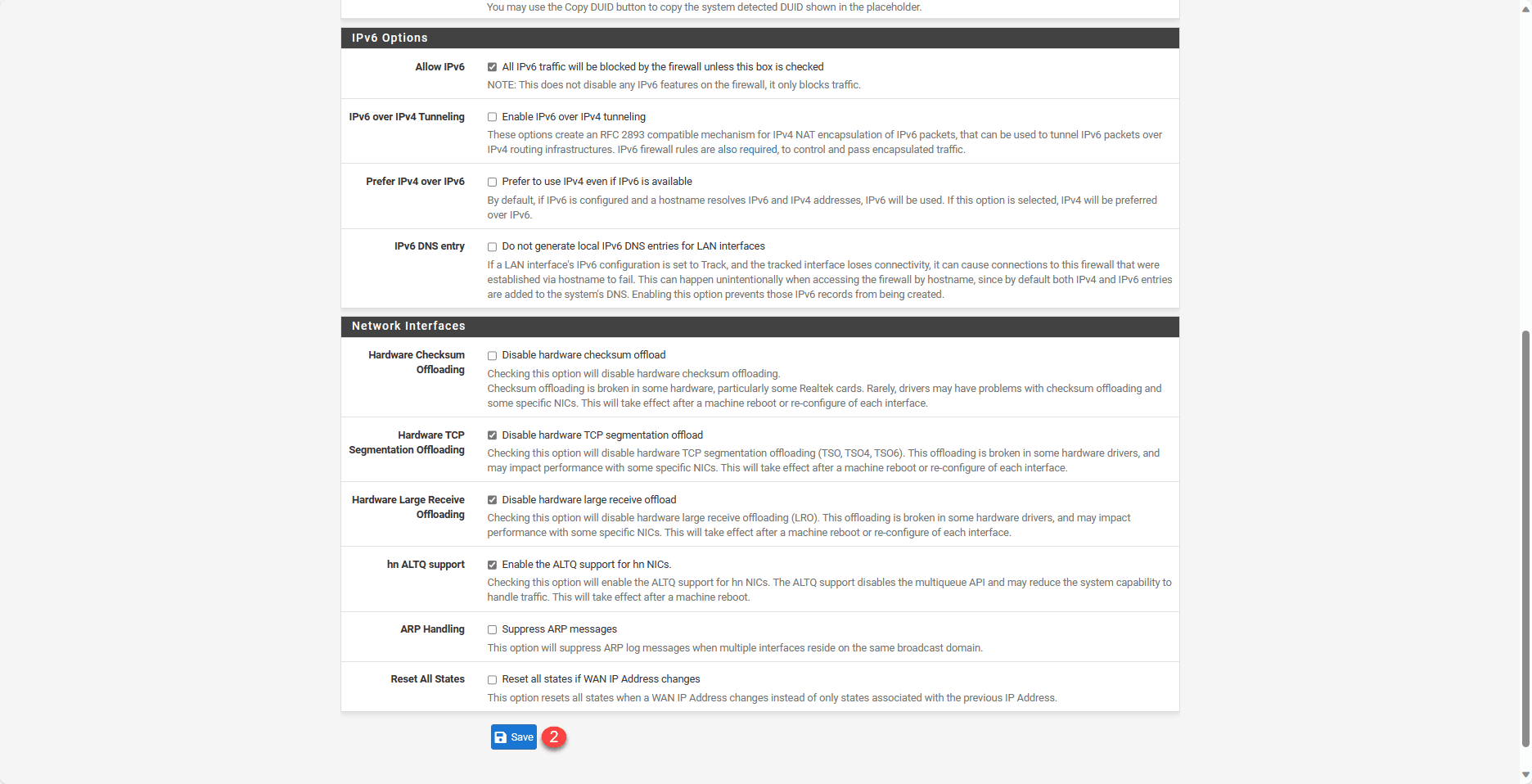
At the time of writing this tutorial, pfSense offers 2 DHCP servers (Kea DHCP and ISC DHCP). Select Kea DHCP 1 and go to the bottom of the page and click on Save 2.
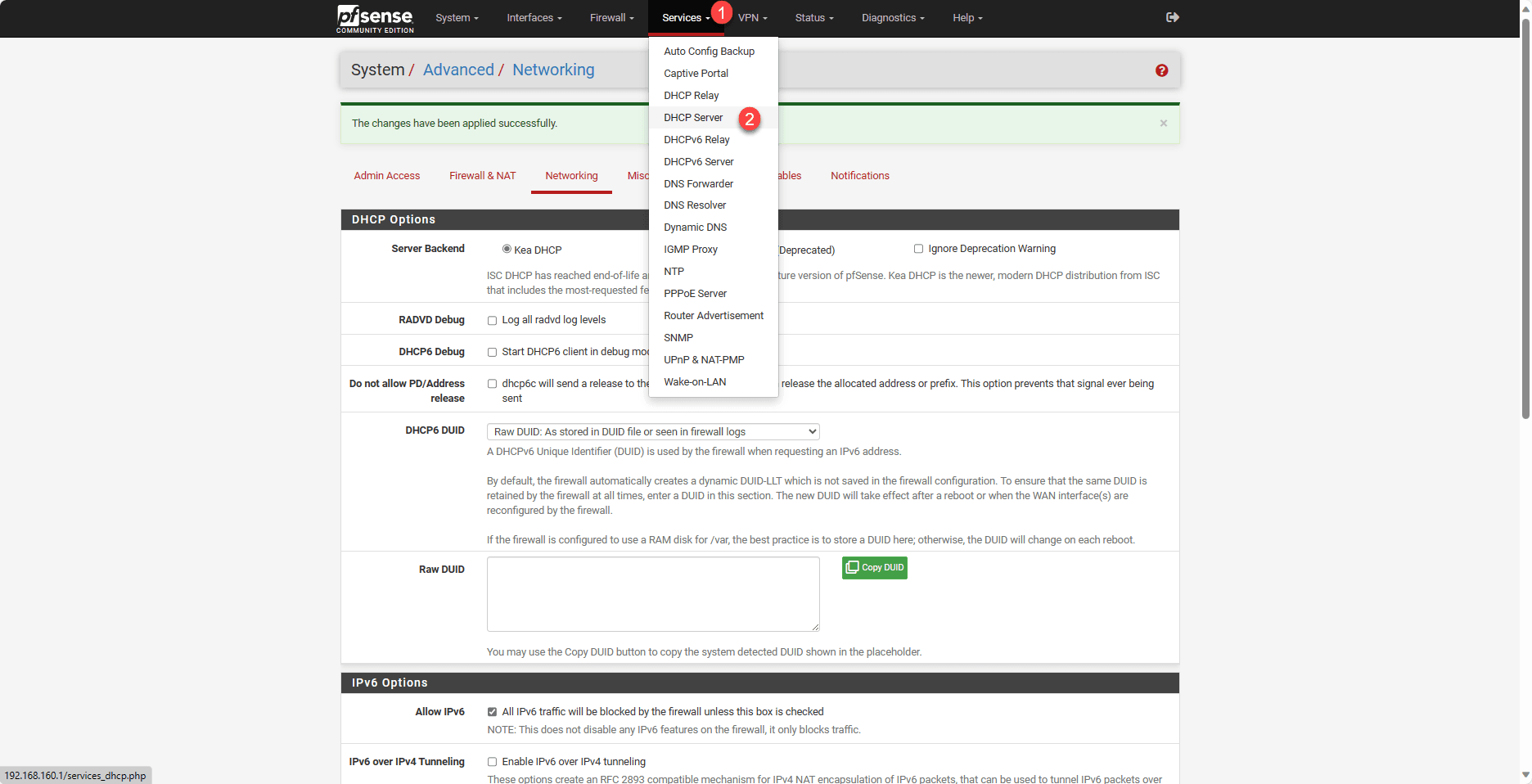
From the menu, go to Services 1 then to DHCP Server 2.
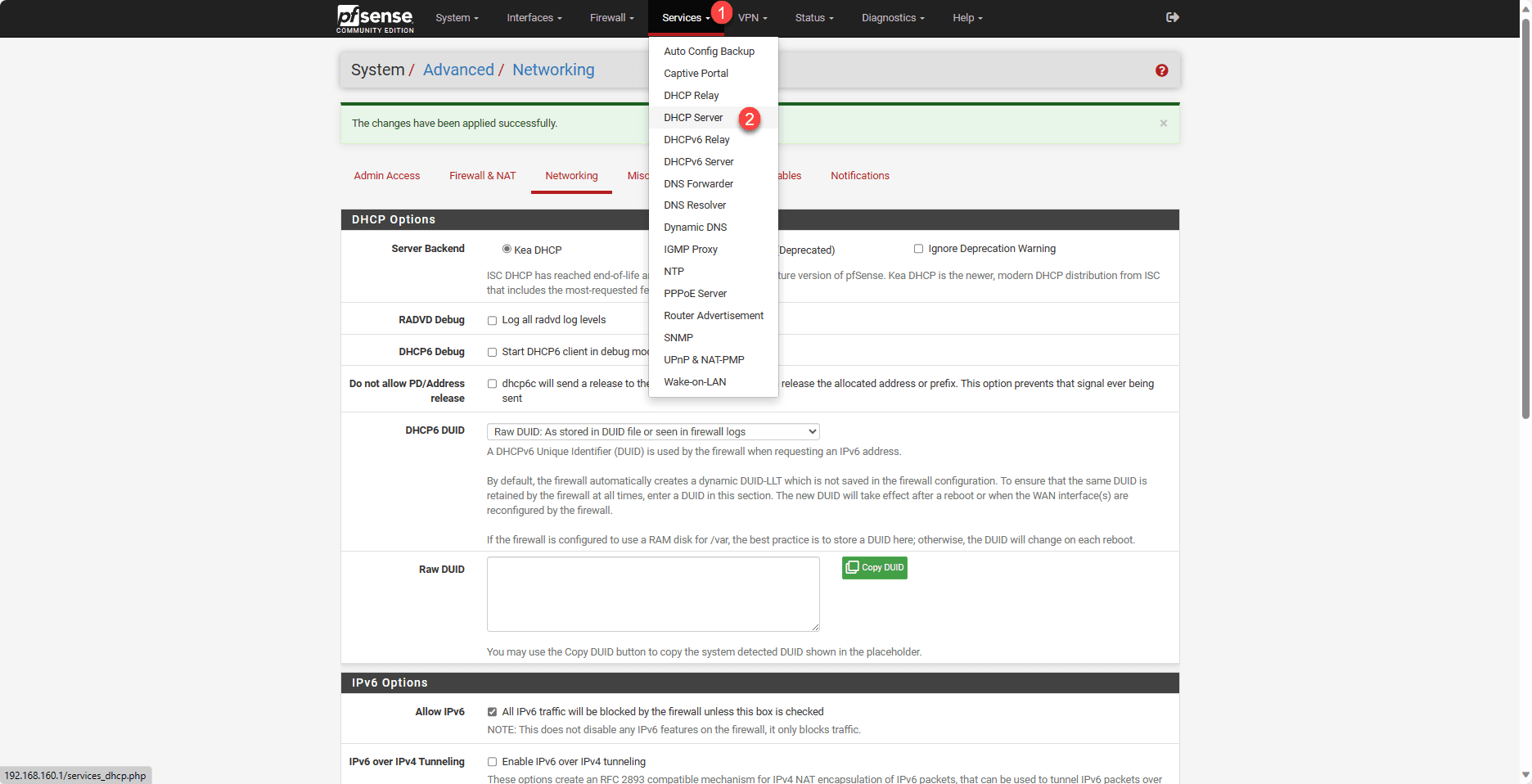
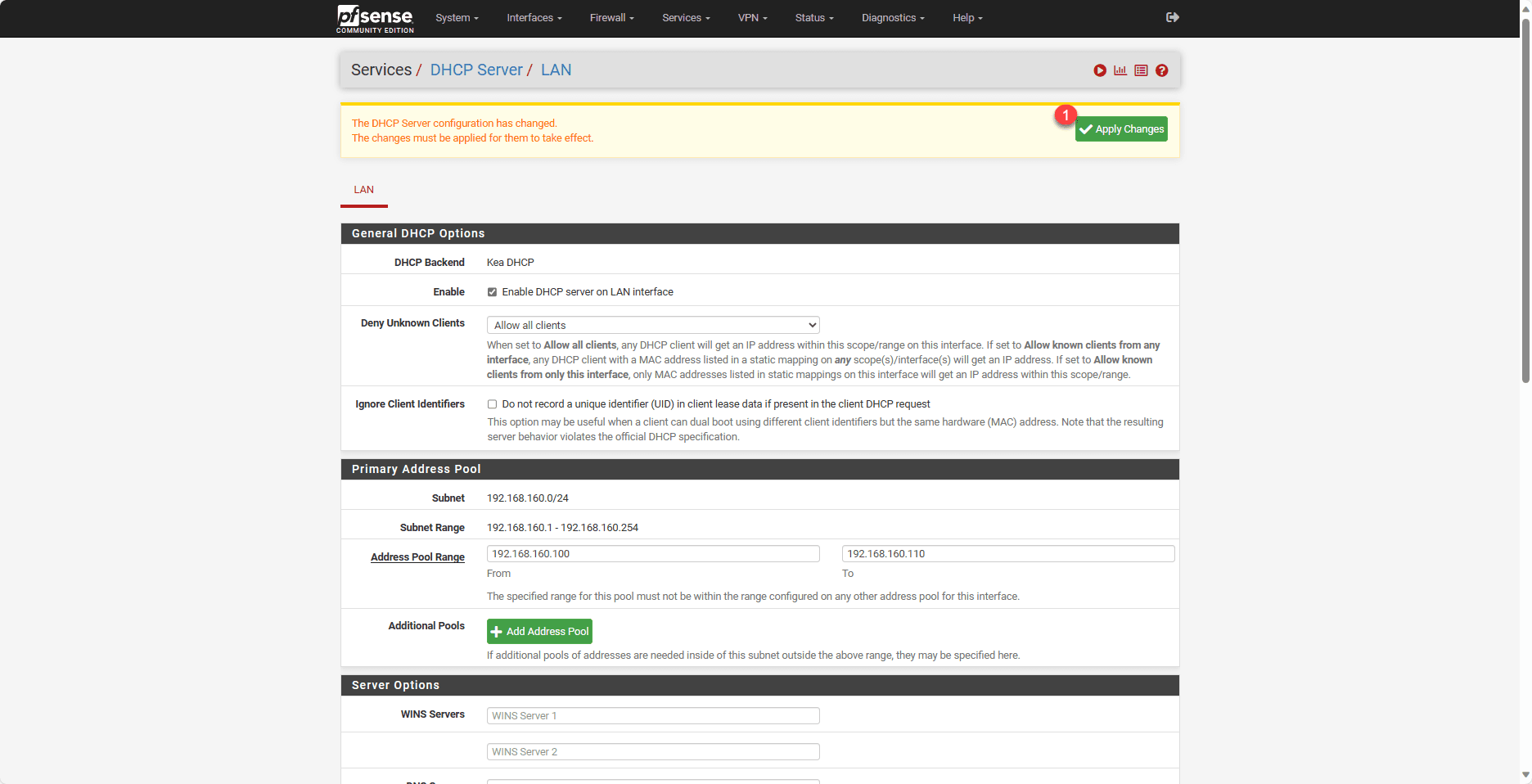
Check the box Enable DHCP server on LAN interface <<1.
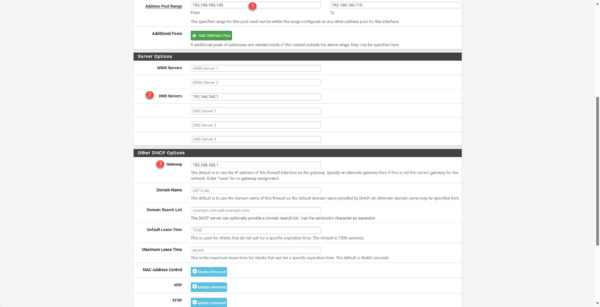
Adjust the address pool 1 if necessary, configure the DNS server(s) 2, in Gateway address 3 enter the LAN address of the firewall and at the bottom of the page click on Save 4.
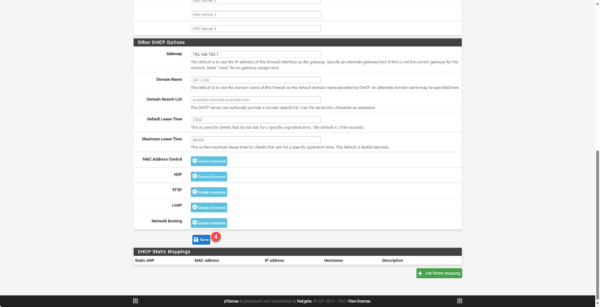
Click on the Apply Changes 1 button.
To test that it was working correctly, I connected a computer to the LAN section and I did get an address as can be seen in the DHCP leases.
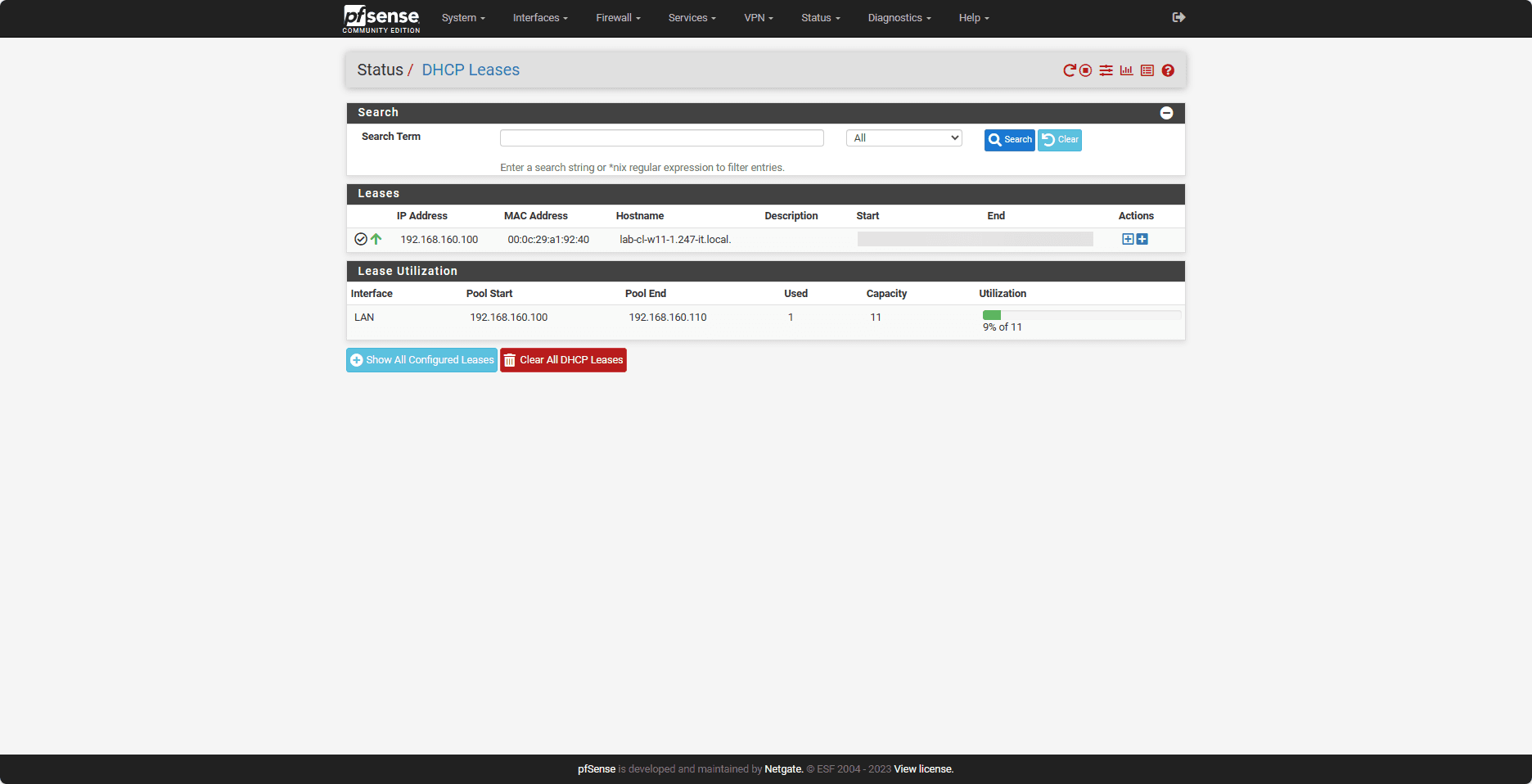
To access DHCP leases, from the Status menu click on DHCP Leases.
DNS configuration
This step is necessary if you are using the firewall as a DNS server.
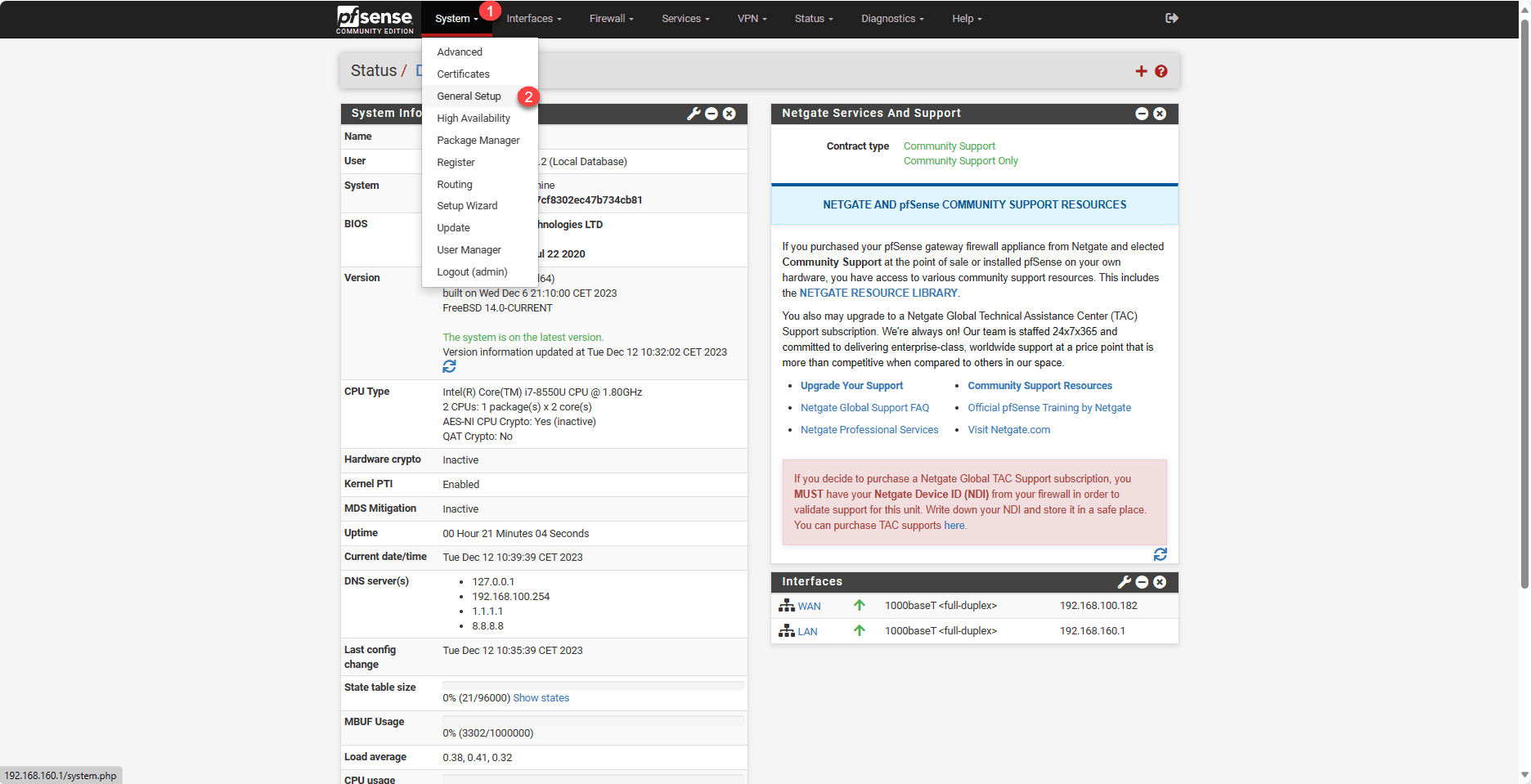
Click on System 1 then on General Setup 2.
In the DNS Server Setting section, select Use remote DNS Servers, ignore local DNS and then click Save at the bottom of the page.
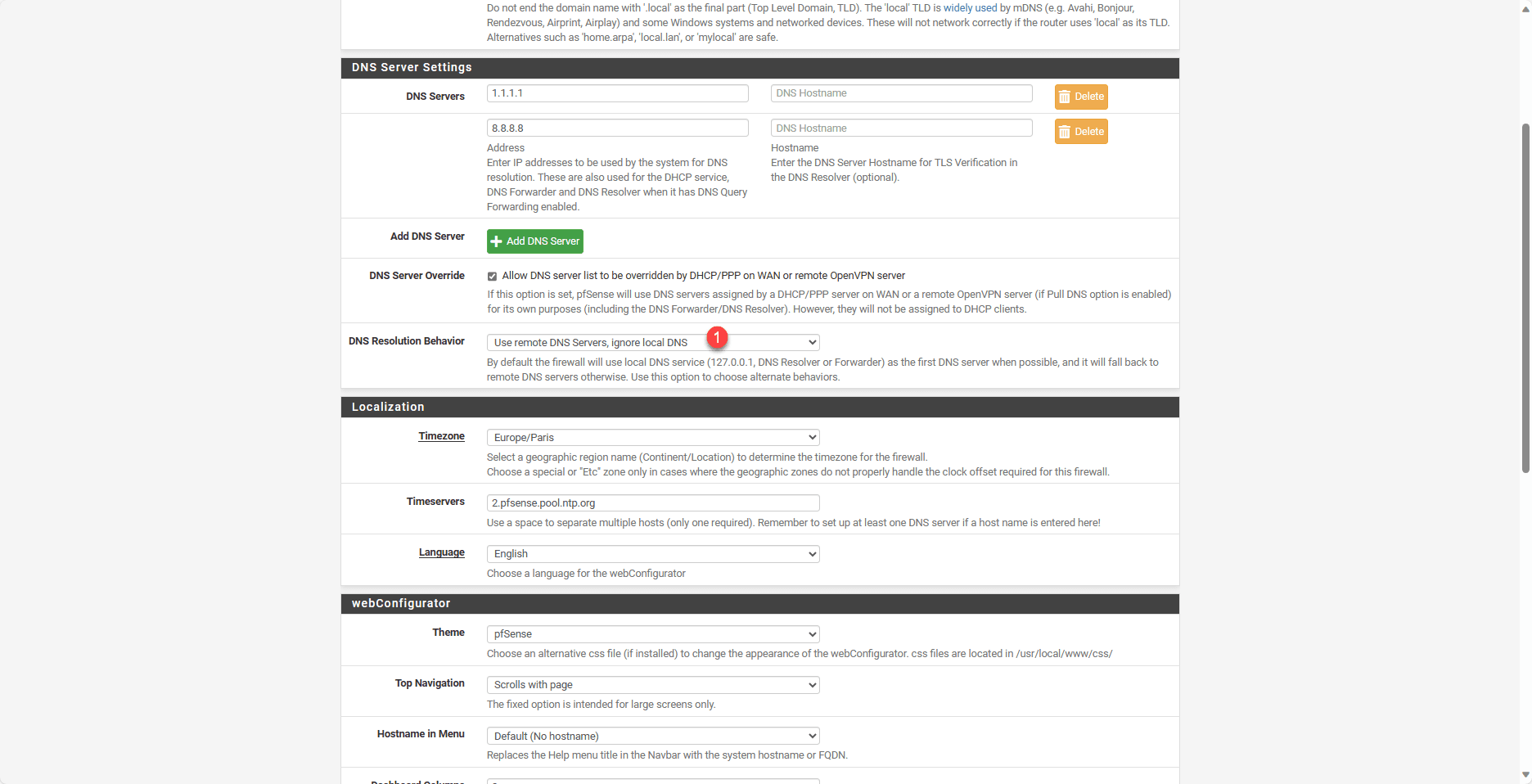
This option allows DNS queries to be forwarded directly to the configured servers.
Test the firewall by going online
Now that everything is ready, we can test the passage through the firewall.
From a client computer, try to access the Internet.
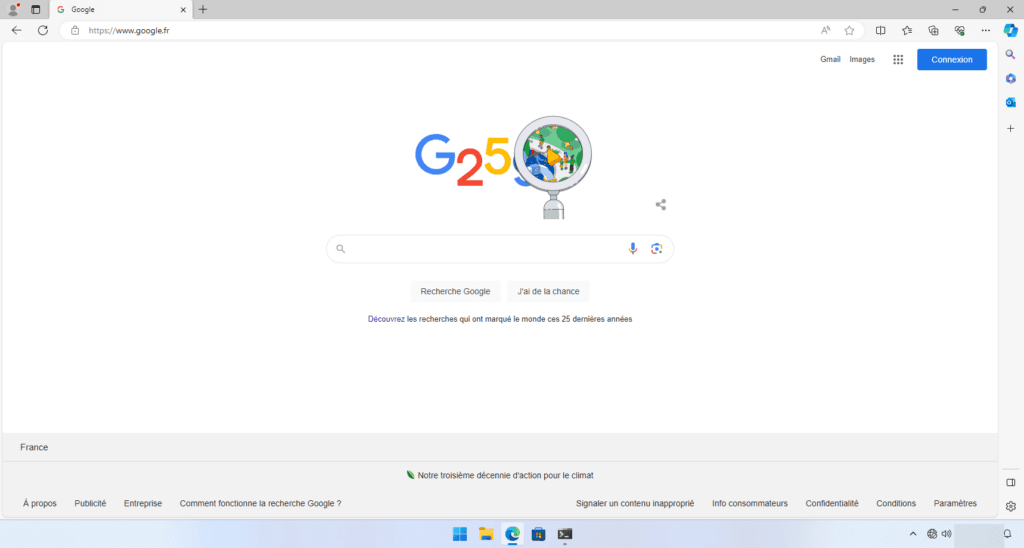
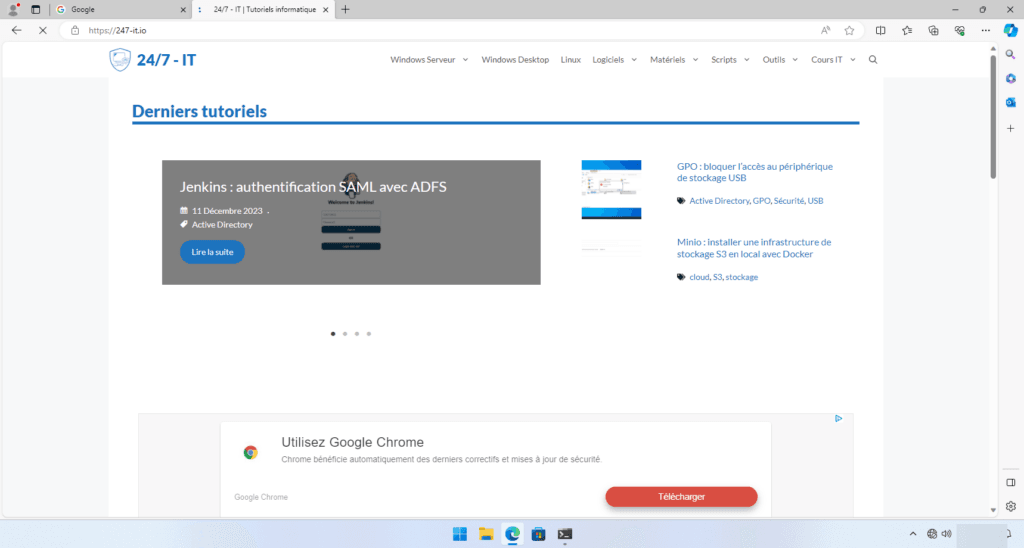
For me, everything is working; I can access the internet.
In parallel, the traffic graphs can be seen on the firewall dashboard.
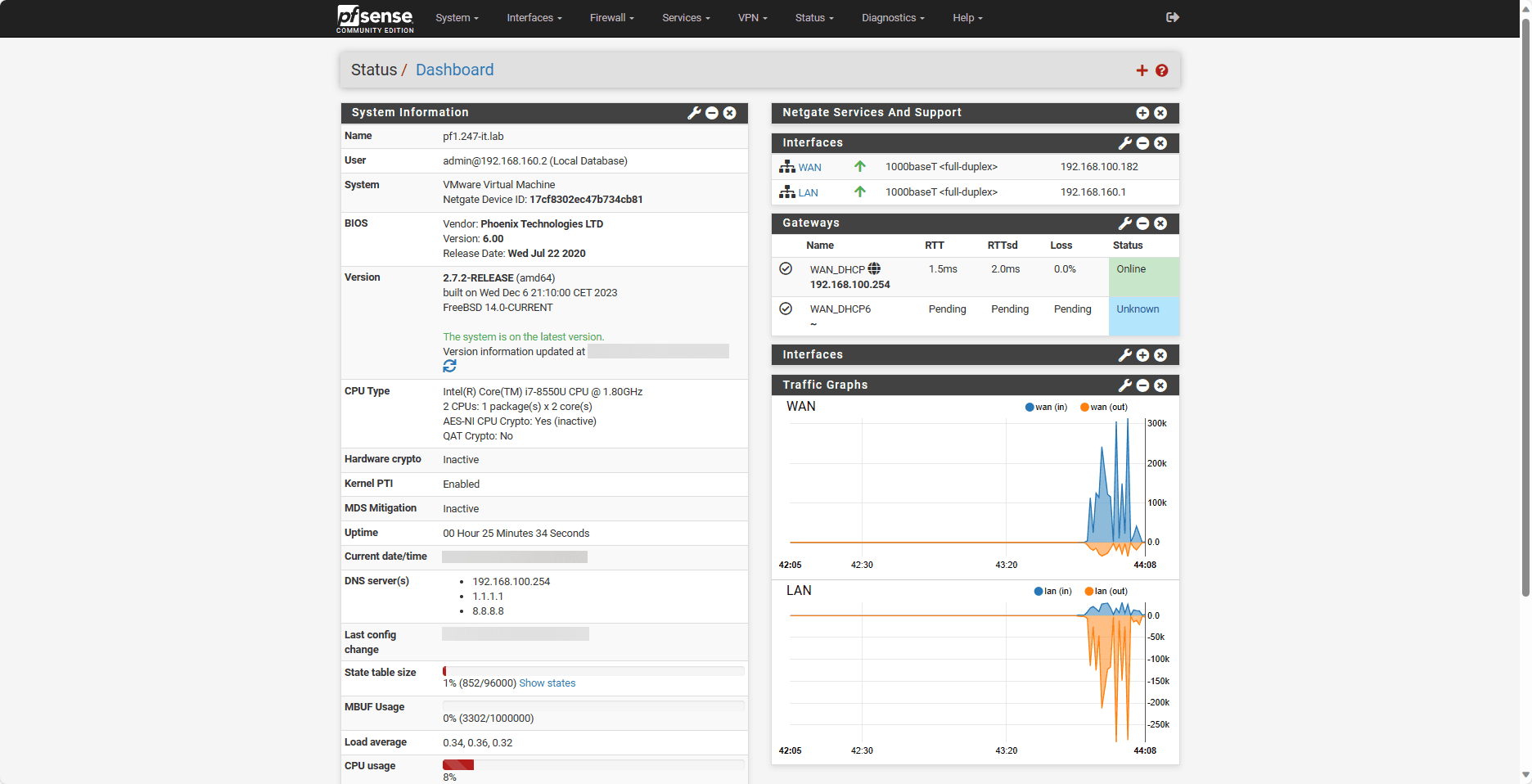
By default the graphs are not displayed, you need to customize the dashboard by clicking on the + in the top part at the breadcrumb level.
Configuring the Squid proxy in transparent mode on pfSense
In this section, we will see how to configure Squid on pfSense in transparent mode for HTTP/HTTPS traffic.
Prerequisites for using the proxy
In order to properly use the SQUID proxy, especially for the SSL part, pfSense must be used as the DNS server.
Several solutions are available to you:
- Configure pfSense as the DNS server on the computers.
- If you are using Windows DNS servers, configure them as follows DNS forwarder the pfSense firewall.
Creation of the certification authority
Before configuring the proxy, we will create a certificate authority which will be used for the HTTPS part.
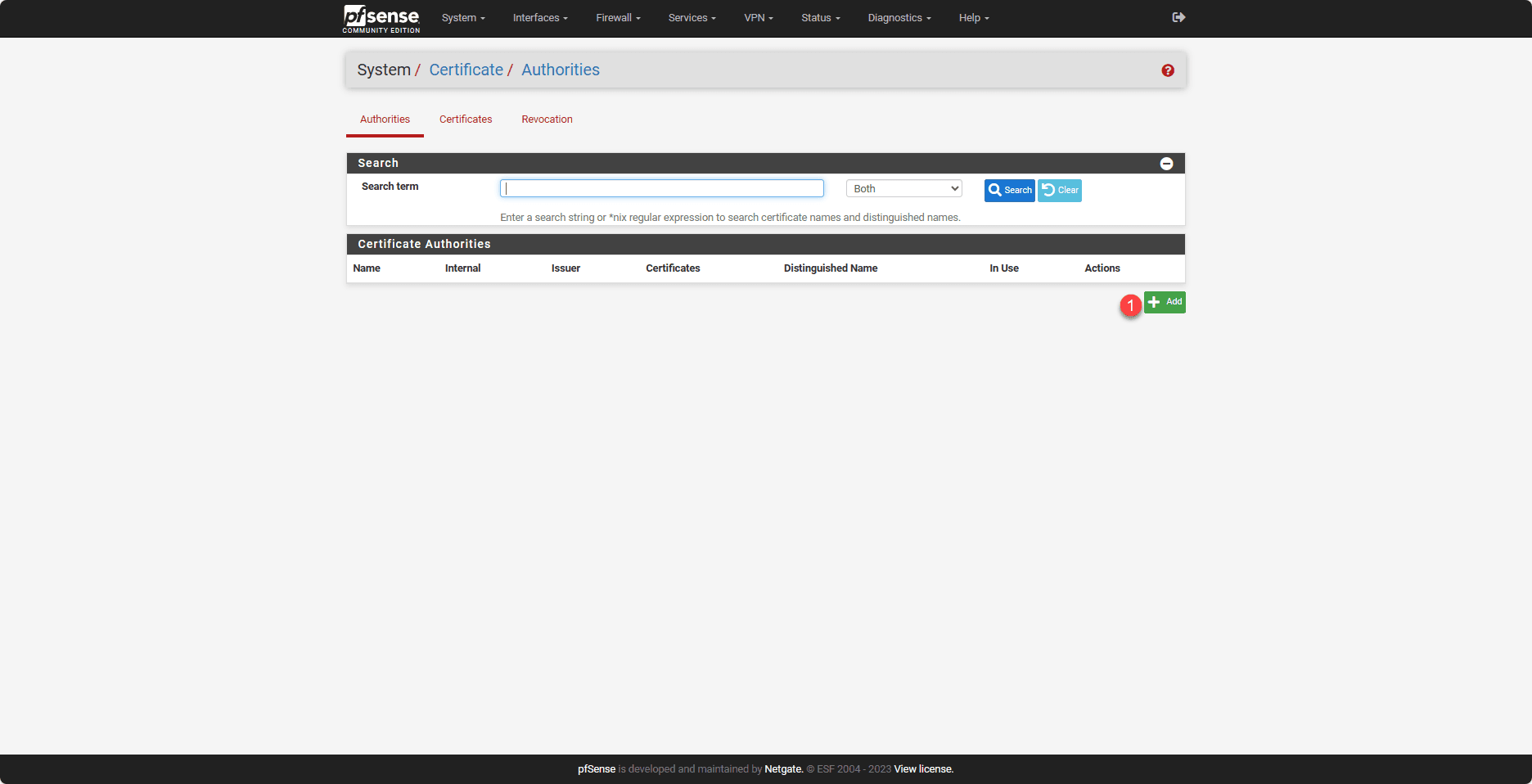
Go to System 1 / Certificates 2.
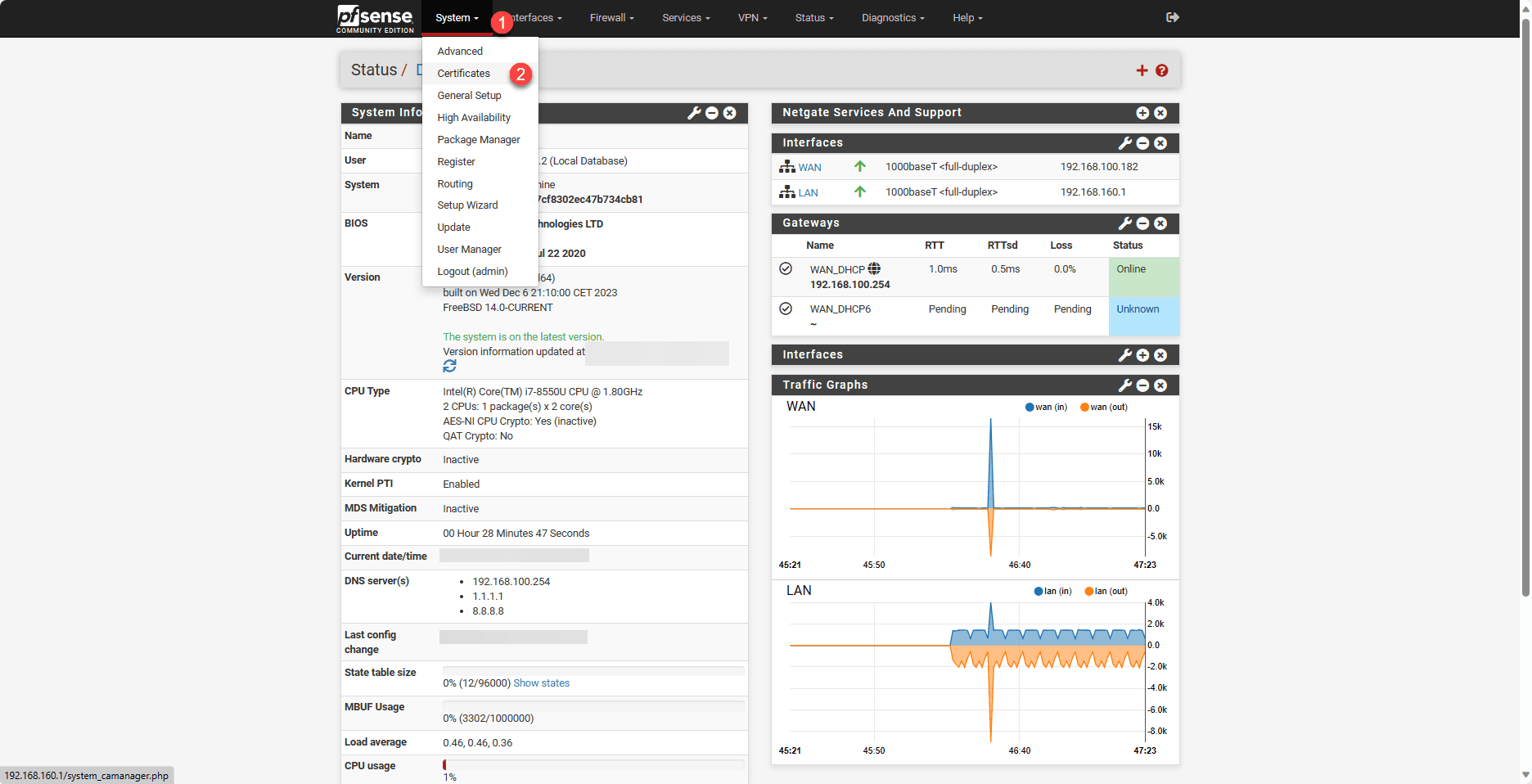
Click on the Add 1 button.
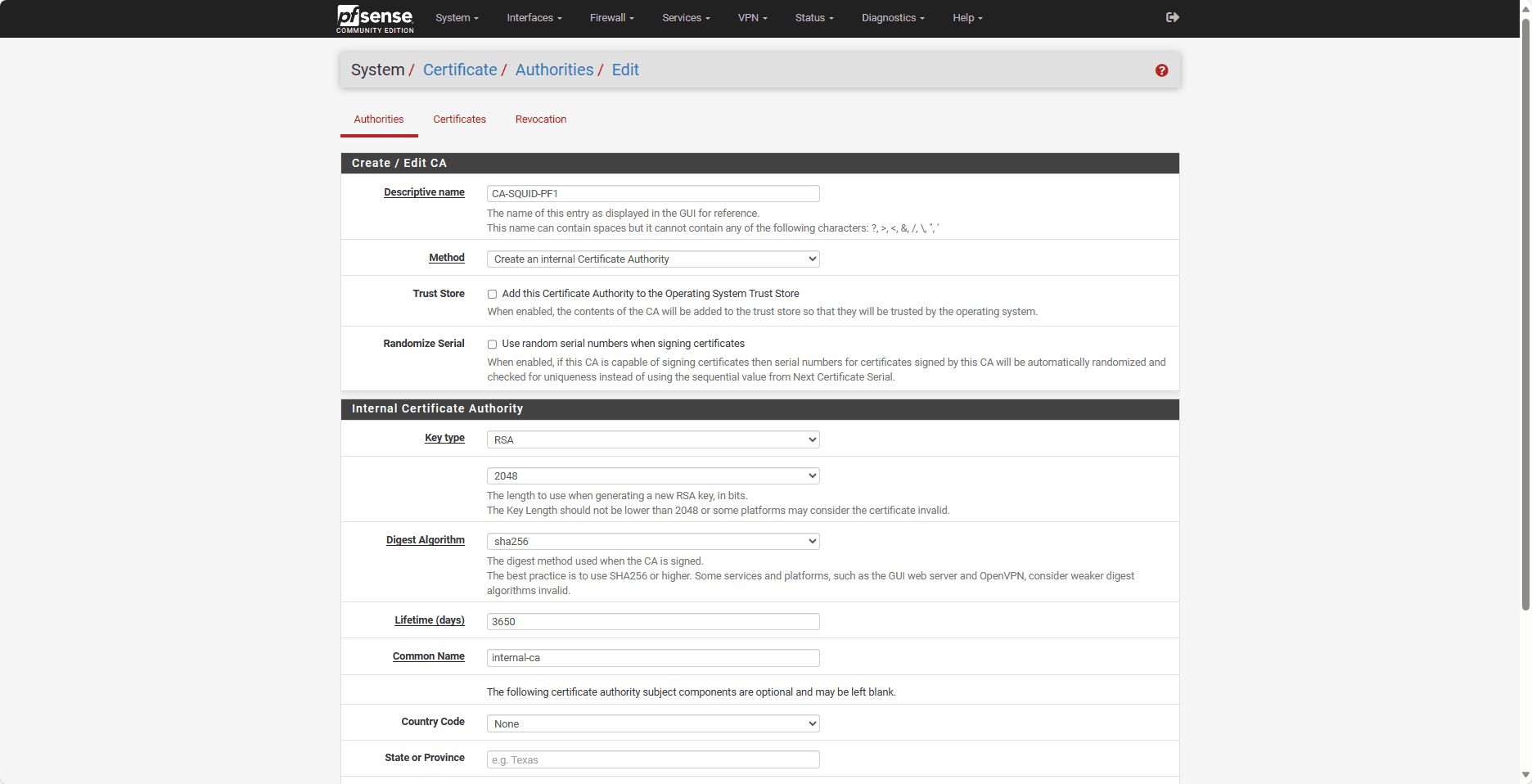
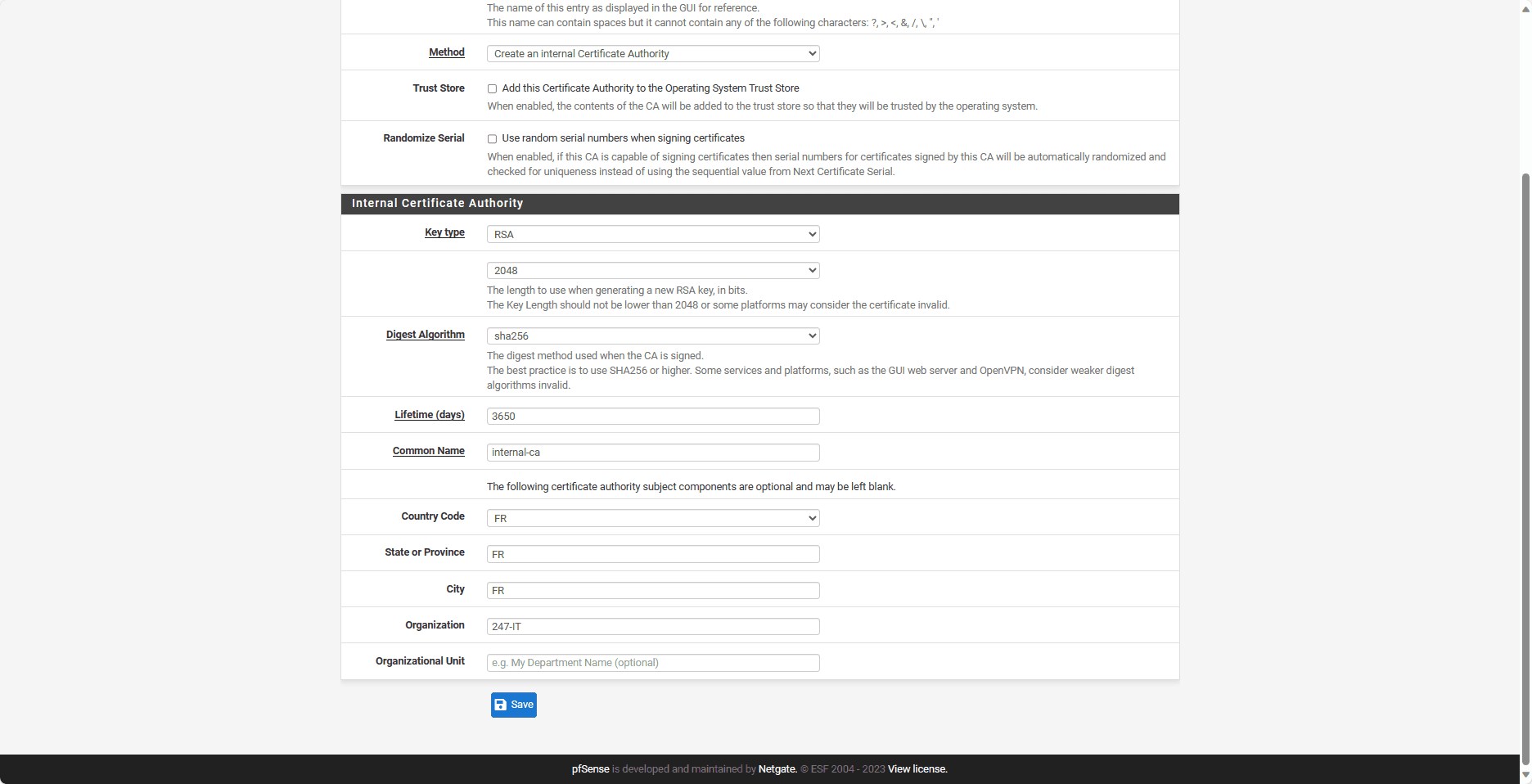
Fill in the various fields for creation and click on Save.
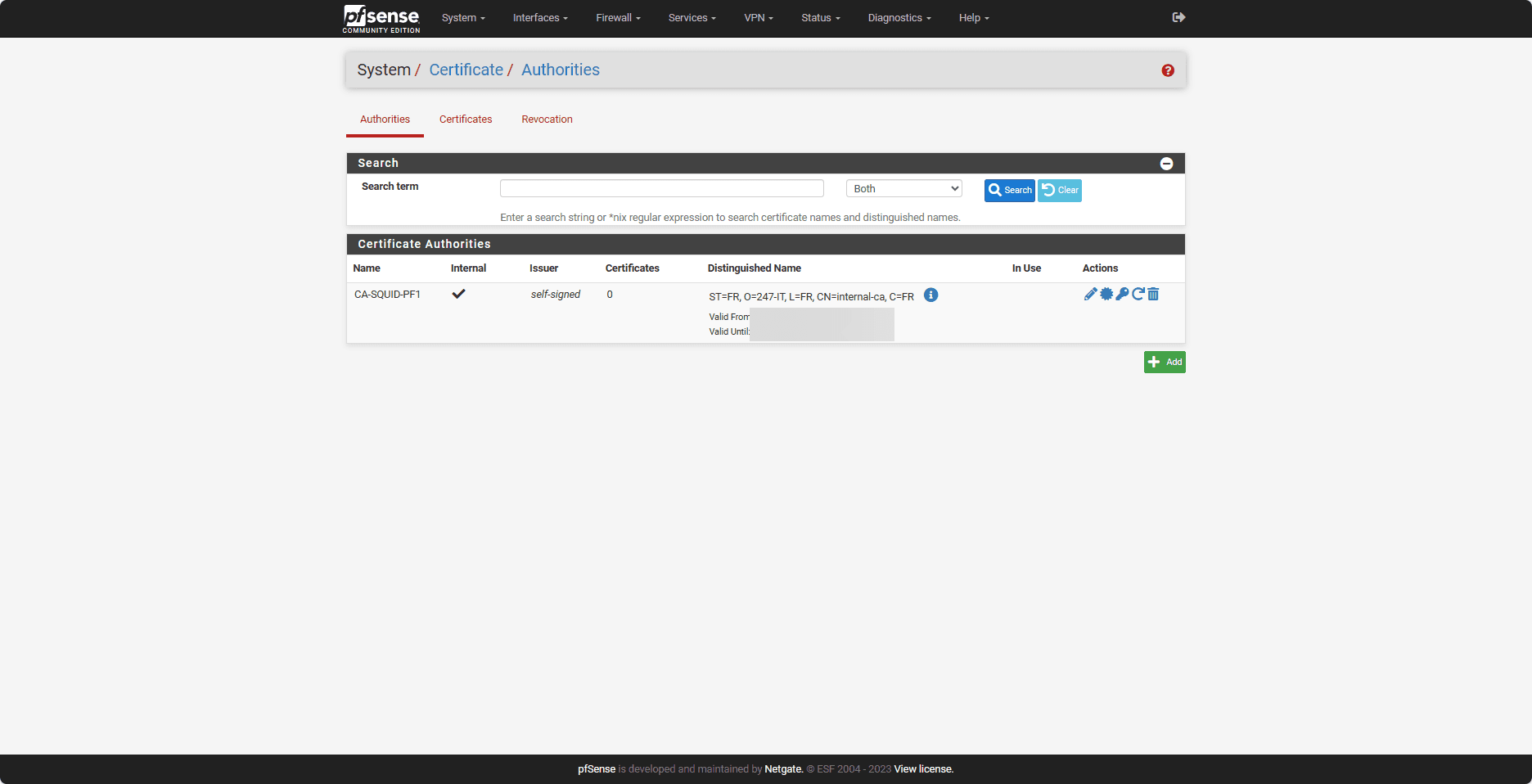
The certification authority is created.
Installing Squid on pfSense
By default, Squid is not installed on pfSense.
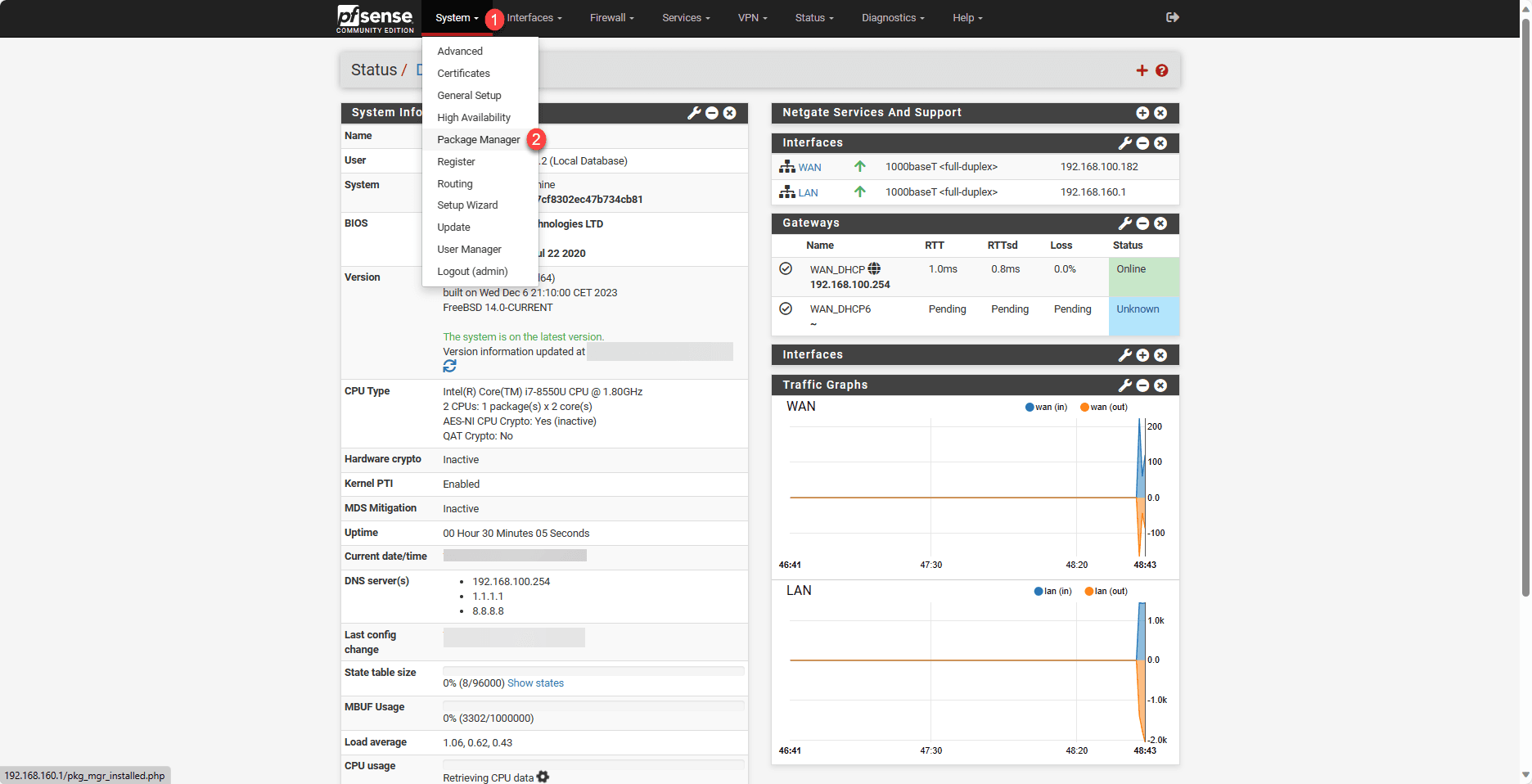
Go to System 1 and click on Package Manager 2.
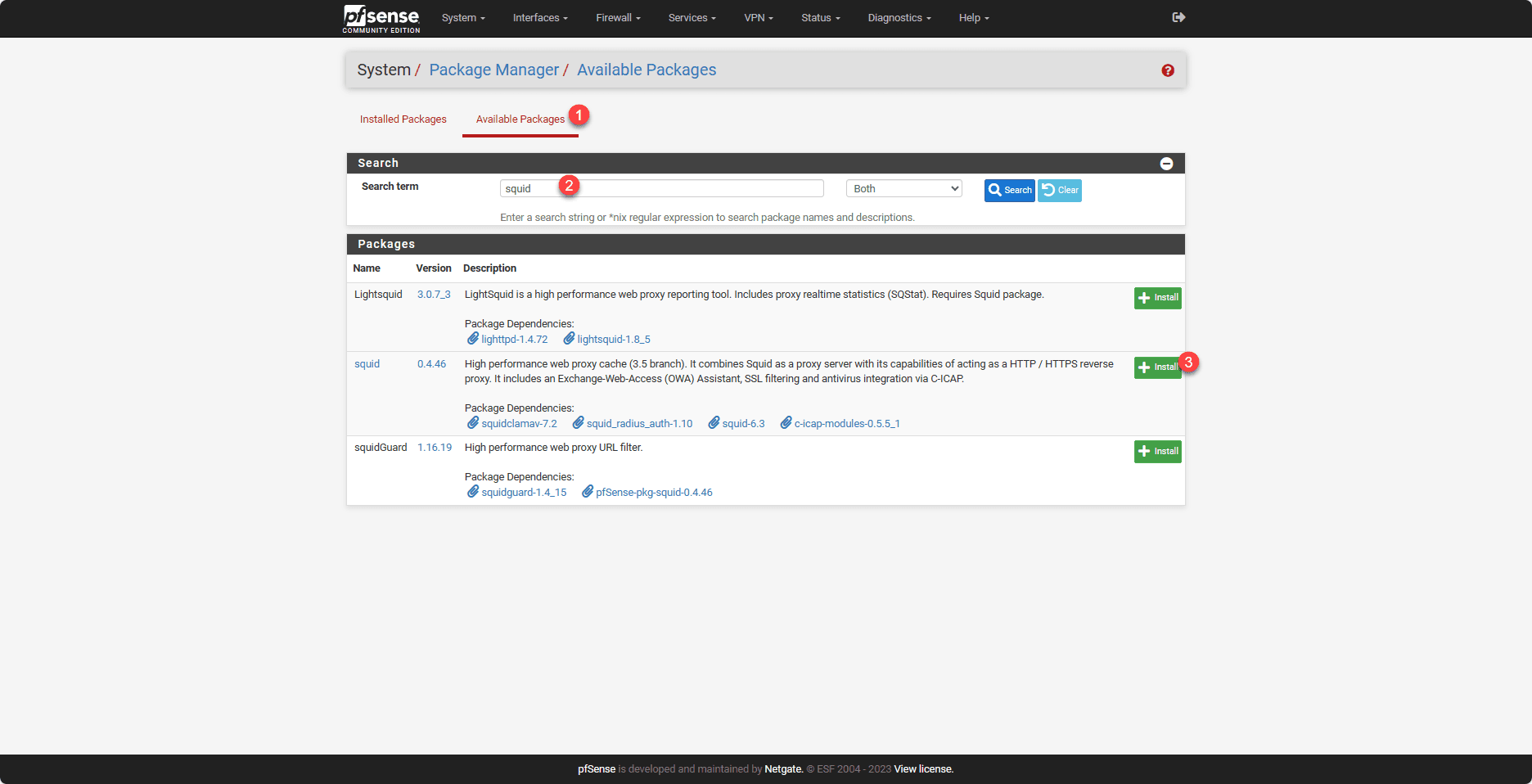
Click on Available Packages 1 to access the available packages. Search for squid 2 and click on the Install button 3 which corresponds to the squid package.
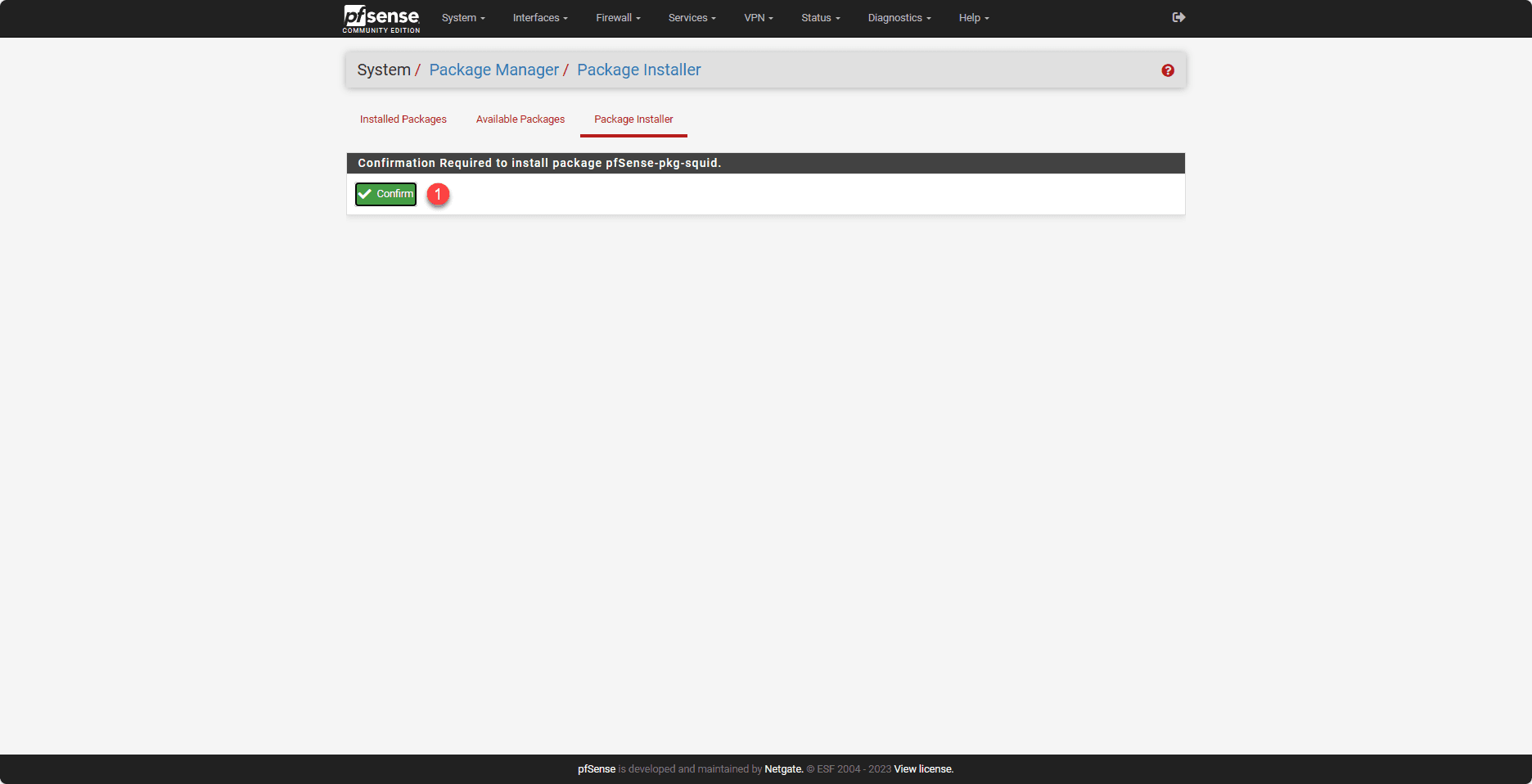
Click on the Confirm button 1.
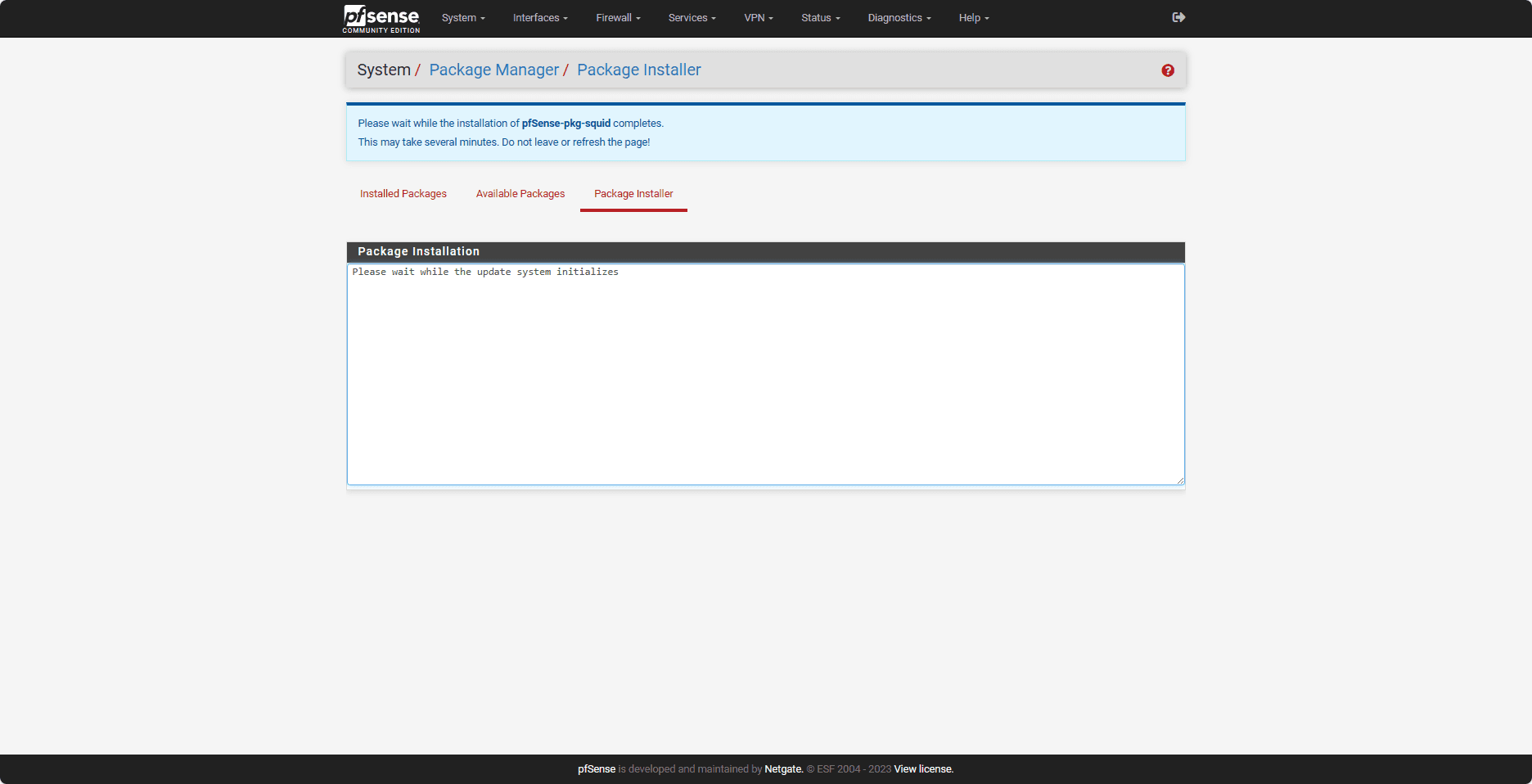
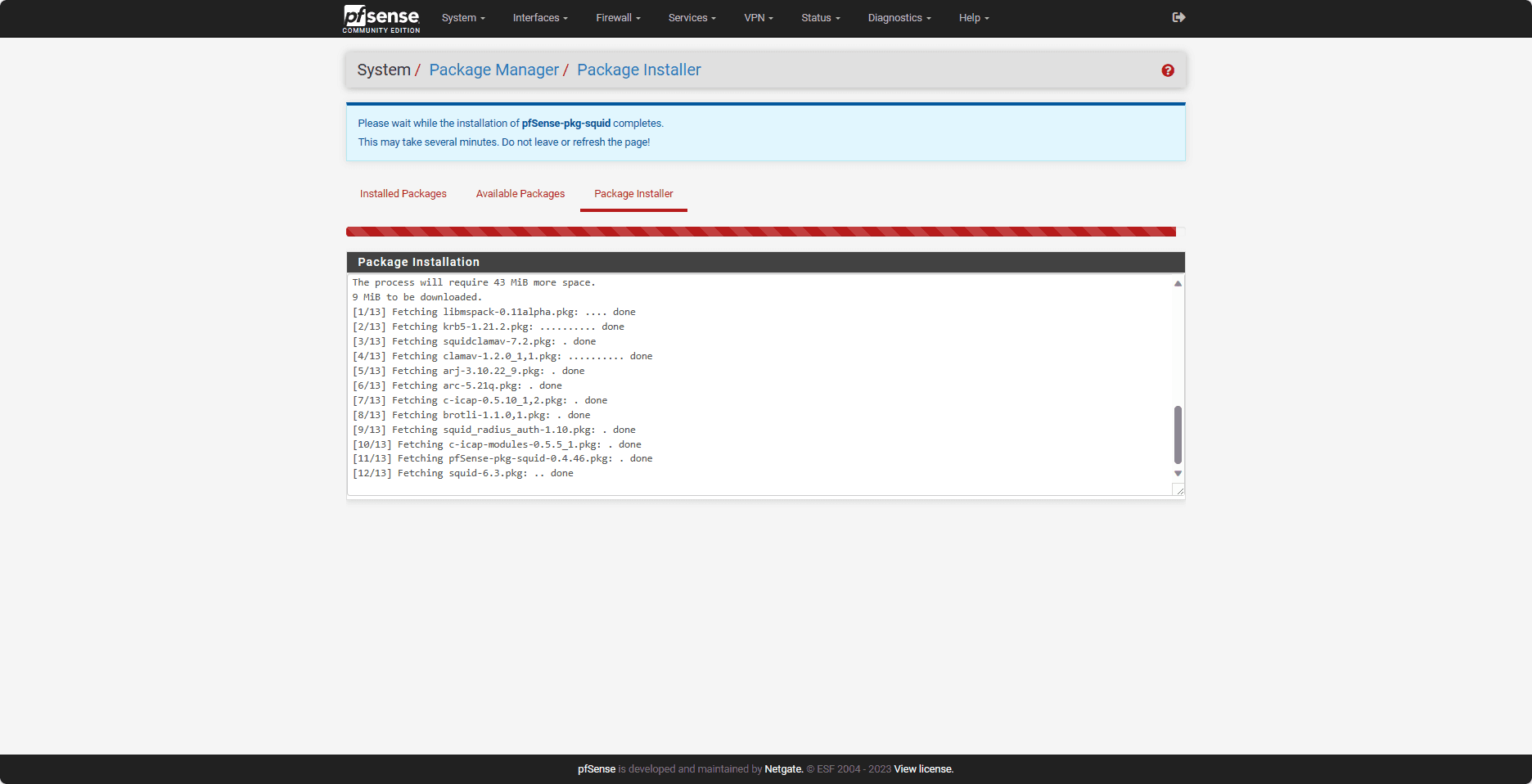
Please wait while the installation is in progress…
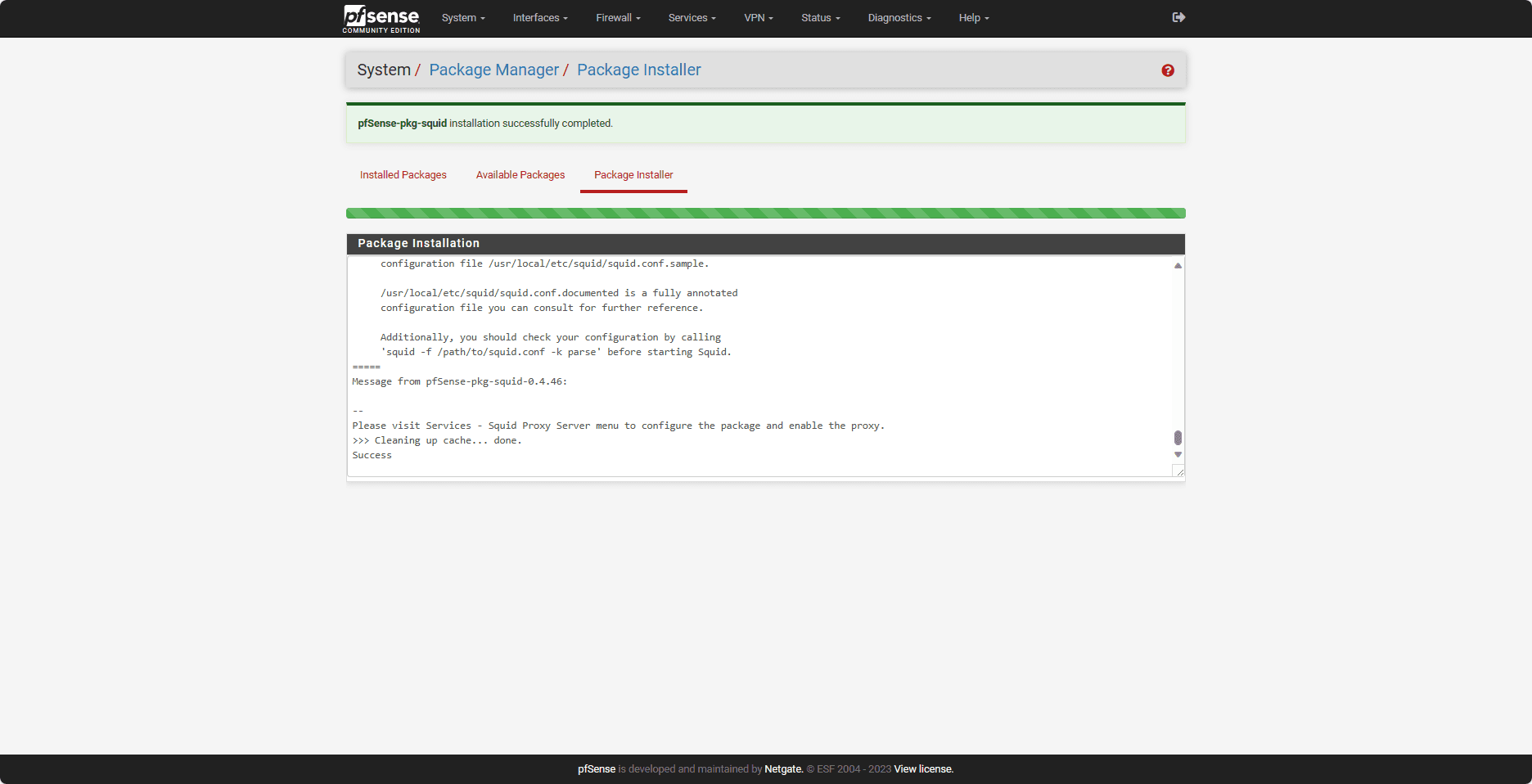
Squid is installed.
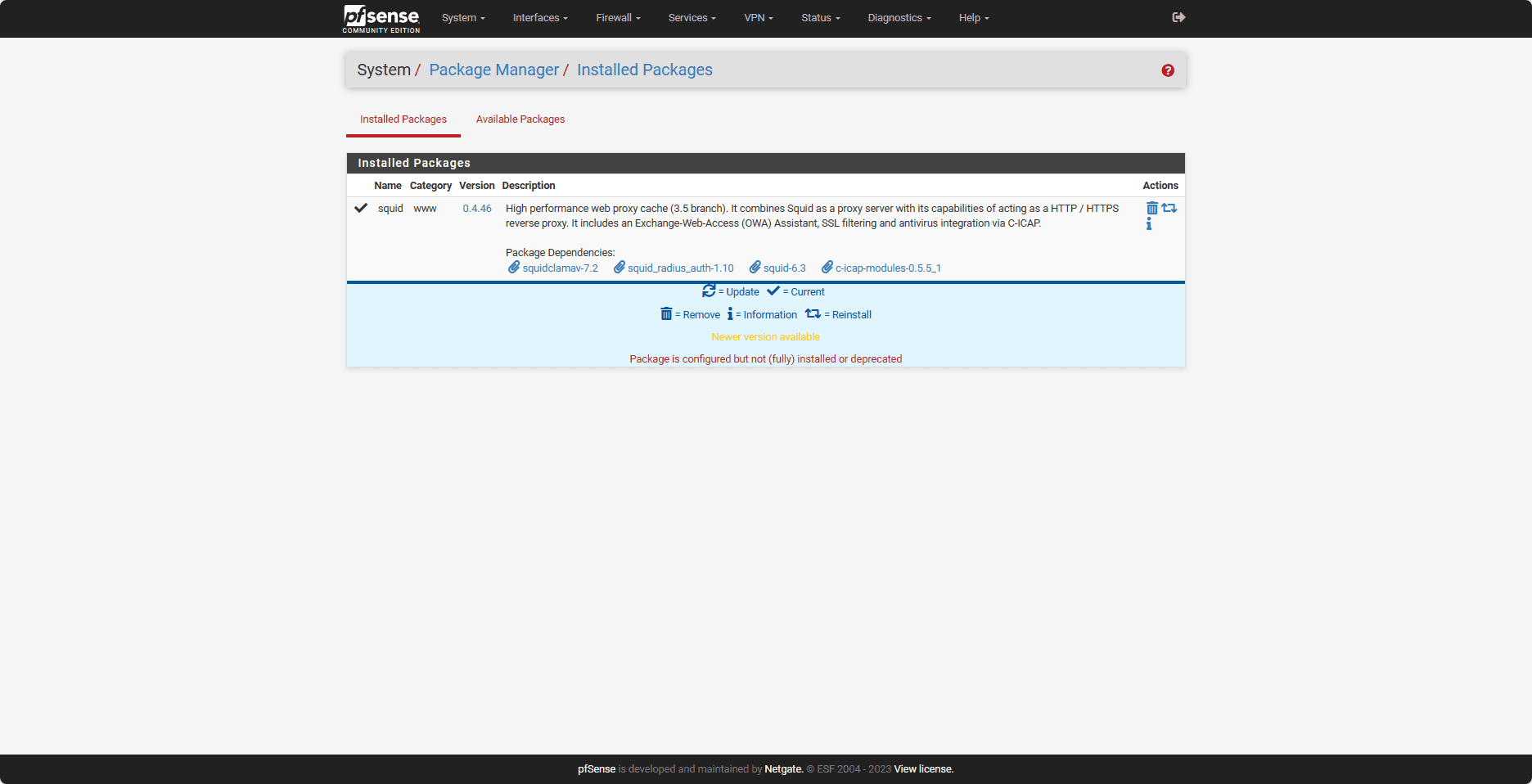
If we go to Installed Packages, we can see squid.
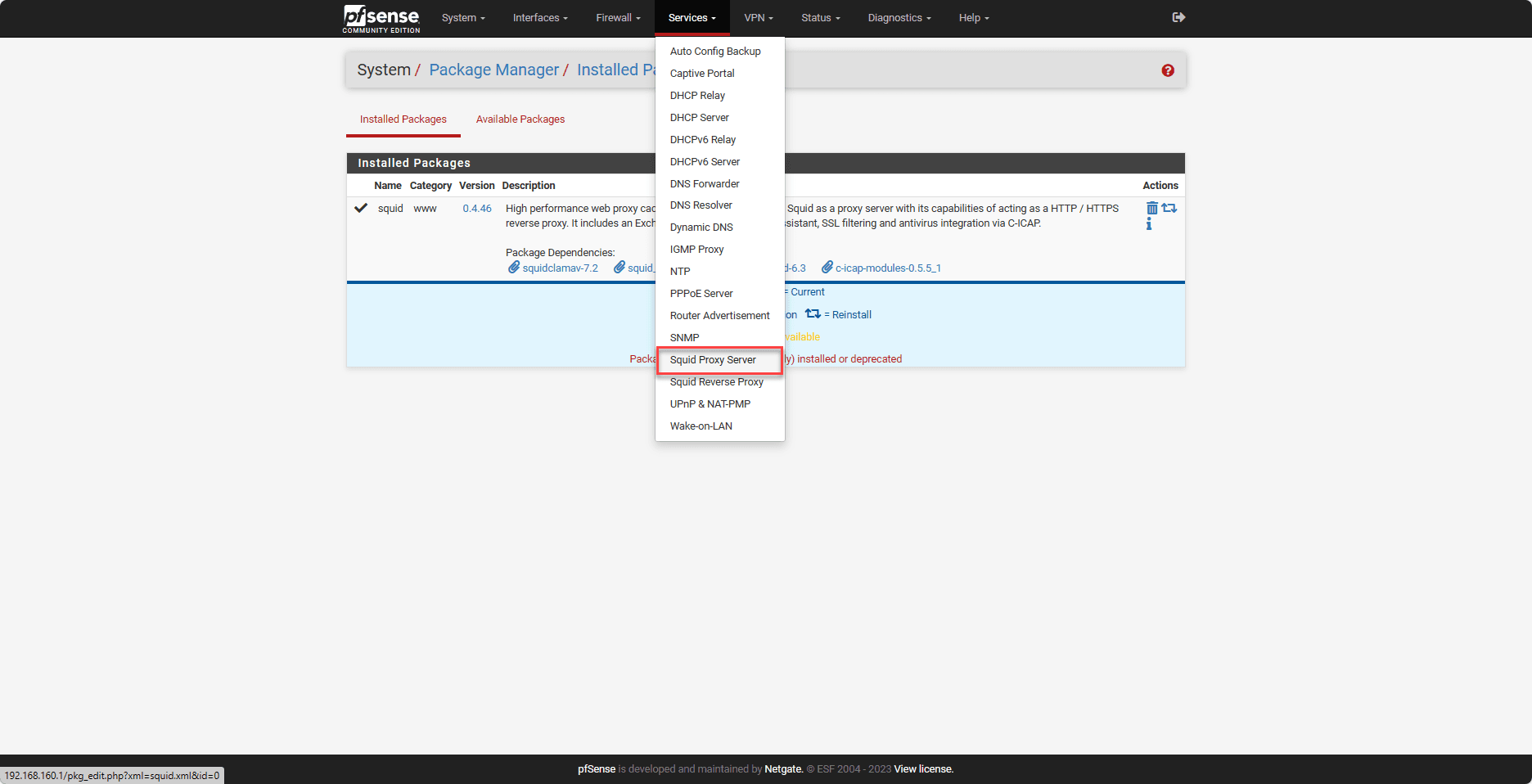
Squid configuration
The configuration can be accessed via the menu by clicking on Services and then on Squid Proxy Server.
Cache configuration
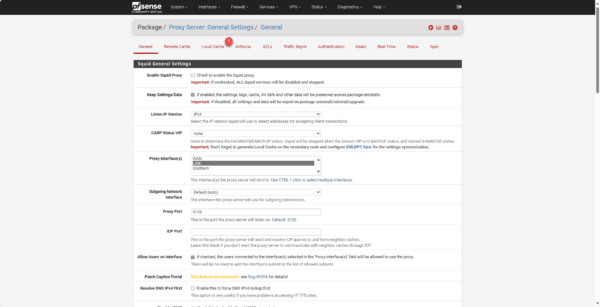
To work on pfSense, it is necessary to configure the Local cache 1 part.
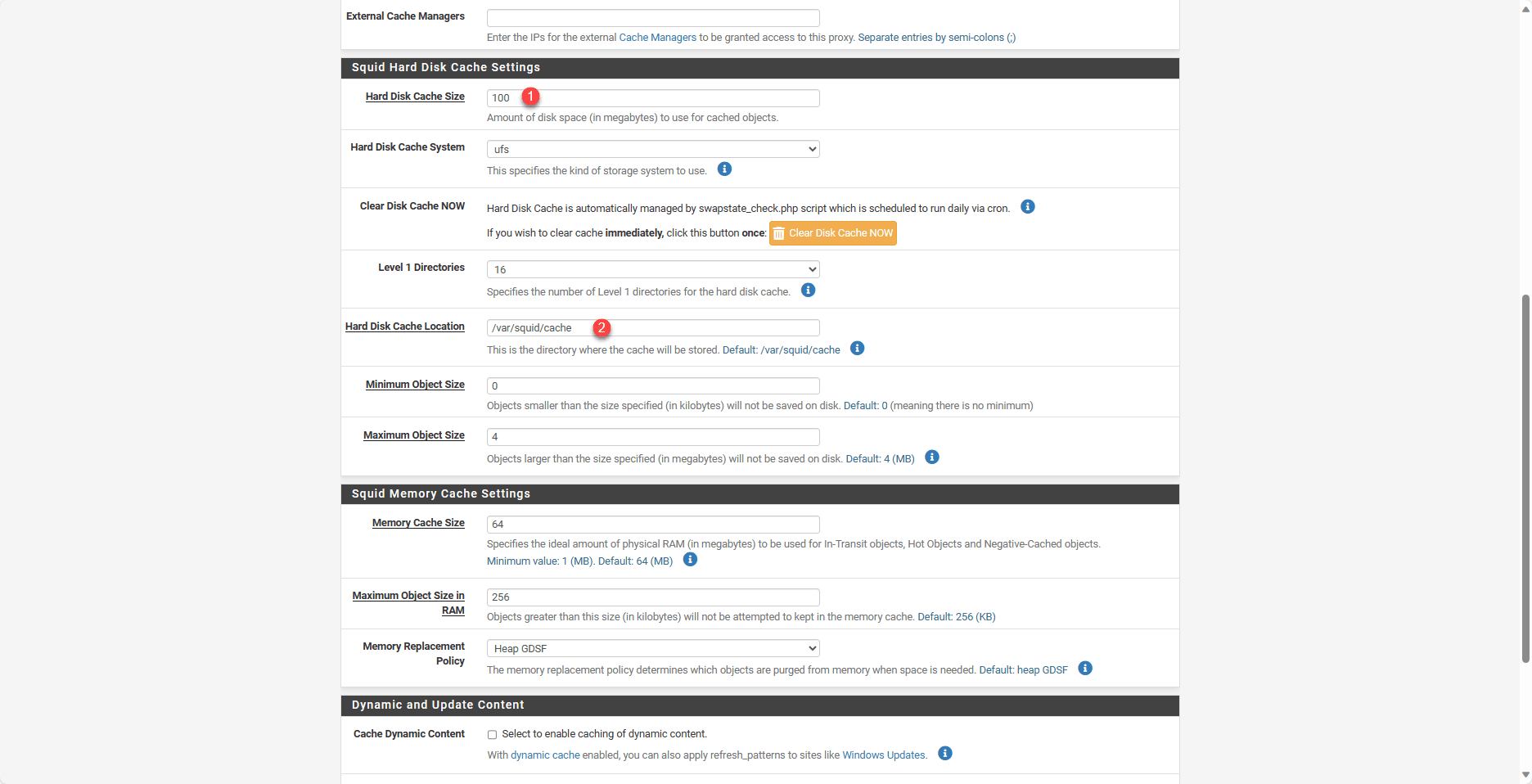
In the Squid Hard Disk Cache setting section, configure the cache size on the disk (Hard Disk Cache Size) 1 and the cache location (Hard Disk Cache Location) 2 with the value /var/squid/cache.
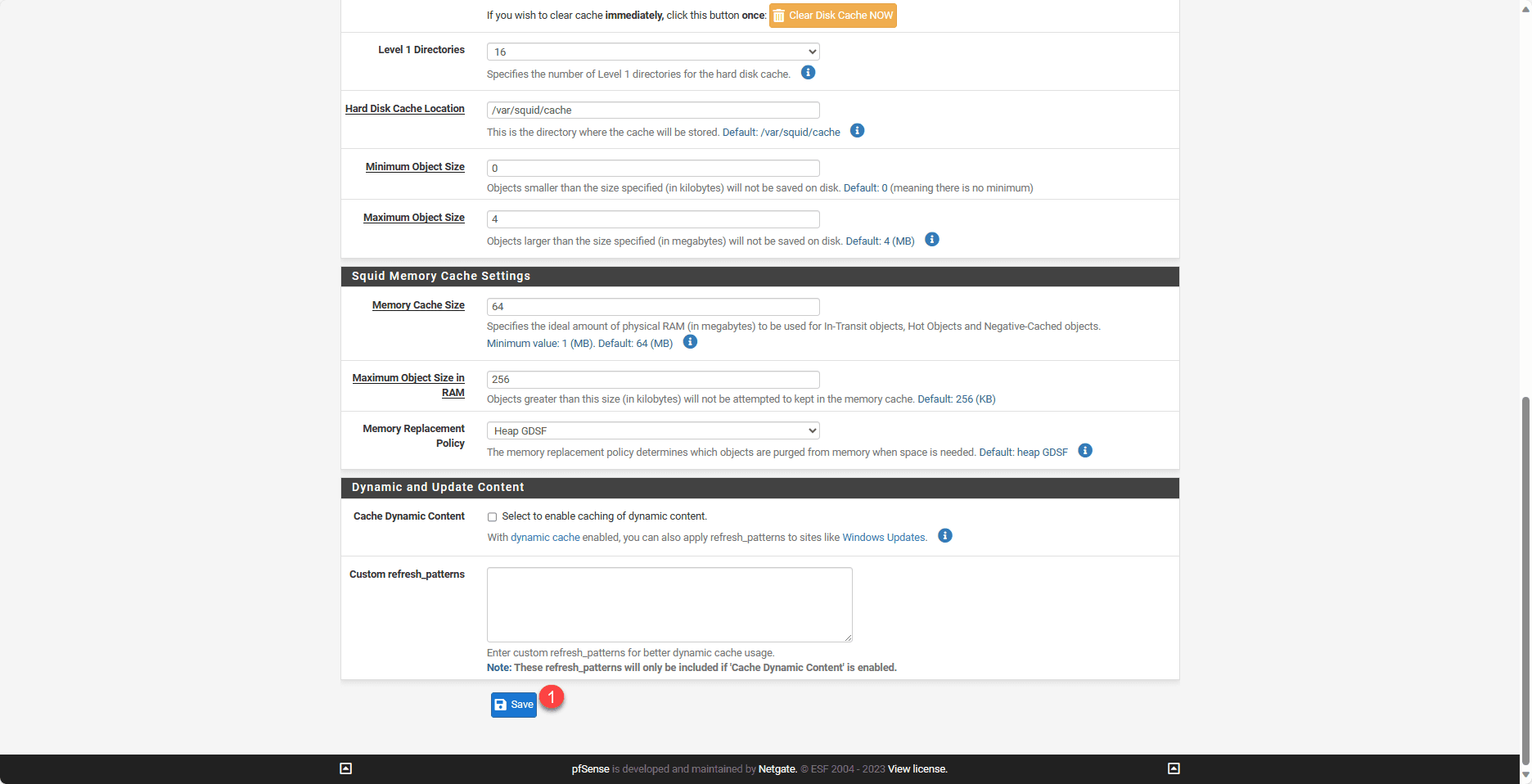
Then go to the bottom of the page and click on Save 1.
Configuring the HTTP/HTTPS Proxy in transparent mode
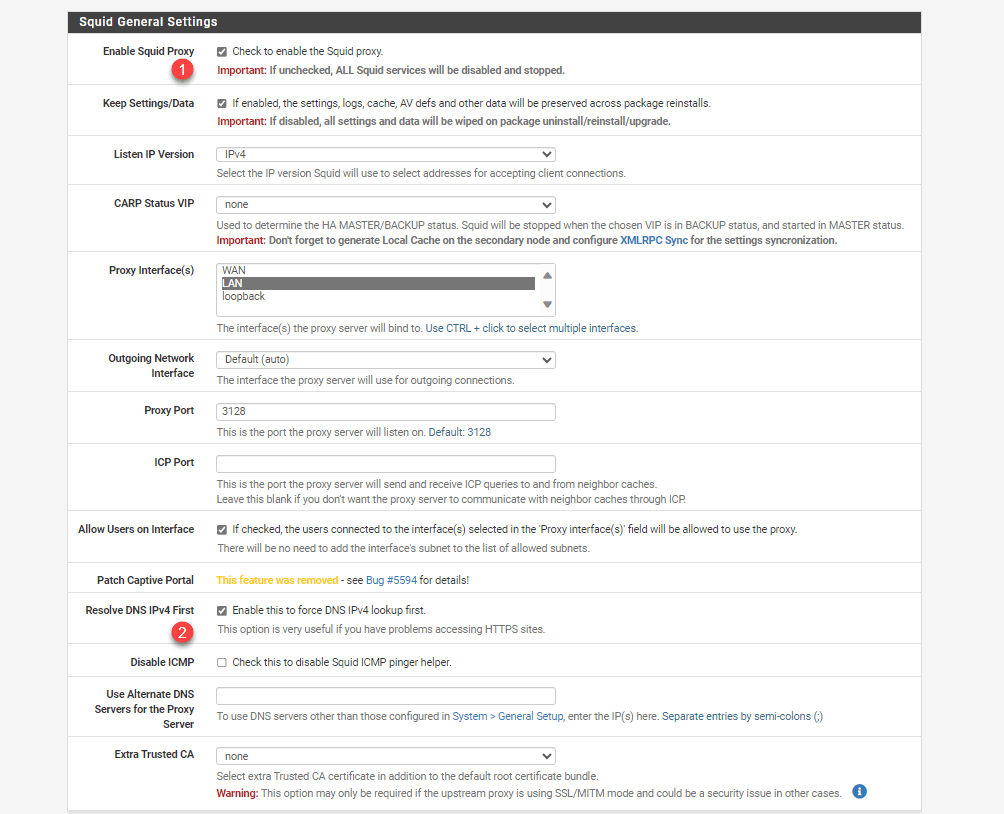
In the Squid General Setting section, check the Enable Squid Proxy 1 box and the Resolve DNS IPv4 First 2 box.
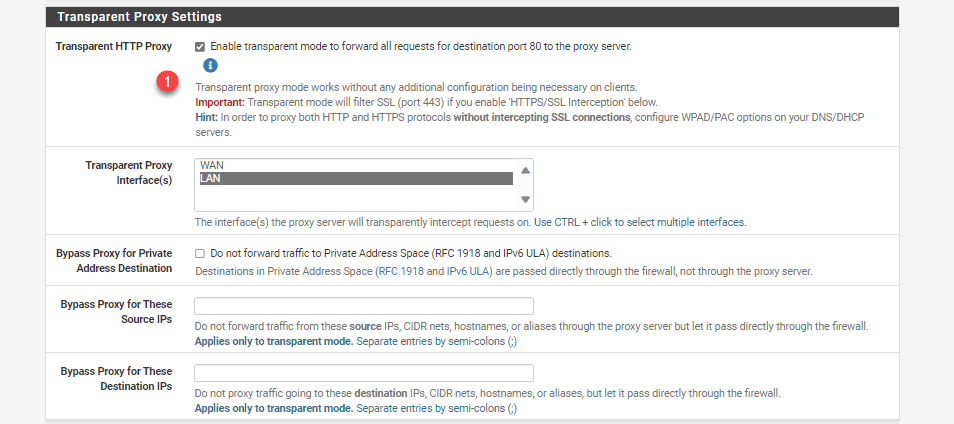
In the Transparent Proxy Setting section, check the box for Transparent HTTP Proxy 1.
In the SSL Man In The Middle Filtering section, check the HTTPS/SSL Interception box 1, SSL/MITM Mode choose Splice Whitelist, Bump Otherwise 2, in the CA field 3 choose the previously created certificate authority.
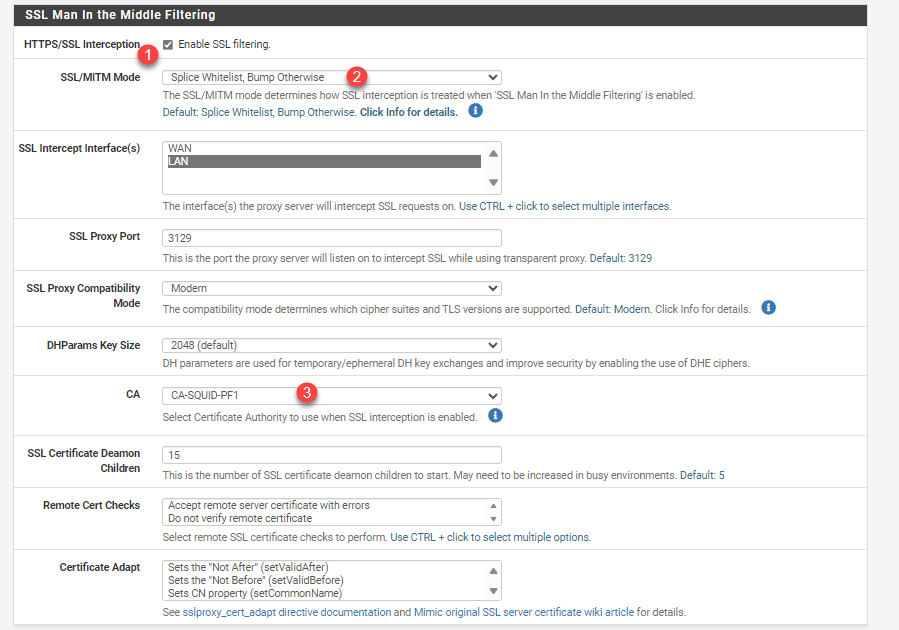
Depending on the mode chosen, SSL traffic is just analyzed (SPLICE ALL) and does not require installing the CA certificate, and the BUMP mode will decrypt SSL traffic and allow for more advanced analysis, such as passing through the antivirus.
Go to the bottom of the page and click Save.
The SQUID proxy is configured.
SQUID proxy test
All that remains is to test our proxy.
HTTPS decryption is quite unreliable; it does not work on websites using a CDN because the system cannot link it to an IP address/URL.
If you have the correct configuration to apply, I’d appreciate it.
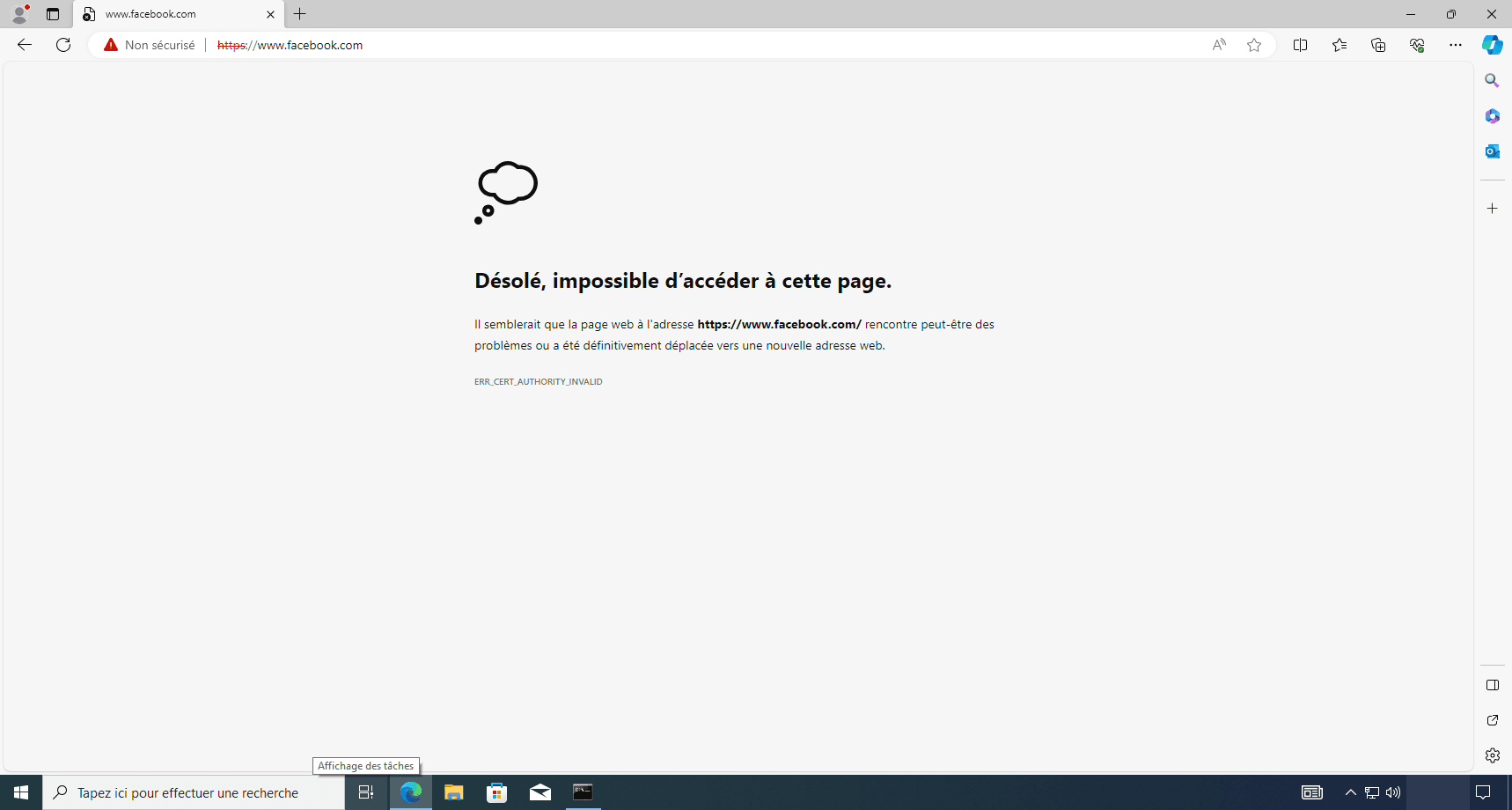
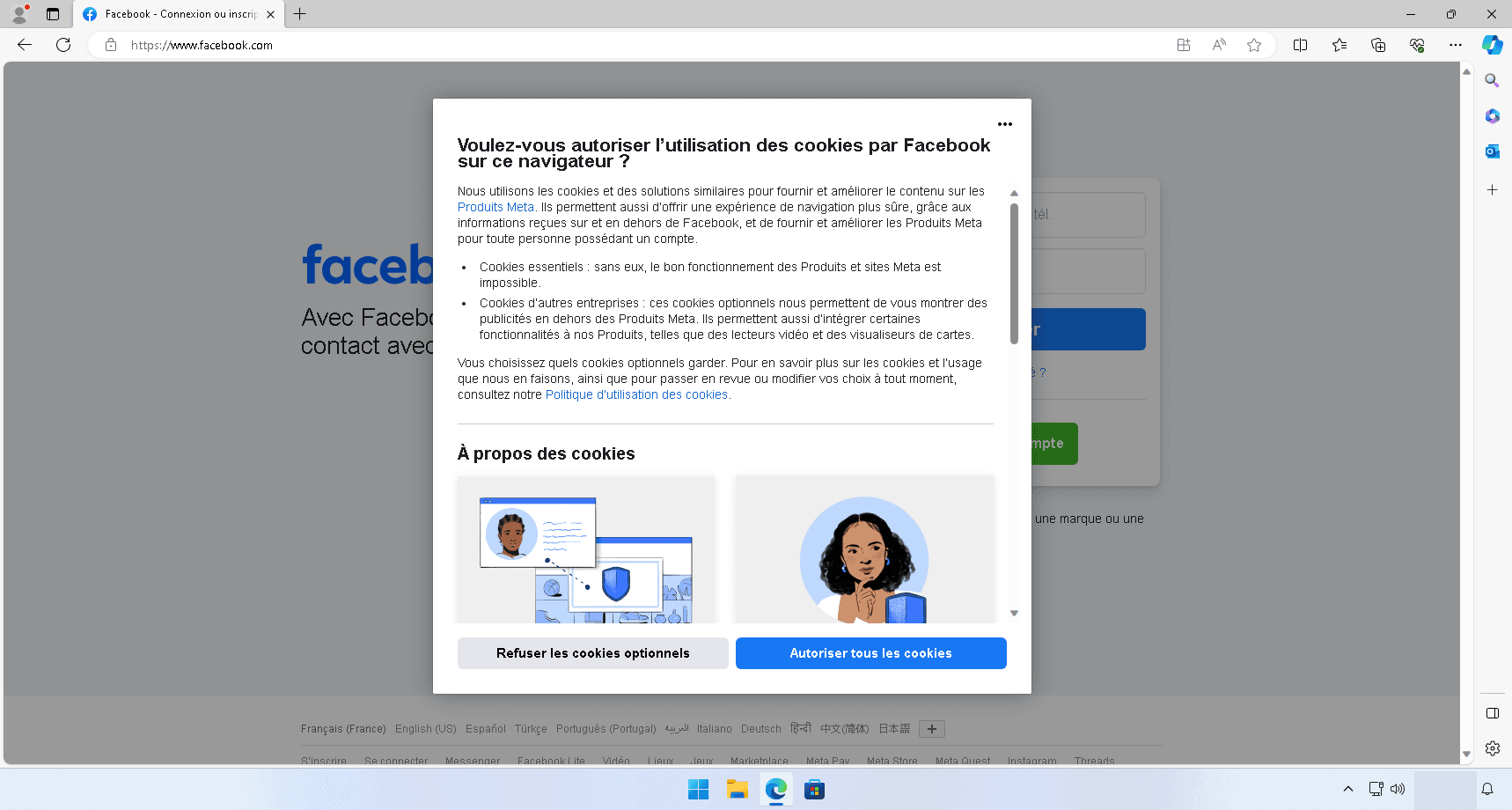
On a computer, launch an internet browser and go to facebook (https://www.facebook.com), normally you should get an SSL error.
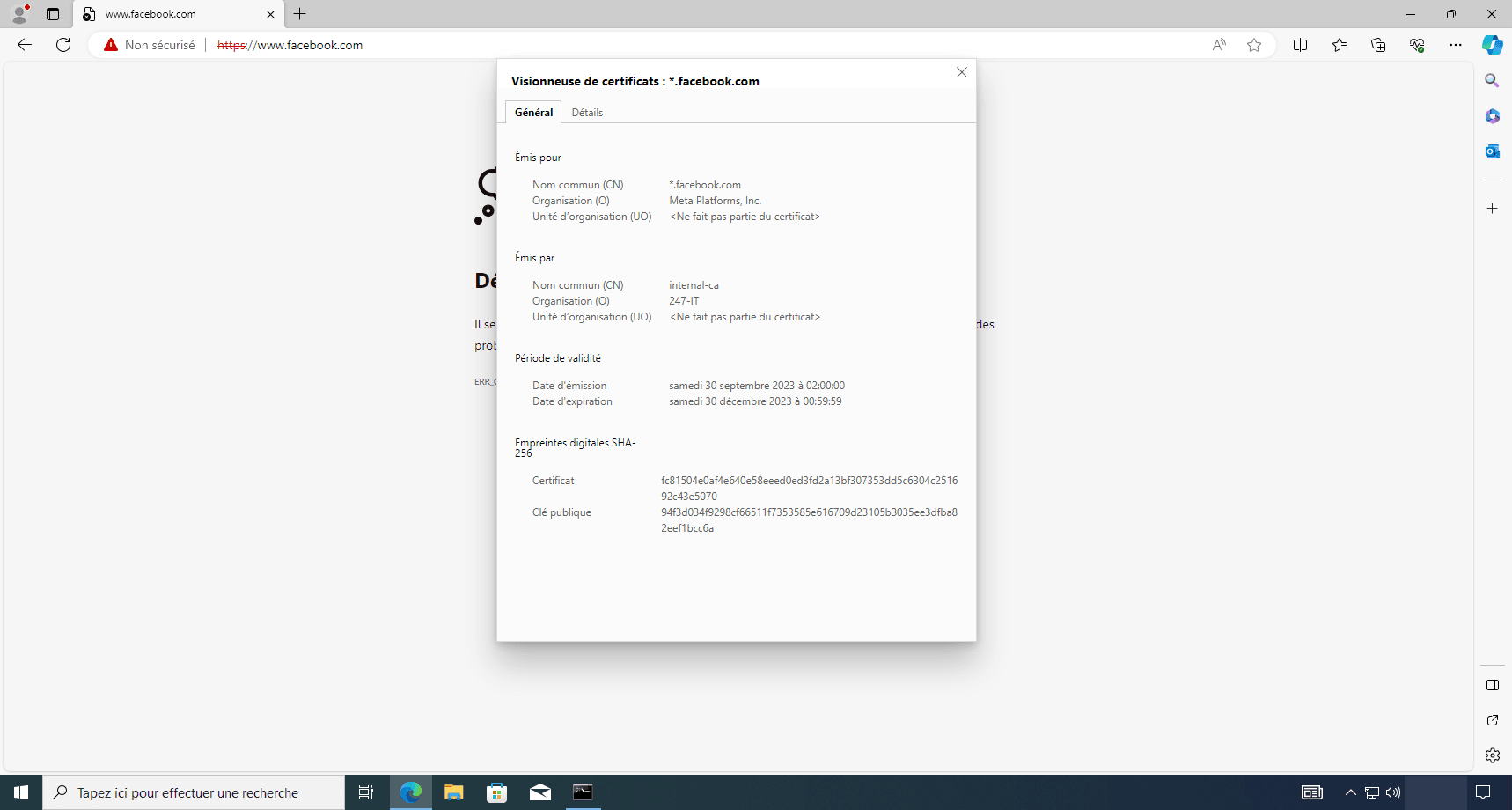
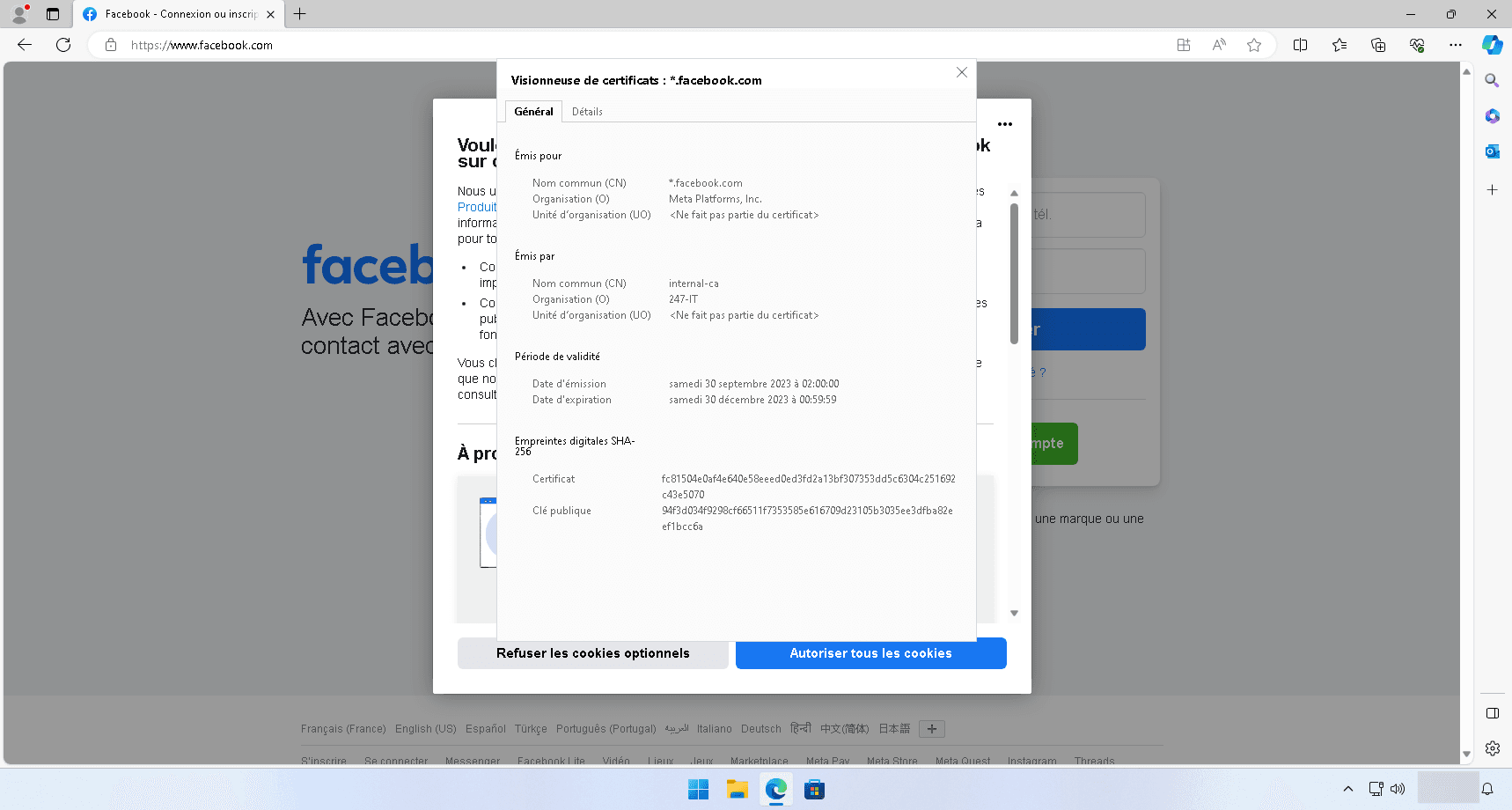
If we look at the SSL certificate, we can see that it comes from the firewall authority, so the traffic has been successfully decrypted.
To avoid this error, you need to install the firewall certificate on the Computers in the computer store: Trusted Certification Authorities.
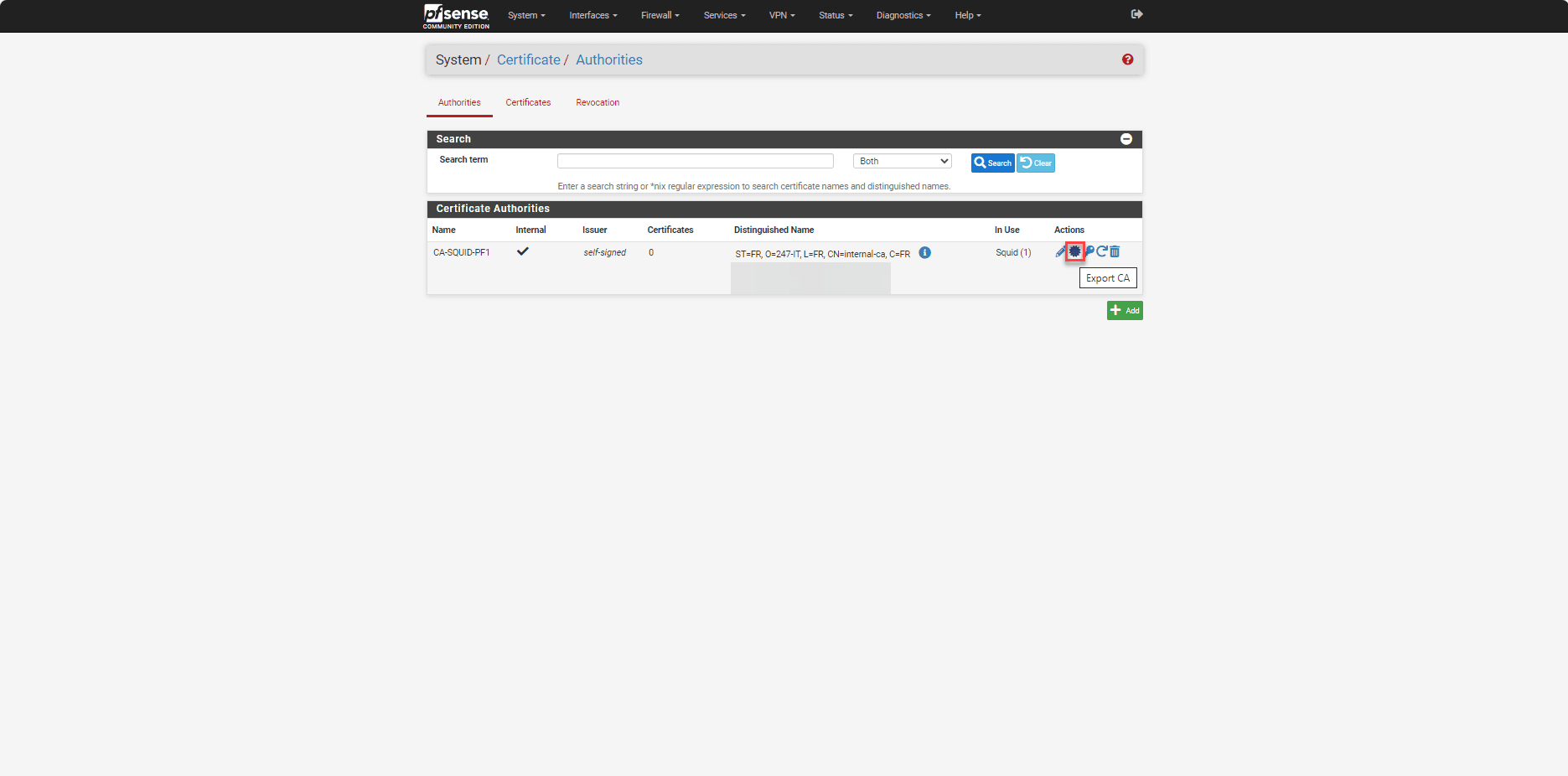
Start by exporting the certificate, go to System / Certificate.
From the list of certificates, click on the export icon of the certificate authority used by Squid.
To install the certificate on the computer, for deployment via GPO, you can follow this tutorial: GPO: Deploy a certificate
Close the browser and reopen it and go to Facebook, the page displays normally and you can see that the certificate was issued by Squid.
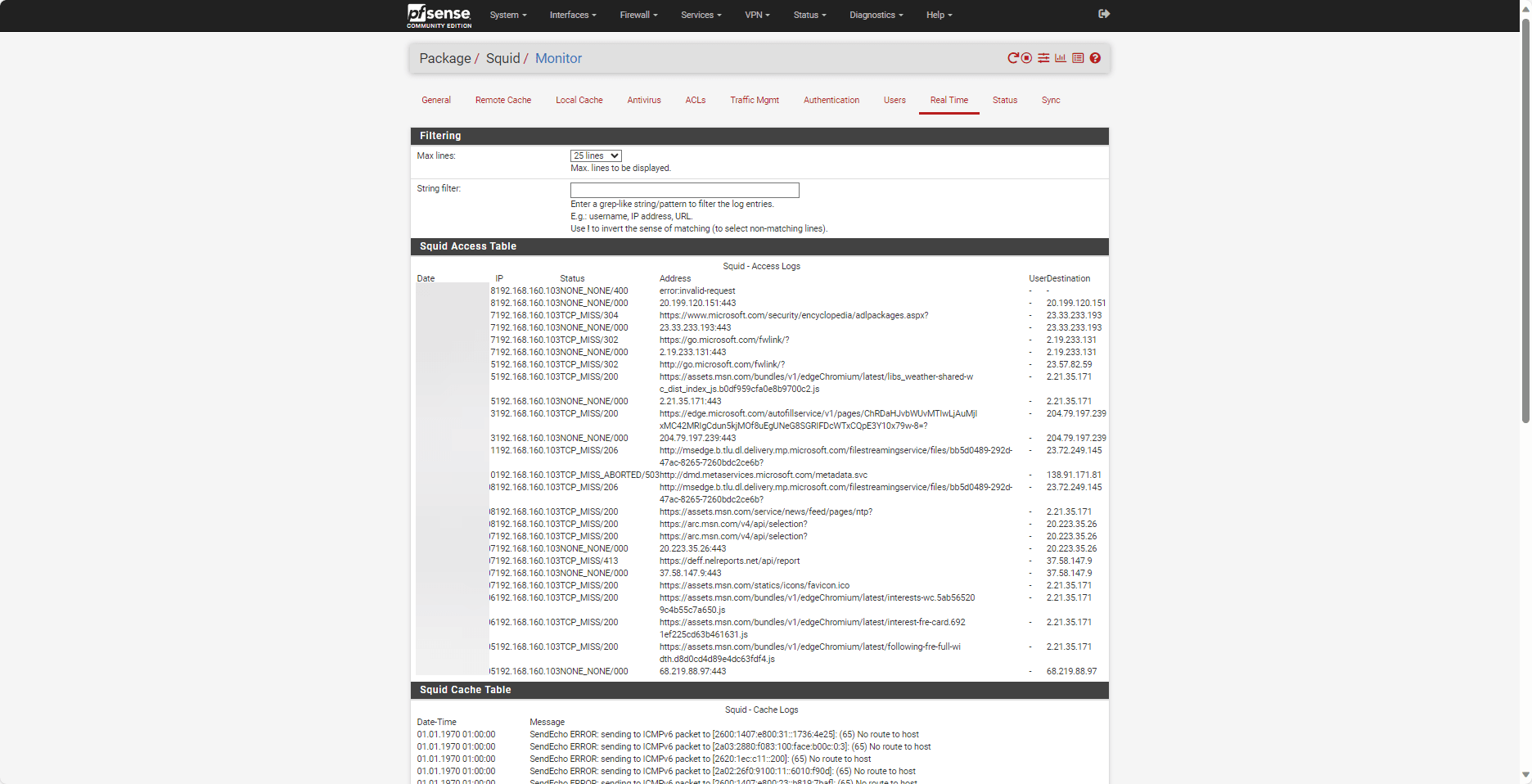
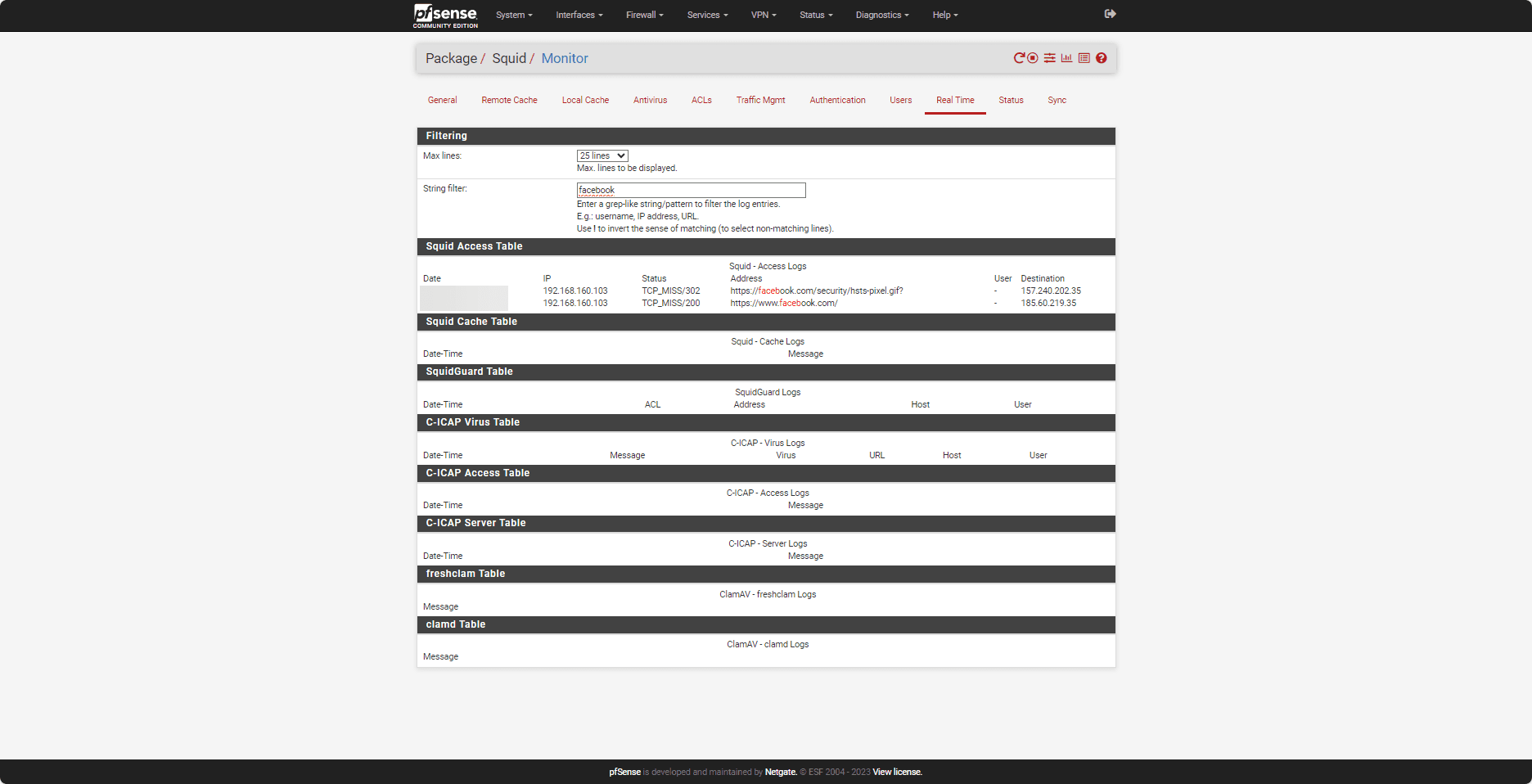
At the same time, you can monitor Squid’s real-time traffic in the Real Time section of the configuration.
This first tutorial dedicated to pfSense ends here; you now know how to deploy a firewall and set up a transparent proxy to control outgoing traffic.
Other tutorials are in preparation where we will see:
- Block access to certain websites with Squid and SquidGuard
- Publishing a server on the Internet
- Implement security mechanisms
- …
