Activate Windows Defender Application Guard
In this “how to” tutorial, we will see how to activate Windows Defender Application Guard, which is a feature available on Windows 10 (Pro / Enterprise) and which allows you to launch the Microsoft Edge browser in an isolated environment.
Windows Defender Application Guard requires :
Processor virtualization
– 4 CPU
– 8Go RAM
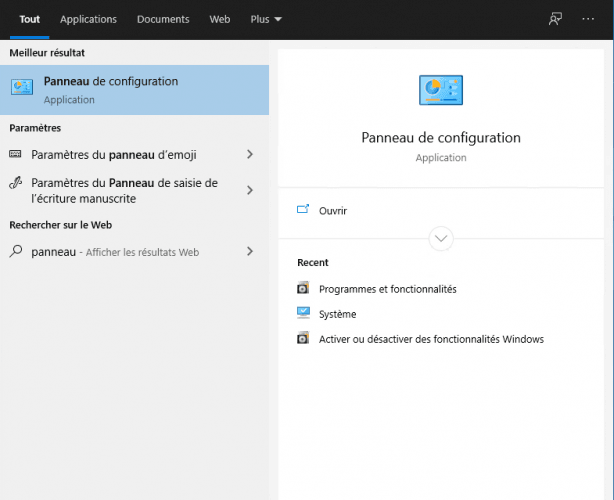
Open the control panel
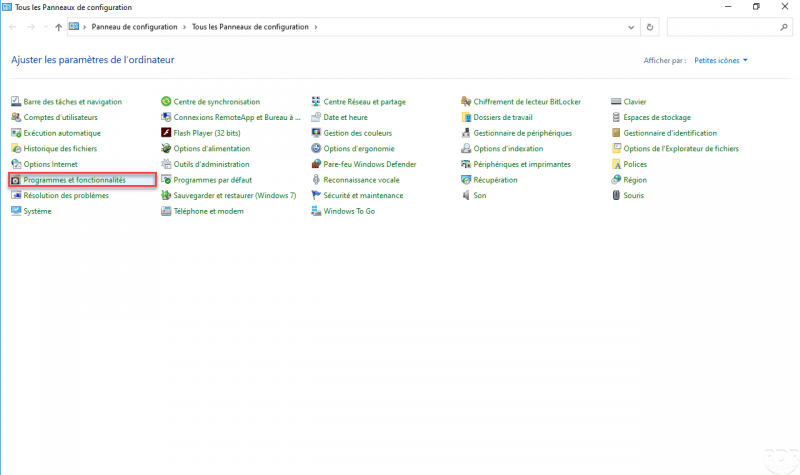
Go to Programs and Features
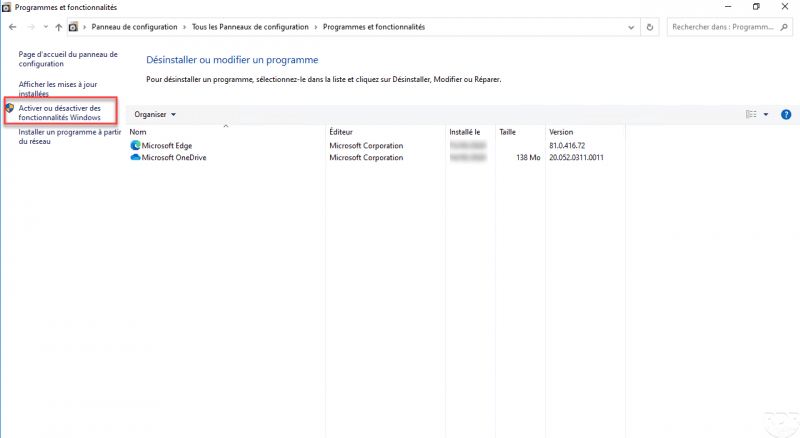
Click on Activate or deactivate Windows functions
Check Windows Defender Application Guard
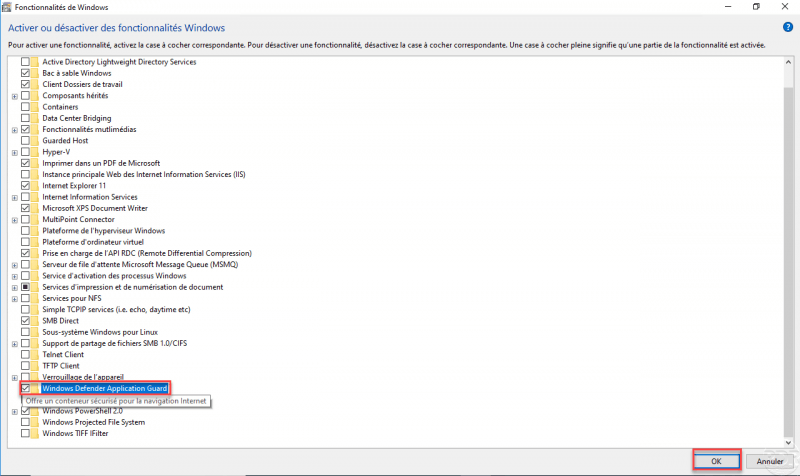
In the list of features, check the Windows Defender Application Guard box and click the OK button to start the installation. The option is grayed out if the prerequisites are not met.
Restart the computer
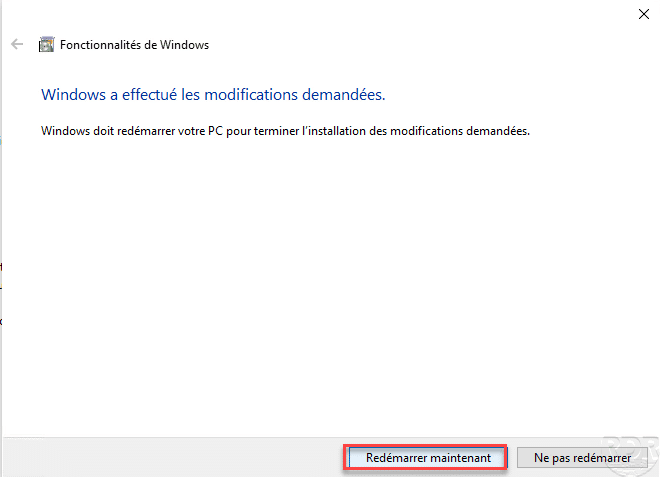
At the end of the installation, click on Restart now.
Open Microsoft Edge (chromium)
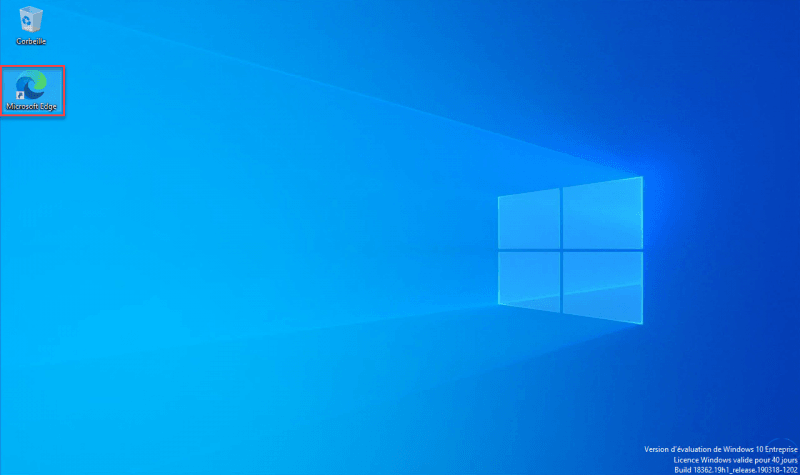
Launch an Internet browser (Microsoft Edge) compatible with Windows Defender Application Guard
Launch Edge in Application Guard mode
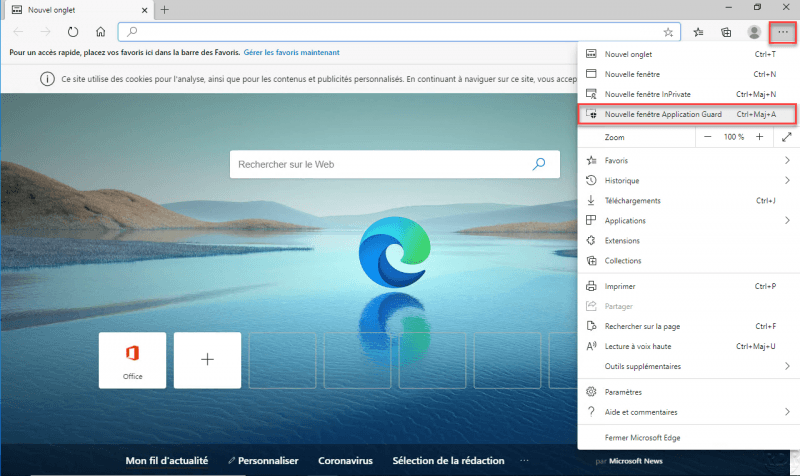
Click on … to open the menu and click on New Application Guard window.
The browser opens in isolated mode
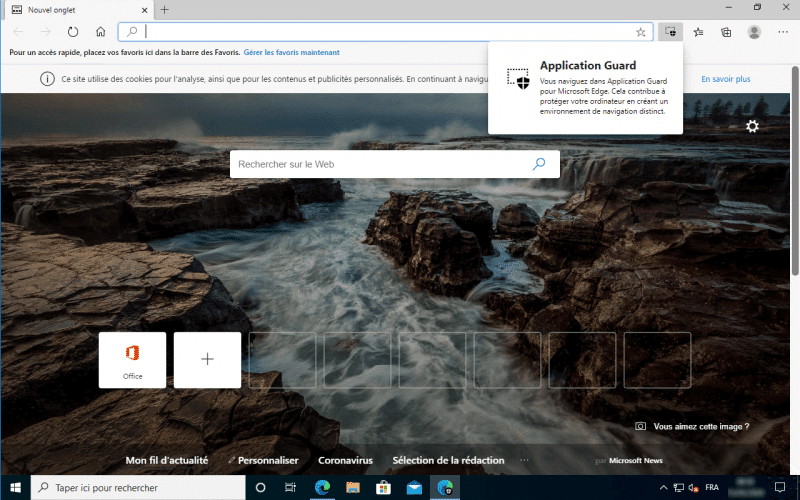
Edge is launched in isolated mode in a “virtual machine”. In the taskbar, you can see a shield on the icon.
