In this tutorial, I will explain how to add an SMB share to storage in Proxmox which you can then use to:
- Store ISOs and images
- Virtual disks of VMs
- Backup
I’m assuming you’ve already configured your sharing, which may be on a windows server or on a NAS.
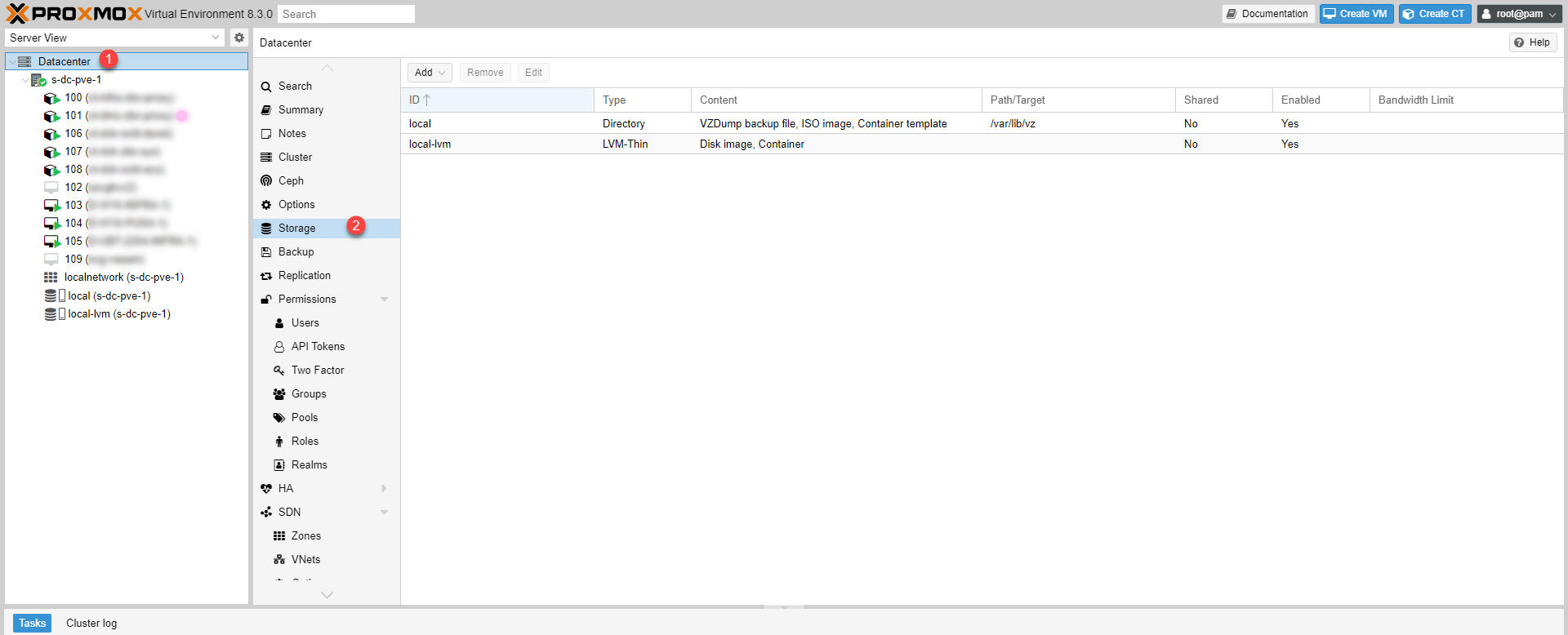
From the Proxmox web interface, go to Datacenter 1 then Storage 2.
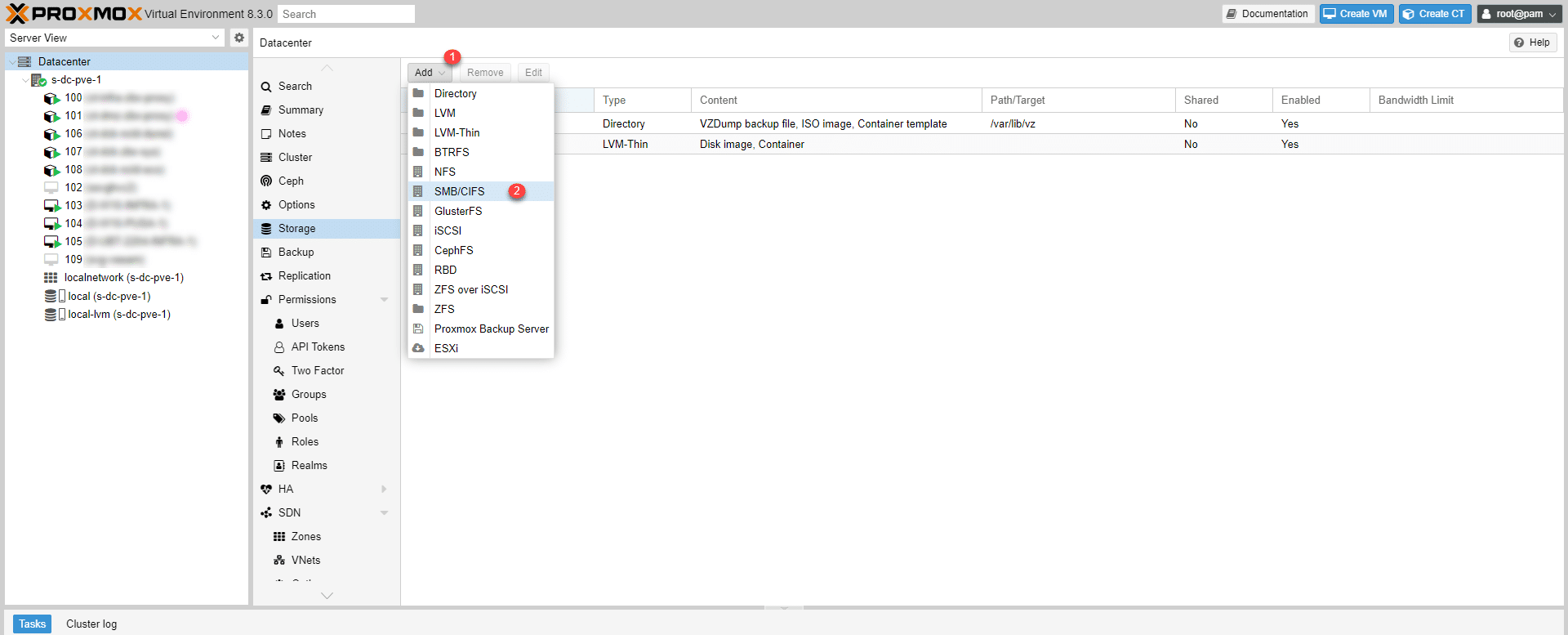
Click on the Add button 1 then on SMB/CIFS 2.
Enter an ID (name) 1, then the server’s IP address 2, followed by the username 3 and password of the account 4 that grants access to the share. Next, enter the share name 5 and then select what it will contain 6. Finally, click the Add button 7.
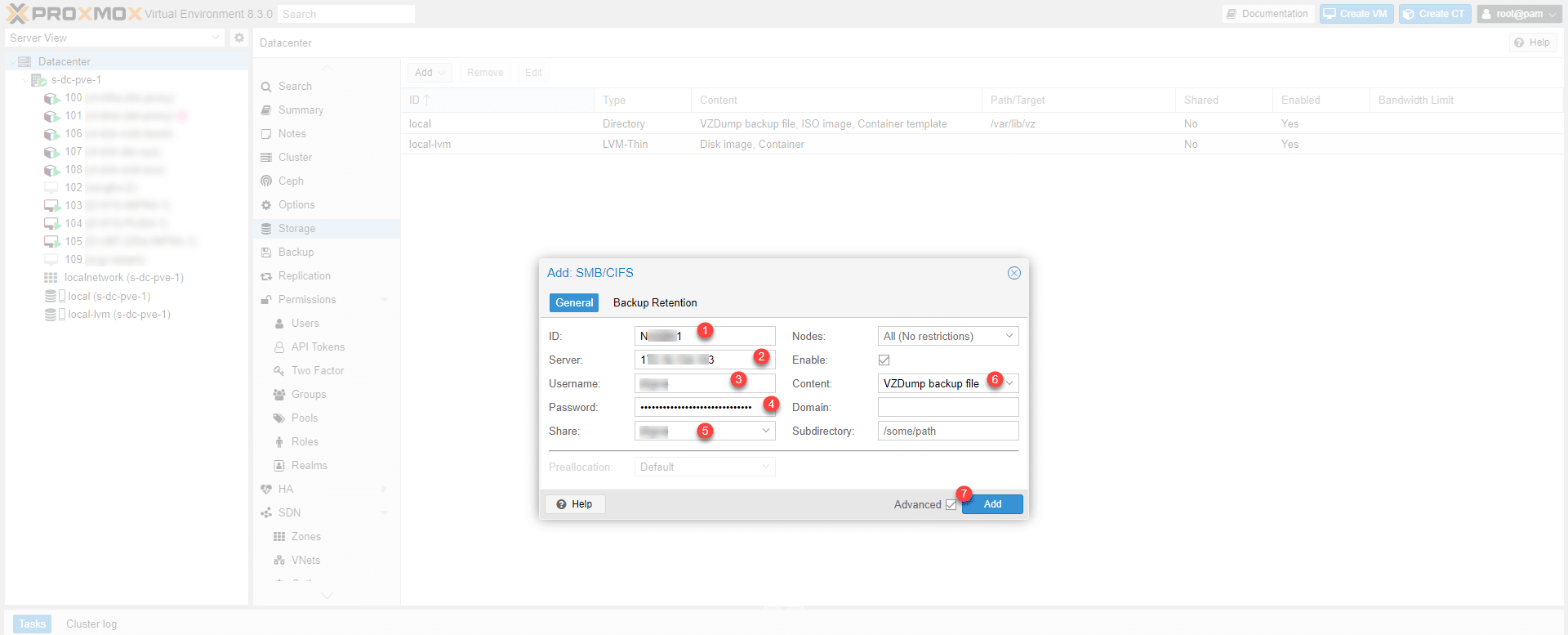
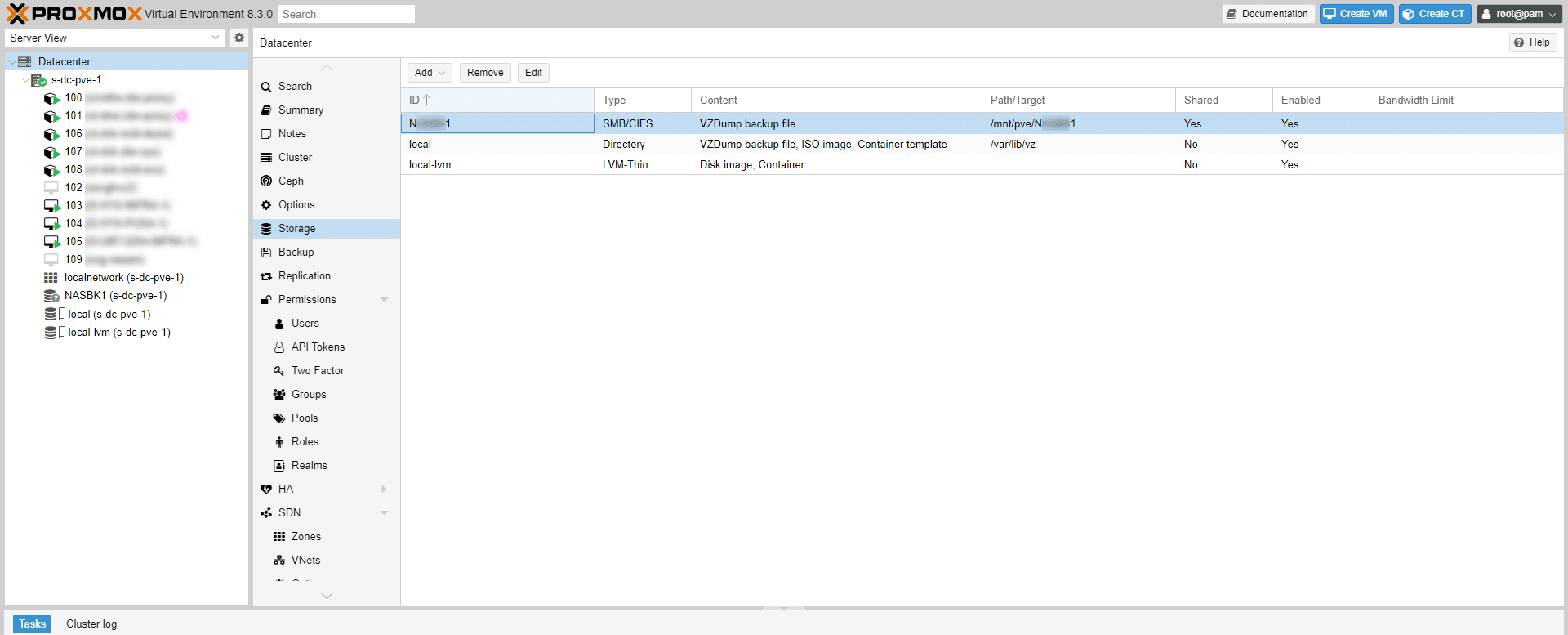
As you can see from the screenshot, the SMB share will only be used for storing backups.
The SMB share is added to the Proxmox storage; you can also see the mount point on the Proxmox server, which uses ID as the mount point folder.
Since SMB is a Microsoft protocol, for storing virtual disks in Proxmox, I recommend using NFS After the tests I was able to do on the same NAS, the NFS protocol allowed me to have superior performance in terms of I/O.
