In this tutorial, I’m going to explain how to configure automatic actions on GLPI 11 when it is install on a Linux server.
To ensure GLPI functions correctly, this is one of the first configurations to perform after installation.
The role of automated actions in GLPI is central to its operation because they manage all background actions such as:
- Sends notifications by email
- Collecting emails to generate tickets
- Automatic closing
- ….
Automatic actions can be executed in two modes:
- GLPI: This mode executes the automatic action during a navigation action on GLPI in the background during a page load.
- CLI: This mode directly executes the automated action on the server using a CRON schedule.
For better performance and greater consistency in automated actions, it is preferable to use CLI mode.
Table of Content
Configuring automatic actions in CLI mode
The first action will be to configure all automatic actions in CLI mode in GLPI 11.
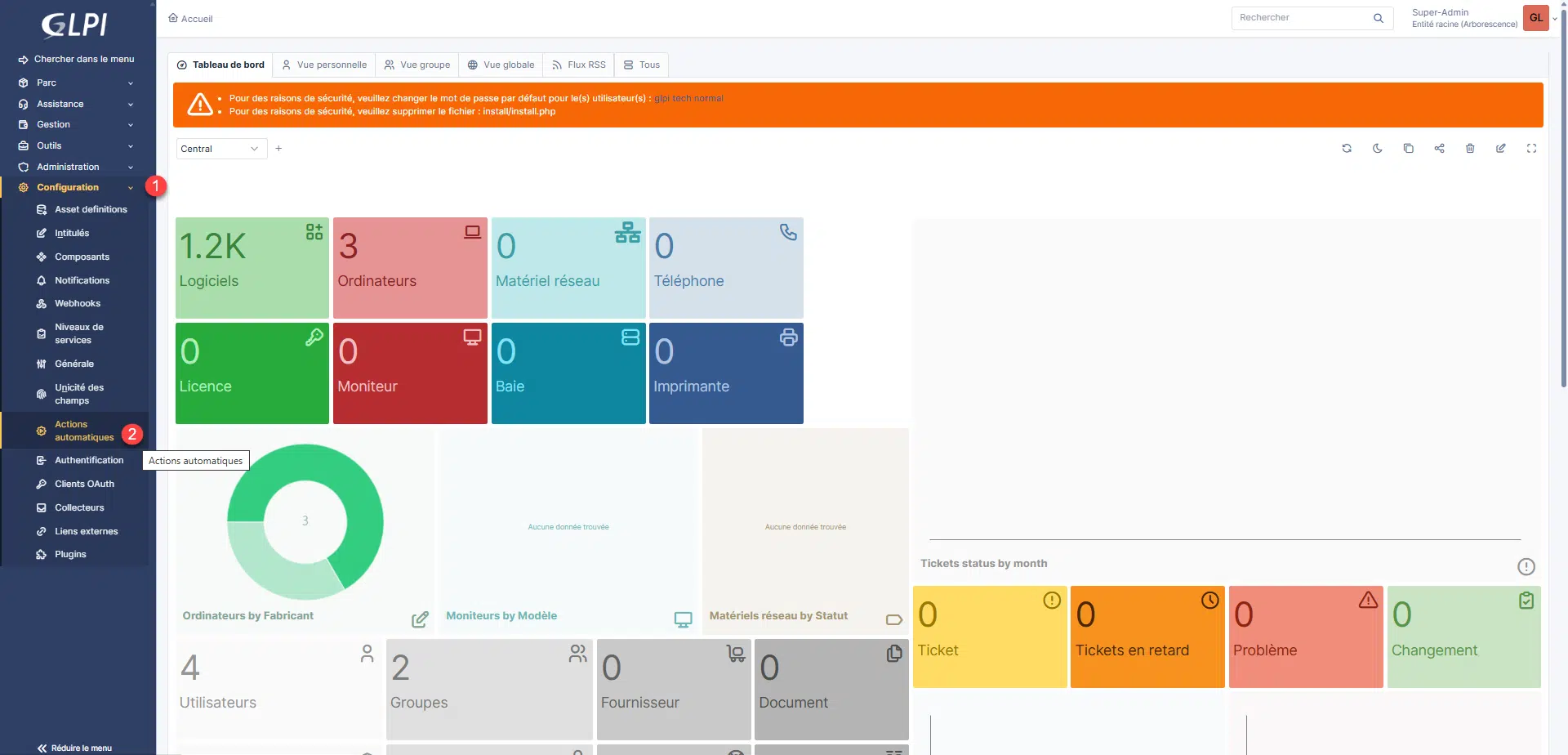
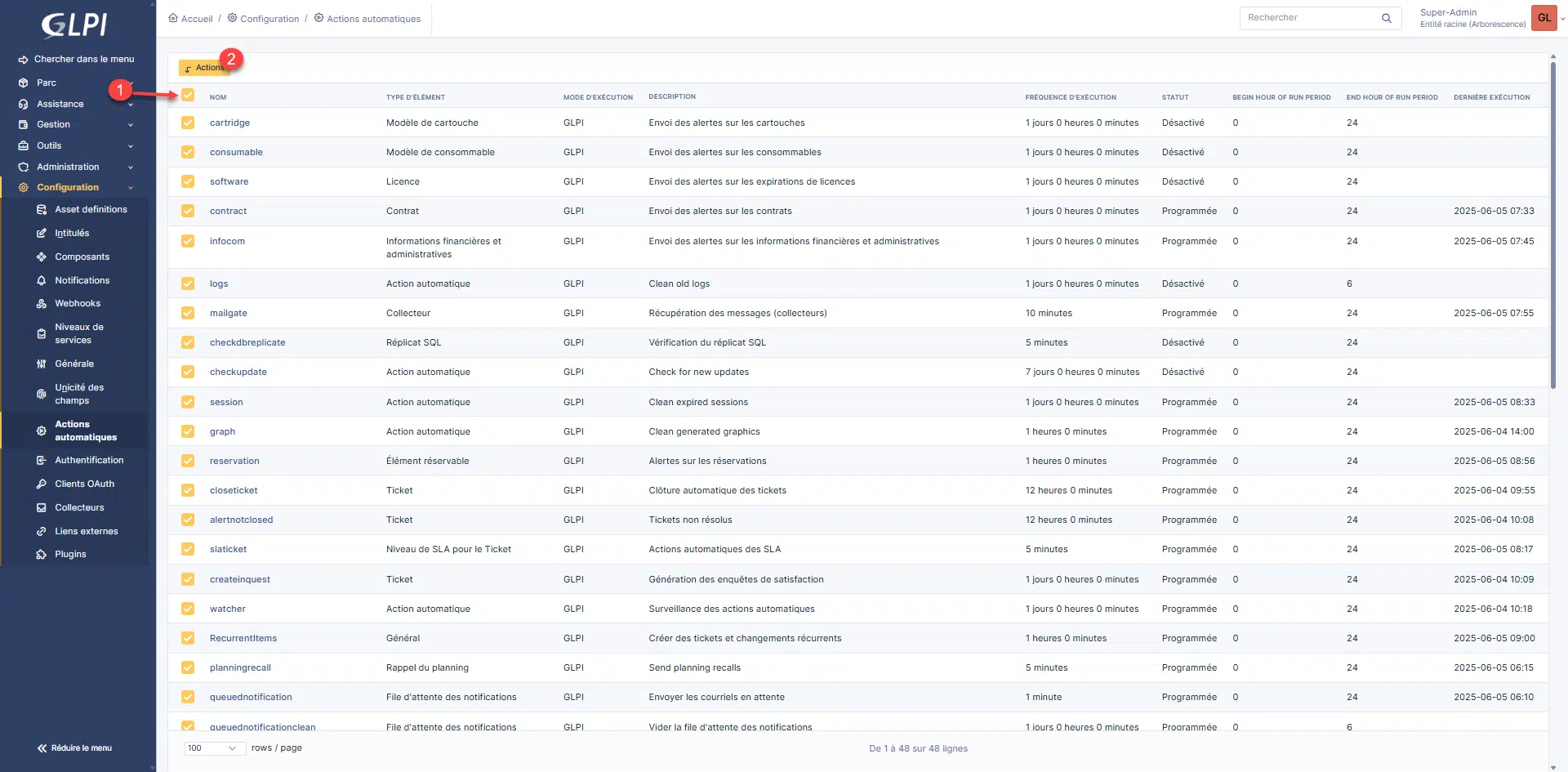
From the navigation menu, expand Configuration 1 then click on Automatic actions 2.
We arrive at the list of automatic actions within GLPI 11, as we can see, by default, there are automatic actions in GLPI execution mode and CLI.
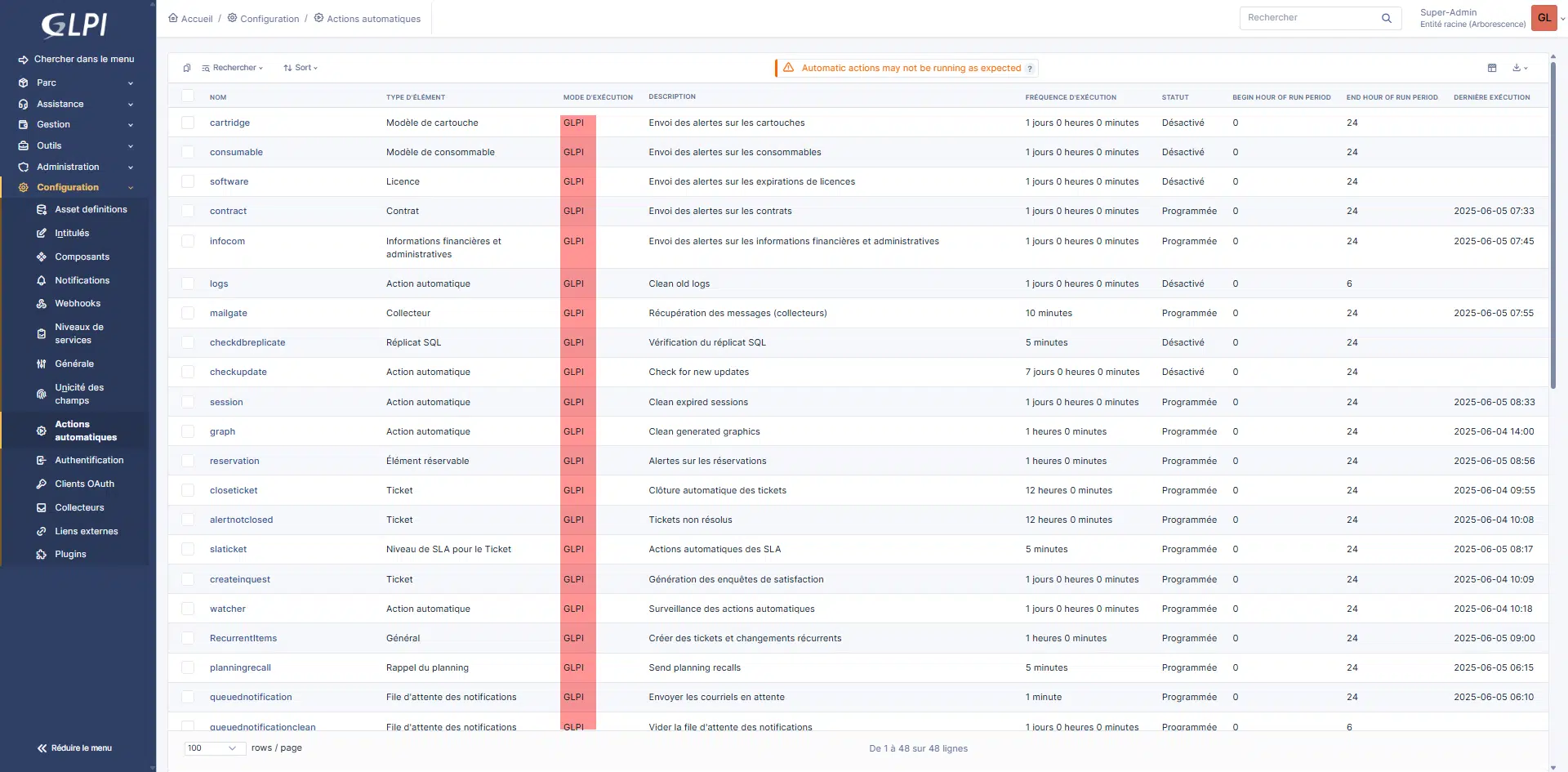
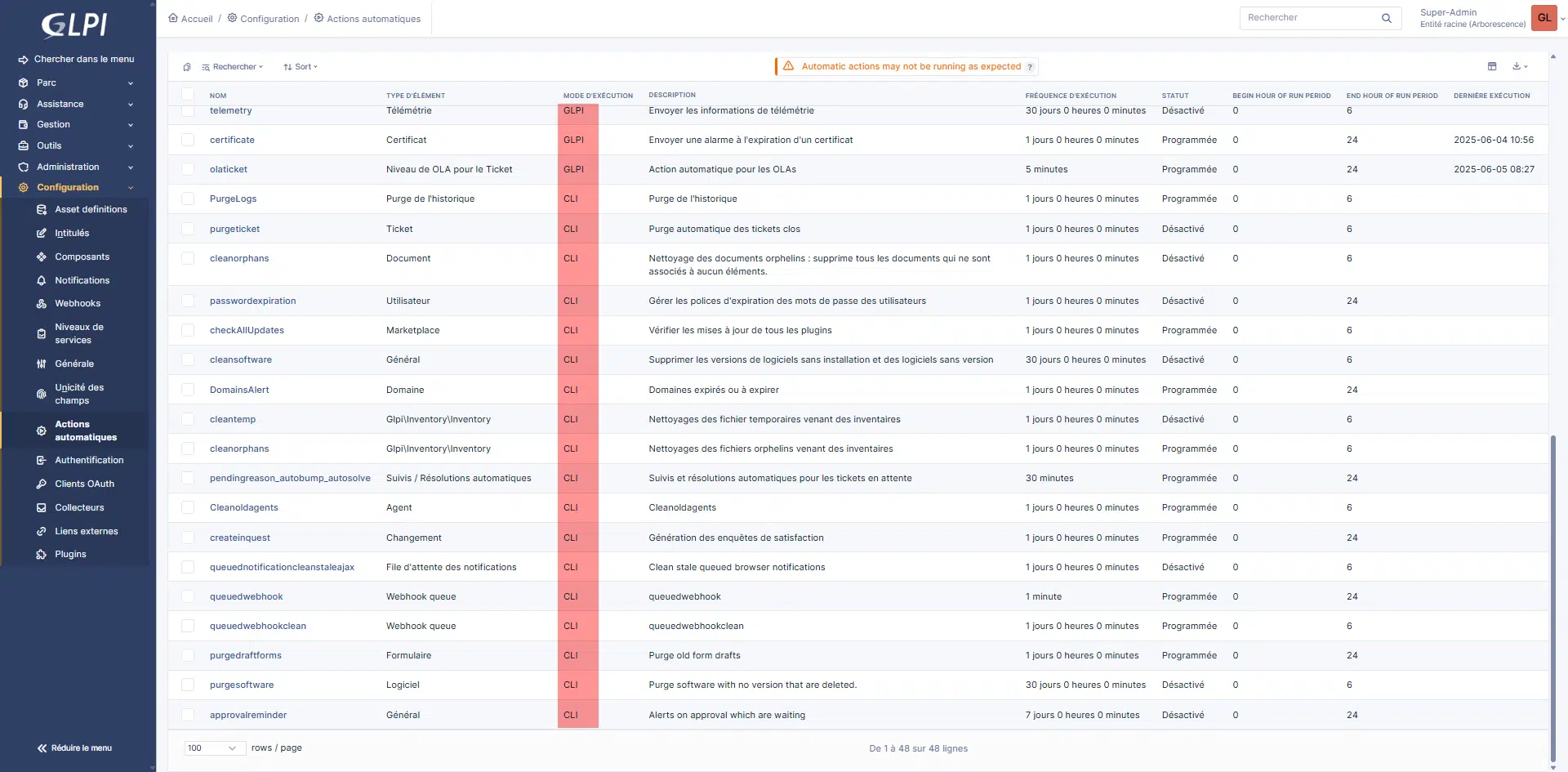
To display all automatic actions on a single page, change the number of rows displayed at the bottom.
Select all automatic actions 1 and click on the Actions button 2.
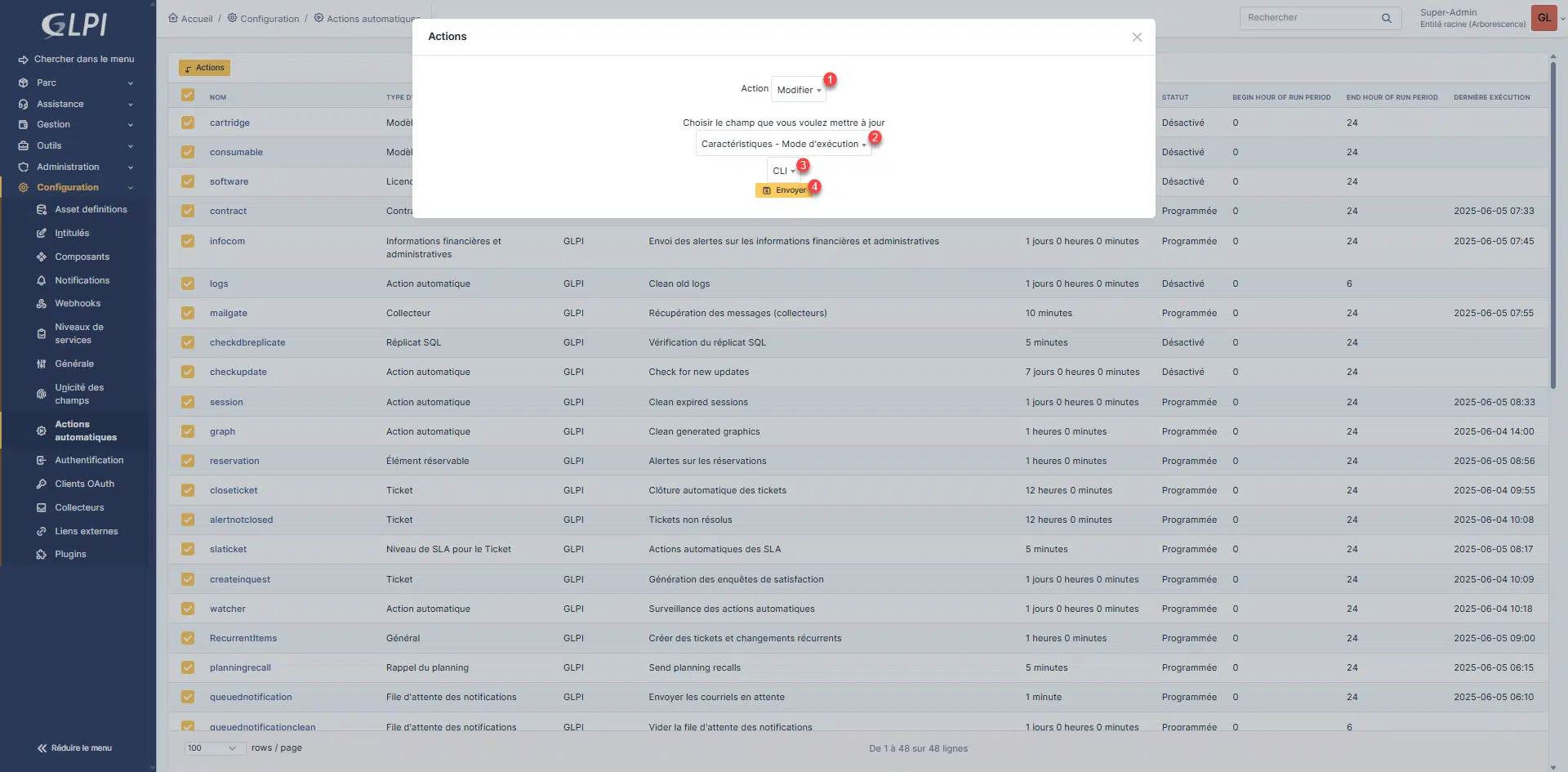
Select Edit 1 in the Action field to choose Characteristics – Execution Mode 2, then select CLI 3 and click the Send button 4.
In the bottom right corner, a notification appears indicating that the operation has been completed.
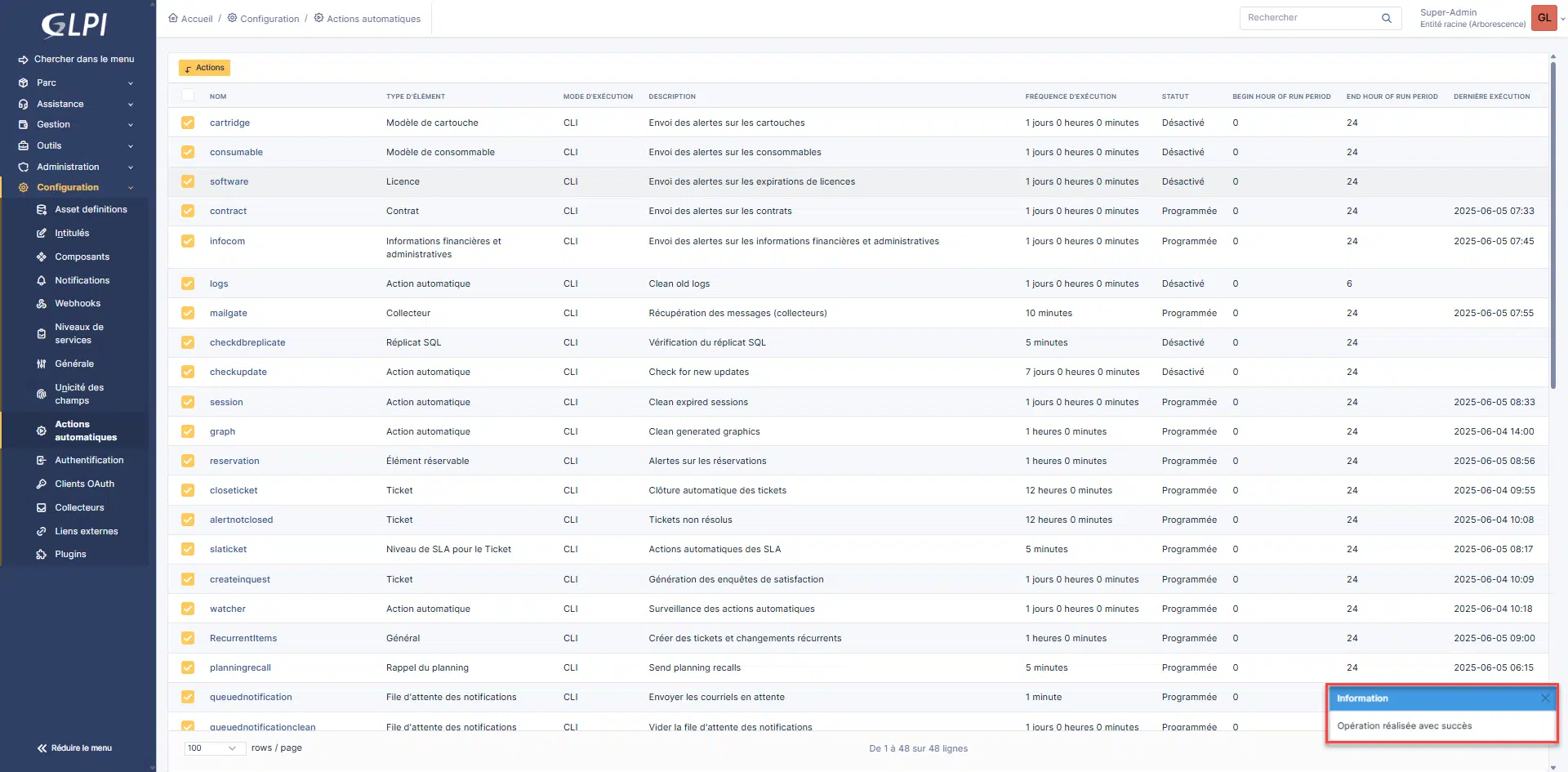
All automatic actions are configured to use CLI execution mode.
Add the CRON task on Linux
Now we will configure the CRON task on Linux, to connect to the server via SSH.
GLPI’s automatic tasks are executed by running the file cron.php which is in the folder forehead/ of GLPI 11.
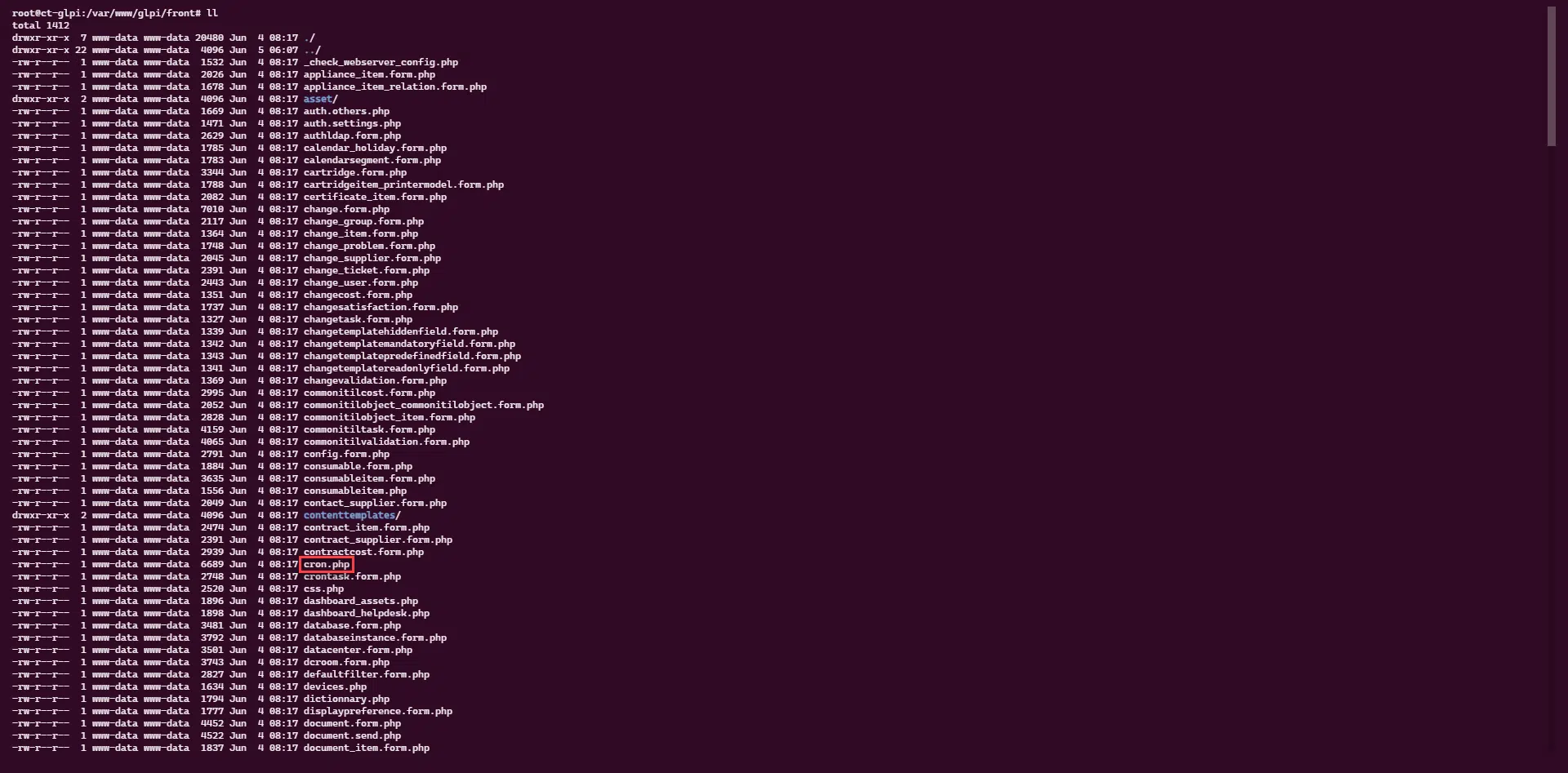
Open the crontab editor on the server:
sudo crontab -e
When you first run the crontab command, you must choose the editor; by default it is nano.
Add the line that allows you to add the cron task:
* * * * * php /var/www/glpi/front/cron.php --allow-superuser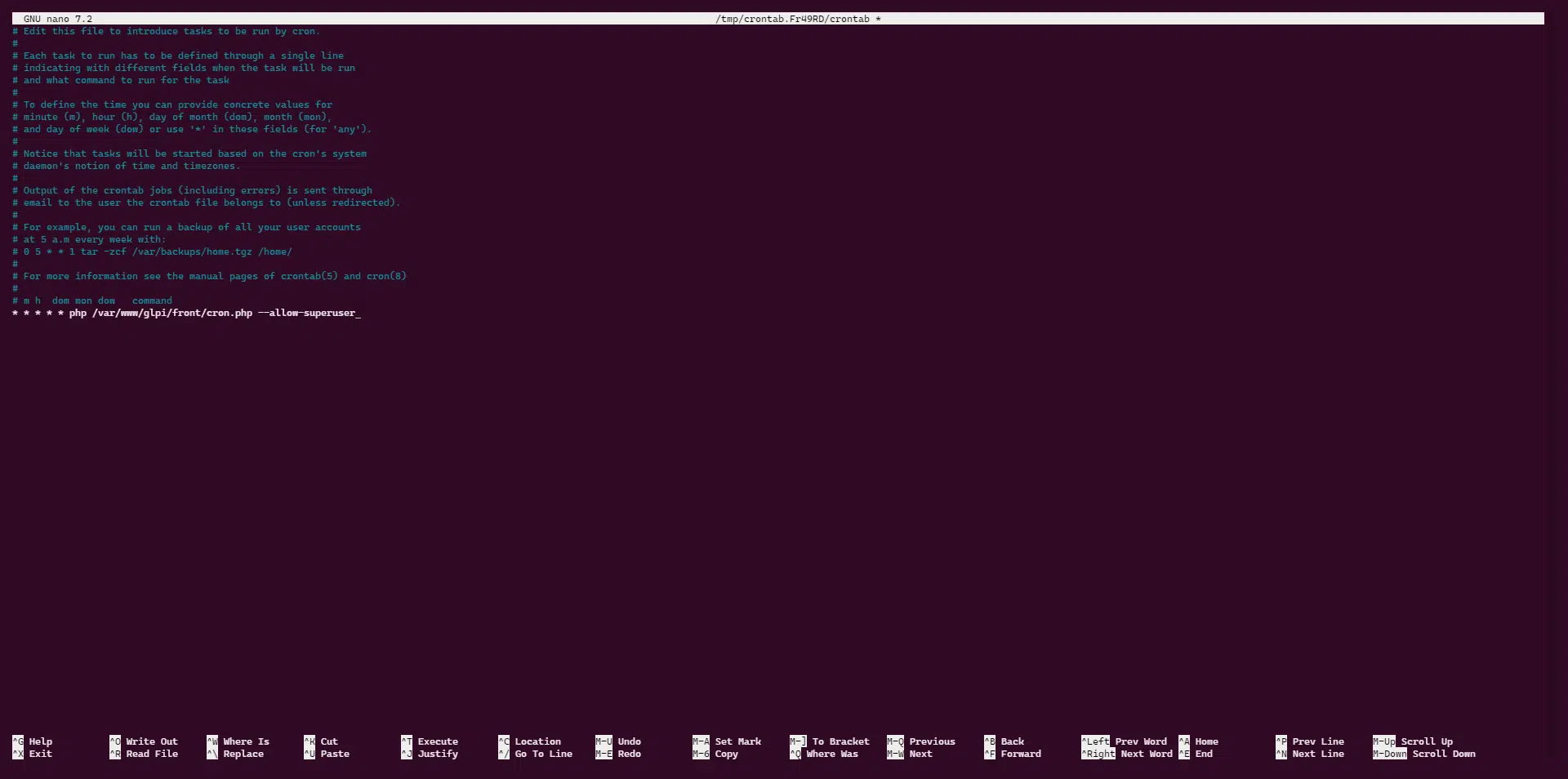
With this line, the file
cron.phpwill be executed every minute for the execution of automatic actions in GLPI 11 according to the schedule.
Wait a few minutes and check in the GLPI 11 web interface, the execution of automatic actions by looking at the date of the last execution.
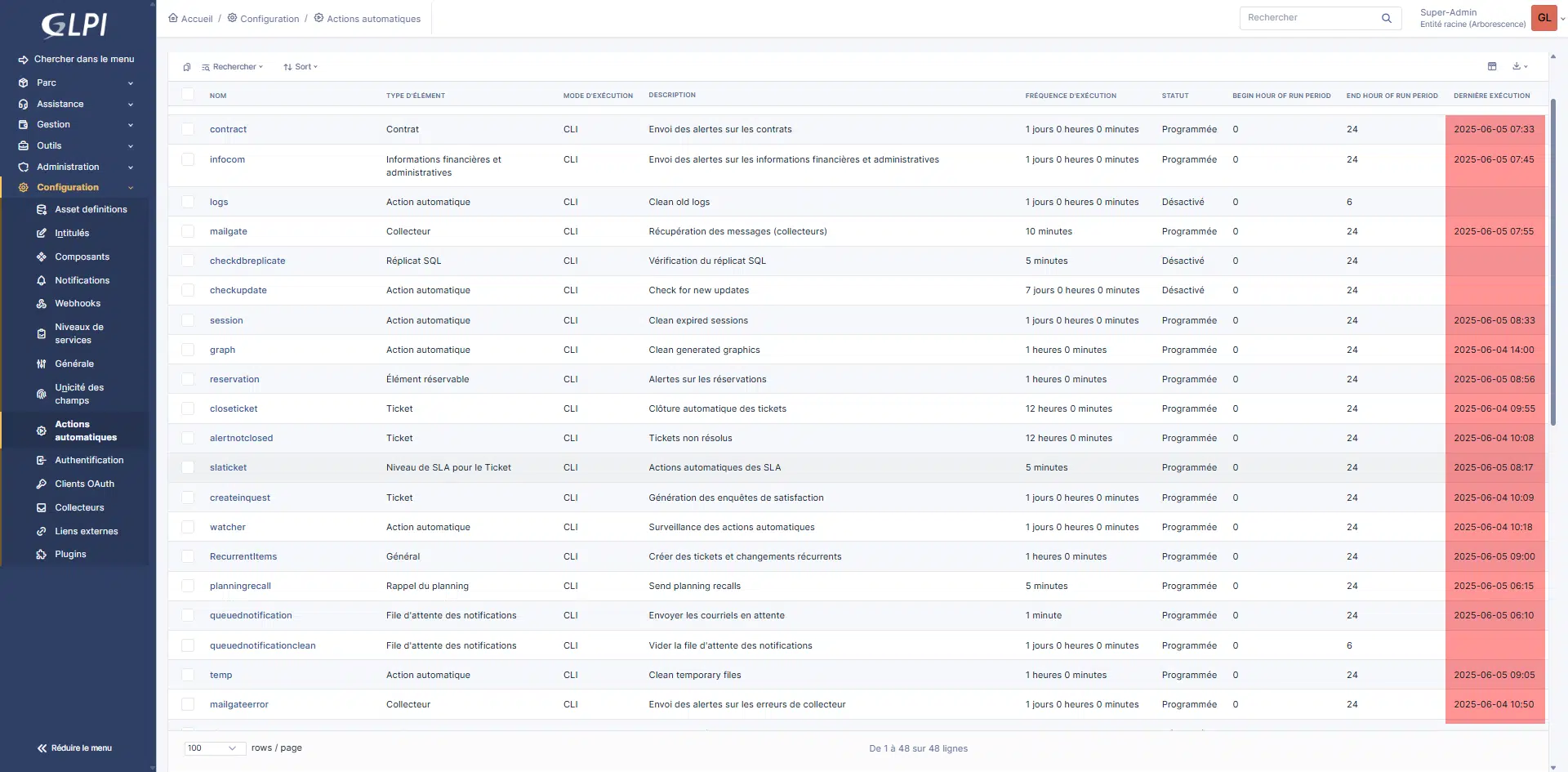
If you encounter a problem or have any doubt about whether the CRON task is running correctly, you can execute the following line directly in the terminal:
php /var/www/glpi/front/cron.php --allow-superuserThe server-level CRON task is configured.
Managing the scheduling of automated actions in GLPI 11
It is important to differentiate the server’s CRON task, which will run every minute, from the automatic action scheduling in GLPI 11, because the latter has its own schedule and will therefore not be executed every time the server’s CRON task is launched.
In the automatic actions of GLPI 11, if we look at the Mailgate automatic action which allows the collection of emails and the generation of tickets, we can see that it is executed every 10 minutes.
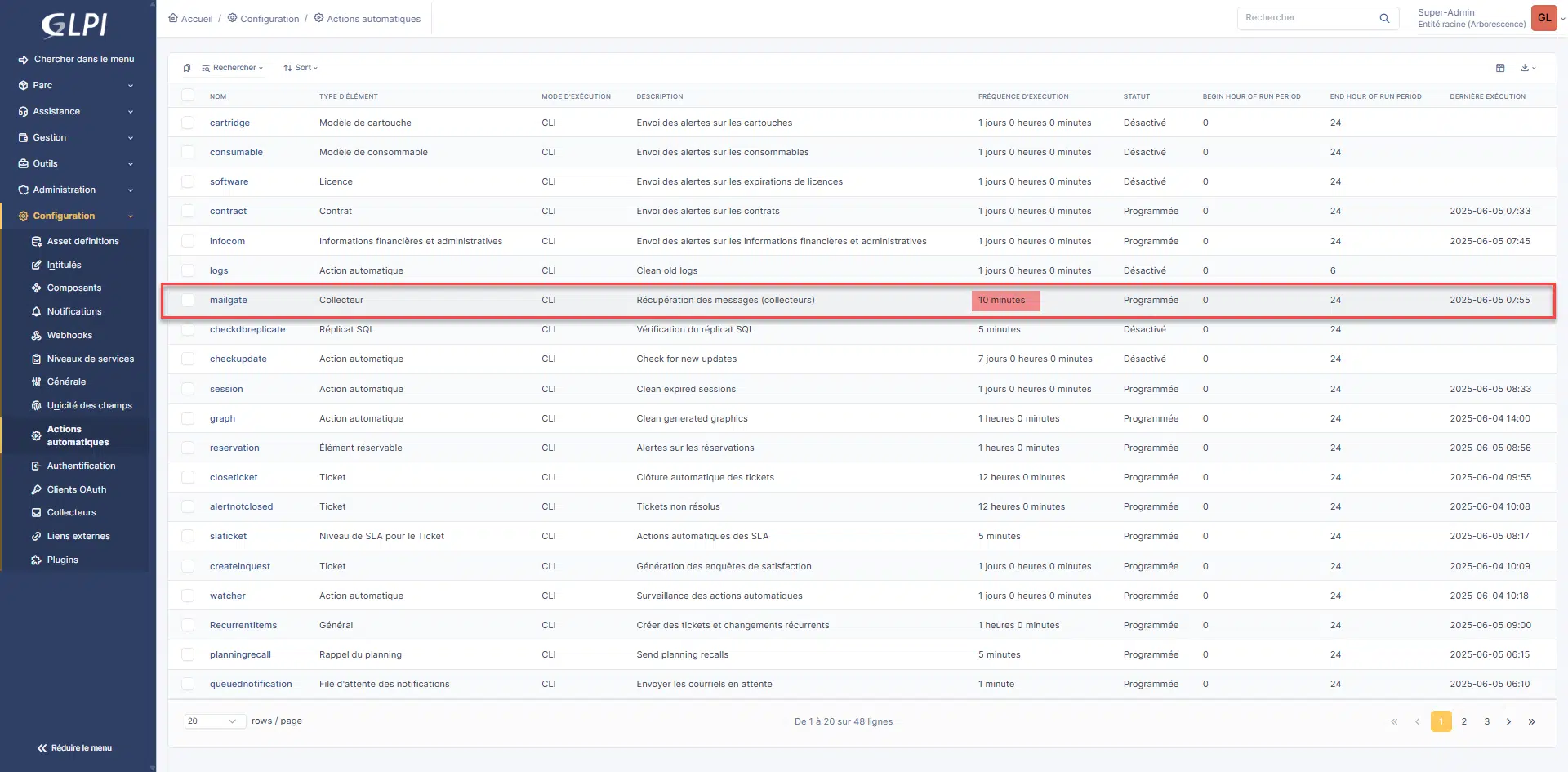
In the automatic action settings, it is possible to adjust the execution time range 1 and the frequency 2.
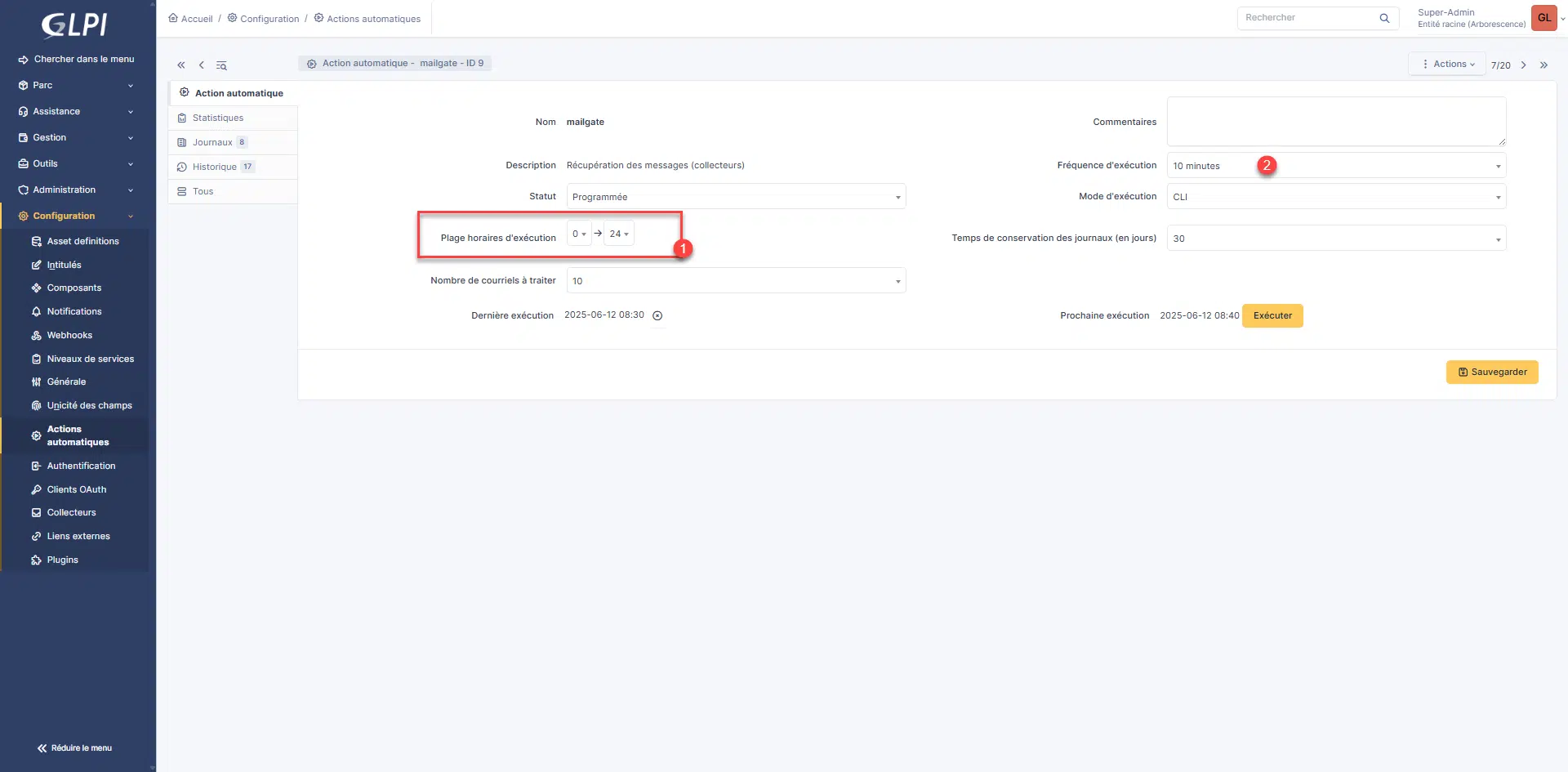
Adjusting the time range allows, for example, emails to be retrieved only during the opening hours of the email service and avoids sending the ticket acceptance notification if, for example, a user makes a request at 6 PM when support is only available until 5:30 PM.
Troubleshooting
Depending on your environment, it is possible that the cron task may not work correctly with GLPI.
To resolve this issue, the cron task must be run with the user who is running the Apache2 service.
Here is the cron line to use:
* * * * * sudo -u www-data php /var/www/glpi/front/cron.phpYou now know how to configure automatic actions in GPLI 11 on a Linux server with CRON tasks.
