In this tutorial, I will show you how to export and import a task planned on Windows from the task planner
Export a planned task
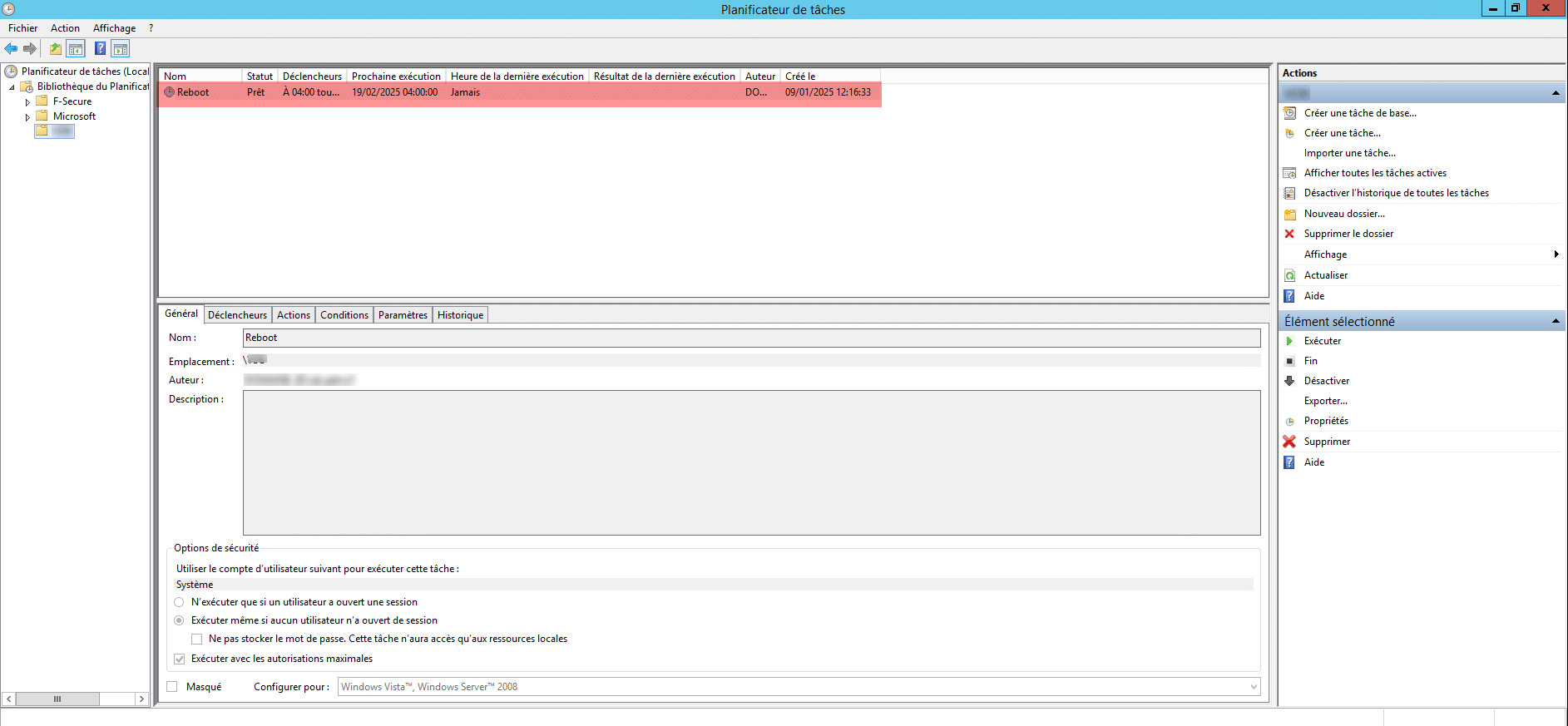
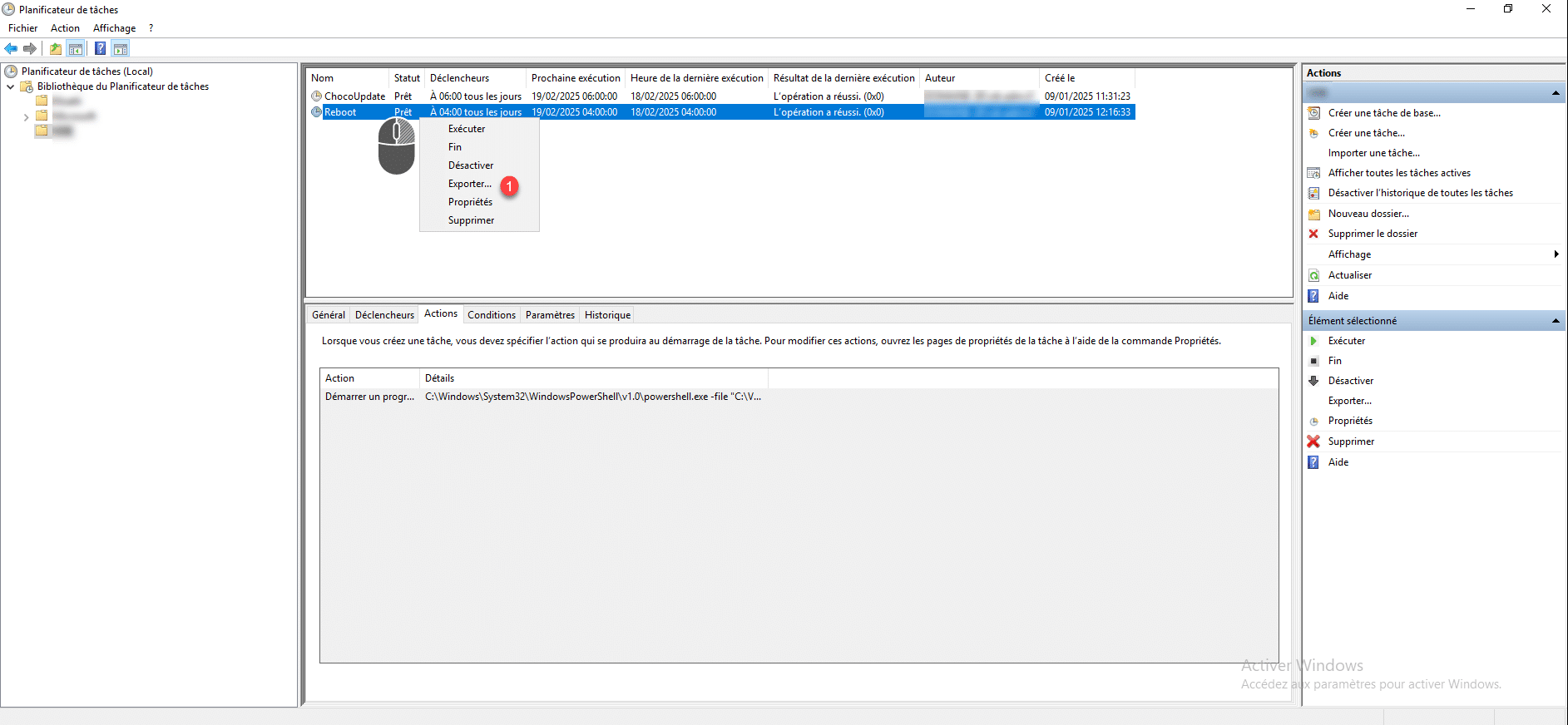
Here we will export the planned Reboot task.
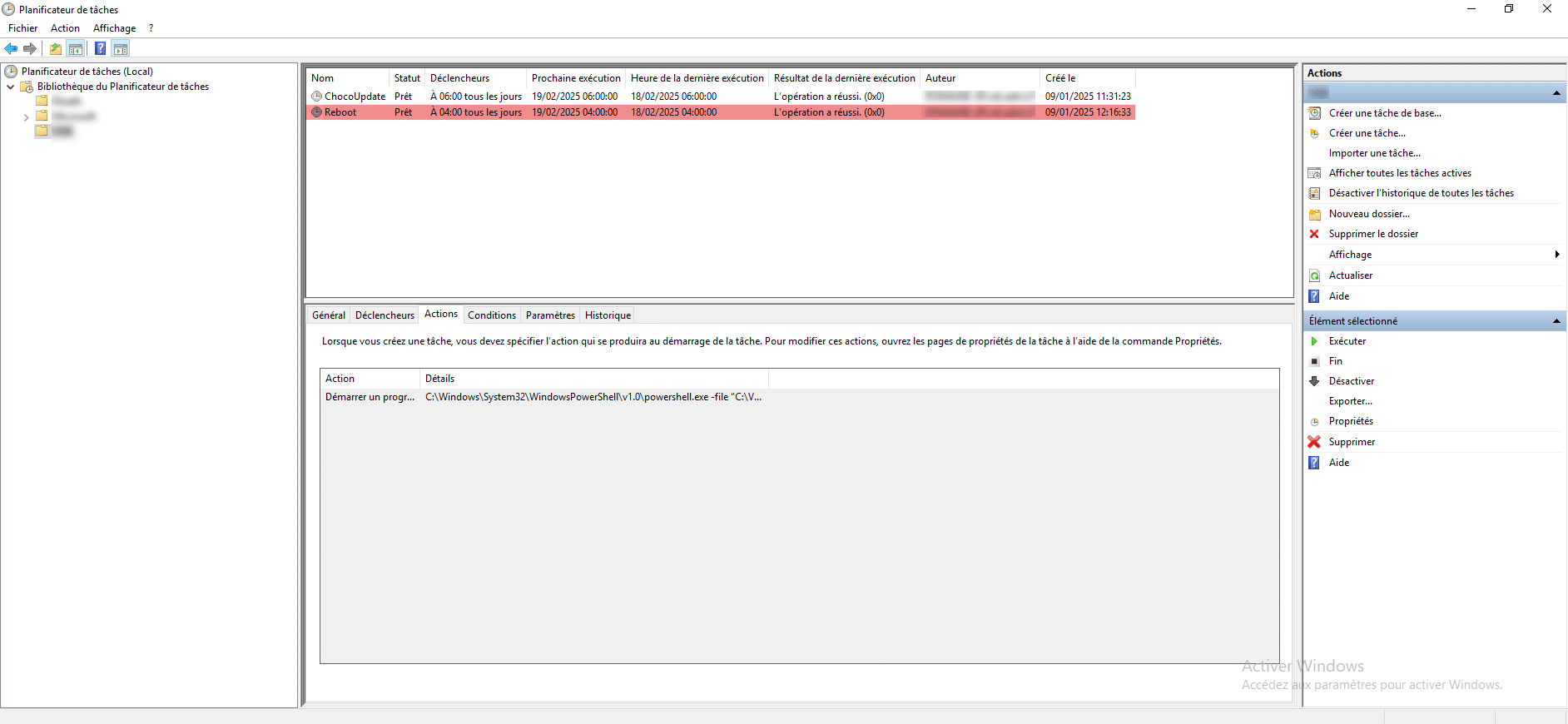
Right-click on the task, then click Export 1.
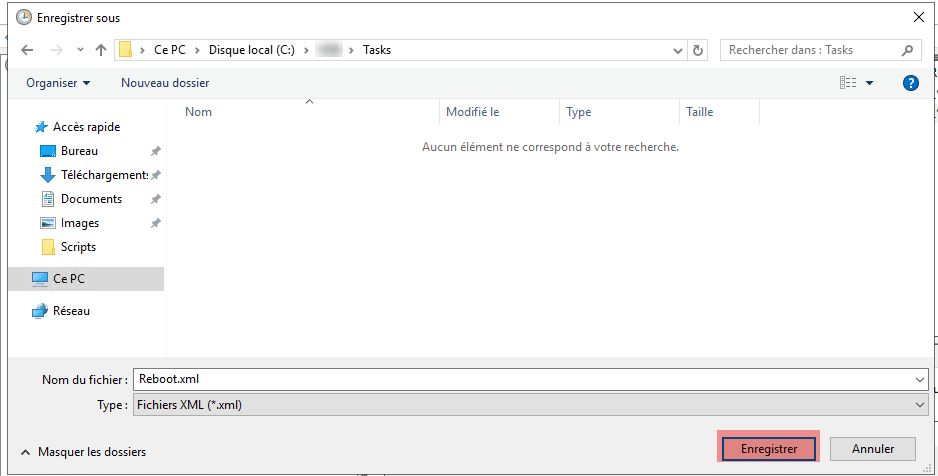
Select the folder or you want to export the XML file of the task and click Save.
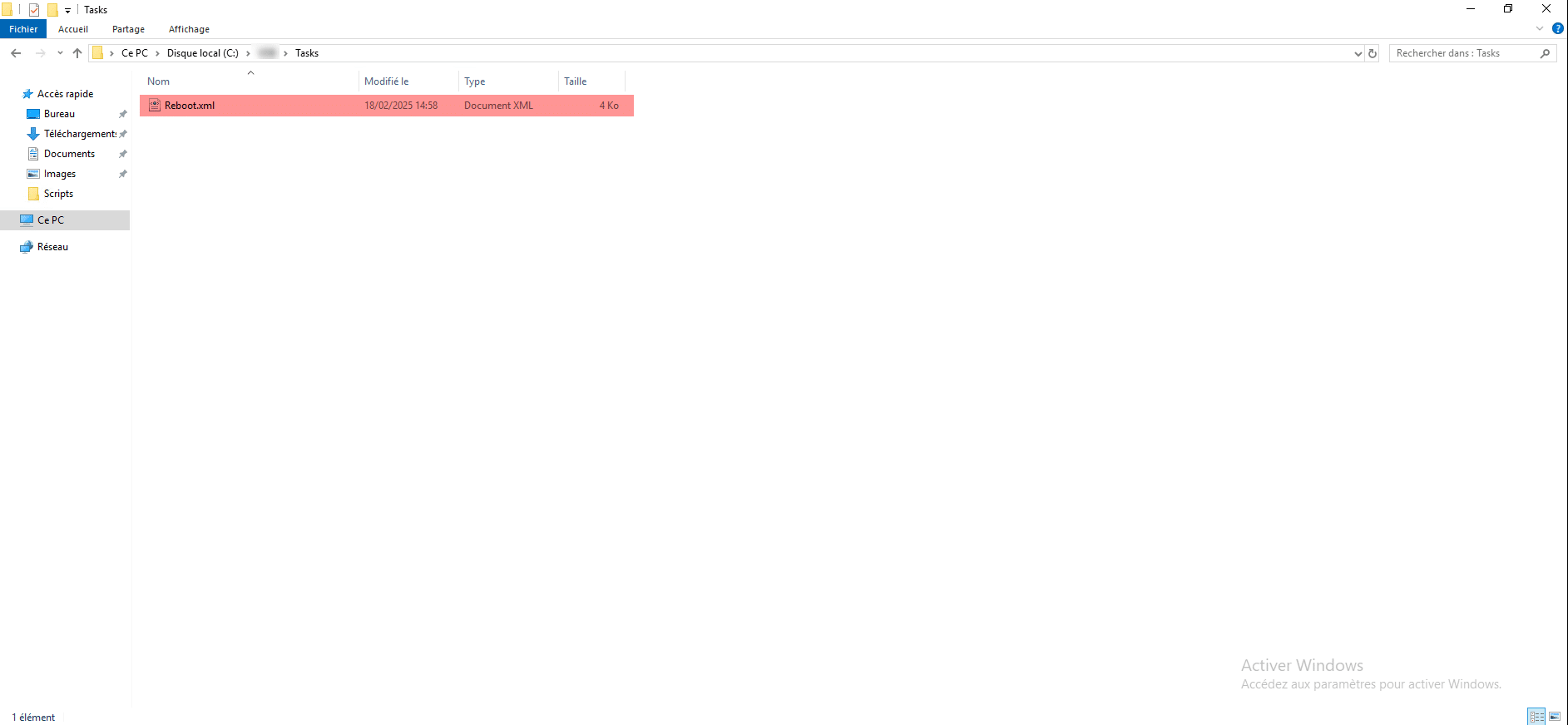
On the computer, you will find the XML file of configuration of the planned task.
Import Planned Task on Windows
Now, we’ll see how to import the planned task, before importing your planned task, if it runs a program or script, make sure they are also present on the server, because the XML file only includes the configuration.
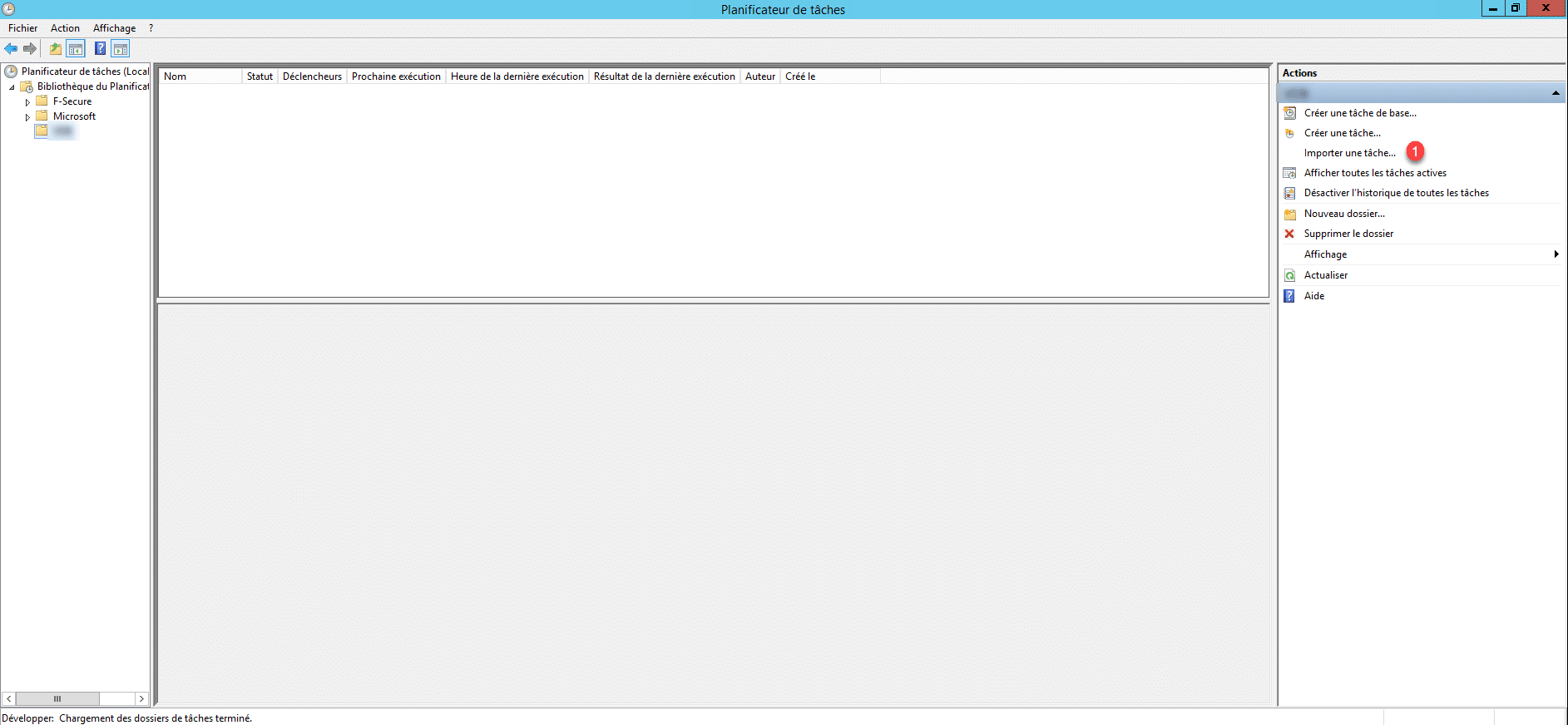
On the computer, open the Task Planner, then in the Action pane, click Import a task 1>.
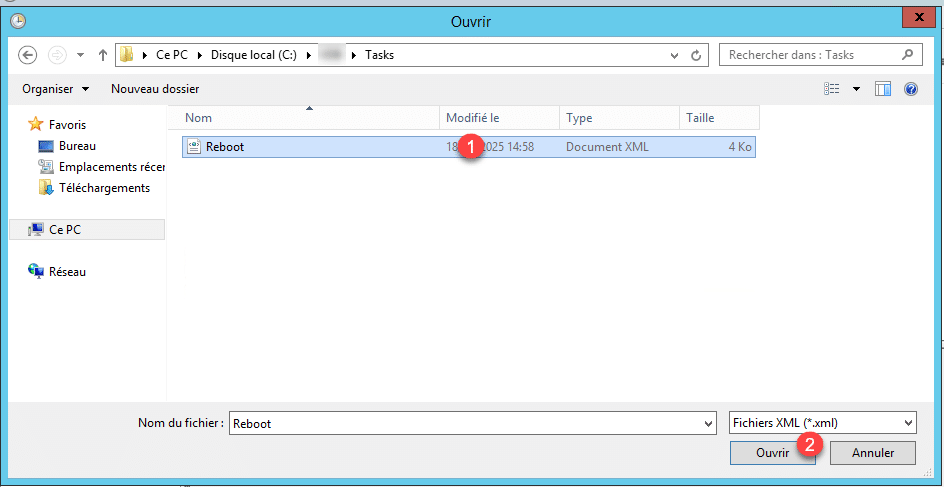
Select the XML file 1 to import and click Open 2.
To finish click OK 1 to create the task.
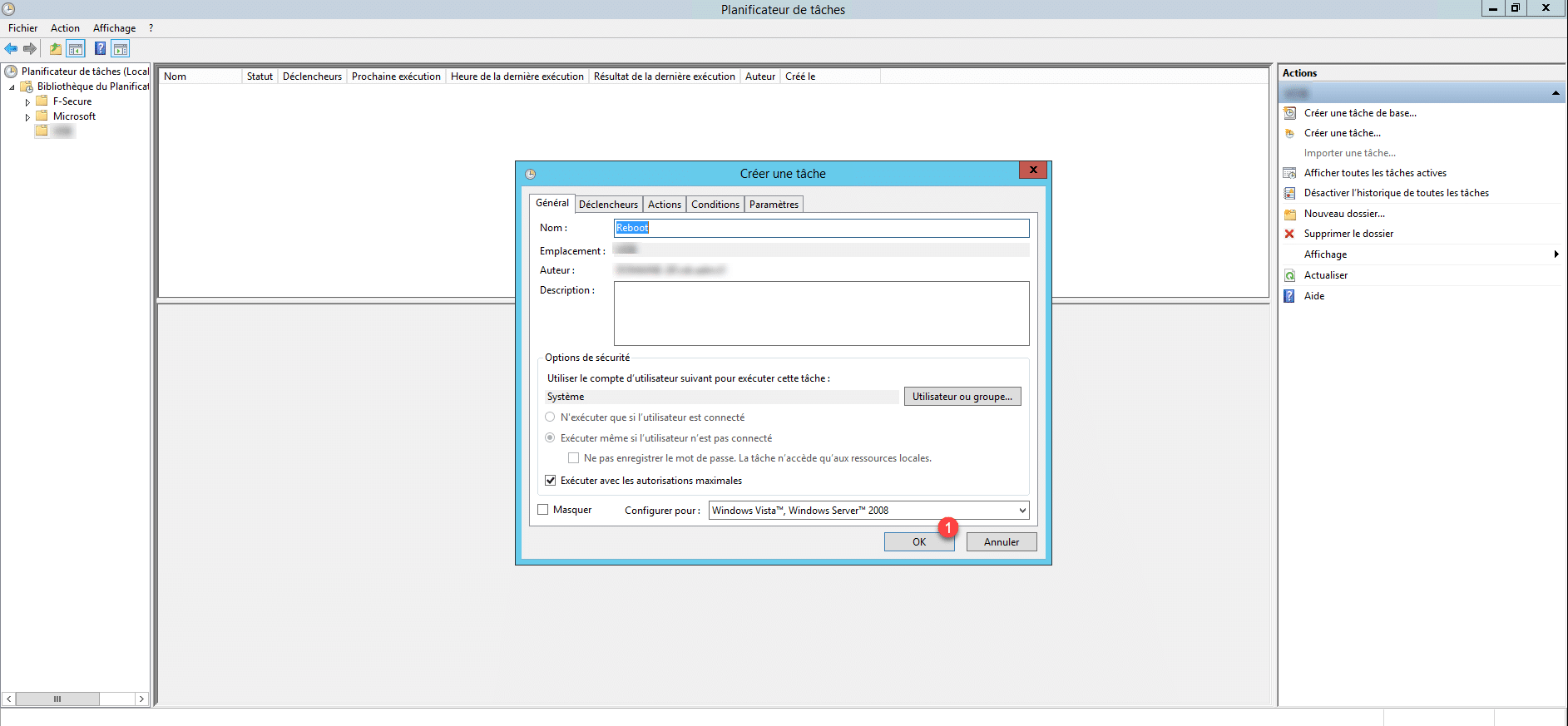
If the user account requires a password, you must enter it, it is not exporting with the task.
The task is added.