In this tutorial, I will explain how to encrypt a virtual machine on Hyper-V with Bitlocker and a TPM chip, then integrate it into a Hyper-V cluster and take advantage of the live migration functionality between the different nodes.
BitLocker is a native Windows encryption feature that protects data by encrypting disk volumes. It uses robust encryption algorithms to prevent unauthorized access, even if the disk is physically removed from the computer. BitLocker can be paired with a Trusted Platform Module (TPM) chip to enhance security by ensuring system integrity at startup. It is particularly well-suited for enterprise environments and compliance requirements.
Encrypting a virtual machine on Hyper-V protects sensitive data against unauthorized access, data leaks, or host system compromise. This is a common security requirement in sectors subject to strict regulations (GDPR, healthcare, finance, etc.).
However, encrypting a VM with BitLocker introduces significant constraints:
- Backup: Backup solutions can become less effective. Encrypted content is seen as an opaque block, which prevents granular analysis and efficient incremental backups. Some solutions require an agent within the VM to work around this issue.
- Deduplication: Encryption modifies all data blocks, even for identical files. This prevents deduplication on the storage side or in backup systems, significantly increasing backup size and disk space consumption.
- Disk array performance: SAN or NAS arrays can no longer optimize I/O on redundant blocks or apply advanced compression or caching mechanisms, because the data is unreadable without decryption.
In summary, while encryption enhances security, it can impact performance, increase storage costs, and complicate backup strategies. It is therefore crucial to assess these constraints based on the level of risk and compliance requirements.
Table of Contents
Add a TPM chip to the virtual machine
To begin, we will need to add a TPM chip to the virtual machine in order to be able to use it for Bitlocker; for this, the VM must be generation 2.
From the Hyper-V console, select the virtual machine 1 then open its settings 2.
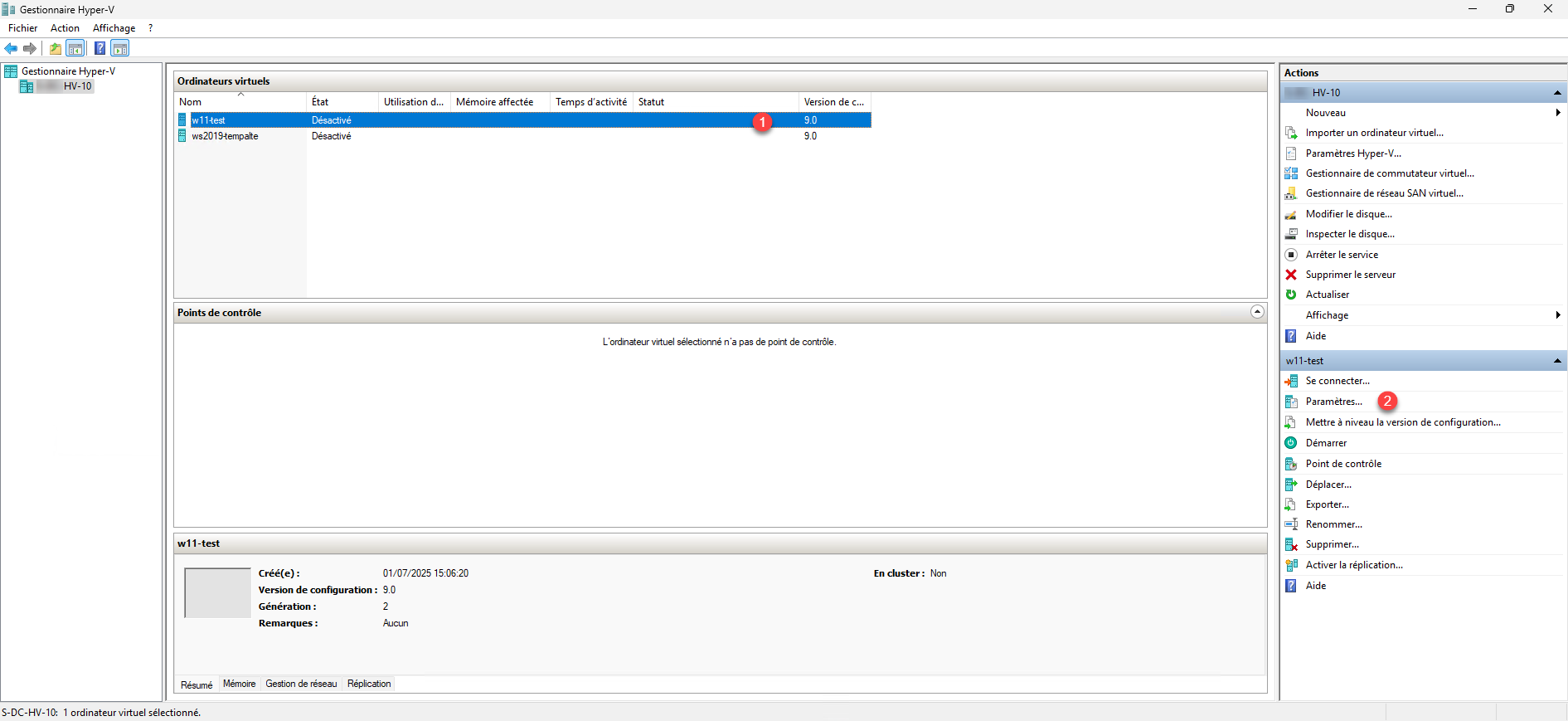
As you can see from the screenshot, the VM is not yet in a cluster.
In the security settings, you need to add encryption support; to do this, check the box: Enable Trusted Platform Module 1 on the virtual machine.
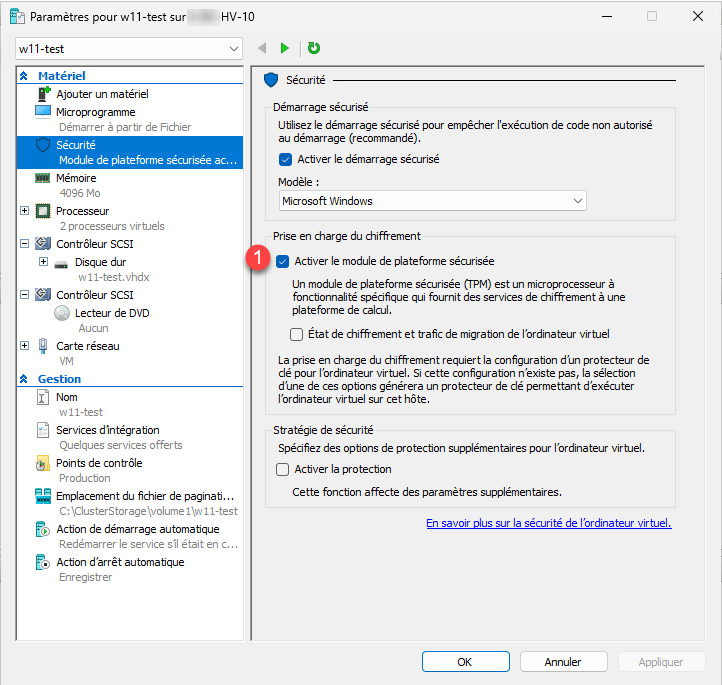
The virtual computer is now equipped with a TPM chip which will allow us to encrypt drives with Bitlocker.
When adding the first chip to a virtual machine on Hyper-V, it creates a new certificate store on the Hyper-V host which contains the certificates that will enable encryption; this store is called: Local Certificates of a VM with maximum protection and contains two host-related certificates.
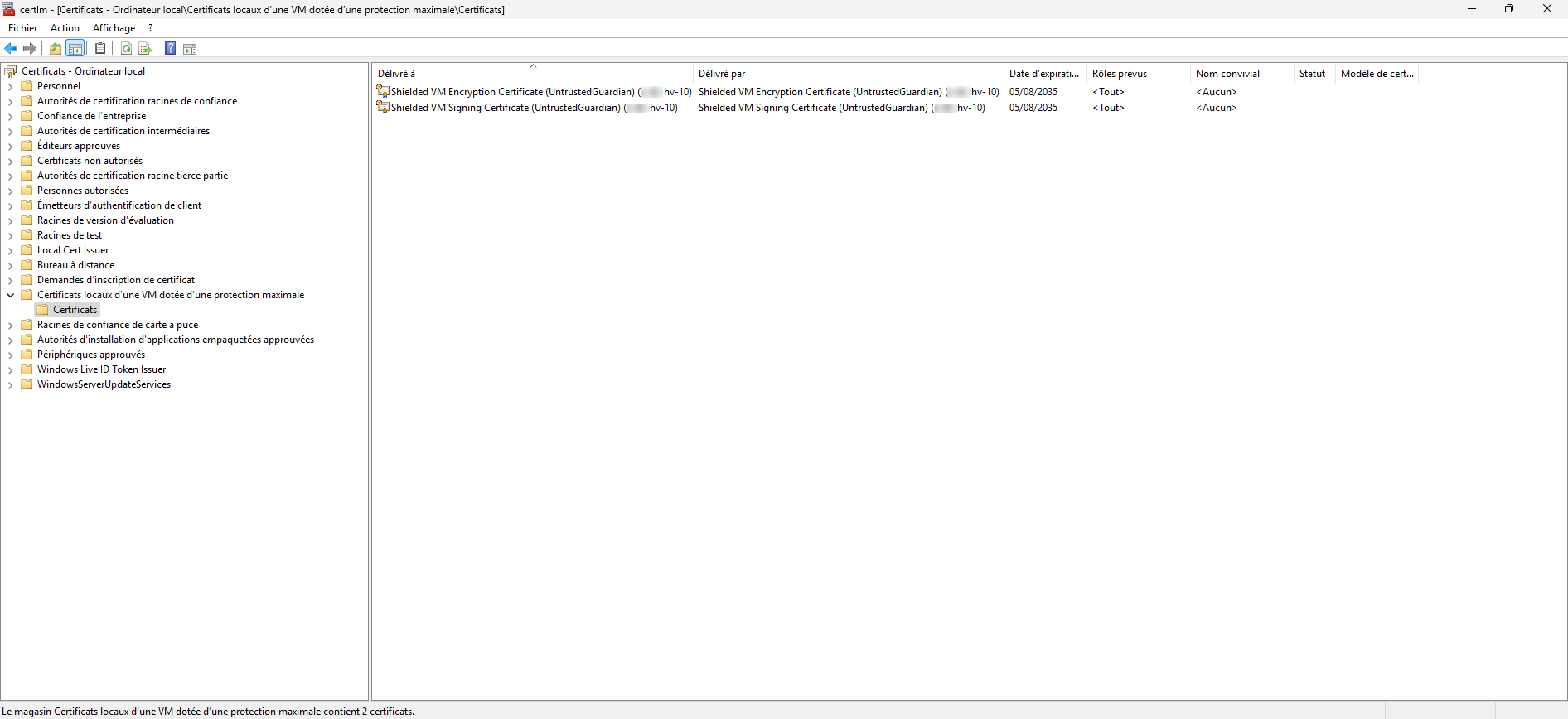
We will return to these certificates later.
Encrypt the virtual machine’s disk with BitLocker
Now we will encrypt the C drive of the virtual machine, to do this right click on the drive and click on Enable BitLocker 1.

Follow the wizard’s steps to enable BitLocker encryption on the drive…

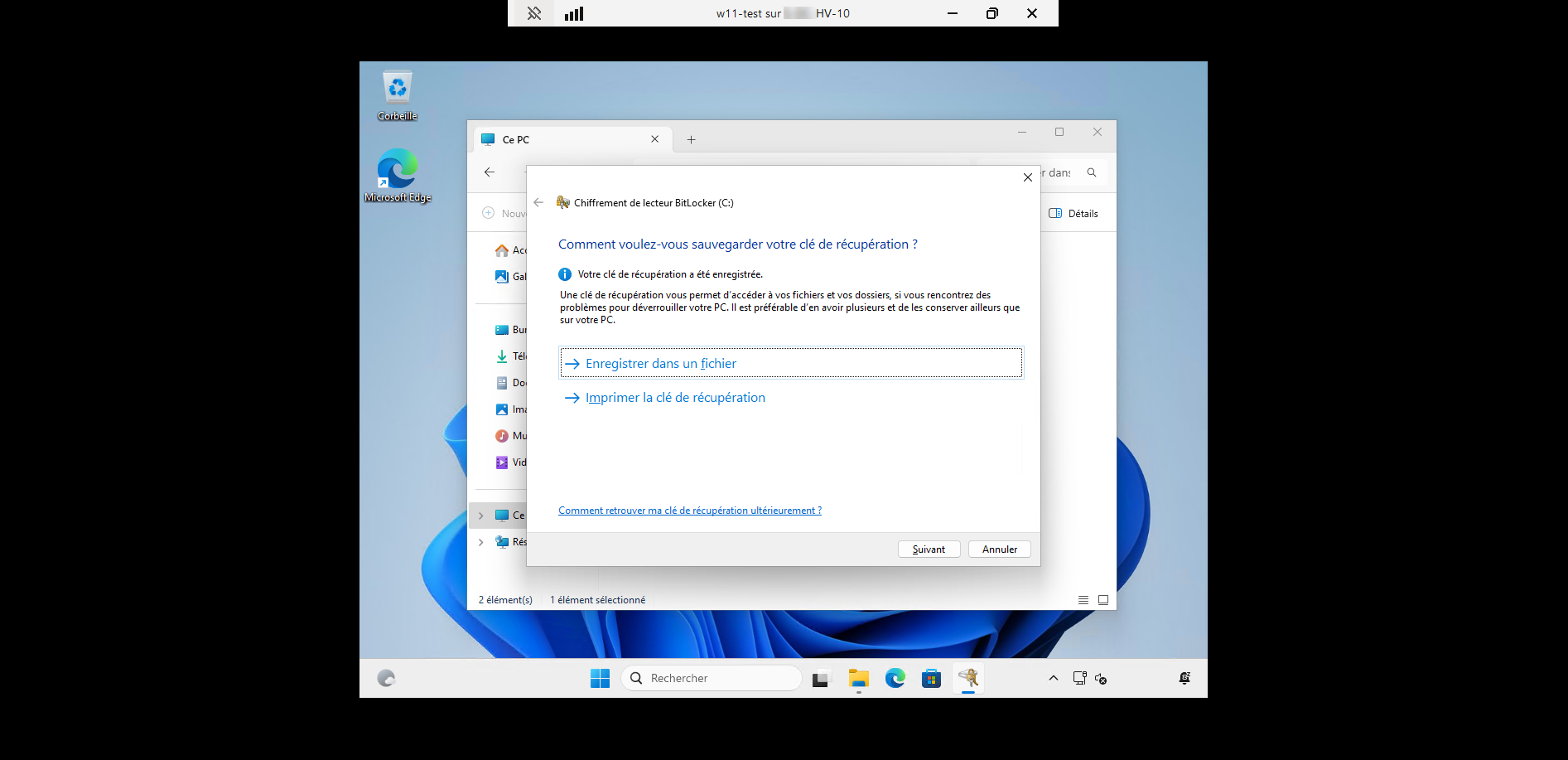
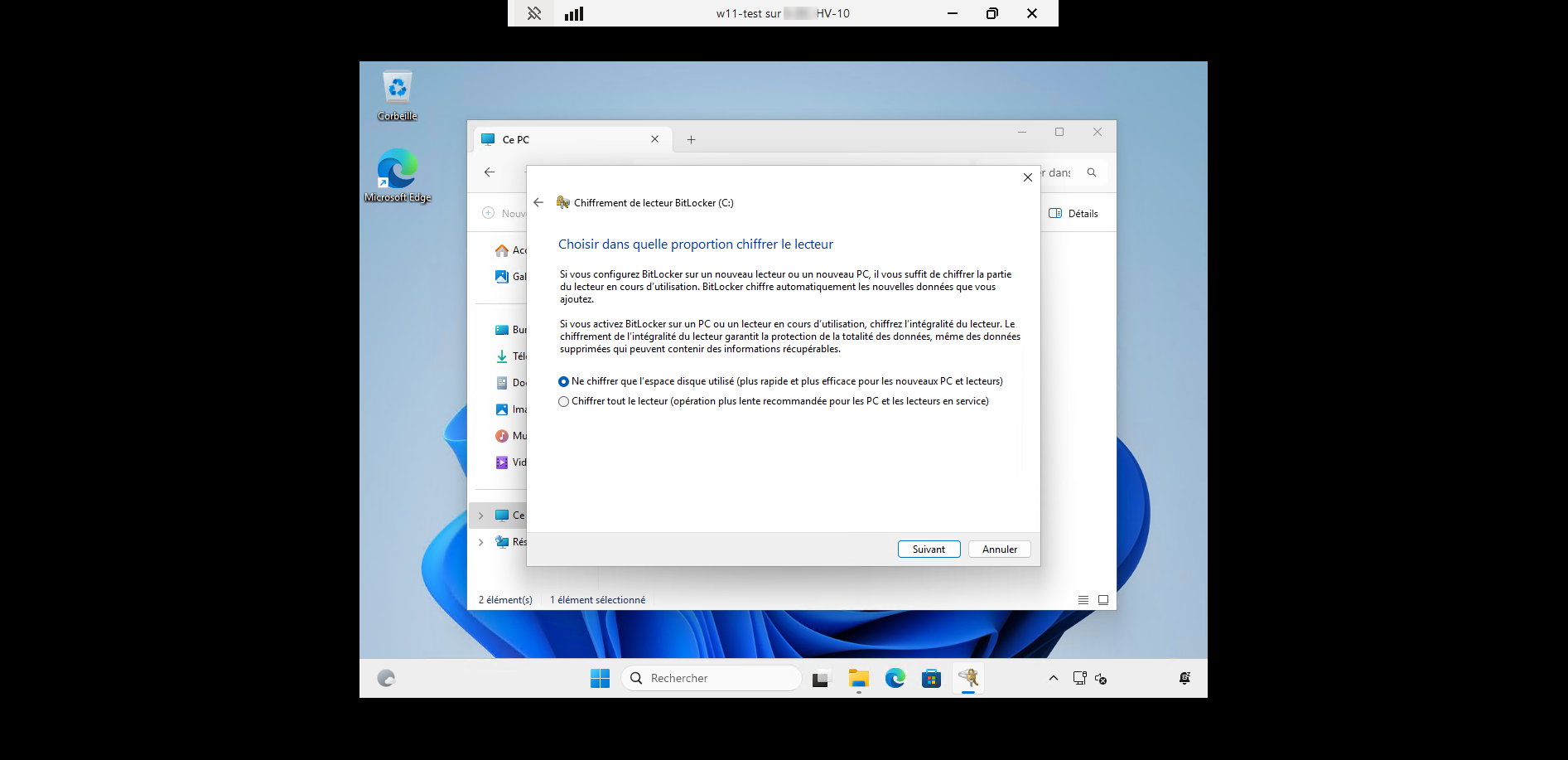
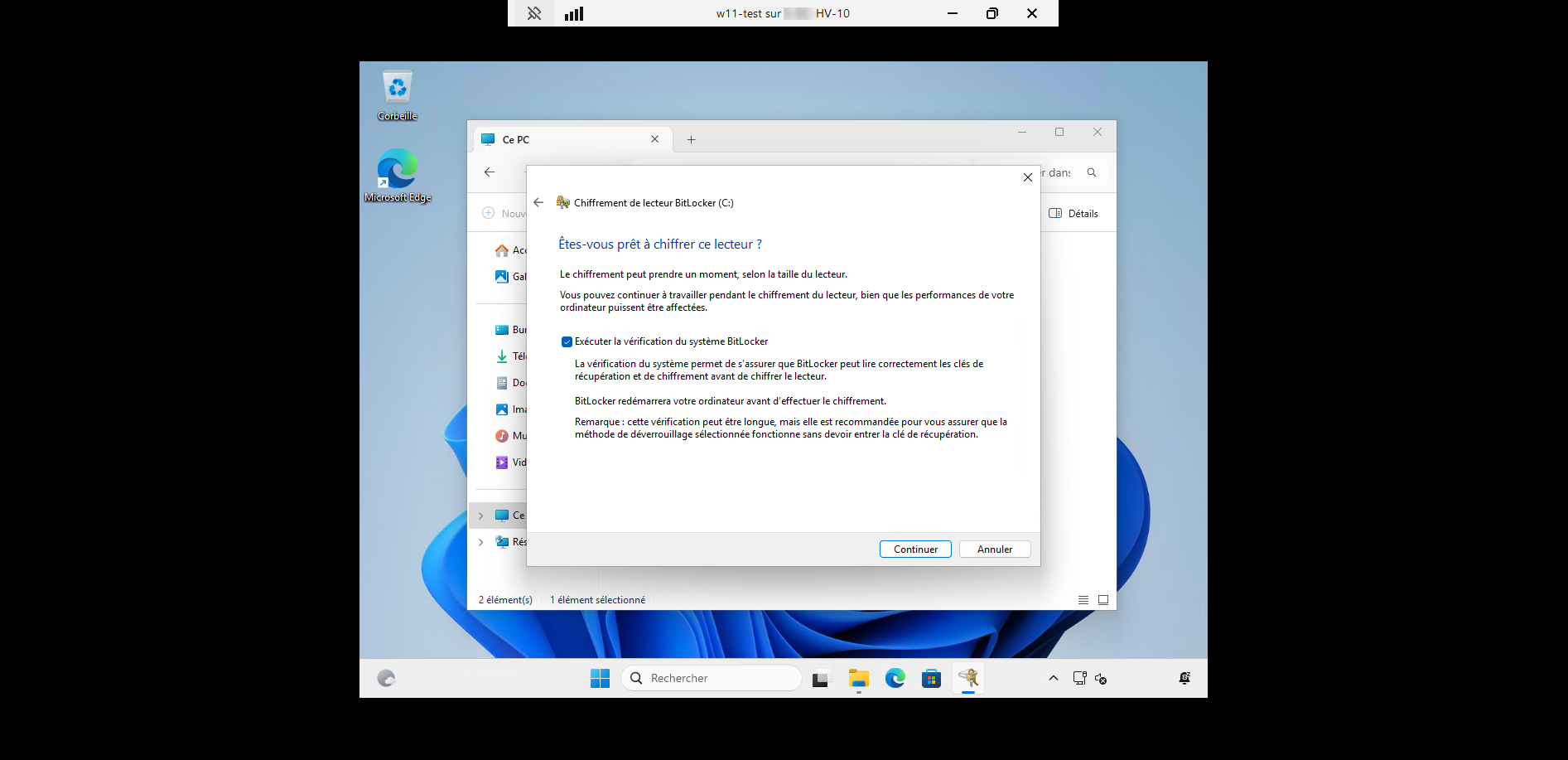
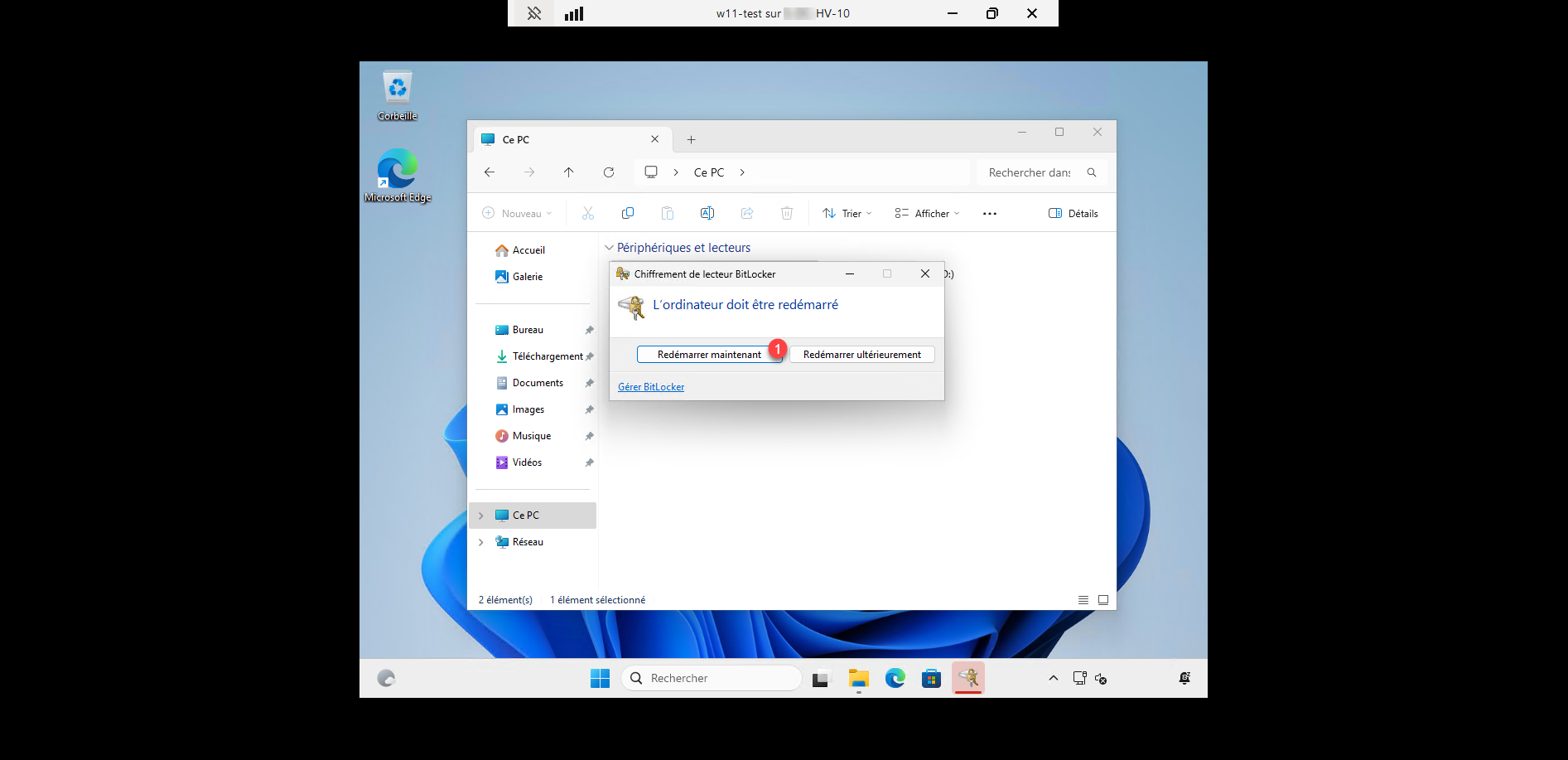
At the end of the wizard, click the Restart now 1 button to apply the BitLocker configuration…
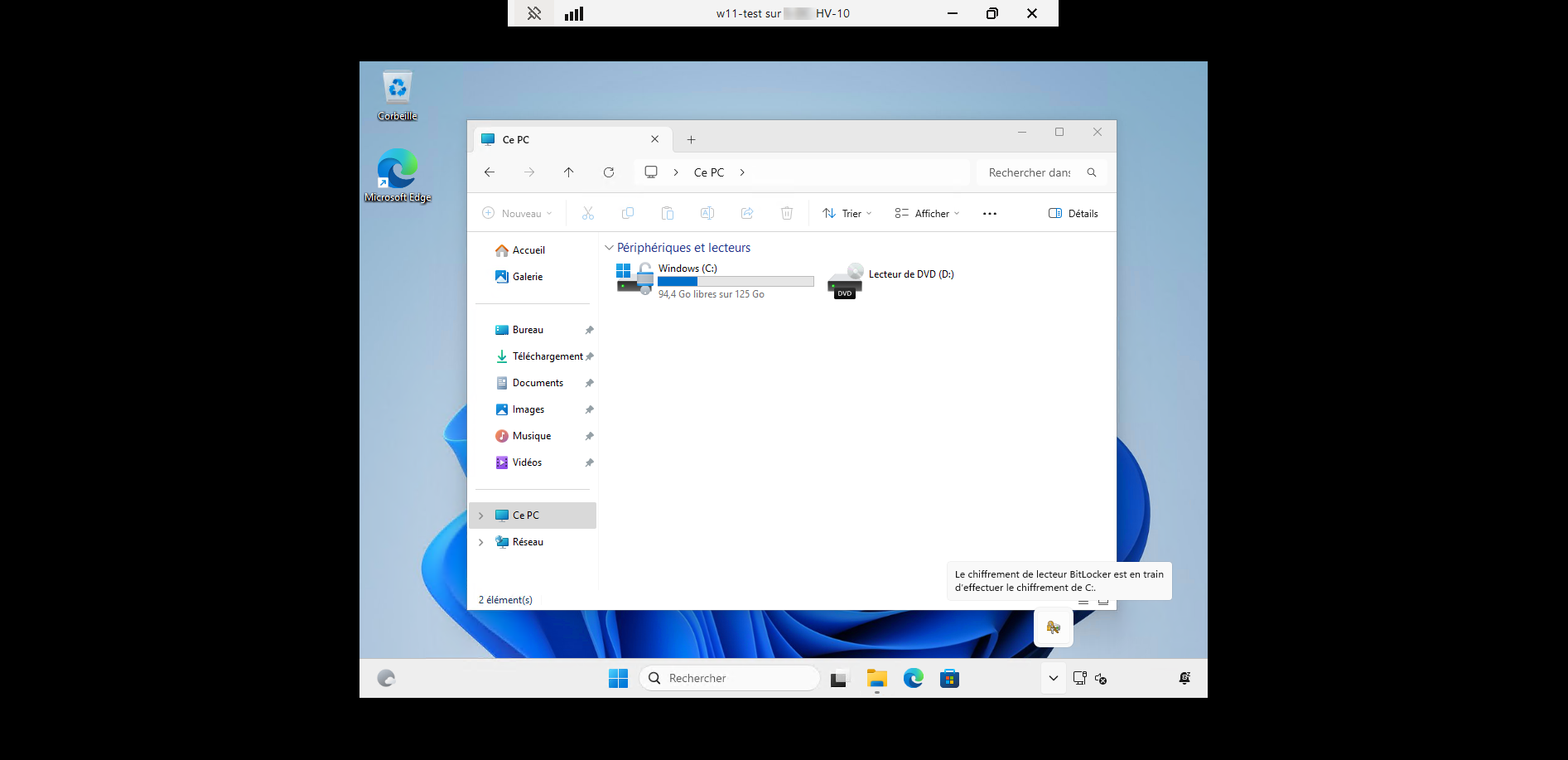
After restarting, we can see that the drive encryption is in progress…
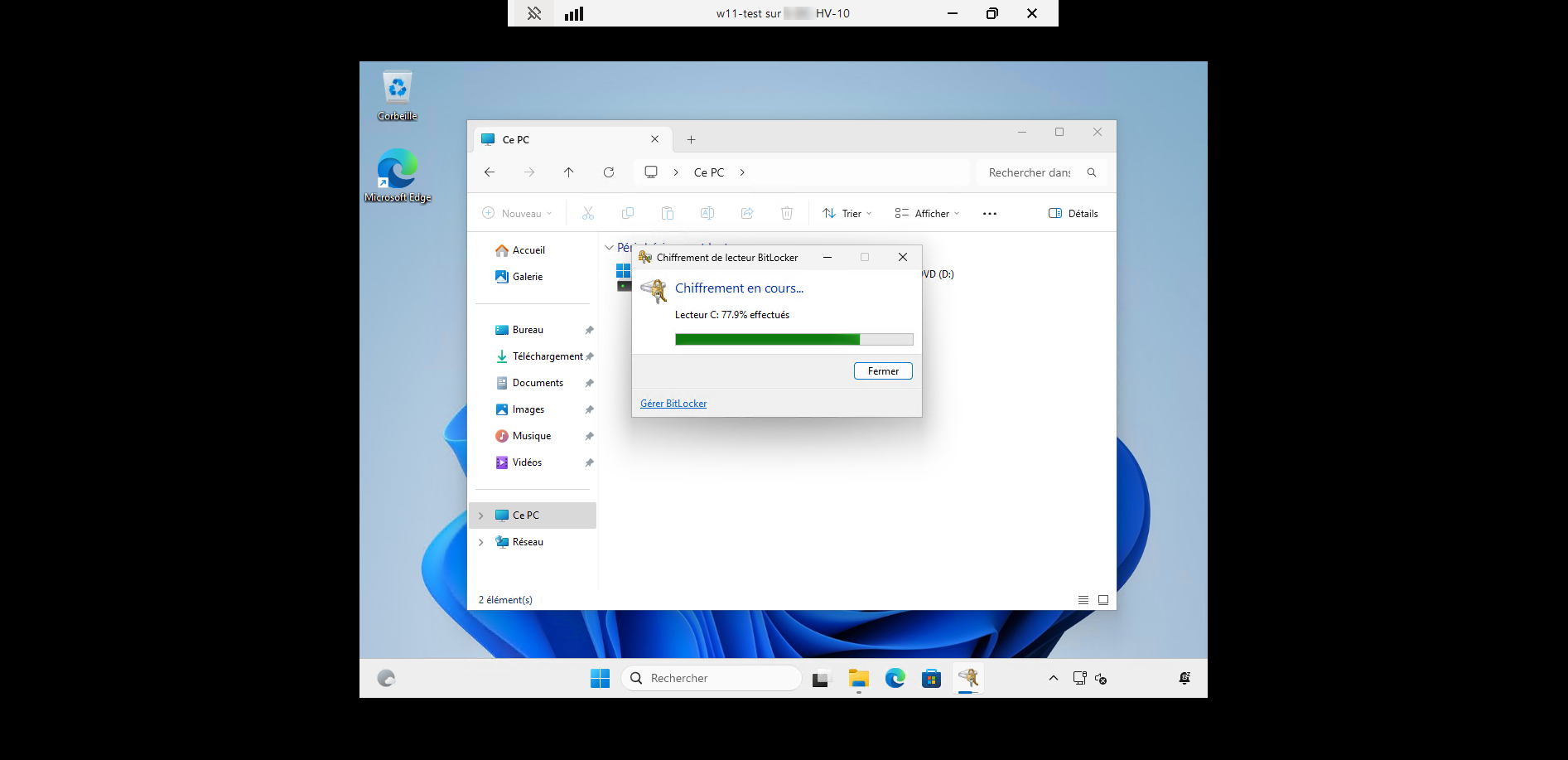
The reader encryption is complete.
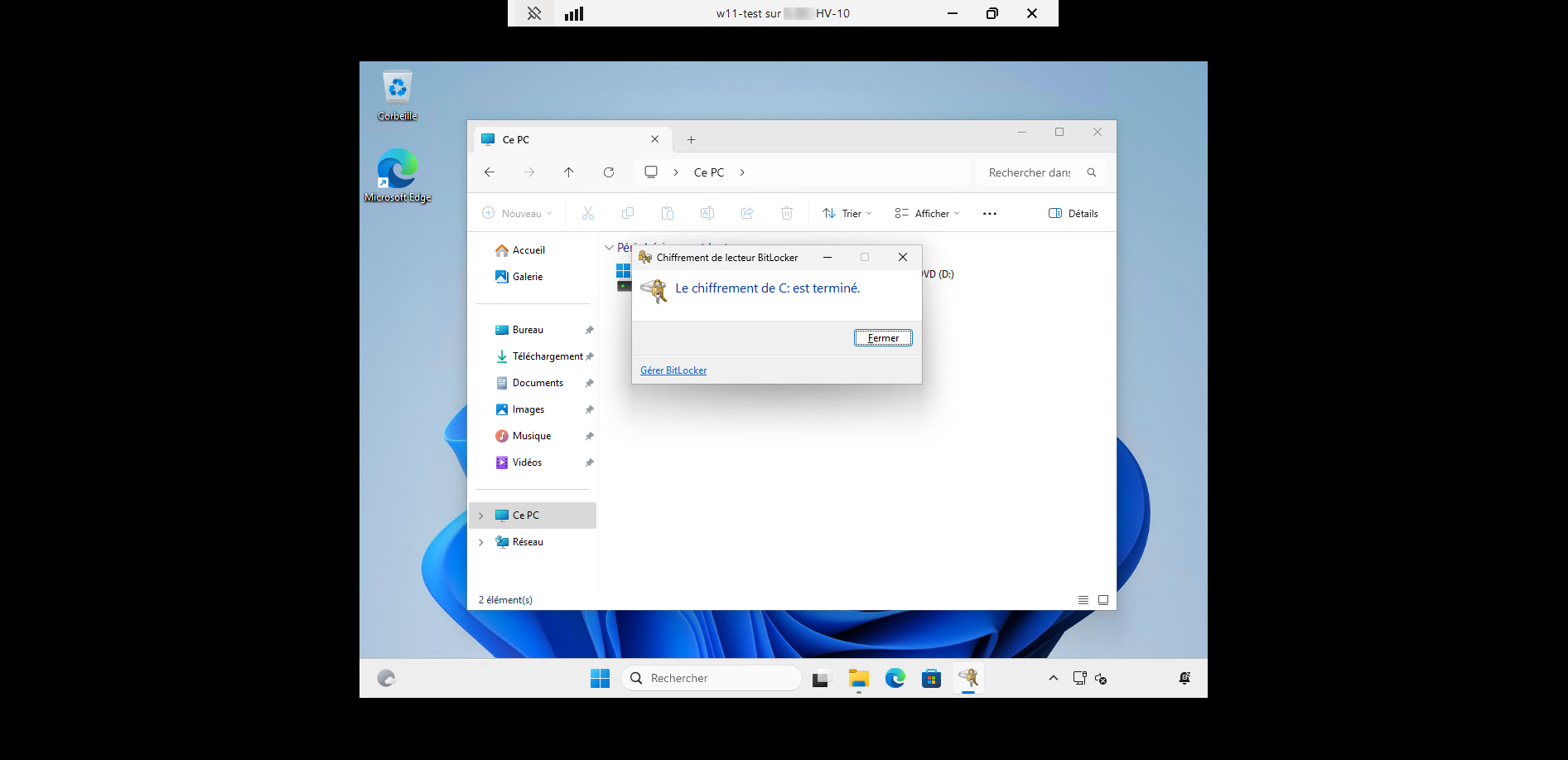
The virtual machine’s disk is encrypted.
Adding virtual machines to the Hyper-V cluster
Currently, the virtual machine is not in a cluster; to begin with, we will add it to the cluster.
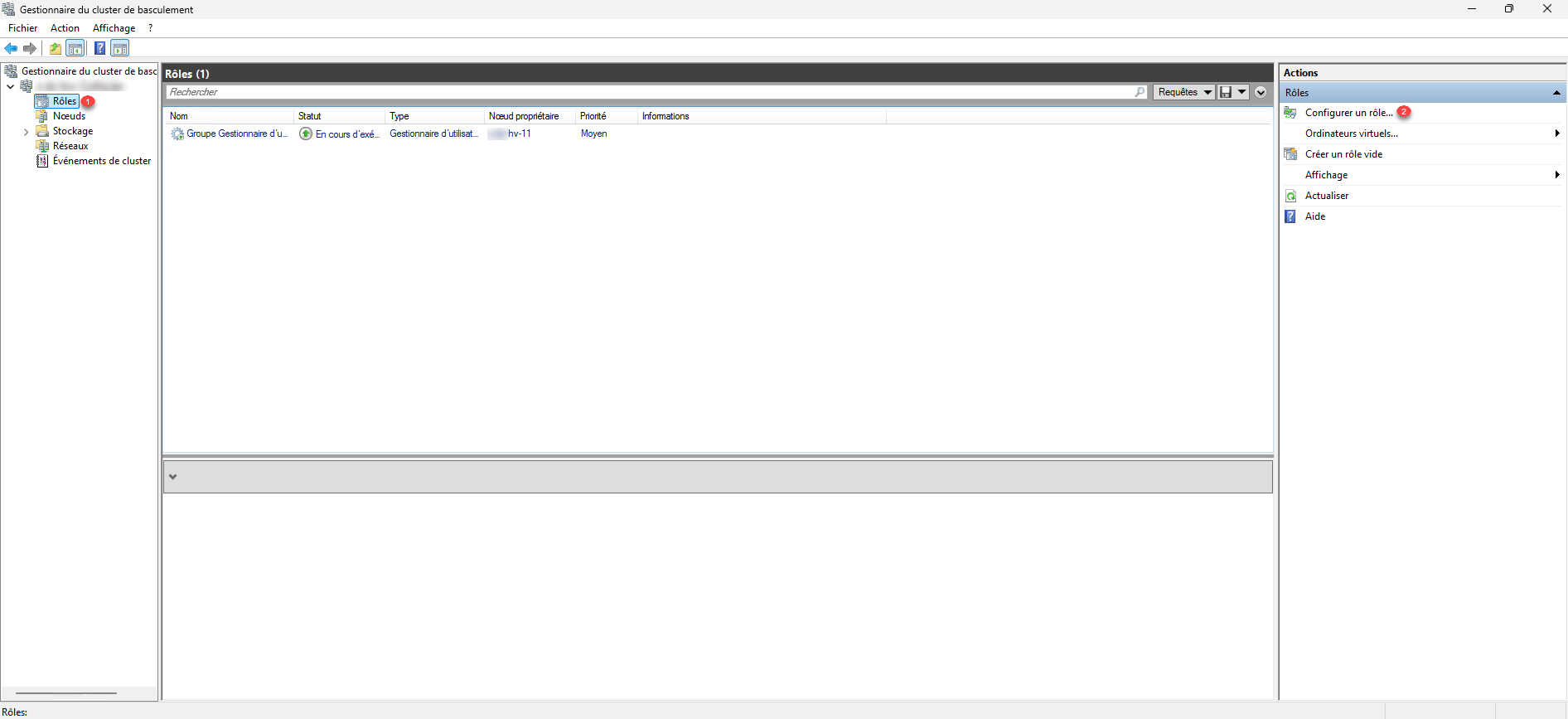
From the console: Failover Cluster Manager, go to Roles 1 and then click on Configure a role 2, which will allow us to add the virtual machine to the Hyper-V cluster.
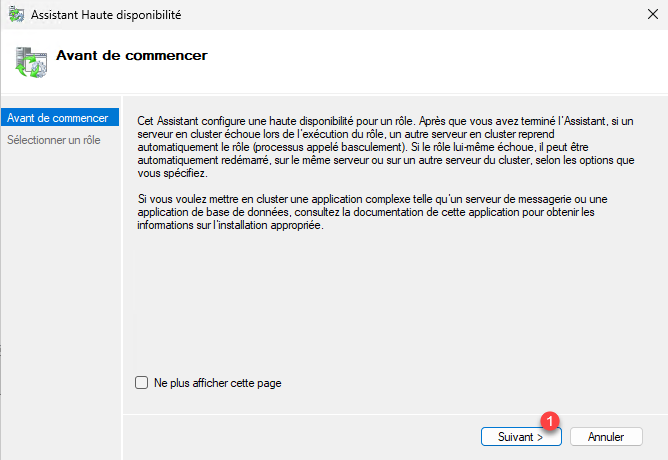
When launching the assistant, click on the Next button 1.
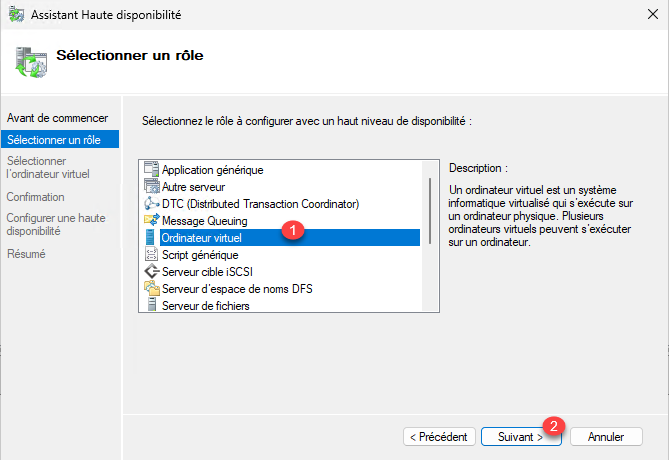
Select the Virtual Machine role 1 and click the Next 2 button.
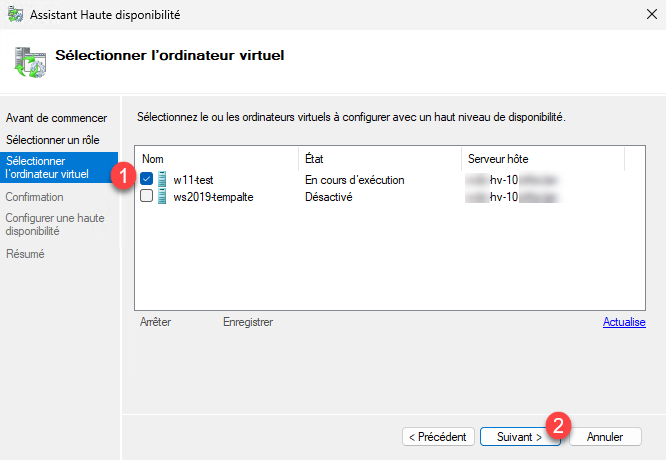
Select virtual machine 1 then click Next 2.
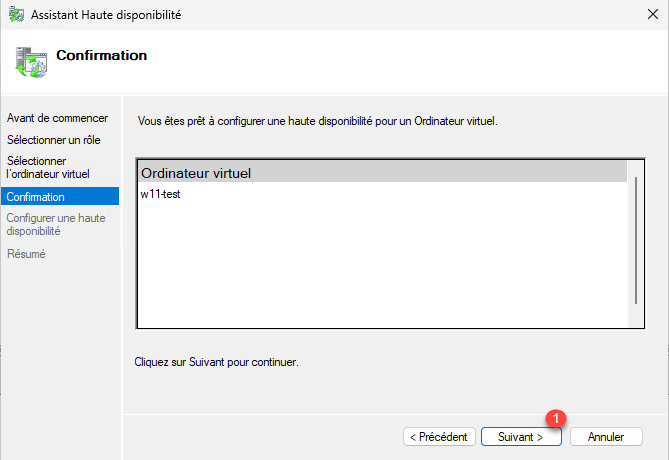
Confirm the addition of the virtual machine to the Hyper-V cluster by clicking Next 1.
Once the operation is complete, close the wizard by clicking the Finish button 1.
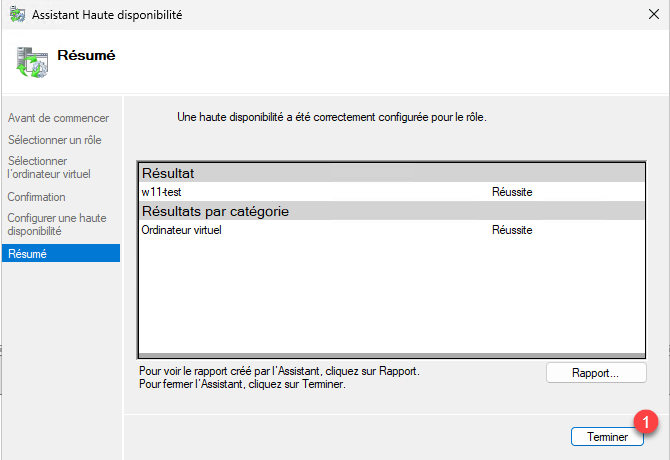
The virtual machine is added to the clustered role.

Configure the Hyper-V cluster nodes to support TPM chips from other hosts
If we attempt a dynamic migration to another host (node) in the Hyper-V cluster, it will fail due to a TPM error, because the other node is not aware of the certificates used by the TPM chip.
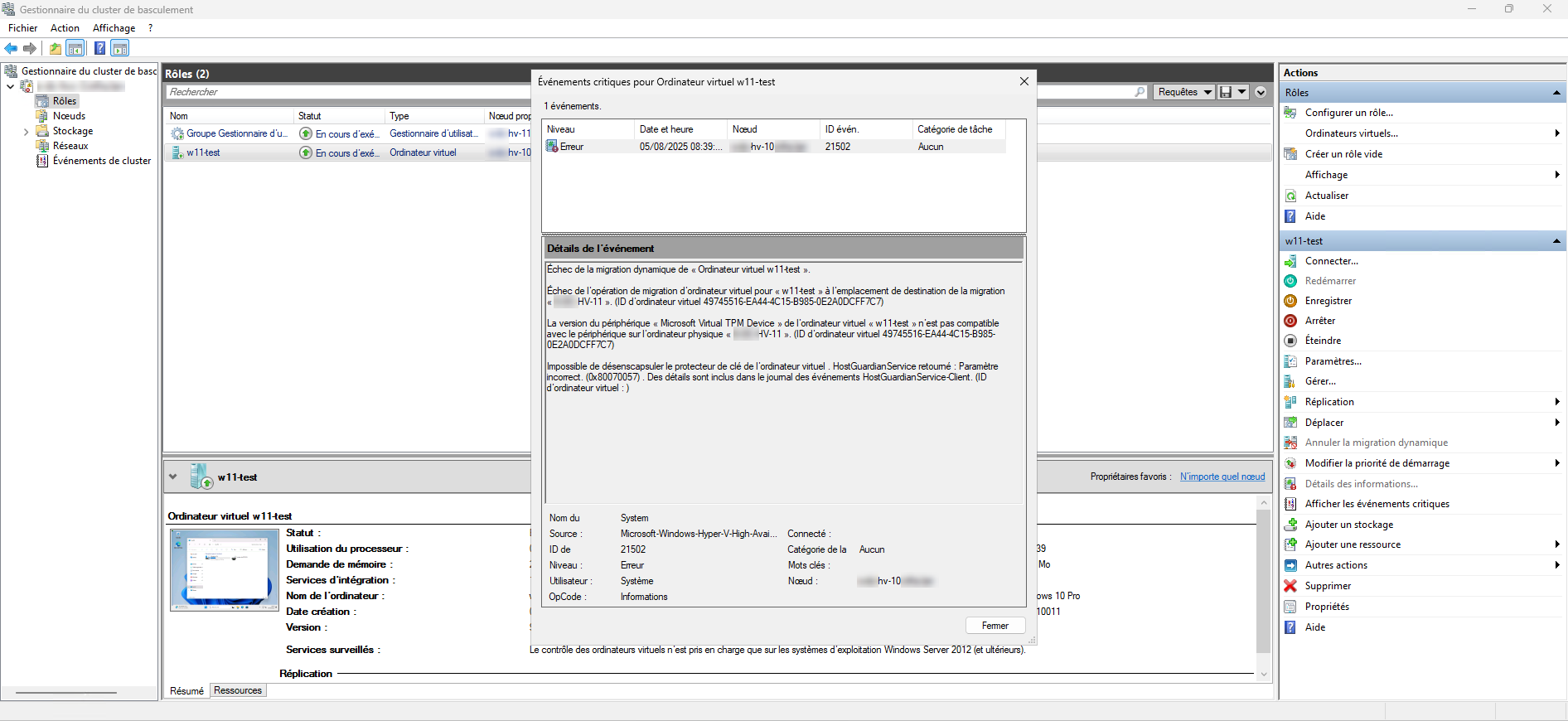
The following steps will need to be performed on each node of the Hyper-V cluster.
Create a virtual machine with a TPM chip to create the certificate store
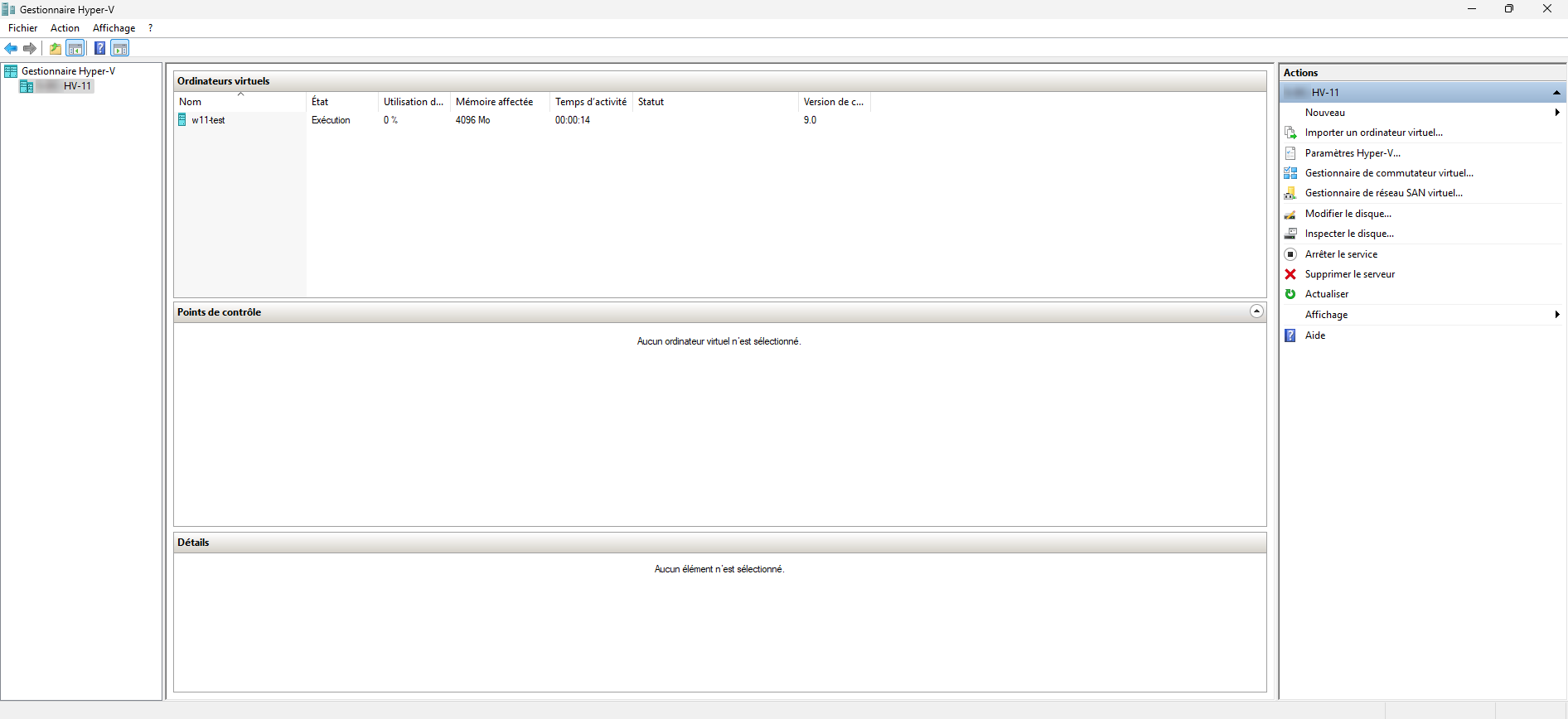
By default, the store: Local certificates of a VM with maximum protection is not created, as can be seen in the screenshot below which was taken on another node (HV-11).

Start by creating a second-generation virtual machine:
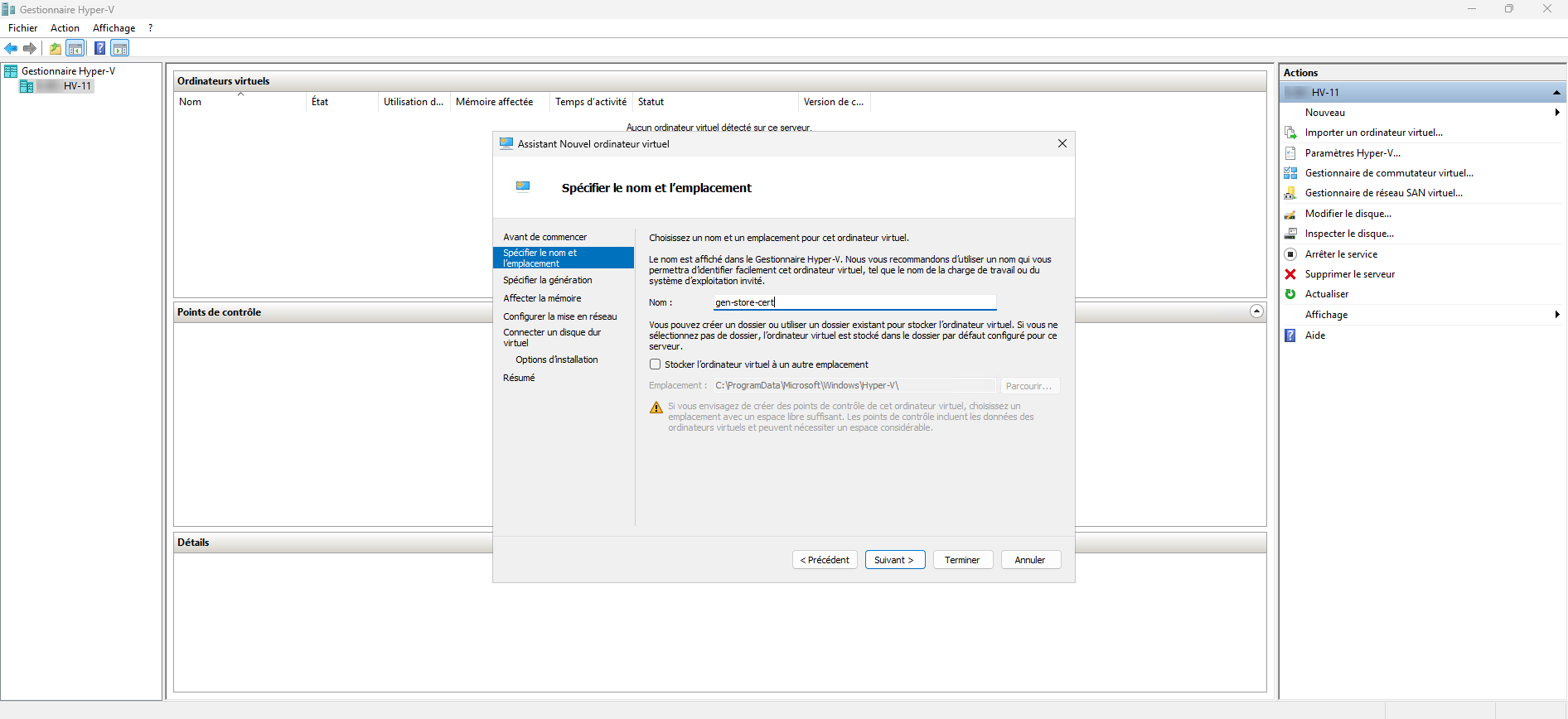
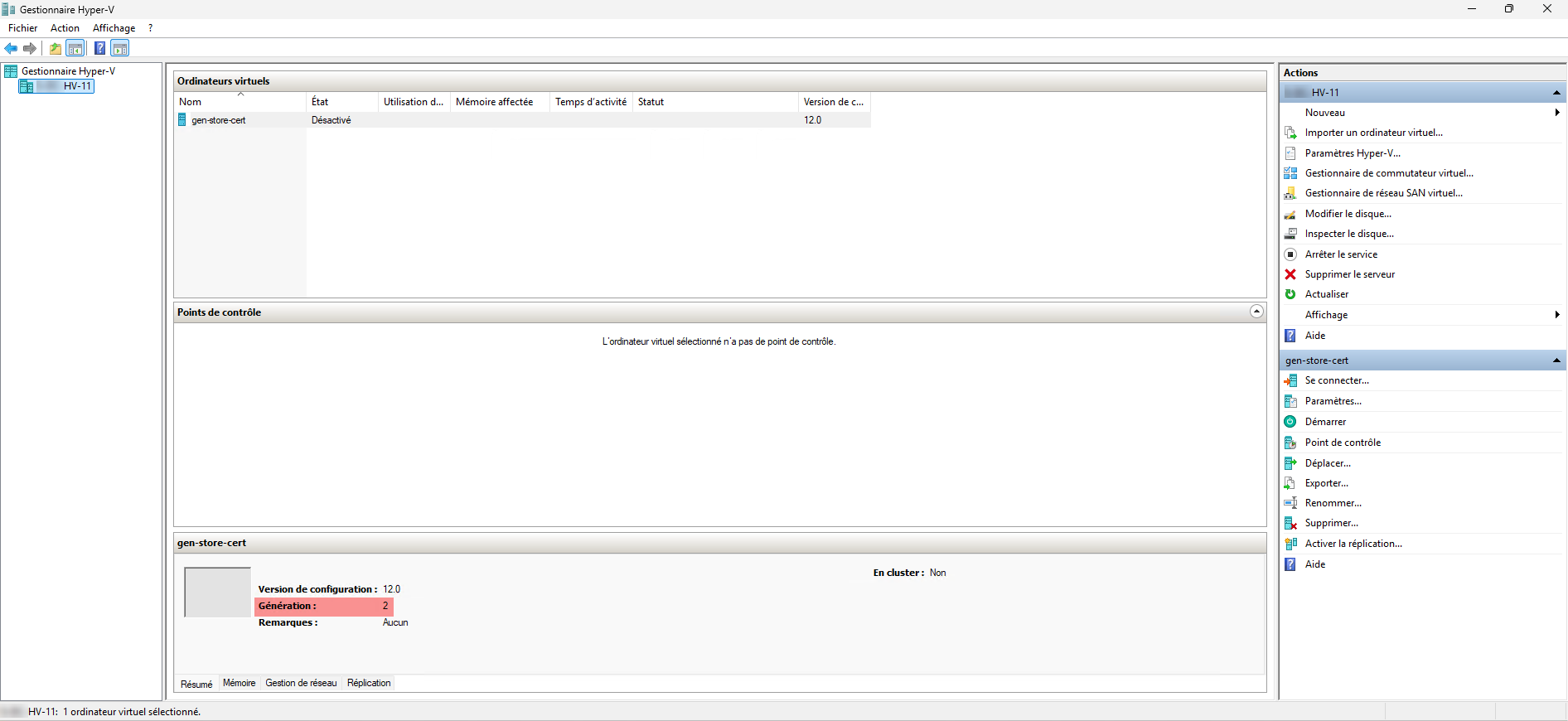
Open the computer settings and add a TPM chip.
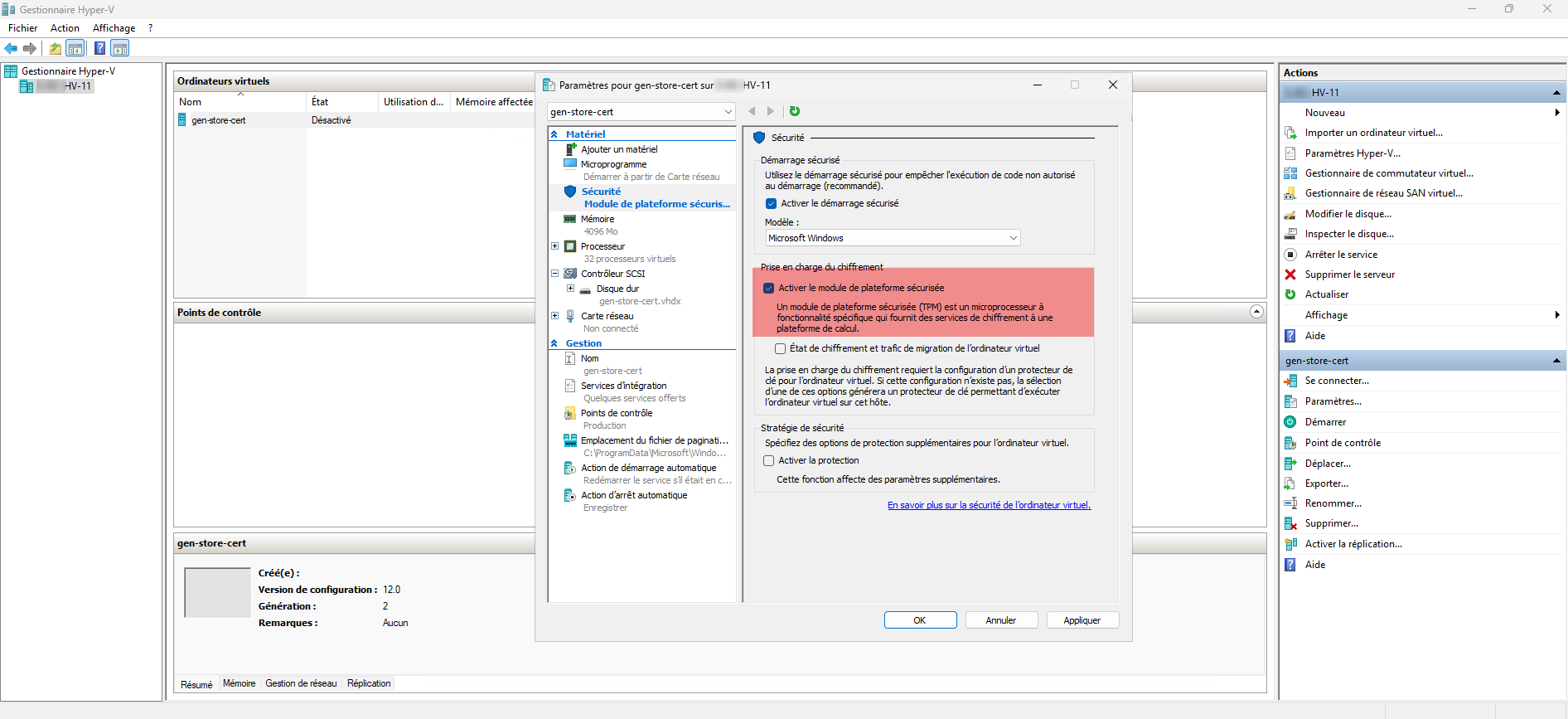
Adding a TPM chip to a virtual machine will create the certificate store: Local certificates of a VM with maximum protection on the Hyper-V host as well as the two certificates that allow management of TPM chips on VMs.
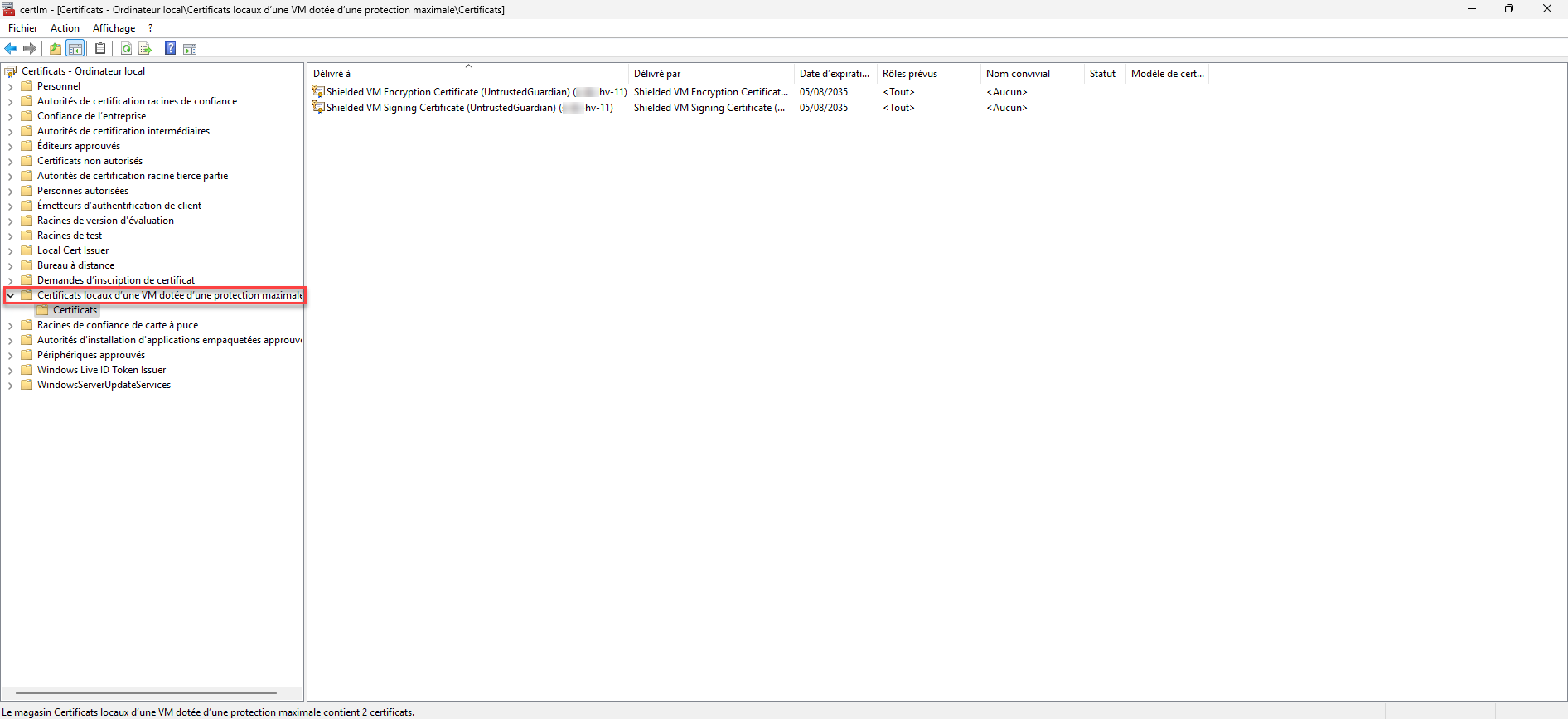
Export Shielded VM certificates
From each node of the Hyper-V cluster, the two certificates (Shielded VM Encryption Certificate and Shielded VM Signing VM) with their private key must be exported.
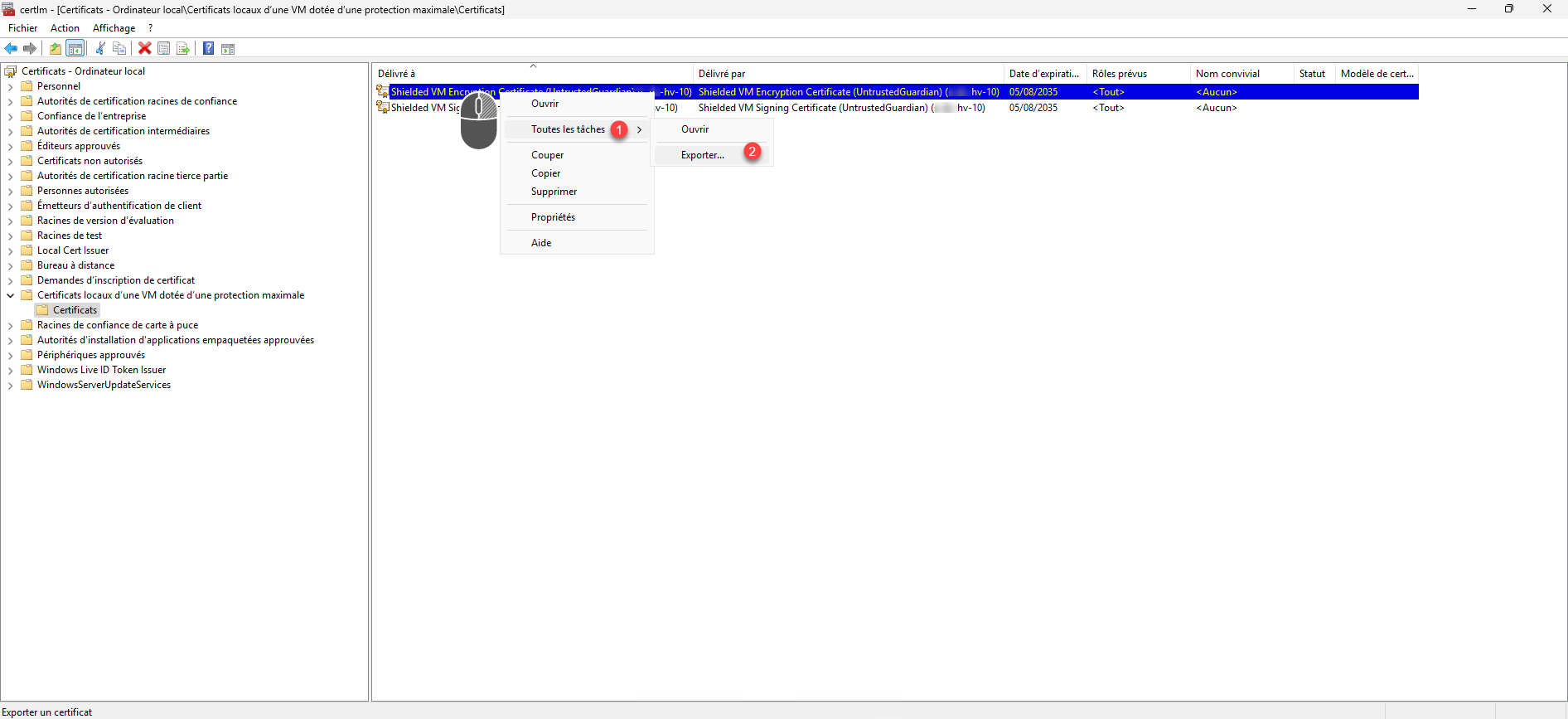
Right-click on the certificate, then go to All Tasks 1 and click on Export 2.
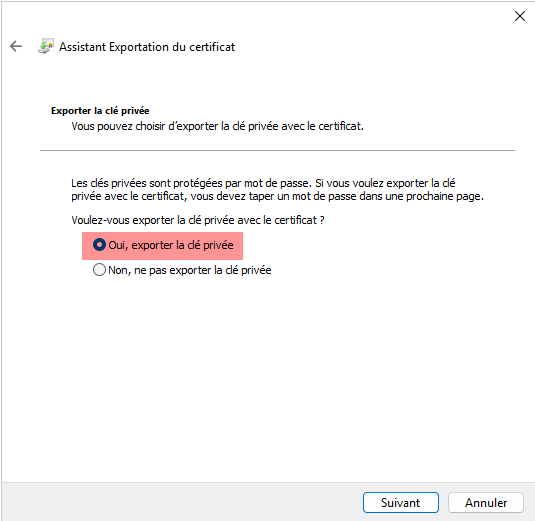
Follow the Certificate Export wizard, you must check the Yes box, export the private key and configure the password.
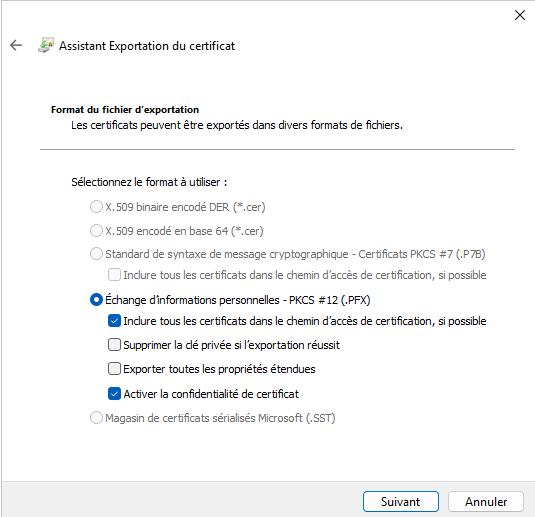
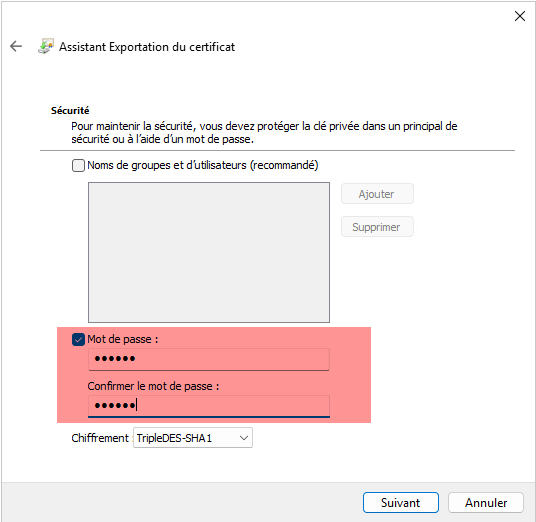
Both certificates from the Hyper-V host (HV10) are exported.

Import the Shielded VM certificates from the other Hyper-V hosts in the cluster
In order to move virtual machines from one node to another, on each Hyper-V host in the cluster, certificates from all nodes must be imported.
Go to the local Certificate store of a VM with maximum protection, then in the Certificates folder, right-click in the central area, then go to All Tasks 1 and click on Import 2.
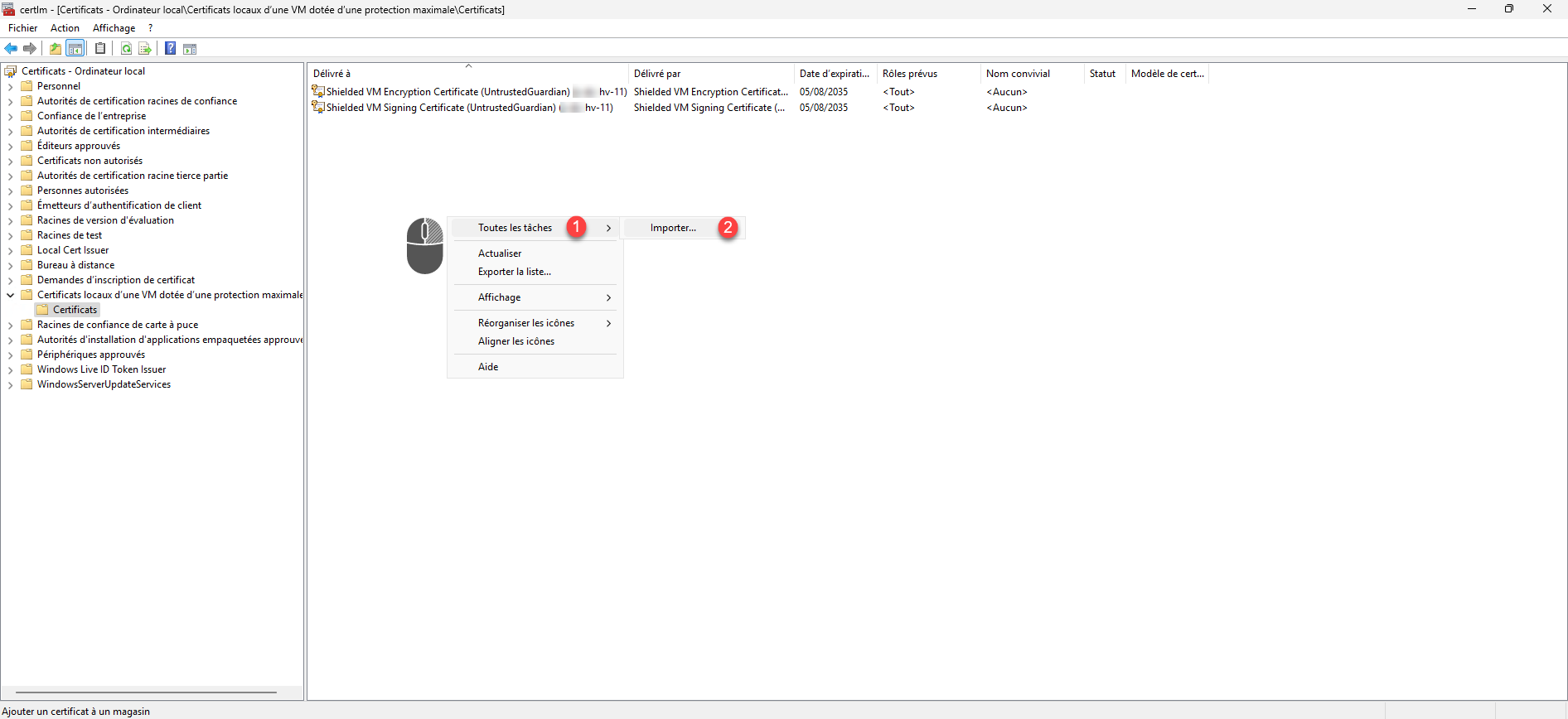
Follow the wizard to import the certificates.
The server certificates (HV10) have been imported onto the host (HV11).
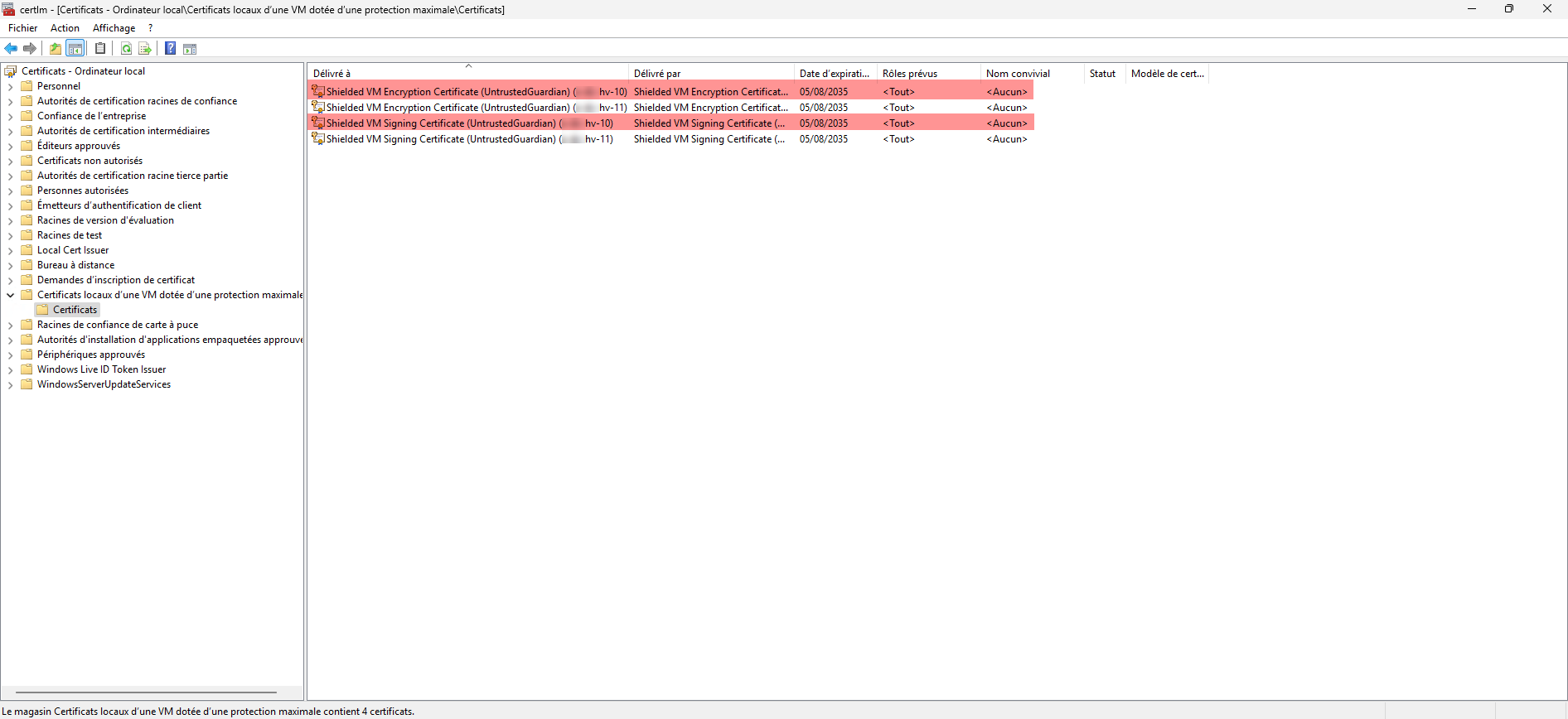
The Hyper-V host configuration is complete.
If you have standalone (non-clustered) Hyper-V hosts and want to move virtual machines between Hyper-V servers, this configuration also applies, as does moving between different clusters.
Move a virtual machine to another node in the Hyper-V cluster
Moving from one node to another should work normally, as can be seen in the image below, the computer is in the process of migrating (dynamically) from node HV10 to node HV11.
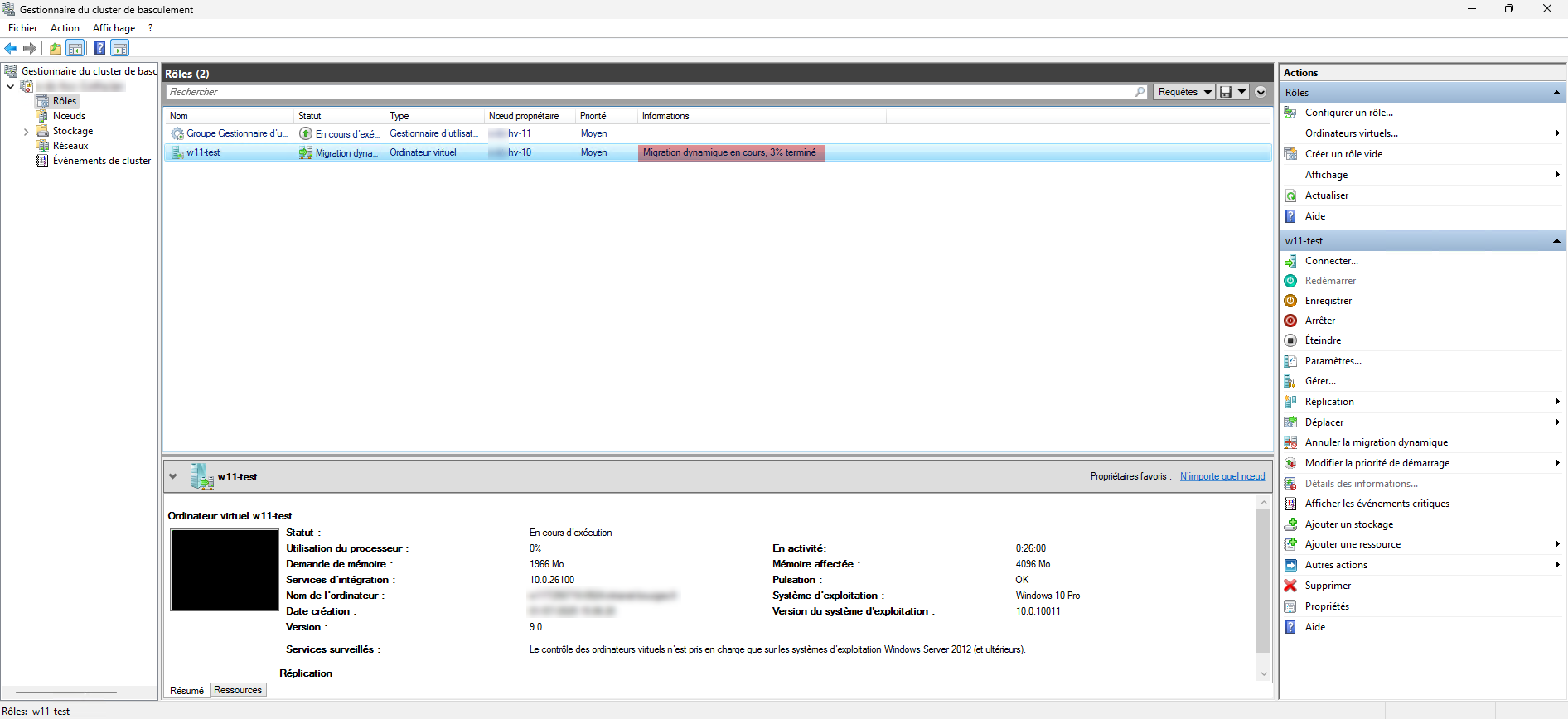
The virtual machine is migrated to the HV11 server.
FAQ
Why encrypt a virtual machine in a Hyper-V cluster?
Encrypting a VM with BitLocker helps secure sensitive data against unauthorized access, including in the event of theft or copying of the virtual disk. It is also a requirement in many security and compliance policies (e.g., GDPR, ISO 27001, PCI-DSS).
Is it possible to use BitLocker in a VM hosted on Hyper-V?
Yes, it is possible to encrypt a virtual disk with BitLocker in a Hyper-V VM, provided you enable a virtual TPM chip in the machine settings. This simulates a Trusted Platform Module to allow secure BitLocker integration.
Does BitLocker encryption have an impact on performance?
The impact is generally small thanks to performance optimization in recent versions of Windows and Hyper-V. However, on heavily loaded systems or with non-SSD drives, a slight slowdown may be observed, particularly during massive data access.
What are the impacts of encryption on backups?
The main impact is the loss of deduplication and efficient incremental backup capabilities. Because the data is encrypted, it appears as single blocks to backup tools, increasing backup volumes and processing times.
How to effectively back up an encrypted VM?
To bypass encryption limitations, it is recommended to use a backup agent within the VM. This allows access to the unencrypted data from inside the system. The other option is to perform regular full backups, but this consumes a significant amount of storage space.
Is deduplication on storage arrays or backups compatible with BitLocker?
No. Once encrypted, the data no longer presents redundancy that can be exploited by deduplication mechanisms. This leads to an increase in disk space used and reduces the efficiency of optimized storage systems.
Encrypting virtual machines with BitLocker and a virtual TPM chip in a Hyper-V environment significantly enhances data security, especially in sensitive or compliance-bound contexts. This configuration integrates seamlessly with a Hyper-V cluster while leveraging native Windows Server features.
However, this approach also entails constraints, particularly regarding backup, deduplication, and overall storage performance. It is therefore essential to carefully assess these impacts before widely adopting encryption and to adapt your backup strategy accordingly.
By properly securing your VMs, you improve the resilience of your infrastructure against current threats, while meeting increasing data protection requirements.
