Table of Content
Presentation
In this lesson, we will look at Active Directory groups.
Groups are Active Directory objects, which can contain other directory objects such as users, computers, and even other groups.
Groups are primarily used to manage access permissions and rights such as:
- Sharing permissions
- NTFS permissions on folders and files
- Filters on group strategies
- Roles on applications and computers
- ….
When creating a group in the Active Directory, you must choose the group type and its scope.
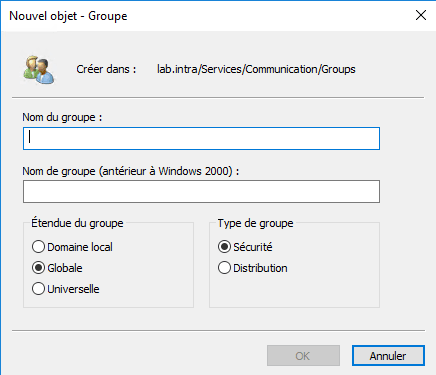
Group type
There are two types of groups: Security and Distribution.
Security group
Security groups allow you to manage permissions (NTFS rights attribute, filtering on group policies, etc.), which makes them the most used type of group.
Security groups have a SID (Security Identifier).
Distribution Group
Distribution groups, unlike security groups, do not have SIDs and therefore cannot be used for authorizations.
This type of group is primarily used by email applications like Exchange to create mailing lists.
Scope of the groups
There are 3 group scopes, each with a different scope over the Active Directory forest.
Local domain
Primarily used to manage access permissions to resources (NTFS permissions, remote desktop access, GPO filtering, etc.) within the domain where it was created. A local extended group cannot be used in another domain.
A local domain scope group can contain users, computers, and other groups from its domain, forest, and trusted external domain.
Overall
This type of group can be used to manage permissions in the domain where it was created or in another trusted domain.
A global scope group can only contain objects (users, computers, and groups) from the domain where it was created.
Universal
This type of extent has a maximum range, it is accessible throughout the forest and can contain objects (users, computers, groups (universal, global) of the forest.
This type of group is replicated on domain controllers with a global catalog (GC).
This type of group is used primarily in multi-domain forests.
Built-in Integrated Groups
When creating an Active Directory environment, in the Active Directory Users and Computers administration consoles and ADAC, there is a container named Builtin which contains several groups.
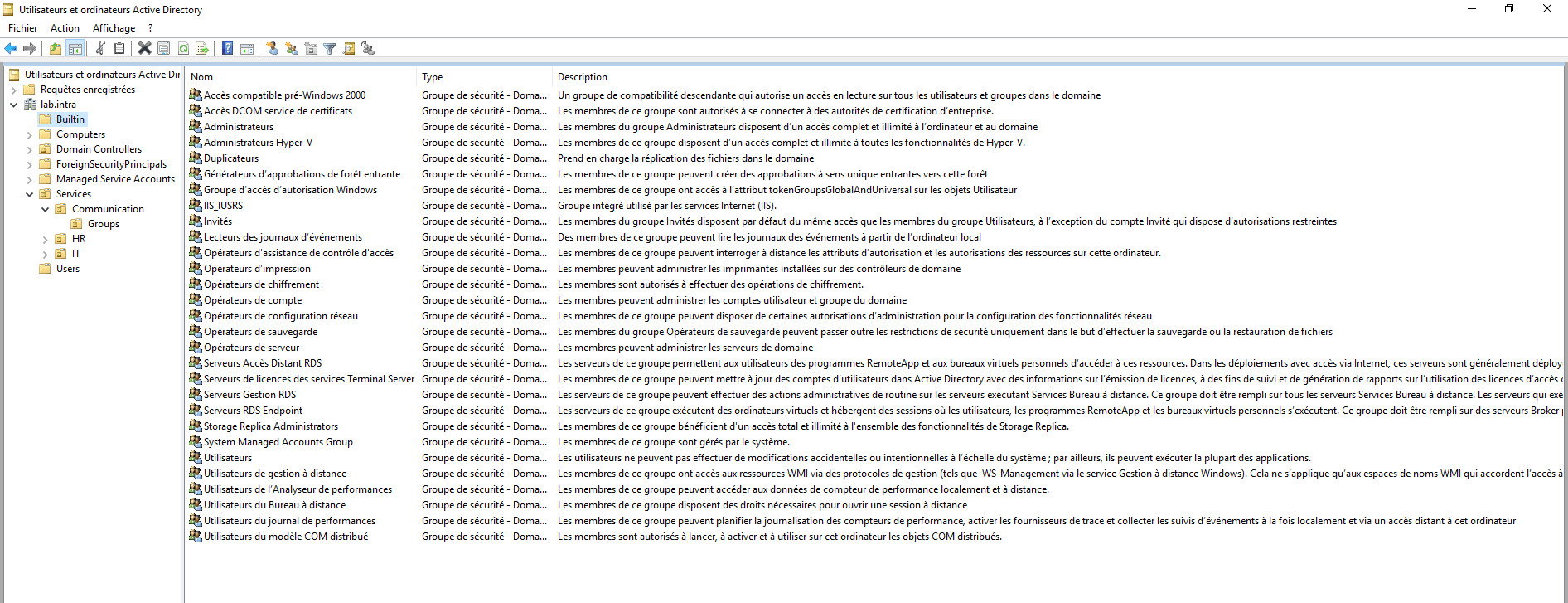
The groups present in this container are the same default groups in a computer’s SAM database.
Adding a user to one of the groups will only grant rights on domain controllers. If a user is added to the BUITIN\Hyper-V Administrators group, they will not be an administrator of all Hyper-V servers in the domain.
The only exception is the BUITIN\ Administrators group because it is a member of the Domain Admins group and the Enterprise Administrators group.
Default Active Directory groups
When creating the Active Directory environment, several groups are created by default, including the Users container.
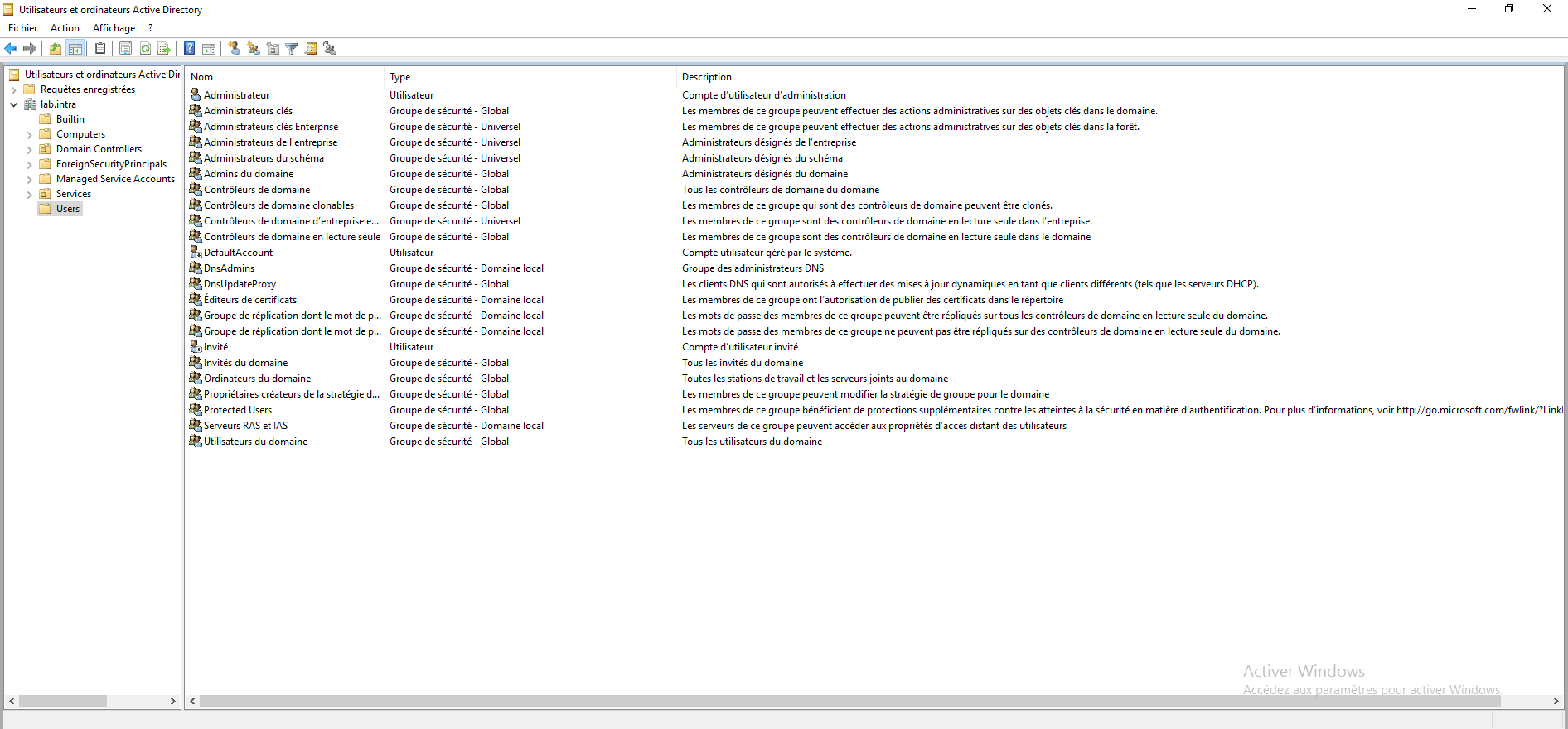
Here are some detailed explanations about the groups:
Company administrators: The group members are administrators of all areas of the forest.
Scheme administrators: Members of this group can make changes to the Active Directory schema. This group is sensitive.
Domain administrators: The group members are domain administrators. In single-domain environments, the rights are similar to the Enterprise Administrators group. This group is added to the local Administrators group on the domain-member computers.
Domain computers: This group contains all the computers that are members of the domain.
Domain users: This group contains all users of the domain. This group is added to the local group Users of the domain member computers.
A concrete example of using groups in an Active Directory environment
In your company, you are asked to create a shared folder for the Communications department, which consists of 7 people. Of the 7 users, 5 must have the right to write and modify the content, and the other 2 only have read access.
To address this issue, we need to:
- Create 2 groups in AD.
- Add users to groups
- Configure NTFS permissions on the Communisation folder according to the groups.

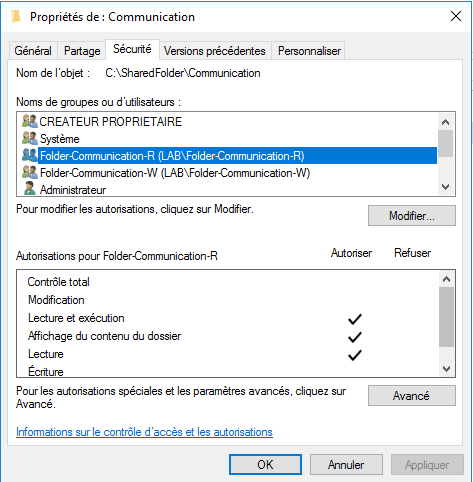
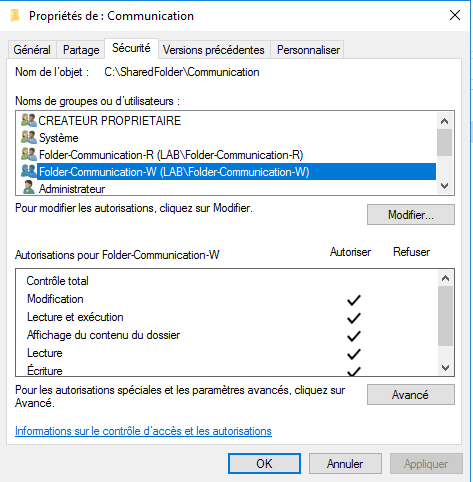
The advantages of proceeding in this way are:
- Logical grouping of objects with respect to an access point.
- NTFS permissions are quick to set up and easy to maintain.
- It is easy to change a user’s permissions.
- This management facilitates the maintenance of rights and security; if the person changes services, it is enough to remove them from the group; if rights are assigned by name, it is necessary to remember to modify the NTFS rights.
- …
Supplements: