
In this tutorial, I will explain how to use the wildcard (*) in an Active Directory search with PowerShell.
When you administer an Active Directory, you regularly search for objects (Users, Computers, Groups, etc.) and you often struggle to find what you need the first time, because you have to admit that searching in the administration consoles is not very efficient.
To illustrate this tutorial, we will search the Active Directory for the following objects:
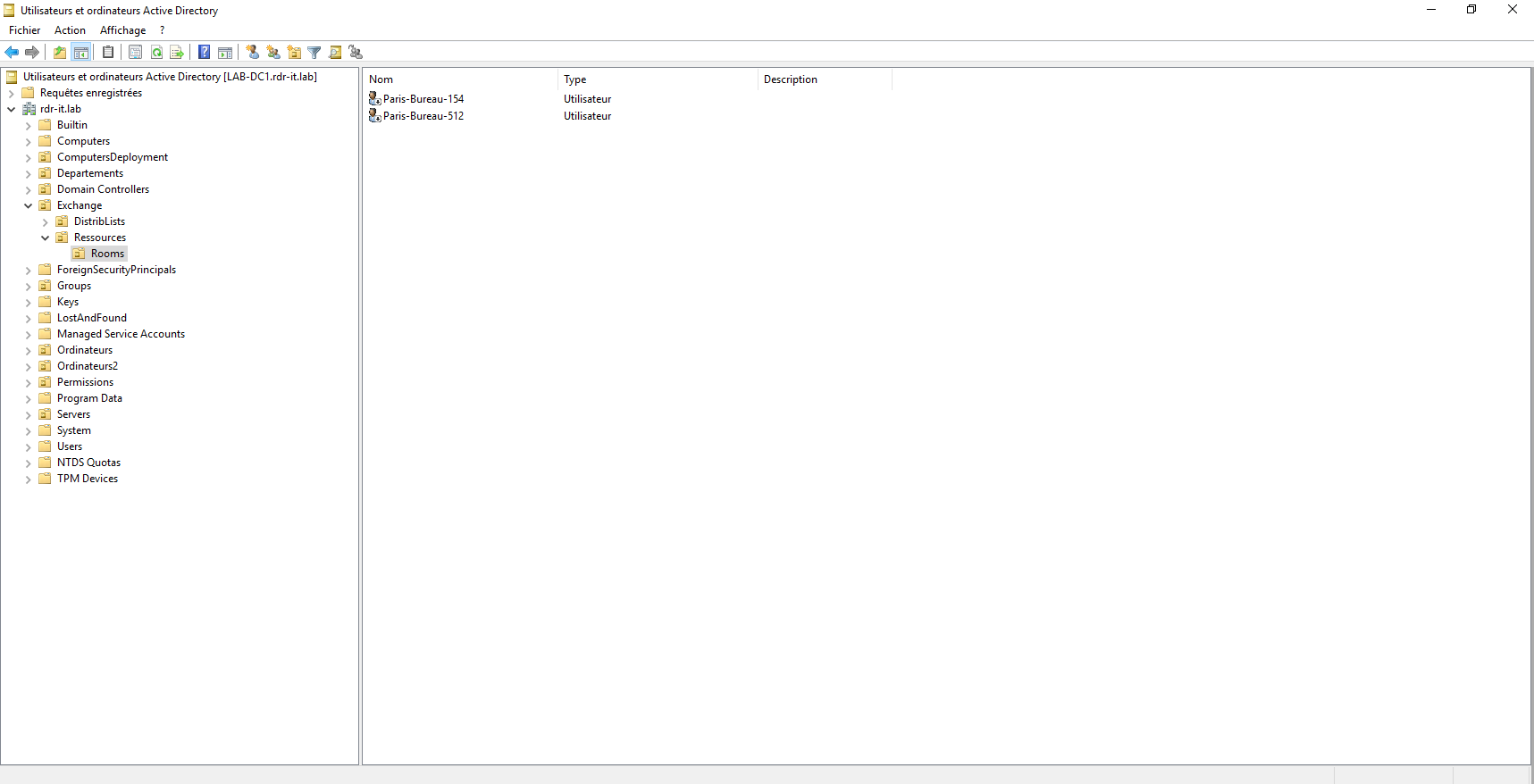
Here we can see two user objects that correspond to resources in Exchange, as we can see they are desktops, generally used for meetings.
We start with the Active Directory Users and Computers console, I launch a search with the word: desktop
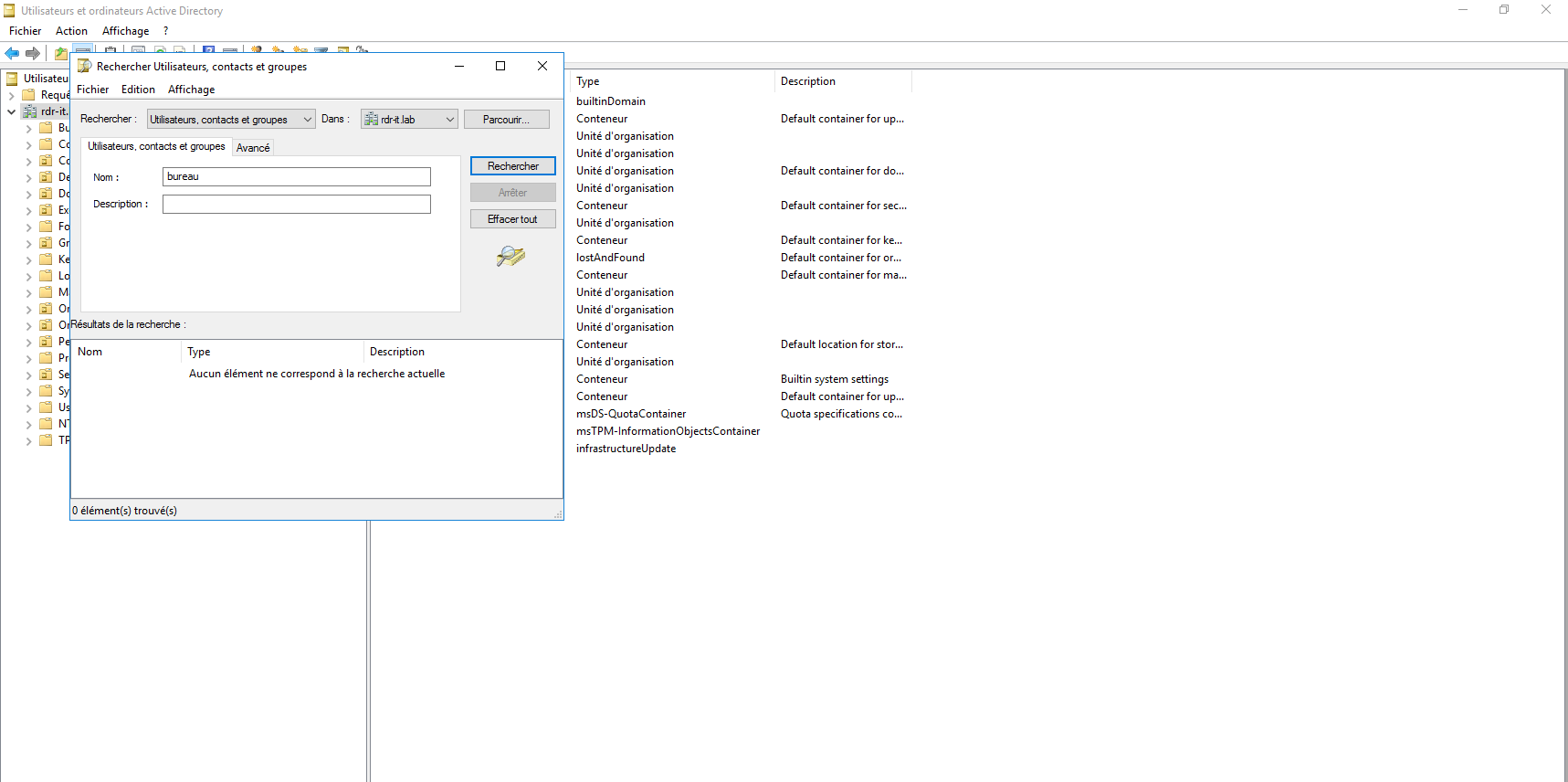
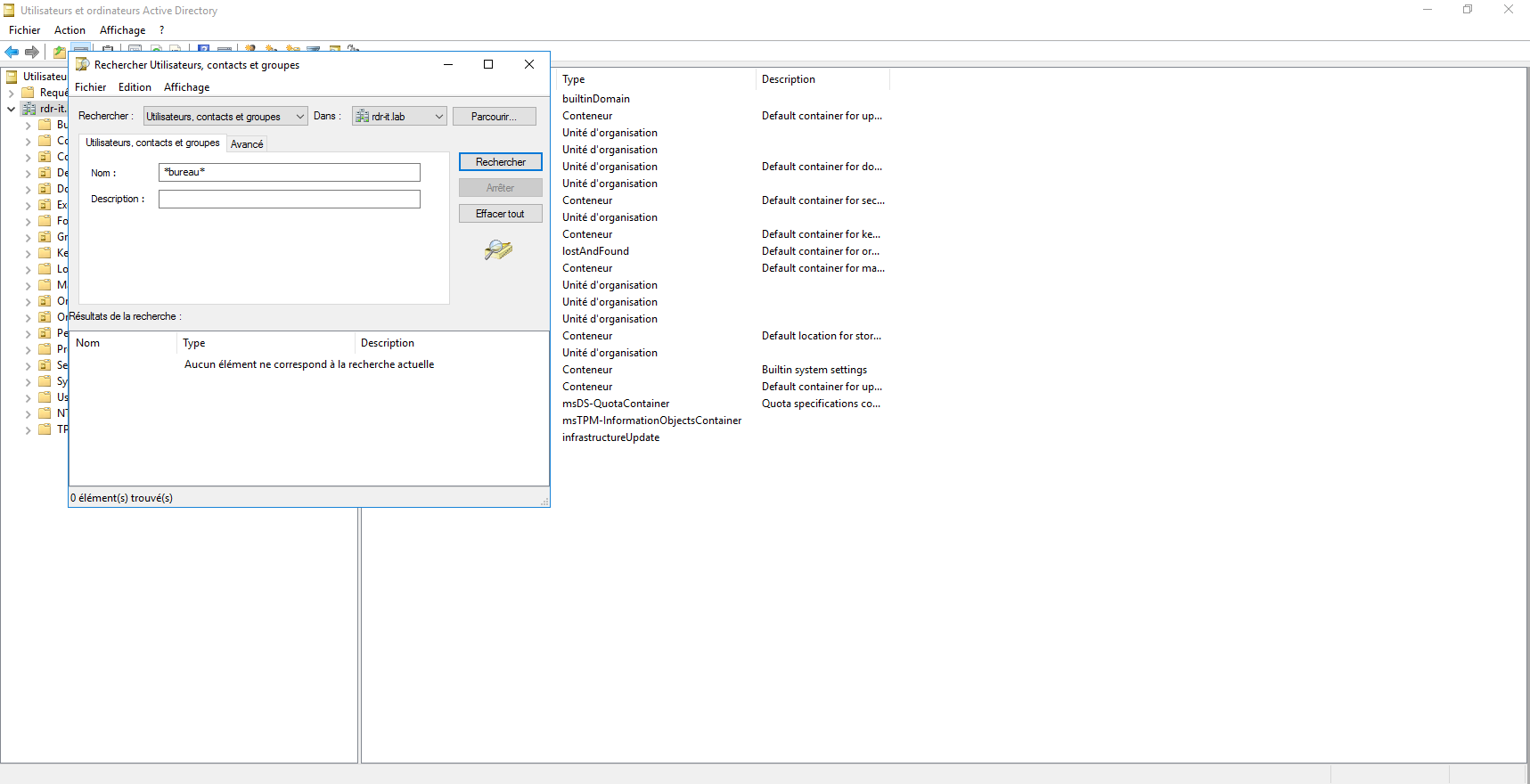
As you can see, the search gives nothing, I also tried with the * on each side of the word, but no results.
Same search with ADAC:
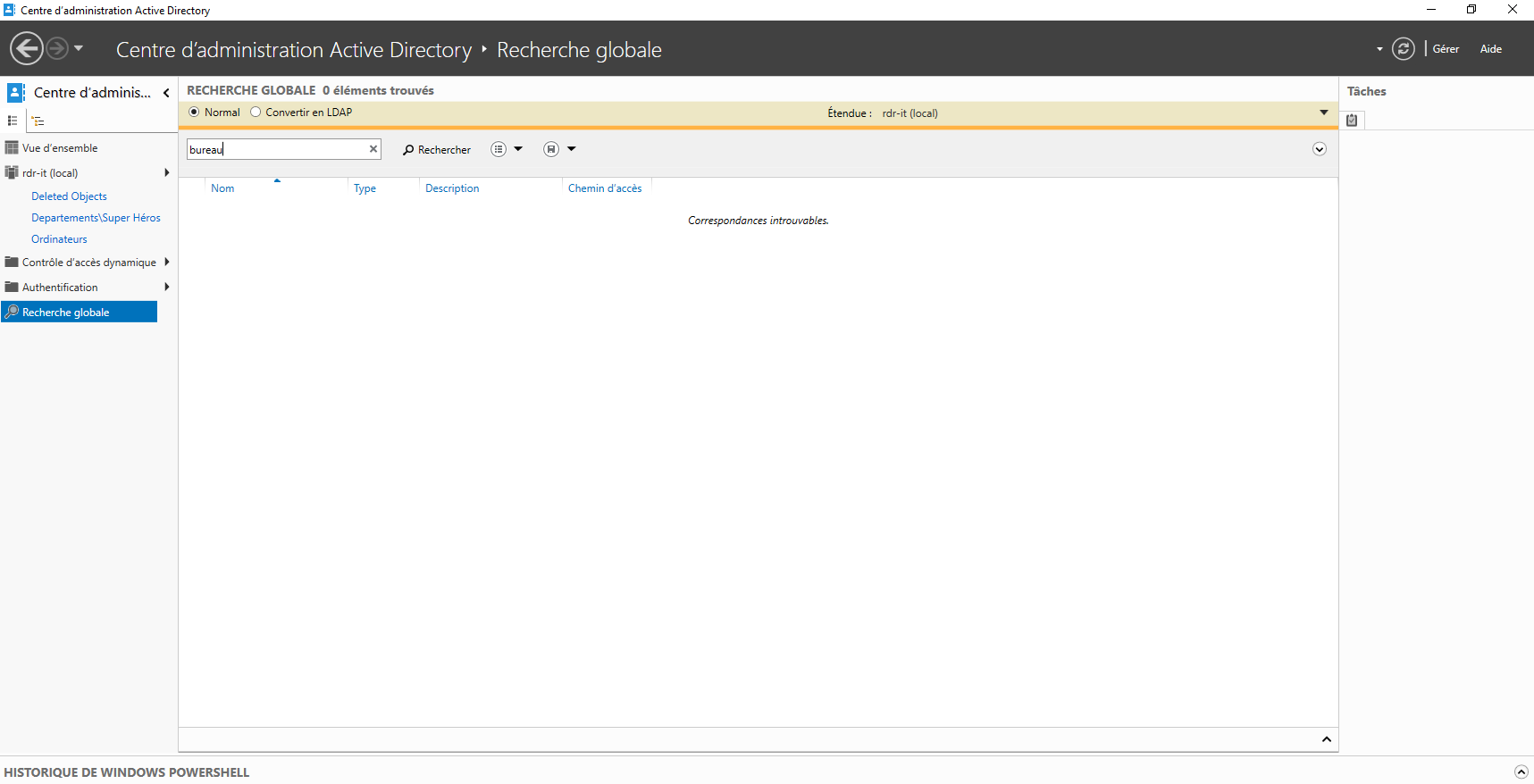
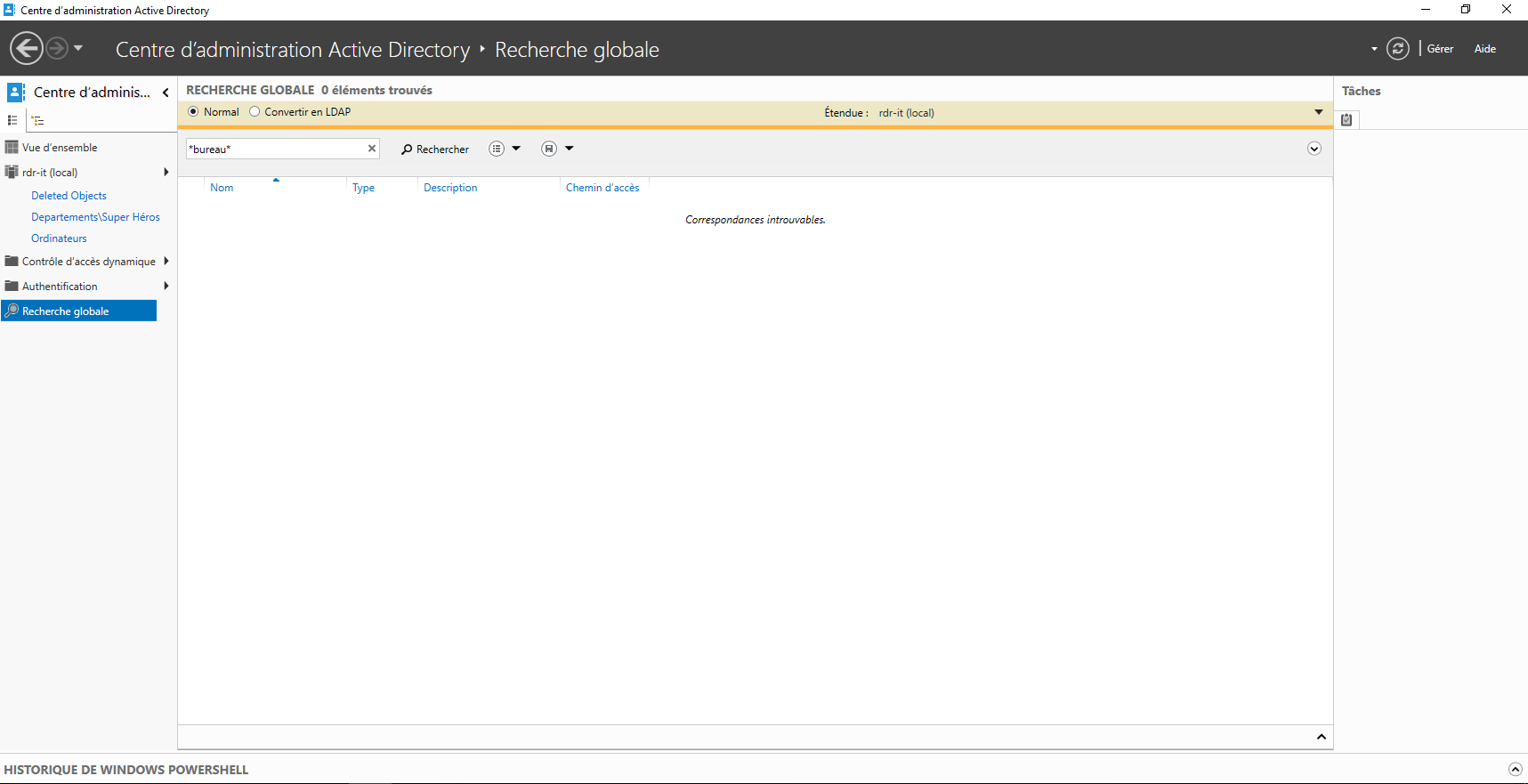
Same observation… the search returns nothing…
How to get the list of objects that contain the word office …. so do a search like office.
We have two solutions:
- Use the advanced search functions of both consoles
- Using PowerShell
In this tutorial, we will use the second solution, which I personally find faster to locate the object in the directory.
In PowerShell, we will be able to use several Cmdlets to perform our search.
We will start with the Get-ADObjet Cmdlet which will allow us to search all types of objects in the Active Directory.
Get-ADOject -Filter {name -like "*bureau*"}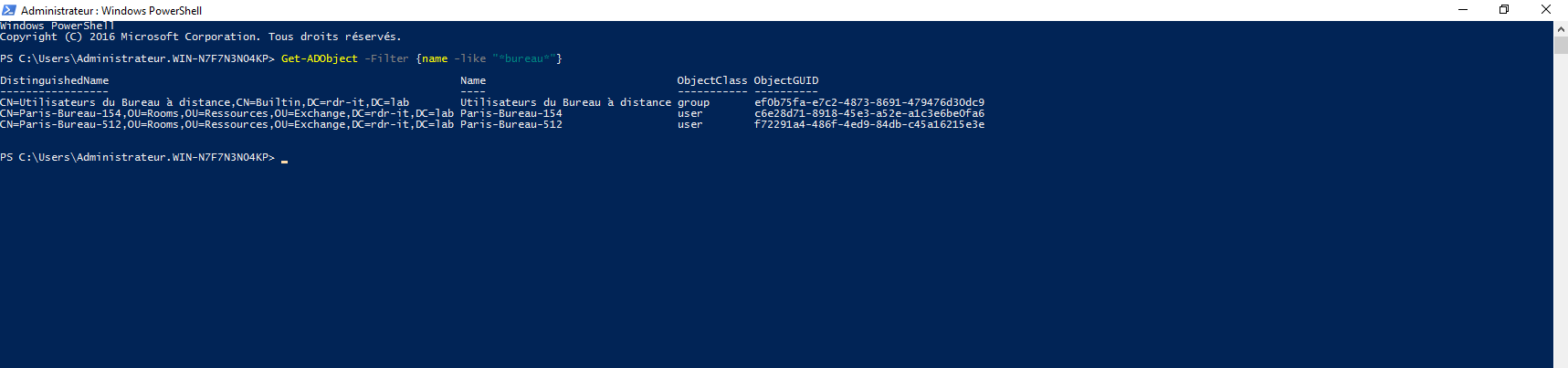
As we can see, this time we have all the objects that contain the word office and we have the two meeting rooms.
The Distinguished Name (DN) allows us to easily locate the object in the directory.
The second command I’m going to show you is the Get-ADUser Cmdlet.
Get-ADUser -Filter {name -like "*bureau*"} | ft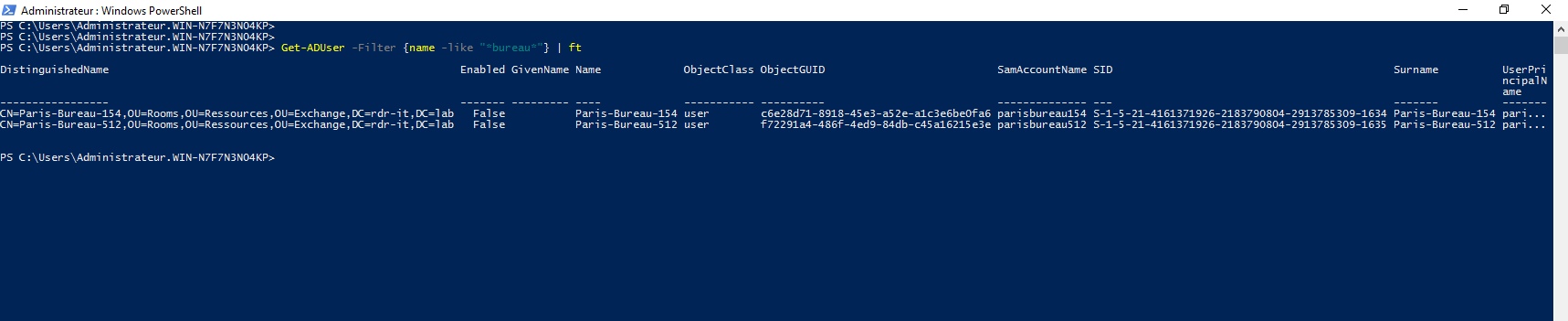
This time the command only returns the User objects; we have the two meeting rooms which are User objects. Here too, the DN database allows us to locate the object in the AD.
On the same syntax as Get-ADUser you have:
Get-ADGroup: pour rechercher un groupeGet-ADComputer: pour recherche un objet ordinateur.
Little bonus, here is the beginning of a script:
Import-Module ActiveDirectory

$Search = '*' + $(Read-Host 'What are you looking for ') + '*'

Get-ADObject -Filter {name -like $Search}
You now know how to effectively search an Active Directory using PowerShell.
