Let’s get practical; in this lesson, you will have to set up your first domain controller.
For this lab, I recommend using a virtual environment. If you don’t have a server, you can install Hyper-V on Windows 10.
The practical exercise is based on tutorials from the website rdr-it.com. For each step where it is necessary, a link to the page(s) to follow is provided.
1. Install a server version of Windows on the computer.
2. Configure Windows with a static IP address.
3. Install the AD DS and DNS role from the Roles and Features Installation Wizard.
– Link : Active Directory: installation and configuration of a domain controller
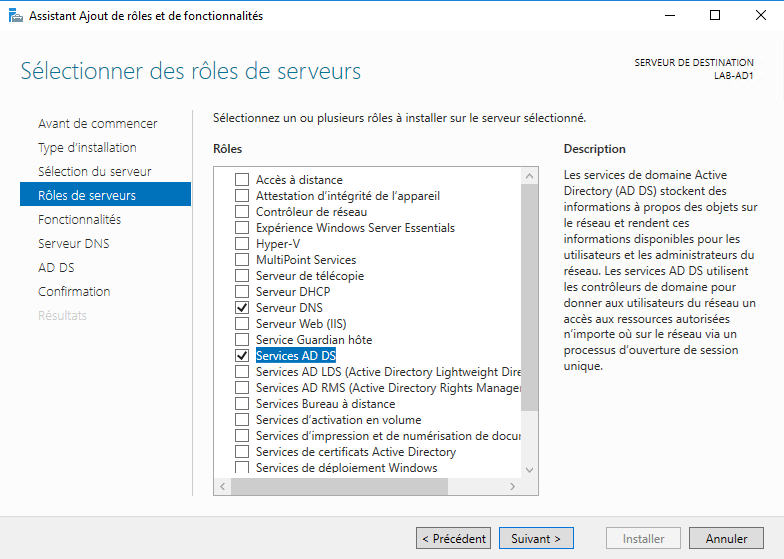
4. Before promoting the domain controller server, choose the root domain name.
5. Configure the AD DS role.
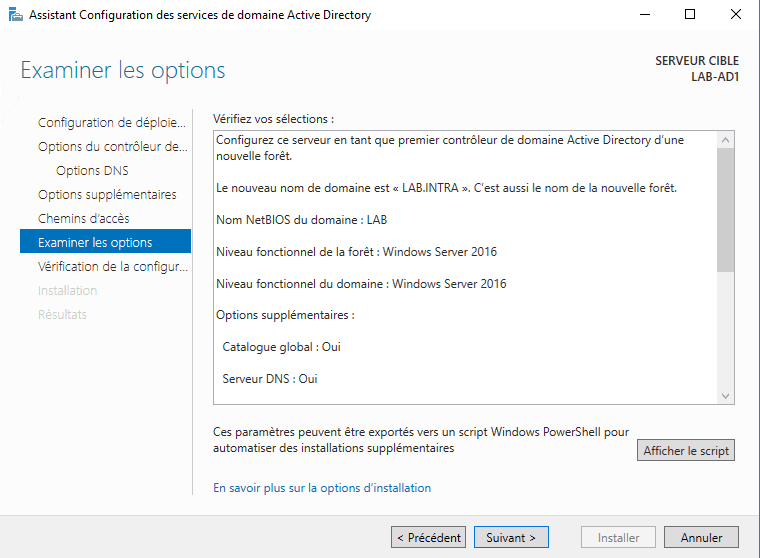
When configuring the domain controller, you must define the password for Directory Services Recovery Mode (DSRM). This password is unique to each domain controller and allows access to the server for repair in case of an Active Directory service problem.
6. After the server restarts, it becomes a domain controller and the Active Directory environment is created. From Server Manager, you can see that it is a member of the domain and that the AD DS and DNS roles are accessible in the manager.
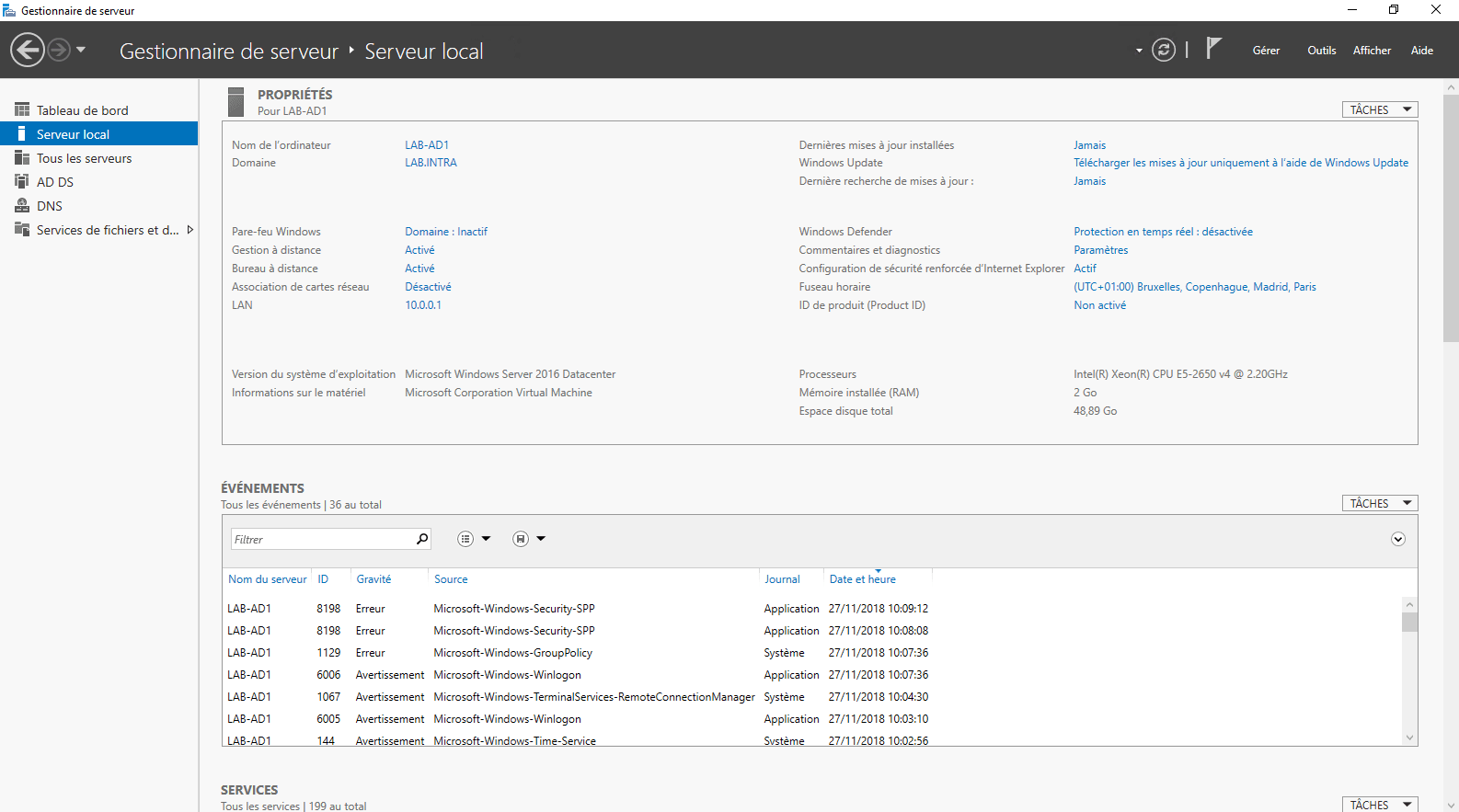
You have created your Active Directory environment and configured your first domain controller.
You can now go to the next module, where we will look at the domain controller in more detail.