In this lesson, we will take a tour of the administration consoles available on a domain controller to manage the Active Directory environment.
The consoles shown below can be accessed via the Start menu or via the Server Manager by clicking on Tools.
Table of Content
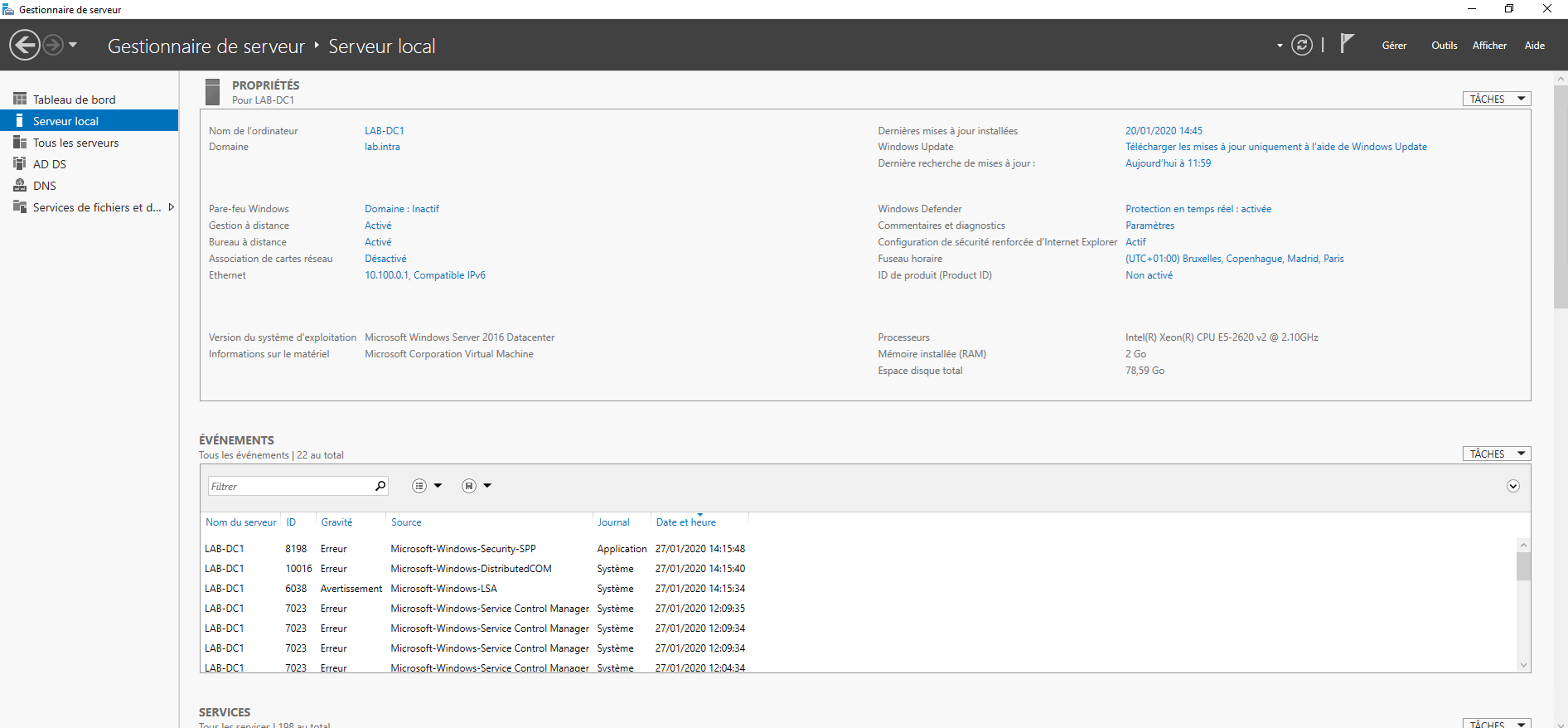
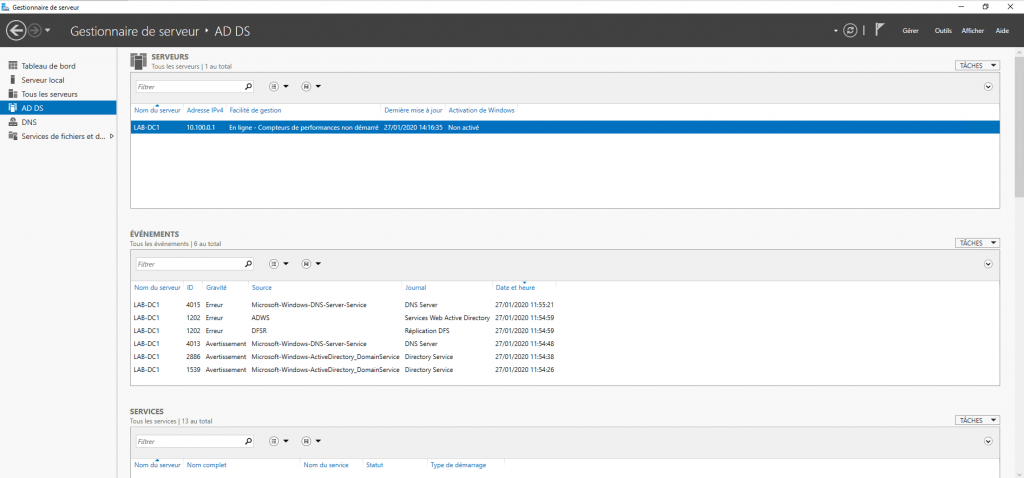
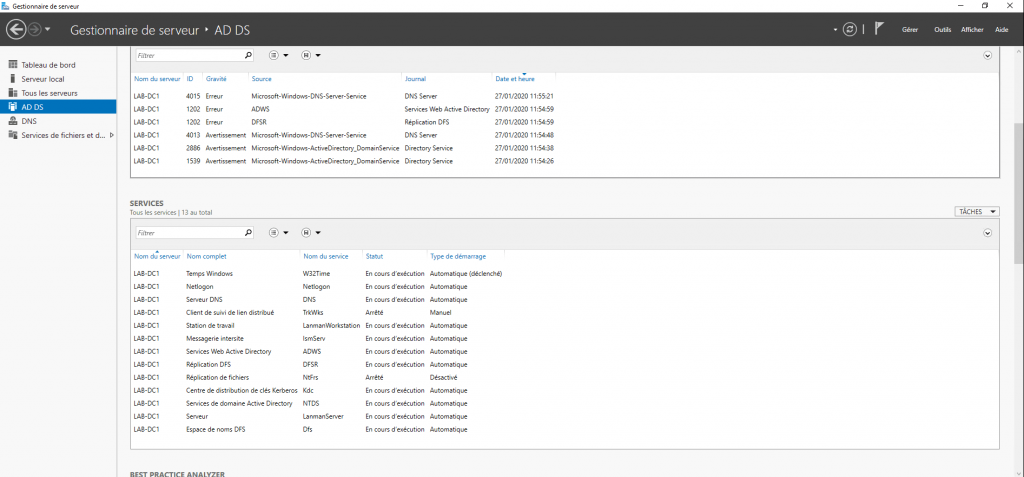
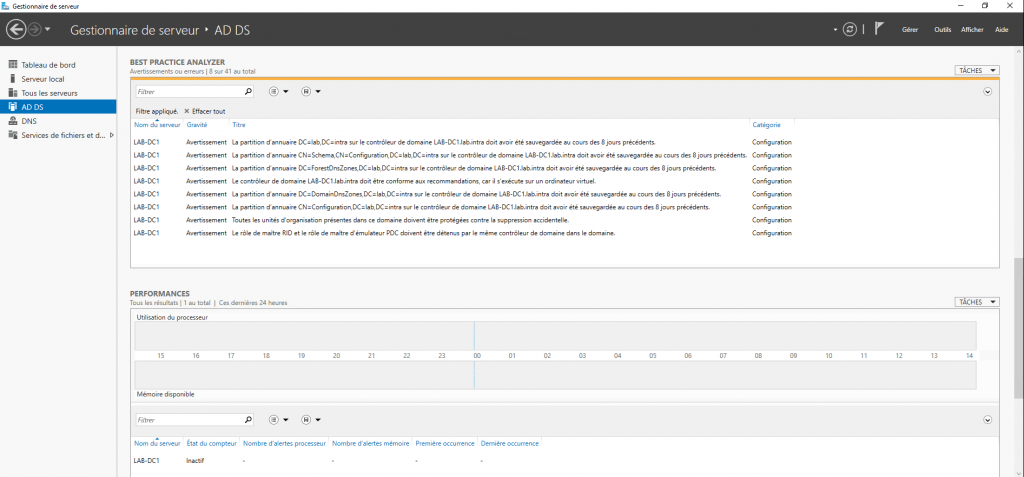
The server manager
Although this console is not dedicated to Active Directory administration, it allows you to:
- Display service status
- Latest events
- Best Practice Analysis
Active Directory Users and Computers
This console is certainly the best known and most used; it allows you to manage (create/modify/delete) Active Directory objects such as users, computers, groups and OUs.
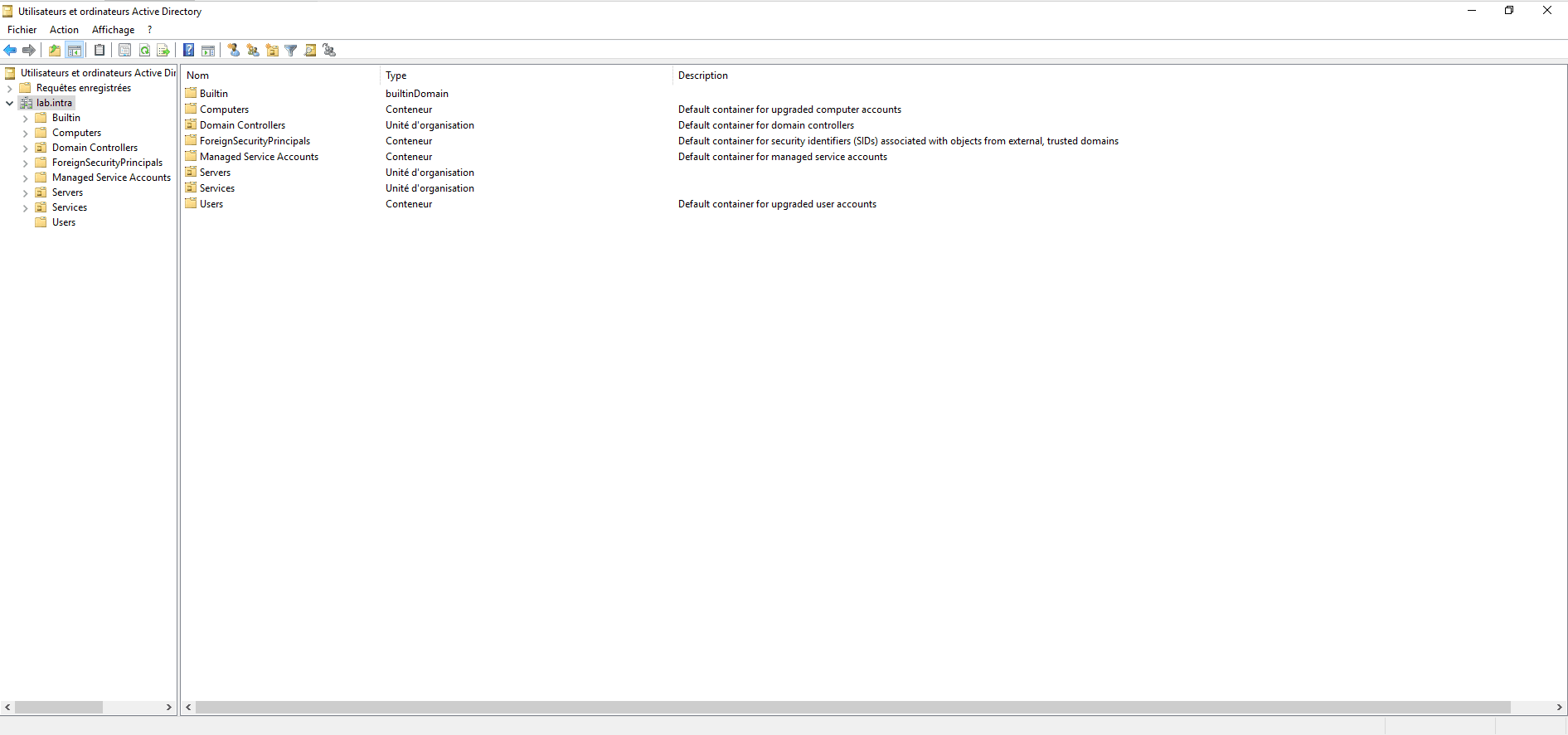
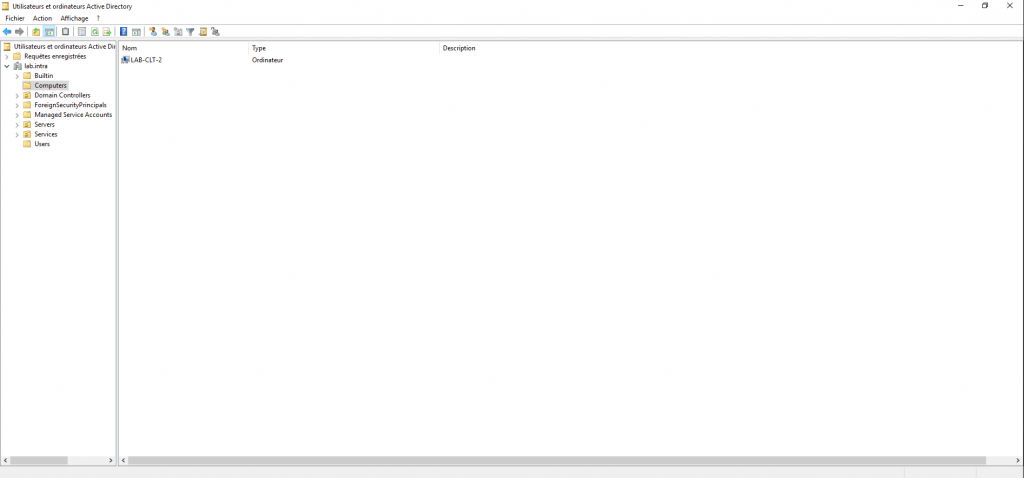
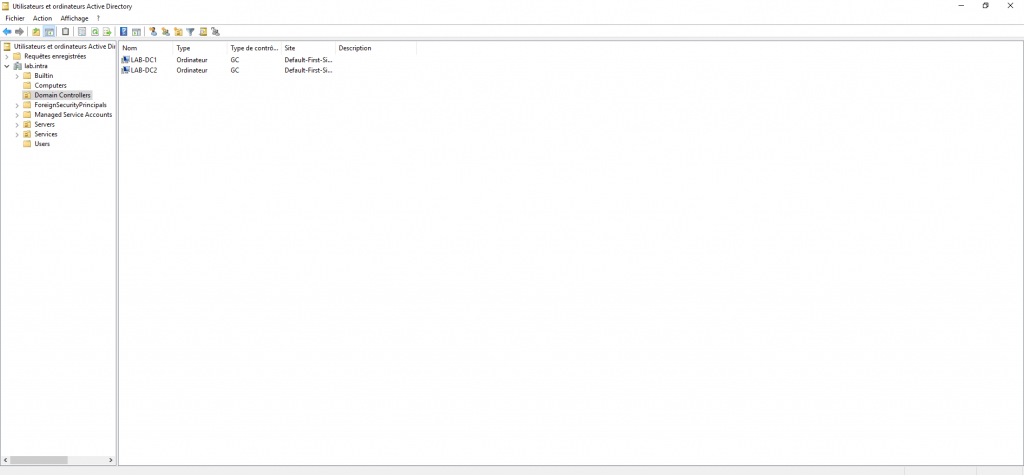
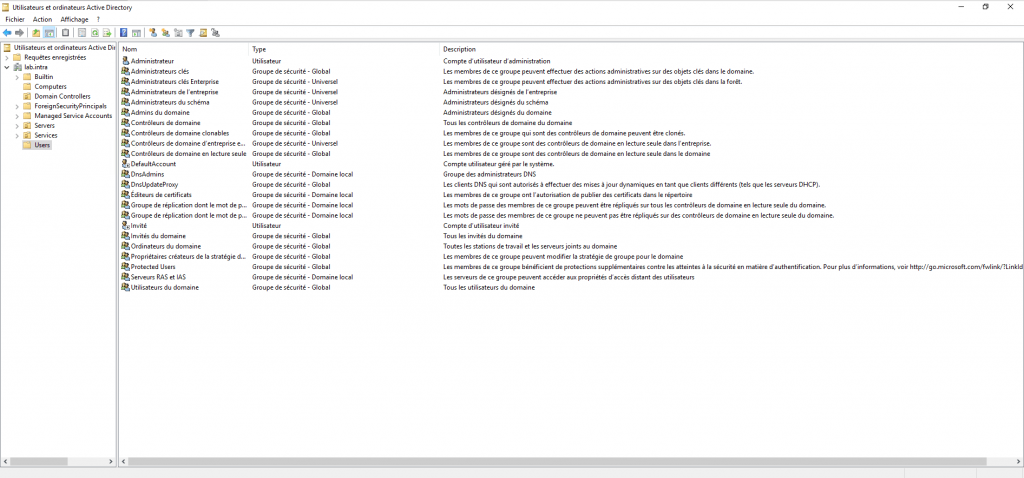
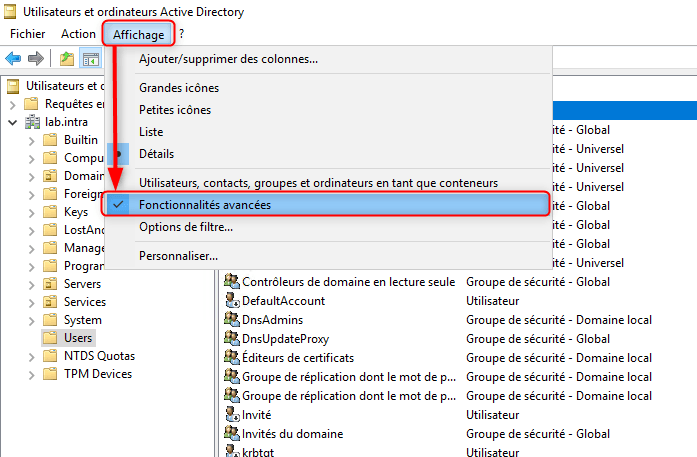
The Active Directory Users and Computers console has advanced features such as displaying attributes on objects or viewing additional containers that must be enabled by going to the View / Advanced Features menu.
Active Directory Administration Center – ADAC
The Active Directory Administrative Center, also known as ADAC, is the latest console for administering Active Directory; it appeared with Windows Server 2008R2 and relies entirely on the PowerShell module.
It is intended to replace the Active Directory Users and Computers console that came out with Windows 2000, to encourage its adoption; the new features added to Active Directory are only accessible through ADAC.
Like the Active Directory Users and Computers console, it allows the administration of Users, Computers, Groups and Organizational Units.
Additional features available on ADAC:
- Active Directory Recycle Bin
- Authentication Strategy
- Password Strategies (PSO)
- Dynamic access control
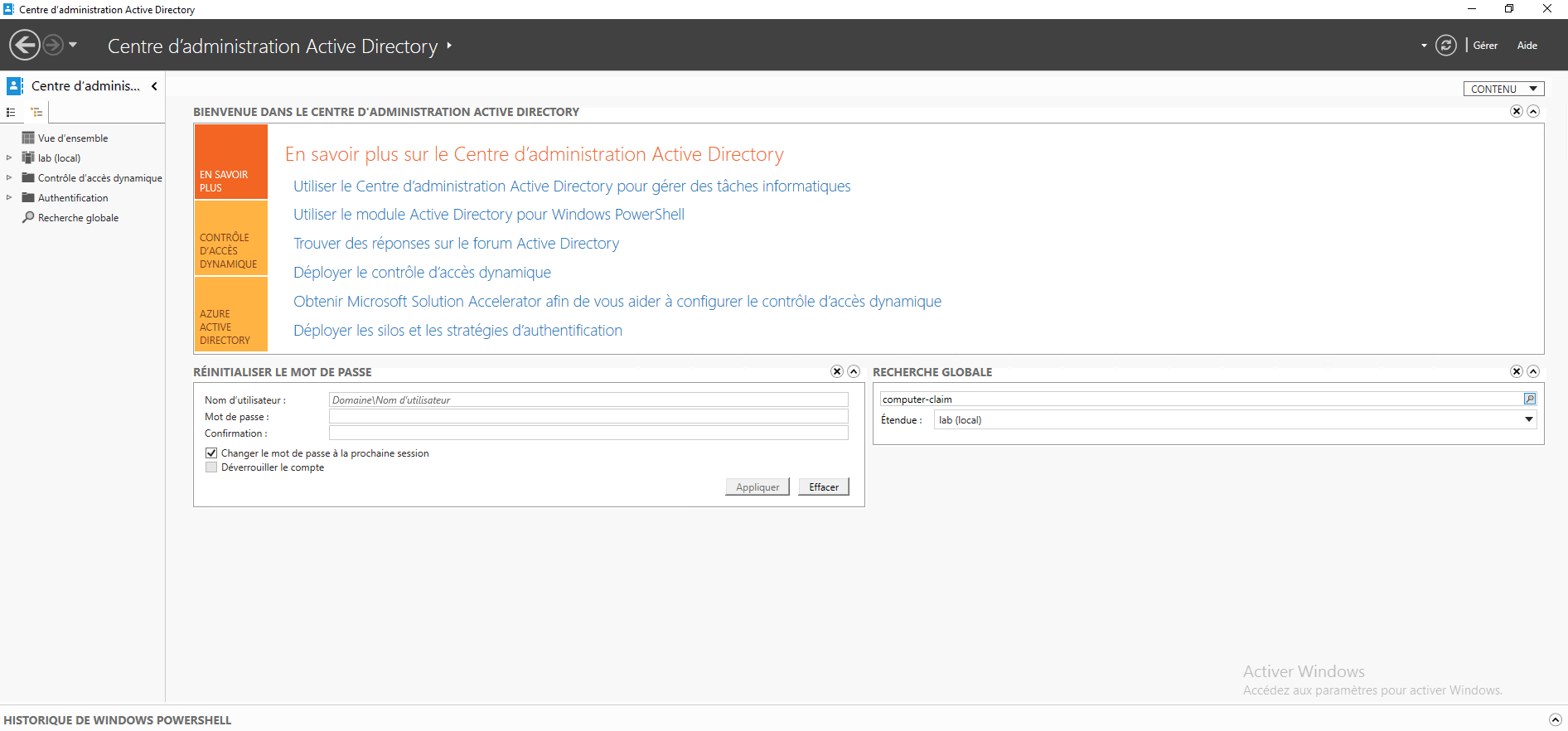
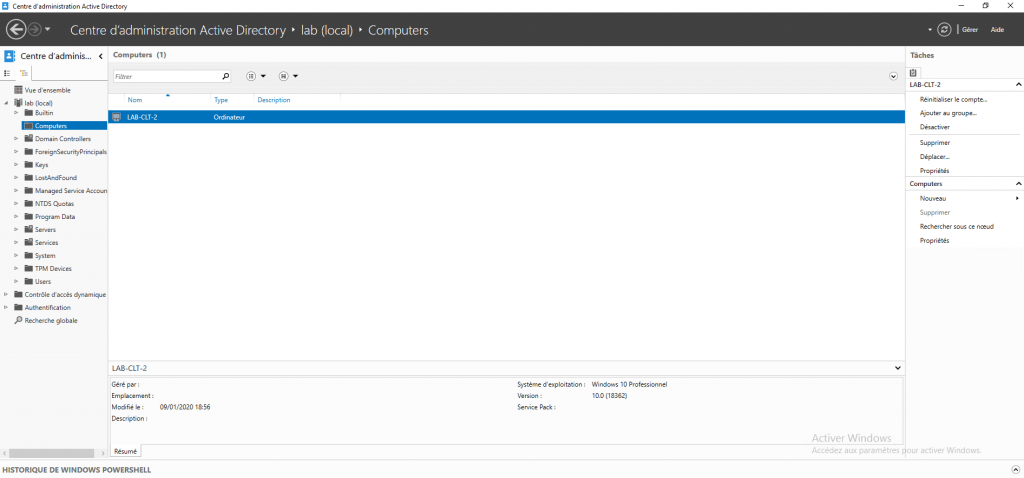
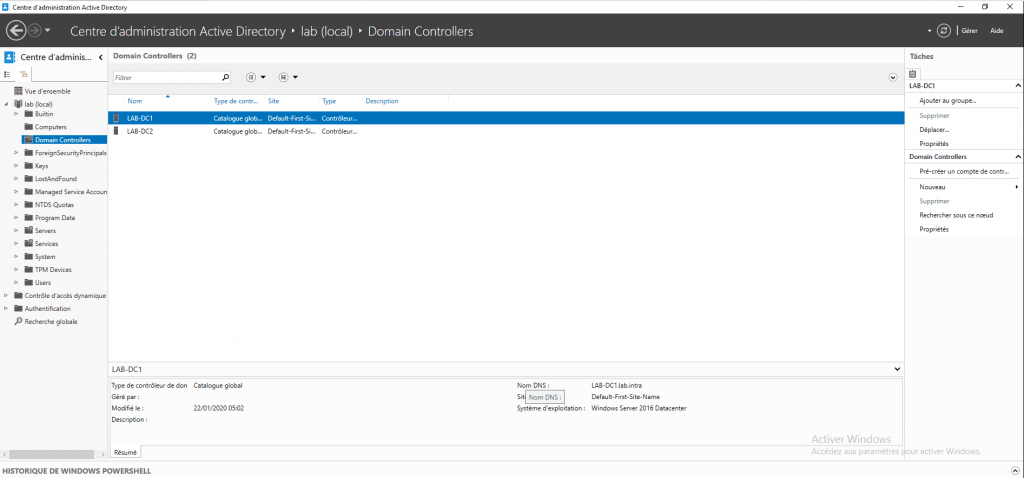
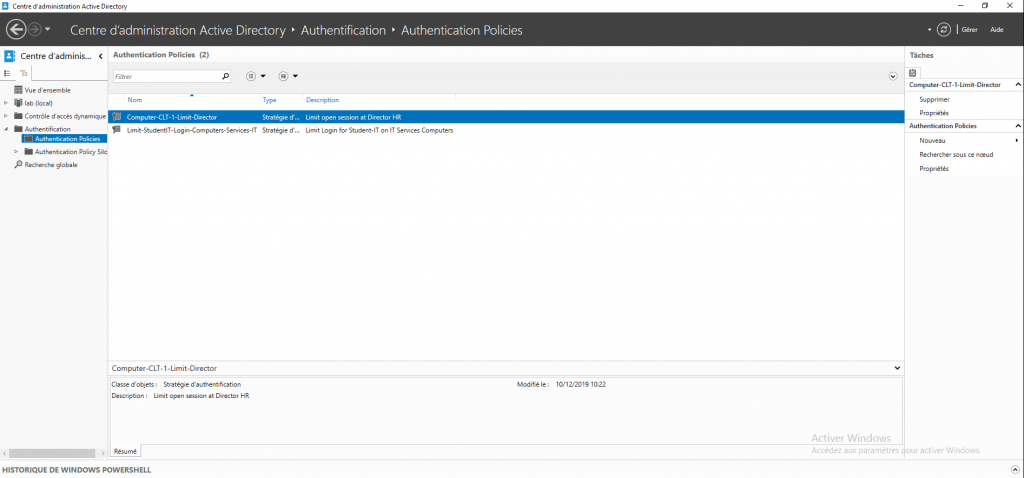
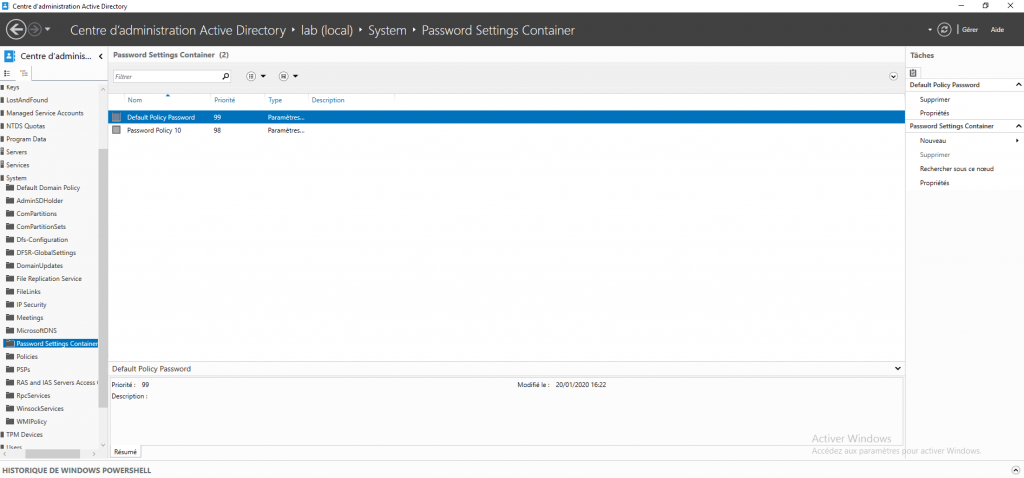
As explained above, the ADAC console relies on PowerShell commands; it is possible to display the list of executed commands by clicking on WINDOWS POWERSHELL HISTORY.
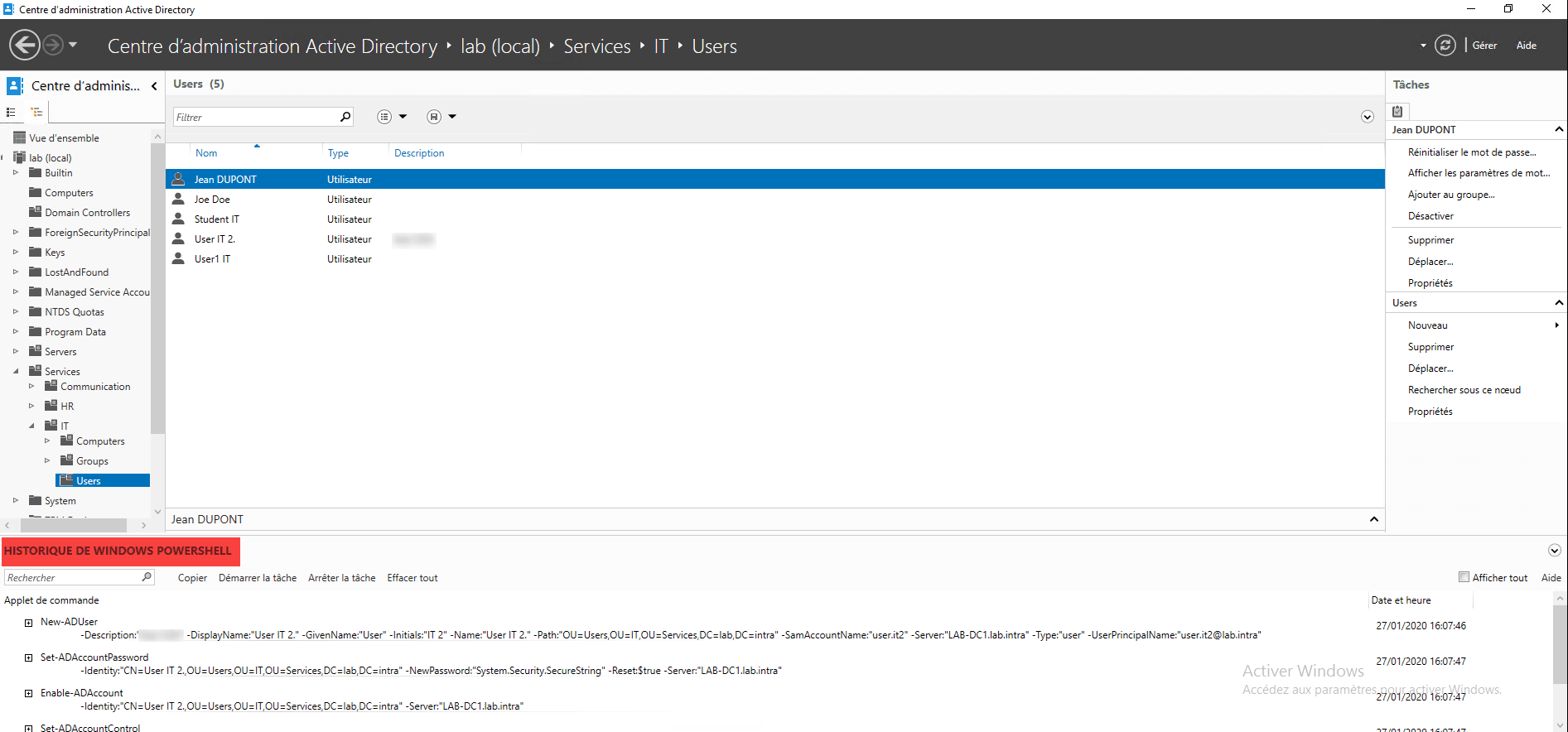
This tip can be useful if you want to create PowerShell scripts to have example commands.
Active Directory Domains and Trusts
The Active Directory Domains and Trust console is primarily used to manage trust relationships between domains within the same forest and/or between two forests.
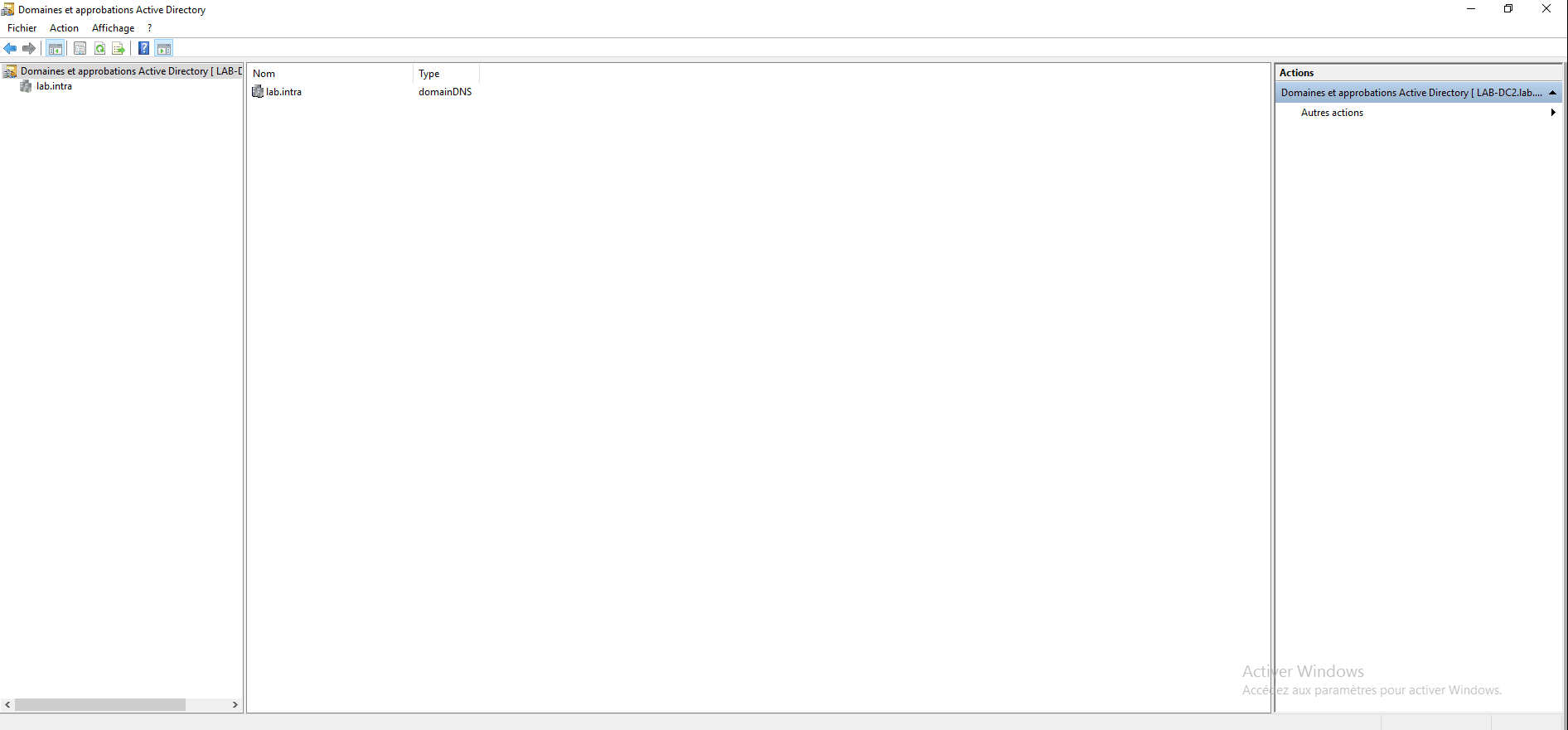
Adding a UPN suffix (domain after the @ in the user ID) is done through this console.
If your Active Directory domain is different from your email domain name, you can add the email domain name as an additional UPN suffix and configure user IDs with that suffix.
It is from this console that the domain name allocation master can be graphically modified.
ADSI modification
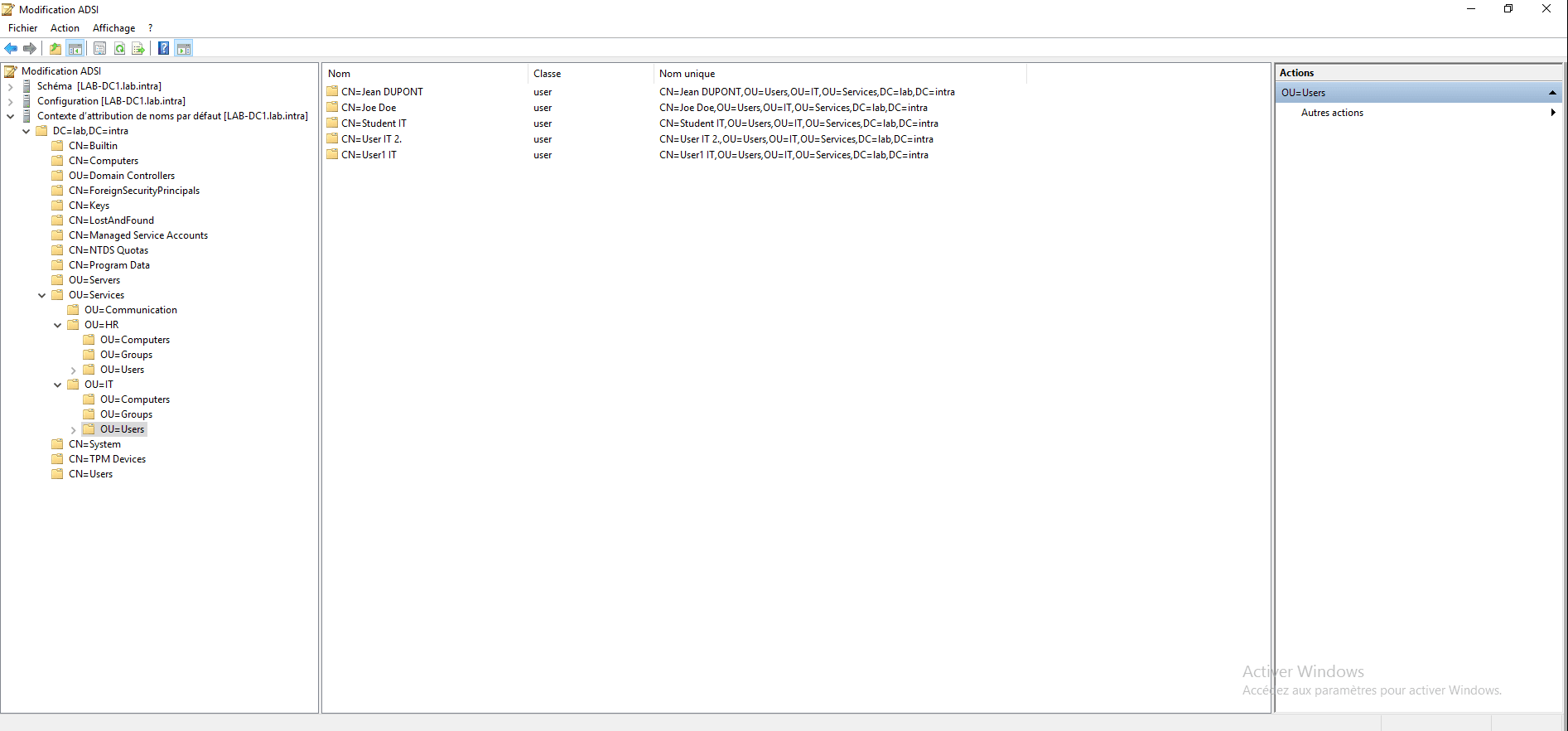
The ADSI Modification console allows you to directly modify the Active Directory at the partition level. This console should be used with extreme caution, as improper handling can corrupt the Active Directory.
Active Directory schema
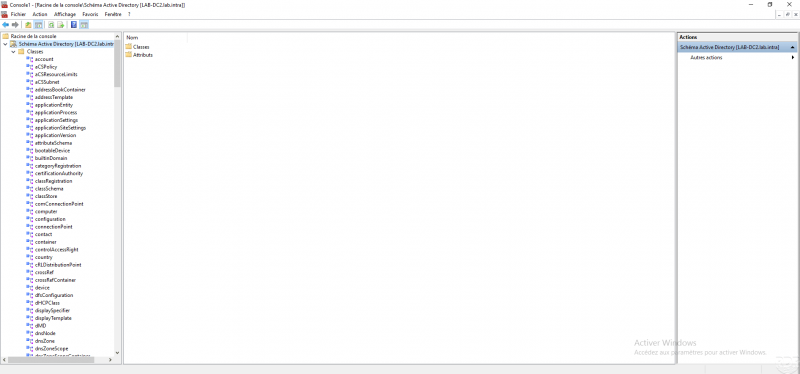
The Schema console, as its name suggests, allows you to modify the schema of the Active Directory forest.
It must be used with great care and you must be sure of the modifications you make.
By default, it is not available; you must register the DLL file. schmmgmt.dll.
Active Directory sites and services
The Active Directory Sites and Services console allows you to administer the different sites and their IP addresses, manage inter-site replication links between domain controllers, and define the domain controllers in the Global Catalog.
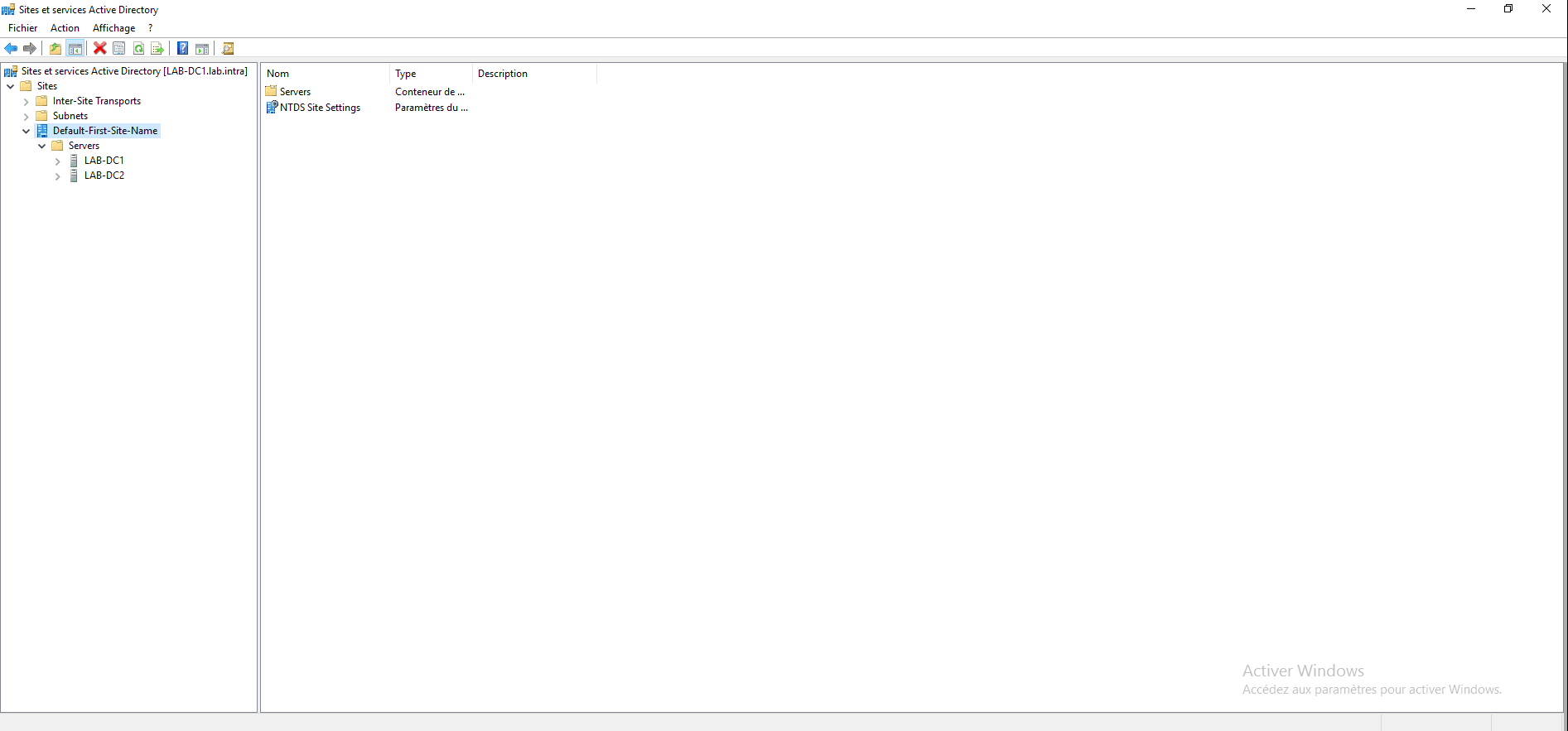
When creating the Active Directory environment, a default site (Default-First-Site-Name) was created; it is recommended to rename it and assign it the site’s IP network(s).
Group strategy management
The Group Policy Management console will allow us to manage group policies for the domain.

DNS
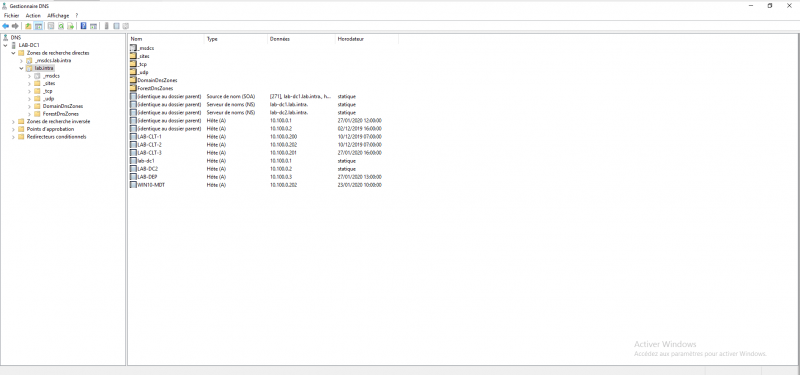
The DNS console allows you to manage records at the domain level; administering an Active Directory environment regularly requires the use of this console.
DCDIAG
DCDIAG.EXE is not a graphical console, but a command-line utility that allows you to perform diagnostics on a domain controller and the Active Directory environment.
If you encounter a problem and seek help on a forum, the first thing you will be asked for is the result of the DCDIAG command.
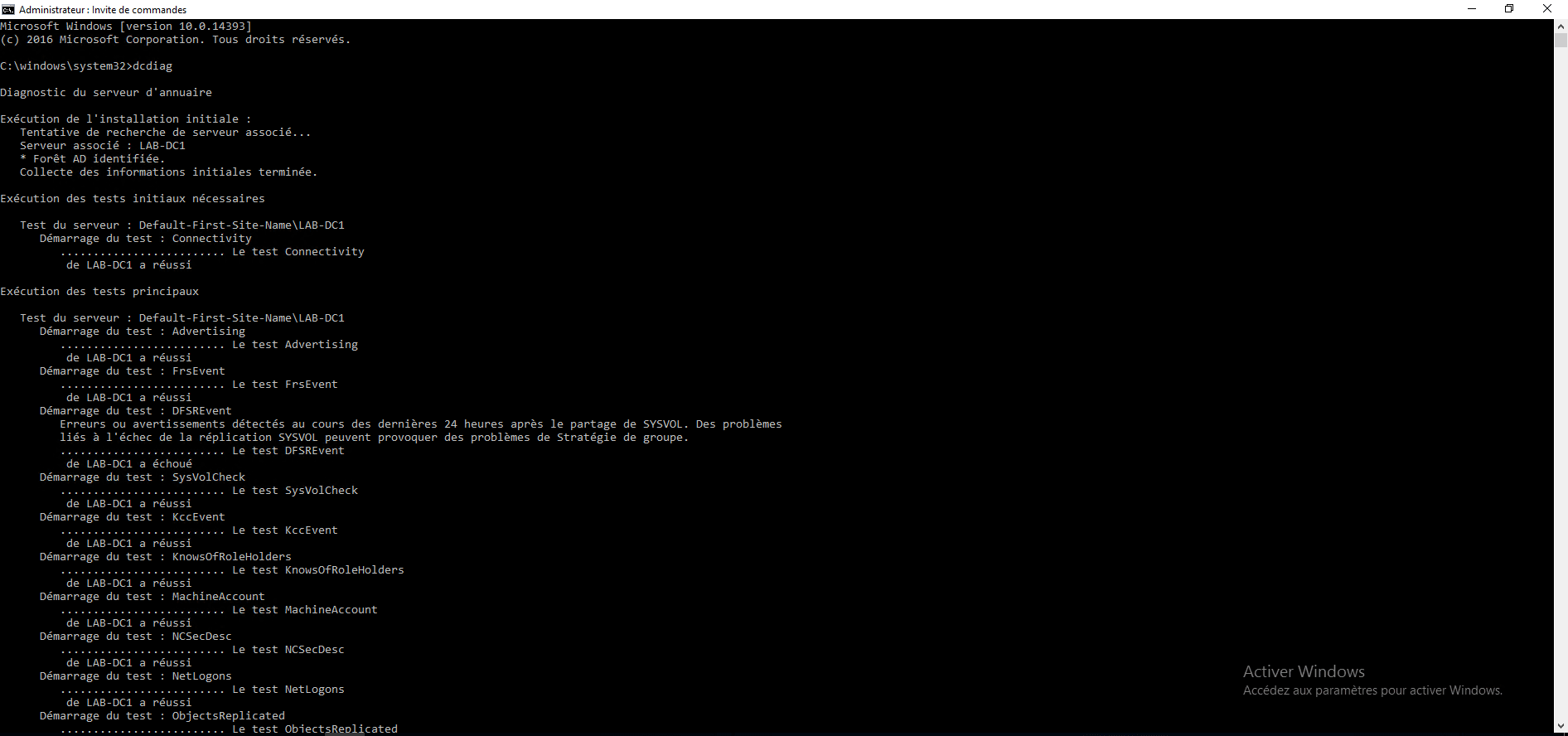
I know that it is not strictly speaking an administration console, but not talking about this utility in this lesson would be a “mistake”.
All the graphical consoles we have just seen are available with the RSAT tools and can be used from a computer with Windows 10.
There are also command-line utilities and PowerShell cmdlets for administering Active Directory services.