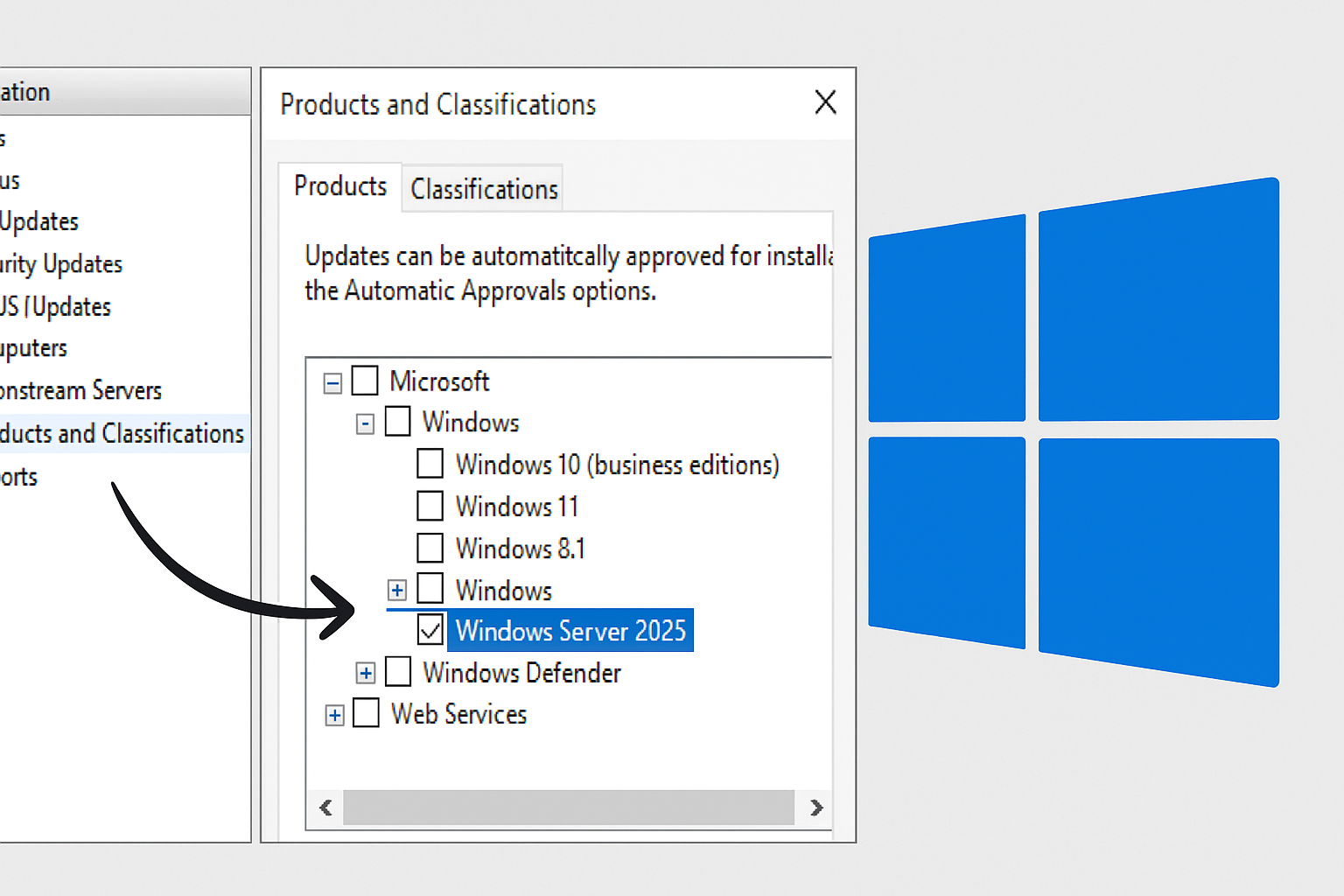
In this tutorial, I’ll show you how to enable Windows Server 2025 update support on a server. WSUS , in order to be able to distribute them to the relevant computers.
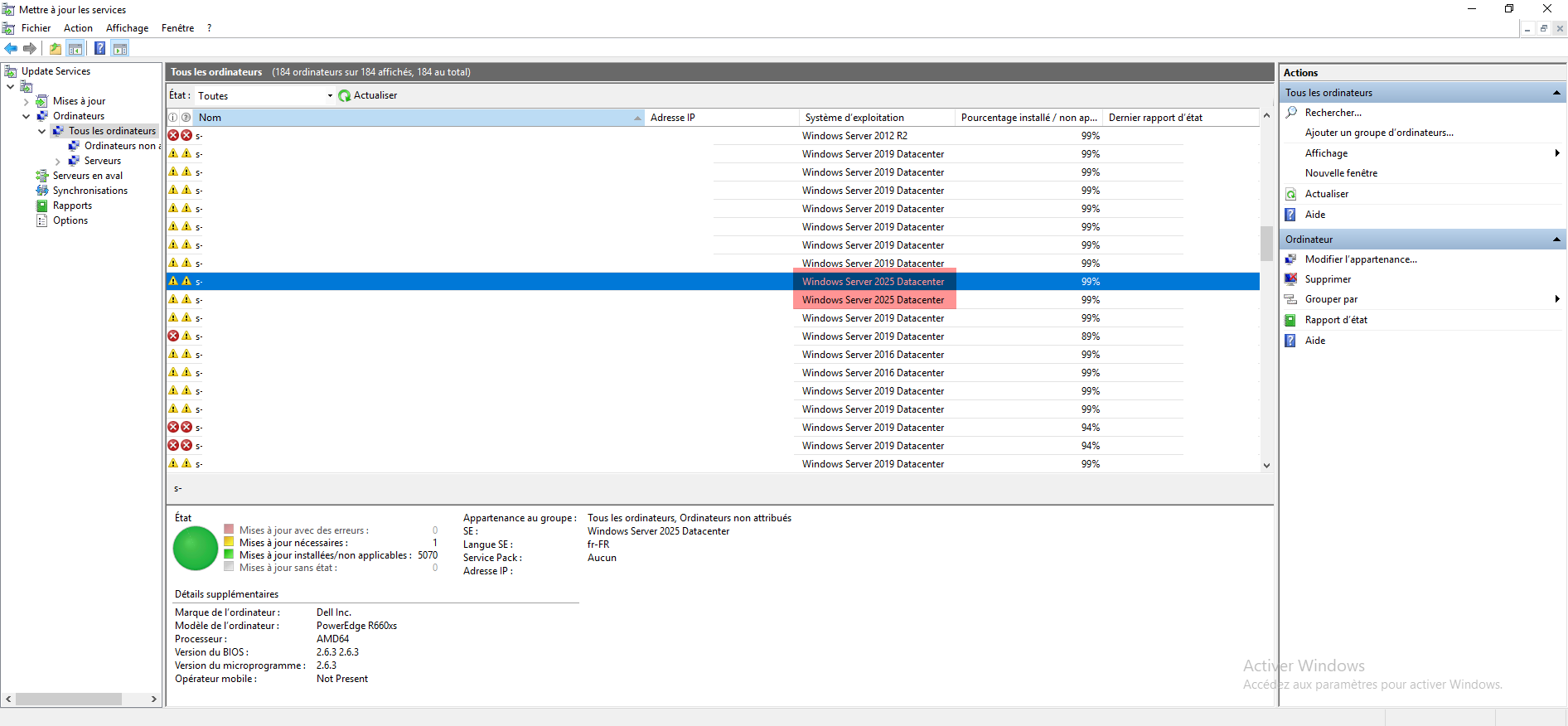
As you can see, I have computers with Windows Server 2025 that connect to my WSUS server.
Enable update support for Windows Server 2025
From the WSUS console, go to Options 1 then click on Products and classifications 2 .
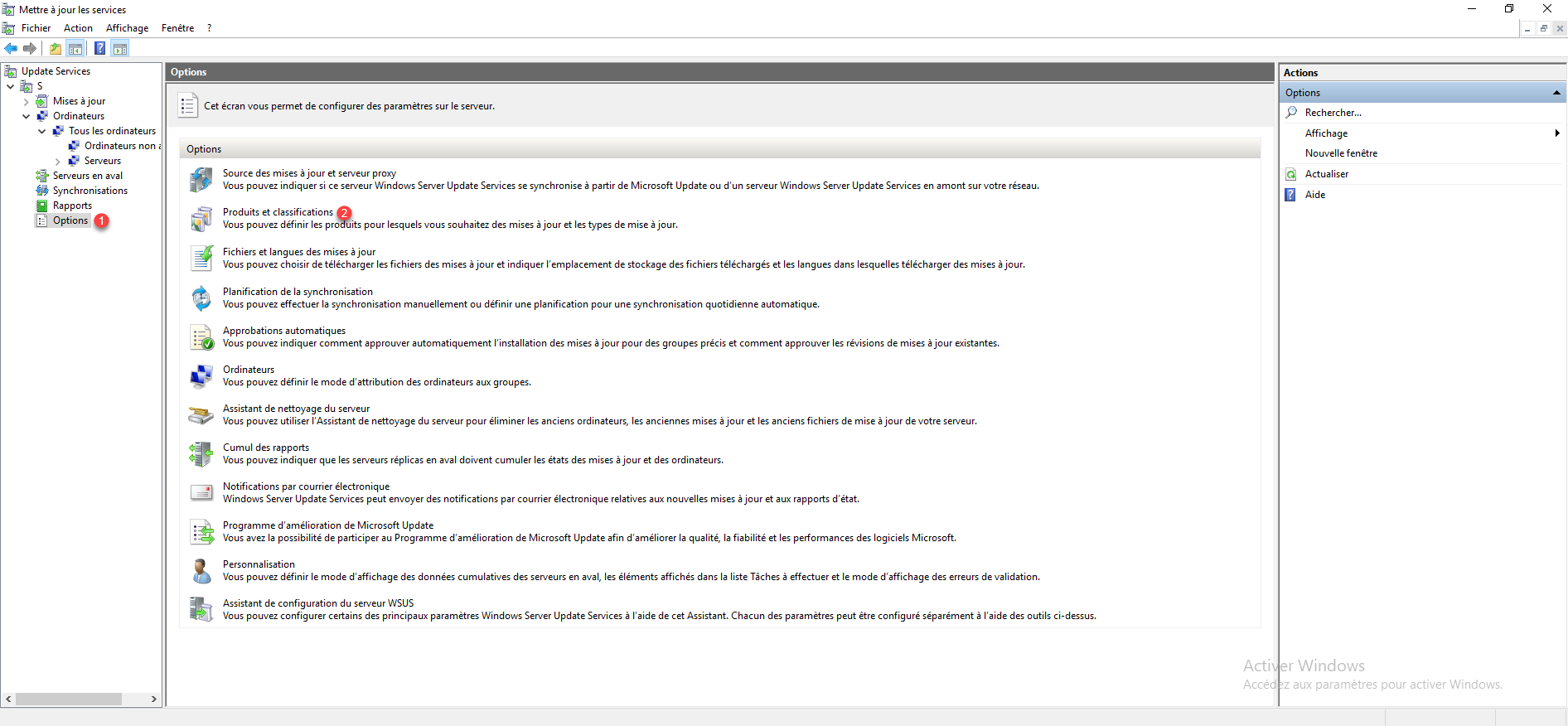
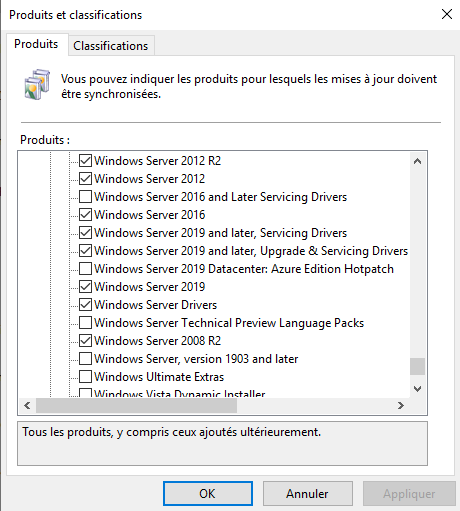
As can be seen in the screenshot below, in the product list, Windows Server 2025 is not present with the other Windows Servers.
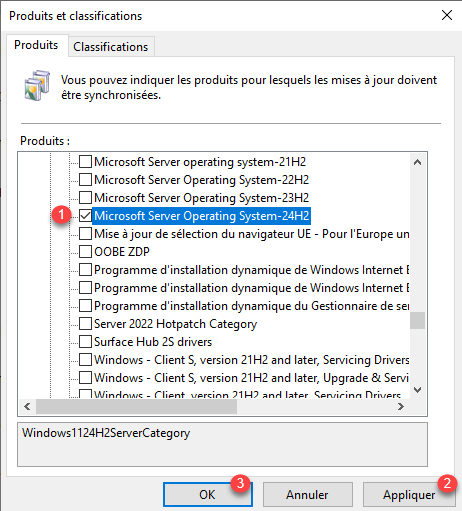
To enable support for Windows Server 2025 updates, you must activate the product: Microsoft Server Operating System-24H2 1 then click the Apply 2 and OK 3 buttons.
Updates for Windows Server 2025 are added to WSUS support.
Synchronize WSUS
To force the retrieval of Windows Server 2025 updates, we will force a WSUS synchronization.
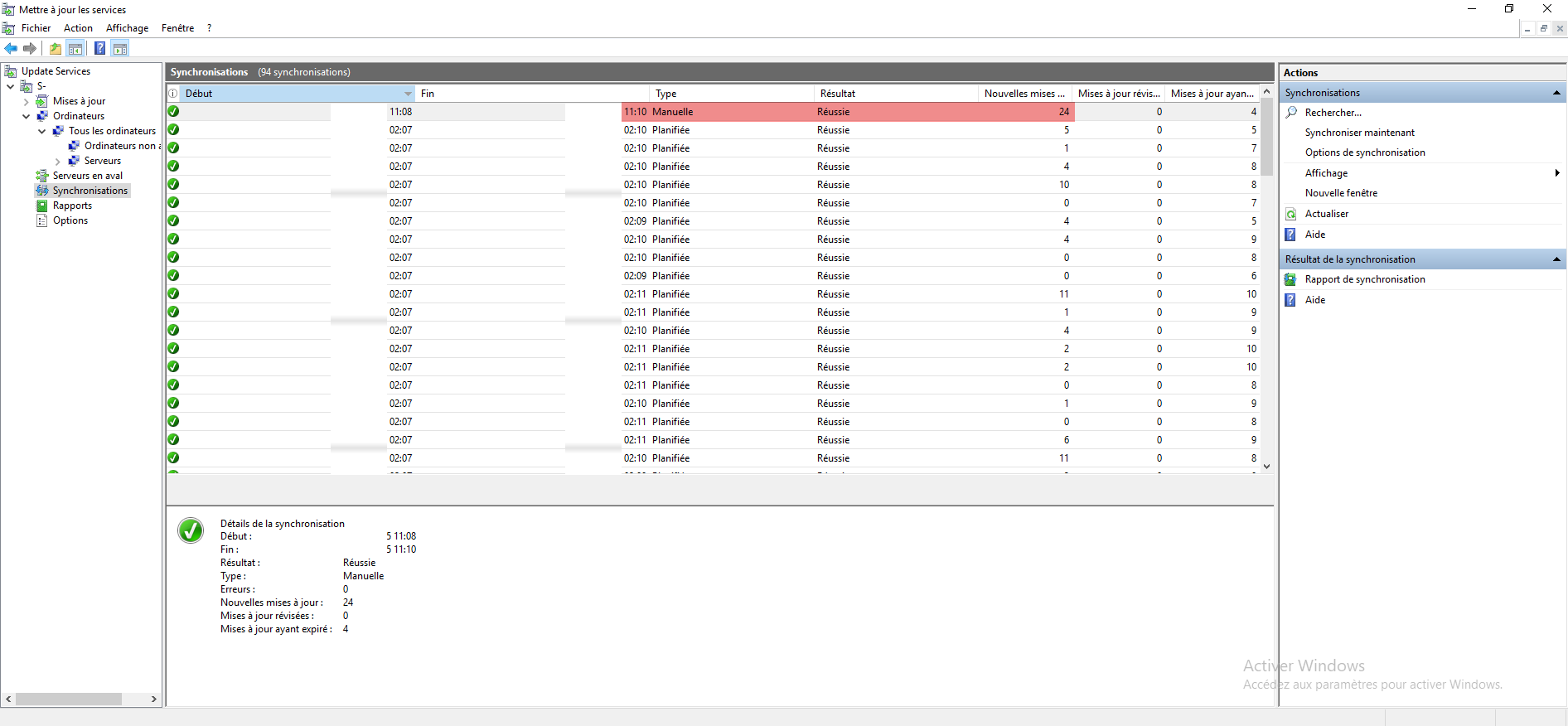
From the console, click on Synchronizations 1 then click on Synchronize now 2 .
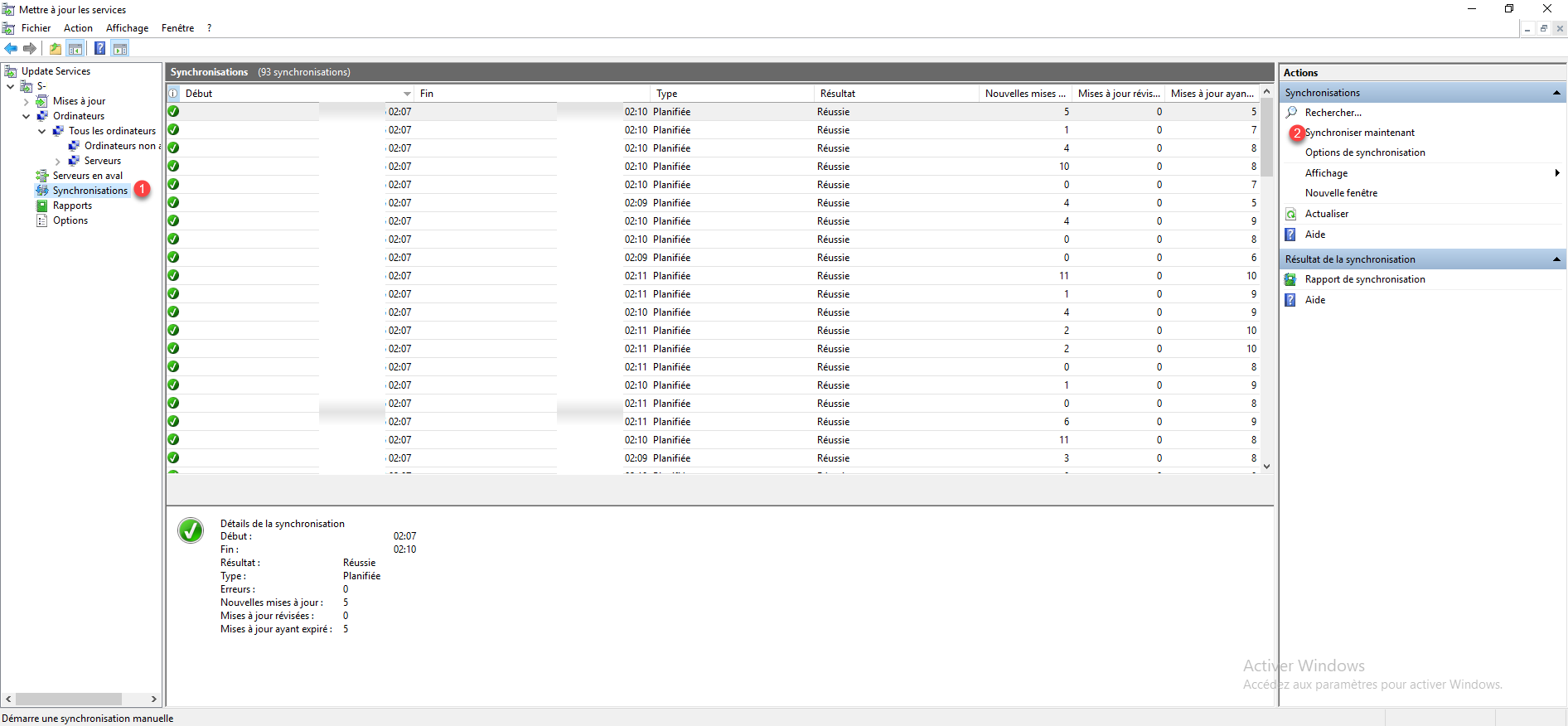
Once the synchronization is complete, we can see that 24 updates have been added.
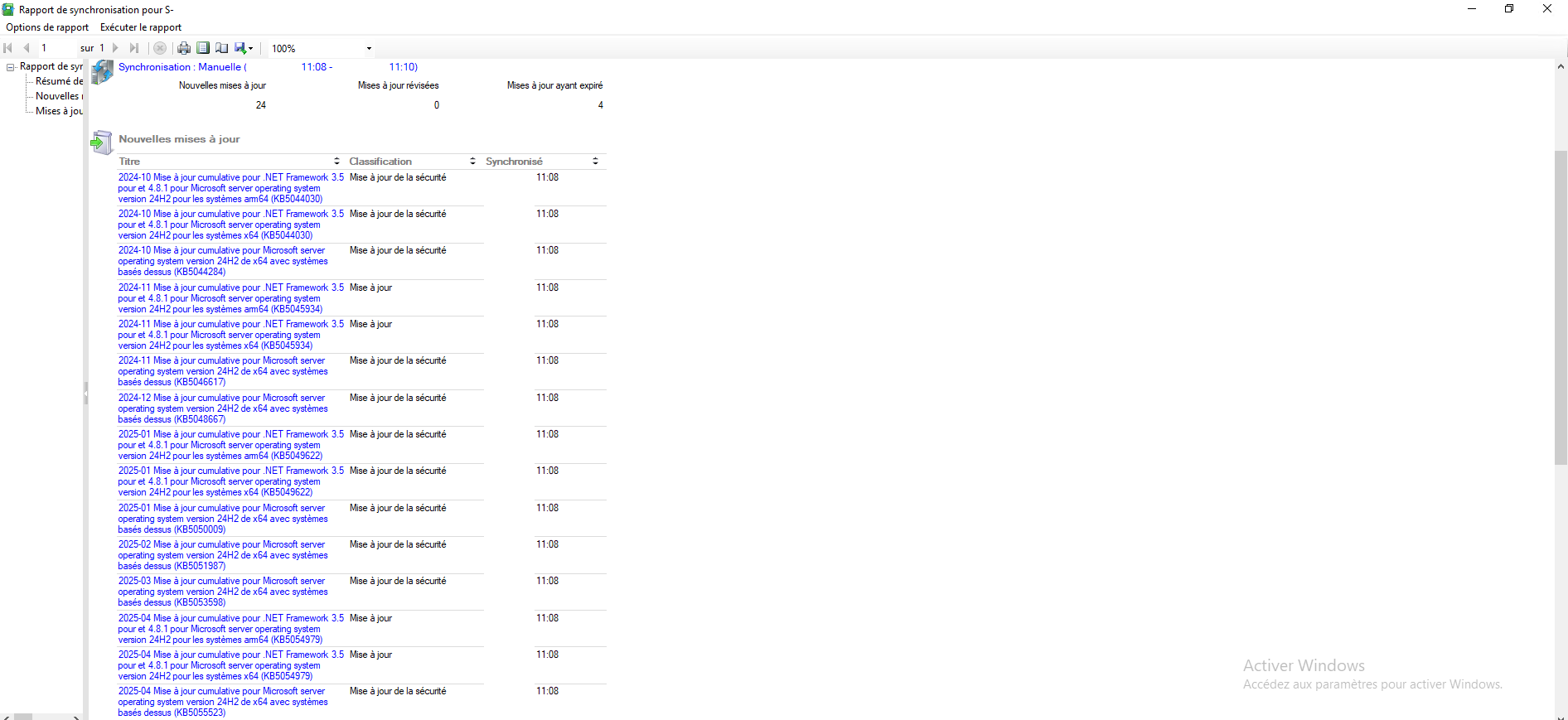
In the synchronization report, we can see the added updates which are mainly for Windows Server 2025 (Microsoft server operating system version 24H2).
Approve updates for Windows Server 2025
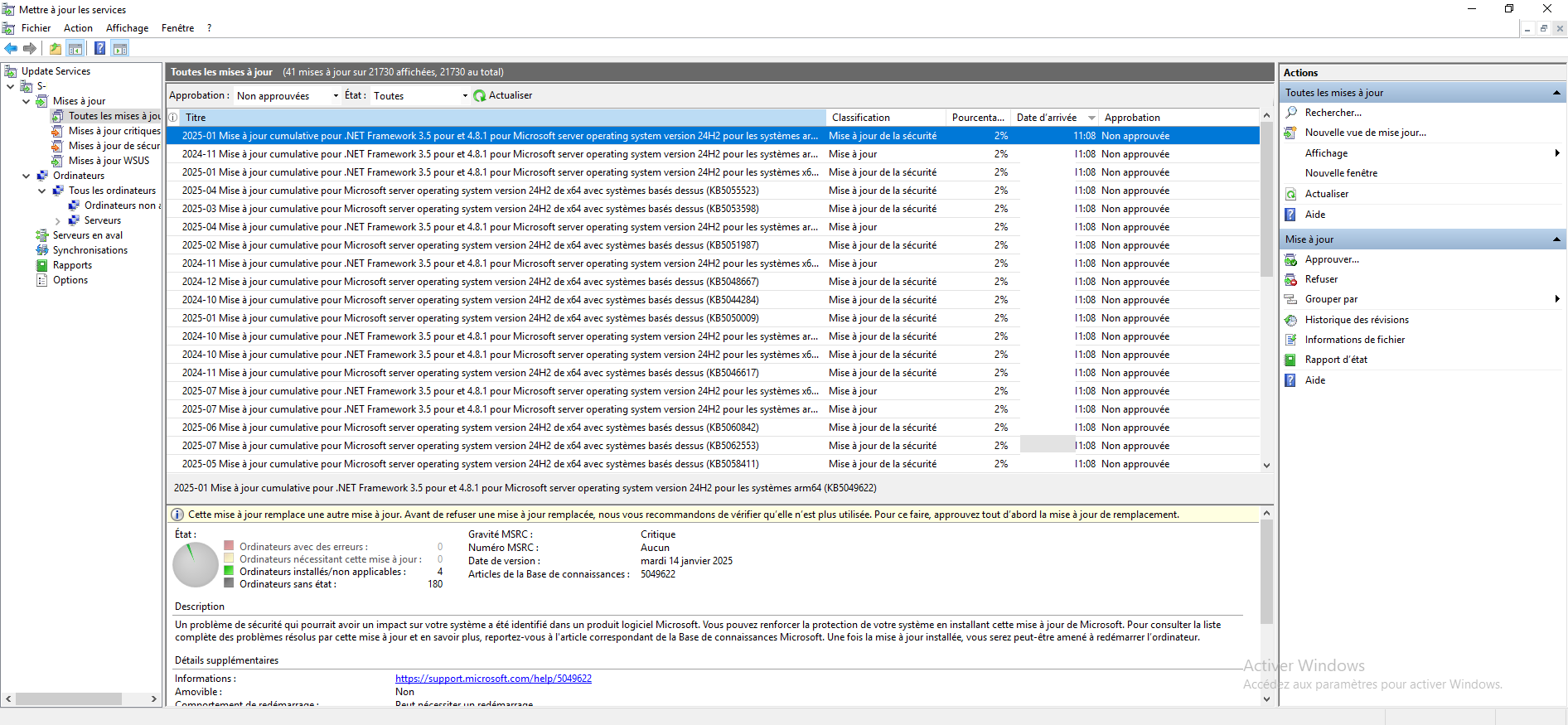
Finally, you need to approve the updates for Windows Server 2025, which are available in All Updates by filtering the approval on: Not approved.
FAQs
What is the product name for Windows Server 2025 on WSUS?
What is the product name for Windows Server 2022 on WSUS?
Is it possible to distribute updates for Windows Server 2022 and Windows Server 2025 with WSUS on Windows Server 2019?
You know how to enable update support for Windows Server 2025 on WSUS.