You’ve just set up your computer with Windows 11 and want to rename it because you don’t like the name DESKTOP-XXXX.
In this tutorial, I’ll explain how to do it.
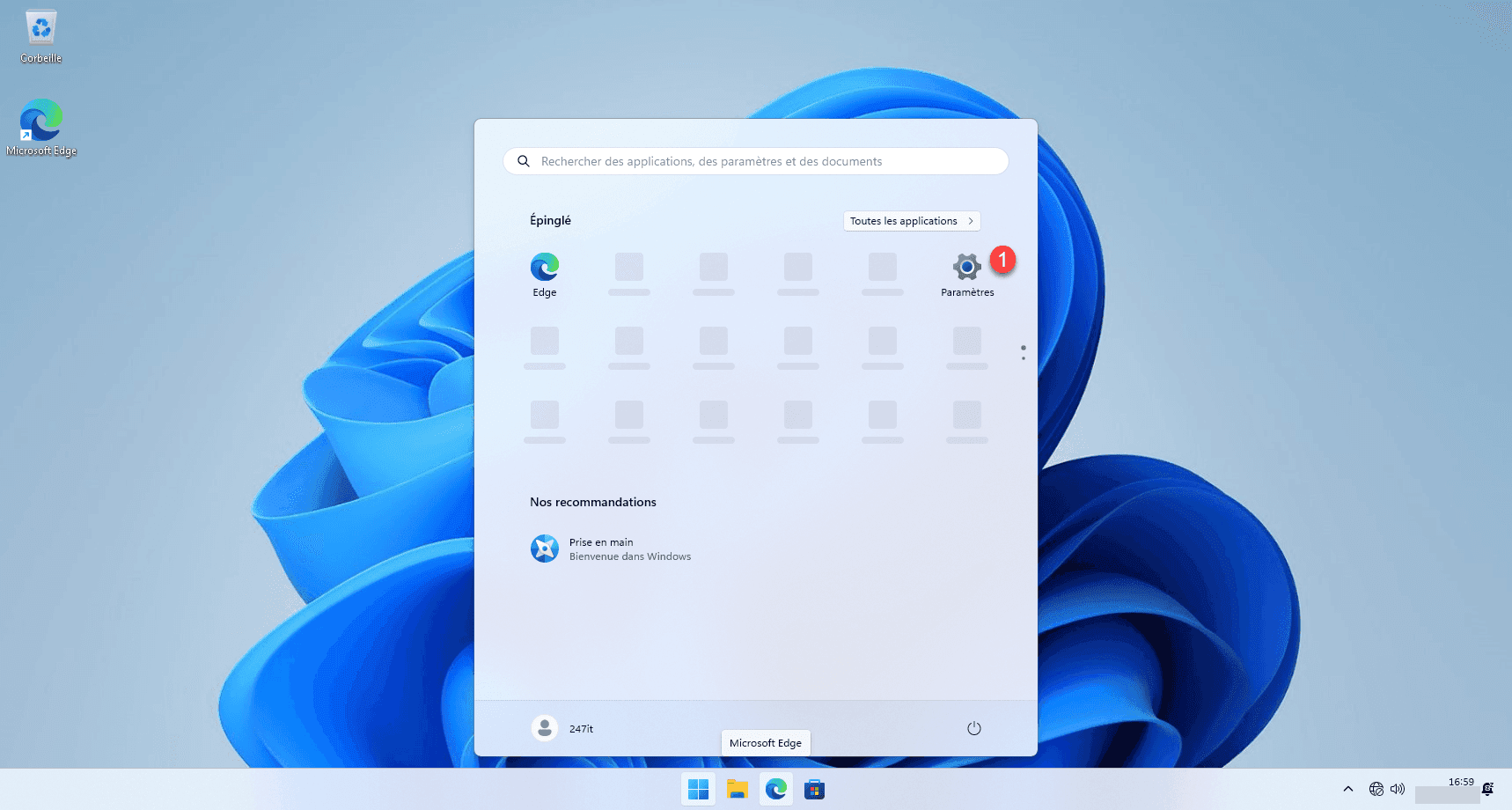
Open the Start menu and search for Settings, or click directly on Settings 1 .
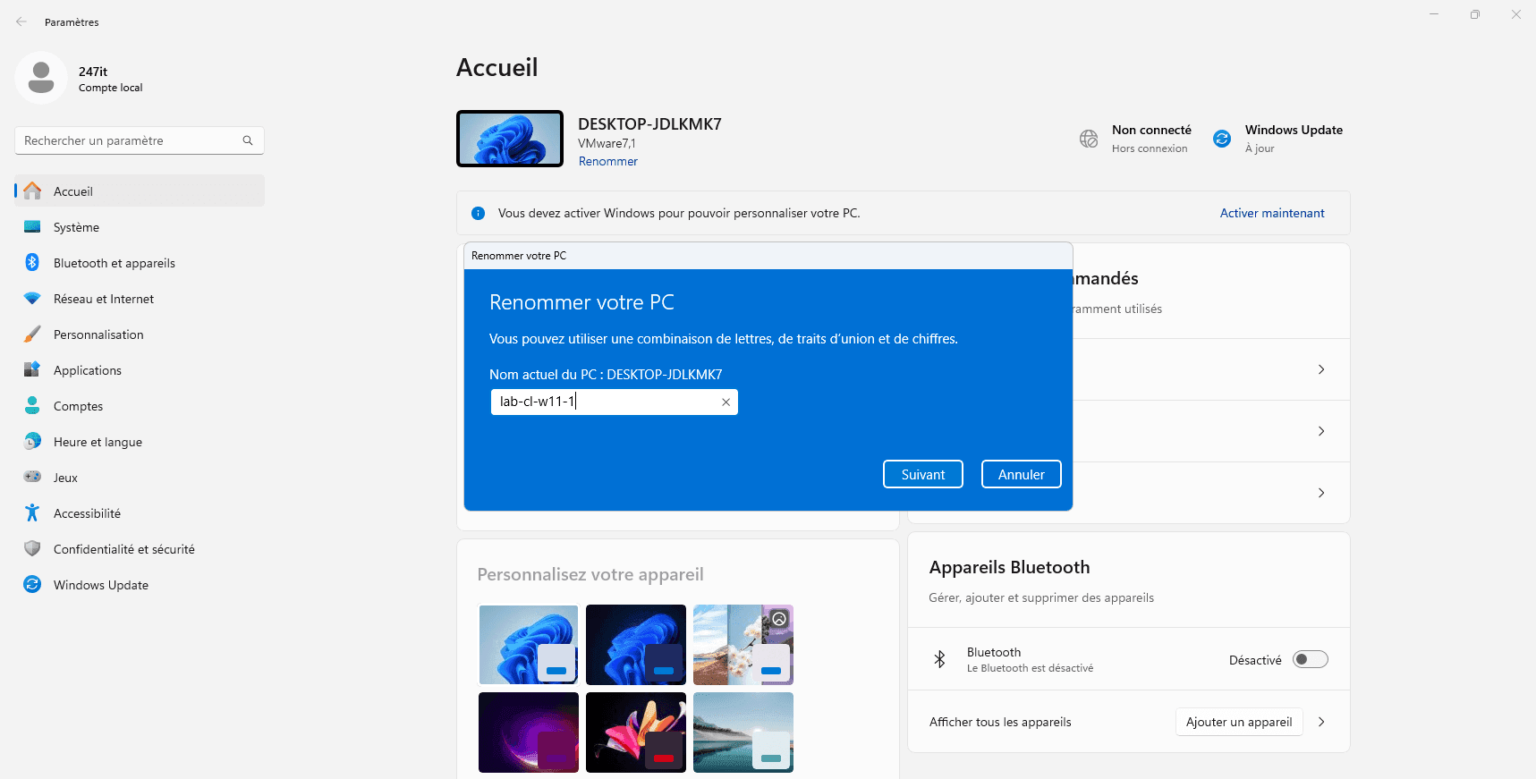
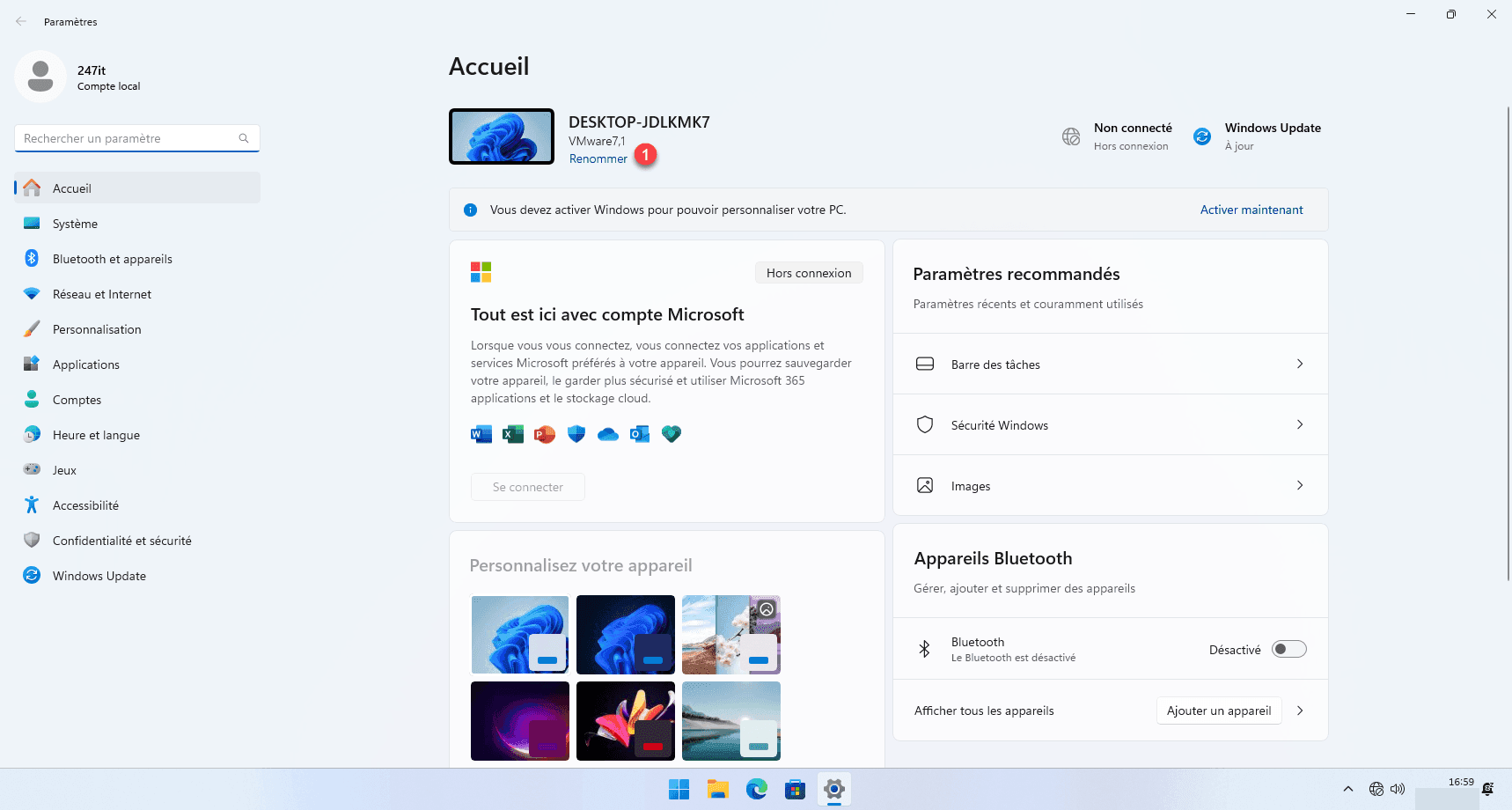
This takes you to the Home settings; click on Rename 1 .
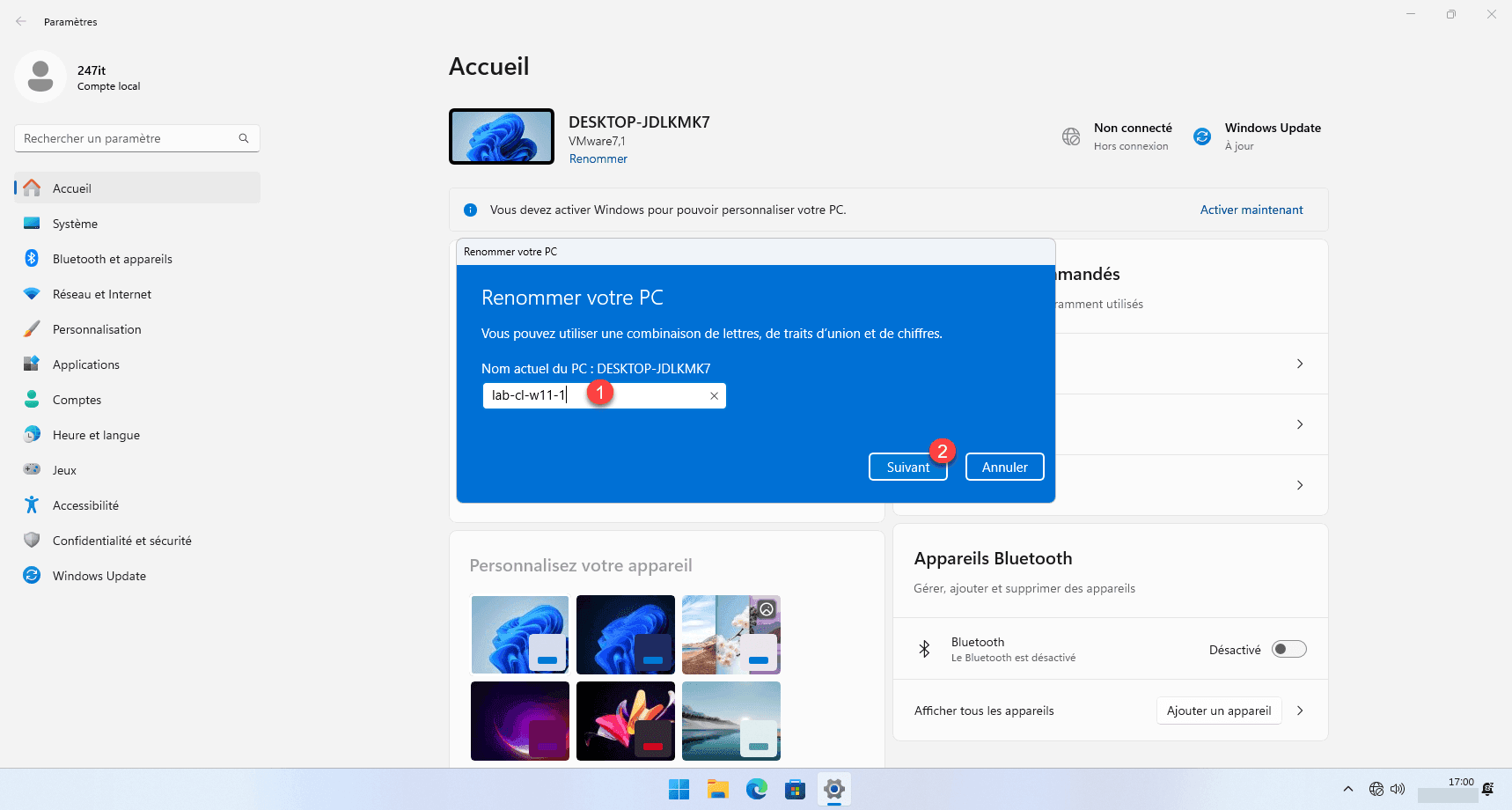
Enter the new name 1 and click Next 2 .
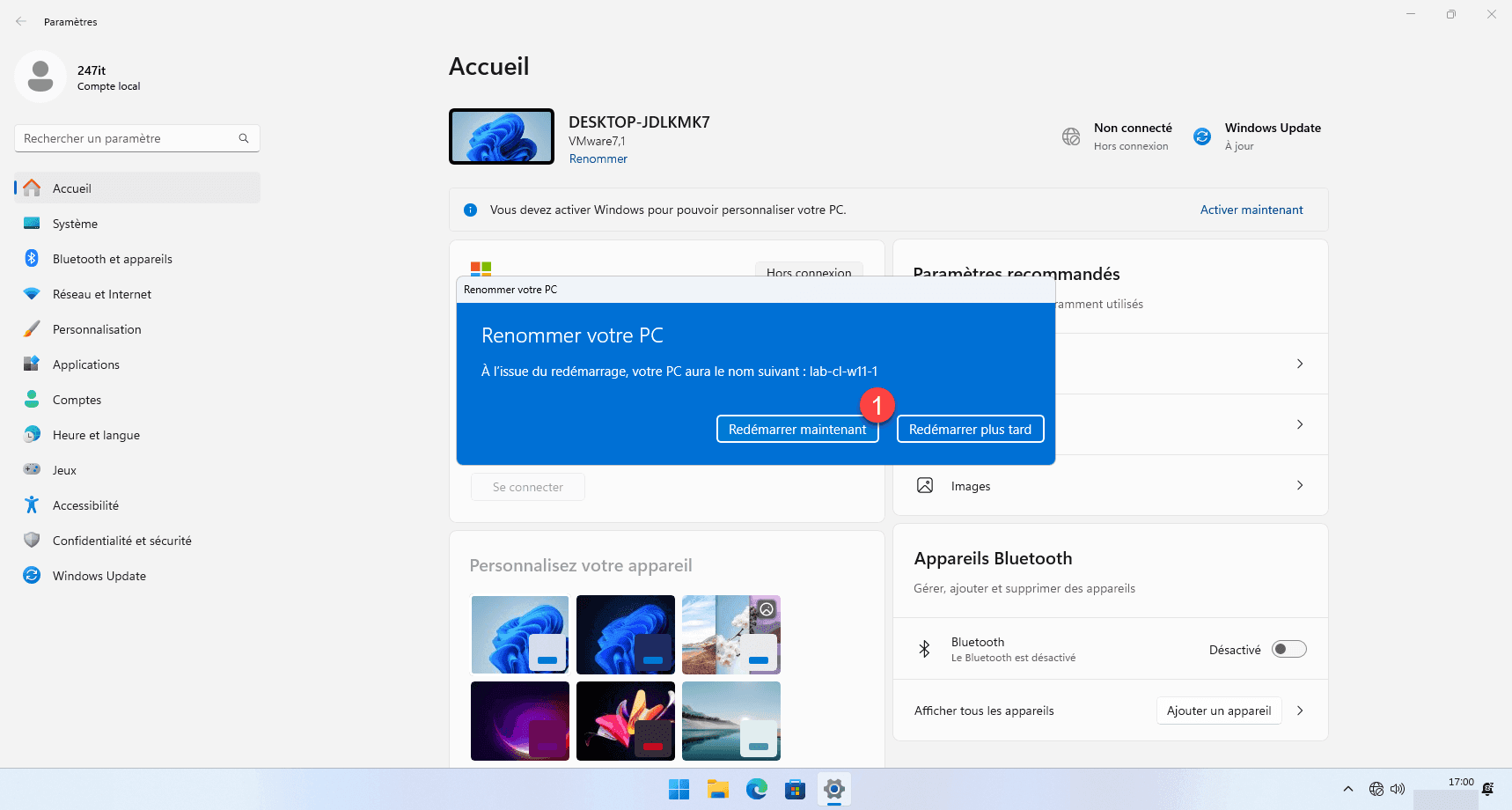
To apply the name change, Windows 11 needs to be restarted; click the Restart Now button 1 .
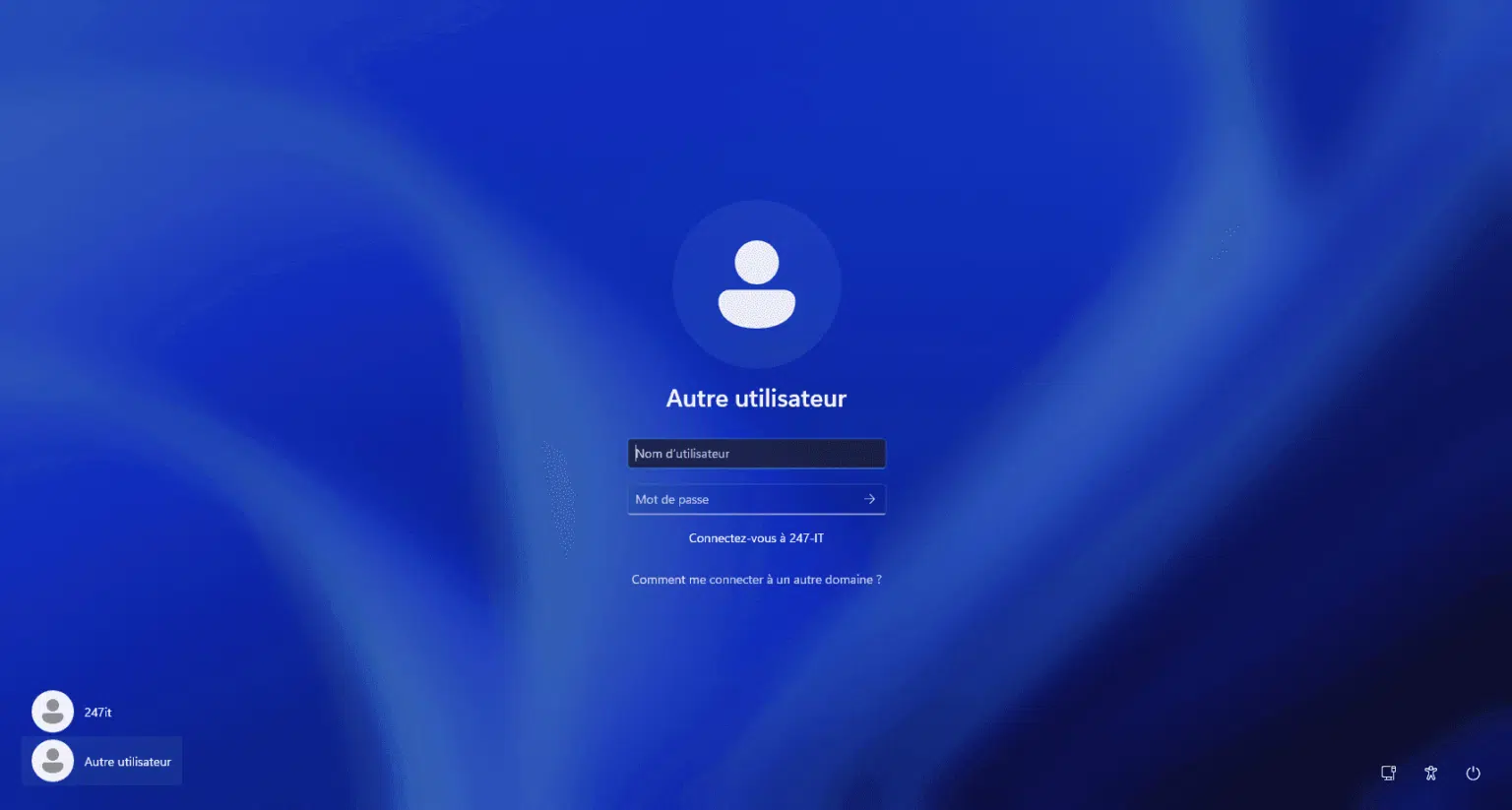
After restarting, your Windows 11 computer will have a new name.
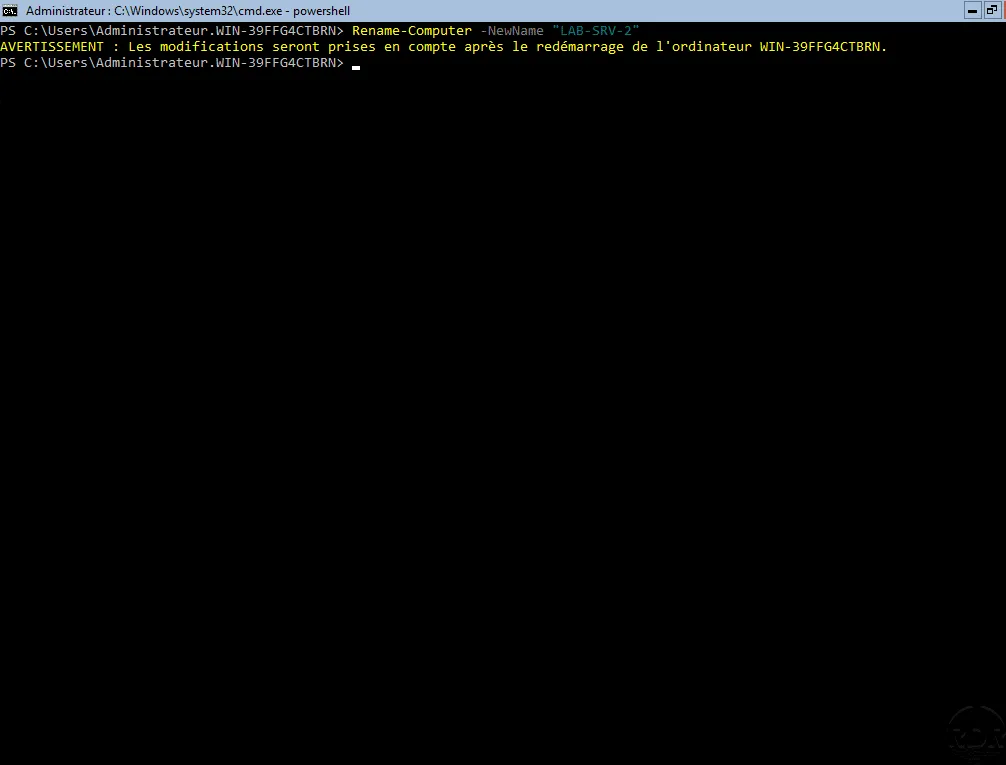
If you prefer the command line, you can also do this in PowerShell .