In this tutorial, I’ll explain how to test the read and write performance of a disk on Ubuntu using the command line.
To give you some points of comparison, I ran the tests on two servers: the first with NVMe drives and the second with a mechanical drive.
To run the tests, we’ll use two commands:
- hdparm: which will let us test the read speed
- dd: which will let us test the write speed by creating an 839 MB file
Testing Read Speed
To run the read speed test with hdparm, we’ll pass it two parameters:
- -T, which tests the cache read speed
- -t, which tests the disk’s read speed
First, you need to know which disk you’re going to test.
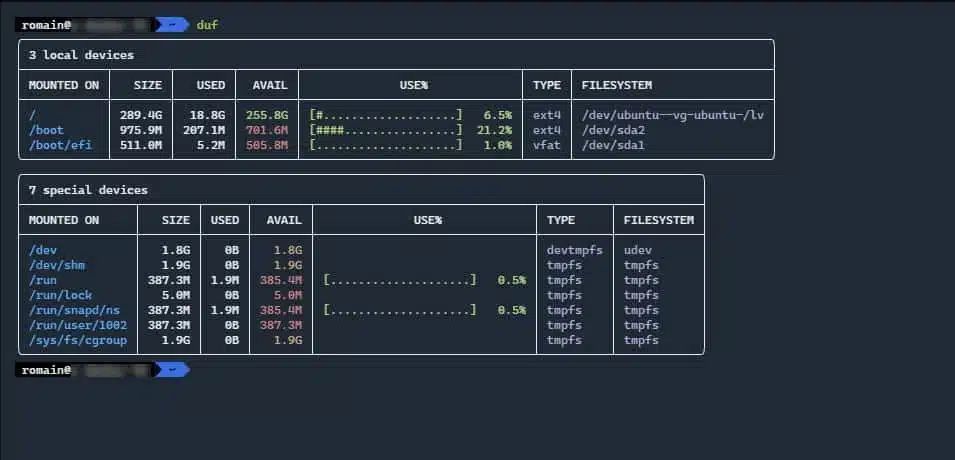
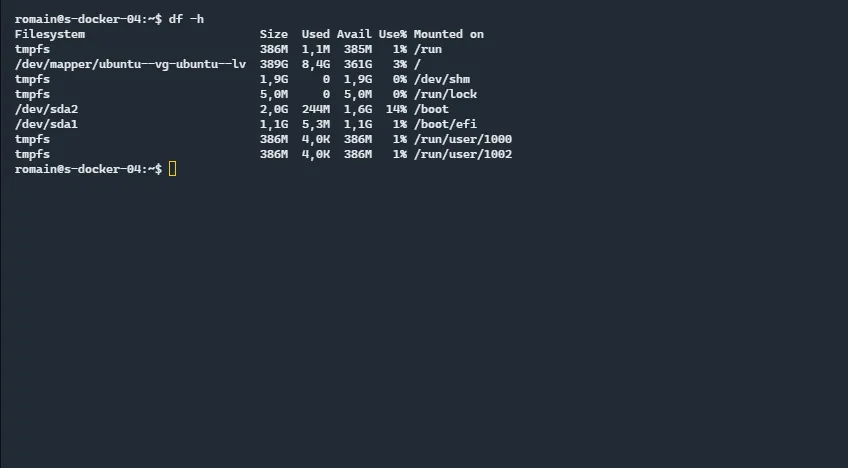
Enter the commanddfto list the drives.
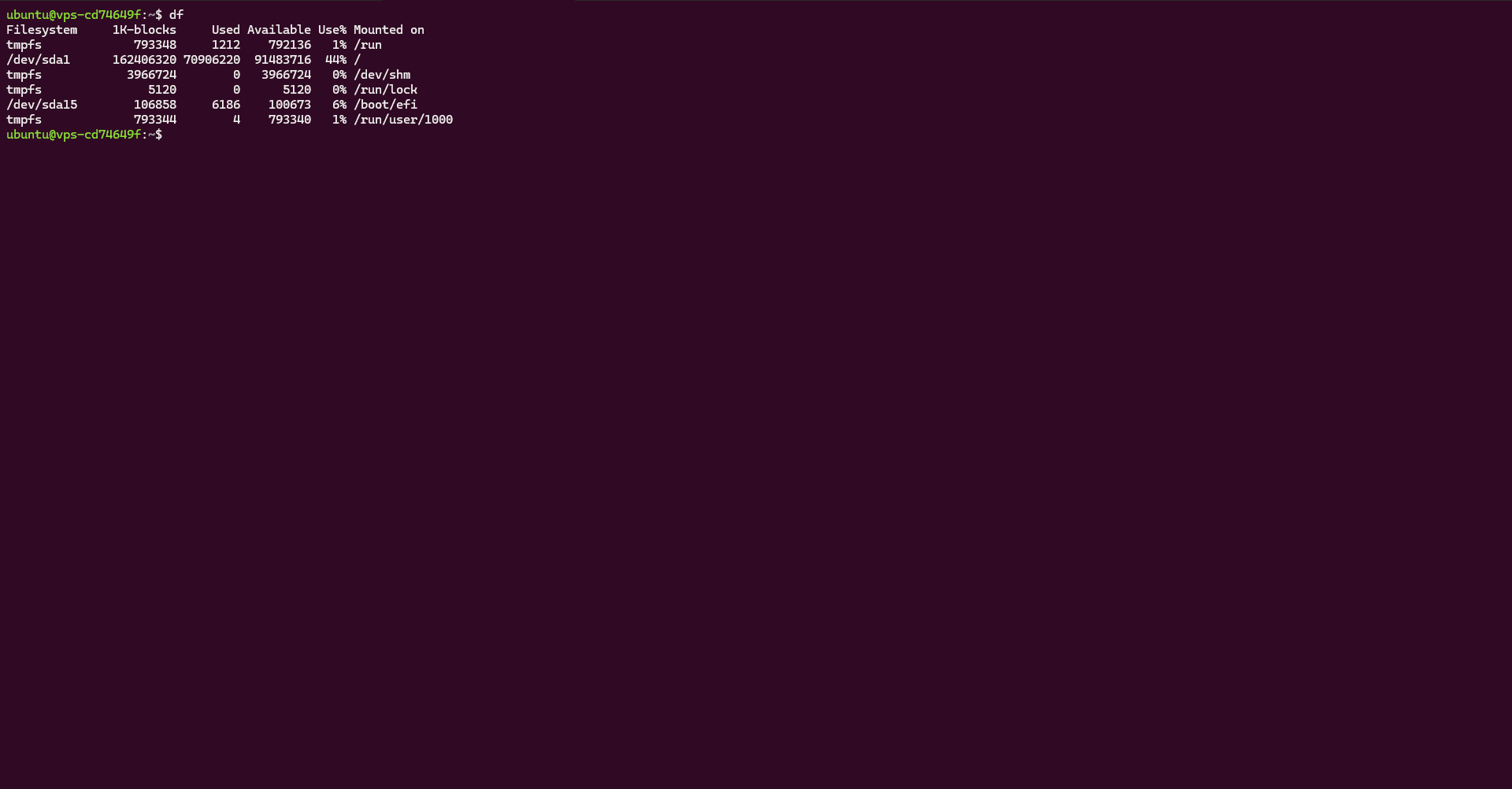
/dev/sda1For the computer with the NVMe drive, I’ll test that drive.
To test the read speed, enter the following command:
sudo hdparm -T -t /dev/sda1
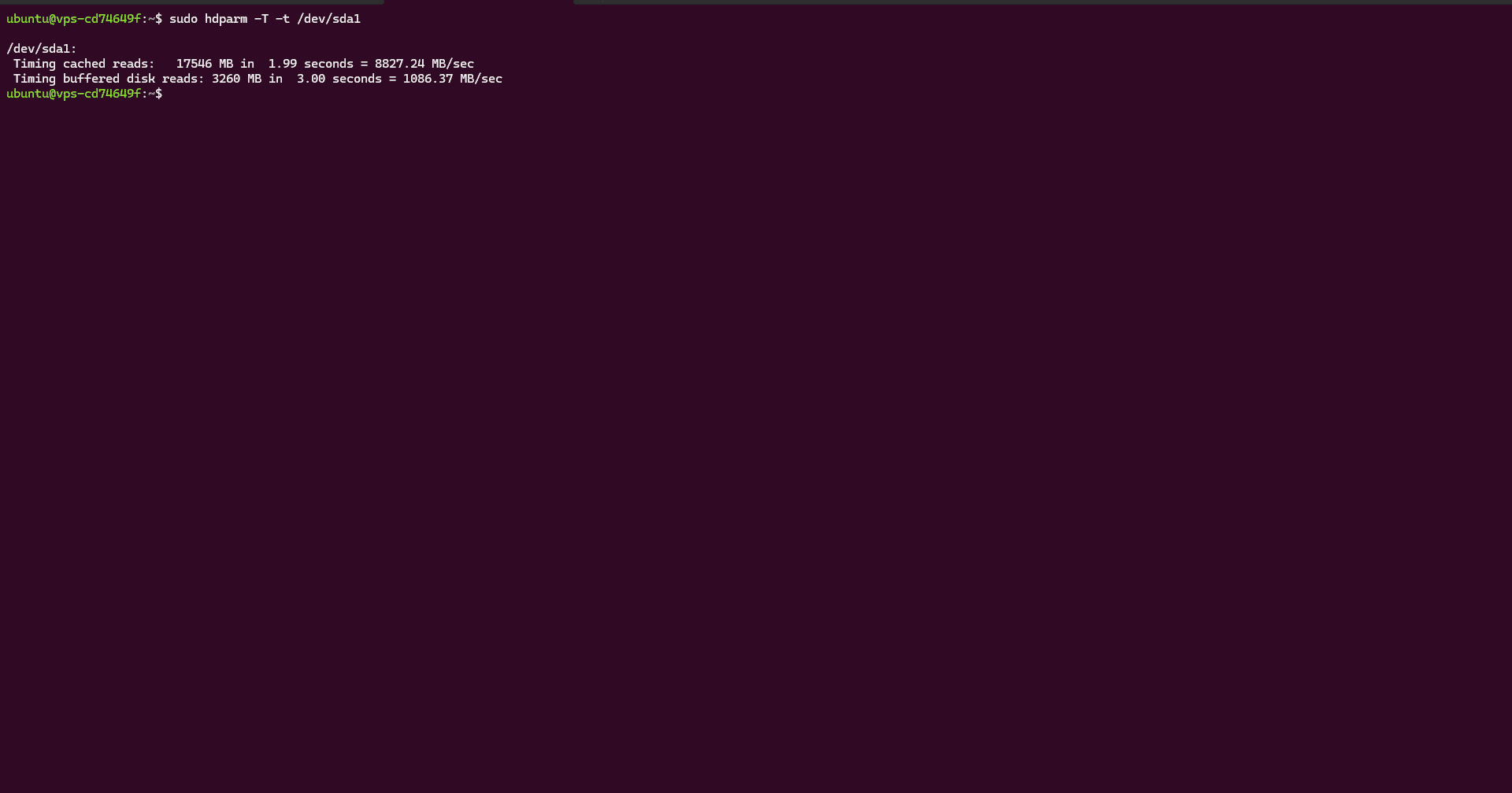
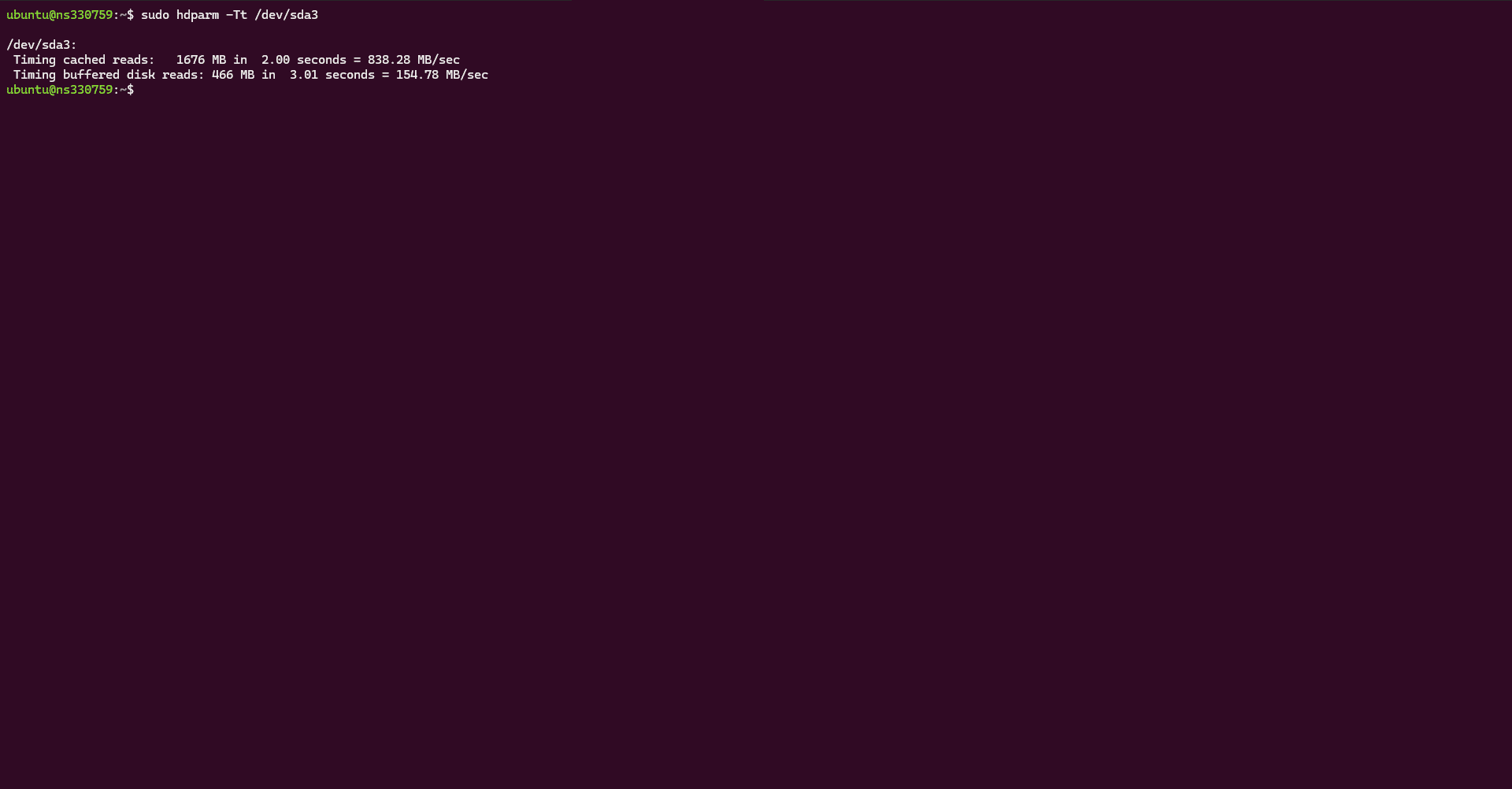
The result is displayed below the command; you can see that the read speed ratio between the two types of drives is nearly 10x.
Testing write speed
To test the write speed, we’ll use the commandddto create an 800MiB file; to do this, we’ll pass it four parameters:
if=/dev/zero: specify to fill the file with 0sof=/tmp/output: the output location and filenamebs=8k: block sizecount=100k: number of blocks to write
To test the write speed, enter the following command:
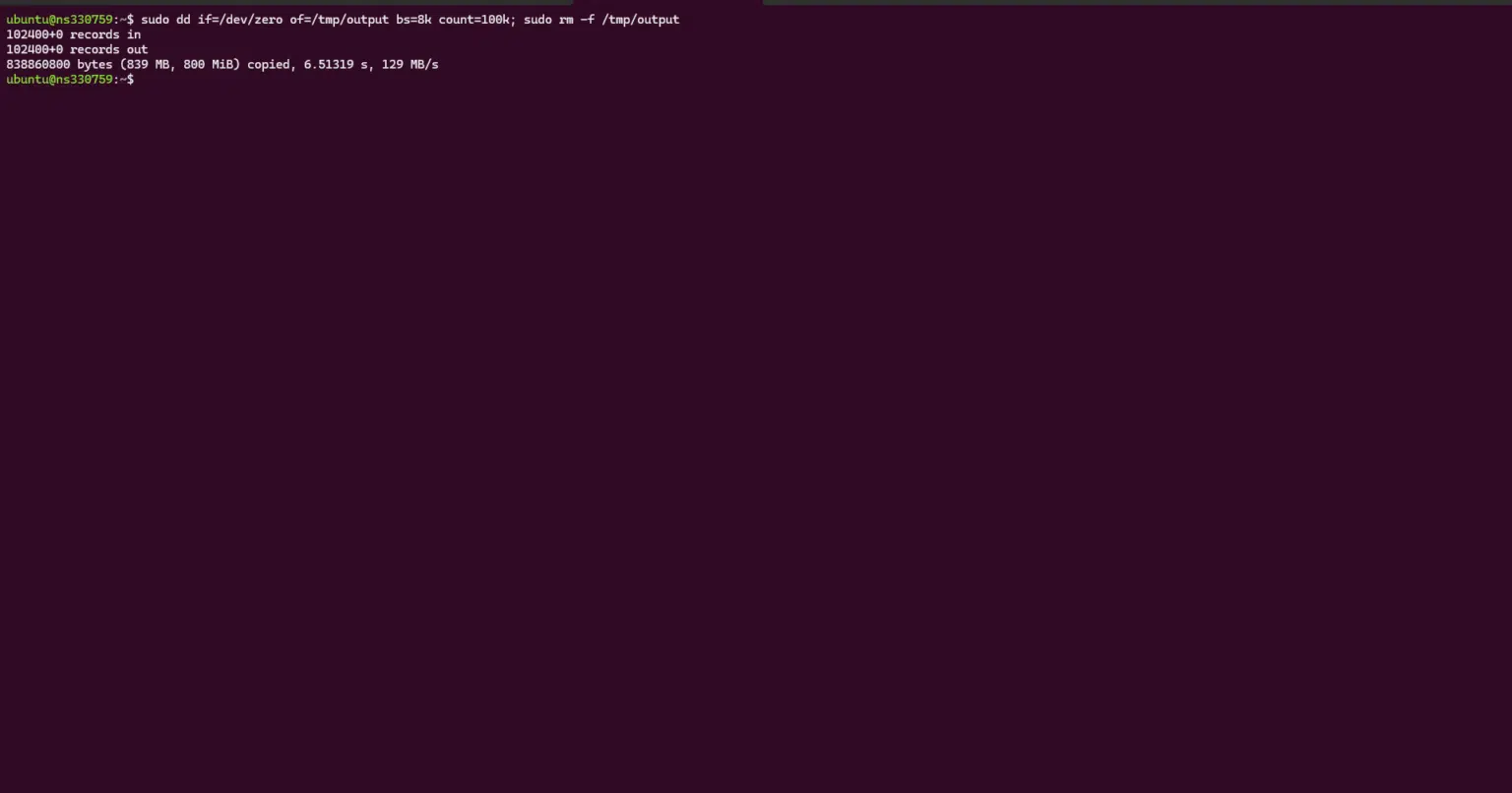
sudo dd if=/dev/zero of=/tmp/output bs=8k count=100k; sudo rm -f /tmp/output
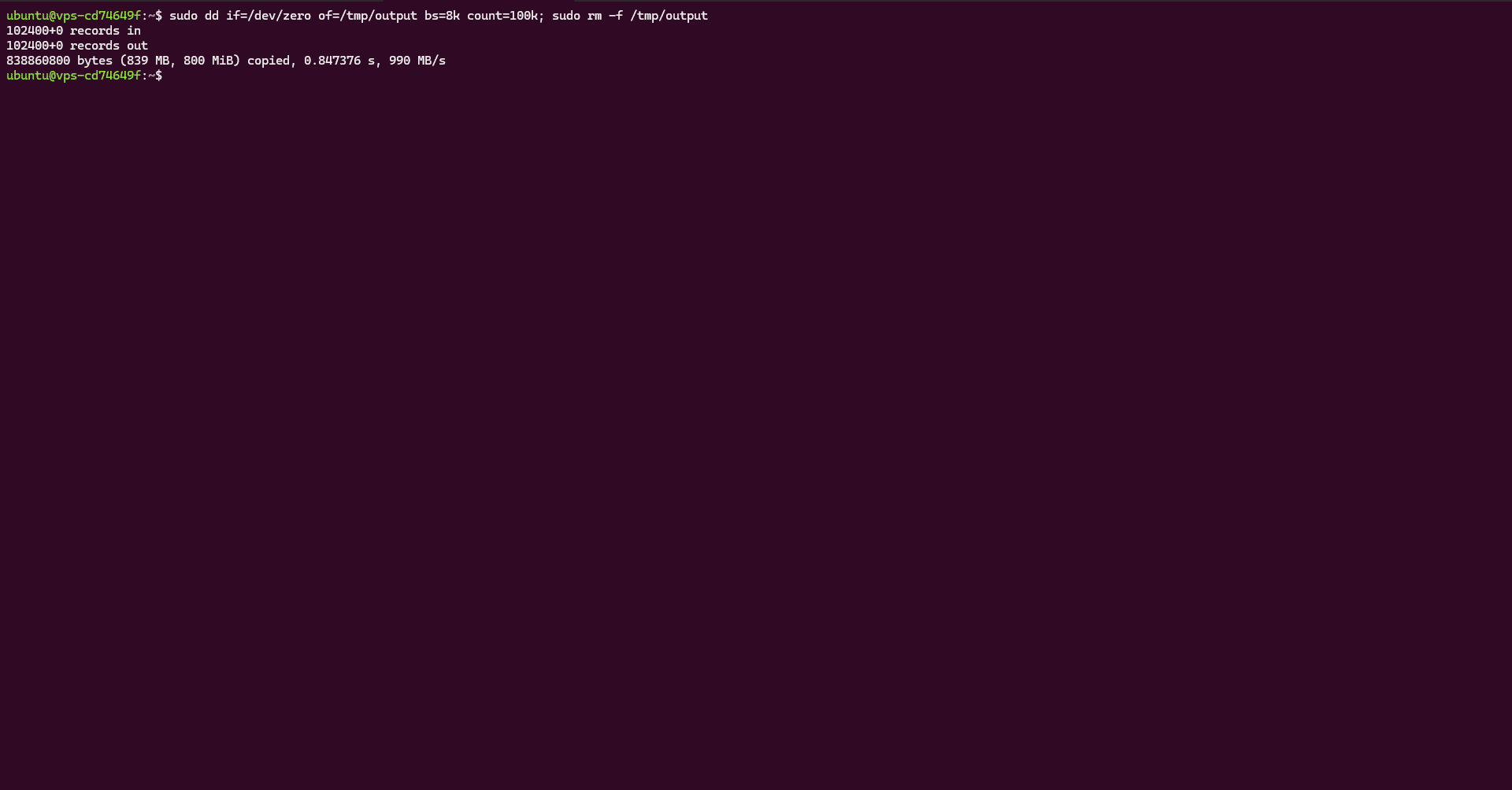
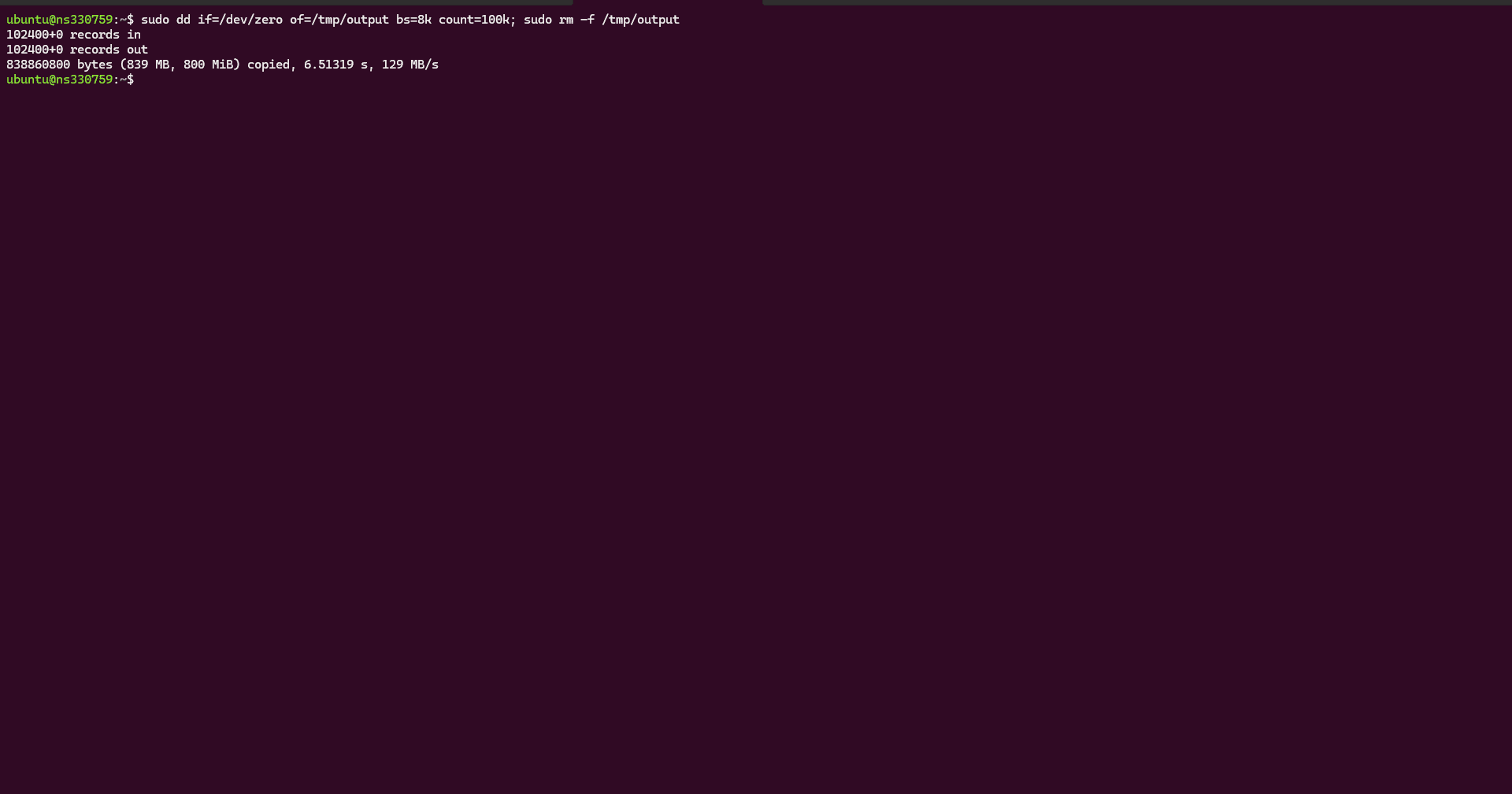
The command returns the time it took to create the file along with the speed; here, too, the difference between the two types of drives is nearly a factor of 10.
You now know how to test a drive’s read and write speeds on Linux.