In this tutorial, I will explain how to block updates to a specific package on Ubuntu using apt-mark.
In some situations, it may be necessary to block one or more packages during updates on Ubuntu, especially when making updates automatically with Ansible .
To illustrate this tutorial, we will start from a concrete case, from a Ubuntu server with Nginx which is installed as Reverse proxy, for specific needs, you have compiled an additional module yourself. If the Nginx package is updated automatically, it is likely that when the update is applied, the Nginx service will not start again, as it tries to load a module that is compiled with another version.
To solve this problem, it is possible to block automatic updates for a specific package using apt-mark.
Block Update for Package
Use of apt-mark hold to block the package update:
sudo apt-mark hold
Which gives Nginx:
sudo apt-mark hold nginx
See packages blocked by apt-mark
To view the list of packages whose updates are blocked:
sudo apt-mark showhold
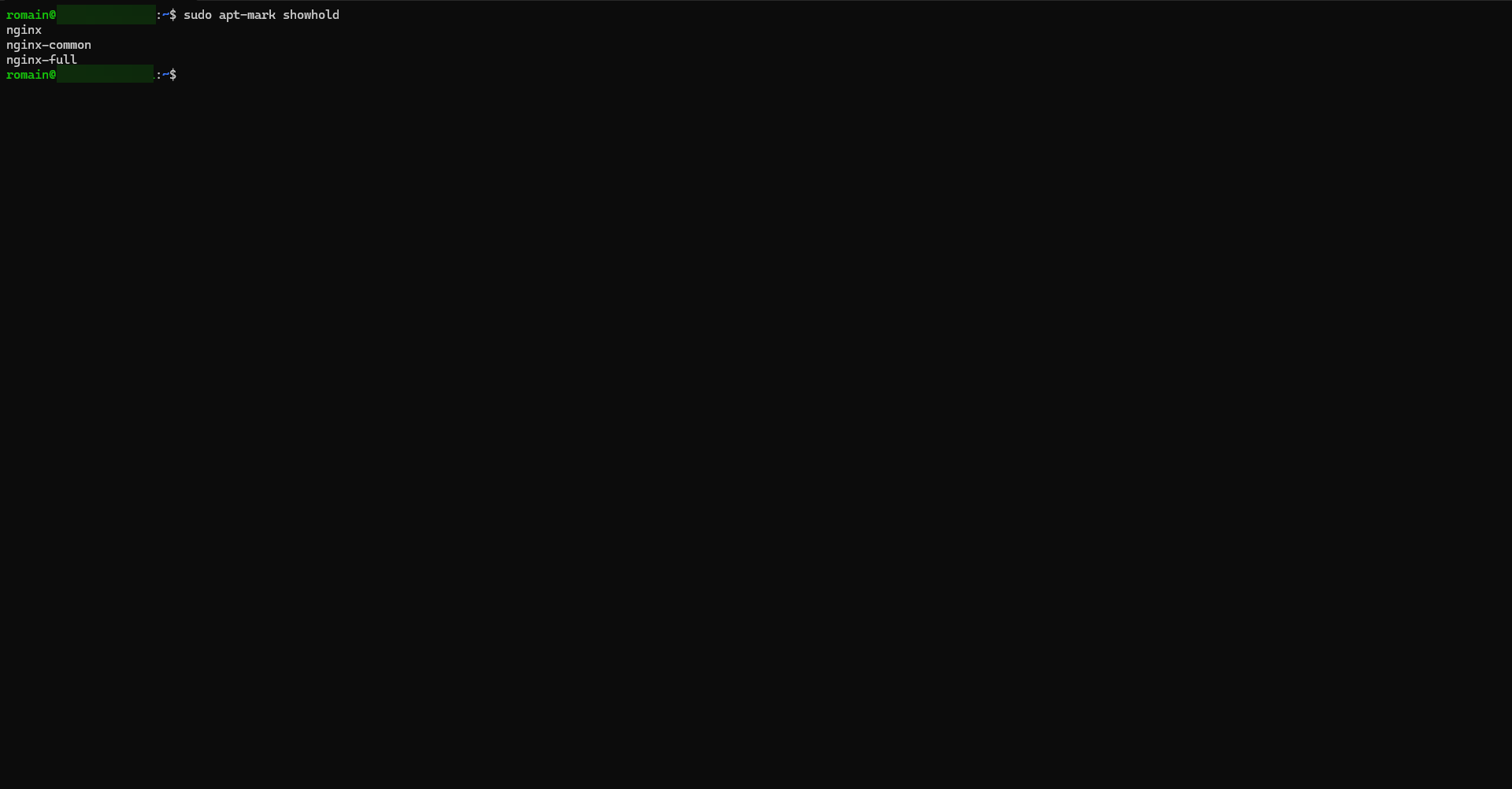
Here we can see that the different packages linked to Nginx are blocked.
Unlock Package Update
To unblock the update:
sudo apt-mark unhold
FAQ
How can I tell if a package is blocked under Ubuntu?
This displays the list of packages whose update is blocked.
How do I unlock a package to update it?
sudo apt-mark unhold <paquet>
sudo apt update && sudo apt upgrade
Is it risky to block the update of a package?
Now you know how to block updating a package under Ubuntu, it’s a simple but very useful operation to keep your system in control. With the command apt-mark hold, you can freeze a version and avoid unwanted updates. This ensures the stability of your environment, especially on production servers. However, think of lifting the blockage (apt-mark unhold) when you want to apply a security update or a new version of the package.