In this tutorial, I’ll explain how to view the S.M.A.R.T. (Self-Monitoring, Analysis, and Reporting Technology) data for an NVMe drive on Ubuntu using the command line.
If you have a computer (server or desktop) with one or more NVMe drives and want to monitor their remaining lifespan, you’ve come to the right place.
You may not know that flash-based drives (SSDs and NVMe) have a limited write lifespan, unlike mechanical hard drives.
To get this (estimated) lifespan, you need to retrieve this information from the drive’s S.M.A.R.T. data.
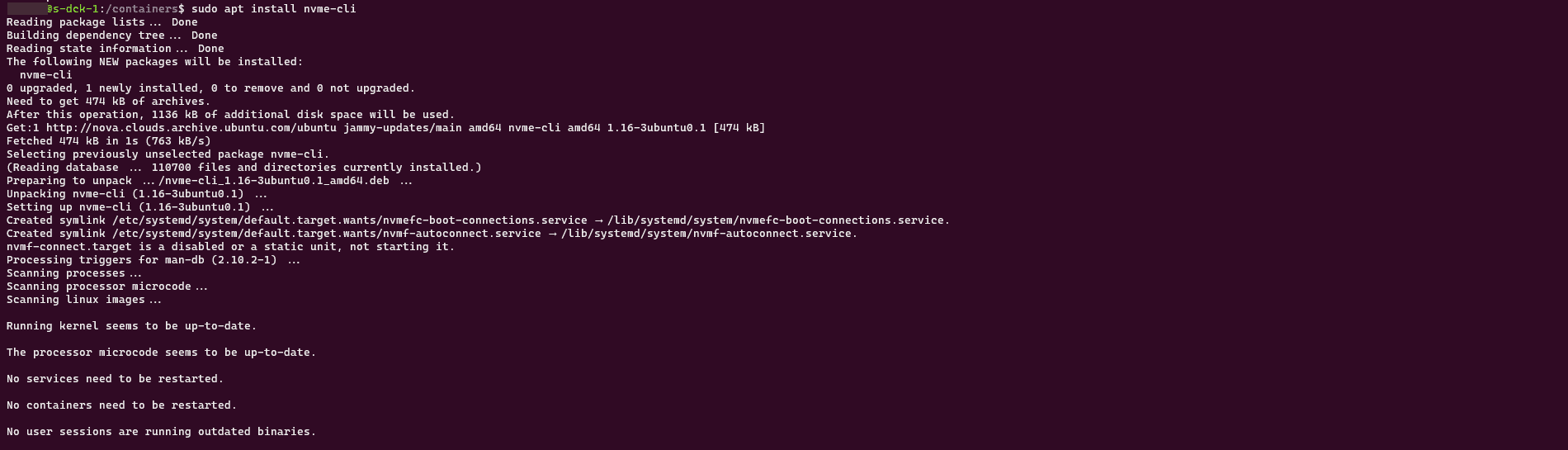
To get started, we’ll install the nvme-cli package on Ubuntu:
sudo apt install nvme-cli -y
We’ll start by listing the NVMe drives on the computer:
sudo nvme list

As you can see in the screenshot above, I have two NVMe drives on my server (/dev/nvme0n1 and /dev/nvme1n1)
To view the S.M.A.R.T. data, enter the following command:
sudo nvme smart-log /dev/disk-name
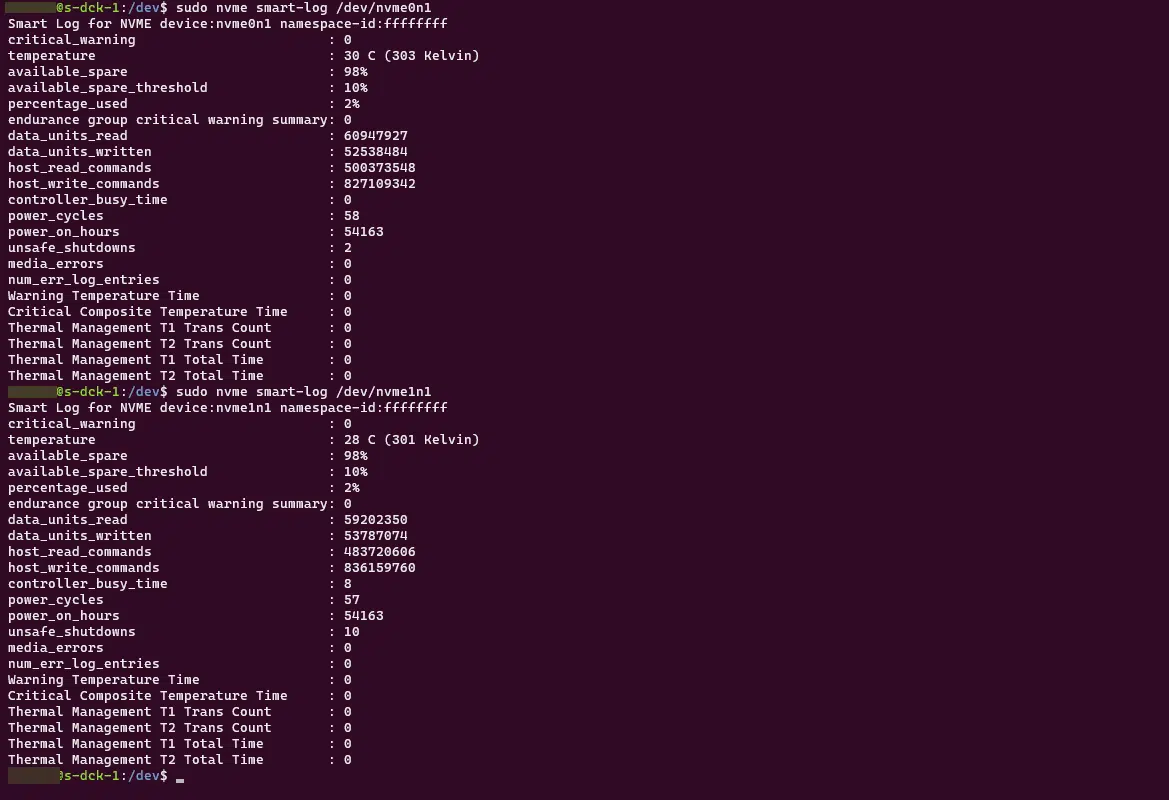
According to the S.M.A.R.T. data, the NVMe drives have been used at 2% of their lifespan, which represents the number of write operations.
Now you know how to check the S.M.A.R.T. data for an NVMe drive via the command line on Ubuntu and estimate its usage percentage.