In this tutorial, I will explain how to apply a background image, also called a Wallpaper, using a group policy.
To achieve this, we will need to implement two group strategies:
- The first GPO, we will copy the file to the computer that will use the computer configuration
- The second GPO will apply the wallpaper to the user
To illustrate the tutorial, here is the wallpaper that will be applied:

Create a share for the wallpaper
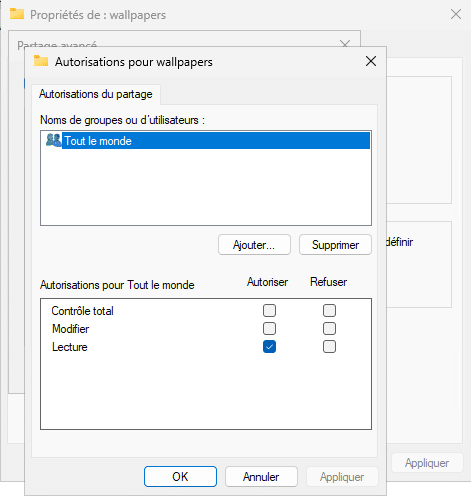
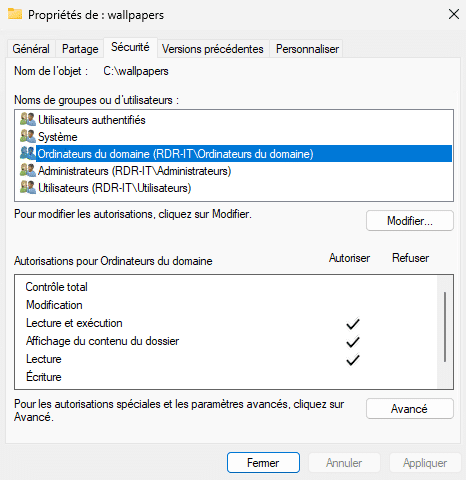
Before you start configuring group policies, you need to put the wallpaper file on a network share, which will be accessible to computers in the domain.
Here are the permission settings for the wallpapers folder that I shared:
Configuring Group Policies
As mentioned in the introduction, we will need to create two group policies that will be applied in different contexts, the first at the computer level which will copy the wallpaper file locally and then the second which will apply the wallpaper to the user.
Copying the file locally will allow the wallpaper to be applied even if the network is not available.
GPO: Copy the file locally on the computer
Here, we will see how to copy a file on a computer using a group policy.
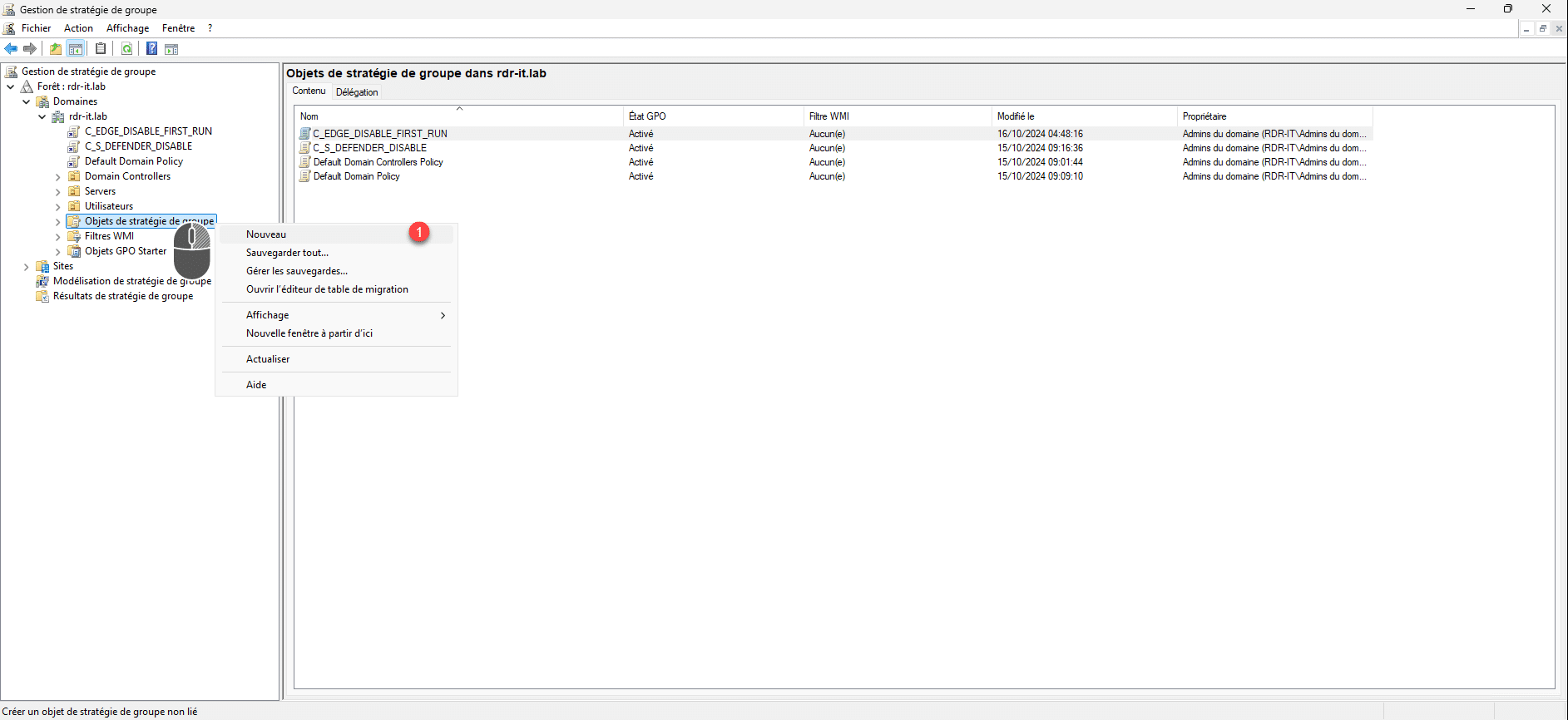
Open the Group Policy Management console, right-click on Group Policy Objects and then click on New 1 .
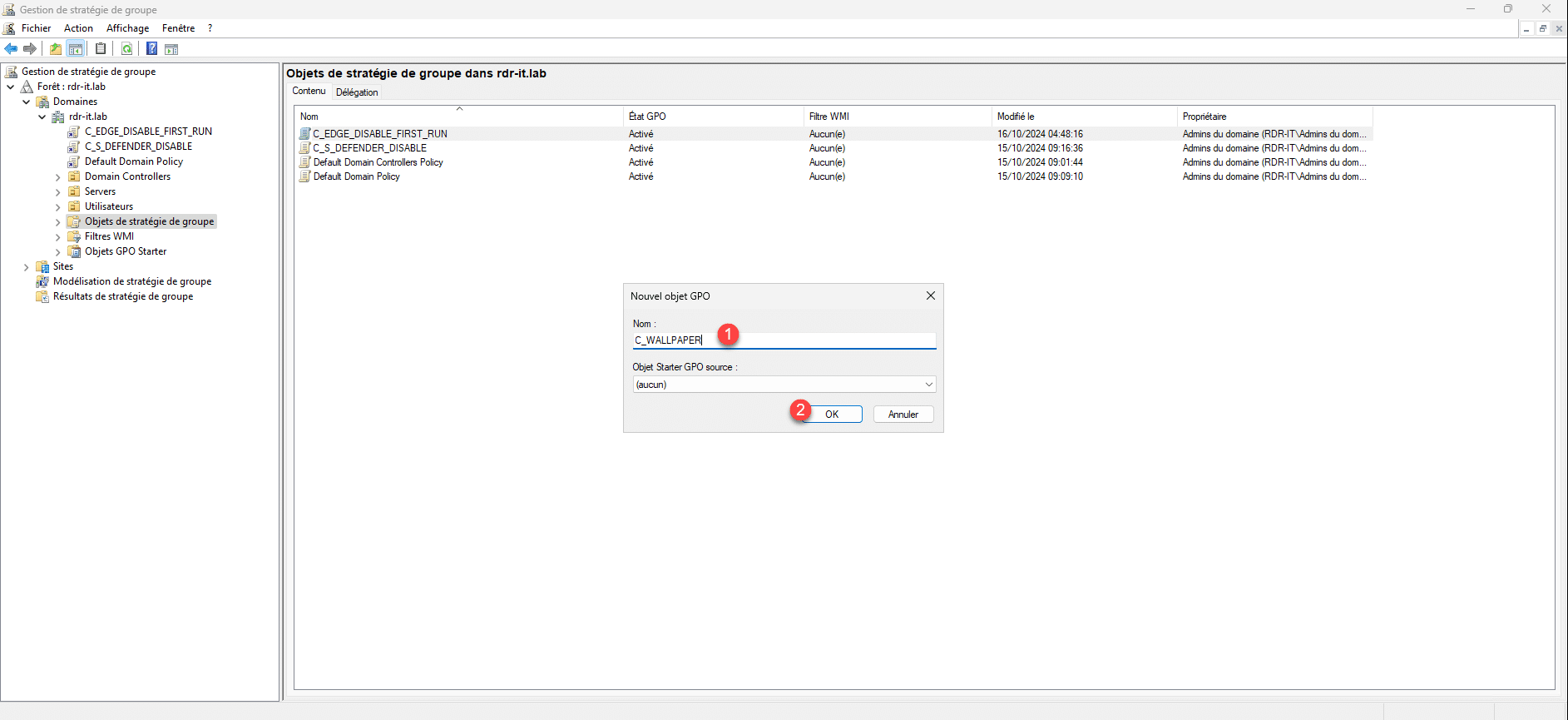
Name the GPO object 1 and then click OK 2 to create it.
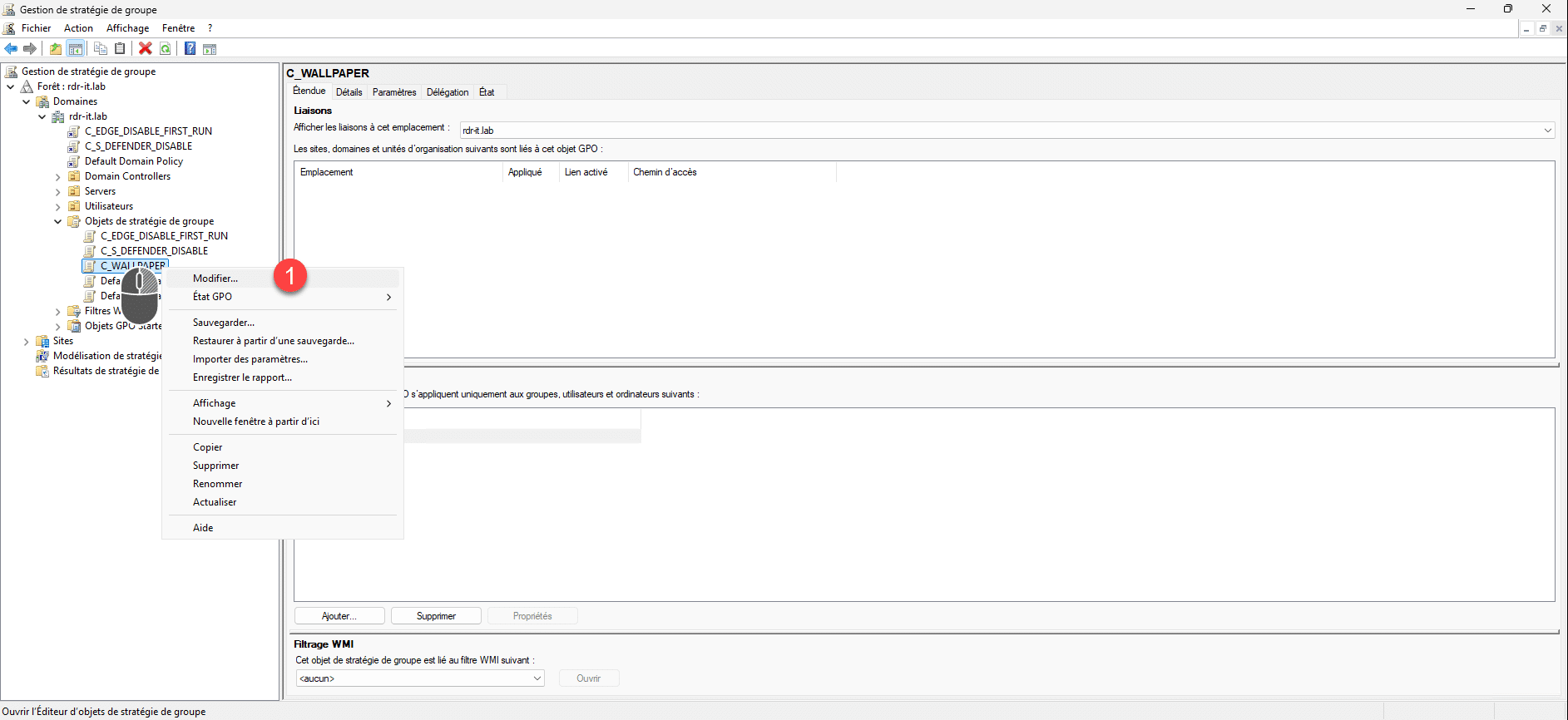
Right-click on the object you just created and then click on Edit 1 .
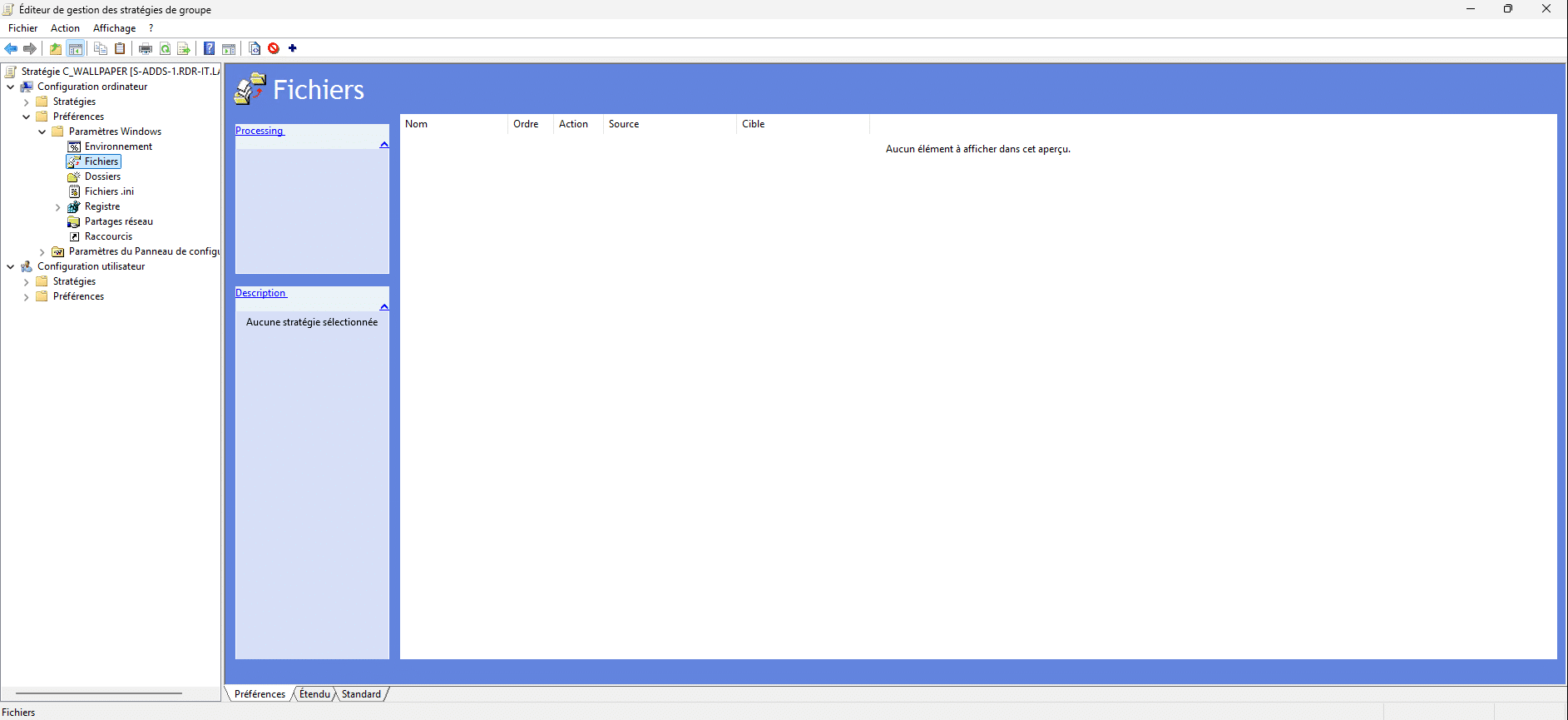
In the editor, go to the following location: Computer Configuration / Preferences / Windows Settings / Files.
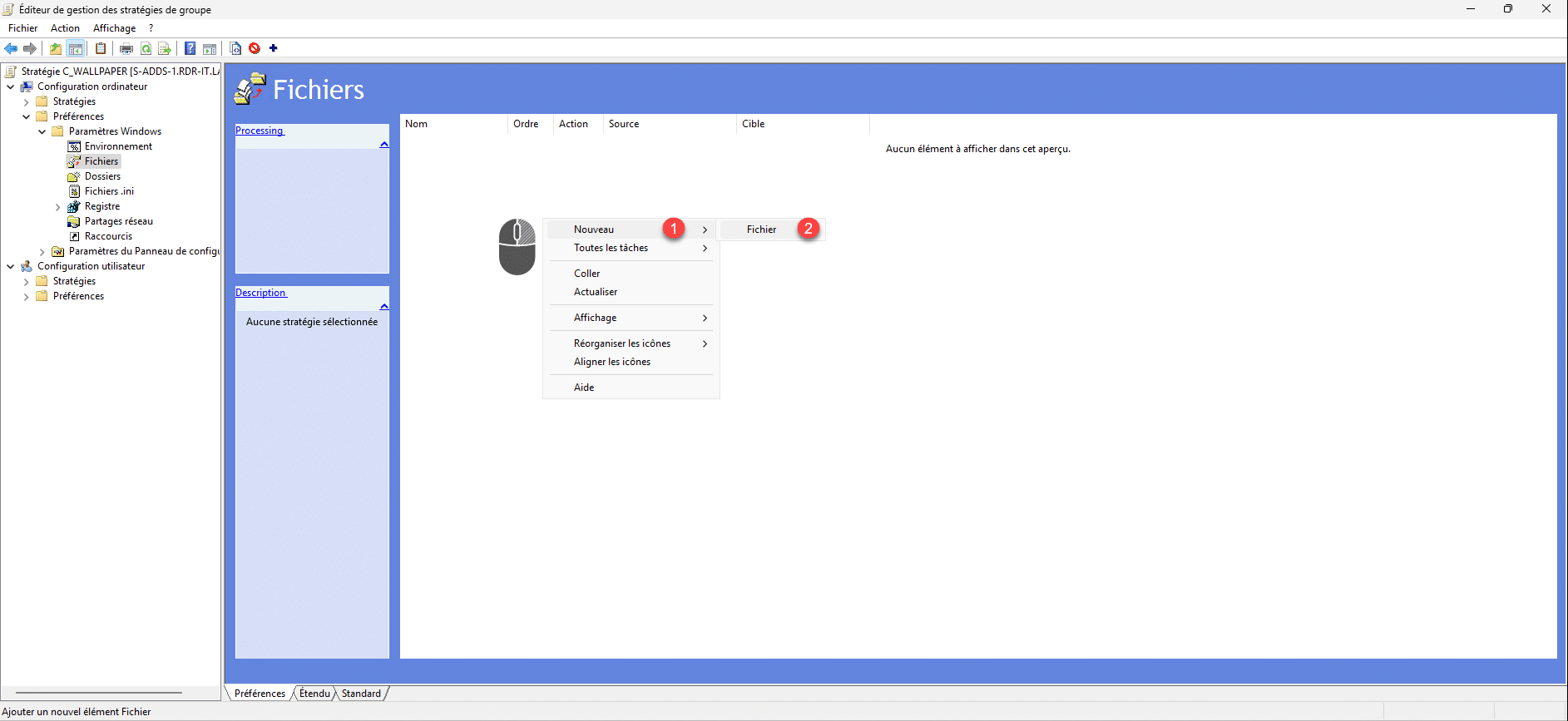
In the central area, right-click and then click on New 1 and then File 2 .
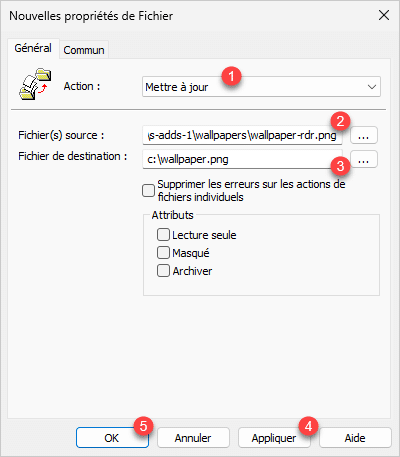
Start by selecting Update 1 , Source file(s) 2 , specify the UNC path of the wallpaper file, in the Destination file field 3 , specify the location and name of the file as it will be copied to the local computer and then click on the Apply 4 and OK 5 buttons.
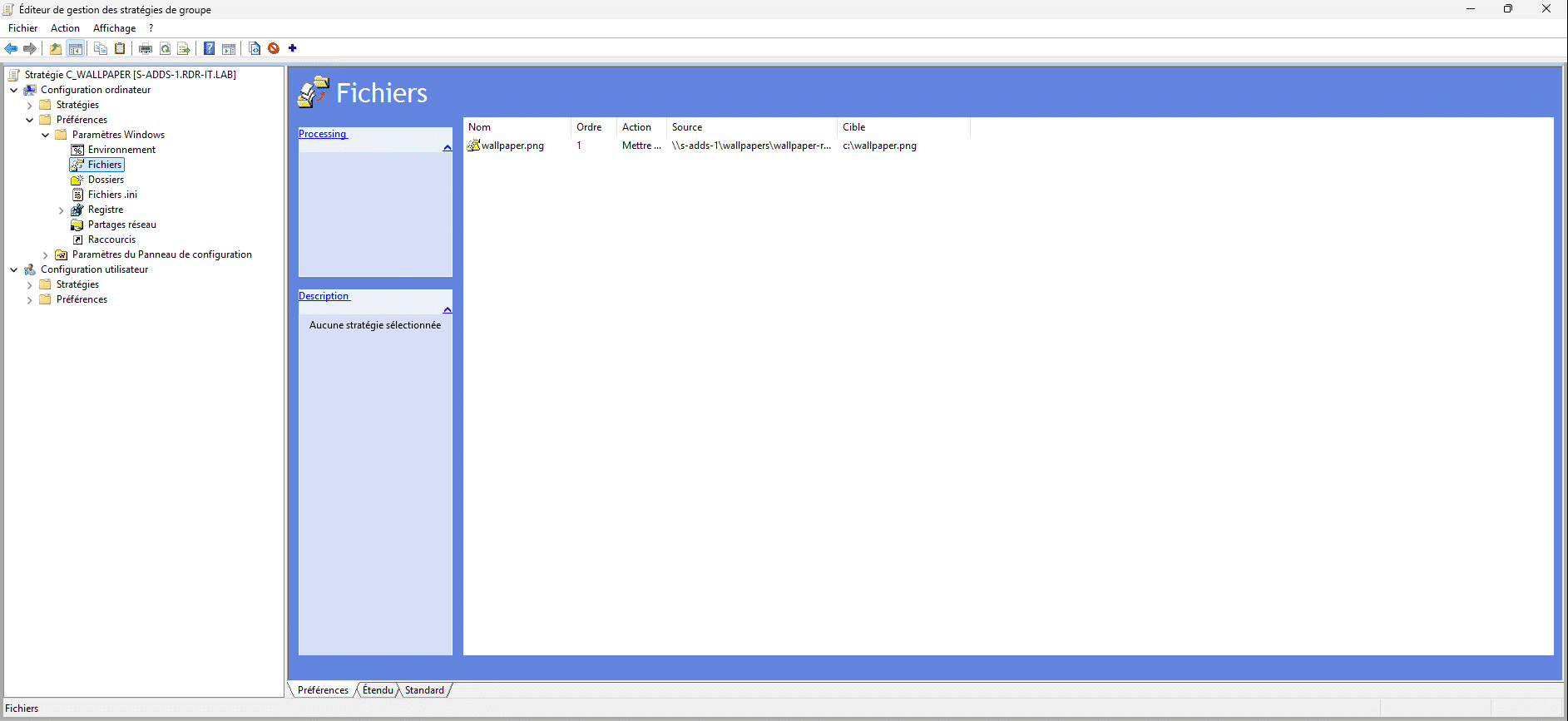
The wallpaper file copy is configured.
You can close the editor.
GPO: Configure the wallpaper for users
We will now proceed to configure the strategy that will allow the wallpaper to be applied to the user.
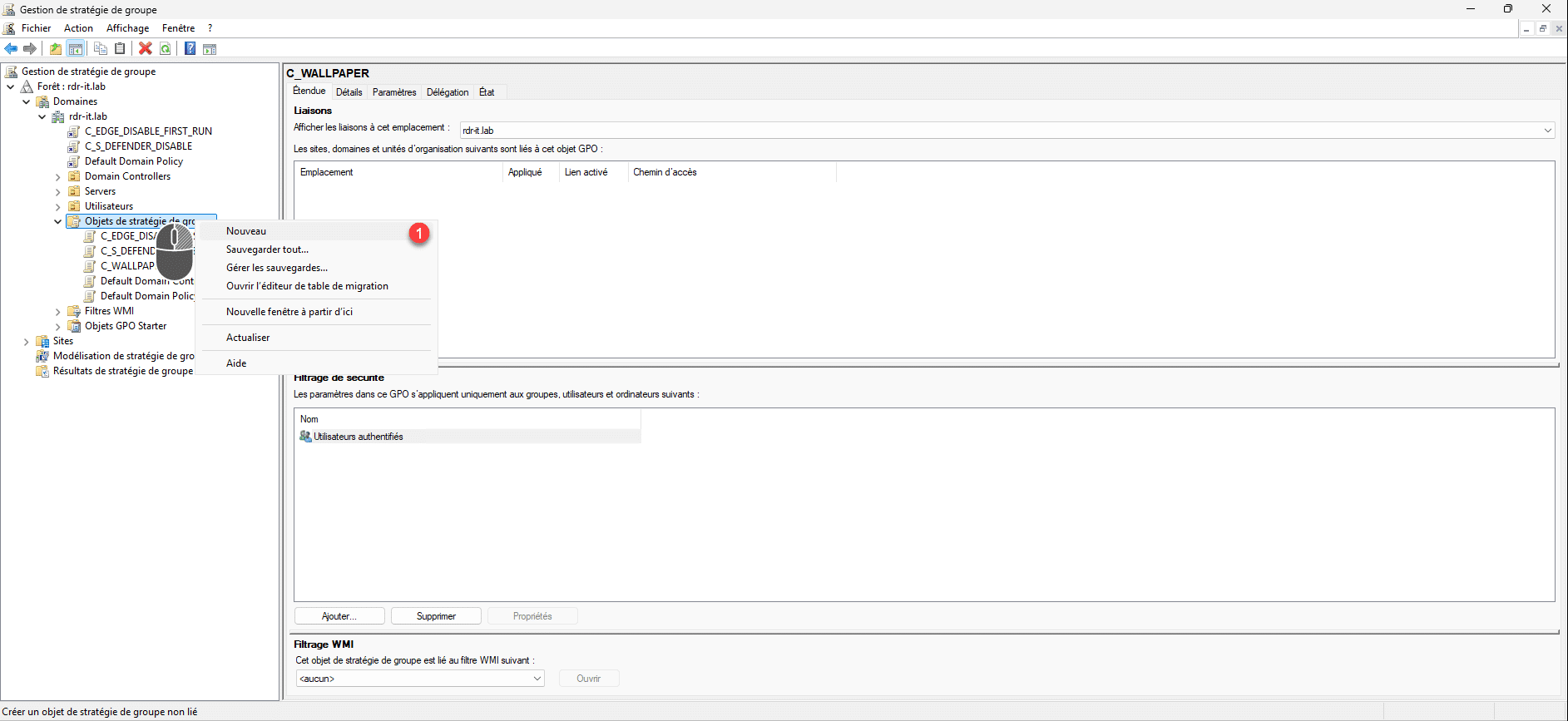
Right-click again on Group Policy Objects and click on New 1 .
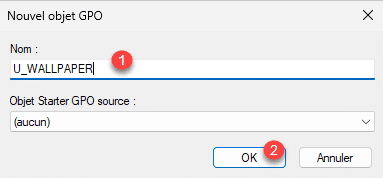
Name the GPO object 1 and then click the OK button 2 .
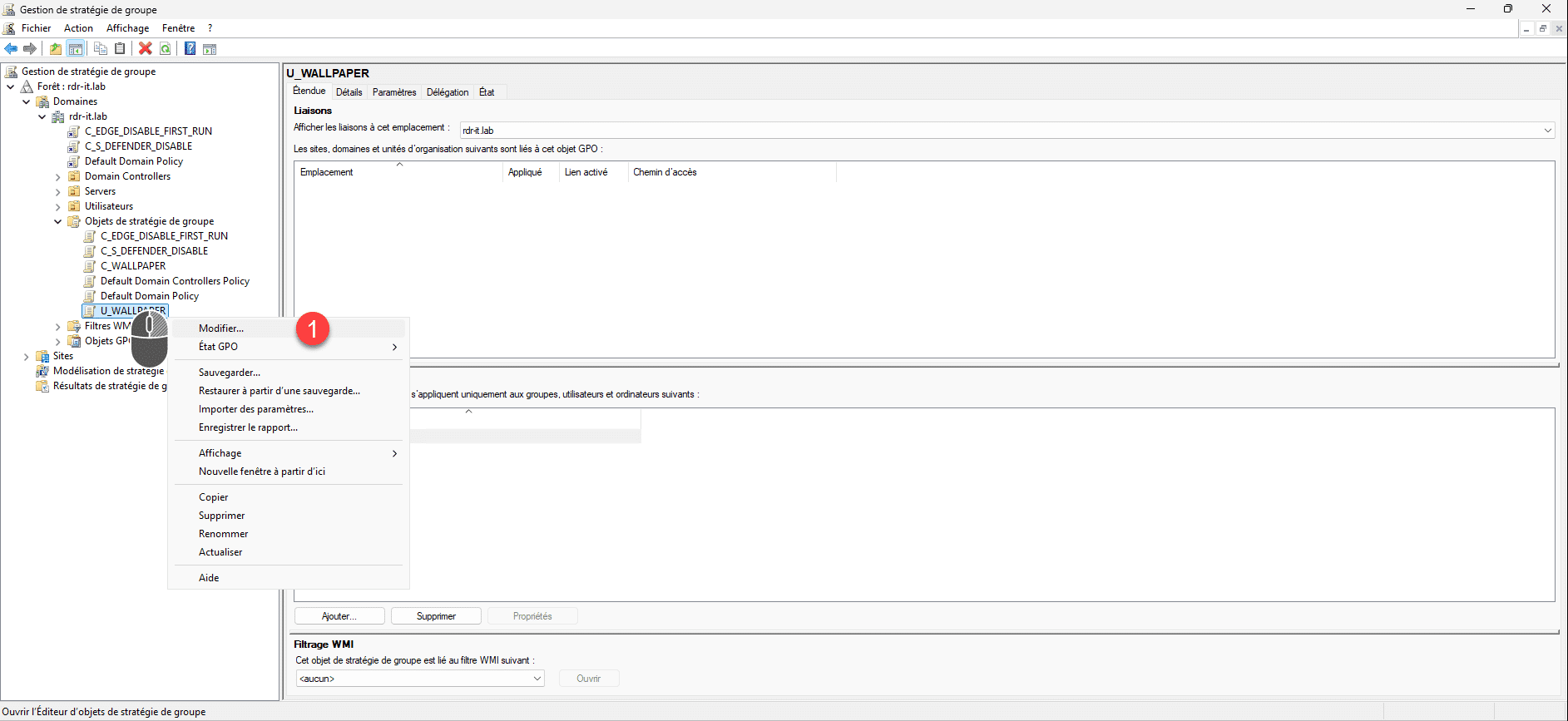
Once the object is created, right-click on it and then click on Edit 1 .
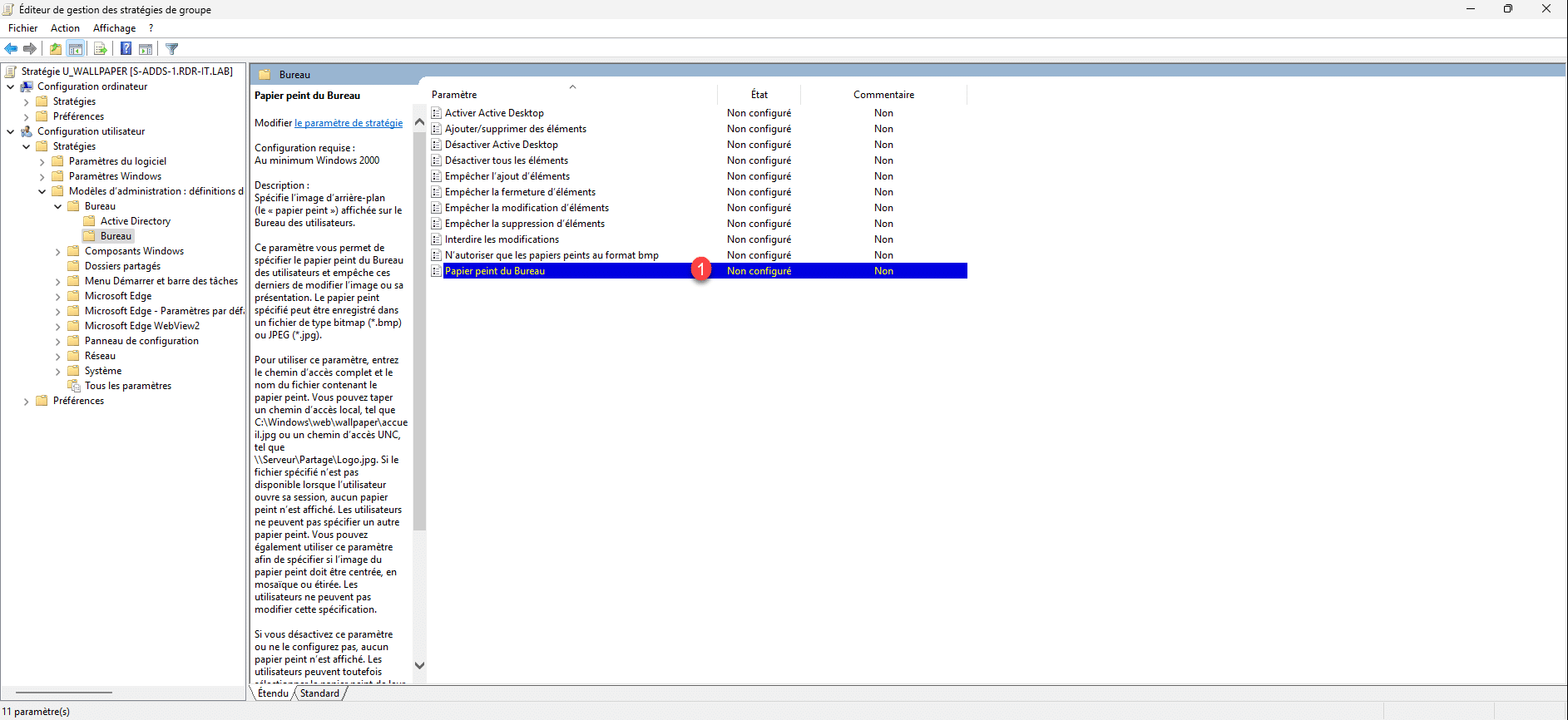
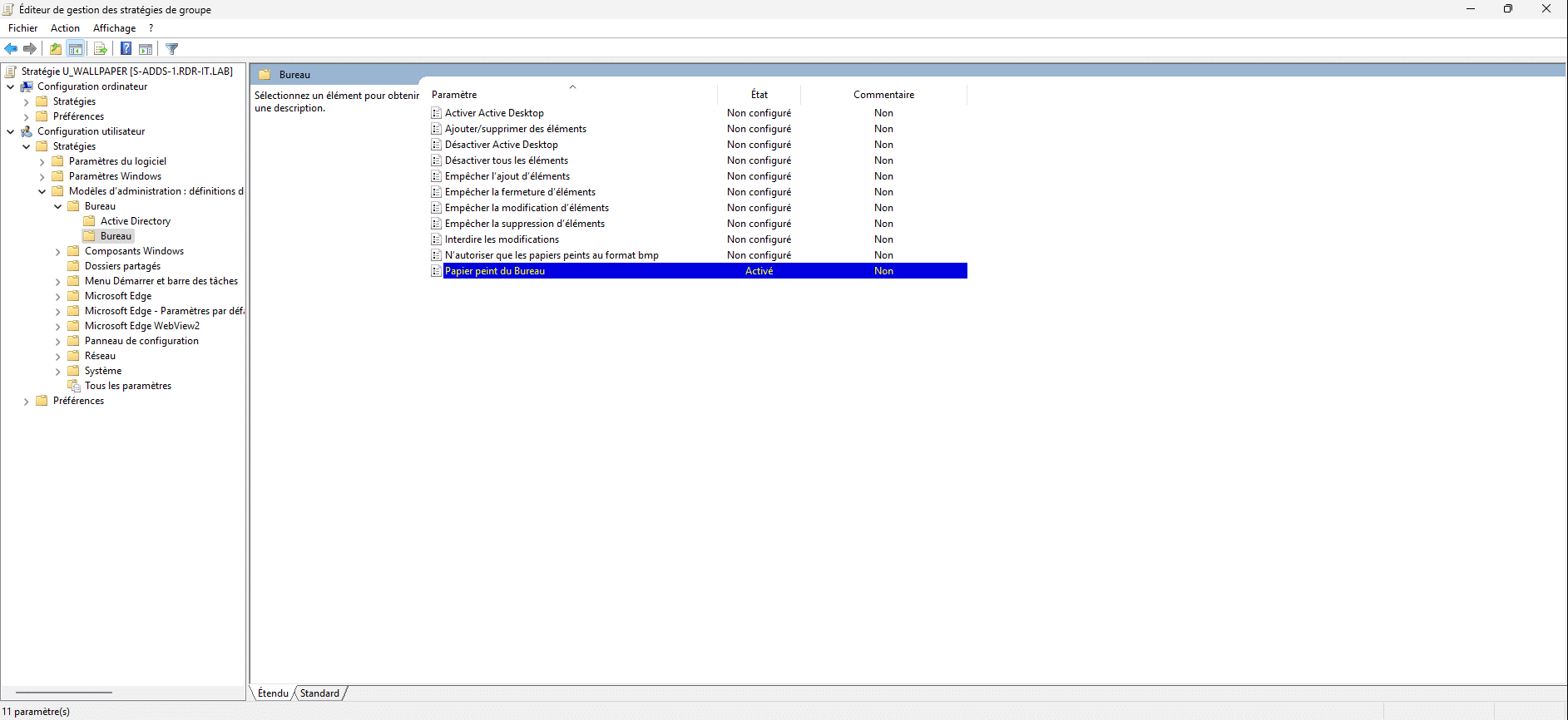
Go to the following location: User Configuration / Policy / Administrative Templates / Desktop / Desktop, then open the setting: Desktop Wallpaper 1 .
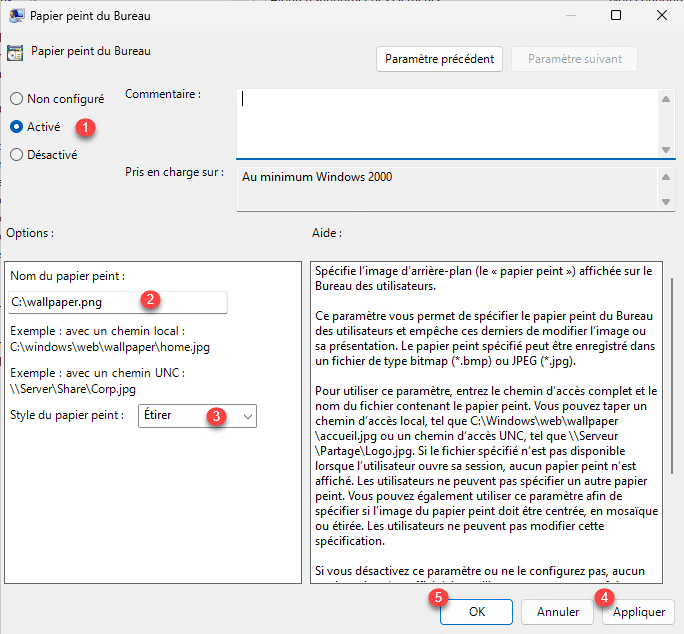
Activate 1 the setting, then specify the location of the wallpaper file 2 , choose the style 3 (Etier allows it to occupy the whole screen) then click on the Apply 4 and OK 5 buttons.
The group policy is configured.
Close the editor.
Linking group strategies to organizational unity
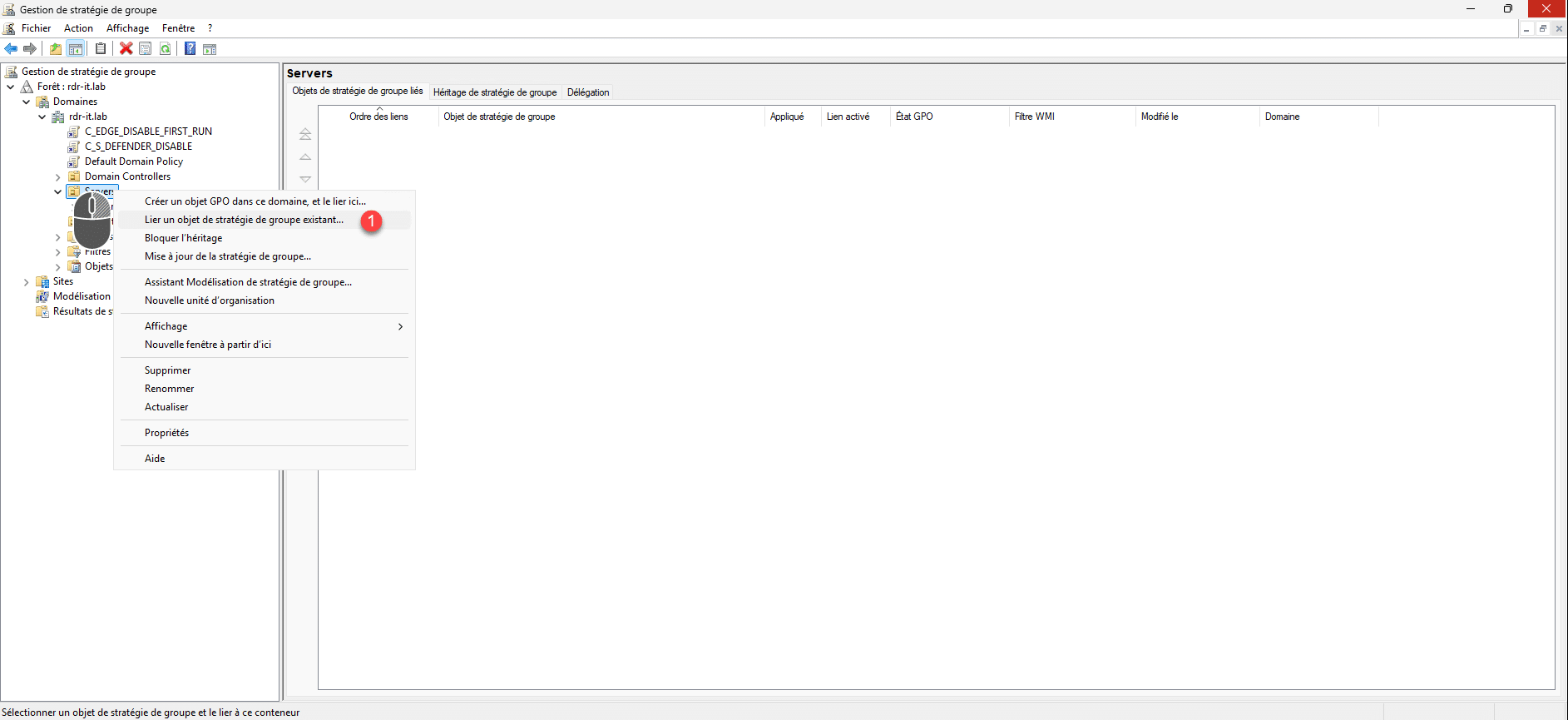
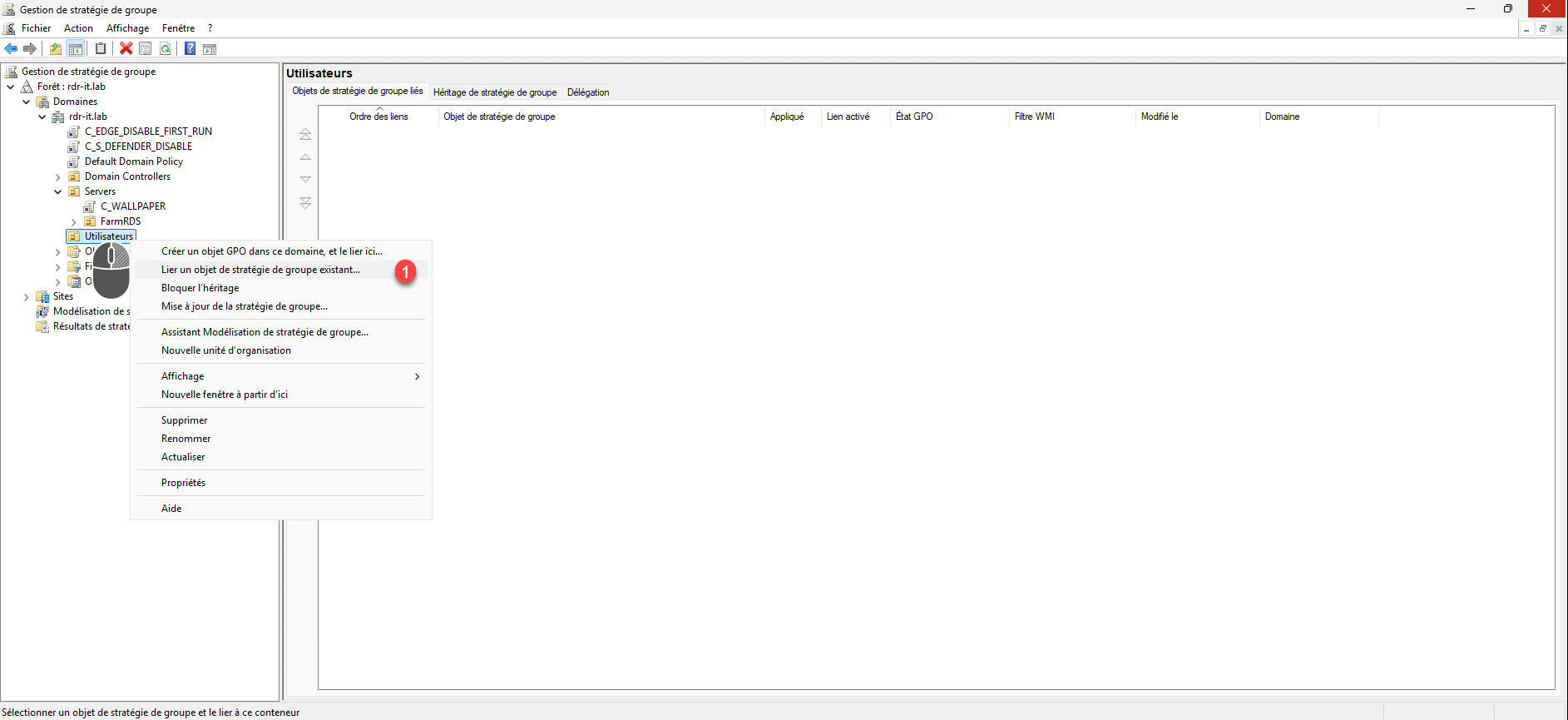
Now we will link the group policies to the correct OUs so that the settings are applied; the first GPO must be linked to computers and the second to users.
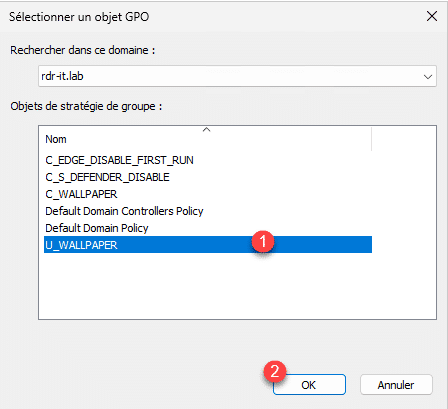
Right-click on the OU and then click on Link an existing group policy object 1 .
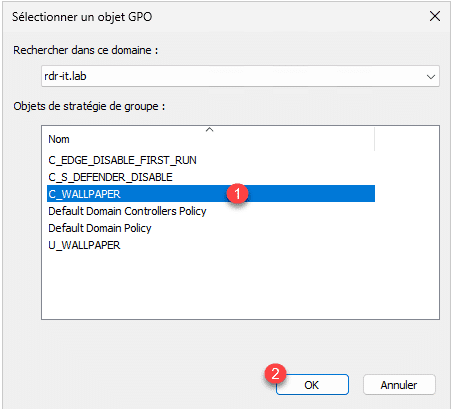
Select group policy 1 then click OK 2 .
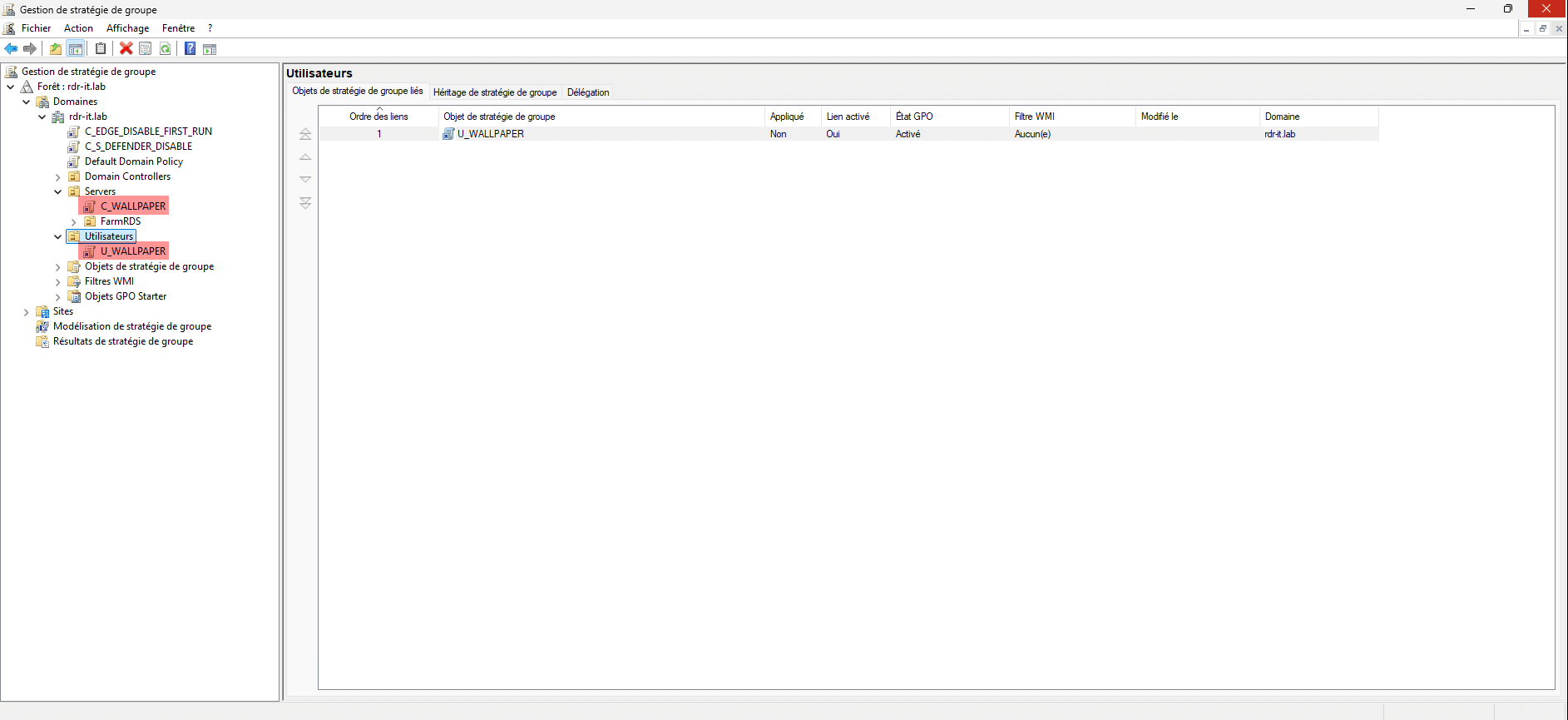
Group policy objectives (GPOs) are linked to the right organizational units to be applied.
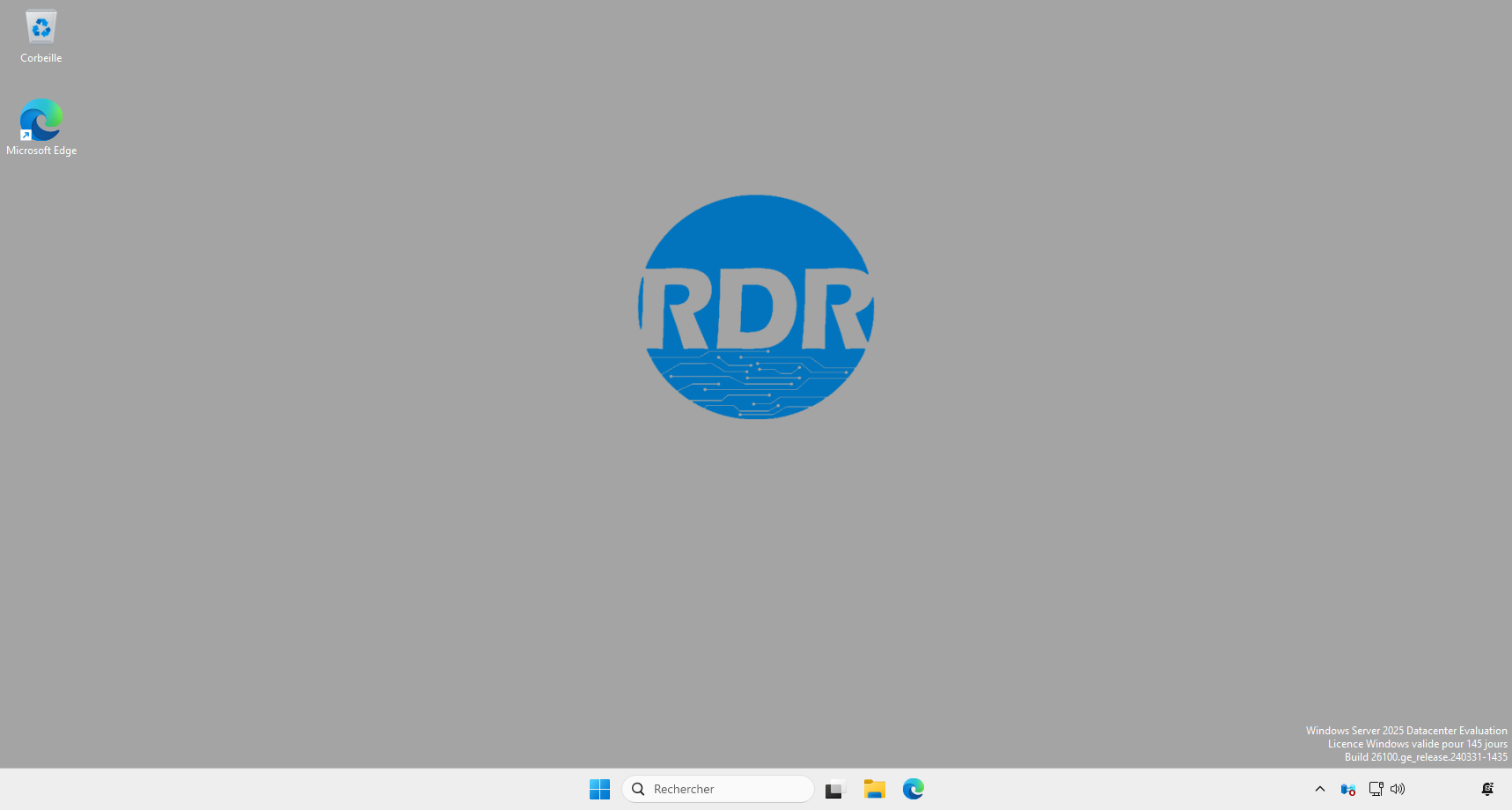
Testing the application of group strategies
On a computer and a user where GPOs are applied, log in and verify that the wallpaper is correctly applied.
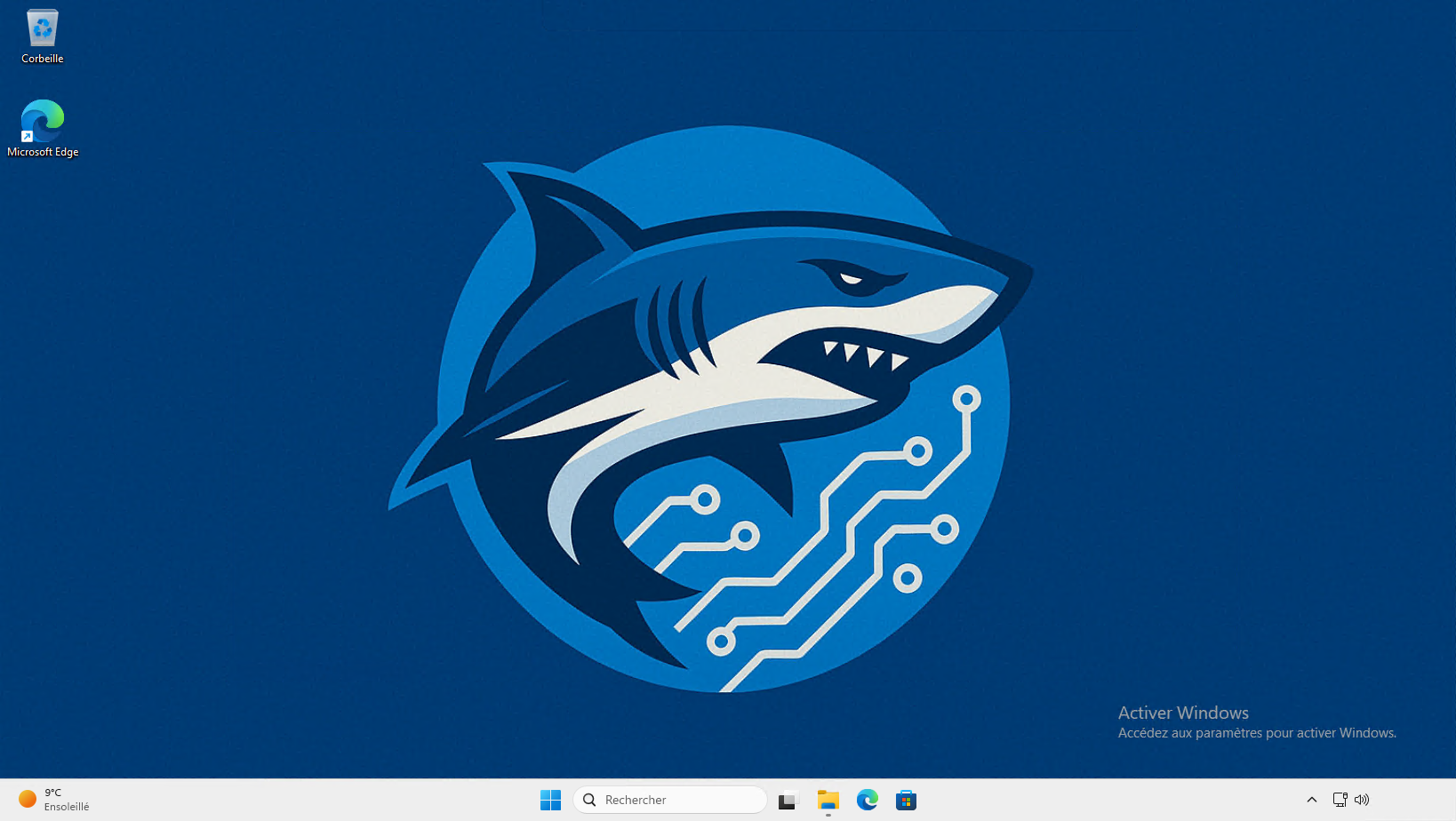
You can see that the wallpaper has been applied correctly.
On Active Directory environments with multiple domain controllers, wait a few hours for group policy replication to complete.
This tutorial has shown us how to apply a background image to computers using group policy, and also how to copy a file using a GPO that you can reproduce to copy other files.