In this tutorial, I’ll explain how to manage calendar permissions using the Exchange Management Shell (PowerShell).
A common request when managing an Exchange environment is to grant write and edit permissions on calendars.
For user mailboxes, this can be done independently from Outlook or OWA. For resource mailboxes, particularly meeting rooms, users sometimes need to make reservations without creating an event in their calendars or inviting the room.
Exchange administrators can always take full control of the mailbox and then manage these permissions in Outlook. However, this involves a lot of steps and can be time-consuming.
In this tutorial, I’ll explain how to do this using PowerShell.
View Calendar Permissions
I’ll start by explaining how to view permissions; to do this, we’ll use the CmdletGet-MailboxFolderPermission.
To view permissions, enter the following command:
Get-MailboxFolderPermission -Identity [email protected]:\Calendar
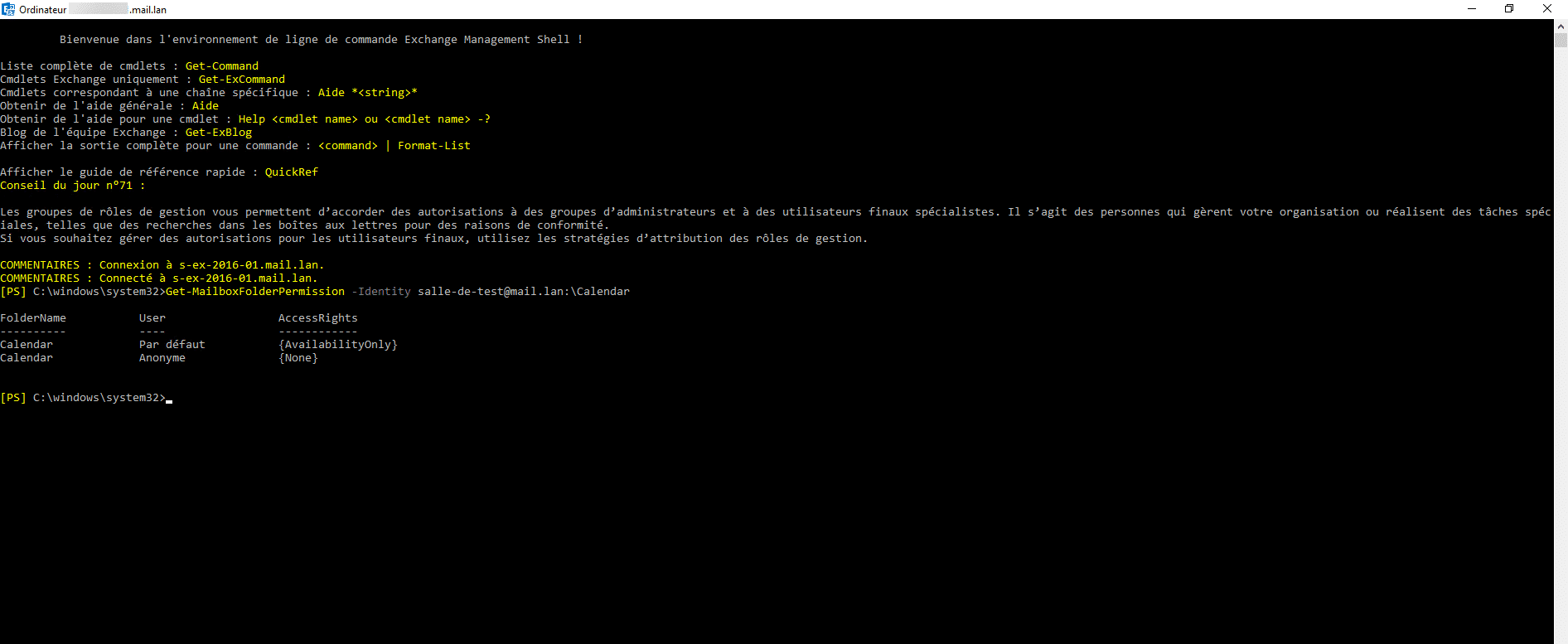
The command returns the permissions for the calendar; currently, only the default permissions are listed.
The folder name—in this case, “Calendar”—must be adapted to the mailbox’s language. If the mailbox is opened via OWA and the language is set to French, you must replace “Calendar” with “Calendrier.”
Now that you know how to view permissions, let’s move on to adding them.
Adding Permissions to a Calendar with EMS
To add permissions, we’ll use the cmdlet this timeAdd-MailboxFolderPermission.
Before adding permissions, here is the list of available roles with their associated permissions.
| Role | Permissions |
|---|---|
| Author | CreateItems, DeleteOwnedItems, EditOwnedItems, FolderVisible, ReadItems |
| Contributor | CreateItems, FolderVisible |
| Editor | CreateItems, DeleteAllItems, DeleteOwnedItems, EditAllItems, EditOwnedItems, FolderVisible, ReadItems |
| NonEditingAuthor | CreateItems, DeleteOwnedItems, FolderVisible, ReadItems |
| Owner | CreateItems, CreateSubfolders, DeleteAllItems, DeleteOwnedItems, EditAllItems, EditOwnedItems, FolderContact, FolderOwner, FolderVisible, ReadItems |
| PublishingAuthor | CreateItems, CreateSubfolders, DeleteOwnedItems, EditOwnedItems, FolderVisible, ReadItems |
| PublishingEditor | CreateItems, CreateSubfolders, DeleteAllItems, DeleteOwnedItems, EditAllItems, EditOwnedItems, FolderVisible, ReadItems |
| Reviewer | FolderVisible, ReadItems |
| AvailabilityOnly | View availability data only |
| LimitedDetails | View availability data with subject and location |
Now, I’m going to assign the Author role to a user on a calendar:
Add-MailboxFolderPermission -Identity [email protected]:\Calendar -User [email protected] -AccessRights Author

The permissions are added to the calendar.
Modifying permissions on a calendar with EMS
Now, let’s see how to modify a permission; this time we’ll use the cmdletSet-MailboxFolderPermission—the syntax is similar to Add-MailboxFolderPermission.
We’ll change the role from Author to Owner:
Set-MailboxFolderPermission -Identity [email protected]:\Calendar -User [email protected] -AccessRights Owner
The cmdlet returns no output; to view the change, you must use the cmdletGet-MailboxFolderPermission.
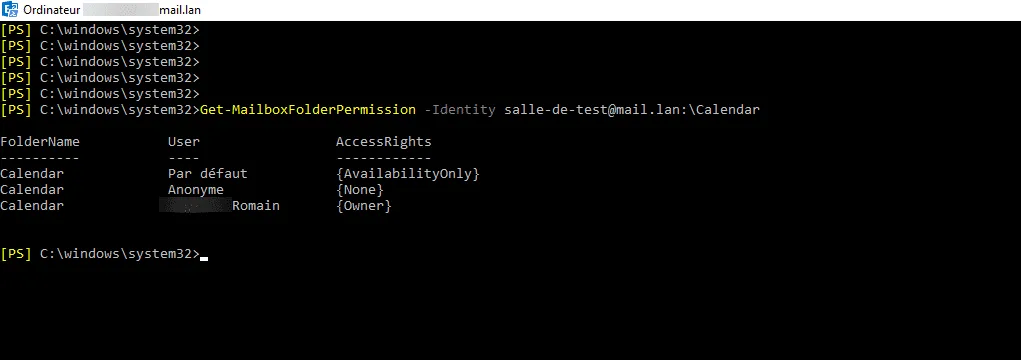
Removing a permission from a calendar
To conclude this tutorial, we’ll see how to remove an access permission from a calendar; to do this, we’ll use the cmdlet: Remove-MailbolxFolderPermission.
To remove a permission:
Remove-MailboxFolderPermission -Identity [email protected]:\Calendar -User [email protected]
The command prompts for confirmation and does not return any specific output.
You now know how to manage permissions on calendars in Exchange mailboxes using the PowerShell command line.