Hello everyone,
Today I’m not offering you a tutorial, but an article (which is likely to be long and give you a headache) on managing permissions on Windows file servers.
Before discussing rights management using the AGDLP/AGUDLP methods – which are Microsoft’s recommendations (best practice) – there are several points to consider beforehand and a number of things to understand in order to ensure effective management.
NTFS Permissions and Share Permissions
The first problem I come across when discussing access rights is that people get confused between NTFS permissions and share permissions (SMB).

I’ll try to keep it simple, and you’ll see that I’m going to keep it very simple… sharing rights? Who cares!

I’m going to stop with the GIFs and get down to business…
Let me explain: NTFS permissions (which are often the most restrictive) take precedence over SMB permissions.
And I suggest you try it out for yourselves, but I’m going to go ahead and do it in this article anyway.
Here is my test environment:
- A Windows Server 2016 server that is a domain controller
- A Windows Server 2016 server, a domain member, on which I am going to share a folder called ‘pierre’ (this is the test subject).
- A Windows 10 (20h2) client joined to the domain, which Pierre will use to log in and attempt to access the folder.
We’ll also be meeting up with the administrator and Marie for the tests.
I’ll try to make myself clear, but it’s not always easy when discussing the law in writing.
Scenario 1: The ‘Pierre’ folder is shared with SMB permissions set for the user only, whilst NTFS permissions are left at their default settings.
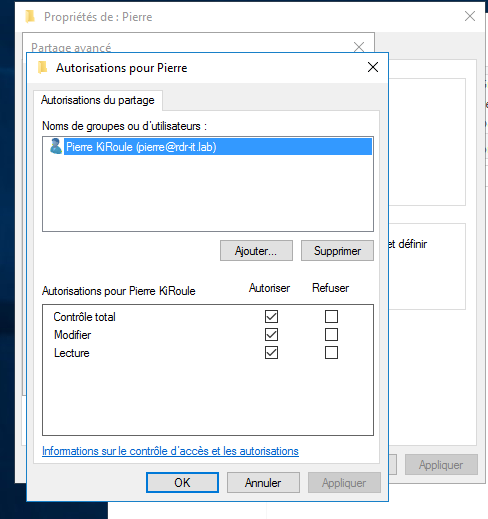
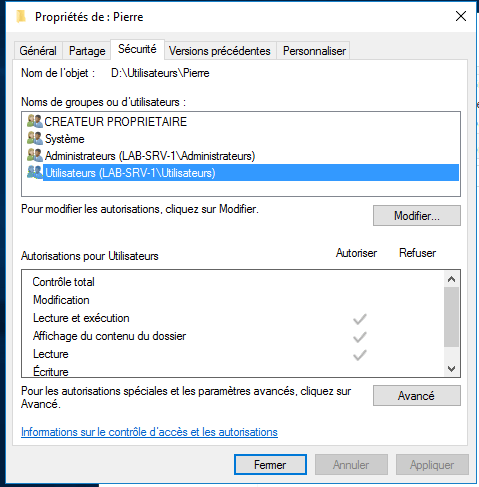
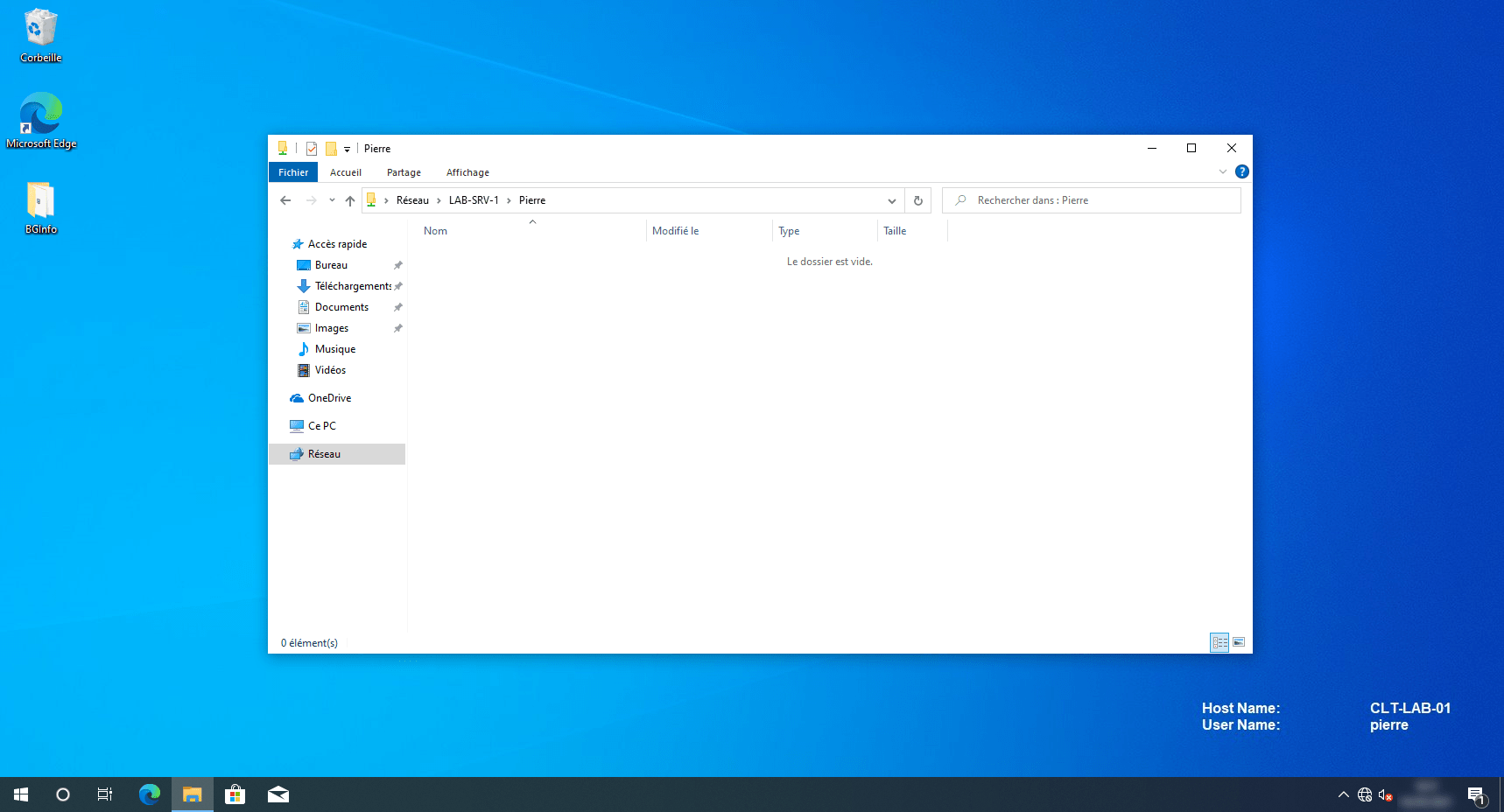
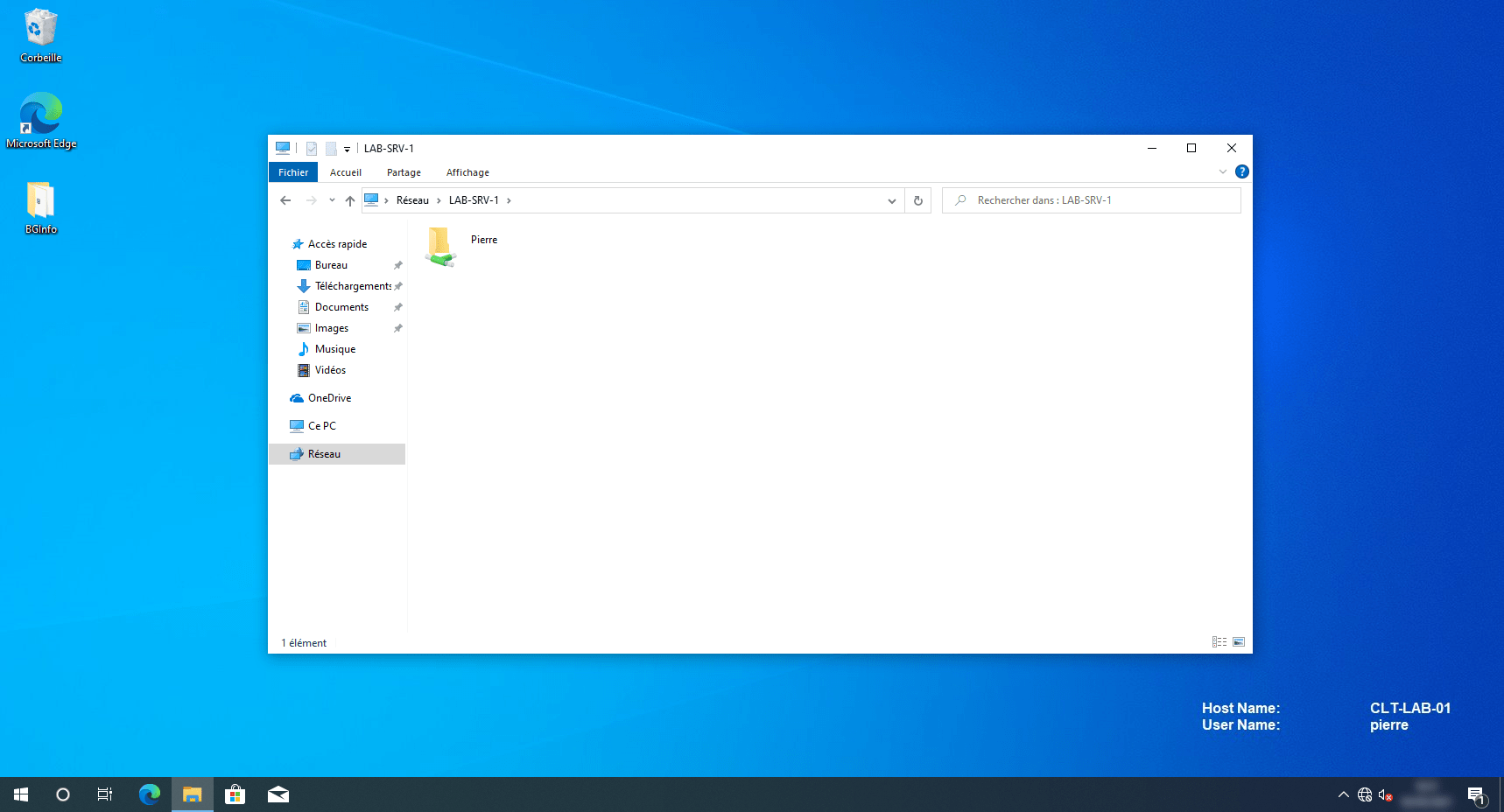
Now I’m going to log in as Pierre on the Windows 10 PC and access the shared folder.
As you can see from the two screenshots below, I can see the folder clearly and I can open it.
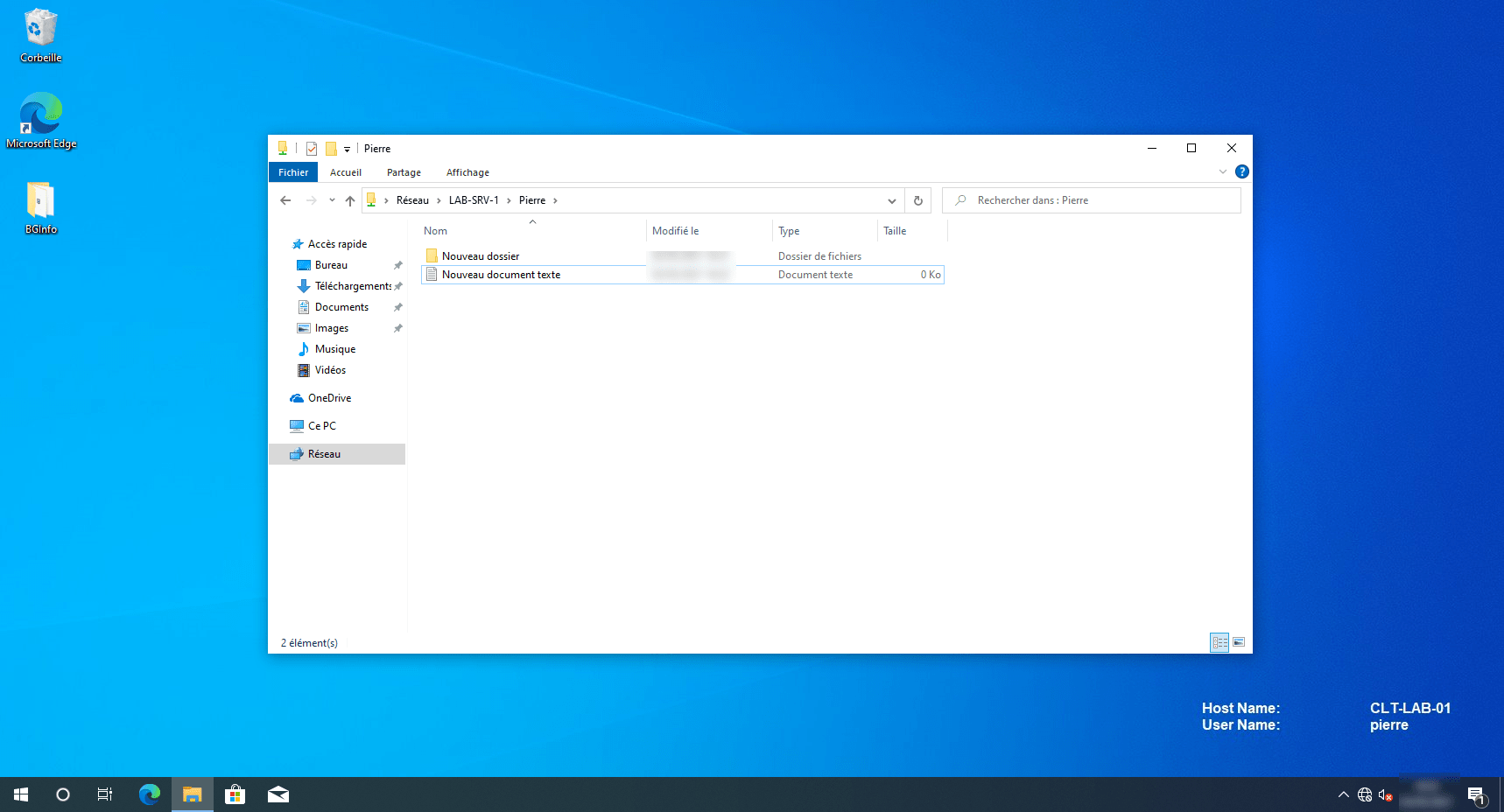
Creating elements (i.e. writing) works as well.
At the moment, it’s behaving exactly as expected.
To continue with my example, I log in to the server using Maria’s account (to use NTFS permissions).
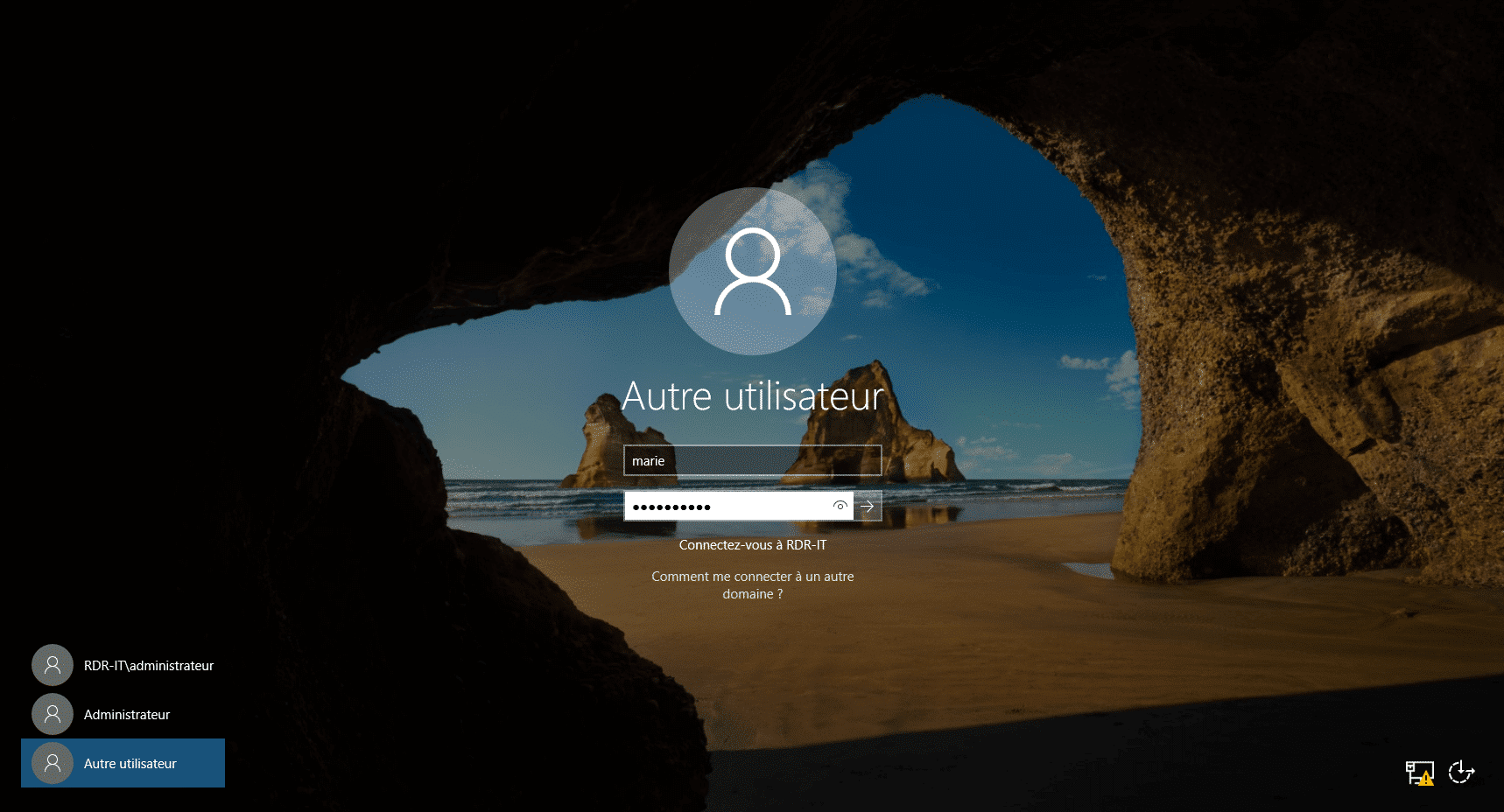
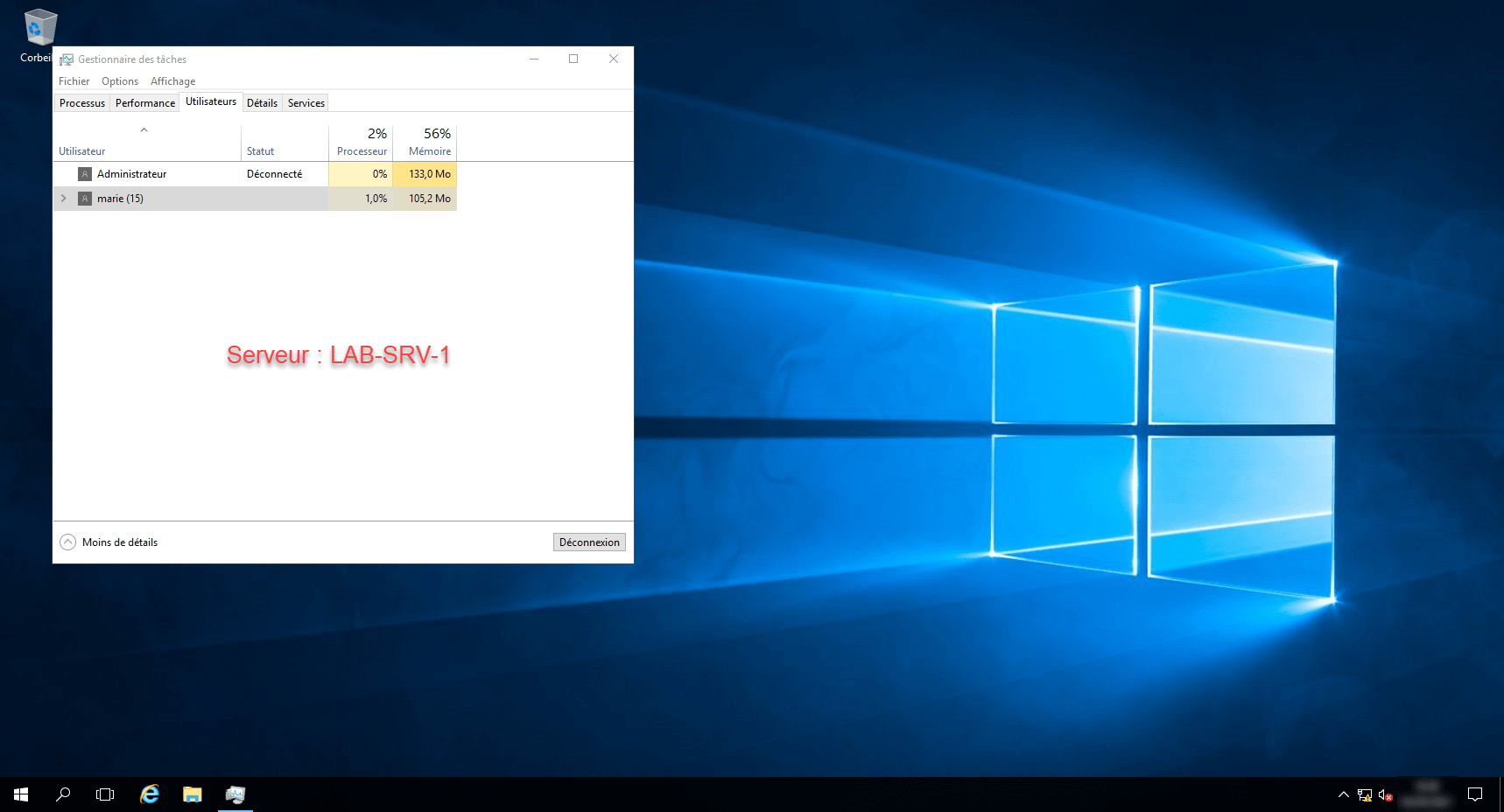
For your information, Marie is not an administrator, but by default it is possible to log in to a server using a domain user account. (I’m referring to a local session via the VMware or Hyper-V console; this is not possible via Remote Desktop (RDP).)
As you can see, I can indeed access my ‘Pierre’ folder, in which items were created during Pierre’s session on the Windows 10 PC.
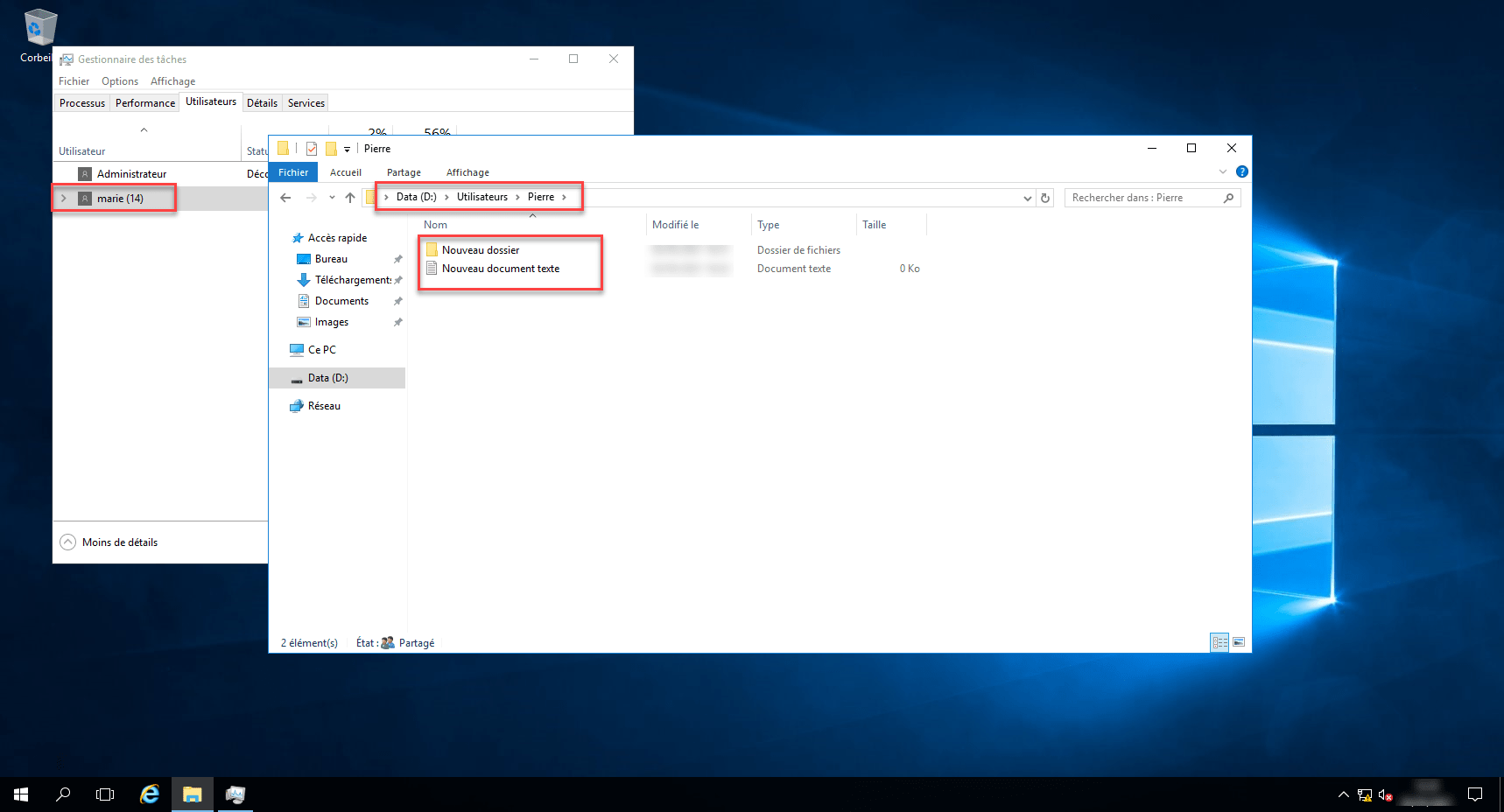
As can be seen from the screenshots below, the user Marie can create a folder (she therefore has write access).
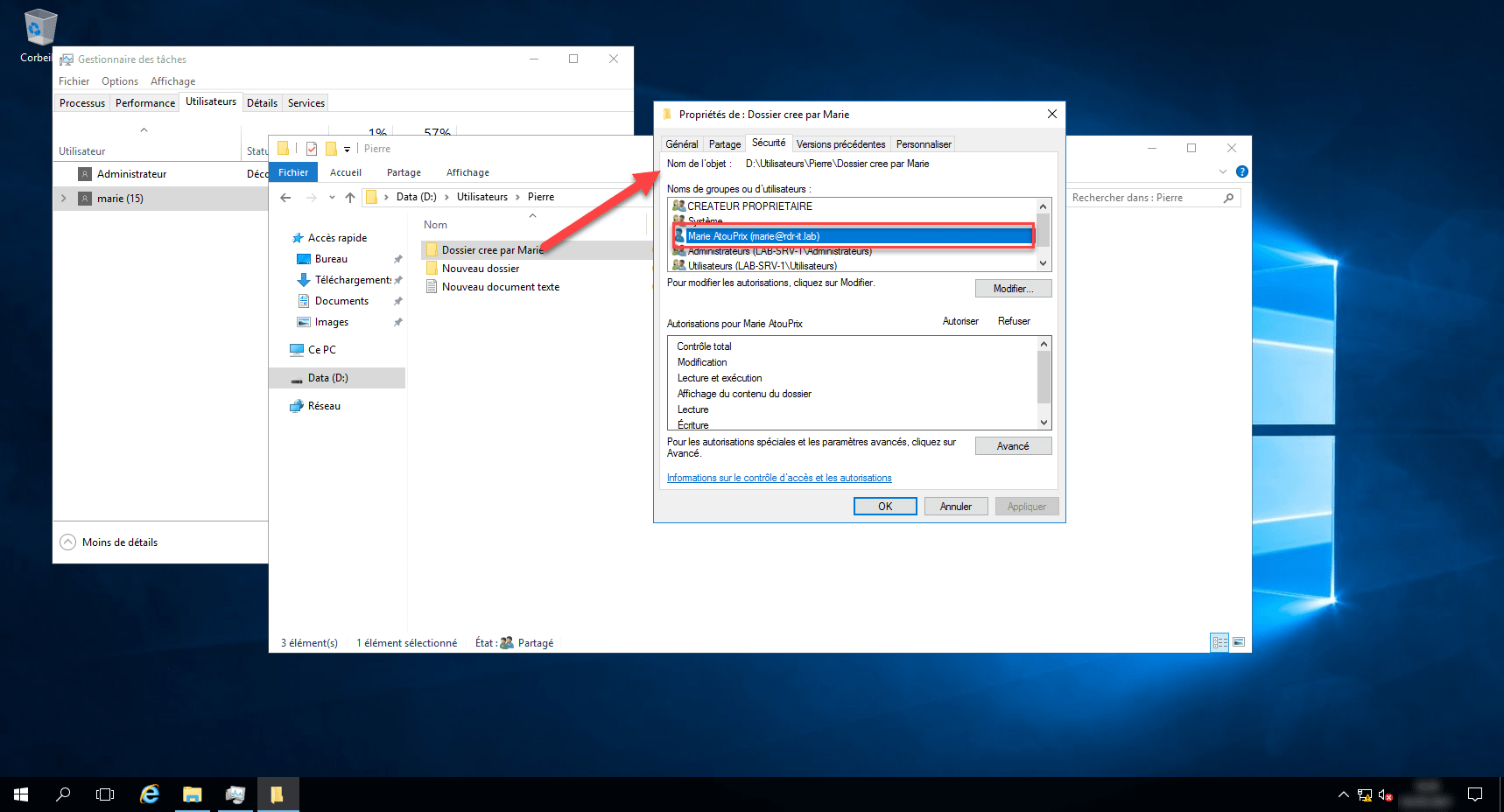
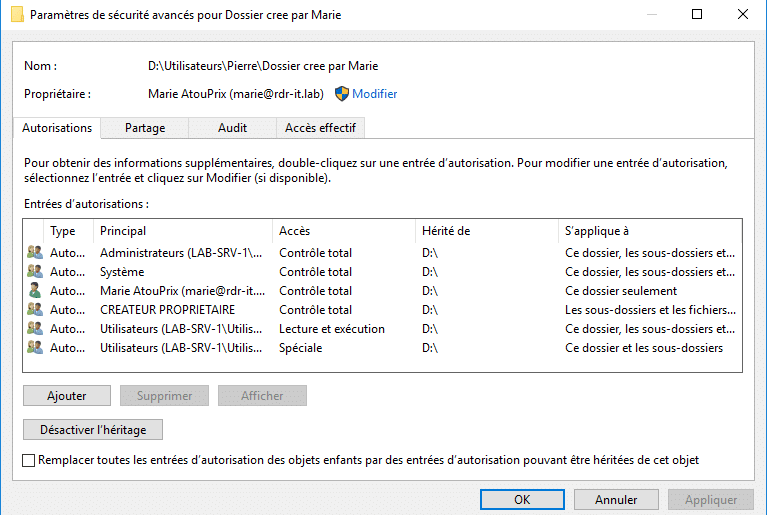
What happens if we try (from the server) to access the same folder via Maria’s share? If I open File Explorer and go to the address \\127.0.0.1, I can indeed find the share.
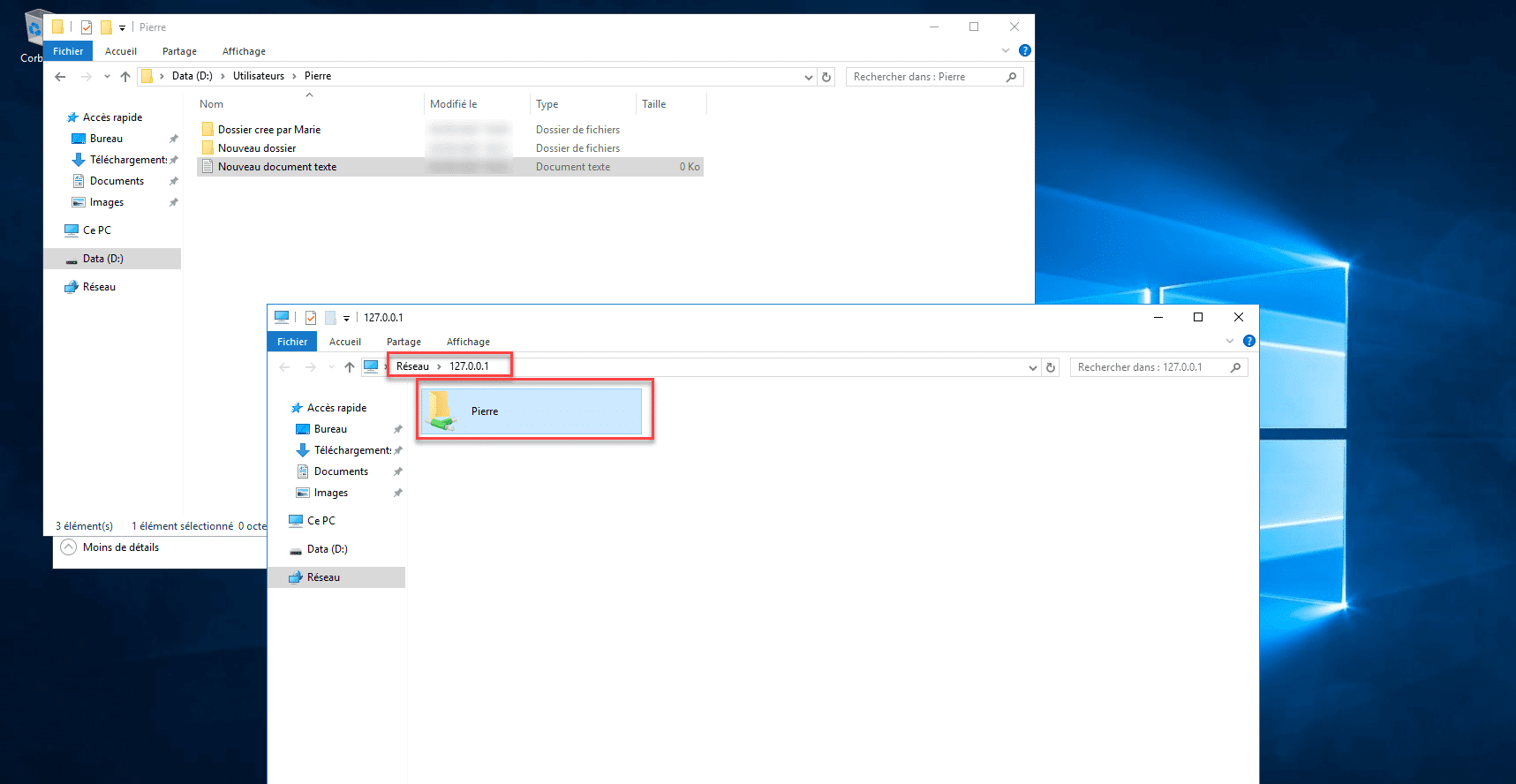
If I try to access the ‘Pierre’ folder using its UNC path whilst logged in as ‘Maria’, I don’t have the necessary permissions.
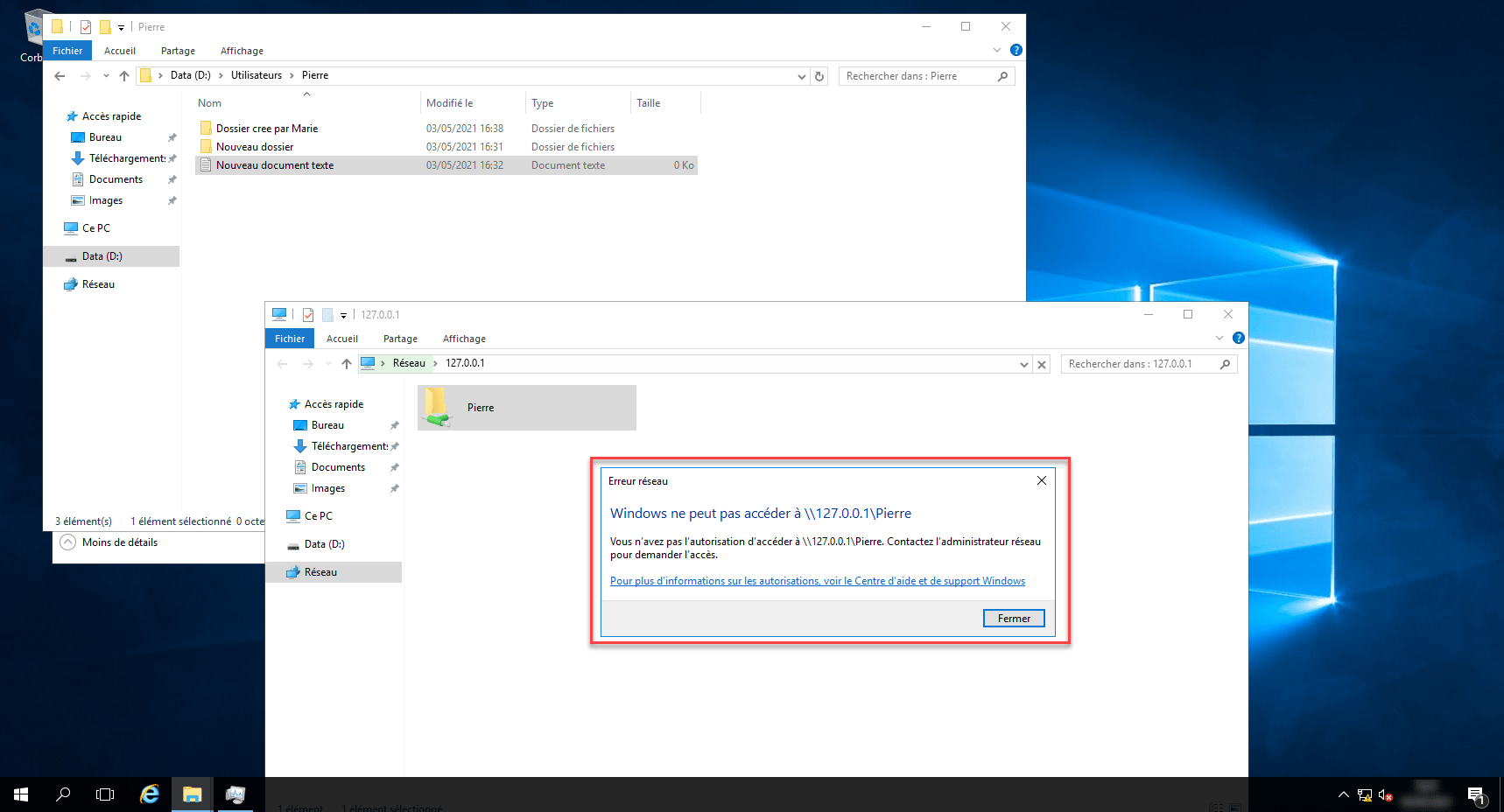
If you look at the screenshot, you can see that I can access the folder via the ‘local’ path, but I cannot access it via its UNC path.
As SMB permissions are more restrictive, I can’t access the ‘Pierre’ folder using ‘Maria’, but I can access it locally…
Scenario 2: The ‘Pierre’ folder is shared with SMB permissions set only for the user (Pierre), and the NTFS permissions are modified to grant access only to Marie.
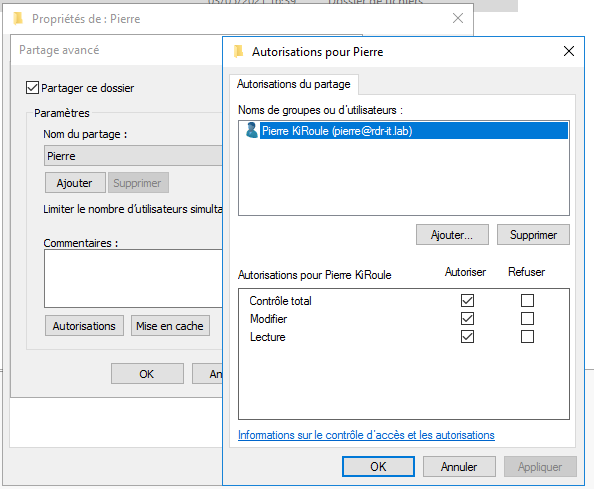
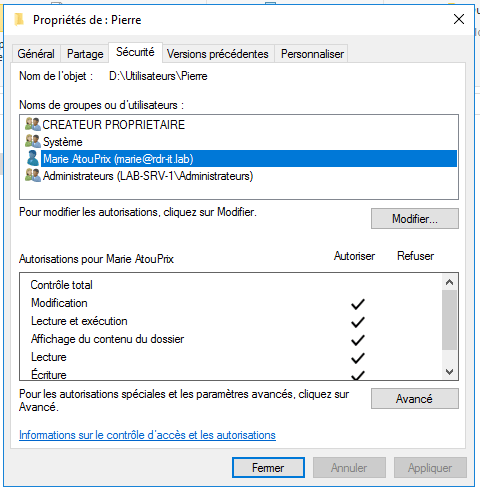
Since upgrading to Windows 10, Pierre and I can no longer access the shared folder, even though it grants Pierre full control; the NTFS permissions are now more restrictive, and only Marie has access to it (the ‘Users’ group has been removed, and this group contains the domain’s users).
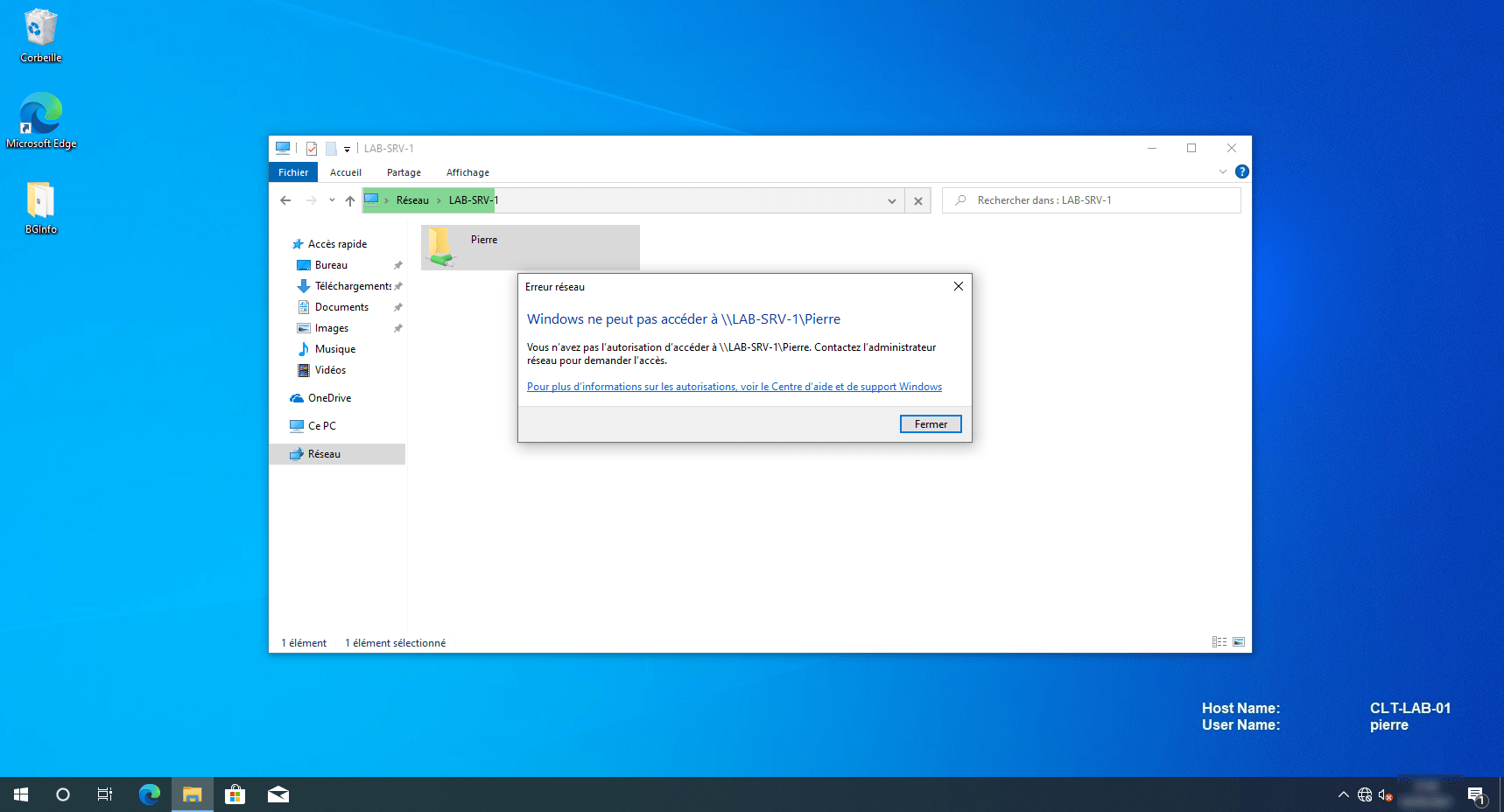
Since upgrading to Windows 10, I’ve been unable to access the ‘Pierre’ folder with ‘Marie’, despite having NTFS permissions, because the SMB permissions do not explicitly grant me access to it.
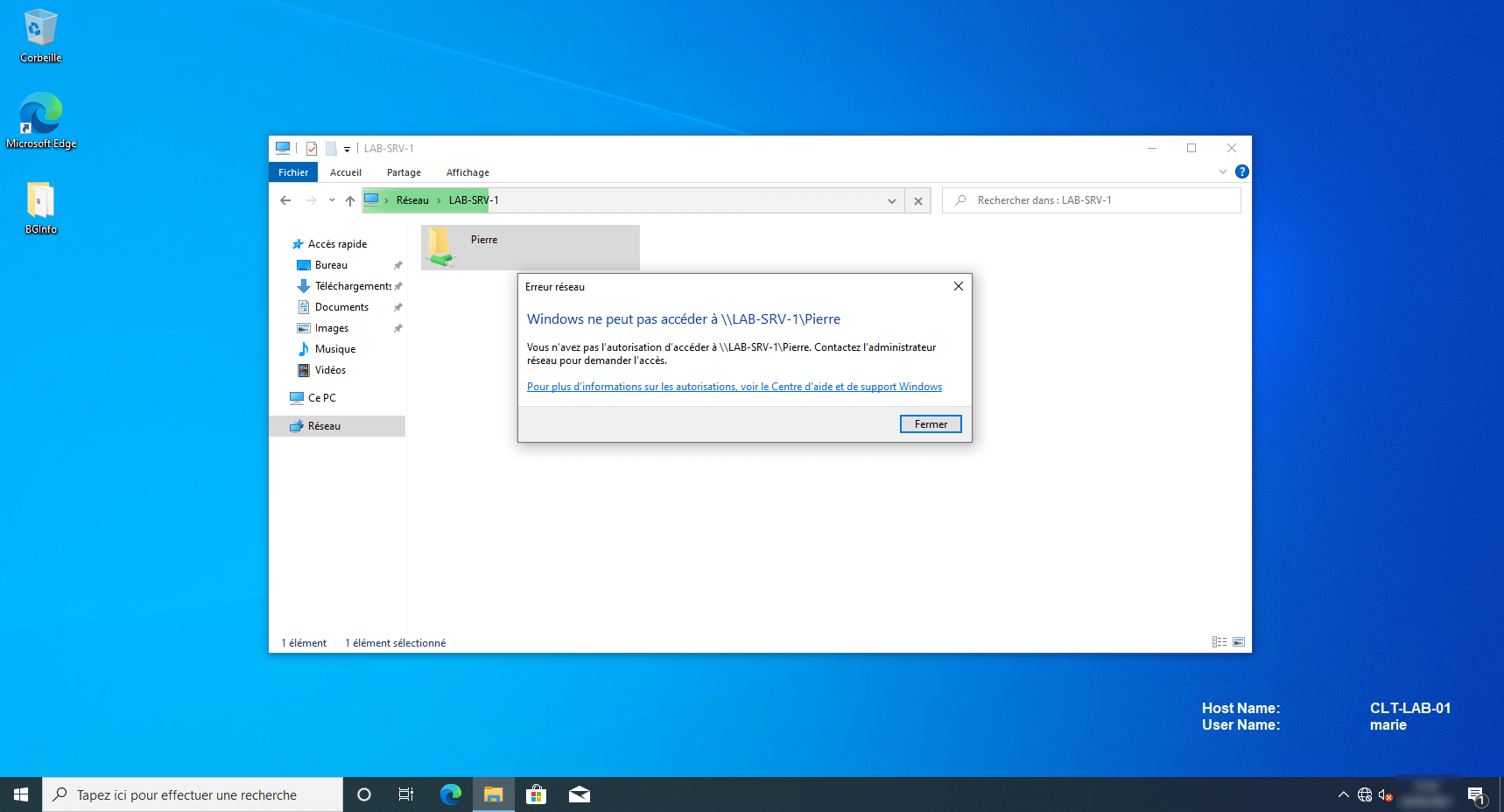
In this scenario, I won’t be running the demo locally on the server again; Marie can access the folder because her NTFS permissions allow her to do so.
Scenario 3: The ‘Pierre’ folder is shared with ‘standard’ SMB permissions (Everyone: Edit/Read) and explicit NTFS permissions for Pierre.
If only read access is granted under SMB (share) permissions, even Pierre will not be able to make changes, as the most restrictive permissions apply.
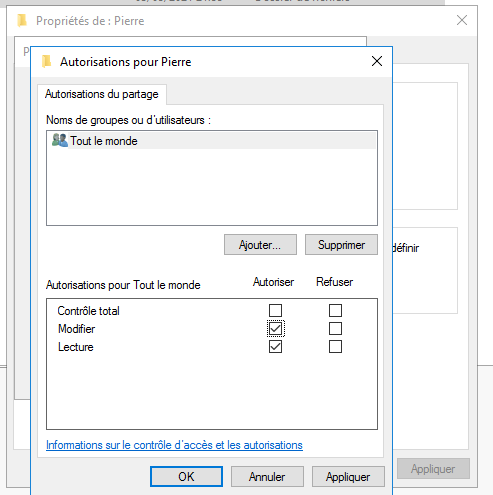
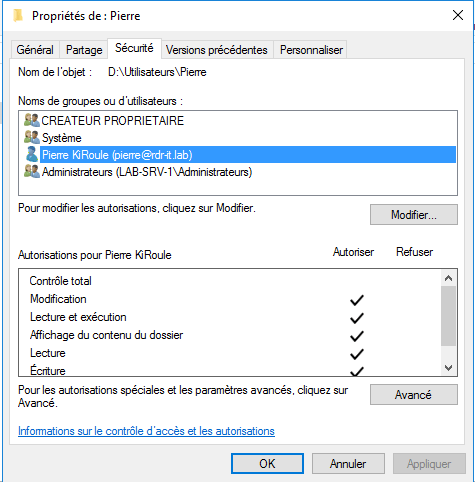
From a computer logged in as ‘Pierre’, you can access the folder and also create items.
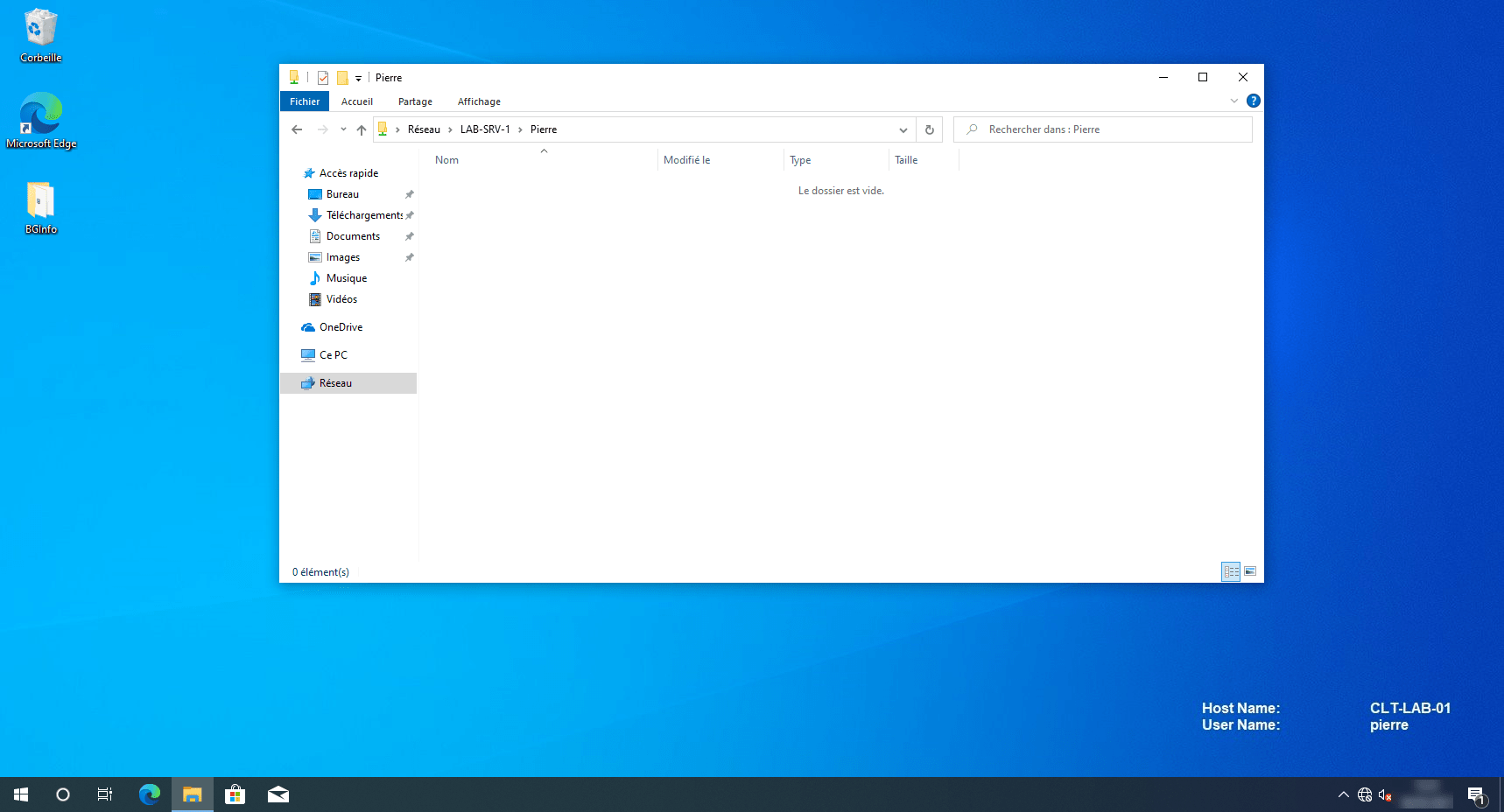
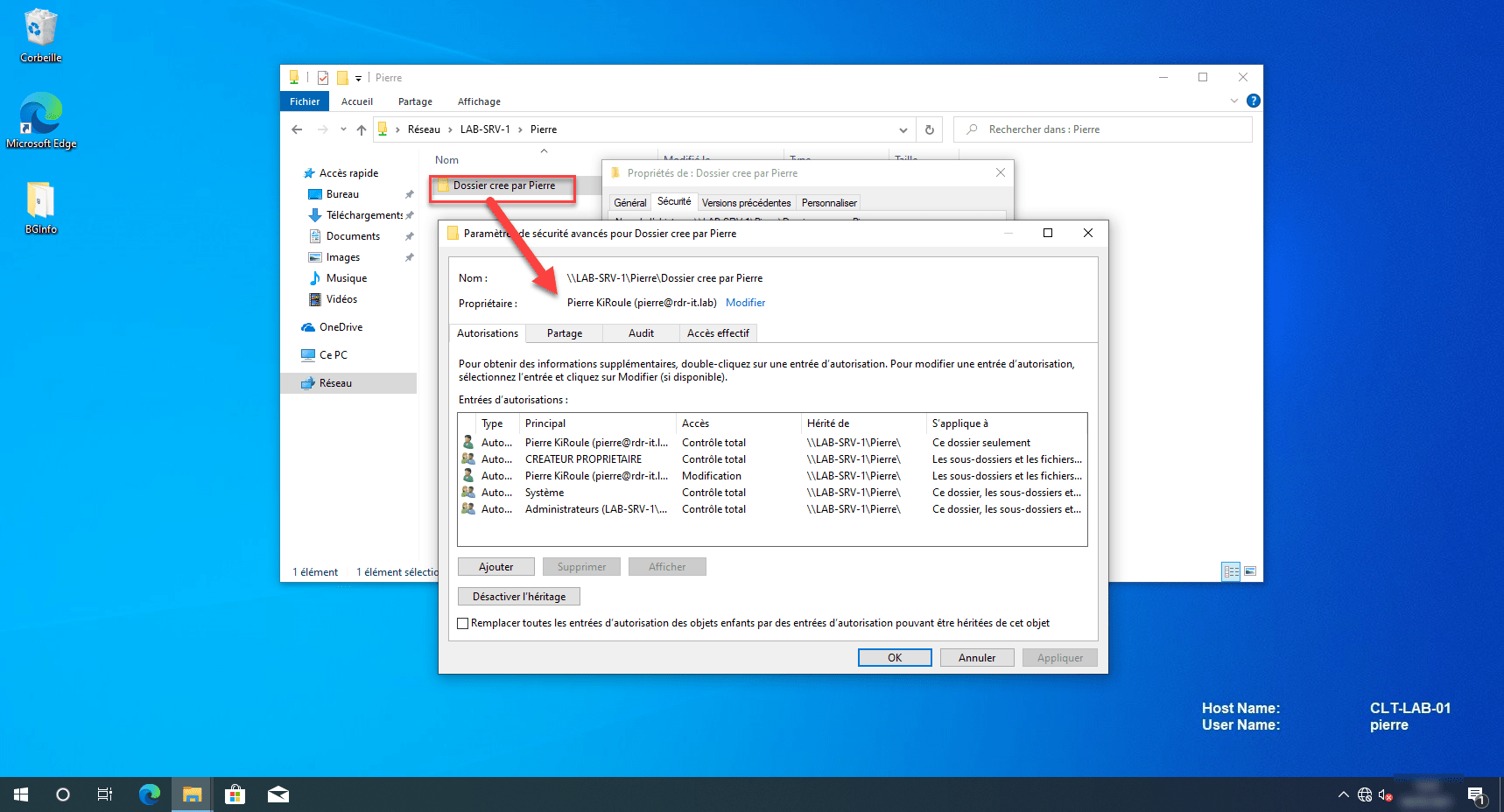
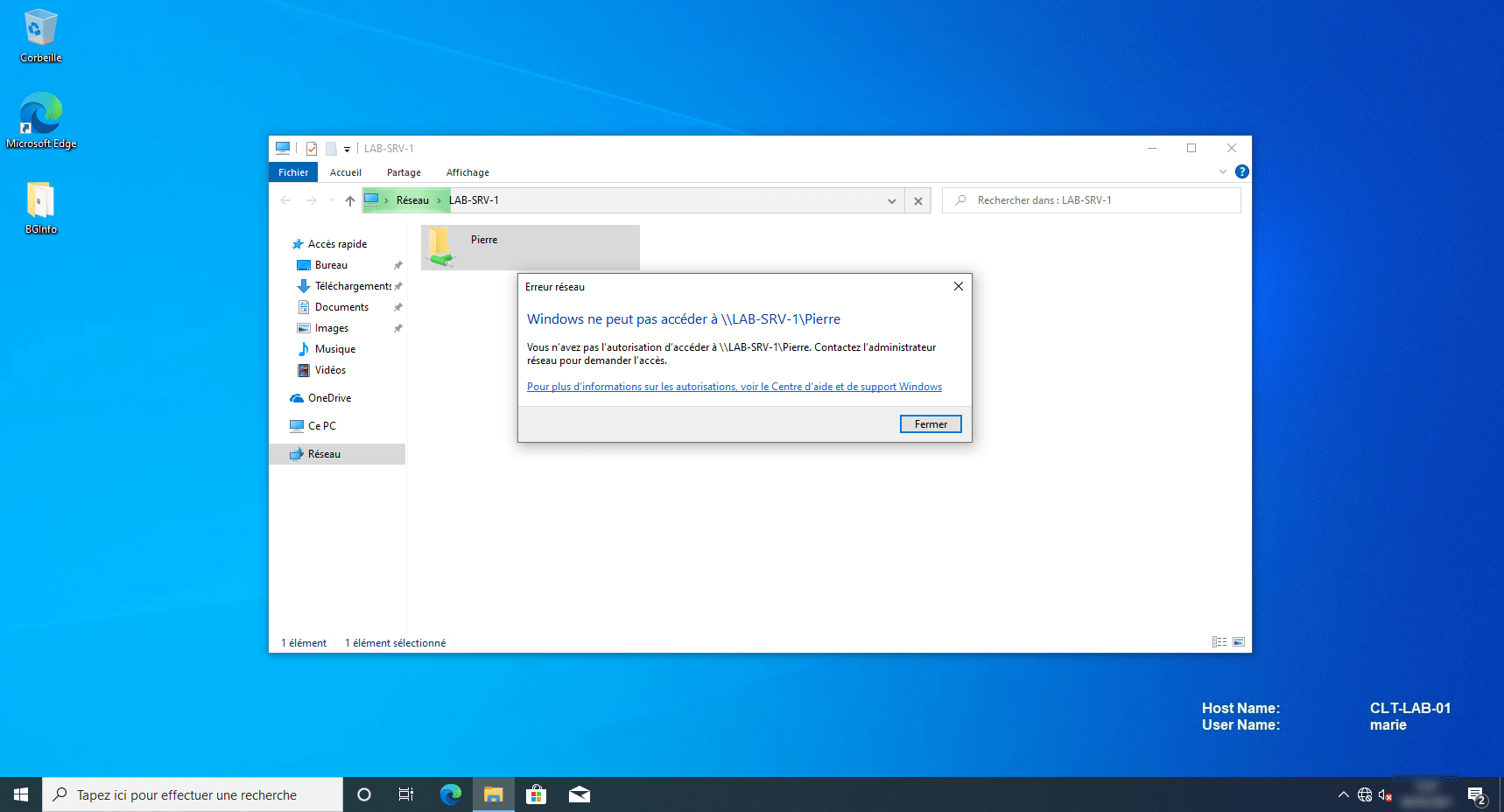
Ever since Marie’s session was opened on the Windows 10 client, I haven’t been able to access Pierre’s shared folder.
Ever since Marie’s session was opened on the Windows server, I haven’t been able to access Pierre’s local folder.
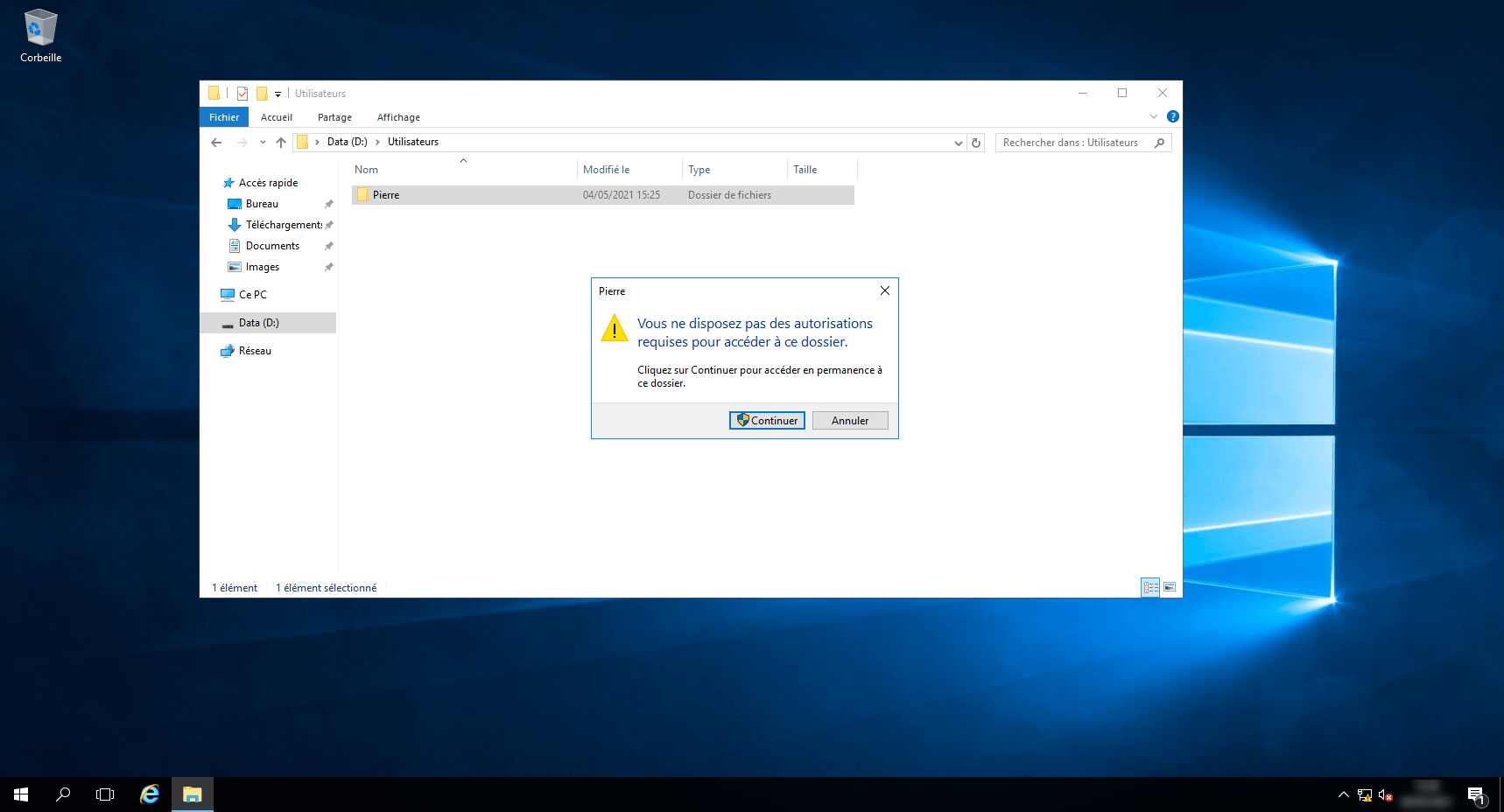
This demo has shown that the most restrictive permissions are applied; returning to the topic of managing share permissions / NTFS, if NTFS permissions are configured correctly, there is no issue with setting share permissions to ‘Everyone’; however, to avoid any risk of conflict, it is more practical to manage permissions at the NTFS level.
Are you still here? You’re brave… let’s move on to the next bit.
Understanding the different types of Active Directory groups
When I actually get round to discussing AGDLP/AGUDLP, I will talk about the various Active Directory groups; it is important to understand the scope of each group and the different elements they may contain.
To find out more about groups: Active Directory Groups – RDR-IT Academy
Have a naming convention for Active Directory objects
This section is also important to ensure that all IS members use the same naming convention for groups, and so that, when looking at an object, they know what it is used for – particularly in the case of groups – in order to determine whether it can be used on a resource (in this case, a shared folder).
I’m not going to give you any advice on this, as every organisation is different.
For this article, here’s what I’m going to use:
- GG_XXXXX: a global group that will contain the users in the department
- GL_XXXXX_YY: local group to be applied to the resources, where YY corresponds to the RO (Read-Only) or RW (Read-Write) permission
AGDLP / AGUDLP: best practice in rights management
We can now turn to the main topic of the article: managing permissions using AGDLP (Account, Global, Domain Local, Permission) / AGUDLP (Account, Universal, Global, Domain Local, Permission).
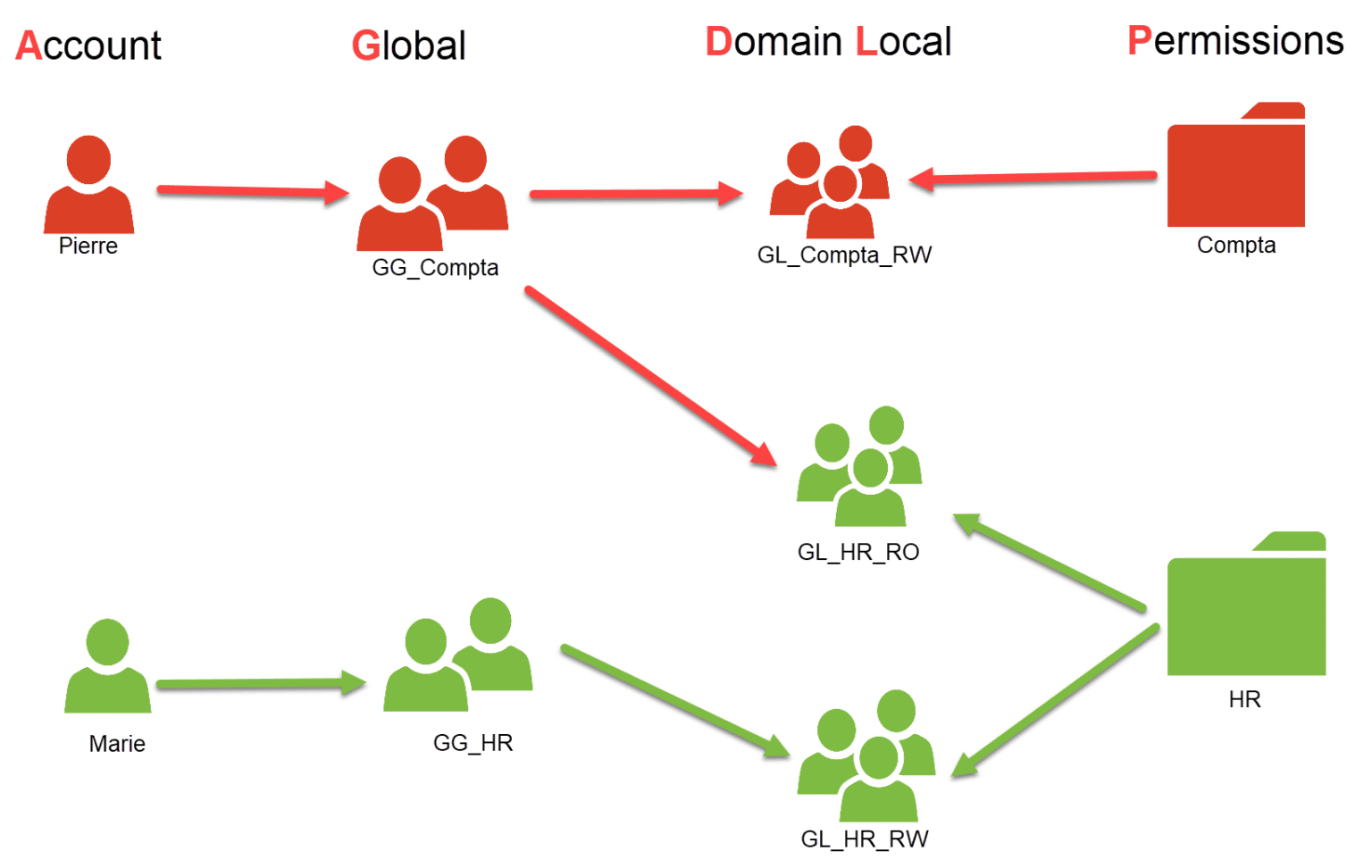
To make it easier to understand, let’s start with a diagram, and I’ll explain it to you afterwards:
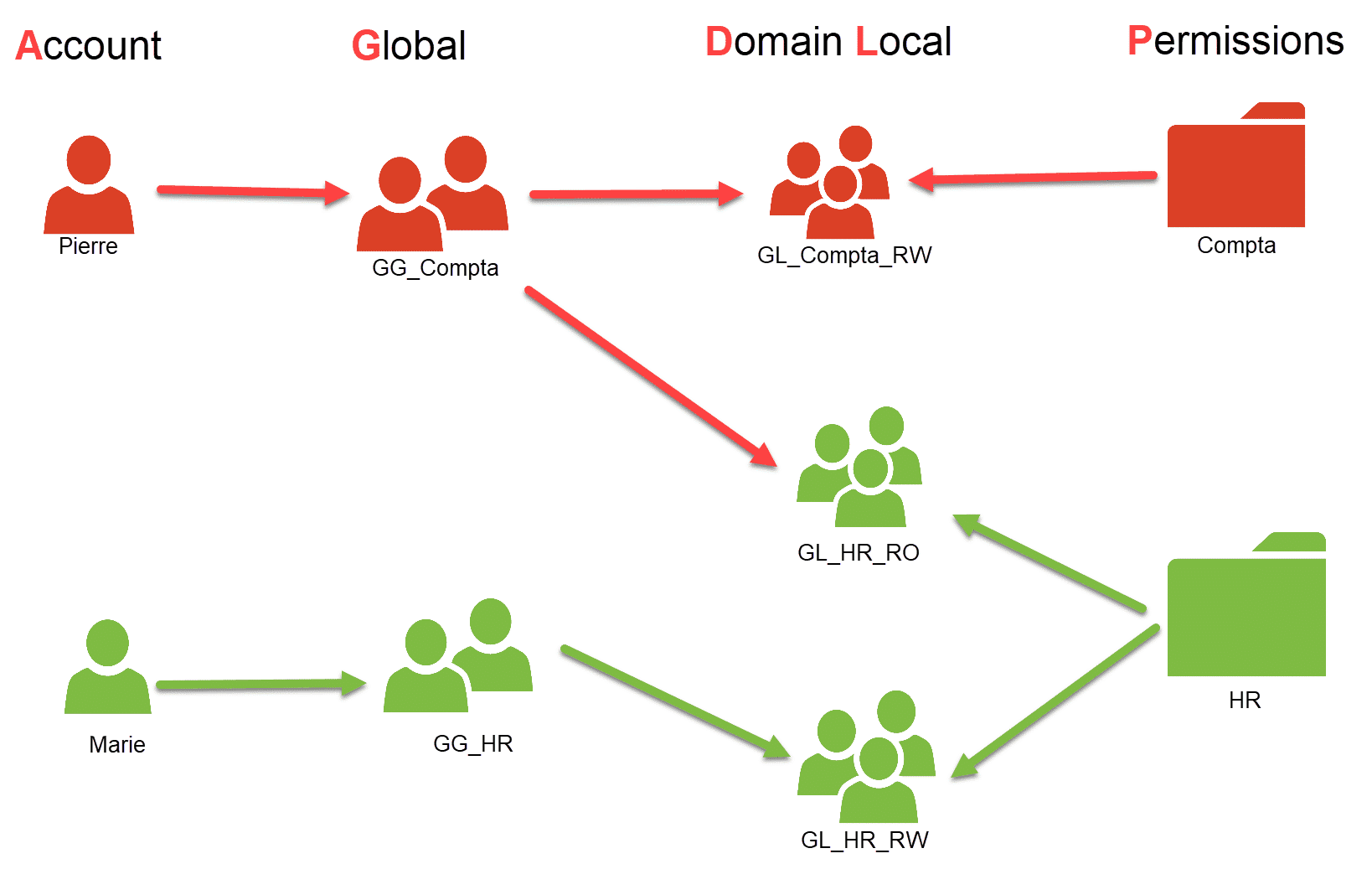
As you can see, we’re using a ‘Russian doll’ approach to manage access permissions for resources.
If we take the example of Pierre, who works in the Accounts department, he is part of the global group GG_Compta; this group is a member of the local groups GL_Compta_RW and GL_HR_RO, which are used to grant read/write access permissions to the Accounts folder and read-only access to the HR folder.
In summary, Pierre can write to the ‘Compta’ folder and has read-only access to the ‘HR’ folder.
Why do we use a local domain group instead of a global group? In a ‘simple’ Active Directory environment, there is no difference between using one group or the other, but this becomes important when approval relationships exist. The global group can be used across all domains in the forest and in approved domains to set permissions, which can create a “security vulnerability”, whereas the local domain group can only be used on resources within its own domain.
I’m now going to show you exactly how this works on a server.
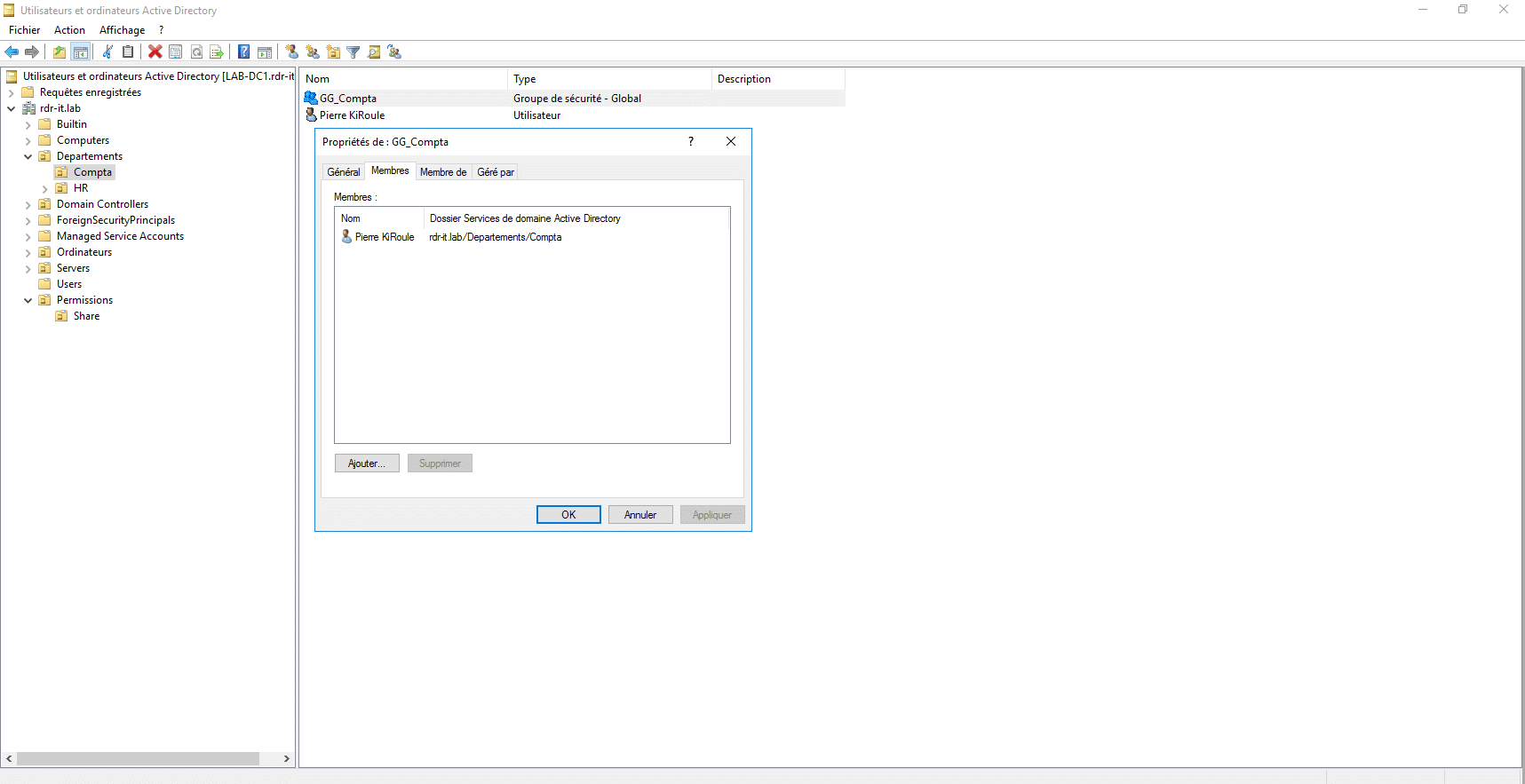
In the screenshot below, you can see the Global GG_Compta group, of which Pierre is a member.
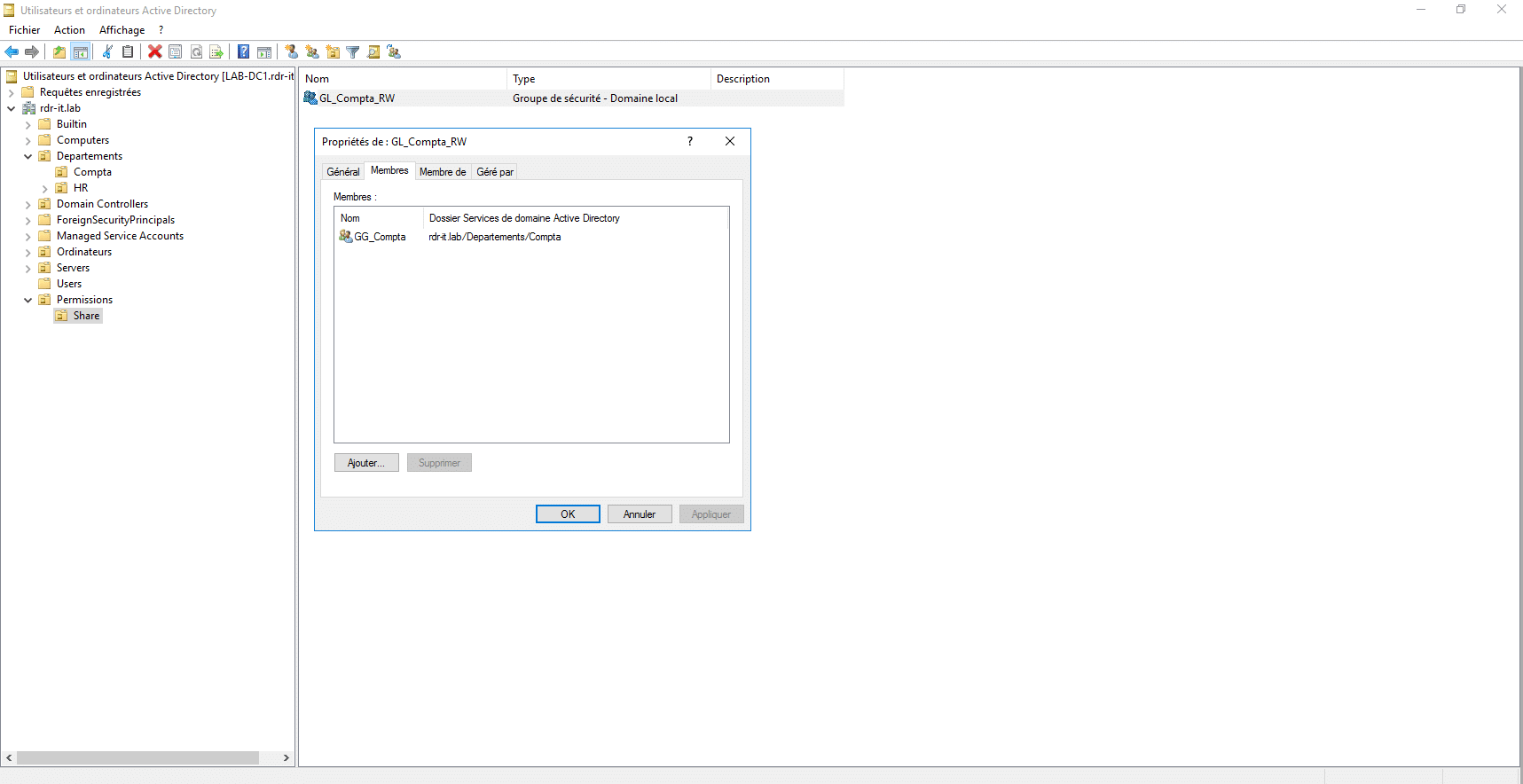
Below is the local group GG_Compta_RW, which we will use for NTFS permissions; I have added the GG_Compta group as a member.
Now we need to configure the NTFS permissions correctly
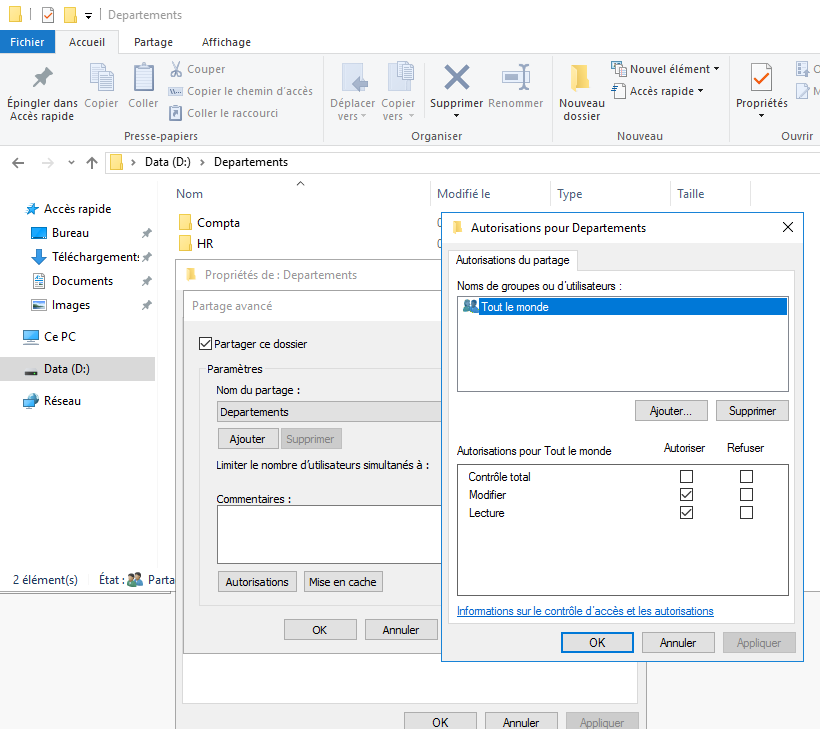
On the file server, I have a ‘Departments’ folder which is shared with SMB permissions set to ‘Read/Write’ for everyone and the default NTFS permissions. This folder will contain the various working folders for the company’s different departments.
We are going to configure the NTFS permissions for the ‘Compta’ folder.
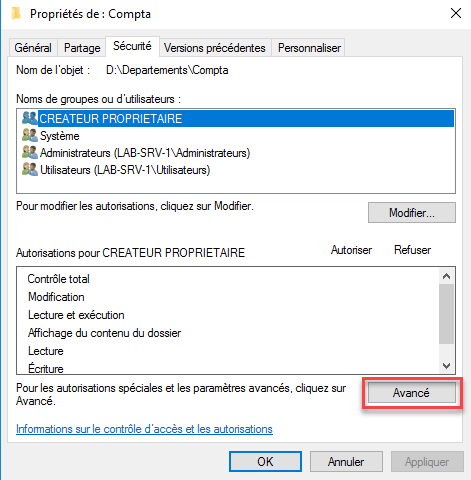
From the Security tab in the Accounting folder, click the Advanced button.
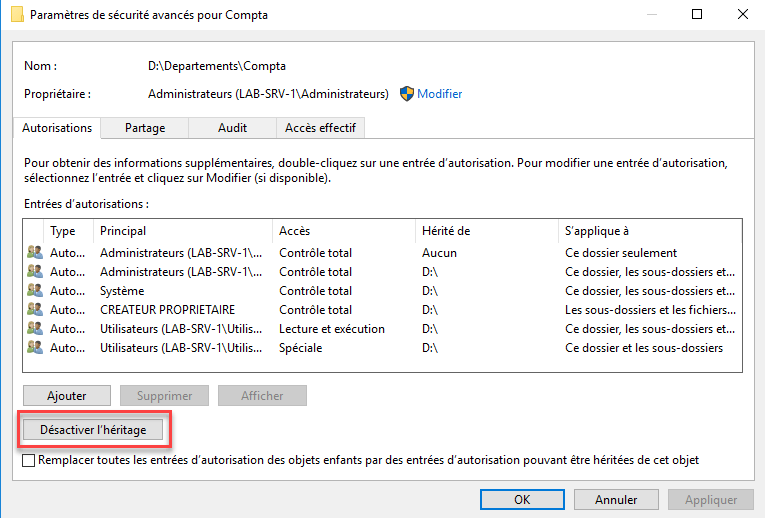
The first step is to disable NTFS permission inheritance. To do this, click the ‘Disable inheritance’ button and convert the permissions to explicit permissions by clicking ‘Convert inherited permissions to explicit permissions on this object’.
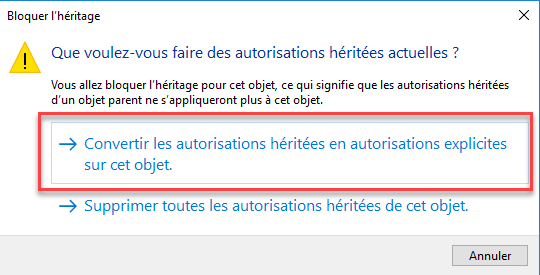
Remember to click the ‘Apply’ button and close the advanced permissions window.
Back on the Security tab in the Accounting folder, click the Edit button.
Select the ‘Users’ group and remove the permissions.
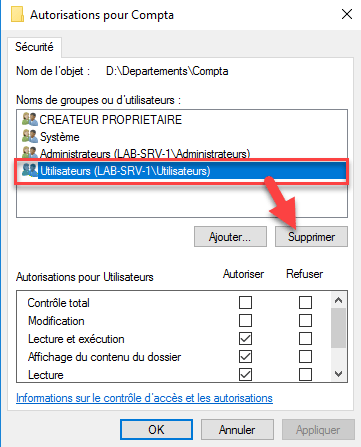
As a reminder, the ‘Users’ group is removed because, in an Active Directory domain, when joining the domain, the domain’s ‘Users’ group is added to the local (computer) ‘Users’ group, which grants it read permissions by default.
Now, click the Add button, select the GL_Compta_RW group to add it, and tick the permissions that should be applied to it. Finish by clicking the Apply button.
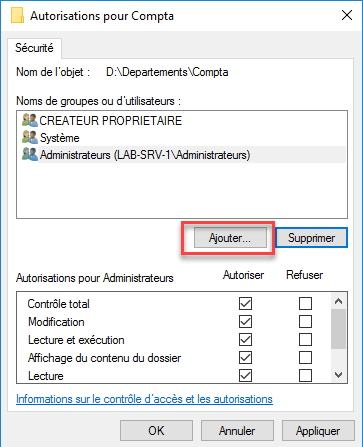
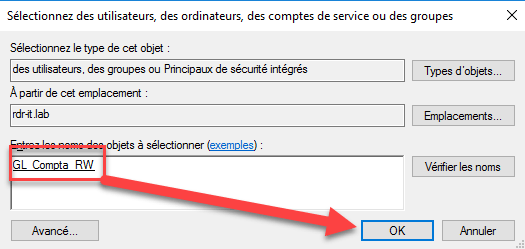
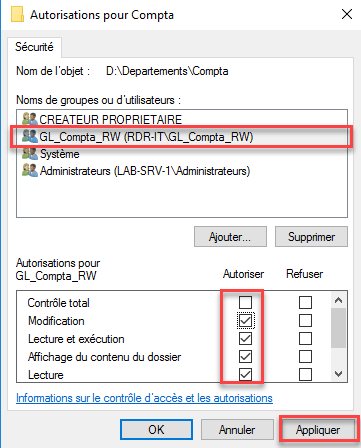
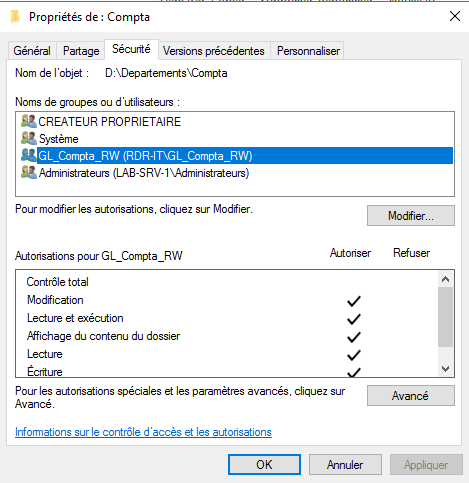
NTFS permissions have been configured.
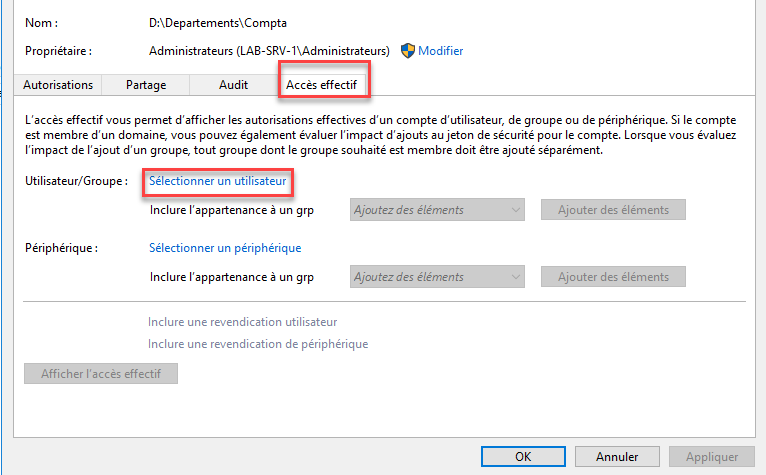
In the advanced section, there is a tool that allows you to test permissions; go to the ‘Actual Access’ tab and click on ‘Select a user’.
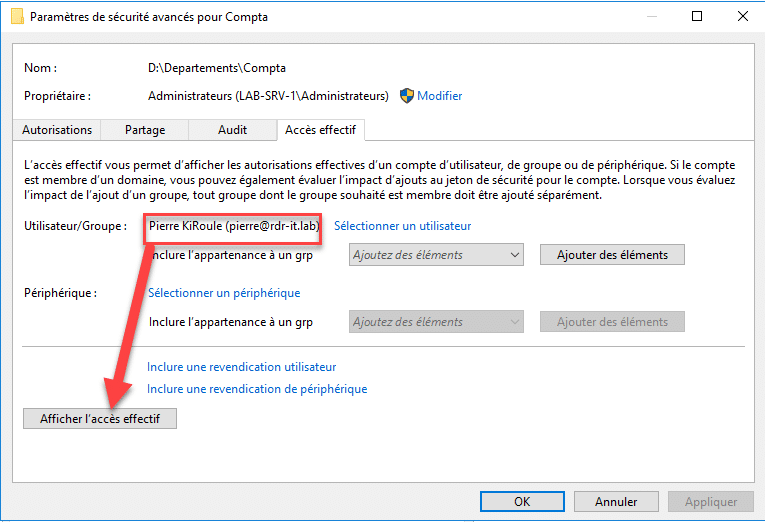
Select a user or group and click on ‘View actual access’.
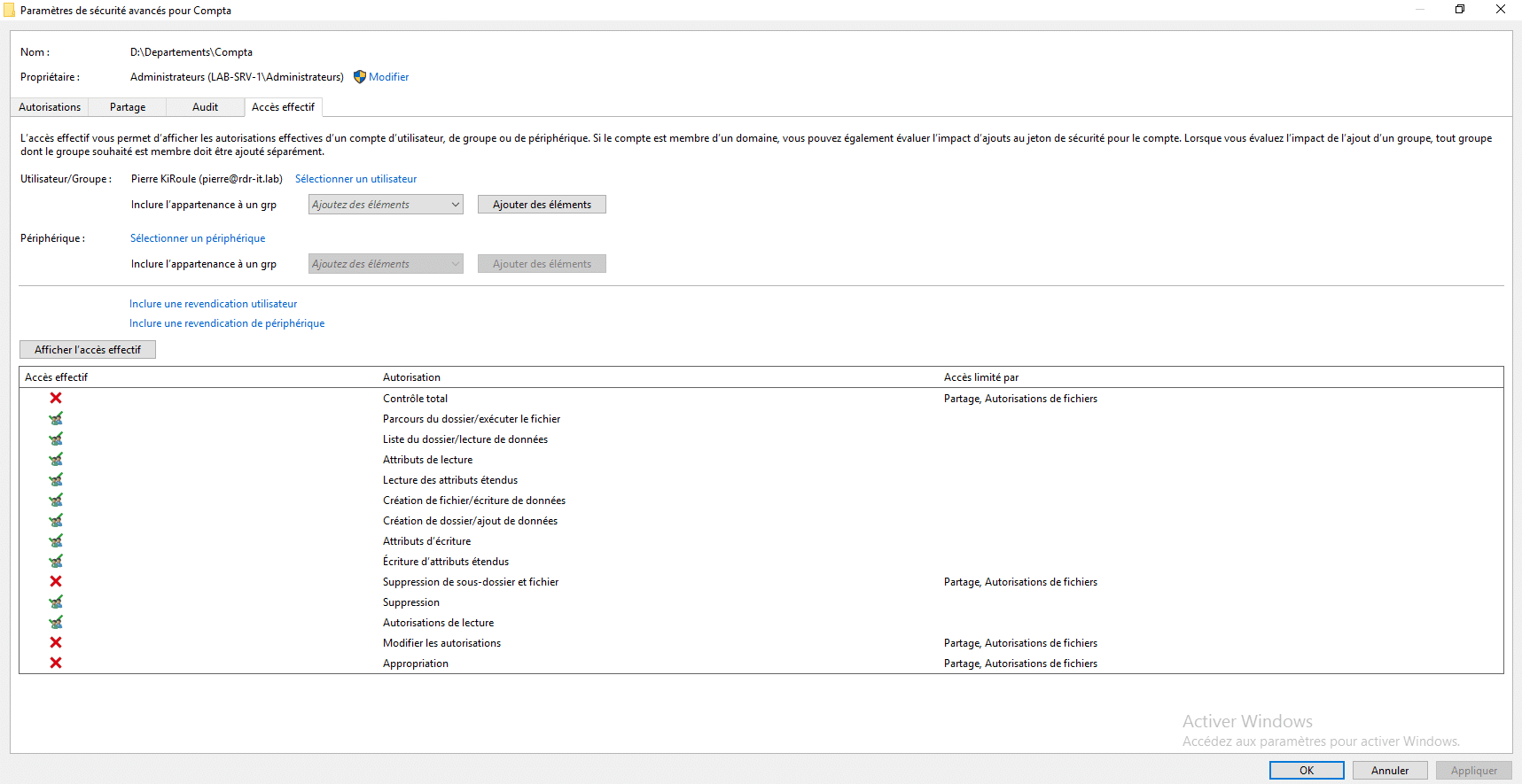
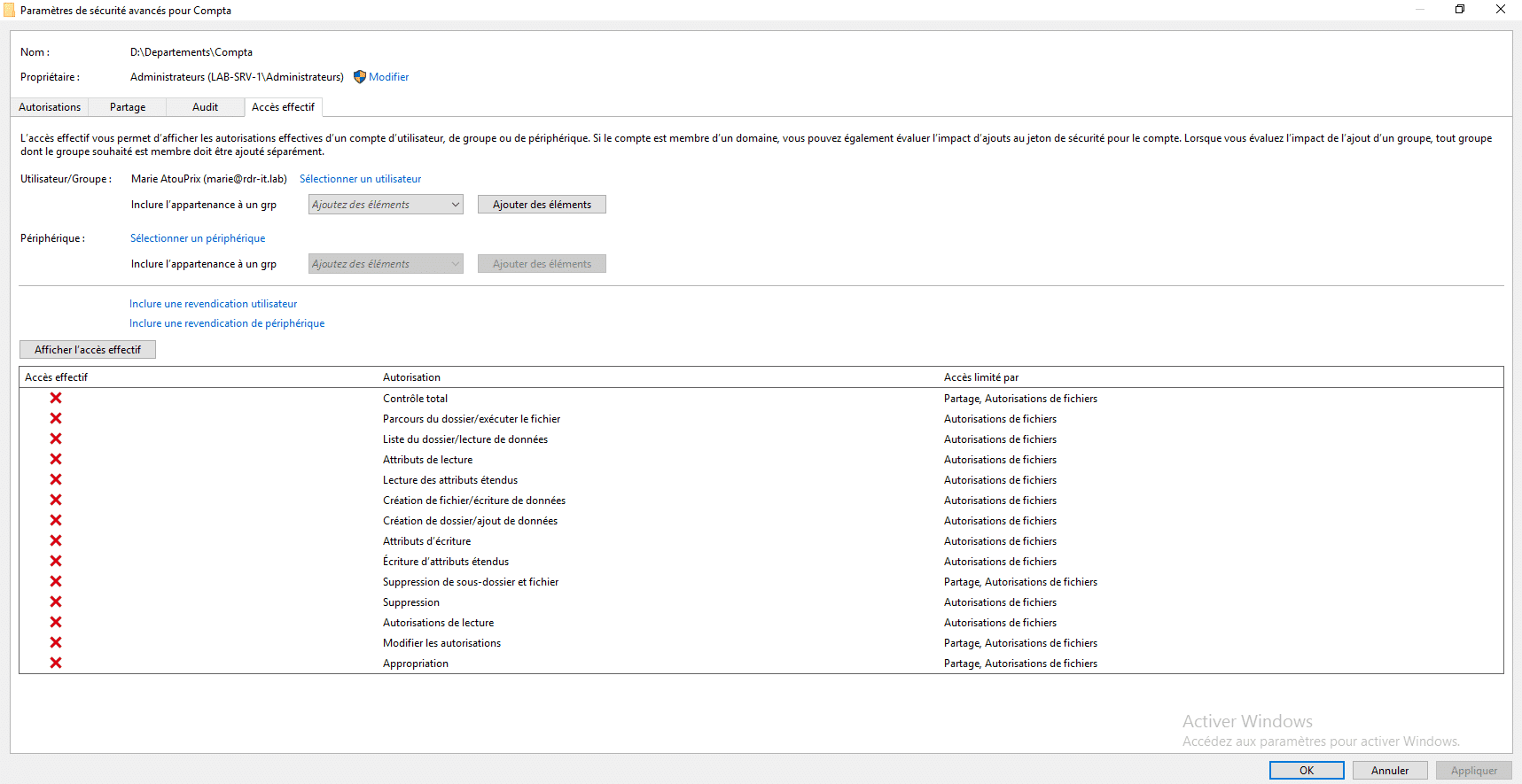
Below are the results of the access test for Pierre and Marie:
You now have all the basic information you need to use AGDLP and set the correct permissions on your shared folders.
With regard to AGUDLP, we have recently started using a Universal group between the global group and the local domain; this method is used in multi-domain environments.
Conclusion
I’ll try to keep this brief, because if you’ve got this far, you might be feeling a bit of a headache…
In my view, this AGDLP method should be used as much as possible whenever feasible, whether for accessing shared resources or applications, as it makes it easier to apply permissions by placing people in the correct group.
In reality, it can be difficult to stick to this method when you have unusual requests … For example, if you’re asked to ensure that Marie is the only person in the HR department who can read and write to the accounts folder, my advice in this case is to add Marie to the GL_Compta_RW group and, above all, not to set any named permissions in the NTFS permissions.