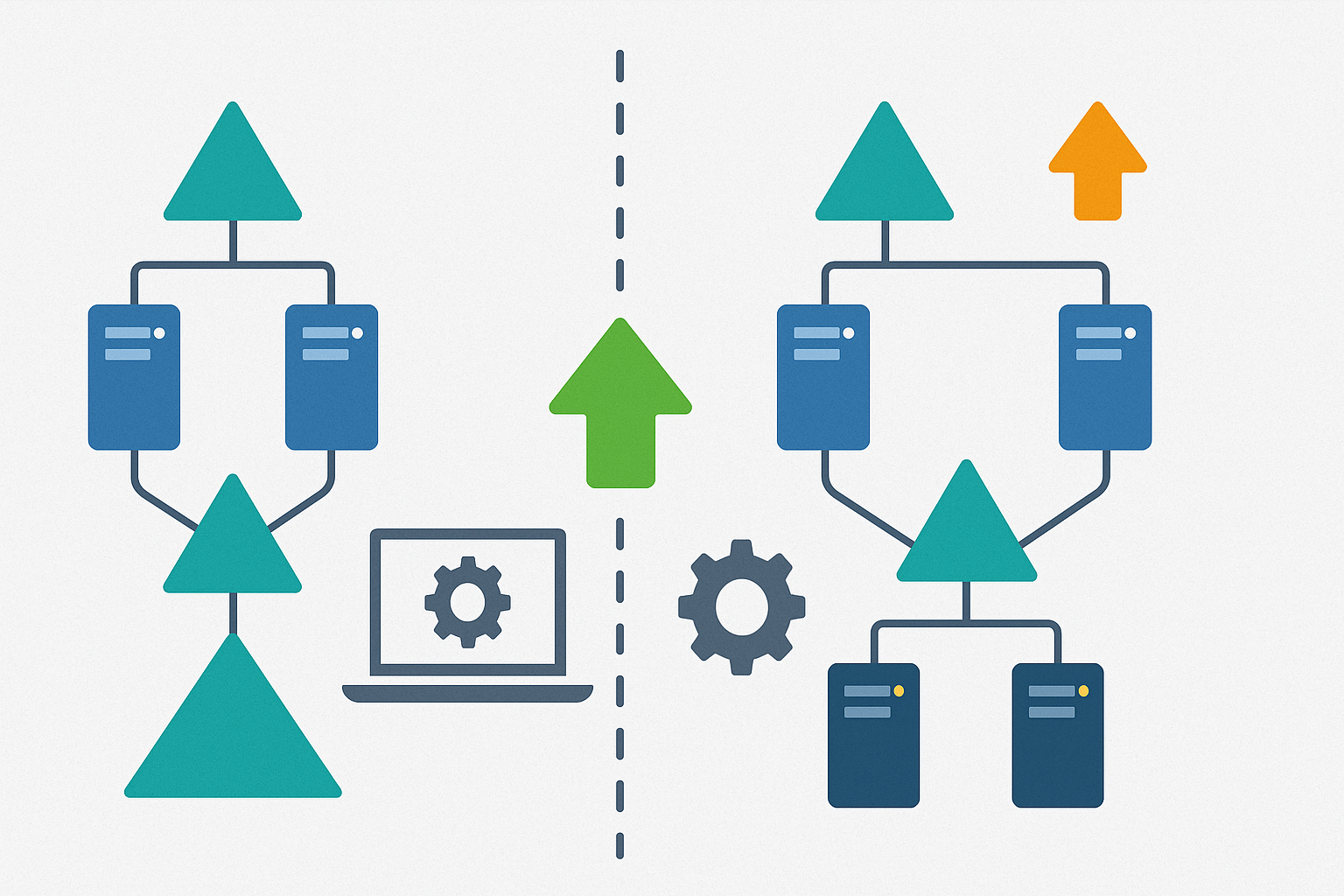
After seeing how to increase the functional level of the domain and the forest using the different Active Directory administration consoles, I will explain how to do this same operation using PowerShell.
Before performing this operation, you must identify which level you want to go to, generally we will go to the level which will correspond to the version of the domain controller is the oldest.
If you have an environment at 2008R2 level and you have two domain controllers, one Windows Server 2016 and one Windows Server 2025, you can increase the functional level to Windows2016Domain. To go to 2025 level, you only need to have domain controllers in Windows Server 2025 version.
Before performing this operation, you must ensure that your environment is healthy. To do this, on each domain controller, use the dcdiag command to check the status of the Active Directory domain controllers.
Increasing the functional level of your domain and forest will allow you to benefit from the latest features available in Active Directory. You will find the various changes on this page.: https://learn.microsoft.com/fr-fr/windows-server/identity/ad-ds/active-directory-functional-levels .
Once the functional level has been changed, it is not possible to go back, so it is imperative before doing this operation, to ensure that your entire environment will support the change, such as Exchange, SharePoint or any other application that has a link with your directory.
Regarding rights, to increase the domain functional level, you must be a member of the Domain Admins group and to increase the forest functional level, you must be a member of the Enterprise Admins group.
Increase the functional level of the domain
To do this, we will use the PowerShell commandSet-ADDomainMode.
From a domain controller, open a PowerShell command prompt and load the activedirectory module:
import-module activedirectory
To change the functional level to Windows2025Domain level:
Sert-ADDomainMode domain.tdl -DomainMode Windows2025Domain
The order requires confirmation
Here is the list of values for the -DomainMode parameter:
- Windows2000Domain
- Windows2003InterimDomain
- Windows2003Domain
- Windows2008Domain
- Windows2008R2Domain
- Windows2012Domain
- Windows2012R2Domain
- Windows2016Domain
- Windows2025Domain
Increase the functional level of the forest
To increase the functional level of the forest, we will use the command : Set-ADForestMode.
To make this change, you must be a member of the Company Admins group.
Import the activedirectory module:
import-module activedirectory
To change the forest functional level to Windows2025Forest:
Set-ADForestMode domain.tdl -ForestMode Windows2025Forest
Here too, you must confirm the execution of the command.
Here is the list of values for the -ForestMode parameter:
- Windows2000Forest
- Windows2003InterimForest
- Windows2003Forest
- Windows2008Forest
- Windows2008R2Forest
- Windows2012Forest
- Windows2012R2Forest
- Windows2016Forest
- Windows2025Forest
View Functional Levels with PowerShell
To view functional levels with PowerShell, use the following commands:
Domain :
(Get-ADDomain).DomainMode
Forest :
(Get-ADForest).ForestMode
You know how to raise the domain and forest functional level with PowerShell, which is faster than through the various consoles.